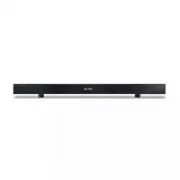
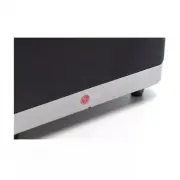
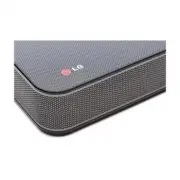
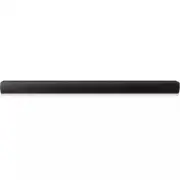
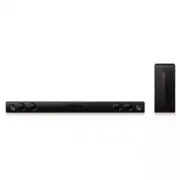
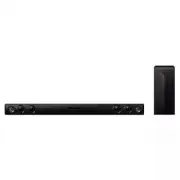
Page 2 - Safety information; CAUTION
1 Getting Started Getting Started 2 Getting S tar ted 1 Safety information CAUTION RISK OF ELECTRIC SHOCK DO NOT OPEN CAUTION: TO REDUCE THE RISK OF ELECTRIC SHOCK DO NOT REMOVE COVER (OR BACK) NO USER-SERVICEABLE PARTS INSIDE REFER SERVICING TO QUALIFIED SERVICE PERSONNEL. This lightning flash with...
Page 3 - IMPORTANT SAFETY
Getting Started 3 Getting S tar ted 1 IMPORTANT SAFETY INSTRUCTIONS 1. Read these instructions. 2. Keep these instructions.3. Heed all warnings. 4. Follow all instructions. 5. Do not use this apparatus near water. 6. Clean only with dry cloth. 7. Do not block any ventilation openings. Install in acc...
Page 5 - Table of Contents; Getting Started
Table of Contents 5 1 2 3 4 5 Table of Contents 1 Getting Started 2 Safety information 6 Unique features 6 – Portable In 6 – Speaker ez (easy) Setup 6 Accessories6 Introduction6 – Symbols Used in this Manual 7 Remote control 8 Front panel 8 Rear panel 9 Installing the sound bar 9 Installing the cove...
Page 6 - Unique features; Portable In; Accessories; Introduction; Symbols Used in this Manual; Note; Caution
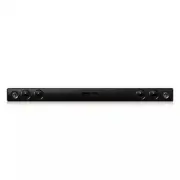
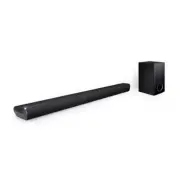
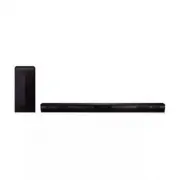
Getting Started 6 Getting S tar ted 1 Unique features Portable In Listen to music from your portable device. (MP3, Notebook, etc) Speaker ez (easy) Setup Listen to sound from TV, DVD or Digital device with vivid 2.1 or 2.0 ch mode. Accessories Please check and identify the supplied accessories. Remo...
Page 7 - Remote control; Battery Installation
Getting Started 7 Getting S tar ted 1 Remote control Battery Installation Remove the battery cover on the rear of the Remote Control, and insert two (size AAA) battery with and matched correctly. • • • • • • • • • • a • • • • • • • • • 1 (Power) : Switches the unit ON or OFF. INPUT : Selects the fun...
Page 8 - Front panel; Rear panel
Getting Started 8 Getting S tar ted 1 A 1/! B F (Function) Selects the function and input source. C - / + ( Volume -/+) Adjusts volume level. D T (Play/Pause) E I (Stop) F Remote sensor G Display window Precautions in using the touch buttons y Use the touch buttons with clean and dry hands. - In a h...
Page 9 - Installing the sound; Installing the cover
Getting Started 9 Getting S tar ted 1 Installing the sound bar You can hear the sound by connecting the unit to the other device : TV, Blu-ray disc player, DVD player, etc.Place the unit in front of the TV and connect it to the device you want. (Refer to pp.11 - 16) The unit does not support wall-mo...
Page 10 - Connecting IR
Getting Started 10 Getting S tar ted 1 Connecting IR transmitter IR transmitter is supplied as an accessory with the unit in order to communicate well with the remote control and the TV.Remote control of your TV may not be operated if the unit hides the remote sensor of the TV.You can solve the prob...
Page 11 - Connecting to your TV; Using an HDMI cable
2 Connecting Connecting 11 C onnecting 2 Connecting to your TV You can listen to the sound from your TV via the unit. There are two ways of connecting your TV to the unit. Using an HDMI cable You must connect the TV that supports ARC function if you want to listen to TV sound using an HDMI cable. An...
Page 12 - function
Connecting 12 C onnecting 2 ARC (Audio Return Channel) function The ARC function enables an HDMI capable TV to send the audio stream to HDMI OUT TO TV of the unit.To use this function : - Your TV must support the HDMI-CEC and ARC function and the HDMI-CEC and ARC must be set to On. - The setting met...
Page 13 - Using an OPTICAL cable
Connecting 13 C onnecting 2 y If a connected HDMI device does not accept the audio output of the player, the HDMI device’s audio sound may be distorted or may not output. y Changing the resolution when the connection has already been established may result in malfunctions. To solve the problem, turn...
Page 14 - Optional equipment; HDMI connection; For enjoying sound only; For enjoying both sound and picture
Connecting 14 C onnecting 2 Optional equipment connection HDMI connection For enjoying sound only You can enjoy the sound from the external device you connect. To the Blu-ray disc player, DVD player, etc. 1. Connect HDMI IN 1, 2, or 3 jack on the back of the unit to HDMI OUT jack on the audio device...
Page 15 - connection; Listening to music from your; OPTICAL IN connection
Connecting 15 C onnecting 2 PORT. (Portable) IN connection MP3 player, etc... Listening to music from your portable player The unit can be used to play the music from many types of portable players or external devices.1. Connect the portable player to the PORT. (Portable) IN connector of the unit. 2...
Page 16 - USB playback; Playable file; MP3/ WMA file requirement; Compatible USB devices
Connecting 16 C onnecting 2 USB playback Connect USB memory device to the USB port on the back of the unit. Removing the USB Device from the unit.1. Choose a different function/mode or press Z twice in a row. 2. Remove the USB device from the unit. Playable file MP3/ WMA file requirement MP3/ WMA fi...
Page 17 - Basic operations; USB operation; Other operations; DOLBY DRC (Dynamic Range
3 Operating Operating 17 Oper ating 3 Basic operations USB operation 1. Connect the USB device to the USB port.2. Select the USB function by pressing INPUT . 3. Select a file you want to play by pressing C or V . To Do this Stop Press Z . Playback Press d/M . Pause During playback, press d/M . Skip ...
Page 18 - Notice for Auto Power Off; Displaying file and input
Operating 18 Oper ating 3 AUTO POWER On/Off Before operating this function, make sure that you have selected OPTICAL and turn on the AUTO POWER.This function automatically turns on/off the unit when you turn on/off the external device ( TV, DVD Player, Blu-ray Disc Player, etc.) connected to this un...
Page 19 - Sleep timer setting
Operating 19 Oper ating 3 Sleep timer setting Press SLEEP repeatedly to select the desired time period options (in minutes):(Display window off (LCD OFF) -> Sleep timer value -> Display on)In display window you see “LCD OFF” or Sleep timer value and the display window turns off .To check the r...
Page 20 - Sound adjustment; Setting the surround mode; D Sound effect; Adjust the woofer level
Operating 20 Oper ating 3 Sound adjustment Setting the surround mode This system has a number of pre-set surround sound fields. You can select a desired sound mode by using SOUND EFFECT . The displayed items for the equalizer may be different depending on sound sources and effects. On Display Descri...
Page 21 - Controlling a TV with; Setting up the remote to
Operating 21 Oper ating 3 Controlling a TV with the supplied remote control You can control your TV using the buttons below. VOL + VOL - AV/INPUT PR/CH PR/CH Button Operation MUTE @ Turn the TV’s volume on or off. AV/INPUT Switch the TV’s input source between the TV and other input sources. 1 ( TV P...
Page 22 - Troubleshooting
4 Troubleshooting Troubleshooting 22 Trouble shoo ting 4 Troubleshooting PROBLEM CAUSE & CORRECTION No Power y The power cord is unpluged. Plug in the power cord. y Check the condition by operating other electronic devices. No sound y Incorrect input source is selected. Check the input source an...
Page 23 - Trademarks and
5 Appendix Appendix 23 Appendix 5 Trademarks and licenses Manufactured under license from Dolby Laboratories. Dolby and the double-D symbol are trademarks of Dolby Laboratories. Manufactured under license under U.S. Patent Nos: 5,956,674; 5,974,380; 6,487,535 & other U.S. and worldwide patents i...
Page 24 - Specifications
Appendix 24 Appendix 5 Specifications General Power requirements 120 V, 60 Hz Power consumption 25 W Dimensions ( W x H x D) 880 x 81 (94) x 119 mm (with foot) Net Weight (Approx.) 3.5 kg Operating temperature 41 °F to 95 °F (5 °C to 35 °C) Operating humidity 5 % to 90 % Bus Power Supply DC 5 V 0 50...
Page 25 - Maintenance; Handling the unit; When shipping the unit
Appendix 25 Appendix 5 Maintenance Handling the unit When shipping the unit Please save the original shipping carton and packing materials. If you need to ship the unit, for maximum protection, re-pack the unit as it was originally packed at the factory.Keeping the exterior surfaces clean y Do not u...