Page 2 - About this user guide; Instructional notices
About this user guide Thank you for choosing LG. Please carefully read this user guide before using the device for the first time to ensure safe and proper use. A Always use genuine LG accessories. The supplied items are designed only for this device and may not be compatible with other devices. A T...
Page 3 - LIMITED WARRANTY STATEMENT; Warranty Laws
2 LIMITED WARRANTY STATEMENT ARBITRATION NOTICE: THIS LIMITED WARRANTY CONTAINS AN ARBITRATION PROVISION THAT REQUIRES YOU AND LG TO RESOLVE DISPUTES BY BINDING ARBITRATION INSTEAD OF IN COURT, UNLESS YOU CHOOSE TO OPT OUT. IN ARBITRATION, CLASS ACTIONS AND JURY TRIALS ARE NOT PERMITTED. PLEASE SEE ...
Page 10 - Table of contents
9 Special Features .......................... 11 Gesture shot ............................................ 12 KnockON .................................................. 13 Knock Code .............................................. 14 Dual window ............................................. 15 QuickM...
Page 13 - Gesture shot; To take photo
Special Features 12 Gesture shot The Gesture shot feature allows you to take a picture with a hand gesture using the front camera. To take photo There are two methods for using the Gesture shot feature. A Raise your hand, with an open palm, until the front camera detects it and a box appears on the ...
Page 14 - KnockON; Turning the screen on
Special Features 13 KnockON The KnockON feature allows you to double-tap the screen to easily turn it on or off. Turning the screen on While the screen is off, quickly double-tap the center of the dark screen to turn on the backlight and display the Lock screen. Turning the screen off Quickly double...
Page 15 - Knock Code; Setting up the Knock Code feature; Unlocking the screen using the Knock Code
Special Features 14 Knock Code The Knock Code feature allows you to create your own unlock code using a combination of knocks on the screen. You can access the Home screen directly when the screen is off by tapping the same sequence on the screen. NOTE : A If you enter the wrong Knock Code 6 times, ...
Page 17 - Using the QuickMemo+ app
Special Features 16 QuickMemo+ The QuickMemo+ feature allows you to create memos by capturing screen shots and drawing on them or entering text. QuickMemo+ functionality is different depending on the following four entry points. Using the QuickMemo+ app 1 Tap > > to create and manage fun and p...
Page 18 - Accessing QuickMemo+ using the Share function
Special Features 17 Accessing QuickMemo+ using the Share function Allows you to access the QuickMemo+ app and attach files by using the Share function. 1 Select a file, such as an image. 2 Tap > in the Share via pop-up menu. 3 Edit the memo as desired.
Page 19 - Using the QuickMemo+ Panel
Special Features 18 Using the QuickMemo+ Panel The QuickMemo+ panel on the Home screen allows quick access to the QuickMemo+ app to easily create memos. 1 While on the Home screen, swipe to the left to access the QuickMemo+ panel. 2 Tap anywhere on the screen to create a memo. 3 Tap to save the curr...
Page 20 - Capturing a screen shot and drawing on it
Special Features 19 30% 30% Capturing a screen shot and drawing on it You can also capture a screen shot and quickly draw on it or jot down some notes. 1 While viewing the screen you want to capture and use in your memo. A Drag the Status Bar down and tap . OR A Press and hold both the Volume Up Key...
Page 21 - To view your saved memos; Using QSlide
Special Features 20 To view your saved memos A Tap > > > the QuickMemo+ folder. OR A Tap > > and select the desired memo. QSlide From any screen, use the Notification panel to easily access and use the Calendar, Calculator, and more with QSlide. Using QSlide 1 Touch and slide the stat...
Page 22 - Set up QuickRemote; Using QuickRemote
Special Features 21 QuickRemote You can control many electronic devices in different locations by using your device as a remote control. Set up QuickRemote 1 Touch and slide the status bar downward and tap > ADD REMOTE . If you can not see , tap > checkmark QuickRemote to enable it. OR Tap >...
Page 24 - Accessories
Basics 23 Accessories There are a variety of accessories available for your mobile device, some of which may be sold separately. You can select these options according to your personal communication requirements. Visit your local AT&T store or www.att.com/wirelessaccessories for specific offerin...
Page 25 - Device layout; Front view
Basics 24 Device layout Front view Volume keys Front Camera Lens Charger/ USB port Power/Lock key Headset jack Speaker
Page 26 - Back view
Basics 25 Back view SIM card/microSD card slot Rear Camera Lens Infrared (IR) LEDMicrophone Front Camera Lens Use to take pictures and record videos of yourself. You can also use this for video chatting. Keep it clean for optimal performance. Volume keys Allow you to adjust the media volumes. Press ...
Page 28 - Charging the device
Basics 27 Charging the device Charge the battery before using it for first time. Use the charger included with your device to charge the battery. A computer can also be used to charge the battery by connecting the device to it using the USB cable. WARNING A Use only LG-approved chargers, batteries a...
Page 29 - Installing the SIM card or microSD card
Basics 28 Installing the SIM card or microSD card Before you can start exploring your new device, you need to set it up.Your device supports the use of microSD memory cards of up to 2TB capacity. Multimedia contents can be saved in the microSD card. 1 Open the SIM/microSD slot cover. 2 Slide the SIM...
Page 30 - Removing the memory card; Google Account Setup; Creating your Google account
Basics 29 Removing the memory card Before removing the memory card, first unmount it for safe removal. 1 Tap > > > Storage & USB > . 2 Open the card slot cover and press the memory card in to unlock it. Then pull it out of the slot. WARNING A Do not remove the memory card while the d...
Page 31 - Signing into your Google account
Basics 30 Signing into your Google account 1 Tap > > > Accounts & sync . 2 Tap Add account > Google . 3 Enter your email address and tap NEXT . 4 Follow the instructions on the screen. After signing in, your device will sync with your Google services, such as Gmail, Contacts, and Goo...
Page 32 - Locking and unlocking the device; Changing the screen lock method
Basics 31 Locking and unlocking the device Pressing the Power/Lock Key turns off the screen and puts the device into lock mode. The device automatically gets locked if it is not used for a specified period. This helps to prevent accidental taps and saves battery power. To unlock the device, press th...
Page 33 - Smart Lock; Setting up the Smart Lock feature
Basics 32 Smart Lock You can use Smart Lock to make unlocking your device easier. You can set it to keep your device unlocked when you have a trusted Bluetooth device connected to it, when it's in a familiar location like your home or work, or when it recognizes your face or voice, or when it detect...
Page 34 - Your Home screen; Touch screen tips
Basics 33 Your Home screen Touch screen tips Here are some tips on how to navigate on your device. A Tap or touch – A single finger tap selects items, links, shortcuts and letters on the on-screen keyboard. A Touch and hold – Touch and hold an item on the screen by tapping it and not lifting your fi...
Page 36 - Extended Home screen; Customizing the Home screen; Adding items on your Home screen
Basics 35 Back Button Returns to the previous screen. Also closes pop-up items, such as menus, dialog boxes and the on-screen keyboard. Home Button Return to the Home screen from any screen. Touch and hold to access the Google Now shortcut. Overview Button Displays recently used applications. If you...
Page 37 - Customizing app icons on the Home screen; Returning to recently-used applications
Basics 36 Removing an item from the Home screen A While on the Home screen, touch and hold the icon you want to remove then drag it to and release it. Adding an app to the Quick Button area A From the Apps screen or on the Home screen, touch and hold an application icon and drag it to the Quick Butt...
Page 38 - Notifications panel; Opening the Notifications panel
Basics 37 Notifications panel Notifications alert you to the arrival of new messages, calendar events and alarms, as well as ongoing events, such as downloads.When a notification arrives, its icon appears at the top of the screen. Icons for pending notifications appear on the left, and system icons,...
Page 39 - Indicator icons on the Status Bar
Basics 38 Tap to clear all of the notifications. Indicator icons on the Status Bar Indicator icons appear on the Status Bar at the top of the screen to calendar events, device status and more. The icons displayed at the top of the screen provide information about the status of the device. The icons ...
Page 40 - Using the keypad and entering text
Basics 39 The keyboard is connected The mouse is connected NOTE : A The icon's location in the Status Bar may differ depending on the function or service. On-screen keyboard You can enter text using the on-screen keyboard. The on-screen keyboard appears on the screen when you tap an available text e...
Page 41 - Entering special characters
Basics 40 A Split – Allows you to split the keyboard for easier text entry with both hands. You can also spread two fingers across the keyboard to split it. Join two fingers across the keyboard to merge it. A Floating – Displays a small floating keyboard and allows you to move it around the screen. ...
Page 42 - Connecting to Networks and Devices; Connecting to Wi-Fi networks; Bluetooth
Basics 41 Connecting to Networks and Devices Wi-Fi You can use high-speed Internet access while within the coverage of the wireless access point (AP). Connecting to Wi-Fi networks 1 Tap > > > Wi-Fi . 2 Tap to turn Wi-Fi on and start scanning for available Wi-Fi networks. 3 Tap a network to ...
Page 43 - Pairing your device with another Bluetooth device; Sending data via Bluetooth
Basics 42 NOTE : A LG is not responsible for the loss, interception or misuse of data sent or received via the Bluetooth feature. A Always make sure that you share and receive data with devices that are trusted and properly secured. A If there are obstacles between the devices, the operating distanc...
Page 44 - Receiving data via Bluetooth; Turning on Wi-Fi Direct
Basics 43 Receiving data via Bluetooth 1 Tap > > > Bluetooth . 2 Tap to turn Bluetooth on. 3 You will receive a request to accept data from the sending device. Be sure to select ACCEPT . Wi-Fi Direct Wi-Fi Direct provides a direct connection between Wi-Fi enabled devices without requiring a...
Page 45 - Enjoying content from nearby devices; Transferring data between a PC and your device; Transferring data
Basics 44 Enjoying content from nearby devices 1 To connect nearby devices to your device, tap the Nearby devices option on the Gallery and Music apps. A Make sure that your device and nearby devices are connected to the same Wi-Fi network and that the DLNA service on the nearby device is turned on....
Page 46 - LG Bridge; Features of LG Bridge
Basics 45 LG Bridge LG Bridge is an application that helps you conveniently manage images, music, videos, documents, etc. saved on a LG mobile device on your PC. Also, you can back up your files such as contacts and images to your PC or update software of a mobile device. NOTE A You can see detailed...
Page 48 - Contacts; Searching for a contact; Adding a new contact; Favorites contacts; Adding a contact to your favorites
Apps 47 Contacts You can add contacts on your device and synchronize them with the contacts in your Google Account or other accounts that support syncing contacts. Searching for a contact 1 Tap > > to open your contacts. 2 Tap Search contacts and enter the contact name using the keyboard. Addi...
Page 49 - Creating a group; Email; Setting up email accounts
Apps 48 Creating a group 1 Tap to open your contacts. 2 Tap Groups > . 3 Enter a name for the new group. 4 Tap Add members to add contacts to the group. 5 Select the desired contacts and tap ADD . 6 Tap SAVE to save the group. NOTE A If you delete a group, the contacts assigned to that group will...
Page 50 - Working with account folders; Composing and sending email
Apps 49 Working with account folders Each account has folders list like Inbox, Drafts, Outbox, Sent and VIP. Depending on the features supported by your account's service provider, you may have additional folders listed along the left side of the app screen. A Tap > > > Add folder (along th...
Page 51 - Camera and Video; Camera options on the viewfinder
Apps 50 Camera and Video Camera options on the viewfinder You can use the camera or camcorder to take and share pictures and videos. A Tap > > . NOTE A Be sure to clean the protective lens cover with a microfiber cloth before taking pictures. A lens cover with smudges from fingers can cause bl...
Page 52 - Using the advanced settings; Taking a photo
Apps 51 Tap to take a photo. Tap to exit the camera. Using the advanced settings In the camera viewfinder, tap to show the advanced options. Tap each icon to adjust the following camera settings. AUTO HDR Combines photos taken at multiple exposures into one optimal photo to get a better photo in dif...
Page 53 - Burst shot; Once you have taken a photo
Apps 52 Multi-point Auto-focus When you take a picture, the Multi-point Auto-focus function operates automatically and allows you to see a clear image. Burst shot Allows you to take multiple shots quickly. Touch and hold . Once you have taken a photo Tap the image thumbnail on the screen to view the...
Page 54 - Live Shot; Live Zoom; Dual Play
Apps 53 Live Shot Allows you to capture a screen shot while recording a video. Tap . Live Zoom Live Zoom allows you to zoom in or out on a portion of a video that is being played to make the desired section appear larger or smaller.When viewing a video, use your index finger and thumb in a pinching ...
Page 56 - Memories view; Zooming in and out
Apps 55 Viewing pictures The Gallery displays your pictures in folders. When some apps save a picture, a folder is automatically created to contain the picture.Pictures are displayed by the date they were created. Select a picture to view it full screen. Scroll left or right to view the next or prev...
Page 58 - Setting wallpaper
Apps 57 Editing photos While viewing a photo, tap . Deleting photos/videos Use one of the following methods: A While in a folder, tap , select the photos/videos you want to delete. Then tap DELETE . A While viewing a photo, tap . Setting wallpaper While viewing a photo, tap > Set image as to set ...
Page 59 - Multimedia; Music; Playing a song
Apps 58 Multimedia Music Your device has a music player that lets you play all your favorite tracks. Playing a song 1 Tap > > . 2 Tap the Songs tab. 3 Select the song you want to play. 4 The following options are available. Tap to play the current playlist in shuffle mode (tracks are played in...
Page 61 - Clock; Alarms; Timer
Apps 60 Clock The Clock app gives you access to the Alarms, Timer, World clock and Stopwatch functions. Access these functions by tapping the tabs across the top of the screen or swiping horizontally across the screen. A Tap > > . Alarms The Alarms tab allows you to set alarms. 1 Tap the Alarm...
Page 62 - Calculator; Calendar
Apps 61 Stopwatch The Stopwatch tab allows you to use your device as a stopwatch. 1 Tap the Stopwatch tab. 2 Tap Start to initiate the stopwatch. A Tap Lap to record lap times. 3 Tap Stop to stop stopwatch. Calculator The Calculator app allows you to perform mathematical calculations using a standar...
Page 63 - Browser; Using the Web toolbar; Opening a page
Apps 62 Browser The Browser gives you a fast, full-color world of games, music, news, sports, entertainment, and much more, right on your device. NOTE A Additional charges apply when connecting to these services and downloading content. Check data charges with your network provider. 1 Tap > > ...
Page 64 - Searching the web by voice; Bookmarks
Apps 63 Searching the web by voice Tap the address field and then tap . When prompted, say a keyword and select one of the suggested keywords that appear. NOTE A This feature may not be available depending on the region or service provider. Bookmarks To open a bookmarked webpage, tap and select the ...
Page 65 - About backing up and restoring device data; To backup your device data
Apps 64 LG Backup About backing up and restoring device data It is recommended that you regularly create and save a backup file on the internal storage, especially before updating any software. Maintaining a current backup file in storage memory may allow you to recover device data if your device is...
Page 66 - Google apps
Apps 65 Google apps Google provides entertainment, social network, and business apps. You may require a Google account to access some apps.To view more app information, access each app’s help menu. NOTE A Some apps may not be available depending on the region or service provider. Google Search quick...
Page 67 - Photos
Apps 66 Photos Manage photos, albums, and videos that you have saved on the device and uploaded to Google+. Voice Search Search quickly for items by saying a keyword or phrase.
Page 69 - Settings; To open the Settings application; WIRELESS NETWORKS; Airplane mode
Settings 68 Settings The Settings application contains most of the tools for customizing and configuring your device. All of the settings in the Settings application are described in this section. To open the Settings application A Tap > touch and hold > All settings . OR A Tap > > . WIR...
Page 70 - More; DEVICE; Sounds & notification
Settings 69 A LG AirDrive – Allows you to connect to your PC to manage your device. A Printing – Allows you to print the content of certain screens (such as web pages displayed in Chrome) to a printer connected to the same Wi-Fi network as your Android device. More A Mobile networks – Set options fo...
Page 71 - Display
Settings 70 Apps Allows you to prevent apps from displaying notifications or set apps to show notifications with priority when Do not disturb is set to Priority only. Touch sound Allows you to set your tablet to play a sound when you touch buttons, icons and other onscreen items that react to your t...
Page 73 - Battery & power saving
Settings 72 Weather animation Enable to show weather animations on the lock screen for the current location. Contact info for lost tablet Allows you to display the tablet owner information on the lock screen and customize the owner information. Lock timer Allows you to set the amount of time before ...
Page 75 - PERSONAL; Users
Settings 74 PERSONAL Users This menu displays the current users you've created. Add user Allows you to add new account for the device and use the Multi-user feature. Location By turning on the location service, your device determines your approximate location using Wi-Fi and mobile networks. A Mode ...
Page 77 - Google; SYSTEM; Shortcut key
Settings 76 Backup & reset Change the settings for managing your settings and data. LG Backup Backs up all information on the device and restores it in the event of data loss or replacement. Back up my data Back up app data, Wi-Fi passwords, and other settings to Google servers. Backup account D...
Page 78 - Accessibility
Settings 77 Date & time Use Date & time settings to set how dates will be displayed. You can also use these settings to set your own time and time zone rather than obtaining the current time from the mobile network. Accessibility Use the Accessibility settings to configure accessibility plug...
Page 82 - Software Update; Device Software Update
Appendix 81 Software Update Device Software Update This feature allows you to update the firmware of your device to the latest version conveniently from the internet without the need to visit a service center.For more information on how to use this function, please visit: http://www.lg.com/common/in...
Page 83 - FAQ
Appendix 82 FAQ This chapter lists some problems you might encounter when using your device. Some problems require you to call your service provider, but most are easy to fix yourself. Message Possible causes Possible corrective measures No applications can be set Not supported by service provider o...
Page 86 - More information; Open Source Software Notice Information
Appendix 85 More information Open Source Software Notice Information To obtain the source code under GPL, LGPL, MPL, and other open source licenses, that is contained in this product, please visit http://opensource.lge.com.In addition to the source code, all referred license terms, warranty disclaim...
Page 87 - DivX HD
Appendix 86 DivX HD This DivX Certified® device has passed rigorous testing to ensure it plays DivX® video.To play purchased DivX movies, first register your device at vod.divx.com. Find your registration code in the DivX VOD section of your device setup menu. DivX Certified® to play DivX® video up ...
Page 89 - Important Information; ELECTRICAL SAFETY
For Your Safety 88 Important Information This user guide contains important information on the use and operation of this device. Please read all the information carefully for optimal performance and to prevent any damage to or misuse of the device. Any changes or modifications not expressly approved...
Page 90 - SAFETY PRECAUTIONS FOR POWER SUPPLY UNIT
For Your Safety 89 SAFETY PRECAUTIONS FOR POWER SUPPLY UNIT Use the correct external power source A product should be operated only from the type of power source indicated on the electrical ratings label. If you are not sure of the type of power source required, consult your authorized service provi...
Page 91 - Safety Information
For Your Safety 90 A Do not disassemble the tablet. A Do not attempt to repair or modify the device yourself. Your device is equipped with an internal rechargeable battery which should be replaced only by LG or an authorized LG repair center. A You should never attempt to open or disassemble this de...
Page 92 - Charger and Adapter Safety
For Your Safety 91 A Do not short circuit a battery or allow metallic conductive objects to contact battery terminals. A Replace the battery only with another battery that has been qualified with the system per this standard, IEEE-Std-1725. Use of an unqualified battery may present a risk of fire, e...
Page 93 - Battery Information and Care
For Your Safety 92 Battery Information and Care A Please read the manual of proper installation and removal of the battery. A Please read the manual of specified charger about charging method. A Do not damage the power cord by bending, twisting, or heating. Do not use the plug if it is loose as it m...
Page 94 - Care and Maintenance; Keep your Mobile Device away from: Liquids of any kind
For Your Safety 93 A When using the device for the first time, if it emits a bad smell, you see rust on it, or anything else abnormal, do not use the equipment and bring the battery to the shop which it was bought. A Keep device away from babies and small children. If children use the battery, their...
Page 97 - FCC RF Exposure Information; Bodily Contact During Operation
For Your Safety 96 limits are designed to provide reasonable protection against harmful interference in a residential installation. This equipment generates uses and can radiate radio frequency energy and, if not installed and used in accordance with the instructions, may cause harmful interference ...
Page 102 - Consumer Information on SAR
For Your Safety 101 International Commission on Non-Ionizing Radiation Protection c/o Bundesamt fur StrahlenschutzIngolstaedter Landstr. 185764 OberschleissheimGermanyTelephone: 011 49 1888 333 2156http://www.icnirp.de Engineering in Medicine and Biology Society, Committee on Man and Radiation (COMA...
Page 105 - TIA Safety Information; Exposure to Radio Frequency Signal
For Your Safety 104 You can obtain additional information on this subject from the following sources: Safety 205 American Academy of Audiology 11730 Plaza American Drive, Suite 300Reston, VA 20190Voice: (800) 222-2336Email: [email protected]Internet: www.audiology.orgNational Institute on Deafness a...
Page 106 - Antenna Care
For Your Safety 105 devices. Those guidelines are consistent with the safety standards previously set by both U.S. and international standards bodies: ANSI C95.1 (1992) * NCRP Report 86 (1986) ICNIRP (1996)* American National Standards Institute; National Council on Radiation Protection and Measurem...
Page 108 - Aircraft; FDA Consumer Update
For Your Safety 107 Aircraft FCC regulations prohibit using your device while in the air. Switch OFF your tablet before boarding an aircraft. Blasting Areas To avoid interfering with blasting operations, turn your device OFF when in a “blasting area” or in areas posted: “Turn off two-way radio”. Obe...
Page 116 - Driving; 0 Driver Safety Tips
For Your Safety 115 Driving Check the laws and regulations on the use of wireless devices in the areas where you drive and always obey them. Also, if using your device while driving, please observe the following: A Give full attention to driving -- driving safely is your first responsibility; A Use ...
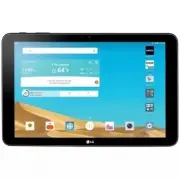


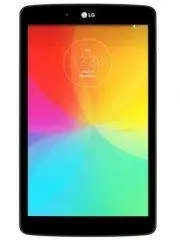 LG G Pad 8 Black
User Manual
LG G Pad 8 Black
User Manual
 LG LGAK495
User Manual
LG LGAK495
User Manual
 LG LGAK815
User Manual
LG LGAK815
User Manual
 LG LGLK430
User Manual
LG LGLK430
User Manual
 LG LGLK460
User Manual
LG LGLK460
User Manual
 LG LGUK495
User Manual
LG LGUK495
User Manual
 LG LGUK932
User Manual
LG LGUK932
User Manual
 LG LGV400
User Manual
LG LGV400
User Manual
 LG LGV410
User Manual
LG LGV410
User Manual
 LG LGV480
User Manual
LG LGV480
User Manual
 LG LGV495
User Manual
LG LGV495
User Manual
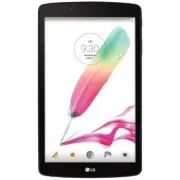 LG LGV496TK
User Manual
LG LGV496TK
User Manual
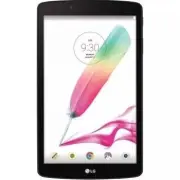 LG LGV498
User Manual
LG LGV498
User Manual
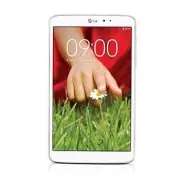 LG LGV500
User Manual
LG LGV500
User Manual
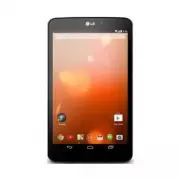 LG LGV510
User Manual
LG LGV510
User Manual
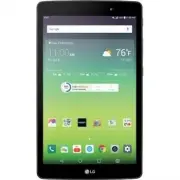 LG LGV520
User Manual
LG LGV520
User Manual
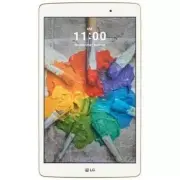 LG LGV521WG
User Manual
LG LGV521WG
User Manual
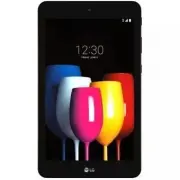 LG LGV530KB
User Manual
LG LGV530KB
User Manual
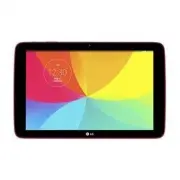 LG LGV700
User Manual
LG LGV700
User Manual
 LG LGV909
User Manual
LG LGV909
User Manual