Page 2 - About this user guide; Instructional notices
About this user guide Thank you for choosing LG. Please carefully read this user guide before using the device for the first time to ensure safe and proper use. Ţ Always use genuine LG accessories. The supplied items are designed only for this device and may not be compatible with other devices. Ţ T...
Page 3 - LIMITED WARRANTY STATEMENT; Warranty Laws
2 LIMITED WARRANTY STATEMENT ARBITRATION NOTICE: THIS LIMITED WARRANTY CONTAINS AN ARBITRATION PROVISION THAT REQUIRES YOU AND LG TO RESOLVE DISPUTES BY BINDING ARBITRATION INSTEAD OF IN COURT, UNLESS YOU CHOOSE TO OPT OUT. IN ARBITRATION, CLASS ACTIONS AND JURY TRIALS ARE NOT PERMITTED. PLEASE SEE ...
Page 10 - Table of contents
9 Special Features .......................... 11 Comfort view ........................................... 12 Gesture shot ............................................ 13 KnockON .................................................. 14 Knock Code .............................................. 15 Multi-t...
Page 13 - Comfort view; Turning the Comfort view on/off
Special Features 12 Comfort view This feature reduces the amount of blue light on the screen to reduce eye strain. Turning the Comfort view on/off Ţ Slide the Status bar downward, tap , then tap / . OR Ţ Tap > > Display > Comfort view , and then tap / . Adjust the blue light filter 1 Tap &g...
Page 14 - Gesture shot; To take a photo
Special Features 13 Gesture shot The Gesture shot feature allows you to take a picture with a hand gesture using the front camera. To take a photo There are two methods for using the Gesture shot feature. Ţ Raise your hand, with an open palm, until the front camera detects it and a box appears on th...
Page 15 - KnockON; Turning the screen on
Special Features 14 KnockON The KnockON feature allows you to double-tap the screen to easily turn it on or off. Turning the screen on While the screen is off, quickly double-tap the center of the screen to turn on the backlight and display the Lock screen. Turning the screen off Quickly double-tap ...
Page 16 - Knock Code; Setting up the Knock Code feature; Unlocking the screen using the Knock Code
Special Features 15 Knock Code The Knock Code feature allows you to create your own unlock code using a combination of knocks on the screen. You can access the Home screen directly when the screen is off by tapping the same sequence on the screen. NOTE Ţ You can use your Knock Code together with the...
Page 17 - Multi-tasking feature; Overview screen
Special Features 16 Multi-tasking feature Multi-Window You can use two apps at the same time by separating the screen into multiple windows.While using an app, touch and hold from the Home touch buttons, then select an app from the recently-used apps list. Ţ You can use two apps at the same time. Ţ ...
Page 18 - Viewing the saved memo
Special Features 17 Capture+ The Capture+ feature allows you to create memos. Using Capture+ You can use Capture+ function to easily and efficiently create memos with a saved picture or on the current device screen. 1 Touch and slide the Status bar downward and tap . 2 Create a memo using the follow...
Page 19 - Using QSlide
Special Features 18 QSlide You can display several apps simultaneously on the same screen and freely switch between them. Using QSlide 1 When an app is running, tap > QSlide . 2 The app switches to the QSlide mode. The following options are available. Switch to full-screen mode.Adjust the opacity...
Page 20 - QuickRemote; Registering a device as a remote control
Special Features 19 QuickRemote You can control many electronic devices in different locations by using your device as a remote control. Registering a device as a remote control 1 Tap > > . 2 Tap to specify locations where you want to use the remote control. 3 Tap and select the type and manuf...
Page 22 - Accessories
Basics 21 Accessories There are a variety of accessories available for your mobile device, some of which may be sold separately. You can select these options according to your personal communication requirements. NOTE Ţ Always use genuine LG accessories. Failure to do this may void your warranty. Ţ ...
Page 23 - Device layout; Front view
Basics 22 Device layout Front view Speaker Charger/USB port Volume keys QuickButton key Front-facing camera USB peripheral port Infrared (IR) LED Power/Lock key Earphone jack Microphone
Page 24 - Back view
Basics 23 Back view Rear-facing camera SIM card/microSD card slot Infrared (IR) LED Used as a sensor for the QuickRemote app. Microphone Records your voice and allows use for voice-activated functions. USB peripheral port Allow you to connect a USB peripheral, such as a keyboard, mouse, and external...
Page 26 - Connecting cables to the ports; Charging the battery
Basics 25 Connecting cables to the ports 1. Charging the battery The Charger/USB Port is located at the bottom of the device. Insert the charger and plug it into a power outlet.Charge the battery before using it for first time. Use the charger included with your device to charge the battery. A compu...
Page 27 - Connecting a USB device to your tablet
Basics 26 NOTE Ţ Your device has an internal rechargeable battery. For your safety, do not remove the embedded battery. Ţ The battery must be fully charged initially to improve battery lifetime. Your device supports up to a 2TB microSD card. Depending on the memory card manufacturer and type, some m...
Page 28 - Installing the SIM card or microSD card
Basics 27 Installing the SIM card or microSD card Before you can start exploring your new device, you need to set it up.Your device supports the use of microSD memory cards of up to 2TB capacity. Multimedia contents can be saved in the microSD card. 1 Open the SIM/microSD slot cover. 2 Pull out the ...
Page 29 - Removing the memory card; Google Account Setup; Creating your Google account
Basics 28 Removing the memory card Before removing the memory card, first unmount it for safe removal. 1 Tap > > Storage > . 2 Open the card slot cover and press the memory card in to unlock it. Then pull it out of the slot. WARNING Ţ Do not remove the memory card while the device is transf...
Page 30 - Locking and unlocking the device; Changing the screen lock method
Basics 29 6 Once you have set up your Google account, your tablet will automatically synchronize with your Google account on the web (if a data connection is available). After signing in, your tablet will sync with your Google services, such as Gmail, Contacts, and Google Calendar. You can also use ...
Page 31 - Smart Lock; Setting up the Smart Lock feature
Basics 30 Smart Lock You can use Smart Lock to make unlocking your device easier. You can set it to keep your device unlocked when you have a trusted Bluetooth® device connected to it, when it's in a familiar location like your home or work, when it recognizes your face or voice, or when it detects ...
Page 32 - Your Home screen; Touch screen tips
Basics 31 Your Home screen Touch screen tips Here are some tips on how to navigate on your device. Ţ Tap or touch – A single finger tap selects items, links, shortcuts and letters on the on-screen keyboard. Ţ Touch and hold – Touch and hold an item on the screen by tapping it and not lifting your fi...
Page 33 - Home screen
Basics 32 Home screen The Home screen is the starting point for many applications and functions. It allows you to add items like apps and Google widgets to give you instant access to information and applications. This is the default canvas and accessible from any menu by tapping . Status Bar Applica...
Page 34 - Customizing the Home screen; Adding a widget on your Home screen; Returning to recently-used applications
Basics 33 Back Button Returns to the previous screen. Also closes pop-up items, such as menus, dialog boxes and the on-screen keyboard. Home Button Return to the Home screen from any screen. Touch and hold to access the Google Now shortcut. Overview Button Displays recently used applications. Custom...
Page 35 - Notifications panel
Basics 34 Notifications panel You can open the notifications panel by dragging the status bar downward on the main screen. Ţ To open the quick access icons list, drag the notifications panel downwards or tap . Ţ To rearrange, add, or remove icons, tap EDIT . Ţ If you touch and hold the icon, the set...
Page 36 - Indicator icons on the Status Bar
Basics 35 Indicator icons on the Status Bar Indicator icons appear on the Status bar at the top of the screen to calendar events, device status and more. The icons displayed at the top of the screen provide information about the status of the device. The icons listed in the table below are some of t...
Page 37 - Using the keypad and entering text; Entering special characters
Basics 36 On-screen keyboard You can enter text using the on-screen keyboard. The on-screen keyboard appears on the screen when you tap an available text entry field. Using the keypad and entering text Icon Description Tap once to capitalize the next letter you type. Touch and hold for all caps. Tap...
Page 38 - Connecting to Networks and Devices; Connecting to Wi-Fi networks
Basics 37 Connecting to Networks and Devices Wi-Fi You can use high-speed Internet access while within the coverage of the wireless access point (AP). Connecting to Wi-Fi networks 1 Tap > > Wi-Fi . 2 Tap to turn Wi-Fi on and start scanning for available Wi-Fi networks. 3 Tap a network to conne...
Page 39 - Pairing your device with another Bluetooth device
Basics 38 Bluetooth Bluetooth is a short-range communications technology that allows you to connect wirelessly to a number of Bluetooth devices, such as headsets and hands-free car kits, Bluetooth-enabled handhelds, computers, printers, and wireless devices. NOTE Ţ LG is not responsible for the loss...
Page 40 - Sending data via Bluetooth; Turning on Wi-Fi Direct
Basics 39 Sending data via Bluetooth 1 Select a file or item, such as a contact or media file. 2 Select the option for sending data via Bluetooth. 3 Search for and pair with a Bluetooth-enabled device. Ţ Due to different specifications and features of other Bluetooth- compatible devices, display and...
Page 41 - Content sharing; Playing content from another device; Viewing content from nearby devices; Sending or receiving files
Basics 40 Content sharing Playing content from another device You can play photos, videos or songs saved on your device from a TV. 1 Connect the TV and your device to the same Wi-Fi network. 2 While viewing the items from the Gallery app, tap > Play on other device . 3 Select the TV you want to c...
Page 42 - Sending files to a computer
Basics 41 Receiving files Drag the status bar downward and tap , then tap File sharing . You can also share files using SmartShare Beam. To activate, tap > Settings > Share & connect > File sharing > SmartShare Beam . NOTE Ţ Make sure that your device is connected to the same wireles...
Page 44 - QPair features
Basics 43 QPair features Call notifications – Sends the tablet a notification when the device receives a call. The notification displays the caller's number and allows you to answer and decline the call. You can also change call settings, such as a ringtone, ringtone volume, ringtone with vibration,...
Page 45 - Transferring data between a PC and your device; Transferring data
Basics 44 Transferring data between a PC and your device You can copy or move data between a PC and the device. Transferring data 1 Connect your device to a PC using the USB cable that came with your device. 2 Open the Notifications panel, tap the current USB connection, and select File transfer . 3...
Page 47 - Contacts; Searching for a contact; Adding a contact to your favorites
Apps 46 Contacts You can add contacts on your device and synchronize them with the contacts in your Google Account or other accounts that support syncing contacts. Searching for a contact 1 Tap > . 2 Tap Search contacts and enter the contact name using the keyboard. Adding a new contact 1 Tap >...
Page 48 - Creating a group; Merging and Separating Contacts
Apps 47 Creating a group 1 Tap > . 2 Tap Groups > . 3 Enter a name for the new group. 4 Tap Add members to add contacts to the group. 5 Tap SAVE to save the group. NOTE Ţ If you delete a group, the contacts assigned to that group will not be lost. They will remain in your contact list. Merging...
Page 49 - Messaging; Sending a message; Conversation view
Apps 48 Messaging Your phone combines text and multimedia messaging into one intuitive, easy to use menu. NOTE Ţ You may be charged for each message you send. Please consult with your service provider. Sending a message 1 Tap > > . 2 Tap , then select one or more entries from your Contacts lis...
Page 50 - Email; Managing email accounts; To open the Email application; Adding another email account:; Changing the email general settings:; Deleting an email account:; Working with account folders
Apps 49 Email You can use the Email application to read email from providers other than Gmail. The ` Email application supports the following account types: POP3, IMAP and Microsoft Exchange (for Enterprise users). Managing email accounts To open the Email application The first time you open the Ema...
Page 51 - Composing and sending email
Apps 50 Composing and sending email 1 In the Email application, tap to create a new email. 2 Enter an address for the message's intended recipient. As you enter text, matching addresses will be offered from your contacts. Separate multiple addresses with semicolons. 3 Tap the Cc/Bcc field to copy or...
Page 52 - Camera and Video; Camera options on the viewfinder
Apps 51 Camera and Video Camera options on the viewfinder You can use the camera or camcorder to take and share pictures and videos. Ţ Tap > . NOTE Ţ Be sure to clean the protective lens cover with a microfiber cloth before taking pictures. A lens cover with smudges from fingers can cause blurry ...
Page 53 - Using the advanced settings
Apps 52 Using the advanced settings In the camera viewfinder, tap to show the advanced options. Tap each icon to adjust the following camera settings. Set the size of your picture and video. Set your camera's timer. This is ideal if you want to be a part of the picture or video. Allows you to say a ...
Page 54 - Taking a photo; Once you have taken a photo
Apps 53 Taking a photo 1 Open the Camera application and point the lens toward the subject you want to photograph. 2 Focus indicators will appear in the center of the viewfinder screen. You can also tap anywhere on the screen to focus on that spot. 3 When the focus indicators turn green, the camera ...
Page 55 - Taking selfies automatically; Interval shot; Recording a video
Apps 54 Taking selfies automatically You can use the face detection feature to take selfies easily and conveniently. You can set the device so that, when you look at the screen, the front camera detects your face and takes a selfie automatically. Ţ When the front camera detects your face, the frame ...
Page 56 - After recording a video
Apps 55 NOTE Ţ – Tap to capture a screen shot while recording a video. Ţ – Tap to pause the recording. After recording a video Tap the video thumbnail on the screen to view the last video you recorded. The following options are available. Tap to add the video to favorites. Tap to edit the video. Tap...
Page 57 - Viewing pictures
Apps 56 Viewing pictures The Gallery displays your pictures in folders. When some apps save a picture, a folder is automatically created to contain the picture.Pictures are displayed by the date they were created. Select a picture to view it full screen. Scroll left or right to view the next or prev...
Page 58 - Editing photos; Setting a photo as a wallpaper
Apps 57 Tap to pause/resume video playback. Touch and hold to fast-forward in 3 second increments. Tap to fast-forward 10 seconds. Touch to lock/unlock the screen. NOTE Ţ While playing a video, the following options are available: - Slide the right side of the screen up or down to adjust the sound. ...
Page 59 - Multimedia; Music; Playing a song
Apps 58 Multimedia Music Your device has a music player that lets you play all your favorite tracks. Playing a song 1 Tap > . 2 Tap the Songs tab. 3 Select the song you want to play. 4 The following options are available. Tap to add the song to your favorites. Tap to open the current playlist. Se...
Page 61 - Clock; Alarm; World clock
Apps 60 Clock The Clock app gives you access to the Alarm, Timer, World clock and Stopwatch functions. Access these functions by tapping the tabs across the top of the screen or swiping horizontally across the screen. Ţ Tap > . Alarm The Alarm tab allows you to set alarms. 1 Tap the Alarm tab. 2 ...
Page 62 - Calculator; Calendar
Apps 61 Stopwatch The Stopwatch tab allows you to use your device as a stopwatch. 1 Tap the Stopwatch tab. 2 Tap Start to initiate the stopwatch. Ţ Tap Lap to record lap times. 3 Tap Pause to pause stopwatch. Calculator The Calculator app allows you to perform mathematical calculations using a stand...
Page 63 - File Manager
Apps 62 File Manager You can view and manage files saved on your device or cloud. 1 Tap > . 2 Tap a storage location. 3 The following options are available. Search files Open Dual window while using File Manager Add a new folder Move files Copy files Delete files Access additional options LG Back...
Page 64 - Google apps
Apps 63 NOTE Ţ Data under a Google account are not backed up. Ţ Backup files are saved with the file extension *.lbf under the LG Backup folder in the SD card or internal storage. To restore these files to another LG device, copy the files to the external or internal storage of the device. Make sure...
Page 65 - Play Music; Hangouts
Apps 64 Play Music Discover, listen to, and share music on your device. Play Movies & TV Watch movies and TV shows purchased from the Play Store. Hangouts Chat with your friends individually or in groups and use images, emoticons, and video calls while you are chatting. Photos Manage photos, alb...
Page 67 - To open the Settings application
Settings 66 Settings The Settings application contains most of the tools for customizing and configuring your device. All of the settings in the Settings application are described in this section. To open the Settings application Ţ Tap > .
Page 68 - WIRELESS NETWORKS; Airplane mode
Settings 67 WIRELESS NETWORKS Airplane mode Airplane Mode (flight mode) allows you to use many of your device's features, such as games, and music, when you are in an area where data use is prohibited. When you set your device to Airplane Mode, it cannot access online data. Wi-Fi Turns on Wi-Fi to c...
Page 69 - Tethering
Settings 68 - Allowed devices – View a list of devices permitted to access content on your device. - Not-allowed devices – View a list of devices not permitted to access content on your device. Ţ Screen sharing – You can mirror your tablet screen and sound onto Miracast dongle or TV wirelessly. Ţ LG...
Page 70 - DEVICE; Sound; Notifications
Settings 69 DEVICE Sound Sound profile Allows you to set the sound profile to Sound, Vibrate only and Silent . Volume Adjust the device's volume settings to suit your needs and environment. Vibration strength Allows you to set the vibration strength for calls, notifications and touch feedback. Notif...
Page 73 - Smart cleaning; Memory
Settings 72 Smart cleaning Displays the space in use and free space in your tablet and allows you to selectively clean up your files. Storage DEVICE STORAGE View the total storage space and free space in the device's internal storage. View a list of apps in use and the storage capacity for each app....
Page 74 - PERSONAL; Cloud
Settings 73 PERSONAL Cloud Allows you to add a cloud account to quickly and easily use a cloud service. Users This menu displays the current users you've created. ADD USER Allows you to add new account for the device and use the Multi-user feature. Location Turn on location service, your device dete...
Page 76 - Google services
Settings 75 Language & keyboard Use the Language & keyboard settings to select the language for the text on your device and to configure the on-screen keyboard, including words you've added to its dictionary. Backup & reset Change the settings for managing your settings and data. LG Back...
Page 77 - SYSTEM; QuickButton
Settings 76 SYSTEM QuickButton Select the app you wish to get quick access to using QuickButton. Shortcut keys Get quick access to apps by pressing the Volume Keys twice when the screen is off or locked. Ţ Press the Volume Up Key twice to open the Capture+ app. Ţ Press the Volume Down Key twice to l...
Page 78 - About tablet
Settings 77 - Grayscale – Switch the screen to grayscale mode. Ţ Hearing – Sets options for people with impaired hearing. - Captions – Allows you to customize caption settings for those with hearing impairments. - Turn off all sounds – Enable to turn off all device sounds. - Audio type – Sets the au...
Page 80 - Software Update; Device Software Update
Appendix 79 Software Update Device Software Update This feature allows you to update the firmware of your device to the latest version conveniently from the internet without the need to visit a service center.For more information on how to use this function, please visit: http://www.lg.com/common/in...
Page 81 - FAQ
Appendix 80 FAQ This chapter lists some problems you might encounter when using your device. Some problems require you to call your service provider, but most are easy to fix yourself. Message Possible causes Possible corrective measures No applications can be set Not supported by service provider o...
Page 84 - More information; Open Source Software Notice Information; If the screen freezes
Appendix 83 More information Open Source Software Notice Information To obtain the source code under GPL, LGPL, MPL, and other open source licenses, that is contained in this product, please visit http://opensource.lge.com.In addition to the source code, all referred license terms, warranty disclaim...
Page 86 - Important Information; ELECTRICAL SAFETY
For Your Safety 85 Important Information This user guide contains important information on the use and operation of this device. Please read all the information carefully for optimal performance and to prevent any damage to or misuse of the device. Any changes or modifications not expressly approved...
Page 87 - SAFETY PRECAUTIONS FOR POWER SUPPLY UNIT
For Your Safety 86 SAFETY PRECAUTIONS FOR POWER SUPPLY UNIT Use the correct external power source A product should be operated only from the type of power source indicated on the electrical ratings label. If you are not sure of the type of power source required, consult your authorized service provi...
Page 88 - Safety Information
For Your Safety 87 Ţ Do not disassemble the tablet. Ţ Do not attempt to repair or modify the device yourself. Your device is equipped with an internal rechargeable battery which should be replaced only by LG or an authorized LG repair center. Ţ You should never attempt to open or disassemble this de...
Page 89 - Charger and Adapter Safety
For Your Safety 88 Ţ Do not short circuit a battery or allow metallic conductive objects to contact battery terminals. Ţ Replace the battery only with another battery that has been qualified with the system per this standard, IEEE-Std-1725. Use of an unqualified battery may present a risk of fire, e...
Page 90 - Battery Information and Care
For Your Safety 89 Battery Information and Care Ţ Please read the manual of proper installation and removal of the battery. Ţ Please read the manual of specified charger about charging method. Ţ Do not damage the power cord by bending, twisting, or heating. Do not use the plug if it is loose as it m...
Page 91 - Care and Maintenance; Keep your Mobile Device away from: Liquids of any kind
For Your Safety 90 Ţ When using the device for the first time, if it emits a bad smell, you see rust on it, or anything else abnormal, do not use the equipment and bring the battery to the shop which it was bought. Ţ Keep device away from babies and small children. If children use the battery, their...
Page 94 - FCC RF Exposure Information; Bodily Contact During Operation
For Your Safety 93 Part 15.105 statement This equipment has been tested and found to comply with the limits for a class B digital device, pursuant to Part 15 of the FCC Rules. These limits are designed to provide reasonable protection against harmful interference in a residential installation. This ...
Page 95 - Are wireless devices safe?
For Your Safety 94 void your warranty and/or violate FCC regulations.Don’t use the device with a damaged antenna. A damaged antenna could cause a minor skin burn. Contact your local dealer for a replacement antenna. Consumer Information About Radio Frequency Emissions Your wireless device, which con...
Page 96 - What does “SAR” mean?
For Your Safety 95 This publication is available at http://www.fcc.gov/oet/rfsafety or through the FCC at (888) 225-5322 or (888) CALL-FCC. What does “SAR” mean? In 1996, the FCC, working with the FDA, the U.S. Environmental Protection Agency, and other agencies, established RF exposure safety guide...
Page 97 - Can I minimize my RF exposure?
For Your Safety 96 Can I minimize my RF exposure? If you are concerned about RF, there are several simple steps you can take to minimize your RF exposure. You can, of course, reduce your talk time. You can place more distance between your body and the source of the RF, as the exposure level drops of...
Page 98 - Where can I get further information about RF emissions?
For Your Safety 97 children’s RF exposure may choose to restrict their children’s wireless device use. Where can I get further information about RF emissions? For further information, see the following additional resources (websites ` current as of April 2005): U.S. Food and Drug Administration FDA ...
Page 99 - Consumer Information on SAR
For Your Safety 98 International Commission on Non-Ionizing Radiation Protection c/o Bundesamt fur StrahlenschutzIngolstaedter Landstr. 185764 OberschleissheimGermanyTelephone: 011 49 1888 333 2156http://www.icnirp.de Engineering in Medicine and Biology Society, Committee on Man and Radiation (COMAR...
Page 102 - TIA Safety Information; Exposure to Radio Frequency Signal
For Your Safety 101 You can obtain additional information on this subject from the following sources: Safety 205 American Academy of Audiology 11730 Plaza American Drive, Suite 300Reston, VA 20190Voice: (800) 222-2336Email: [email protected]Internet: www.audiology.orgNational Institute on Deafness a...
Page 103 - Antenna Care
For Your Safety 102 devices. Those guidelines are consistent with the safety standards previously set by both U.S. and international standards bodies: ANSI C95.1 (1992) * NCRP Report 86 (1986) ICNIRP (1996)* American National Standards Institute; National Council on Radiation Protection and Measurem...
Page 104 - Hearing Aids
For Your Safety 103 wireless device and a pacemaker to avoid potential interference with the pacemaker. These recommendations are consistent with the independent research by and recommendations of Wireless Technology Research.Persons with pacemakers: Ţ Should ALWAYS keep the device more than six (6)...
Page 105 - Aircraft; FDA Consumer Update
For Your Safety 104 Aircraft FCC regulations prohibit using your device while in the air. Switch OFF your tablet before boarding an aircraft. Blasting Areas To avoid interfering with blasting operations, turn your device OFF when in a “blasting area” or in areas posted: “Turn off two-way radio”. Obe...
Page 113 - Driving; 0 Driver Safety Tips
For Your Safety 112 Driving Check the laws and regulations on the use of wireless devices in the areas where you drive and always obey them. Also, if using your device while driving, please observe the following: Ţ Give full attention to driving -- driving safely is your first responsibility; Ţ Use ...
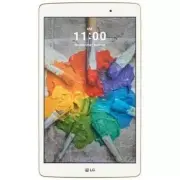


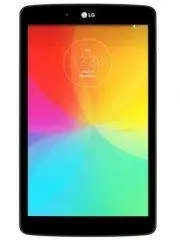 LG G Pad 8 Black
User Manual
LG G Pad 8 Black
User Manual
 LG LGAK495
User Manual
LG LGAK495
User Manual
 LG LGAK815
User Manual
LG LGAK815
User Manual
 LG LGLK430
User Manual
LG LGLK430
User Manual
 LG LGLK460
User Manual
LG LGLK460
User Manual
 LG LGUK495
User Manual
LG LGUK495
User Manual
 LG LGUK932
User Manual
LG LGUK932
User Manual
 LG LGV400
User Manual
LG LGV400
User Manual
 LG LGV410
User Manual
LG LGV410
User Manual
 LG LGV480
User Manual
LG LGV480
User Manual
 LG LGV495
User Manual
LG LGV495
User Manual
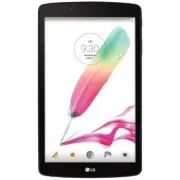 LG LGV496TK
User Manual
LG LGV496TK
User Manual
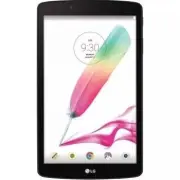 LG LGV498
User Manual
LG LGV498
User Manual
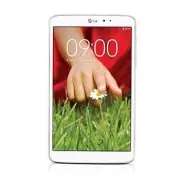 LG LGV500
User Manual
LG LGV500
User Manual
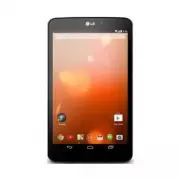 LG LGV510
User Manual
LG LGV510
User Manual
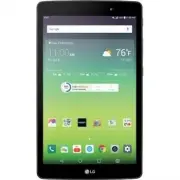 LG LGV520
User Manual
LG LGV520
User Manual
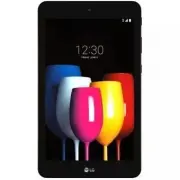 LG LGV530KB
User Manual
LG LGV530KB
User Manual
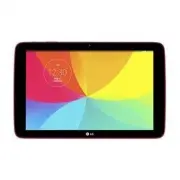 LG LGV700
User Manual
LG LGV700
User Manual
 LG LGV909
User Manual
LG LGV909
User Manual
 LG LGV909DW
User Manual
LG LGV909DW
User Manual