Page 3 - User Guide; ENGLISH
User Guide ENGLISH • Screen displays and illustrations may differ from those you see on actual device. • Some of the contents of this guide may not apply to your device, depending on the software and your service provider. All information in this document is subject to change without notice. • This ...
Page 4 - Table of contents
2 About this user guide ......................... 5 About this user guide ........................... 5Trademarks ............................................. 5DivX HD .................................................. 6Dolby Digital Plus .................................. 6 Important notice .........
Page 7 - Trademarks; About this user guide
5 About this user guide • Before using your device, please carefully read this manual. This will ensure that you use your device safely and correctly. • Some of the images and screenshots provided in this guide may appear differently on your tablet. • Your content may differ from the final product, ...
Page 8 - DivX HD; Dolby Digital Plus
6 DivX HD ABOUT DIVX VIDEO: DivX® is a digital video format created by DivX, LLC, a subsidiary of Rovi Corporation. This is an official DivX Certified® device that has passed rigorous testing to verify that it plays DivX video. Visit divx.com for more information and software tools to convert your f...
Page 9 - Please read this before you start using your tablet!; Before installing an open source application and; Important notice
7 Please read this before you start using your tablet! Please check to see whether any problems you encountered with your tablet are described in this section before taking the tablet in for service or calling a service representative. 1. Tablet Memory You need to check your tablet memory and delete...
Page 10 - Using a Screen Lock
8 WARNING To protect your tablet and personal data, only download applications from trusted sources, such as Play Store. If there are improperly installed applications on your tablet, the tablet may not work normally or a serious error may occur. You must uninstall those applications and all associa...
Page 12 - Opening and switching applications
10 5 Release all keys when the Factory hard reset screen is displayed. 6 Press the Power/Lock Key to continue or either of the Volume Keys to cancel. 7 Press the Power/Lock Key once more to confirm or either of the Volume Keys to cancel. 8 Your device will perform a hard reset. WARNING If you perfor...
Page 13 - When the screen freezes
11 • To stop applications, tap Task Manager from the recent apps list, then tap Stop or Stop all . • To remove an app from the recent apps list, swipe the app preview to the left or right. To clear all apps, tap Clear all . 6. When the screen freezes If the screen freezes or the tablet does not resp...
Page 14 - Getting to know your device; Tablet Overview
12 Getting to know your device Tablet Overview Ambient Light Sensor Volume Keys Back-Facing Camera Lens Speakers Front-Facing Camera Lens Power/Lock Key Earphone Jack microSD Card Slot Charger/USB PortMicrophone Infrared (IR) LED NOTE: Make sure that the microphone is not blocked when recording a vi...
Page 16 - Charging your tablet
14 WARNING Placing a heavy object on the tablet or sitting on it can damage the LCD and touch screen functions. Do not cover the LCD Ambient Light Sensor with protective film. This could cause the sensor to malfunction. TIP! • Tap the Menu Key whenever you open an application to check what options a...
Page 17 - Optimizing Battery Life; To extend the life of your battery
15 1 Connect the USB adapter and USB cable. 2 Plug the USB cable (as shown below) into the tablet’s Charger/USB port. 3 Plug the charger into an electrical socket. NOTE: The battery must be fully charged initially to improve battery lifetime. Optimizing Battery Life You can extend your battery’s lif...
Page 18 - To view the battery charge level; To monitor and control what uses the battery; Inserting a microSD card
16 • Some applications you have downloaded may cause your battery power to be reduced. • While using downloaded applications, check the battery charged level. To view the battery charge level 1 From the Home screen, tap Apps > Settings > About tablet > Battery . 2 The battery status (chargi...
Page 19 - Removing the microSD card
17 2 Insert the microSD card into the slot with the contacts facing down. Carefully push the tray gently into the device. Removing the microSD card To safely remove the microSD card from your tablet, first you need to unmount it. 1 From the Home screen, tap Apps > Settings > Storage > Unmou...
Page 21 - Touch screen tips; Tap or touch; Your Home screen
19 Touch screen tips Here are some tips on how to navigate on your tablet. NOTE: • To select an item, touch the center of the icon. • Do not press too hard; the touch screen is sensitive enough to pick up a light, yet firm touch. • Use the tip of your finger to touch the option you want. Be careful ...
Page 23 - KnockON
21 KnockON The KnockON feature allows you to double-tap the screen to easily turn the screen on or off. • Quickly double-tap the center of the screen to turn the screen on. • Quickly double-tap the Status Bar, an empty area on the Home screen, or the Lock screen to turn the screen off. NOTE: • You c...
Page 24 - Home screen
22 Home screen Simply swipe your finger to the left or right to view the panels. You can customize each panel with apps, downloads, widgets and wallpapers.The Quick Keys are available at the bottom part of the Home screen and provide easy, one-touch access to the functions you use the most. Status B...
Page 25 - Customizing the Home screen; Customizing app icons on the Home screen
23 Customizing the Home screen You can customize your Home screen by adding apps, downloads, widgets or wallpapers. For more convenience using your tablet, add your favorite apps and widgets to the Home screen. To add items on your Home screen:1 Touch and hold the empty part of the Home screen. 2 Ta...
Page 27 - Home screen clean view; Quick access
25 Home screen clean view You can see the wallpaper without items on the Home screen by pinching out. Pinch in or tap the Back Key to see applications and widgets again. Quick access To view the quick access items, touch anywhere in the front key area and drag up. The following options are available...
Page 28 - Returning to recently-used applications; Notifications; Accessing notifications
26 Returning to recently-used applications 1 Touch and hold the Home Key . The screen displays a pop-up containing the icons of applications you used recently. 2 Touch an icon to open the application. Or touch the Back Key to return to your previous screen. Notifications Notifications alert you to t...
Page 29 - Quick Settings on the Notifications Panel; To rearrange Quick Setting options on the Notification Panel; QSlide apps on the Notifications Panel
27 Quick Settings Bar – Swipe to the right or left to scroll through the list. Tap an icon to activate/deactivate the feature. QSlide Apps Bar – Tap to activate a QSlide feature. Slide to the left and right to adjust the screen brightness and volume. Quick Settings on the Notifications Panel Use the...
Page 31 - Multiple Users
29 Downloading data Uploading data An alarm is set SmartShare music playing GPS is on Data is syncing New Gmail message New Hangouts message A song is currently playing Tablet is connected to PC via USB cable Battery saver mode is on Slide Aside is on Multiple Users Only one tablet owner ID can be c...
Page 33 - To switch users; Slide Aside
31 3 The setup wizard opens to help you add a new user. Touch Set up now . • After creating a new user, that person needs to go through the setup process upon their first login. To switch users 1 Press the Power/Lock Key to lock the tablet's screen. 2 Press the Power/Lock Key once more to wake the t...
Page 34 - Capturing a Screenshot
32 Tip! The Slide Aside feature does not recognize fewer fingers, additional fingers, or your palm. Plug & Pop Plug & Pop allows you to quickly choose apps to use when plugging in an earphone or On-the-Go device, such as a mouse or keyboard. 1 Plug an earphone or OTG (On-the-Go) device (i.e....
Page 35 - Entering Text
33 Using QuickMemo to capture a screenshot On the screen you want to capture, drag the Status Bar downward and select QuickMemo . OR Press and hold both Volume Keys at the same time. Using Capture plus to capture a screenshot This feature allows you to capture a portion of the screen in the default ...
Page 36 - Entering special characters
34 Tap to enter a space. Tap to create a new line in the message field. Tap to delete the previous character. Entering special characters The on-screen keyboard allows you to enter special characters (e.g. "á").For example, touch and hold the desired key (for example, the "a" key). A...
Page 37 - To set up your Google account; Google account setup
35 When you first turn on your tablet, you have the opportunity to activate the network, to sign into your Google Account and select how you want to use certain Google services. To set up your Google account • Sign into a Google Account from the prompted setup screen. OR • From the Home screen, tap ...
Page 38 - Bluetooth; Connecting to Networks and Devices
36 Wi-Fi With Wi-Fi, you can use high-speed Internet access within the coverage of the wireless access point (AP). Enjoy wireless Internet using Wi-Fi, without extra charges. Connecting to Wi-Fi networks To use Wi-Fi on your tablet, you need to access a wireless access point or ‘hotspot’. Some acces...
Page 39 - Turning on Bluetooth and pairing up your tablet with a Bluetooth
37 Connecting to Networks and Devices NOTE: • LG is not responsible for the loss, interception or misuse of data sent or received via the Bluetooth wireless feature. • Always ensure that you share and receive data with devices that are trusted and properly secured. If there are obstacles between the...
Page 40 - SmartShare
38 NOTE: Your tablet doesn't support Handsfree Profile. Therefore, the use of call features with some of accessories, such as Bluetooth headsets or Bluetooth-enabled devices, may not be available for this device. Send data using the Bluetooth feature 1 Open the item and tap . OR Touch and hold the i...
Page 41 - Enjoying the content via a variety of devices; Enjoying the content from Nearby devices; Connecting devices
39 Enjoying the content via a variety of devices You can share your tablet's content with a variety devices. Tap to share the content in the Gallery , Music , Videos , POLARIS Viewer 5 apps. Playing/Sending Play – You can play the content via a TV, a Bluetooth speaker or etc. Beam – You can send the...
Page 42 - Using the content from the Cloud; Using the Cloud; PC connections with a USB cable; Transferring music, photos and videos using the USB mass
40 Using the content from the Cloud You can use the content from the cloud (i.e., Dropbox) in the Gallery , Music , Videos apps. Using the Cloud NOTE: The supported features may vary depending on the cloud. Retrieving data may take some time depending on the cloud. 1 Select Cloud in the Gallery , Mu...
Page 43 - Synchronize with Windows Media Player
41 Synchronize with Windows Media Player Ensure that Windows Media Player is installed on your PC. 1 Use the USB cable to connect the tablet to a PC on which Windows Media Player has been installed. 2 Select the Media sync (MTP) option. 3 When connected, a pop-up window will appear on the PC. Select...
Page 44 - Contacts
42 You can add contacts on your tablet and synchronize them with the contacts in your Google Account or other accounts that support syncing contacts. Searching for a contact 1 From the Home screen, tap Contacts to open your contact list. 2 Tap the Search contacts box and enter the contact's name. Yo...
Page 45 - Creating a group
43 3 Tap the star to the right of the contact’s name. The star turns gold and the contact is added to your favorites. To remove a contact from your favorites list1 From the Home screen, tap Contacts to open your contacts. 2 Tap the Favorites tab to view your favorite contacts. 3 Tap a contact to vie...
Page 46 - Managing an email account; Email
44 You can use the Email application to read emails from services like Yahoo!, MSN, and AOL. The Email application supports the following account types: POP3, IMAP and Exchange.Your service provider or system administrator can provide you with the account settings you need. Managing an email account...
Page 48 - Getting to know the viewfinder; Camera
46 To open the Camera application, tap Camera on the Home screen. Getting to know the viewfinder Swap camera – Switch between the back-facing camera lens and the front–facing camera lens. Shot mode – Allows you to choose a shot mode to define how the picture will be taken. Settings – Touch this icon...
Page 49 - Using the advanced settings
47 Using the advanced settings In the viewfinder, tap to open the advanced options. After selecting the option, tap the Back Key . Take photos by voice command. Defines and controls the amount of sunlight entering the photo. Sets the focus mode. Selects photo resolution. If you choose a high resolut...
Page 50 - Taking a photo
48 Set to use the Volume Key for capturing pictures or zooming. This sets the location where you want to save your pictures. Choose from Internal storage and SD card. Opens the help guide to know how a function operates. Restores all camera default settings. TIP! • When you exit the camera, some set...
Page 51 - Once you've taken a photo
49 Once you've taken a photo 1 Tap the image preview at the bottom of the screen to view the last photo you captured. 2 Tap Gallery , then tap Always or Just once . Touch to share your photo using the SmartShare function. Touch to take another photo immediately. Touch to send your photo to others. T...
Page 52 - Viewing your saved photos
50 Slideshow – Automatically displays a slideshow of all your pictures. Add location – To add the location information. Print – Allows you to print the picture. Details – Displays more information about the picture. Viewing your saved photos You can access your saved photos when in camera mode. Just...
Page 53 - Video camera
51 To open the video camera, tap Camera on the Home screen, then tap the Video mode icon (on the viewfinder) to switch to video mode. Getting to know the viewfinder Swap camera – Switch between the back-facing camera lens and the front–facing camera lens. Record Mode – Allows you to choose a record ...
Page 55 - Recording a video; After recording a video
53 Recording a video 1 Open the Camera application and touch the Video mode icon . 2 The video camera viewfinder appears on the screen. 3 Point the lens towards the subject you wish to capture in your video. 4 Touch once to start recording. 5 A timer showing the length of the video will appear. 6 To...
Page 56 - Watching your saved videos; Adjusting the volume when viewing a video
54 Watching your saved videos Access your saved videos when in video camera mode by tapping the image preview in the lower-right corner of the viewfinder. 1 In the viewfinder, tap the image preview at the bottom of the screen. 2 Your Gallery will appear on the screen with your most recent recorded v...
Page 57 - Gallery; Viewing pictures; Multimedia
55 Gallery You can store multimedia files in internal memory for easy access to all your multimedia files. Use this application to view multimedia files like pictures and videos.From the Home screen, tap Apps > Apps tab > Gallery . You can manage and share all your image and video files with t...
Page 59 - Playing a video
57 Slideshow You can view your photos in a slideshow by album or by selecting all of your photos. From the Home screen, tap Gallery . • Tap the album with the photos you want to view, then tap the Menu Key > Slideshow > verify the slideshow settings > Start . • Tap the Menu Key > View al...
Page 60 - Music; Playing a song
58 Touch access QSlide and display the video in small window. Touch to share your video via the SmartShare function. Touch to capture image during playing a video. Touch to lock/unlock a video screen. To change the volume while watching a video, press the Volume Keys on the right side of the tablet....
Page 63 - Tools
61 QPair By connecting your tablet and mobile phone via QPair, you can sync incoming calls, messages, and social networking notifications between your tablet and mobile phone. 1 Run QPair and tap Get started > Start on your tablet first and then run the same steps on your phone. TIP! QPair may no...
Page 64 - QPair features; QSlide
62 QPair features Call notifications – Sends the tablet a notification when the phone receives a call. The notification displays the caller's number and allows you to decline the call. Message notifications – Sends the tablet a notification when the phone receives a message. Social network notificat...
Page 66 - QuickMemo; Creating a QuickMemo
64 QuickMemo The QuickMemo feature allows you to create memos and capture screen shots. Capture screens, draw on them, and share them with family and friends with QuickMemo. Creating a QuickMemo 1 To access the QuickMemo feature, slide the Status Bar downwards and touch . OR Press both of the Volume...
Page 68 - QuickRemote; To open the QuickRemote application and set up your
66 QuickRemote QuickRemote turns your tablet into a Universal Remote for your home TV or cable box. NOTE: QuickRemote may not be available for some devices and areas. To open the QuickRemote application and set up your QuickRemote(s) 1 From the Home screen, tap the Apps > Apps tab > QuickRemot...
Page 69 - Using QuickRemote; QuickRemote options
67 NOTE: The QuickRemote operates the same way as an ordinary infrared (IR) remote control in your region or country. Be careful not to cover the infrared sensor at the top of the tablet when you use the QuickRemote function. This function may not be supported depending on the model, the manufacture...
Page 70 - QuickTranslator
68 QuickTranslator Simply aim the camera of your smart tablet at the foreign sentence you want to understand. You can get the real-time translation anywhere and anytime.You can buy additional dictionaries for offline translation from the Google Play Store. Home language. Destination language. Switch...
Page 71 - To open the Voice Mate application; Using the Voice Mate application
69 NOTE: There may be a difference in the rate of recognization depending on the size, font, color, brightness and angle of the letters that need to be translated. Voice Mate Voice Mate allows you hands-free interaction with your devices. You can ask Voice Mate to perform tablet functions using your...
Page 72 - Alarm; Setting your alarm
70 Voice Mate Icons The following Voice Mate icons are displayed at the bottom of the screen: • Tap to display the Voice Mate QSlide window on the Home screen. • Tap to say a voice command to execute. • Tap to type a command to execute. Voice Mate Options menu Tap the Menu Key to access Settings and...
Page 73 - Calculator; Using your calculator; Calendar; Adding an event to your calendar
71 NOTE: To change alarm settings in the alarm list screen, touch the Menu Key and select Settings . Calculator Using your calculator 1 From the Home screen, tap Apps > Apps tab > Calculator . 2 Touch the number keys to enter numbers. 3 For simple calculations, touch the function you want to p...
Page 74 - Tasks
72 5 Touch the Location field and enter the location. Check the date and enter the time you wish your event to start and finish. 6 If you wish to add a note to your event, touch the Description field and enter the details. 7 If you wish to repeat the alarm, set REPEAT and set REMINDERS , if necessar...
Page 75 - File Manager; To open the File Manager application; Voice Recorder; Recording a sound or voice; Sending the voice recording
73 File Manager The File Manager application allows you to manage files in your internal/external storage. To open the File Manager application • From the Home screen, tap Apps > File Manager . Voice Recorder Use the voice recorder to record voice memos or other audio files. Recording a sound or ...
Page 76 - Task Manager; POLARIS Office 5
74 Task Manager You can manage your applications using Task Manager. You can easily check the number of applications that are currently running and shut down certain applications. Task Manager Options • Touch Stop to stop individual apps. • Tap Stop all to stop all currently running apps. • Tap the ...
Page 78 - Voice Search; Downloads
76 Voice Search The Voice Search app allows you to search webpages using your voice instead of typing. 1 From the Home screen, tap Apps > Apps tab > Voice Search . 2 Say a keyword or phrase when Speak now appears on the screen. Select one of the suggested keywords that appear. NOTE: This appli...
Page 79 - Internet; Opening a page; The Web
77 Internet Use this application to browse the Internet. Browser gives you a fast, full-color world of games, music, news, sports, entertainment and much more, right on your tablet wherever you are and whatever you enjoy.From the Home screen, tap Apps > Apps tab > Internet . Tap to go back one...
Page 80 - Searching the web by voice; Bookmarks; Using QSlide; Chrome
78 Searching the web by voice Tap the web address field, tap , speak a keyword, and then select one of the suggested keywords that appear. NOTE: This feature may not be available depending on the region or service provider. Bookmarks To open a bookmarked web page, tap on the browser toolbar and sele...
Page 81 - Adding and viewing bookmarks
79 Viewing web pages Tap the address field (at the top of the screen), enter a web address or search criteria, and tap on the keyboard. Opening a page • To go to a new page, tap at the top of the browser. • To go to another web page, tap the a tab at the top of the screen to select the page. Searchi...
Page 82 - Chrome Options menu
80 Chrome Options menu Tap the Menu Key to access the following options. • New tab – Tap to open a new web page tab. • New incognito tab – Tap to open a new incognito tab. • Bookmarks – Displays your bookmarked web pages. • Other devices – Displays your open web pages on other devices. • History – D...
Page 83 - Settings
81 Access the Settings menu 1 From the Home screen, tap Apps > Apps tab > Settings . OR From the Home screen, tap the Menu Key > System settings . 2 Select a setting category and set the desired option. WIRELESS NETWORKS Wi-Fi Wi-Fi – Turns on Wi-Fi to connect to available Wi-Fi networks. A...
Page 85 - Data usage
83 Data usage Displays the data usage during the chosen periods of time. Tap an app from the list to view the app's data usage. More... Allows you to share folders with other devices via wireless connection. Airplane mode – Allows you to set Airplane mode. Activating Airplane mode disables all wirel...
Page 86 - DEVICE; Sound
84 DEVICE Sound Sound profile – Allows you to set the sound profile to Sound , Vibrate only or Silent . Volumes – Manage the volume for Notifications , Touch feedback & system , and Music , video , games & other media . Notification sound – Allows you to set your default notification rington...
Page 90 - PERSONAL; Cloud
88 • Bluetooth: Turns off Bluetooth if not connected. • Vibrate on touch: Turns off touch feedback. • Brightness: Adjusts the brightness. • Screen timeout: Adjusts the screen timeout. Help – Touch to access some tips for Power saver. Apps Display the list of applications such as currently running or...
Page 91 - Security
89 Users Checkmark to set the device owner’s name to be displayed on the Lock screen. Tap to enter the text to be displayed as the Owner info. Add user – Allows you to add new account for the tablet and use the Multi- user feature. Location access Mode High accuracy – Use GPS and Wi-Fi networks to e...
Page 93 - SYSTEM; Accessibility
91 SYSTEM Date & time Use Date & time settings to set how dates will be displayed. You can also use these settings to set your own time and time zone rather than obtaining the current time from the mobile network. Accessibility Use the Accessibility settings to configure accessibility plug-i...
Page 94 - PC connection
92 Captions – Allows to customize caption settings for those with hearing impairments. Tap the switch to turn this feature on. Set the language, text size, and caption style options as desired. Touch feedback time – Sets the touch and feedback time. Choose from Short , Medium , and Long . Universal ...
Page 97 - About backing up and restoring device data; LG Backup
95 About backing up and restoring device data It is recommended that you regularly create and save a backup file on the internal storage, especially before updating any software. Maintaining a current backup file in storage memory may allow you to recover device data if your device is lost, stolen, ...
Page 100 - Tablet software update
98 Tablet software update This feature allows you to update the firmware of your tablet to the latest version conveniently from the internet without the need to visit a service center. For more information on how to use this function, please visit: http://www.lg.com As the tablet firmware update req...
Page 102 - Accessories
100 These accessories are available for use with the your tablet. (Items described below may be optional.) Travel adaptor USB cable Quick Start Guide NOTE: • Always use genuine LG accessories. Failure to do this may void your warranty. • Accessories may vary in different regions. Accessories
Page 103 - Troubleshooting
101 This chapter lists some problems you might encounter when using your tablet. Some problems require you to call your service provider, but most are easy to fix yourself. Message Possible causes Possible corrective measures No applications can be set Not supported by service provider or registrati...
Page 105 - For Your Safety; Safety Information
103 For Your Safety Safety Information Please read and observe the following information for safe and proper use of your tablet and to prevent damage. WARNING! This product contains chemicals known to the State of California to cause cancer and birth defects or reproductive harm. Wash hands after ha...
Page 106 - Charger and Adapter Safety
104 • Do not modify or remanufacture, attempt to insert foreign objects into the battery, immerse or expose to water or other liquids, expose to fire, explosion or other hazard. • Only use the battery for the system for which it is specified. • Only use the battery with a charging system that has be...
Page 107 - Battery Information and Care
105 • Use the correct adapter for your tablet when using the battery pack charger abroad. Battery Information and Care • Please read the manual of proper installation and removal of the battery. • Please read the manual of specified charger about charging method. • Do not damage the power cord by be...
Page 109 - Care and Maintenance; Keep your Mobile Device away from:; Microwaves
107 Care and Maintenance Your mobile device is a product of superior design and craftsmanship and should be treated with care. The suggestions below will help you fulfill any warranty obligations and allow you to enjoy this product for many years: Keep your Mobile Device away from: Liquids of any ki...
Page 112 - FCC RF Exposure Information
110 Part 15.105 statement This equipment has been tested and found to comply with the limits for a class B digital device, pursuant to Part 15 of the FCC Rules. These limits are designed to provide reasonable protection against harmful interference in a residential installation. This equipment gener...
Page 113 - Consumer Information About Radio Frequency; Are wireless devices safe?
111 Bodily Contact During Operation This device was tested for typical use with the back of the device kept 0 inch (0 cm) from the body. Caution Use only the supplied antenna. Use of unauthorized antennas (or modifications to the antenna) could impair call quality, damage the device, void your warra...
Page 114 - What does “SAR” mean?
112 additional research to address gaps in knowledge. That research is being conducted around the world and FDA continues to monitor developments in this field. You can access the joint FDA/FCC website at http://www.fda.gov (under “C” in the subject index, select Cell Phones > Research). You can ...
Page 115 - Can I minimize my RF exposure?
113 is available for sale to the public, it must be tested and certified to the FCC that it does not exceed the limit established by the government-adopted requirement for safe exposure. The tests are performed in positions and locations (e.g., at the ear and worn on the body) as required by the FCC...
Page 119 - Consumer Information on SAR
117 Consumer Information on SAR (Specific Absorption Rate) This model device meets the government's requirements for exposure to radio waves. Your wireless device is a radio transmitter and receiver. It is designed and manufactured not to exceed the emission limits for exposure to Radio Frequency (R...
Page 120 - Avoid potential hearing loss.
118 The highest SAR value for this device when worn on the body, as described in this user guide, is 1.02 W/kg. (body-worn measurements differ among device models, depending upon available accessories and FCC requirements). While there may be differences between SAR levels of various devices and at...
Page 122 - TIA Safety Information; Exposure to Radio Frequency Signal
120 Email: [email protected]Internet: www.audiology.orgNational Institute on Deafness and Other CommunicationDisordersNational Institutes of Health31 Center Drive, MSC 2320Bethesda, MD USA 20892-2320Voice: (301) 496-7243Email: [email protected]Internet: http://www.nidcd.nih.gov/health/hearingNationa...
Page 124 - Pacemakers; Hearing Aids
122 Pacemakers The Health Industry Manufacturers Association recommends that a minimum separation of six (6) inches be maintained between a handheld wireless device and a pacemaker to avoid potential interference with the pacemaker. These recommendations are consistent with the independent research ...
Page 126 - For Vehicles Equipped with an Air Bag; FDA Consumer Update; What is the FDA’s role concerning the safety of tablets?
124 For Vehicles Equipped with an Air Bag An air bag inflates with great force. DO NOT place objects, including either installed or portable wireless equipment, in the area over the air bag or in the air bag deployment area. If in-vehicle wireless equipment is improperly installed and the air bag in...
Page 133 - What about wireless communications device interference with
131 precautionary; it was not based on scientific evidence that any health hazard exists. 11. What about wireless communications device interference with medical equipment? Radio Frequency (RF) energy from wireless communications devices can interact with some electronic devices. For this reason, th...
Page 134 - Where can I find additional information?; Driving
132 The FDA continues to monitor the use of wireless devices for possible interactions with other medical devices. Should harmful interference be found to occur, the FDA will conduct testing to assess the interference and work to resolve the problem. 12. Where can I find additional information? For ...
Page 136 - Limited Warranty Statement
Limited Warranty Statement 1. WHAT THIS WARRANTY COVERS: LG offers you a limited warranty that the enclosed subscriber unit and its enclosed accesso- ries will be free from defects in material and workmanship, according to the following terms and conditions:(1) The limited warranty for the product e...


 LG G Pad 8 Black
User Manual
LG G Pad 8 Black
User Manual
 LG LGAK495
User Manual
LG LGAK495
User Manual
 LG LGAK815
User Manual
LG LGAK815
User Manual
 LG LGLK430
User Manual
LG LGLK430
User Manual
 LG LGLK460
User Manual
LG LGLK460
User Manual
 LG LGUK495
User Manual
LG LGUK495
User Manual
 LG LGUK932
User Manual
LG LGUK932
User Manual
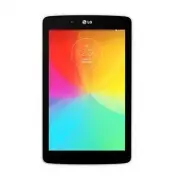 LG LGV400
User Manual
LG LGV400
User Manual
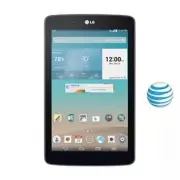 LG LGV410
User Manual
LG LGV410
User Manual
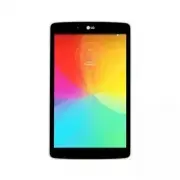 LG LGV480
User Manual
LG LGV480
User Manual
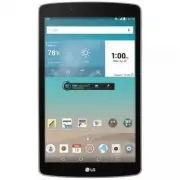 LG LGV495
User Manual
LG LGV495
User Manual
 LG LGV496TK
User Manual
LG LGV496TK
User Manual
 LG LGV498
User Manual
LG LGV498
User Manual
 LG LGV510
User Manual
LG LGV510
User Manual
 LG LGV520
User Manual
LG LGV520
User Manual
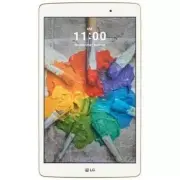 LG LGV521WG
User Manual
LG LGV521WG
User Manual
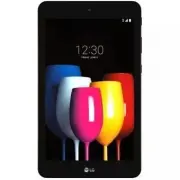 LG LGV530KB
User Manual
LG LGV530KB
User Manual
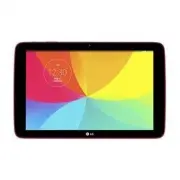 LG LGV700
User Manual
LG LGV700
User Manual
 LG LGV909
User Manual
LG LGV909
User Manual
 LG LGV909DW
User Manual
LG LGV909DW
User Manual