Page 2 - User Guide; All screen shots in this guide are simulated.
User Guide • Some of the contents in this manual may differ from your device depending on the software version of the device, OS version or your service provider, and are subject to change without prior notice. • Always use genuine LG accessories. The supplied items are designed only for this device...
Page 3 - Table of contents
2 Table of contents Table of contents Important Notice .......................................4 Getting to know your device ....................7 Phone layout ..............................................7Connecting cables to the ports .................10Installing the microSD card ...................
Page 5 - Please read this before you start using your device!; To uninstall applications:; Optimizing battery life; Reduce screen brightness and set a shorter screen timeout.; Important Notice
4 Important Notice Please read this before you start using your device! Please check to see whether any problems you encountered with your device are described in this section before taking the device in for service or calling a service representative. 1. Device memory You may need to check your dev...
Page 6 - Before installing an open source application and OS; Volume Keys
5 Important Notice • While using downloaded applications, check the battery charge level. 3. Before installing an open source application and OS WARNING • If you install and use an OS other than the one provided by the manufacturer it may cause your device to malfunction. In addition, your device wi...
Page 7 - Opening and switching applications; Clear all; If the screen freezes
6 Important Notice WARNING If you perform a Hard Reset, all user applications, user data and DRM licenses will be deleted. Please remember to backup any important data before performing a Hard Reset. 5. Opening and switching applications Multitasking is easy with Android; you can keep more than one ...
Page 8 - Phone layout; Volume keys; Getting to know your device
7 Getting to know your device Phone layout Volume keys Front-facing camera USB peripheral port Infrared (IR) LED Power/Lock key Earphone jack Microphone Getting to know your device
Page 9 - microSD card slot
8 Getting to know your device microSD card slot Rear-facing camera Speaker Stylus Pen Charger / USB port Front-facing camera Use to take pictures and record videos of yourself. You can also use this for video chatting. Keep it clean for optimal performance. Power/Lock key Press to lock/unlock the sc...
Page 10 - Used as a sensor for the QuickRemote app.
9 Getting to know your device Volume keys Allow you to adjust the media volumes. Press and hold both keys at the same time to access the QuickMemo+ while screen is unlocked. Press and hold Down or Up to access the Camera while screen is off or locked. Earphone jack Allows you to plug in an optional ...
Page 11 - Connecting cables to the ports; Charging the battery
10 Getting to know your device Connecting cables to the ports 1. Charging the battery The Charger/USB Port is located at the bottom of the device. Insert the charger and plug it into a power outlet.Charge the battery before using it for first time. Use the charger included with your device to charge...
Page 12 - Connecting a USB device to your tablet
11 Getting to know your device WARNING Use only LG-approved chargers, batteries and cables. If you use unapproved chargers, batteries or cables, it may cause a battery charging delay or pop up message regarding slow charging. This can also cause the battery to explode or damage the device, which is ...
Page 14 - Installing the microSD card; Open the microSD slot cover.
13 Getting to know your device Installing the microSD card Before you can start exploring your new device, you need to set it up.Your device supports the use of microSD memory cards of up to 128GB capacity. Multimedia contents can be saved in the microSD card. 1 Open the microSD slot cover. microSD ...
Page 15 - Removing the memory card; Storage; Locking and unlocking the device; Changing the screen lock method
14 Getting to know your device Removing the memory card Before removing the memory card, first unmount it for safe removal. 1 Tap > > > Storage > Unmount SD card . 2 Open the card slot cover and press the memory card in to unlock it. Then pull it out of the slot. WARNING Do not remove th...
Page 17 - Your Home screen; Touch screen tips; Tap or touch
16 Your Home screen Your Home screen Touch screen tips Here are some tips on how to navigate on your device. • Tap or touch – A single finger tap selects items, links, shortcuts and letters on the on-screen keyboard. • Touch and hold – Touch and hold an item on the screen by tapping it and not lifti...
Page 18 - Home screen; Status Bar
17 Your Home screen Home screen The Home screen is the starting point for many applications and functions. It allows you to add items like app shortcuts and Google widgets to give you instant access to information and applications. This is the default canvas and accessible from any menu by tapping ....
Page 19 - Extended Home screen; Customizing the Home screen; Adding items on your Home screen
18 Your Home screen Back Button Returns to the previous screen. Also closes pop-up items, such as menus, dialog boxes and the on-screen keyboard. Home Button Return to the Home screen from any screen. Touch and hold to access the Google Now shortcut. Recent Apps Button Displays recently used applica...
Page 20 - Removing an item from the Home screen; Customizing app icons on the Home screen
19 Your Home screen TIP! To add an application icon to the Home screen from the Apps screen, touch and hold the application you want to add. Removing an item from the Home screen • While on the Home screen, touch and hold the icon you want to remove then drag it to and release it. Adding an app to t...
Page 21 - Returning to recently-used applications; Tap; Notifications panel
20 Your Home screen Returning to recently-used applications 1 Tap . App previews of recently used applications will be displayed. 2 Tap an app preview to open the application. Or tap to return to your previous screen. Notifications panel Notifications alert you to the arrival of new messages, calend...
Page 22 - Opening the Notifications panel
21 Your Home screen Opening the Notifications panel Swipe the Status bar to open the Notifications panel. To close the Notifications panel, swipe the screen upwards or tap . Quick Settings Area NotificationsClear Tap each quick setting button to toggle it on/off. Touch and hold the desired button to...
Page 23 - Indicator icons on the Status Bar
22 Your Home screen Indicator icons on the Status Bar Indicator icons appear on the Status bar at the top of the screen to calendar events, device status and more. The icons displayed at the top of the screen provide information about the status of the device. The icons listed in the table below are...
Page 24 - A song is currently playing; Using the keypad and entering text
23 Your Home screen A song is currently playing The keyboard is connected Vibrate mode is on NOTE: The icon's location in the Status bar may differ according to the function or service. On-screen keyboard You can enter text using the on-screen keyboard. The on-screen keyboard appears on the screen w...
Page 25 - Gesture shot; To take photo; Special Features
24 Special Features Gesture shot The Gesture shot feature allows you to take a picture with a hand gesture using the front camera. To take photo There are two methods for using the Gesture shot feature. • Raise your hand, with an open palm, until the front camera detects it and a box appears on the ...
Page 26 - Gesture View
25 Special Features Gesture View After taking a photo with the front camera lens, you can automatically check the captured photo with this gesture. 1 Tap > > . 2 Take a picture with the front camera. 3 After taking the picture, bring the device close to your face. The captured photo will be di...
Page 27 - KnockON; To turn the screen on; Knock Code; Display
26 Special Features KnockON The KnockON feature allows you to double-tap the screen to easily turn it on or off. To turn the screen on 1 Double-tap the center of the screen to turn the screen on. 2 Unlock the screen or access any of the available shortcuts or widgets. To turn the screen off 1 Double...
Page 28 - Dual window
27 Special Features Dual window This feature allows you to multi-task by splitting up the screen into two, allowing you to use two compatible applications at the same time. 1 Tap > Dual window OR Tap . 2 Tap or drag the app icon for the corresponding application you wish to use. : Tap to view the...
Page 29 - Gallery
28 Special Features QuickMemo+ The QuickMemo+ feature allows you to create memos and capture screen shots.You can use QuickMemo+ to easily and efficiently when you create memos, capture screens, and share them with family and friends. 1 While viewing the screen you want to capture and use in your me...
Page 30 - Discard Memos; QSlide; OR
29 Special Features Discard Memos • Tap . View the Saved Memo • Tap > > and select the QuickMemo+ album. OR • Tap from the Home screen and select the desired memo. QSlide From any screen, use the Notification panel to easily access and use the Calendar, Calculator, and more with QSlide. OR Tap...
Page 31 - QuickRemote; If you can not see
30 Special Features NOTE: QSlide can support up to two window at the same time. QuickRemote QuickRemote turns your device into a Universal Remote for your home TV, and Cable box. 1 Touch and slide the Status bar downward and tap > . If you can not see , tap > checkmark QuickRemote to enable. O...
Page 32 - Google Account Setup; Creating your Google account
31 Google Account Setup Google Account Setup The first time you open a Google application on your device, you will be required to sign in with your existing Google account. If you do not have a Google account, you will be prompted to create one. Creating your Google account 1 Tap > . 2 Tap > A...
Page 34 - Connecting to Networks and Devices; Connecting to Wi-Fi networks; to turn Wi-Fi on and start scanning for available Wi-Fi networks.
33 Connecting to Networks and Devices Connecting to Networks and Devices Wi-Fi You can use high-speed Internet access while within the coverage of the wireless access point (AP). Connecting to Wi-Fi networks 1 Tap > > > Wi-Fi . 2 Tap OFF ON to turn Wi-Fi on and start scanning for available ...
Page 35 - Bluetooth; Pairing your device with another Bluetooth device; to turn Bluetooth on.
34 Connecting to Networks and Devices Bluetooth Bluetooth is a short-range communications technology that allows you to connect wirelessly to a number of Bluetooth devices, such as headsets and hands-free car kits, and Bluetooth-enabled handhelds, computers, printers, and wireless devices. NOTE: • L...
Page 36 - Sending data via Bluetooth; Accept
35 Connecting to Networks and Devices Sending data via Bluetooth 1 Select a file or item such as a contact or media file. 2 Select the option for sending data via Bluetooth. 3 Search for and pair with a Bluetooth-enabled device. • Due to different specifications and features of other Bluetooth-compa...
Page 37 - SmartShare; Enjoying content from nearby devices
36 Connecting to Networks and Devices SmartShare SmartShare allows you to receive multimedia content via LG device and tablets. 1 While viewing the content you want to share, tap or > SmartShare . 2 Tap Play or Beam in the pop-up that is displayed. • Play: You can stream your content via a TV, Bl...
Page 38 - QPair; Run
37 Connecting to Networks and Devices QPair By connecting your tablet and mobile device via QPair, you can sync incoming calls, messages, and social networking notifications between your tablet and mobile device. 1 Run QPair and tap Get started > Start on your tablet first and then run the same s...
Page 39 - QPair features; Message notifications; Internet via phone
38 Connecting to Networks and Devices QPair features Call notifications – Sends the tablet a notification when the device receives a call. The notification displays the caller's number and allows you to answer and decline the call. You can also change call settings, such as a ringtone, ringtone volu...
Page 40 - Transferring data between a PC and your device; You can copy or move data between a PC and the device.
39 Connecting to Networks and Devices Transferring data between a PC and your device You can copy or move data between a PC and the device. Transferring data 1 Connect your device to a PC using the USB cable that came with your device. 2 Open the Notifications panel, tap the current USB connection, ...
Page 41 - Contacts; Searching for a contact; Search contacts; Adding a new contact; Take photo; Favorite contacts; Adding a contact to your favorites
40 Contacts Contacts You can add contacts on your device and synchronise them with the contacts in your Google Account or other accounts that support syncing contacts. Searching for a contact 1 Tap > > to open your contacts. 2 Tap Search contacts and enter the contact name using the keyboard. ...
Page 42 - Removing a contact from your favorites list; Creating a group; Groups
41 Contacts Removing a contact from your favorites list 1 Tap > > to open your contacts. 2 Tap the Favorites tab and choose a contact to view its details. 3 Tap the gold star at the top right of the contact details screen to remove the contact from your favorites. Creating a group 1 Tap to ope...
Page 43 - Email; Managing email accounts; To open the Email application; Working with account folders
42 Email Email You can use the Email application to read email from providers other than Gmail. The Email application supports the following account types: POP3, IMAP and Microsoft Exchange (for Enterprise users). Managing email accounts To open the Email application The first time you open the Emai...
Page 44 - Composing and sending email
43 Email Composing and sending email 1 In the application, tap to create a new email. 2 Enter an address for the message's intended recipient. As you enter text, matching addresses will be offered from your contacts. Separate multiple addresses with semicolons. 3 Tap the Cc/Bcc field to copy or blin...
Page 45 - Camera options on the viewfinder; Swap camera; Camera and Video
44 Camera and Video Camera options on the viewfinder You can use the camera or camcorder to take and share pictures and videos. • Tap > > . NOTE: Be sure to clean the protective lens cover with a microfiber cloth before taking pictures. A lens cover with smudges from fingers can cause blurry p...
Page 46 - Capture; Using the advanced settings; IN
45 Camera and Video Capture – Tap to take a photo. Exit – Tap to exit the camera. Using the advanced settings In the camera viewfinder, tap to show the advanced options. Tap each icon to adjust the following camera settings. Set the size of your picture and video. Allows you to say a voice command t...
Page 47 - Taking a photo
46 Camera and Video Taking a photo 1 Open the application and point the lens toward the subject you want to photograph. 2 Focus indicators will appear in the center of the viewfinder screen. You can also tap anywhere on the screen to focus on that spot. 3 When the focus indicators turn blue, the cam...
Page 48 - Recording a video; After recording a video; Multi-point Auto Focus
47 Camera and Video Recording a video 1 Open the application and point the lens toward the subject you want to capture in your video. 2 Tap once to start recording. NOTE: The timer will be displayed on the screen. 3 Tap to stop recording. TIP! – Tap to capture a screen shot while recording a video.–...
Page 49 - Burst shot; Viewing pictures
48 Camera and Video Burst shot Allows you to take multiple shots quickly. Touch and hold . Gallery The Gallery application presents the pictures and videos in your storage, including those you've taken with the Camera application and those you downloaded from the web or other locations. 1 Tap > &...
Page 50 - Video options
49 Camera and Video Video options 1 Tap > . 2 Select the video you want to watch. Touch to use QSlide for the Video app. Tap to share your video using the SmartShare function. Tap to access additional options. Touch to adjust video volume. Touch and hold to rewind in 3 second increments. Tap to r...
Page 51 - Editing photos
50 Camera and Video NOTE: • While playing a video, the following options are available: • Slide the right side of the screen up or down to adjust the sound. • Slide the left side of the screen up or down to adjust the brightness. • Slide your finger from left to right (or vice versa) to fast-forward...
Page 52 - Music; Playing a song; Multimedia
51 Multimedia Music Your device has a music player that lets you play all your favorite tracks. Playing a song 1 Tap > > . 2 Tap the Songs tab. 3 Select the song you want to play. 4 The following options are available. Tap to share your music via the SmartShare function. Tap to add the song to...
Page 54 - Clock; Alarms; Timer; Utilities
53 Utilities Clock The Clock app gives you access to the Alarms, Timer, World clock and Stopwatch functions. Access these functions by tapping the tabs across the top of the screen or swiping horizontally across the screen.Tap > > . Alarms The Alarms tab allows you to set alarms. 1 Open the ap...
Page 55 - World clock; Calculator
54 Utilities World clock The World clock tab allows you to easily check the current time in other cities around the world. 1 Open the app, then select the World clock tab. 2 Tap and select the desired city. Stopwatch The Stopwatch tab allows you to use your device as a stopwatch. 1 Open the app, the...
Page 56 - Calendar; Recording a sound or voice; Voice Search
55 Utilities Calendar The Calendar app allows you to track your schedule of events. 1 Tap > > . 2 Tap the date you want to add an event to. Then tap . Voice Recorder The Voice Recorder app records audible files for you to use in a variety of ways. Recording a sound or voice 1 Tap > > . 2...
Page 57 - Downloads
56 Utilities Downloads Use this application to see what files have been downloaded through the applications. • Tap > > . NOTE: This application may not be available depending on the region or service provider.
Page 58 - Browsing the Web; Chrome; Use Chrome to search for information and browse webpages.
57 Browsing the Web Browsing the Web Chrome Use Chrome to search for information and browse webpages. 1 Tap > > . NOTE: This application may not be available depending on your region and service provider. Viewing webpages Tap the address field, and then enter a web address or search criteria. ...
Page 59 - Settings; To open the Settings application; WIRELESS NETWORKS; Turns the Bluetooth wireless feature on or off to use Bluetooth.
58 Settings Settings The Settings application contains most of the tools for customizing and configuring your device. All of the settings in the Settings application are described in this section. To open the Settings application • Tap > touch and hold > System settings . - or - • Tap > >...
Page 60 - DEVICE
59 Settings • LG PC Suite – Connect LG PC Suite with your device to easily manage multimedia content and apps. • Media Server – Share media content with nearby DLNA-compatible devices. • VPN – From your device, you can add, set up, and manage virtual private networks (VPNs) that allow you to connect...
Page 64 - PERSONAL
63 Settings information for DOWNLOADED , ON SD CARD , RUNNING , and ALL applications. Tap an entry to view more information, tap Force stop (or Stop ), then Yes to stop it from running. < Dual window >Auto-open Allows the device to automatically open Dual window when you tap a link on the full...
Page 66 - Select apps to use without unlocking screen.
65 Settings Trust agents Select apps to use without unlocking screen. Screen pin This feature allows you to lock your device so that the current user can only access the pinned app. This is useful for users with children. App usage access Allow this app to view usage info of apps on your device. <...
Page 67 - LG Backup service; SYSTEM; TalkBack; at the top right corner of the
66 Settings LG Backup service Backs up all information on the device and restores it in the event of data loss or replacement. Factory data reset Reset your settings to the factory default values and delete all your data. If you reset the device this way, you are prompted to re-enter the same inform...
Page 71 - Device Software Update; To perform the device software update, tap; Software Update
70 Software Update Device Software Update This feature allows you to update the firmware of your device to the latest version conveniently from the internet without the need to visit a service center.For more information on how to use this function, please visit: http://www.lg.com/common/index.jsp.A...
Page 72 - About this user guide; About this user guide
71 About this user guide About this user guide About this user guide • Before using your device, please carefully read this manual. This will ensure that you use your device safely and correctly. • Some of the images and screenshots provided in this guide may appear differently on your device. • You...
Page 73 - Trademarks; DivX HD; This DivX Certified; Trademarks
72 Trademarks Trademarks • Copyright 2015 LG Electronics, Inc. All rights reserved. LG and the LG logo are registered trademarks of LG Group and its related entities. • Bluetooth ® is a registered trademark of the Bluetooth SIG, Inc. worldwide. • Wi-Fi ® , the Wi-Fi CERTIFIED logo, and the Wi-Fi log...
Page 74 - Accessories; These accessories are available for use with the your phone.
73 Accessories Accessories These accessories are available for use with the your phone. (Items described below may be optional.) • Travel adaptor • Quick Start Guide • USB cable NOTE • Always use genuine LG accessories. The supplied items are designed only for this device and may not be compatible w...
Page 75 - Troubleshooting; Message
74 Troubleshooting Troubleshooting This chapter lists some problems you might encounter when using your device. Some problems require you to call your service provider, but most are easy to fix yourself. Message Possible causes Possible corrective measures No applications can be set Not supported by...
Page 77 - Safety Information; Do not disassemble or open crush, bend or deform, puncture or shred.; For Your Safety
76 For Your Safety Safety Information Please read and observe the following information for safe and proper use of your tablet and to prevent damage. WARNING! This product contains chemicals known to the State of California to cause cancer and birth defects or reproductive harm. Wash hands after han...
Page 78 - Charger and Adapter Safety; The charger and adapter are intended for indoor use only.; Battery Information and Care
77 For Your Safety • Only use the battery with a charging system that has been qualified with the system per this standard. Use of an unqualified battery or charger may present a risk of fire, explosion, leakage, or other hazard. • Do not short circuit a battery or allow metallic conductive objects ...
Page 80 - Care and Maintenance
79 For Your Safety • Keep device away from babies and small children. If children use the battery, their parents or legal guardians are responsible for supervising and teaching them about the safe handling of device and how to use batteries according to the manual with care. • If liquid from the bat...
Page 81 - Extreme heat or cold; Avoid temperatures below 0 °C / 32 °F or above 45 °C / 113 °F.; Microwaves
80 For Your Safety with the use of an oven, microwave, or dryer, because this may damage the mobile device and could cause a fire or explosion.Do not use the mobile device with a wet hand.Doing so may cause an electric shock to you or damage to the mobile device. Extreme heat or cold • Avoid tempera...
Page 82 - Shock or vibration; Do not turn your tablet on or off when putting it to your ear.
81 For Your Safety Wipe it with a soft cloths lightly dampened in a mild soap-and-water solution. Shock or vibration Do not drop, knock, or shake the mobile device.Rough handling can break internal circuit boards. Paint Do not paint the mobile device. Paint can clog the device’s moving parts or vent...
Page 84 - Reorient or relocate the receiving antenna.; FCC RF Exposure Information; WARNING! Read this information before operating the device.; Bodily Contact During Operation
83 For Your Safety reception, which can be determined by turning the equipment off and on, the user is encouraged to try to correct the interference by one or more of the following measures: • Reorient or relocate the receiving antenna. • Increase the separation between the equipment and receiver. •...
Page 85 - Are wireless devices safe?
84 For Your Safety Consumer Information About Radio Frequency Emissions Your wireless device, which contains a radio transmitter and receiver, emits radio frequency energy during use. The following consumer information addresses commonly asked questions about the health effects of wireless devices. ...
Page 86 - What does “SAR” mean?
85 For Your Safety What does “SAR” mean? In 1996, the FCC, working with the FDA, the U.S. Environmental Protection Agency, and other agencies, established RF exposure safety guidelines for wireless devices in the United States. Before a wireless device model is available for sale to the public, it m...
Page 87 - Can I minimize my RF exposure?
86 For Your Safety Can I minimize my RF exposure? If you are concerned about RF, there are several simple steps you can take to minimize your RF exposure. You can, of course, reduce your talk time. You can place more distance between your body and the source of the RF, as the exposure level drops of...
Page 88 - Independent Expert Group on Mobile Devices
87 For Your Safety device and RF are available online at www.iegmp.org.uk and http://www.hpa.org.uk/radiation/ (search “mobile”). Parents who wish to reduce their children’s RF exposure may choose to restrict their children’s wireless device use. Where can I get further information about RF emission...
Page 89 - World Health Organization
88 For Your Safety Royal Society of Canada Expert Panels on Potential Health Risks of Radio Frequency Fields from Wireless Telecommunication Devices 283 Sparks StreetOttawa, Ontario K1R 7X9CanadaTelephone: (613) 991-6990 World Health Organization Avenue Appia 201211 Geneva 27SwitzerlandTelephone: 01...
Page 90 - Consumer Information on SAR
89 For Your Safety Engineering in Medicine and Biology Society, Committee on Man and Radiation (COMAR) of the Institute of Electrical and Electronics Engineers http://ewh.ieee.org/soc/embs/comar/ Consumer Information on SAR (Specific Absorption Rate) This model device meets the government's requirem...
Page 93 - TIA Safety Information
92 For Your Safety National Institute on Deafness and Other CommunicationDisordersNational Institutes of Health31 Center Drive, MSC 2320Bethesda, MD USA 20892-2320Voice: (301) 496-7243Email: [email protected]Internet: http://www.nidcd.nih.gov/health/hearingNational Institute for Occupational Safety ...
Page 94 - Antenna Care
93 For Your Safety * American National Standards Institute; National Council on Radiation Protection and Measurements; International Commission on Non-Ionizing Radiation Protection Those standards were based on comprehensive and periodic evaluations of the relevant scientific literature. For example...
Page 95 - Pacemakers; Should not carry the device in a breast pocket; Hearing Aids
94 For Your Safety Pacemakers The Health Industry Manufacturers Association recommends that a minimum separation of six (6) inches be maintained between a handheld wireless device and a pacemaker to avoid potential interference with the pacemaker. These recommendations are consistent with the indepe...
Page 96 - Health Care Facilities
95 For Your Safety Health Care Facilities Turn your device OFF in health care facilities when any regulations posted in these areas instruct you to do so. Hospitals or health care facilities may use equipment that could be sensitive to external RF energy. Vehicles RF signals may affect improperly in...
Page 97 - Potentially Explosive Atmosphere
96 For Your Safety Potentially Explosive Atmosphere Turn your device OFF when in any area with a potentially explosive atmosphere and obey all signs and instructions. Sparks in such areas could cause an explosion or fire resulting in bodily injury or even death.Areas with a potentially explosive atm...
Page 98 - What is the FDA’s role concerning the safety of; National Institute for Occupational Safety and Health
97 For Your Safety emit very low levels of RF when in idle mode. Whereas high levels of RF can produce health effects (by heating tissue), exposure to low level RF that does not produce heating effects causes no known adverse health effects. Many studies of low level RF exposures have not found any ...
Page 99 - Environmental Protection Agency; What kinds of devices are the subject of this
98 For Your Safety • Environmental Protection Agency • Occupational Safety and Health Administration • National Telecommunications and Information Administration The National Institutes of Health participates in some interagency working group activities, as well.The FDA shares regulatory responsibil...
Page 100 - What are the results of the research done already?
99 For Your Safety 4. What are the results of the research done already? The research done thus far has produced conflicting results, and many studies have suffered from flaws in their research methods. Animal experiments investigating the effects of Radio Frequency (RF) energy exposures characteris...
Page 101 - What is the FDA doing to find out more about the
100 For Your Safety animals would be needed to provide reliable proof of a cancer promoting effect if one exists. Epidemiological studies can provide data that is directly applicable to human populations, but ten or more years follow-up may be needed to provide answers about some health effects, suc...
Page 102 - How can I find out how much Radio Frequency
101 For Your Safety also include a broad assessment of additional research needs in the context of the latest research developments around the world. 7. How can I find out how much Radio Frequency energy exposure I can get by using my tablet? All tablets sold in the United States must comply with Fe...
Page 103 - What has the FDA done to measure the Radio
102 For Your Safety 8. What has the FDA done to measure the Radio Frequency energy coming from tablets? The Institute of Electrical and Electronic Engineers (IEEE) is developing a technical standard for measuring the Radio Frequency (RF) energy exposure from tablets and other wireless handsets with ...
Page 104 - What about wireless communications device
103 For Your Safety antenna. Again, the scientific data does not demonstrate that tablets are harmful. But if you are concerned about the RF exposure from these products, you can use measures like those described above to reduce your RF exposure from tablet use. 10. What about children using tablets...
Page 105 - Where can I find additional information?
104 For Your Safety to ensure that cardiac pacemakers and defibrillators are safe from wireless communications device EMI.The FDA has tested hearing aids for interference from handheld wireless devices and helped develop a voluntary standard sponsored by the Institute of Electrical and Electronic En...
Page 106 - Driving; Pull off the road and park before using it.
105 For Your Safety Driving Check the laws and regulations on the use of wireless devices in the areas where you drive and always obey them. Also, if using your device while driving, please observe the following: • Give full attention to driving -- driving safely is your first responsibility; • Use ...
Page 107 - Limited Warranty Statement
Limited Warranty Statement 1. WHAT THIS WARRANTY COVERS: LG offers you a limited warranty that the enclosed subscriber unit and its enclosed accesso- ries will be free from defects in material and workmanship, according to the following terms and conditions:(1) The limited warranty for the product e...
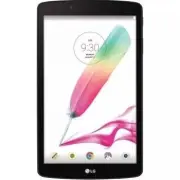


 LG G Pad 8 Black
User Manual
LG G Pad 8 Black
User Manual
 LG LGAK495
User Manual
LG LGAK495
User Manual
 LG LGAK815
User Manual
LG LGAK815
User Manual
 LG LGLK430
User Manual
LG LGLK430
User Manual
 LG LGLK460
User Manual
LG LGLK460
User Manual
 LG LGUK495
User Manual
LG LGUK495
User Manual
 LG LGUK932
User Manual
LG LGUK932
User Manual
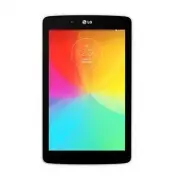 LG LGV400
User Manual
LG LGV400
User Manual
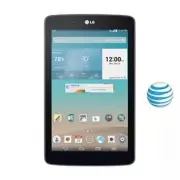 LG LGV410
User Manual
LG LGV410
User Manual
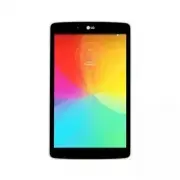 LG LGV480
User Manual
LG LGV480
User Manual
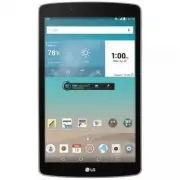 LG LGV495
User Manual
LG LGV495
User Manual
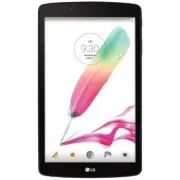 LG LGV496TK
User Manual
LG LGV496TK
User Manual
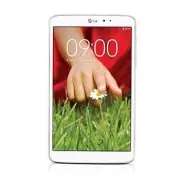 LG LGV500
User Manual
LG LGV500
User Manual
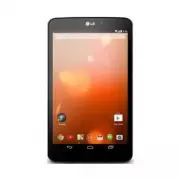 LG LGV510
User Manual
LG LGV510
User Manual
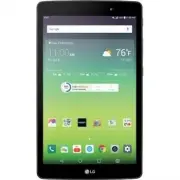 LG LGV520
User Manual
LG LGV520
User Manual
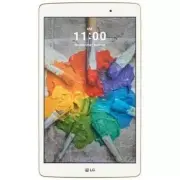 LG LGV521WG
User Manual
LG LGV521WG
User Manual
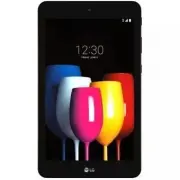 LG LGV530KB
User Manual
LG LGV530KB
User Manual
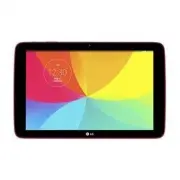 LG LGV700
User Manual
LG LGV700
User Manual
 LG LGV909
User Manual
LG LGV909
User Manual
 LG LGV909DW
User Manual
LG LGV909DW
User Manual