Page 3 - Safety Information; CAUTION
1 Getting Started Getting Started 3 Getting S tar ted 1 Safety Information CAUTION RISK OF ELECTRIC SHOCK DO NOT OPEN CAUTION: TO REDUCE THE RISK OF ELECTRIC SHOCK DO NOT REMOVE COVER (OR BACK) NO USER-SERVICEABLE PARTS INSIDE REFER SERVICING TO QUALIFIED SERVICE PERSONNEL. This lightning flash with...
Page 5 - IMPORTANT SAFETY
Getting Started 5 Getting S tar ted 1 IMPORTANT SAFETY INSTRUCTIONS 1. Read these instructions. 2. Keep these instructions.3. Heed all warnings. 4. Follow all instructions. 5. Do not use this apparatus near water. 6. Clean only with dry cloth. 7. Do not block any ventilation openings. Install in acc...
Page 6 - Table of Contents; Getting Started
Table of Contents 6 Table of Contents 1 Getting Started 3 Safety Information 5 – IMPORTANT SAFETY INSTRUCTIONS 8 Main Features 8 Introduction9 Accessories10 Front panel10 Rear panel11 Remote control 12 Installing the sound bar 12 – Installing the cover foot12 Mounting the main unit on a wall 2 Conne...
Page 7 - Troubleshooting
Table of Contents 7 1 2 3 4 5 59 – [Alarms/Sleep Timer] Menu59 – [Music Library] Menu59 – [Account management] Menu59 – [Time Zone] Menu60 – [Advanced Settings] Menu61 – [Google Cast] Menu62 – [Version Info.] Menu62 – [Open source licenses] Menu63 Using a Bluetooth Wireless Technology63 – About Blue...
Page 8 - Main Features; Android device; Music Flow Player application; Introduction; Symbol used in this manual; Note; Caution
Getting Started 8 Getting S tar ted 1 Main Features Made for iPod/iPhone/iPad or Android device Enjoys music from iPod/iPhone/iPad or Android device with simple connection. LG Sound Sync Controls volume level of this unit by the remote control of your LG TV that is compatible with LG Sound Sync. Por...
Page 9 - Accessories
Getting Started 9 Getting S tar ted 1 Accessories Please check and identify the supplied accessories.Designs and specifications of the accessories are subject to change without prior notice. Remote control (1) Batteries (2) AC adapter (1) Power cord (1) Wall bracket (2) Wall bracket install guide (1...
Page 10 - Front panel; Rear panel
Getting Started 10 Getting S tar ted 1 A Display window B LED indicator Shows connection status. C Remote sensor D 1/! (Standby/On) - Power On - Switching to the standby mode (page 67) E F (Function) Selects the function and input source. F p / o ( Volume) Adjusts volume level. G ( Wi-Fi) Connects y...
Page 11 - Remote control; Replacement of Battery
Getting Started 11 Getting S tar ted 1 Remote control Replacement of Battery Remove the battery cover on the rear of the Remote Control, and insert two R03 (size AAA) batteries with and matched correctly. • • • • • • • • • • a • • • • • • • • • 1 (Power) : Switches the unit ON or OFF. / Switches to ...
Page 12 - Installing the sound; Installing the cover foot; Mounting the main; Preparation materials
Getting Started 12 Getting S tar ted 1 Installing the sound bar You can hear the sound by connecting the unit to the other device : TV, Blu-ray disc player, DVD player, etc.Place the unit in front of the TV and connect it to the device you want. (Refer to pp. 16 - 21)You can place the wireless subwo...
Page 14 - Connecting the AC; Wireless subwoofer; LED indicator of wireless subwoofer; Setting up the wireless subwoofer
2 Connecting Connecting 14 C onnecting 2 Connecting the AC Adapter Connect the speaker to the power supply with the supplied AC adapter. 1. Connect the supplied AC power cord to the AC adapter. 2. Connect the AC adapter cable to DC IN adapter input. 3. Plug the AC power cord into an AC outlet. Only ...
Page 16 - Connecting to your TV; Using an OPTICAL cable; LG Sound Sync
Connecting 16 C onnecting 2 Connecting to your TV Please connect with this unit and TV using the optical digital cable or HDMI cable considering the state of the TV. Using an OPTICAL cable 1. Connect the OPT. IN jack on the back of the unit to OPTICAL OUT jack on the TV using an OPTICAL cable. Optic...
Page 17 - With wired connection; With wireless connection; Using an HDMI cable
Connecting 17 C onnecting 2 With wired connection 1. Connect your LG TV to the unit by using an optical cable. Optical cable 2. Set up the sound output of TV to listen to the sound through this unit : TV setting menu [ [Sound] [ [ TV Sound output] [ [LG Sound Sync (Optical)] 3. Turn on the unit by p...
Page 18 - HDMI cable Checklist; Enjoy rich sound broadcast of; Connection through HDMI Cable*
Connecting 18 C onnecting 2 HDMI cable Checklist Some HDMI cables do not support the ARC function, this can result in no sound output.When connecting this unit to the TV, if there is no sound, there might be a problem with the HDMI cable. Therefore connect this unit to the TV and check whether the T...
Page 19 - function; Additional information for
Connecting 19 C onnecting 2 ARC (Audio Return Channel) function The ARC function enables an HDMI capable TV to send the audio stream to HDMI OUT of the unit.To use this function : - Your TV must support the HDMI-CEC and ARC function and the HDMI-CEC and ARC must be set to On. - The setting method of...
Page 20 - Optional equipment; HDMI connection; For enjoying sound only; For enjoying both sound and picture
Connecting 20 C onnecting 2 Optional equipment connection HDMI connection For enjoying sound only You can enjoy the sound from the external device you connect. To the Blu-ray disc player, DVD player, etc. 1. Connect HDMI IN jack on the back of the unit to HDMI OUT jack on the audio device such as Bl...
Page 21 - connection; Listening to music from your; OPTICAL IN connection
Connecting 21 C onnecting 2 PORT. (Portable) IN connection Listening to music from your portable player The unit can be used to play the music from many types of portable players or external devices. 1. Connect the portable player to the PORTABLE IN connector of the unit. 2. Turn the power on by pre...
Page 22 - Setup; Wired connection (MUSICflow; Wireless connection (Standard; Installing “Music Flow; Through “iTunes store” or “Google; Through QR code
Connecting 22 C onnecting 2 Initial Multi-Room Setup When installing the MUSICflow product for the first time, you can choose two types of connection as below. Wired connection (MUSICflow Mesh Network Connection) Connect your speaker to the home router using LAN cable.Then you can connect the additi...
Page 23 - Starting with Music Flow
Connecting 23 C onnecting 2 y Make sure that your smart device is connected to the internet. y Make sure that your smart device has a scanning application. If you don’t have, download it from “iTunes store” or “Google Play Store”. , Note Starting with Music Flow Player app When you launch Music Flow...
Page 25 - Using Media Server for; Music Flow PC Software for; About Music Flow PC Software; Sharing music files
Connecting 25 C onnecting 2 Using Media Server for PC Media server Software allows users to access audio files stored in media server and enjoy them on this speaker via home networking.Before connecting to PC to play a file, Media server Software should be installed on your PC. Make sure that wirele...
Page 26 - Nero MediaHome 4 Essentials
Connecting 26 C onnecting 2 Nero MediaHome 4 Essentials for Mac OS About Nero MediaHome Essentials Nero MediaHome 4 Essentials is a software for sharing video, audio and photo files stored on your computer to this speaker as a digital media server. Downloading Nero MediaHome Essentials 1. Start up y...
Page 27 - Connecting the; Connecting the speaker to
Connecting 27 C onnecting 2 Connecting the speaker to your Home Network Using a wired network provides the best performance, because the attached devices connect directly to the network without radio frequency interference.Please refer to the documentation for your network device for further instruc...
Page 36 - Notes on Network Connection
Connecting 36 C onnecting 2 Notes on Network Connection y Many network connection problems during set up can often be fixed by re-setting the router. After connecting the speaker to the home network, quickly power off and/or disconnect the power cable of the home network router or cable modem. Then ...
Page 37 - Connecting the additional
Connecting 37 C onnecting 2 Connecting the speakers to your Home Network (Additional) You can enjoy the music with multiple speakers and single smart device you have. Requirements y Wireless router y Smart device (Android or iOS) y Another speaker Signal interference may lead to stop playback. , Not...
Page 41 - Using the Bridge; Use as a root device (wired to
Connecting 41 C onnecting 2 7. Then select the [Next] on the screen. 8. Select [Finish] to complete the connection. Speakers may be not connected if the distance between the Sound Bar (Main) connected by LAN cable and the speaker (Add) to be connected is too far. , Note Using the Bridge Use as a roo...
Page 43 - Use as a wireless extender
Connecting 43 C onnecting 2 Use as a wireless extender When you want to expand MUSICflow mesh network coverage, add the Bridge (R1) to your home network. a b Bridge If you want to use this connection, Initial MUSICflow product is connected to your home router with LAN cable. 1. Attach the power cord...
Page 45 - Enjoying the Music; Overview of Home menu
3 Operating Operating 45 Oper ating 3 Enjoying the Music with Music Flow Player app With Music Flow Player app, you can play music in your smart device. y For more detailed instruction about Music Flow Player app, switch on the [User Guide] in [Settings] > [General] on the side menu. y Some of th...
Page 46 - Edit the Online streaming Service; Overview of the side menu
Operating 46 Oper ating 3 Edit the Online streaming Service list 1. Launch Music Flow Player app on your smart device. The [Home] appears. 2. Tap the [EDIT ] menu. y Select the checkbox of the Online service you want to see on Home. y Drag upwards or downwards to change the order of the Online servi...
Page 47 - Playing a song
Operating 47 Oper ating 3 Playing a song 1. Launch Music Flow Player app on your smart device. The [Home] appears. 2. Tap the [Home] menu. 3. Side menu appears. Select the [My Phone] on the side menu. 4. Select the desired album. 5. Select the desired song. Then selected song is displayed and played...
Page 48 - Managing a playlist; Overview of Playback
Operating 48 Oper ating 3 Managing a playlist On an album screen, tap the [ ] of the desired song. The pull down menu appears. a Play next – Selects music to play next. b Add to queue – Adds to queue list. c Add to playlist – Adds to a desired playlist. Depending on your wireless environment, playin...
Page 49 - Selecting Sound effect
Operating 49 Oper ating 3 Selecting Sound effect This speaker has a number of pre-set surround sound fields. You can select a desired sound mode by tapping [ ].The displayed items for the equalizer may be different depending on sound sources and effects. 1. During playback, tap the [ ] as below. 2. ...
Page 50 - Different ways of; Group Playback
Operating 50 Oper ating 3 Different ways of listening to music There are a number of differing ways of listening to music : Group, Surround and Seamless playbacks. If you want to enjoy the group playback and Surround playback, it is recommended that at least one speaker is connected by LAN cable. To...
Page 51 - Surround Sound Mode (Home
Operating 51 Oper ating 3 3. Grouping option appears. Tap the checkbox to select the speaker you want to play with. Then select [OK]. 4. The speakers is ready to group playback. y If the speakers are not grouped, you can enjoy different music on each speaker. y It is recommended to connect less than...
Page 53 - Seamless playback; Changing playing speaker from a
Operating 53 Oper ating 3 Seamless playback You can easily change the playing speaker from your smart device or the speaker to the another speaker without pause. y It is not supported when you go out of the house with your smart device. y Wi-Fi function on smart device must be turned on. y If the so...
Page 54 - Using LG HomeChat; About LG HomeChat; How to start LG HomeChat; Step 2. Adding LG HomeChat as a
Operating 54 Oper ating 3 Using LG HomeChat y For more information, see http://homechat.lge.com. y Depending on the region, the LG HomeChat service may not be available. , Note About LG HomeChat y What kind of service is LG HomeChat? - LG HomeChat service enables users to chat with Smart home applia...
Page 55 - Step 4. Connect audio to LG; Step 5. Use LG HomeChat; Usage Examples; Audio quick button
Operating 55 Oper ating 3 Step 4. Connect audio to LG HomeChat 1. To control your home appliance(s) through HomeChat, you need to make sure that the smart device installed Music Flow Player and the speaker are connected to the same Wi-Fi network and first register your speaker. Enter “Register” for ...
Page 56 - Mood station; Coming home; Setting the Speaker
Operating 56 Oper ating 3 Mood station Analyzes the songs in Music Library using Gracenote, and organizes them according to Mood. The organization may not be correct depending on the audio file. , Note Coming home Setting the Speaker with Music Flow Player app With Music Flow Player app, you can set...
Page 57 - Overview of setting menu; User Guide
Operating 57 Oper ating 3 Overview of setting menu 1. Launch Music Flow Player app on your smart device. 2. Select [Settings] on the side menu. a General – Sets for easier use of the speaker. b Speakers – Sets connected speaker. c Alarms/Sleep Timer – Wakes on and off the speaker at a designated tim...
Page 60 - Mesh Network Channel; Mesh Network direct connection
Operating 60 Oper ating 3 [Advanced Settings] Menu Mesh Network Channel If normal playback or group playback is not smooth using multiple speakers including wireless speaker connection, changed the mesh network channel to improve network speed. 1. Select the [Settings] -> [Advanced Settings] opti...
Page 61 - Sensitivity Settings; Learn how to cast; Google Cast-enabled apps; Legal information
Operating 61 Oper ating 3 2. Tag the smart device to LG Music Flow to play for about 1 second. Sensitivity Settings Sets the operating distance of Auto Music Play between the speaker and your smart device to adjust sensitivity of Bluetooth(BLE). - Place your smart device close enough to the tag on t...
Page 63 - Using a Bluetooth; About Bluetooth; Bluetooth profiles
Operating 63 Oper ating 3 Using a Bluetooth Wireless Technology About Bluetooth Bluetooth® is wireless communication technology for short range connection. The sound may be interrupted when the connection interfered by the other electronic wave or you connect the bluetooth in the other rooms.Connect...
Page 64 - Other operations; AV Sync; Using your TV remote control
Operating 64 Oper ating 3 y When using Bluetooth® technology, you have to make a connection between the unit and the bluetooth device as close as possible and keep the distance. However it may not work well in the case below : - There is a obstacle between the unit and the bluetooth device. - There ...
Page 65 - Turn off the sound temporarily; Auto power down
Operating 65 Oper ating 3 Turn off the sound temporarily Press (Mute) to mute your unit.You can mute your unit, for example, to answer the telephone, “MUTE” is displayed in the display window.To cancel it, press (Mute) again on the remote control or change the volume level. Displaying input source i...
Page 66 - Sound adjustment; Adjust volume level; woofer; Night mode
Operating 66 Oper ating 3 AUTO POWER On/Off This unit automatically turns on and off by an input source : Optical.When you turn on your TV or an external device connected to this unit, this unit recognizes the input signal and selects the optical function. You can hear the sound from your device.Thi...
Page 67 - Standby mode; Bluetooth standby mode; Reset the Speaker; Resetting the speaker
Operating 67 Oper ating 3 Standby mode The speaker switches to the standby mode if there is no music playback or no button operation. Standby mode Option 1. If network is disconnected and there is no music playback and no button operation for 20 minutes, the speaker switches to the standby mode. The...
Page 68 - Troubleshooting; General; Symptoms
4 Troubleshooting Troubleshooting 68 Trouble shoo ting 4 Troubleshooting General Symptoms Cause & Solution The unit does not work properly. y Turn off the power of this unit and the connected external device ( TV, Woofer, DVD-player, Amplifier, etc.) and turn it on again. y Disconnect the power ...
Page 69 - Network
Troubleshooting 69 Trouble shoo ting 4 Symptoms Cause & Solution When you feel the output sound of the unit is low. Check the details below and adjust the unit according to them. y Switch [ON] state of DRC function to [OFF] by using remote controller. y With the sound bar connected with TV, chan...
Page 70 - Application and PC Software
Troubleshooting 70 Trouble shoo ting 4 Application and PC Software Symptoms Cause & Solution Music Flow Player app doesn’t work properly. Does an error occur when accessing the app? y Make sure that your smart device is compatible with the app. y Make sure that the Music Flow Player app is the l...
Page 71 - Trademarks and
5 Appendix Appendix 71 Appendix 5 File requirement Available File extensions : “.mp3”, “.wma”, “.flac”, “.m4a”, “.aac”, “.ogg”, “.wav” Sampling frequency: within 32 to 48 kHz (mp3, wma), up to 192 kHz/24 bit (flac) Bit rate: up to 320 kbps (mp3, wma) y The file requirements are not always compatible...
Page 72 - Specifications
Appendix 72 Appendix 5 Specifications General Power Supply 25 V 0 2 A (AC adapter) Power consumption 45 WNetworked standby : 5.8 W (If all network ports are activated.) AC adapter Model : DA-50F25 Manufacturer: Asian Power Devices Inc. Input: 100 - 240 V ~ 50/60 Hz Output: 25 V 0 2 A Dimensions ( W ...
Page 74 - Handling the Speaker; When shipping the speaker; Important Information
Appendix 74 Appendix 5 Handling the Speaker When shipping the speaker Please save the original shipping carton and packing materials. If you need to ship the speaker, for maximum protection, re-pack the speaker as it was originally packed at the factory. Keeping the exterior surfaces clean y Do not ...
Page 75 - TERMS OF USE
Appendix 75 Appendix 5 TERMS OF USE These Terms of Use apply to those individuals and groups who use LG’s Multiroom Speaker (LG Mutiroom Speaker), any software(s) associated with LG Multiroom Speaker, this application and any services associated this application (collectively “LG Software”). They se...
Page 77 - OPEN SOURCE SOFTWARE
Appendix 77 Appendix 5 If you have any questions or comments about these Terms of Use please contact www.lg.com. These Terms of Use may be updated by LGE from time to time. If we make a material change to our Terms of Use, we will update you via your LG Software or other means. OPEN SOURCE SOFTWARE ...
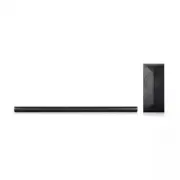


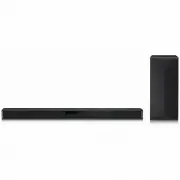 LG SN4
User Manual
LG SN4
User Manual
 LG SP60Y
User Manual
LG SP60Y
User Manual
 LG SP70Y
User Manual
LG SP70Y
User Manual
 LG SPM2L
User Manual
LG SPM2L
User Manual
 LG GX
User Manual
LG GX
User Manual
 LG LAB540W
User Manual
LG LAB540W
User Manual
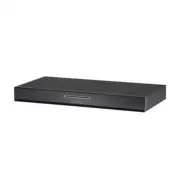 LG LAB550H
User Manual
LG LAB550H
User Manual
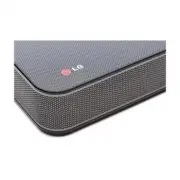 LG LAP240
User Manual
LG LAP240
User Manual
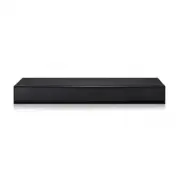 LG LAP250H
User Manual
LG LAP250H
User Manual
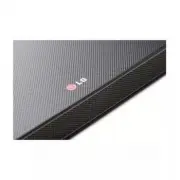 LG LAP340
User Manual
LG LAP340
User Manual
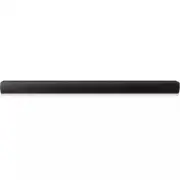 LG LAS160B
User Manual
LG LAS160B
User Manual
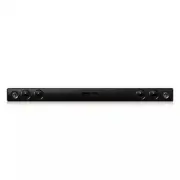 LG LAS260B
User Manual
LG LAS260B
User Manual
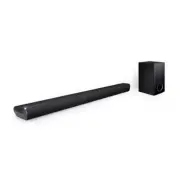 LG LAS350B
User Manual
LG LAS350B
User Manual
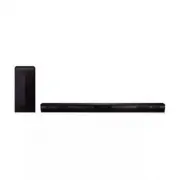 LG LAS450H
User Manual
LG LAS450H
User Manual
 LG LAS454B
User Manual
LG LAS454B
User Manual
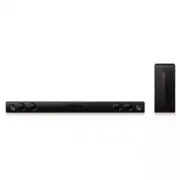 LG LAS465B
User Manual
LG LAS465B
User Manual
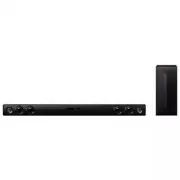 LG LAS475B
User Manual
LG LAS475B
User Manual
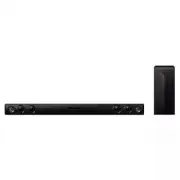 LG LAS485B
User Manual
LG LAS485B
User Manual
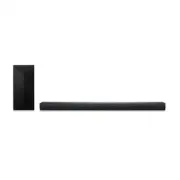 LG LAS551H
User Manual
LG LAS551H
User Manual