Page 2 - LICENSES; NOTE; Image shown may differ from your projector.
2 LICENSES LICENSES Supported licenses may differ by model. For more information about licenses, visit www.lg.com. Manufactured under license from Dolby Laboratories. “Dolby “and the double-D symbol are trademarks of Dolby Laboratories. ABOUT DIVX VIDEO: DivX® is a digital video format created by Di...
Page 3 - SAFETY INSTRUCTIONS; Indoor Installation; WARNING; - TO REDUCE THE RISK OF FIRE
3 SAFETY INSTRUCTIONS SAFETY INSTRUCTIONS Please take note of the safety instructions to prevent any potential accident or misuse of the projector. Read these instructions.Keep these instructions.Heed all warnings.Follow all instructions. Indoor Installation WARNING Do not place the Projector in dir...
Page 4 - NOTES; Only; Power
4 SAFETY INSTRUCTIONS Do not place the projector directly on a carpet, rug or place where ventilation is restricted.- This would cause its internal temperature to increase and might create a fire hazard or damage the unit. Ensure good ventilation around the projector. The distance between the projec...
Page 5 - Using
5 SAFETY INSTRUCTIONS NOTES Hold the plug firmly when unplugging. If you pull the cord, it may be damaged.- This may cause a fire hazard. Do not use if the power cord or the plug is damaged or any part of the power outlet is loose.- This may cause a fire or an electric shock hazard or damage to the ...
Page 7 - Cleaning; Others
7 SAFETY INSTRUCTIONS Cleaning WARNING Do not use water while cleaning the projector.- This may cause damage to the projector or an electric shock hazard. In the unlikely event of smoke or a strange smell from the projector, switch it off, unplug it from the wall outlet and contact your dealer or se...
Page 8 - ANTENNA; Outdoor Antenna Grounding; Warning
8 SAFETY INSTRUCTIONS ANTENNA Outdoor Antenna Grounding If an outdoor antenna is installed, follow the precautions below. An outdoor antenna system should not be located in the vicinity of overhead power lines or other electric light or power circuits, or where it can come in contact with such power...
Page 9 - Disposal of your old appliance; Disposal of waste; For USA; NOTE TO CABLE/TV INSTALLER
9 SAFETY INSTRUCTIONS Disposal of your old appliance 1. When this crossed-out wheeled bin symbol is attached to a product it means the product is covered by the European Directive 2002/96/EC. 2. All electrical and electronic products should be disposed of separately from the municipal waste stream t...
Page 10 - TABLE OF CONTENTS
10 TABLE OF CONTENTS ENTERTAINMENT 27 Network Connection 27 - Connecting to a Wireless Network 27 - Setting to a Wireless Network 28 - Tips for Network Setting 30 - Network Status 32 NETCAST 32 - Using the NETCAST 32 MY MEDIA 36 - Connecting USB Storage Devices 36 - Connecting DLNA DMP (Digital Livi...
Page 11 - MAKING CONNECTIONS; - Component Connection; Connecting to a PC; MAINTENANCE 71; - Cleaning the lens; How to Fix the Lens Cap; SPECIFICATIONS 74
11 TABLE OF CONTENTS MAKING CONNECTIONS 67 Connecting to a HD receiver, DVD, or VCR player 68 - HDMI Connection 68 - Component Connection 68 - Composite Connection 69 Connecting to a PC 69 - RGB Connection 69 Connecting to a Headphone 70 MAINTENANCE 71 Updating the Projector Firmware 71Cleaning the ...
Page 12 - ASSEMBLING AND PREPARING; Unpacking
12 ASSEMBLING AND PREPARING ASSEMBLING AND PREPARING Unpacking Check your product box for the following items. If there are any missing accessories, contact the local dealer where you purchased your product. The illustrations in this manual may differ from the actual product and item. Remote Control...
Page 13 - Optional Extras
13 ASSEMBLING AND PREPARING Optional Extras Optional extras can be changed or modified for quality improvement without any notification.Contact your dealer for buying these items. 1 Use screw size: M4x6-M4x8 Projection Screen Tripod HDMI Cable Video Cable Audio Cable Component Cable AJ-CB2 AJ-CB2+AJ...
Page 14 - Parts and Buttons; Button
14 ASSEMBLING AND PREPARING Parts and Buttons * The projector is manufactured using high-precision technology. You may, however, see on the Projector screen tiny black points and/or bright points (red, blue, or green). This can be a normal result of the manufacturing process and does not always indi...
Page 15 - Installation; Installation Precautions; - The projector is equipped with
15 ASSEMBLING AND PREPARING Installation Installation Precautions Provide proper ventilation for this projector. - The projector is equipped with ventilation holes. Do not block or place anything near these holes. Internal heat build-up may occur, causing picture degradation or damage to the project...
Page 16 - Basic Operation of the Projector; Place the projector on a sturdy and horizontal surface.
16 ASSEMBLING AND PREPARING Basic Operation of the Projector 1 Place the projector on a sturdy and horizontal surface. 2 Place the projector with the desired distance from the screen. The distance between the projector and the screen determines the actual size of the image. 3 Position the projector ...
Page 17 - Kensington Security System; , the internet homepage of the; How to Install the Projector Using a Tripod
17 ASSEMBLING AND PREPARING Kensington Security System This projector has a Kensington Security System Connector on the panel. Connect a Kensington Security System cable as below. For detailed installation and use of the Kensington Security System, refer to the user’s guide included with the Kensing...
Page 18 - REMOTE CONTROL; CAUTION
18 REMOTE CONTROL REMOTE CONTROL The descriptions in this manual are based on the buttons on the remote control. Please read this manual carefully and use the projector correctly. To replace batteries, open the battery cover, replace batteries (1.5 V AAA) matching the and ends to the label inside th...
Page 20 - WATCHING PROJECTOR; Connecting a Cable Box; Copper wire
20 WATCHING PROJECTOR WATCHING PROJECTOR Connecting to an Antenna or Cable Connect an antenna, cable, or cable box to watch TV while referring to the following. The illustrations may differ from the actual items and a RF cable is optional. Connecting an Antenna or Basic Cable Connect the projector t...
Page 21 - Watching Projector
21 WATCHING PROJECTOR Watching Projector Watching Projector 1 In Standby mode, press the POWER to turn the projector on. 2 Press INPUT and select desired input. 3 Control the projector using the following buttons while you are watching projector. Button Description CH ∧, ∨ Scrolls through saved chan...
Page 22 - Managing Channels; Setting Up Channels; Storing Channels
22 WATCHING PROJECTOR Managing Channels Setting Up Channels Storing Channels To store channels automatically, 1 Press MENU to access the menu. 2 Press the Navigation buttons to scroll to CHANNEL and press OK . 3 Press the Navigation buttons to scroll to Auto Tuning and press OK . 4 Select Start to s...
Page 23 - Editing Your Channel List; Favorite Channel Setup
23 WATCHING PROJECTOR Editing Your Channel List 1 Press MENU to access the menu. 2 Press the Navigation buttons to scroll to CHANNEL and press OK . 3 Press the Navigation buttons to scroll to Channel Edit and press OK . 4 Edit channels using the following buttons. Channel Edit Favorite Group : A Pag...
Page 24 - Adjusting Aspect Ratio
24 WATCHING PROJECTOR Using Additional Options Adjusting Aspect Ratio Resize an image to view at its optimal size by pressing RATIO while you are watching projector. NOTE Some options may not be available depending on input signals. You can also change the image size by pressing Q.MENU or MENU . - F...
Page 25 - Using the Input List; Adding an Input Label
25 WATCHING PROJECTOR Using Keystone Function Use this function when the screen is not at a right angle to the projector and the image is a trapezoid shape.Only use the Keystone function when you can’t get the best angle by moving the projector. •Keystone 0 ◀ - + ▶ ꔉ OK 1 Press Key's ꔌ , Key's ꔍ to ...
Page 26 - Blank Function; Using Blank Function
26 WATCHING PROJECTOR Using the Quick Menu Customize frequently used menus. 1 Press Q.MENU to access the quick menus. 2 Press the Navigation buttons to scroll through the following menus and press OK . Menu Description Aspect Ratio Changes the image size. (See p.24) Picture Mode Changes the image mo...
Page 27 - ENTERTAINMENT; Network Connection; Connecting to a Wireless Network
27 ENTERTAINMENT ENTERTAINMENT Network Connection Connecting to a Wireless Network The LG Wireless LAN for Broadband/DLNA Adaptor, allows the projector to connect to a wireless LAN network. The network configuration and connection method may vary depending on the equipment in use and the network env...
Page 30 - OK; Tips for Network Setting
30 ENTERTAINMENT 5 Press the Navigation buttons to type in an IP address and press OK . - PC Setting : Internet Protocol(TCP/ IP) of PC needs to be set manually. IP address, Subnet Mask, and default Gateway can be set with your own discretion. e.g.) IP address: 192.168.0.1 / Subnet Mask: 255.255.255...
Page 32 - NETCAST; Using the NETCAST; Network Status
32 ENTERTAINMENT NETCAST Stream movies, Game, SNS, Internet Radio or weather updates directly to your projector. Using the NETCAST 1 Press NETCAST to access the menu option. 2 Press the Navigation buttons to scroll to the content you want and press OK . UCC Movie Weather Photo News Sports Video Map ...
Page 34 - Legal Notice
34 ENTERTAINMENT Should you have any inquiry or problem related to the Content or Services, you may refer to the Service Provider’s website for the most up-to-date information. LGE is neither responsible nor liable for customer service related to the Content and Services. Any question or request for...
Page 36 - MY MEDIA; USB Device
36 ENTERTAINMENT MY MEDIA Connecting USB Storage Devices Connect USB storage devices such as a USB flash drive or external hard drive to the projector and use multimedia features.Connect a USB flash drive or USB memory card reader to the projector as shown in the following illustration. USB memory s...
Page 37 - Tips for Using; USB hubs are not supported.
37 ENTERTAINMENT Tips for Using USB Storage Devices Only a USB storage device is recognizable. USB hubs are not supported. A USB storage device which uses its own driver may not be recognized. The recognition speed of a USB storage device will depend on each device. Please do not turn off the projec...
Page 38 - iTunes
38 ENTERTAINMENT Connecting DLNA DMP (Digital Living Network Alliance, Digital Media Player) This projector can display and play many types of movie, photo and music files from your DLNA server.The Digital Living Network Alliance (DLNA) is a cross-industry organization of consumer electronics, compu...
Page 39 - Installing Nero MediaHome 4
39 ENTERTAINMENT 1 Close all Microsoft Windows programs and exit any anti-virus software that may be running. 2 Insert the Nero MediaHome 4 Essentials CD-ROM into your computer’s CD-ROM drive. 3 Click Nero MediaHome 4 Essentials . The installation is prepared and the installation wizard appears. 4 C...
Page 40 - Sharing Files and Folders
40 ENTERTAINMENT Sharing Files and Folders After installing Nero MediaHome, you must add folders you wish to share. 1 Double-click the Nero MediaHome 4 Essentials icon on the desktop. 2 Click Network icon on the left and define your network name in the Network name field. The Network name you enter ...
Page 41 - Tips for using DLNA DMP
41 ENTERTAINMENT Tips for using DLNA DMP To play the file on the media server, the projector and the media server must be connected to the same access point. Because the compatibility and available playback functions on the MY MEDIA menu are tested on the bundle DLNA server (Nero MediaHome 4 Essenti...
Page 43 - MOVIE LIST; Tips for playing video files; The movie file encoded by the GMC
43 ENTERTAINMENT MOVIE LIST * The movie list is activated once USB is detected. It is used when playing movie files on projector. Tips for playing video files Some user-created subtitles may not work properly. Some special characters are not supported in subtitles. HTML tags are not supported in sub...
Page 44 - DivX supported mode
44 ENTERTAINMENT DivX supported mode File Extensions Audio/Video Codec Profile/Level Support Explanation .asf.wmv Video VC-1 Advanced Profile Advanced Profile @ Level 3 (e.g. 720p 60, 1080i 60, 1080p 30) Only streams compliant to SMPTE 421M VC-1 standard are supported. VC-1 Simpleand Main Profiles S...
Page 45 - Browsing Movie List; Red; Green; Yellow; Blue
45 ENTERTAINMENT Browsing Movie List Play video files on the screen. Your screen can display video files from a USB storage device. 1 Connect a USB storage device. 2 Press USB to access the Home menu. 3 Press the Navigation buttons to scroll to Movie List and press OK . 4 Press the Navigation button...
Page 46 - Option; Options for Movie List
46 ENTERTAINMENT 6 Play a movie by using the following menus/buttons. ꕖ 01:02:30 / 02:30:25 ꕗ ꕖ ꕘ ꕚ ꕙ ꘩ Option ꕉ Hide ꕯ Exit ꔊꔋ Button Description <, > Move to a specific frame forward or backward while playing a video. A cursor indicating the position can be viewed on the screen. It may not work pr...
Page 47 - location of the subtitles.
47 ENTERTAINMENT Option Description Subtitle Language The subtitles can be turned on or off. Language : Activated for SMI subtitles and can select the language within the subtitle. Code Page : Subtitle font selection. When set to default, contents are displayed in the language set in OPTION - Menu L...
Page 48 - Registering the DivX code
48 ENTERTAINMENT Registering the DivX code - The DivX registration code allows you to rent or purchase the latest movies at www.divx.com/vod. To play a rented or purchased DivX file, the file’s registration code should be same as your projector’s DivX registration code. 1 Press USB to access the Hom...
Page 49 - PHOTO LIST; Photo Supported File Formats
49 ENTERTAINMENT PHOTO LIST * The projector can display JPEG files. Photo Supported File Formats PHOTO(*.JPEG) supporting fileBaseline: 64 pixel (width) x 64 pixel (height) to 15360 pixel (width) x 8640 pixel (height)Progressive: 64 pixel (width) x 64 pixel (height) to 1920 pixel (width) x 1440 pixe...
Page 50 - Slideshow
50 ENTERTAINMENT No. Description ❽ Allows you to mark certain files.Select files you want and press Color buttons . View Marked Press Red . Display the selected photo. Mark All Press Green . Mark all files in the folder. Unmark All Press Yellow . Deselect all marked files. Exit Mark Mode Press Blue ...
Page 51 - Options for Photo List; MUSIC LIST; Music Supported File Formats
51 ENTERTAINMENT Options for Photo List 1 Press Q.MENU . A pop-up window will appears. 2 Press the Navigation buttons to scroll to the option and press OK . 3 Press the Navigation buttons to scroll to one of the following options and press OK . Set Photo View. Option Description Slide Speed Selects ...
Page 52 - Play with; Options for Music List
52 ENTERTAINMENT No. Description ❶ ThumbnailAbnormal files Non-supported files ❷ Contents List ❸ Moves to upper level folder ❹ Current page/Total pages of folders ❺ Current page/Total pages of contents ❻ Move to File Viewer . ❼ Changes the number or thumbnails displayedat a time. ❽ Allows you to mar...
Page 53 - FILE VIEWER; Supported File Formats
53 ENTERTAINMENT FILE VIEWER Supported File Formats Supported File : XLS, DOC, PPT, TXT, XLSX, PPTX, DOCX, PDFMicrosoft Office Version 97 / 2000 / 2002 / 2003 / 2007Adobe PDF Version 1.0 / 1.1 / 1.2 / 1.3 / 1.4 File Viewer realigns the document, so it may look different than when viewed on a PC. For...
Page 54 - Go Page; PLAY GAME
54 ENTERTAINMENT 6 Control playback by using the following buttons. ꔈ Press CH to move the previous or next page. ꔈ Press VOL to Zoom in or zoom out. ꔈ 1. Press MENU . 2. Press the Navigation buttons to scroll to Go Page or Zoom press ∧ . MENU Go Page ꔦ Zoom ꕉ Hide Option Description Go Page Move to...
Page 55 - CUSTOMIZING SETTINGS; The SETUP Menu
55 CUSTOMIZING SETTINGS CUSTOMIZING SETTINGS The SETUP Menu 1 Press MENU to access the menu. 2 Press the Navigation buttons to scroll to one of the following menus and press OK . 3 Press the Navigation buttons to scroll to the setting or option you want and press OK . 4 When you are finished, press ...
Page 56 - CHANNEL Settings
56 CUSTOMIZING SETTINGS CHANNEL Settings 1 Press MENU to access the menu. 2 Press the Navigation buttons to scroll to CHANNEL and press OK . 3 Press the Navigation buttons to scroll to the setting or option you want and press OK . - To return to the previous level, press BACK . 4 When you are finish...
Page 58 - Advanced / Expert Control Options
58 CUSTOMIZING SETTINGS Advanced / Expert Control Options Setting Description Dynamic Contrast Adjusts the contrast to keep it at the best level according to the brightness of the screen. The picture is improved by making bright parts brighter and dark parts darker. Dynamic Color Adjusts screen colo...
Page 60 - SCREEN Settings
60 CUSTOMIZING SETTINGS SCREEN Settings 1 Press MENU to access the menu. 2 Press the Navigation buttons to scroll to SCREEN and press OK . 3 Press the Navigation buttons to scroll to the setting or option you want and press OK . - To return to the previous level, press BACK . 4 When you are finished...
Page 61 - AUDIO Settings
61 CUSTOMIZING SETTINGS AUDIO Settings 1 Press MENU to access the menu. 2 Press the Navigation buttons to scroll to AUDIO and press OK . 3 Press the Navigation buttons to scroll to the setting or option you want and press OK . - To return to the previous level, press BACK . 4 When you are finished, ...
Page 62 - TIME Settings
62 CUSTOMIZING SETTINGS TIME Settings 1 Press MENU to access the menu. 2 Press the Navigation buttons to scroll to TIME and press OK . 3 Press the Navigation buttons to scroll to the setting or option you want and press OK . - To return to the previous level, press BACK . 4 When you are finished, pr...
Page 63 - LOCK Settings
63 CUSTOMIZING SETTINGS LOCK Settings 1 Press MENU to access the menu. 2 Press the Navigation buttons to scroll to LOCK and press OK . 3 Press the Navigation buttons to scroll to the setting or option you want and press OK . - To return to the previous level, press BACK . 4 When you are finished, pr...
Page 65 - OPTION Settings
65 CUSTOMIZING SETTINGS OPTION Settings 1 Press MENU to access the menu. 2 Press the Navigation buttons to scroll to OPTION and press OK . 3 Press the Navigation buttons to scroll to the setting or option you want and press OK . - To return to the previous level, press BACK . 4 When you are finished...
Page 66 - NETWORK Settings
66 CUSTOMIZING SETTINGS Setting Description LED Mode To adjust the brightness of the screen. LED Mode changes into Dimming mode automatically if use a portable battery. LED Mode changeds into Dimming mode automatically if there is no input signal.You can also use this function through the Q.MENU but...
Page 67 - Connect various external devices to the ports on the projector.
67 MAKING CONNECTIONS MAKING CONNECTIONS Connect various external devices to the ports on the projector. HDMI – See p.68Component – See p.68Composite – See p.69RGB – See p.69Memory storage – See p.36Audio - See p.70 Computer/Notebook VCR DVD Digital Device USB Headphone Gaming Device
Page 68 - HDMI Connection; HDMI OUT; Component Connection
68 MAKING CONNECTIONS Connecting to a HD receiver, DVD, or VCR player Connect a HD receiver, DVD, or VCR player to the projector and select an appropriate input mode. HDMI Connection Transmits the digital video and audio signals from an external device to the projector. Connect the external device a...
Page 69 - RGB Connection; Composite Connection
69 MAKING CONNECTIONS Connecting to a PC This projector supports the Plug & Play. A PC will automatically recognize the projector and requires no driver to be installed. RGB Connection Transmits the analog video signal from your PC to the projector. Connect the PC and the projector with the D-su...
Page 71 - MAINTENANCE
71 MAINTENANCE MAINTENANCE Update and clean your projector regularly to keep the best performance and to extend the product lifespan. Updating the Projector Firmware Download and install the latest firmware by connecting to the firmware update server to enhance or change the product function, or add...
Page 72 - Use the “; Check Update Version; Cleaning the lens
72 MAINTENANCE NOTE The software downloading time will vary depending on the software size and network conditions. During the software update procedure, do not turn off the projector or disconnect AC power, or disconnect the network. After software update, you can confirm the update software version...
Page 73 - Prepare the lens cap and the strap
73 MAINTENANCE How to Fix the Lens Cap 1 Prepare the lens cap and the strap supplied as accessories. 2 Insert the end of the strap into the hole at the bottom of the lens section of the projector. 3 Fix the strap at the hole of the projector into the hole of the lens cap, and then pass the lens cap ...
Page 74 - SPECIFICATIONS; MODEL
74 SPECIFICATIONS SPECIFICATIONS MODEL HW300T (HW300T-JE) Resolution (Pixel) 1280 (Horizontal) × 800 (Vertical) Ratio 16:10 (Horizontal:Vertical) Panel size (mm) 11.623 Projection distance (Screen size) 0.59 m - 3.00 m (50.8 cm - 254.0 cm) Projection Offset 100 % Remote control distance 6 m Video co...
Page 75 - OPEN SOURCE LICENSE
75 SPECIFICATIONS OPEN SOURCE LICENSE To obtain the source code under GPL, LGPL, MPL and other open source licenses, that is contained in this product, please visit http:// opensource.lge.com . In addition to the source code, all referred license terms, warranty disclaimers and copyright notices are...
Page 76 - LG Customer Information Center; CANADA
The model and serial number of the projector is located on the back or one side of the projector. Record it below should you ever need service. MODEL SERIAL LG Customer Information Center USA, Consumer User 1-800-243-0000 USA, Commercial User 1-888-865-3026 CANADA 1-888-542-2623


 LG HU715QW
User Manual
LG HU715QW
User Manual
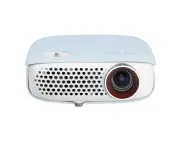 LG PW800G
User Manual
LG PW800G
User Manual
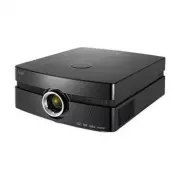 LG AF115
User Manual
LG AF115
User Manual
 LG AN215
User Manual
LG AN215
User Manual
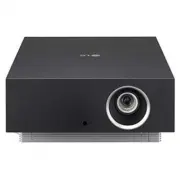 LG AU810PB
User Manual
LG AU810PB
User Manual
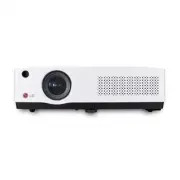 LG BD430
User Manual
LG BD430
User Manual
 LG BD450
User Manual
LG BD450
User Manual
 LG BD460
User Manual
LG BD460
User Manual
 LG BF40QS
User Manual
LG BF40QS
User Manual
 LG BF50NST
User Manual
LG BF50NST
User Manual
 LG BF50RG
User Manual
LG BF50RG
User Manual
 LG BF60PST
User Manual
LG BF60PST
User Manual
 LG BG630
User Manual
LG BG630
User Manual
 LG BG650
User Manual
LG BG650
User Manual
 LG BU50NST
User Manual
LG BU50NST
User Manual
 LG BU50RG
User Manual
LG BU50RG
User Manual
 LG BU53PST
User Manual
LG BU53PST
User Manual
 LG BU53RG
User Manual
LG BU53RG
User Manual