Page 2 - LICENSES
2 ENGLISH LICENSES Supported licenses may differ by model. For more information about licenses, visit www.lg.com. The terms HDMI, HDMI High-Definition Multimedia Interface, HDMI Trade Dress and the HDMI Logos are trademarks or registered trademarks of HDMI Licensing Administrator, Inc. Manufactured ...
Page 3 - SAFETY PRECAUTIONS; Indoor Installation
3 ENGLISH SAFETY PRECAUTIONS Please take note of the safety instructions to prevent any potential accident or misuse of the projector.Child injuries can be prevented by following these simple safety precautions. The precautions should be followed in the same manner when you store or move your existi...
Page 5 - Power
5 ENGLISH CAUTION • When placing the projector on a table or shelf, be careful not to put it near the edge. - The projector could fall due to balance problems, which may cause personal injury or damage to the product. Make sure to use the projector cabinet or stand that fits the projector. • When mo...
Page 8 - When in Use
8 ENGLISH When in Use WARNING • Do not place anything containing liquid on top of the projector such as a vase, flower pot, cup, cosmetics, medicine, or ornaments, candles, etc. - This may result in fire or electric shock, or cause injury due to falling. • In the event that there is a heavy impact o...
Page 10 - Cleaning
10 ENGLISH • It is recommended that you maintain a distance of more than 5 to 7 times the diagonal length of the screen. - If you watch the screen at a close distance for a long time, your eye sight may become worse. • Do not block the light beam emitted from the projector using a book or other obje...
Page 11 - Others
11 ENGLISH • When cleaning plastic parts such as the projector case, unplug the power first and wipe with a soft cloth. Do not spray with water or wipe with a wet cloth. Never use glass cleaner, automobile or industrial polish, abrasives, wax, benzene, or alcohol as these can damage the projector. -...
Page 13 - ANTENNA
13 ENGLISH • Do not throw or disassemble the battery. - This may result in fire or explosion due to damage to the battery. • Store batteries away from metallic objects, such as keys and paper clips. - Excess current may cause a rapid increase in temperature, resulting in fire or burns. • Do not stor...
Page 15 - CONTENTS
15 ENGLISH CONTENTS LICENSES 2 SAFETY PRECAUTIONS 3 PREPARATION 16 Accessories 16 Optional Extras 17 Parts and Components 18 Using the Joystick Button 20 - Basic functions 20 - Adjusting the menu 21 Projector Status Indicators 21 Installation 22 - Installation Precautions 22 - Projection Distance pe...
Page 16 - PREPARATION; Accessories
16 ENGLISH PREPARATION The pictures may differ slightly from the actual product. Accessories Accessories included with the projector are show below.Accessories are subject to change without prior notice.New accessories may be added or old ones removed. Magic Remote Control Two AA Batteries Owner's M...
Page 17 - Optional Extras
17 ENGLISH Optional Extras To purchase optional accessories, visit an electronics store or online shopping site or contact the retail store where you purchased the product. Optional accessories are subject to change without prior notice. Projection Screen Tripod HDMI Cable RF Cable Optical Cable LG ...
Page 18 - Parts and Components
18 ENGLISH Parts and Components This projector is manufactured using high-precision technology. You may, however, see tiny black dots and/or bright colored dots (red, blue, or green) that continuously appear on the projector screen. This is a normal result of the manufacturing process and does not i...
Page 20 - Using the Joystick Button; Basic functions
20 ENGLISH Using the Joystick Button You can operate the projector by pressing the button or moving the joystick left, right, up, or down. Basic functions Power On When the projector is turned off, place your finger on the joystick button, press it once, and release it. Power Off Press and hold the ...
Page 21 - Adjusting the menu; Projector Status Indicators
21 ENGLISH Adjusting the menu When the projector is turned on, press the joystick button one time.You can adjust the menu items ( , , , ) moving the joystick button left, right, up, or down. Move to the desired menu item, and then press the joystick button once to select it. Turns the power off. Cha...
Page 22 - Installation; Installation Precautions
22 ENGLISH Installation Installation Precautions • Place the projector in a well- ventilated environment. - To prevent internal overheating, install the projector in a well- ventilated place. Do not place anything near the projector. That may block its air vents. If the air vents are blocked, the in...
Page 24 - Projection Distance per Screen Size
24 ENGLISH Projection Distance per Screen Size 1 Place the projector on a sturdy, level surface, together with the PC or audio/ video source. 2 Place the projector an appropriate distance away from the screen. The distance between the projector and the screen determines the actual size of the image....
Page 28 - How to Install the Projector On a Tripod
28 ENGLISH How to Install the Projector On a Tripod • You can install the projector using a camera tripod. • As shown below, you can mount the projector instead of a camera on the tripod. • When stabilizing the tripod, we recommend using a locking bolt of standard size 4.5 mm (0.1 inches) or less. T...
Page 29 - Kensington Security System
29 ENGLISH Kensington Security System • This projector has a Kensington Security Standard connector as an anti-theft mechanism. Connect a Kensington Security System cable as shown below. • For more information on installation and use of the Kensington Security System, refer to the user’s guide provi...
Page 30 - MAGIC REMOTE CONTROL
30 ENGLISH MAGIC REMOTE CONTROL If the battery low message appears while using the Projector, replace the batteries.As shown in the figure, press the top of the battery cover and slide it down the cover. Insert two new and identical batteries (1.5 V, AA type) with + and - poles pointing in the corre...
Page 32 - To Register the Magic Remote Control
32 ENGLISH To Register the Magic Remote Control To use the Magic Remote control, register it with your projector first. 1 Put batteries into the Magic Remote and turn the Projector on. 2 Point the Magic Remote at your projector and press the Wheel (OK) on the remote control. • If the projector fails...
Page 33 - Using the Magic Remote Control
33 ENGLISH Using the Magic Remote Control • Shake the Magic Remote slightly to the right and left or press , (INPUT) buttons to make the pointer appear on the screen. • If the pointer has not been used for a certain period of time or Magic Remote is placed on a flat surface, then the pointer will di...
Page 34 - USING THE PROJECTOR; Connecting the Antenna or Cable
34 ENGLISH USING THE PROJECTOR Connecting the Antenna or Cable To watch TV using an indoor/outdoor antenna, connect a wall terminal and the antenna port of the Projector using an RF cable (75 Ω).You can watch terrestrial or cable (analog, digital) TV. (The RF cable is sold separately.) NOTE • Make s...
Page 35 - Focus and Position of the Screen Image
35 ENGLISH Focus and Position of the Screen Image When an image appears on the screen, check if it is in focus and fits the screen properly. Focus Ring Zoom Ring • To adjust the focus of the image, rotate the focus ring. • To adjust the size of the image, rotate the zoom ring. To move the screen ima...
Page 36 - Watching With the Projector
36 ENGLISH Watching With the Projector 1 When in standby mode, press the (POWER) button to turn the projector on. 2 Select the (INPUT) [All Inputs] and select the input signal you want. 3 Control the projector using the following buttons while watching projector. Button Description Changes the TV ch...
Page 37 - CONNECTING DEVICES
37 ENGLISH CONNECTING DEVICES You can connect various external devices to the projector. Computer/Notebook Digital Device Headphone USB DVD LG Audio Device Games Console HDMI - Page 38, 39, 40 Headphone - Page 41 Digital Amp - Page 42 Smart Device - Page 43 Mobile Phone
Page 38 - HDMI Connection; Connecting to HD Receiver,
38 ENGLISH HDMI Connection Connect an HD receiver, DVD, or external devices to the projector and select an appropriate input mode.You can connect with any HDMI input port. • (INPUT) [All Inputs] [HDMI1]/[HDMI2] Connecting to HD Receiver, DVD, or External Devices With an HDMI cable, you can enjoy hig...
Page 39 - Connecting a PC
39 ENGLISH Connecting a PC The projector supports Plug and Play. Your PC will automatically detect the projector and requires no driver installation. Using an HDMI cable, connect the port of the projector to the HDMI output port of your PC. Both video and audio are output at the same time. Optional ...
Page 40 - Connecting a Laptop
40 ENGLISH Connecting a Laptop You can connect the projector to a laptop to use various functions. Using an HDMI cable, connect the port of the projector to the HDMI output port of your laptop. Both video and audio are output at the same time. Optional Extras Examples of switching output settings wh...
Page 41 - Connecting Headphones
41 ENGLISH Connecting Headphones You can listen to the audio through a headphone. Not provided
Page 42 - Connecting a Digital
42 ENGLISH Connecting a Digital Amp Using an optical cable, connect the digital audio input port of a digital amp to the port of the projector. The output of an amp with a digital converter must be set to the desired audio format. When using a HDMI cable to connect a home theater or when connecting ...
Page 43 - Slimport supported devices
43 ENGLISH Connecting a smart device (smartphone, tablet, etc.) • (INPUT) [All Inputs] [HDMI1]/[HDMI2] • The picture may look different from the actual product. Connect a smart device to the projector using a cable 1) and set the external input of the projector to HDMI. The smart device screen will ...
Page 44 - MAINTENANCE; Cleaning the Lens; Cleaning the Projector Case
44 ENGLISH MAINTENANCE Clean your Projector to keep it in optimal condition. Cleaning Cleaning the Lens • If there is any dust or staining on the lens surface, you must clean the lens. • To remove dust or stains on the lens, use a compressed air duster, cotton swab, or soft cloth to gently wipe the ...
Page 45 - SPECIFICATIONS
45 ENGLISH SPECIFICATIONS MODEL HF60LA (HF60LA-NA) Resolution (Pixel) 1920 (Horizontal) × 1080 (Vertical) Aspect ratio 16:9 (Horizontal:Vertical) Projection distance - Screen size 905 mm to 3698 mm (35.6 inches to 145.5 inches) - 762 mm to 3048 mm (30 inches to 120 inches) Ratio of upward projection...
Page 49 - Open Source Software Notice
49 ENGLISH Open Source Software Notice Information To obtain the source code under GPL, LGPL, MPL, and other open source licenses, that is contained in this product, please visit http://opensource.lge.com.In addition to the source code, all referred license terms, warranty disclaimers and copyright ...
Page 50 - SYMBOLS
50 ENGLISH SYMBOLS Refers to alternating current (AC). Refers to direct current (DC). Refers to class II equipment. Refers to stand-by. Refers to “ON” (power). Refers to dangerous voltage.
Page 52 - ABOUT LG PROJECTOR
ABOUT LG PROJECTOR Image shown may differ from your projector.Your projector’s OSD (On Screen Display) may differ slightly from that shown in this manual. [ ] : the buttons and the text to be displayed on the projector screen. Copyright © 2019 LG Electronics Inc. All Rights Reserved. P/NO : SAC37813...
Page 54 - Home Tutorial; Using the Home feature of the LG Projector
3 ENGLISH ABOUT LG PROJECTOR Home Tutorial Using the Home feature of the LG Projector You can open the Home screen by pressing the button on your remote control. You can combine frequently used apps on a single screen and use whichever you want at any time. 2 3 4 5 1 6 1 Launch [Search]. 2 Move to t...
Page 56 - Manage LG Projector Home
5 ENGLISH Manage LG Projector Home You can view a list of all apps installed on your projector, change their positions, or delete them. 1 Select the app you want to edit, and press and hold the Wheel (OK) or OK button on the Remote Control. This will activate the app edit mode. Or you can select the...
Page 58 - Prepare Live TV; Watching TV broadcasting
7 ENGLISH Prepare Live TV Watching TV broadcasting 1 Connect the broadcast antenna/cable to the projector. You may also connect a piece of equipment that can receive broadcasting such as a set-top box instead of the antenna/cable. Run the (Q. Settings) [Connection] [Device Connector] and select the ...
Page 59 - Network Setting
8 ENGLISH Network Setting Network Setting If you configure settings for the network, you can use various services such as online contents and applications. Setting a Wired Network 1 Connect the LAN port of the projector and the router using a LAN cable. The router should be connected to the Internet...
Page 61 - HOW TO OPERATE THE PROJECTOR; Using Projector Functions through Speech
10 ENGLISH HOW TO OPERATE THE PROJECTOR Using Projector Functions through Speech You can easily and quickly access the projector’s various functions through speech recognition. 1 Press and hold the button on the remote control and speak out the function you want to launch or the keyword you want to ...
Page 64 - To View More Features of the Remote Control
13 ENGLISH To View More Features of the Remote Control You can control more features or external devices connected to your projector by using the buttons displayed on your projector screen. 1 Press the button on the remote control. 2 Using the remote control, select your desired button on [More Acti...
Page 66 - Universal Remote Control; Automatically Setting the Universal Remote Control
15 ENGLISH Universal Remote Control With the Magic Lighting Remote, you can control Set-Top Boxes, Blu-ray Players, Home Theater systems, etc. Automatically Setting the Universal Remote Control Connect the devices to be set to the projector’s HDMI input, and turn the power of the device on.The proje...
Page 67 - Manually Setting the Universal Remote Control
16 ENGLISH Manually Setting the Universal Remote Control If the universal remote control is not automatically set or it is connected to the AV input/Component input, you can manually set it. 1 Select the (Q. Settings) [Connection] [Device Connector]. 2 Select the type of the device you want to set. ...
Page 68 - Using apps quickly and easily with [QUICK ACCESS]
17 ENGLISH Launching Apps through [QUICK ACCESS] Using apps quickly and easily with [QUICK ACCESS] Press and hold a number button on the remote control to open an app or to activate an external input registered to the button. Setting the [QUICK ACCESS] 1 Launch the app or select the channel or input...
Page 70 - Using SIMPLINK
19 ENGLISH Using SIMPLINK You can conveniently control and use various multimedia devices connected through HDMI with the projector’s remote control. 1 Connect the SIMPLINK HDMI Output port to the projector’s HDMI IN port with an HDMI® cable. 2 Press the (Q. Settings) button on the remote control an...
Page 72 - ENJOY LIVE TV; Live Menu; Using Live Menu
21 ENGLISH ENJOY LIVE TV Live Menu Using Live Menu You can use the relevant features with ease when watching TV broadcasts. 1 Run [TV] by pressing . 2 Move the Magic Lighting Remote’s pointer to the left side of the projector screen. You can bring it up by pressing the button on the remote control e...
Page 74 - Guide; Viewing Guide
23 ENGLISH Guide Viewing Guide You can view programs and the schedule of each program.Press the remote control’s button, and select the [GUIDE] tab on the left side of the screen. 1 2 3 4 5 6 7 8 9 1 Click on each area, and you can move to the app. 2 You can view information about the channel and br...
Page 76 - Checking Program Info; Viewing Program Information
25 ENGLISH Checking Program Info Viewing Program Information While watching a live broadcast press the Wheel (OK) button. The Channel Banner appears. 2 3 1 1 Move to the [CHANNELS]. 2 It display the information about the program you are watching. Select a channel banner to enter the detailed informa...
Page 80 - Schedule by program
29 ENGLISH Schedule by program You can select a show to Schedule it for watching. 1 Press the remote control’s button, and select the [GUIDE] tab on the left side of the screen. 2 Select the program you want. If you want to watch a live broadcast, click the [WATCH] button. In case of an upcoming pro...
Page 81 - HOW TO USE VARIETY OF CONTENTS; LG Content Store
30 ENGLISH HOW TO USE VARIETY OF CONTENTS LG Content Store You can quickly and conveniently browse for TV Shows, Movies, and more to watch immediately. You can also download and use apps from various categories such as education, entertainment, lifestyle, news, and games. 1 Press the button on the r...
Page 82 - Creating LG Account
31 ENGLISH Creating LG Account In [Account Management], you can use your email address to create a new LG account. 1 Press the (Q. Settings) button on the remote control and select [General] [Account Management]. 2 Select [CREATE ACCOUNT]. Read and accept the Terms of Service. 3 Enter an ID and a pa...
Page 83 - Managing your LG Account
32 ENGLISH Managing your LG Account You can manage the information of your LG account. 1 Press the (Q. Settings) button on the remote control. 2 Go to [General] [Account Management] to log in. Personal Information You can view or edit your information of the account currently logged in.You can chang...
Page 84 - Search Content; Searching for Content
33 ENGLISH Search Content [Search] [Search] allows you to find and use a variety of content and information. You can search for files, including image, video, and audio files. Searching for Content 1 Press the button on the remote control. 2 Launch . 3 Search for a variety of content and information...
Page 85 - Installing Apps
34 ENGLISH Use App & Contents Installing Apps You can install various apps on your projector from the [LG Content Store]. 1 Press the button on the remote control. 2 Launch the [LG Content Store] application. 3 Select your desired category from the categories shown at the top of the screen. The ...
Page 86 - Watching VOD Content
35 ENGLISH Watching VOD Content You can immediately enjoy dramas, movies, and more with real-time streaming. 1 Press the button on the remote control. 2 Launch the [LG Content Store] application. 3 Select your desired category from the categories shown at the top of the screen, such as TV Shows and ...
Page 87 - CONNECT OTHER DEVICES
36 ENGLISH CONNECT OTHER DEVICES Using [Home Dashboard] You can select or control a device (mobile, external device, Home IoT Devices, etc.) connected to the projector. • Press and hold the button on your remote control. 1 2 3 4 5 6 7 1 You can check and select the connected smart device with the LG...
Page 89 - Mobile Connection; Connecting Your Smart Device to a Projector Using the LG TV
38 ENGLISH Mobile Connection You can use a variety of features by connecting the projector to a smart device. Connecting Your Smart Device to a Projector Using the LG TV Plus App 1 Download the LG TV Plus app from the app store of your smart device. 2 Connect your projector and smart device to the s...
Page 90 - Controlling Your Projector with the LG TV Plus App
39 ENGLISH Controlling Your Projector with the LG TV Plus App You can tap the buttons on your smart device’s screen to control the projector. 1 2 3 1 You can use the same functions as the Magic Lighting Remote’s pointer and arrow keys. 2 You can change the channel, adjust the volume, or make other a...
Page 91 - Share Content with the LG TV Plus App
40 ENGLISH Share Content with the LG TV Plus App You can share and enjoy the content stored on your smart device through your projector. 1 Run the LG TV Plus app installed on your smart device. 2 Set up your desired content on your projector. Matters That Require Special Attention during Content Sha...
Page 92 - Share Smartphone Screen; To see the Mobile Device's screen on the projector
41 ENGLISH Share Smartphone Screen To see the Mobile Device's screen on the projector 1 Enable Screen Share mode on the mobile device. 2 Your projector will be displayed in the list of available devices. 3 Select your projector and request connection. 4 After the connection is established, the proje...
Page 93 - Playing Sound from a Smart Device through the
42 ENGLISH Playing Sound from a Smart Device through the projector’s Speakers Connect a smart device to the projector via Bluetooth to play sound from the smart device through the projector’s speakers. 1 Press the button on the remote control and select [Home Dashboard]. 2 In the [MOBILE] area, run ...
Page 94 - Connecting USB
43 ENGLISH Connecting USB Connect a USB storage device (USB HDD, USB Flash Drive) to the USB port on the projector to enjoy the content files stored on the USB storage device on your projector. USB Flash Drive USB-C Flash Drive Models with USB-C support only. • Please check whether USB 2.0 is suppor...
Page 95 - Tips for Using a USB storage device
44 ENGLISH Tips for Using a USB storage device • A USB storage device that has a built-in automatic recognition program or uses its own driver might not be recognizable. • Some USB storage devices may not be supported or may not work properly. • If you use a USB extension cable, the USB storage devi...
Page 96 - Viewing Photos and Videos
45 ENGLISH [Photo & Video] Viewing Photos and Videos You can view photos and videos using the [Photo & Video] app. 1 Press the button on your remote control. 2 Launch the [Photo & Video] application. 3 Select your desired storage device. 4 Select and view your desired photo or video. 1 2...
Page 97 - Photo Player
46 ENGLISH Photo Player Selecting a photo in the [Photo & Video] app runs the photo player. You can view your saved photos. 1 2 3 4 5 6 7 1 Returns to the entire content list. 2 You can play background music by running the music player. 3 You can zoom the photos in/out. 4 Starts the slide show. ...
Page 99 - Video Player
48 ENGLISH Video Player Selecting a video in the [Photo & Video] app runs the video player. You can view your saved videos. 1 2 3 4 5 6 7 1 Returns to the entire content list. 2 You can select other content by displaying the playlist while watching a video. 3 You can control basic video playback...
Page 101 - Supported Video Files
50 ENGLISH Supported Video Files Maximum data transfer rate: • Full HD video H.264 1920 x 1080@60P BP/MP/[email protected] Maximum 40 Mbps HEVC 1920 x 1080@60P Main/[email protected] Maximum 40 Mbps • ULTRA HD video (ULTRA HD model only) H.264 3840 × 2160@30P BP/MP/[email protected] Maximum 50 Mbps ...
Page 103 - Cautions for Video Playback
52 ENGLISH Cautions for Video Playback • Some user-created subtitles may not work properly. • A video file and its subtitle file must be located in the same folder. For subtitles to be displayed properly, make sure that the video file and the subtitle file have the same name. • Subtitles on a Networ...
Page 104 - Playing Music
53 ENGLISH [Music] Playing Music You can listen to music by using the [Music] app. 1 Press the button on your remote control. 2 Launch the [Music] application. 3 Select your desired storage device. You can select your desired songs from all of your storage devices and add them to [My Playlist]. 4 Se...
Page 105 - Using the Music Player
54 ENGLISH Using the Music Player The music player lets you choose music from other apps and use it as background music. 1 2 3 4 5 6 7 1 You can play music from the selected storage device. 2 You can set repeat playback and random playback. 3 The configurable items differ depending upon model. : You...
Page 108 - Viewing Files
57 ENGLISH [File Viewer] Viewing Files You can see document files stored on a connected device. 1 Press the button on your remote control. 2 Launch the [File Viewer] application. 3 Select your desired storage device. 4 Select and view your desired document file. 1 2 1 Select your desired type of con...
Page 109 - Browsing File Viewer
58 ENGLISH Browsing File Viewer 1 2 3 4 5 6 7 1 Returns to the entire content list. 2 Moves to the page you specify. 3 Sets the slide show. 4 Enlarges or reduces the document. 5 Starts the slide show. 6 Rotates the document. 7 Sets up the options of File Viewer.
Page 111 - Using Home IoT Devices
60 ENGLISH Using Home IoT Devices You can check and control the status of the connected Home IoT devices. 1 Press the button on the remote control and select [Home Dashboard]. 2 Press the at the top right to select the [OCF Connection]. • To register your own OCF (Open Connectivity Foundation) suppo...
Page 112 - Share Computer Content; What Is Content Share?
61 ENGLISH Share Computer Content What Is Content Share? Content Share allows you to enjoy videos, music and photos saved on your PC. Play the content with sharing software on the PC If you have Windows 7 or later installed on your PC, you can play music, video, photos, etc. on your projector withou...
Page 115 - Share Computer Screen; To see the PC screen on the projector
64 ENGLISH Share Computer Screen To see the PC screen on the projector Connect wireless 1 Enable Screen Share mode on the PC. Your projector will be displayed in the list of available devices. 2 Select your projector and request connection. 3 After the connection is established, the projector will d...
Page 116 - BENEFITS OF SMART PROJECTOR; Enjoying Internet
65 ENGLISH BENEFITS OF SMART PROJECTOR Enjoying Internet Using the [Web Browser] You can enter the website when you input the web address on the URL bar. If you input the search word, it will find the information about search word base on the search engine. 1 Press the button on the remote control. ...
Page 120 - TOUR LIST OF SETTINGS; Quick Settings; To use Setting function quickly
69 ENGLISH TOUR LIST OF SETTINGS The options may differ depending on the model. Quick Settings To use Setting function quickly Press the (Q. Settings) button on the remote control. Displays a set of light-weight controls quickly and simply such as [Picture Mode], [Aspect Ratio], [Sound Out] and so o...
Page 158 - TO UPDATE SOFTWARE
107 ENGLISH TO UPDATE SOFTWARE Uses software update to check and obtain the latest version. • The configurable items differ depending upon country. • The latest version can be obtained via digital broadcast signals or internet connections. • Changing the channel while downloading the software via di...
Page 159 - TROUBLESHOOTING
108 ENGLISH TROUBLESHOOTING If you experience any of the problems below while using the product, please check the following. There may be no problem with the product.Information on customer service for product problems is available in (Q. Settings) [General] [About This Projector] on the projector. ...
Page 160 - Abnormal Operation; Power/Remote Control Errors
109 ENGLISH Abnormal Operation Power/Remote Control Errors I cannot turn on the Projector. • Please make sure your projector power plug is correctly connected to the outlet. • If you are using a multi-outlet, check if it is working properly. To check whether a power strip is working properly, plug t...
Page 162 - Screen Problems
111 ENGLISH Screen Problems First of all, perform a (Q. Settings) [Picture] [Picture Test] to check for any abnormalities in the projector.If you are using a set-top box, turn it off, and then turn it back on.Make sure that the set-top box is correctly connected to your projector. It says there is n...
Page 165 - Sound Problems
114 ENGLISH Sound Problems First of all, perform a (Q. Settings) [Sound] [Sound Test] to check for any abnormalities in the projector.If you are using a set-top box, turn it off, and then turn it back on.Make sure that the set-top box is correctly connected to your projector. The screen is fine, but...
Page 167 - PC Connection Problems
116 ENGLISH PC Connection Problems Press and hold the button on the remote control to select the on the top right of [Home Dashboard]. In the edit mode, set the icon of the HDMI terminal connected to the PC to [PC] to apply the video and aspect ratio settings that are aligned with the PC.To connect ...
Page 170 - Network Connection Problems
119 ENGLISH Network Connection Problems You can check the network connection status as shown below. • (Q. Settings) [Connection] [Wired Connection (Ethernet)] • (Q. Settings) [Connection] [Wi-Fi Connection] [Advanced Wi-Fi Settings] When X appears next to projector • Check the projector or the AP (R...
Page 172 - LG Account Problems
121 ENGLISH LG Account Problems In some countries, access to the website (www.lgappstv.com) may be restricted. I have already signed up on the projector. Do I still have to sign up again at the website (www.lgappstv.com)? • If you have already signed up on your projector, you do not have to sign up ...
Page 173 - Contents Problems
122 ENGLISH Contents Problems I cannot see any content in HOME. • You may not be able to see the content if the service country setting has been changed. Change to the service country you are going to use the service from in (Q. Settings) [General] [Location] [LG Services Country]. (Some models may ...
Page 174 - Internet Browser Problems
123 ENGLISH Internet Browser Problems Some parts of a particular website are not visible when I am using the Internet. • The [Web Browser] supports only HTML5 media and not Flash Plug-in. • The [Web Browser] does not support plug-in installation. • On the [Web Browser], it may not be possible to pla...
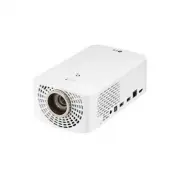


 LG HU715QW
User Manual
LG HU715QW
User Manual
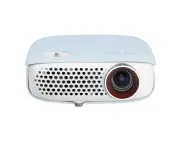 LG PW800G
User Manual
LG PW800G
User Manual
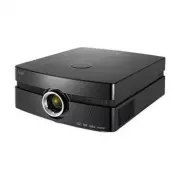 LG AF115
User Manual
LG AF115
User Manual
 LG AN215
User Manual
LG AN215
User Manual
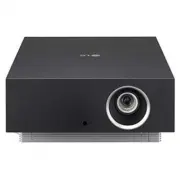 LG AU810PB
User Manual
LG AU810PB
User Manual
 LG BD430
User Manual
LG BD430
User Manual
 LG BD450
User Manual
LG BD450
User Manual
 LG BD460
User Manual
LG BD460
User Manual
 LG BF40QS
User Manual
LG BF40QS
User Manual
 LG BF50NST
User Manual
LG BF50NST
User Manual
 LG BF50RG
User Manual
LG BF50RG
User Manual
 LG BF60PST
User Manual
LG BF60PST
User Manual
 LG BG630
User Manual
LG BG630
User Manual
 LG BG650
User Manual
LG BG650
User Manual
 LG BU50NST
User Manual
LG BU50NST
User Manual
 LG BU50RG
User Manual
LG BU50RG
User Manual
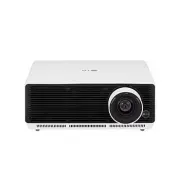 LG BU53PST
User Manual
LG BU53PST
User Manual
 LG BU53RG
User Manual
LG BU53RG
User Manual