Page 2 - LICENSE; NOTE
2 LICENSE LICENSE Manufactured under license from Dolby Laboratories. "Dolby" and the double-D symbol are trademarks of Dolby Laboratories.ABOUT DIVX VIDEO: DivX® is a digital video format created by DivX, LLC, a subsidiary of Rovi Corporation. This is an official DivX Certified® device that...
Page 3 - SAFETY INSTRUCTIONS; WARNING
3 SAFETY INSTRUCTIONS SAFETY INSTRUCTIONS Please take note of the safety instructions to prevent any potential accident or misuse of the Laser TV. Safety precautions are given in two forms, i.e. Warning and Caution as detailed below. WARNING : Failure to follow the instructions may cause serious inj...
Page 4 - Indoor Installation
4 SAFETY INSTRUCTIONS Read these instructions. Keep these instructions. Heed all warnings. Follow all instructions. Indoor Installation WARNING • Do not place the product in direct sunlight or near heat sources such as radiators, fires, stoves, etc. - This may cause fire. • Do not place inflammables...
Page 5 - CAUTION; Power
5 SAFETY INSTRUCTIONS CAUTION • When installing the product on a table or shelf, be careful not to place it near the edge. - This may fall causing injury to persons or the product malfunction. Make sure that you use the cabinet or stand that fits the product. • Turn off the product, disconnect it fr...
Page 6 - When in Use
6 SAFETY INSTRUCTIONS CAUTION • Hold the plug firmly when unplugging. - A broken wire in the cord may cause fire. • Ensure the power cord and plug are not damaged, modified, severely bent, twisted, pulled, sandwiched or hot. Do not use the product if the power outlet is loose. - This may cause fire ...
Page 8 - Cleaning
8 SAFETY INSTRUCTIONS • Do not block the light emitted from the product's lens with a book or a cover. Long exposure to the light may melt or burn the object, possibly causing fire. In addition, the lens may be overheated and the product may be damaged by the reflected light. Stop projecting tempora...
Page 9 - Others
9 SAFETY INSTRUCTIONS Others WARNING • Only a qualified technician can disassemble or modify the product. For inspection, adjustment, or repair, contact your seller or our service center. - Otherwise, this may cause fire or electric shock. CAUTION • Make sure you use the same type of new battery for...
Page 10 - Antenna; Eye Care Sensor
10 SAFETY INSTRUCTIONS Antenna WARNING • If you are using an outdoor antenna, please install it away from electrical wires to make sure it does not touch any nearby wires even when it falls down due to heavy wind. • Failure to do so may cause electric shock or physical injury. CAUTION • To prevent a...
Page 11 - Laser
11 SAFETY INSTRUCTIONS Laser WARNING • This product contains a laser module. Do not disassemble or modify the product as this could be dangerous. • You risk being exposed to laser radiation if you manipulate or alter the product in a way not specified in the user manual. • To protect your eyes avoid...
Page 12 - LASER RADIATION; Risk Group 2; Laser TV Label
12 SAFETY INSTRUCTIONS LASER RADIATION DO NOT STARE INTO BEAMCLASS 2 LASER PRODUCT - This laser Laser TV is a Risk Group 2 device that meets safety standard IEC 62471 standard. Risk Group 2 CAUTION. Possibly hazardous optical radiation emitted from this product. Do not stare at operating lamp. May b...
Page 15 - Table of contents
15 Table of contents Checking the Laser TV Functions 35 - Home Menu 35 Additional Options 36 - Adjusting the Aspect Ratio 36 - Using the Edge Adj Function 37 - Using the Input List 37 To use SIMPLINK 38 Explanation on SIMPLINK features 39 Using the Quick Menu 39 NETWORK FEATURES 40 NETWORK Settings ...
Page 17 - PREPARATION; Accessories
17 PREPARATION PREPARATION Accessories Check the accessories provided with the product. The picture may be different from the actual product. Accessories are subject to change without prior notice in order to improve the performance of the product. New accessories may be added or old ones may be rem...
Page 19 - Parts and Components; Front; Button
19 PREPARATION Parts and Components Front * This Laser TV is manufactured using high-precision technology. You may, however, see tiny black dots and/or bright spots that continuously appear on the screen. This is a normal result of the manufacturing process and does not indicate a malfunction. * Cei...
Page 20 - Back
20 PREPARATION RS-232C IN ❶ ❷ ❸ ❹ ❺ ❻ ❼ ❽ ❾ ❿ ⓫ ⓬ ❶ Component IN Port ❷ TRIGGER(12 V) Port Connect an external device (e.g., roll screen) to this port. ❸ USB IN1 Port ❹ H/P OUT Port ❺ AV IN Port ❻ ANTENNA/CABLE IN Port ❼ HDMI IN 1(ARC), 2, 3(PC) Port ❽ RGB IN Port ❾ AUDIO IN (RGB/HDMI-PC) Port ❿ LAN...
Page 21 - Status Indicator
21 PREPARATION Status Indicator Operation/Status Indicator Operation/ Status Indicator Off Power standby state (Power is off.) Red Power standby state White Warm stand-by (Power standby state) White (Brightness changes slowly.) The Laser TV is in the process of turning on or off. Off In operation Re...
Page 22 - Installation; Installation Precautions
22 PREPARATION Installation Installation Precautions • Place the product in a well-ventilated environment. - To prevent the internal heat from building up, install the Laser TV in a well-ventilated place. Do not place anything near the Laser TV. That may block its air vents. If the air vents are blo...
Page 23 - Projection Distance per Screen Size; distorted. To correct the distortion, use the Edge Adj function.; ARC
23 PREPARATION Projection Distance per Screen Size 1 Place the Laser TV on a sturdy level surface, together with the computer or audio/ video source. 2 Place the Laser TV at an appropriate distance away from the screen. The distance between the Laser TV and the screen determines the actual size of t...
Page 24 - 4 PREPARATION; Kensington Security System; Connect a Kensington Security System cable as shown below.
24 PREPARATION Kensington Security System • This the Laser TV has a Kensington Security Standard connector to prevent theft. Connect a Kensington Security System cable as shown below. • For more information on installation and use of the Kensington Security System, refer to the user guide provided w...
Page 25 - REMOTE CONTROL
25 REMOTE CONTROL REMOTE CONTROL Open the battery cover on the back of the remote control and insert the batteries which is specified in the battery room with poles pointing in the correct direction. The new and same type of batteries (1.5 V AAA) must be used. • Do not mix new batteries with old one...
Page 27 - MAGIC REMOTE CONTROL
27 MAGIC REMOTE CONTROL MAGIC REMOTE CONTROL If the battery low message appears while using the Laser TV, replace the batteries. As shown in the figure, press the top of the battery cover and slide it down the cover. Insert two new and identical alkaline batteries (1.5V, AA type) with + and - poles ...
Page 28 - Using the Magic Remote Control
28 MAGIC REMOTE CONTROL Pairing the Magic Remote Control You must pair the Magic remote control with the Laser TV to use it. Pair the Magic remote control prior to use as follows: 1 Turn on the Laser TV and press the Wheel (OK) button towards the Laser TV. When the pairing is complete, the pairing c...
Page 29 - Setting Up the TV; Connecting the Antenna
29 Setting Up the TV Setting Up the TV Connecting the Antenna or Cable To watch TV using an indoor/outdoor antenna, connect a wall terminal and the antenna port of the Laser TV using an RF cable (75 Ω). You can watch public TV or cable (analog, digital) TV. ANTENNA/CABLE IN • Be careful not to bend ...
Page 30 - 0 Setting Up the TV; Initial Setup; Connect the antenna and power cord correctly.; button on the remote control or the
30 Setting Up the TV Setting Up the TV Initial Setup 1 Connect the antenna and power cord correctly. 2 After waiting for a moment, press the POWER button on the remote control or the control panel. 3 When you turn on the Laser TV for the first time, a setting screen appears as shown below. Here, you...
Page 31 - Store
31 Setting Up the TV * [ Store ] is the mode for exhibition in the store. The picture mode is automatically reset after a certain period of time. You can select [Home] to use the product at home.
Page 32 - 2 Setting Up the TV
Page 34 - Watching TV
34 Setting Up the TV Watching TV 1 When in Standby mode, press the POWER button to turn the Laser TV on. 2 Press the INPUT button and select the input signal you want. 3 Control the Laser TV using the following buttons while watching the screen. Button Description CH , Changes the TV channel. LIST D...
Page 35 - Checking the Laser TV Functions; Home Menu; Description
35 Setting Up the TV Checking the Laser TV Functions The menu screen display in this owner's manual is an example to help users understand how to operate the product and may look different from the actual screen. Home Menu 1 Press the HOME button of the remote control. More... Movie Photos Music New...
Page 36 - Additional Options; Adjusting the Aspect Ratio
36 Setting Up the TV Additional Options Adjusting the Aspect Ratio You can adjust the aspect ratio of the picture by pressing RATIO while watching Laser TV. • Available options may vary depending on the input signal. • You can also use the Q.MENU or SETTINGS button. NOTE - 16:9 : Resizes images to f...
Page 37 - Using the Edge Adj Function; Using the Input List
37 Setting Up the TV Using the Edge Adj Function To prevent the screen image from becoming trapezoidal, Edge Adj adjusts the top and bottom width of the image if the Laser TV is not set up at a right angle to the screen. Because the Edge Adj function may cause inferior screen image quality, use this...
Page 38 - To use SIMPLINK; SIMPLINK
38 Setting Up the TV To use SIMPLINK SIMPLINK allows users to control and manage multiple multimedia devices using the convenient Laser TV remote control and SIMPLINK menu. 1 Connect the Laser TV's HDMI IN terminal with SIMPLINK device's HDMI output terminal using HDMI cable. For home theater units ...
Page 40 - Network Features; NETWORK Settings; One-Click Network Connection
40 Network Features Network Features NETWORK Settings To use the smart functions, the wired or wireless Internet must be connected. Once the Internet is connected, you can use premium contents or DLNA functions, etc. One-Click Network Connection You can make a wireless network connection easily. 1 P...
Page 41 - Wireless Network Connection; Wireless Network Setup; SETTINGS
41 Network Features Wireless Network Connection You can use a wireless network by using the built-in wireless network module as shown below. A wireless router must be installed and operating at this time. Refer to the wireless router's user manual to see how to install it. The network settings and c...
Page 42 - Tips for Network Setup
42 Network Features Tips for Network Setup • Modem reconfiguration may cause network connection problems. If it does, turn off the modem and disconnect it from the product; then turn on the modem again. It will be working normally. • LG Electronics is not responsible for any Internet connection prob...
Page 43 - Connecting the Wi-Fi Direct; Using WiDi
43 Network Features Using the Wi-Fi Screen Share Function With this function, you can use a wireless connection such as Wi-Fi Direct or WiDi, etc. Using SmartShare, you can share a device's screen through Wi-Fi Screen Share. Connecting the Wi-Fi Direct 1 Press the SETTINGS button. 2 Press the or but...
Page 44 - Connecting Media Link; Media Link; Using Media Link; MY APPS
44 Network Features Using Media Link If you install the Plex program on a PC or laptop that is connected on the same network as the smart Laser TV, you can directly and easily use various multimedia, such as photos, videos, or music stored in the PC or laptop. Connecting Media Link 1 Install the Ple...
Page 46 - Using the Premium Service
46 Network Features Using the Premium Service This service gives you easy access to a wide variety of content, such as news and UCC at any time, as long as you are connected to the network. In addition to global contents, the premium contents specialized for each country are provided considering eac...
Page 47 - SmartShareTM; Before Using; Connecting a USB Device; Removing a USB Device
47 SmartShare™ SmartShare™ Before Using Connecting a USB Device Connect a USB device (external HDD, USB memory) to the USB port of Laser TV to enjoy the content files stored in the USB device with your Laser TV. You cannot write or delete data in the USB device. Connect a USB memory stick as shown b...
Page 49 - Connecting DLNA
49 SmartShare™ Connecting DLNA Digital Living Network Alliance (DLNA) allows you to enjoy videos, music and photos saved on your PC or server using the Laser TV through a home network. Connecting the DLNA-Certified Mobile Device Laser TV and smartphone should be connected to the same network. 1 Enab...
Page 50 - When DLNA is Malfunctioning
50 SmartShare™ Connecting DLNA DMP (Digital Media Player) With a PC having SmartShare PC Software, music/video/photo files may be replayed on the Laser TV by linking them via home networking. 1 Configure the Laser TV and the PC on the same network. Laser TV and each device should be connected throug...
Page 51 - Connecting Internet
51 SmartShare™ Connecting Internet Types URL manually on TV or visits websites added to Favourite. ❹ ❸ ❶ ❷ Description ❶ Types in the web address. ❷ Add the current page to favorites. ❸ Moves to a website that you have visited. ❹ Chooses when you open several web browsers. • Internet supports up to ...
Page 52 - 2 SmartShareTM; Using SmartShareTM; Press the; button of the remote control.; SmartShare; device connected to the Laser TV.
52 SmartShare™ Using SmartShare™ 1 Press the HOME button of the remote control. 2 Select SmartShare . You can watch the photo, music and video on the Laser TV by connecting a USB or home network (DLNA, Media Link). It shows all the photos, music and videos in the device connected to the Laser TV.
Page 53 - Watching the Videos; Tips for Playing Videos
53 SmartShare™ Watching the Videos In the Movie List, you can watch movies stored on the connected USB device. Tips for Playing Videos • Some subtitles created by a user may not work. • A video file and its subtitle file must be located in the same folder. A video file name and its subtitle file nam...
Page 55 - Controlling the Video Playback; You can control playback using the following buttons.; Item
55 SmartShare™ Controlling the Video Playback You can control playback using the following buttons. Option List Item Description Shows the current playing position. You can use the or button to move forward or backward.Stops playing and returns to Movie List.Resumes normal playback.Pauses the media ...
Page 56 - Viewing the Photos
56 SmartShare™ Viewing the Photos You can view photos stored on a connected device. Photo File File Format Item Information 2D (jpeg, jpg, jpe) Supported format SOF0: baseline SOF1: Extend Sequential SOF2: Progressive Size Min. 64 x 64 Max. Normal Type: 15360 (W) x 8640 (H) Progressive Type: 1920 (W...
Page 57 - Listening to Music; You can play audio files stored on the connected device.
57 SmartShare™ Listening to Music You can play audio files stored on the connected device. Audio File File Format Item Information MP3 Bit rate 32 Kbps - 320 Kbps Sample freq. 16 kHz - 48 kHz Support MPEG1, MPEG2, Layer2, Layer3 Controlling Music Playback You can control playback using the following...
Page 58 - 8 SmartShareTM; Using the Magical Mirroring Function; System Requirements; Running Magical Mirroring; From the HOME screen, select Magical Mirroring.; • Magical Mirroring is available only when a network is connected.
58 SmartShare™ Using the Magical Mirroring Function The Magical Mirroring feature is used to wirelessly transmit and project the screen of a network-connected laptop (PC) to the Laser TV. To use this function, MirrorOp Sender, an application for PC, should be installed in the user's laptop (PC). You...
Page 61 - MirrorOp Sender; Changing MirrorOp Mode
61 SmartShare™ MirrorOp Sender Changing MirrorOp Mode Move the button to this position to change the transfer mode to application mode. Move the button to this position to change the transfer mode to movie mode. Mode Description Application Mode When MirrorOp is set to this mode, the software will t...
Page 62 - 2 SmartShareTM; Configuring MirrorOp
62 SmartShare™ Configuring MirrorOp - Search Host Device • Searches the devices available for connection on the local network. - Projection Quality • Changes the quality of the projected image. If the network speed is high, select 'Best'; if not, select 'Normal'. - Remote Cursor Size • Controls the ...
Page 64 - CUSTOMIZING SETTINGS
64 CUSTOMIZING SETTINGS CUSTOMIZING SETTINGS SETTINGS 1 Press the SETTINGS button. 2 Use the , , or button to select a desired item and press the OK button. 3 Use the , , or button to set the desired item and press the OK button. 4 Press the EXIT button when completed. Menu Description PICTURE Adjus...
Page 65 - PICTURE Settings
65 CUSTOMIZING SETTINGS PICTURE Settings 1 Press the SETTINGS button. 2 Use the or button to select PICTURE and press the OK button. 3 Use the , , or button to set up the desired item and press the OK button. - To return to the previous menu, press the button. The available picture settings are desc...
Page 69 - SOUND Settings
69 CUSTOMIZING SETTINGS SOUND Settings 1 Press the SETTINGS button. 2 Use the or button to select SOUND and press the OK button. 3 Use the , , or button to set up the desired item and press the OK button. - To return to the previous menu, press the button. The available sound settings are described ...
Page 71 - CHANNEL Settings
71 CUSTOMIZING SETTINGS CHANNEL Settings 1 Press the SETTINGS button. 2 Use the or button to select CHANNEL and press the OK button. 3 Use the , , or button to set up the desired item and press the OK button. - To return to the previous menu, press the button. The available Channel settings are desc...
Page 72 - TIME Settings
72 CUSTOMIZING SETTINGS TIME Settings 1 Press the SETTINGS button. 2 Use the or button to select TIME and press the OK button. 3 Use the , , or button to set up the desired item and press the OK button. - To return to the previous menu, press the button. The available Time settings are described as ...
Page 73 - LOCK Settings
73 CUSTOMIZING SETTINGS LOCK Settings 1 Press the SETTINGS button. 2 Use the or button to select LOCK and press the OK button. 3 Use the , , or button to set up the desired item and press the OK button. - To return to the previous menu, press the button. The available Lock settings are described as ...
Page 75 - OPTION Settings
75 CUSTOMIZING SETTINGS OPTION Settings 1 Press the SETTINGS button. 2 Use the or button to select OPTION and press the OK button. 3 Use the , , or button to set up the desired item and press the OK button. - To return to the previous menu, press the button. The available Option settings are describ...
Page 80 - SUPPORT Settings
80 CUSTOMIZING SETTINGS SUPPORT Settings 1 Press the SETTINGS button. 2 Use the or button to select SUPPORT and press the OK button. 3 Use the , , or button to set up the desired item and press the OK button. - To return to the previous menu, press the button. The available Support settings are desc...
Page 81 - CONNECTING EXTERNAL DEVICES; You can connect various external devices to Laser TV.
81 CONNECTING EXTERNAL DEVICES CONNECTING EXTERNAL DEVICES You can connect various external devices to Laser TV. Computer/Laptop Digital Device Headphones Game Console DVD Video USB HDMI - Page 82 Component - Page 85 Input(AV) - Page 85 RGB - Page 83 USB Devices - Page 47 Headphones - Page 86
Page 82 - HDMI connection
82 CONNECTING EXTERNAL DEVICES Connecting an HD Receiver, DVD Player, or VCR Connect an HD receiver, DVD, or VCR player to Laser TV and select an appropriate input mode. • Audio Return Channel (ARC) • An external audio device that supports SIMPLINK and ARC must be connected using HDMI input 1 (ARC) ...
Page 83 - HDMI to DVI Connection; DVI OUT; Connecting a PC; RGB Connection
83 CONNECTING EXTERNAL DEVICES HDMI to DVI Connection Use the HDMI to DVI cable to connect the HDMI input port of the Laser TV to the DVI output port. Press the INPUT button on the remote control to select HDMI. You can select any HDMI input port for connection. DVI OUT AUDIO OUT RS-232C IN RS-232C ...
Page 84 - RGB to DVI Connection
84 CONNECTING EXTERNAL DEVICES HDMI to DVI Connection Use the HDMI to DVI cable to connect the HDMI input port of the Laser TV to the DVI output port. Press the INPUT button on the remote control to select HDMI. You can use any HDMI input port for connection. DVI OUT AUDIO OUT RS-232C IN RS-232C IN ...
Page 85 - AV Connection; Component
85 CONNECTING EXTERNAL DEVICES Connecting External Devices AV Connection Connect the output ports of an external device and the AV input ports of the Laser TV using AV connection cables. Press the INPUT button to select AV. $9287 /HIW 5LJKW $8',2287 RS-232C IN Red Red White White Yellow Yellow Compo...
Page 86 - 6 CONNECTING EXTERNAL DEVICES; Connecting; Headphone Connection; You can listen to the sound from Laser; Connecting a Laptop; You can connect the Laser TV to a; input port of the Laser TV.
86 CONNECTING EXTERNAL DEVICES Connecting Headphones Headphone Connection You can listen to the sound from Laser TV using headphones. RS-232C IN Connecting a Laptop You can connect the Laser TV to a laptop to use various functions. RGB Connection You can connect it to the video (PC) input port of th...
Page 87 - Brand
87 CONNECTING EXTERNAL DEVICES HDMI connection Connect the HDMI input port of Laser TV to the HDMI output port. RS-232C IN The table below shows examples of switching the output. For more information, refer to the "External Output", "Connecting to an External Monitor", or similar sec...
Page 88 - 8 CONNECTING EXTERNAL DEVICES; Using the TRIGGER; Motor screen connection; damage to the earphones.
88 CONNECTING EXTERNAL DEVICES Using the TRIGGER Port Motor screen connection Connect an external device (e.g., roll screen) to the TRIGGER (12V) port using a mini jack cable (3.5 mm). USB 입력1 타임머신 Ready 안테나/케이블 입력 3(PC) 2 1(ARC) HDMI 입력 영상(PC) 입력 음성 입력 (RGB/HDMI-PC) LAN TRIGGER (12V) 이어폰 서비스 전용 컴포넌...
Page 89 - Serial Communication Function; Using Serial Communication; back of the Laser TV.
89 Serial Communication Function Serial Communication Function Using Serial Communication If the Laser TV is connected to a PC through an RS-232C cable, you can use the PC to control functions of the Laser TV such as power On/Off or input selection, etc. This function may not be available for a part...
Page 90 - Data Structure; Communication; OK Acknowledgement
90 Serial Communication Function Communication Parameter Setup Baud Rate: 9600 bps(UART) Data Length: 8 bit Parity: none Stop bit: 1 bit Flow Control: none Communication code: ASCII code Data Structure 10 16 10 16 10 16 10 16 10 16 10 16 10 16 10 16 10 16 10 16 0 00 1 01 11 0B 21 15 31 1F 41 29 51 3...
Page 91 - Command Reference List; Key Code
91 Serial Communication Function Command Reference List Command 1 Command 2 Data (Hexadecimal) 01. POWER k a 00 - 01 02. Aspect Ratio k c * 03. Blank Image k d 00 - 01 04. Contrast k g 00 - 64 05. Brightness k h 00 - 64 06. Color k i 00 - 64 07. Tint k j 00 - 64 08. Sharpness k k 00 - 32 09. OSD Con...
Page 92 - 2 Serial Communication Function
92 Serial Communication Function 01. Power (Command: ka) 02. Aspect Ratio (Command: kc) 03. Blank Image (Command: kd) ⇒ Powers the set on/off. Transmission [k][a][][Set ID][][Data][Cr] Data 00: Power Off01: Power On Ack [a][][Set ID][][OK][Data][x] Data 00: Power Off01: Power On ⇒ To Show Power On(O...
Page 94 - 4 Serial Communication Function; Color Temperature
94 Serial Communication Function 08. Sharpness (Command: kk) ⇒ Adjusts screen sharpness. Transmission [k][k][][Set ID][][Data][Cr] Data Min: 0H - Max: 32H (* Transmitted in hexadecimal code) * See the data structure. Ack [k][][Set ID][][OK][Data][x] Data Min: 0H - Max: 32H 09. OSD Control (Command: ...
Page 96 - 6 Serial Communication Function
96 Serial Communication Function 16. Key (Command: mc) 17. Picture Mode (Command: ns) ⇒ Sends a key code of the IR remote control. Transmission [m][c][][Set ID][][Data][Cr] Data Key Code see Page 98 (* Transmitted in hexadecimal code) Ack [c][] [Set ID][][OK][Data][x] Data Key Code ⇒ Sets the pictur...
Page 99 - MAINTENANCE; Cleaning Cover Glass
99 MAINTENANCE MAINTENANCE Clean your Laser TV to keep it in optimal condition. Cleaning Cleaning Cover Glass To remove dust or stains on the cover glass, use an air spray or use a swab or soft cloth to wipe the glass gently. Cleaning the Laser TV Case To clean the case of Laser TV, first unplug the...
Page 100 - Updating the Software
100 MAINTENANCE Updating the Software When a software update is required, run the software update to obtain the latest software version. You can manually check for and download any software updates. 1 On the HOME screen, press the SETTINGS button. 2 Select SUPPORT and go to Software Update . Item De...
Page 101 - Frequently Asked Questions about Smart TV; Problem
101 MAINTENANCE Frequently Asked Questions about Smart TV Problem Troubleshooting Whenever I enter a menu, the 'Initializing' message is always displayed. The 'Initializing' message indicates the CPU and hardware booting time, network communication setup, or communication time with SDP (device autho...
Page 102 - Wireless Specifications
102 Wireless Specifications Wireless Specifications As the wireless device may cause electromagnetic interferences, the manufacturer and installer may not provide the safety or medical services. Wireless LAN Module (TWFM-B003D) Specifications Standard IEEE802.11a/b/g/n Frequency Range 2400 MHz to 24...
Page 104 - SPECIFICATIONS; MODELS
104 SPECIFICATIONS SPECIFICATIONS MODELS HECTO(HECTO-NA) Resolution (Pixel) 1920 (Horizontal) × 1080 (Vertical) Aspect ratio 16:9 (Horizontal:Vertical) Panel size (mm) 14.515 (Horizontal), 8.1648 (Vertical) Projection distance (Video size) 0.53 m (2.54 m) Ratio of upward projection 123 % POWER AC 10...
Page 105 - Supported Monitor Display
105 SPECIFICATIONS Supported Monitor Display Resolution Horizontal Frequency (kHz) Vertical Frequency (Hz) 720 x 400 31.469 70.08 640 x 480 31.469 59.94 800 x 600 37.879 60.31 1024 x 768 48.363 60.00 1152 x 864 54.348 60.053 1360 x 768 47.712 60.015 1280 x 1024 63.981 60.02 1920 x 1080 67.5 60 • If ...
Page 106 - Component Port Connection; Open Source software Information
106 SPECIFICATIONS Component Port Connection Signal Component 480i o 480p o 720p/1080i o 1080p o (60 Hz only) Open Source software Information To obtain the source code under GPL, LGPL, MPL and other open source licenses, that is contained in this product, please visit http://opensource.lge.com . In...
Page 107 - Register your product Online!
The model and serial number of the projector are located on the back or on the side of the Laser TV. Record them below should you ever need service. MODEL SERIAL LG Customer Information Center For inquires or comments, visit www.lg.com or call; 1-800-243-0000 USA, Consumer User 1-888-865-3026 USA, C...


 LG HU715QW
User Manual
LG HU715QW
User Manual
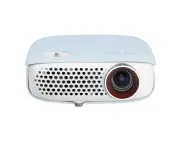 LG PW800G
User Manual
LG PW800G
User Manual
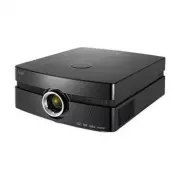 LG AF115
User Manual
LG AF115
User Manual
 LG AN215
User Manual
LG AN215
User Manual
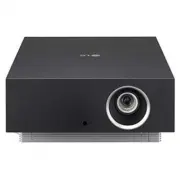 LG AU810PB
User Manual
LG AU810PB
User Manual
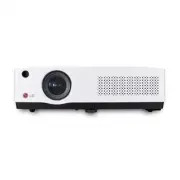 LG BD430
User Manual
LG BD430
User Manual
 LG BD450
User Manual
LG BD450
User Manual
 LG BD460
User Manual
LG BD460
User Manual
 LG BF40QS
User Manual
LG BF40QS
User Manual
 LG BF50NST
User Manual
LG BF50NST
User Manual
 LG BF50RG
User Manual
LG BF50RG
User Manual
 LG BF60PST
User Manual
LG BF60PST
User Manual
 LG BG630
User Manual
LG BG630
User Manual
 LG BG650
User Manual
LG BG650
User Manual
 LG BU50NST
User Manual
LG BU50NST
User Manual
 LG BU50RG
User Manual
LG BU50RG
User Manual
 LG BU53PST
User Manual
LG BU53PST
User Manual
 LG BU53RG
User Manual
LG BU53RG
User Manual