Page 2 - Safety Precaution; CAUTION
CAUTION: TO REDUCE THE RISK OF ELECTRIC SHOCK. DO NOT REMOVE COVER (OR BACK). NO USER-SERVICEABLE PARTS INSIDE.REFER SERVICING TO QUALIFIED SERVICE PERSONNEL. This lightning flash with arrowhead symbol within an equilateral triangleis intended to alert the user to the presence of uninsulated dangero...
Page 3 - Logo; Types of Playable Discs; Type; able of Contents
3 About the Symbol Display “ ” may appear on your TV display during operation and indicates that the function explained in this owner’s manual is not available on that disc. Regional Codes This unit has a regional code printed on the rear of the unit. This unit can playonly DVD discs labeled same as...
Page 4 - Hooking up the unit; Audio and Video Connection; Hooking up the unit - more you can do; Component Video Connections; Digital Audio Output Connection
4 Hooking up the unit Audio and Video Connection The unit Audio/Video jacks are color coded (yellow for video, red for right audioand white for left audio). If your TV has only one input for audio (mono), connect it to the left (white) audio jack on the unit. Using the RCA to SCARTcable, connect the...
Page 5 - Remote Control
5 Put the battery into the Remote Control Remove the battery cover on the rear of RemoteControl, and insert battery (size AAA) with + and –matched correctly. Remote Control A-B Repeats a section. REPEAT Repeats a chapter, track, title or all. ZOOM Enlarges video image. Button is not available. TITLE...
Page 6 - Main Unit
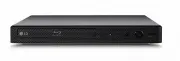
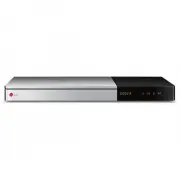
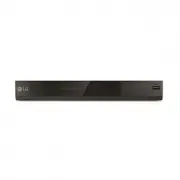
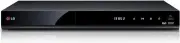
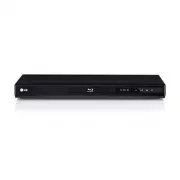
6 Main Unit a b c d e f g a Disc Tray Insert a disc here. b Z (Open / Close) Opens or closes the disc tray. c Display window Shows the current status of the unit. d Remote sensor Point the remote control here. e 1 (Power) Turn the unit ON or OFF f USB Port (DVX552 only) Connect an USB Flash Drive. g...
Page 7 - Adjust the settings - more you can do; Adjust the settings; ON REMOTE
7 Adjust the settings - more you can do When you turn on for the first time (optional) The menu for a language selection will appear when you turn on the unit for thefirst time. You must select a language to use the unit. Use vV b B to select a language then press ENTER and the confirm menu will app...
Page 8 - Displaying Disc Information - more you can do; Symbol Used in this Manual; Displaying Disc Information
Adjust the lock settings You must set the [Area Code] option to use the lock options. Select [Area Code]option then press B . Enter a 4-digit password then press ENTER . Enter it again then press ENTER to verify. If you make a mistake while entering number, press CLEAR then correct it. If you forget...
Page 9 - Playing a Disc - more you can do; Playing a Disc
9 Playing a Disc - more you can do Stops the playback The unit records the stopped point depending on the disc. “ Xx x ” appears on the screen briefly. Press PLAY ( N N ) to resume playback (from the scene point). If you press STOP ( x x ) again or unload the disc (“ x x ” appears on the screen), th...
Page 10 - Playing a DivX movie file
10 Watching a enlarged video image During playback or pause mode, press ZOOM repeatedly to select zoom mode. You can move through the zoomed picture using vVb B buttons. Press CLEAR to exit. (100% p 200% p 300% p 400% p 100%) Viewing the title menu Press TITLE to display the disc's title menu, if av...
Page 11 - Listening to Music Disc or files
11 • This player does not support the file that are recorded with GMC* 1 or Qpel* 2 . Those are video encoding techniques in MPEG4 standard, like DivX have. *1 GMC - Global Motion Compensation*2 Qpel - Quarter pixel Listening to Music Disc or files - more youcan do Creating your own program You can ...
Page 12 - Viewing photo files - more you can do; Viewing photo files
Viewing photo files - more you can do Viewing photo files as a slide show Use vV b B to highlight ( ) icon then press ENTER to start slide show. You can change slide show speed using b B when ( ) icon is highlighted. Skip to the next/previous photo Press SKIP ( . or > ) to view the previous/next ...
Page 13 - Recordable mode; Notes an USB direct Recording; Notes an USB Flash Drive
Recordable mode You can record one desired track or all of the tracks in Audio CD to USB FlashDrive.• For track recording: Press AUDIO in play, pause or resume stop mode. • For disc recording: Press AUDIO in complete stop mode. • For program list recording: In stop mode, press AUDIO after selecting ...