Page 2 - CAUTION
2 This lightning flash with arrowhead symbol withinan equilateral triangle is intended to alert the userto the presence of uninsulated dangerous voltagewithin the product’s enclosure that may be ofsufficient magnitude to constitute a risk of electricshock to persons. The exclamation point within an ...
Page 3 - Introduction; IMPORTANT SAFETY INSTRUCTIONS
3 Introduction 1. Read these instructions. - All these safety and operating instructions should be read before theproduct is operated. 2. Keep these instructions. - The safety, operating and use instructions should be retained for futurereference. 3. Heed all warnings. - All warnings on the product ...
Page 4 - Contents
4 Contents Introduction . . . . . . . . . . . . . . . . . . . . . . . . . . . .5-10 Symbol Used in this Manual . . . . . . . . . . . . . . . .5Notes on Discs . . . . . . . . . . . . . . . . . . . . . . . . . .5Recordable and Playable Discs . . . . . . . . . . . . .6Playable Discs . . . . . . . . . ....
Page 5 - About the; Moisture Condensation
5 Introduction Introduction To ensure proper use of this product, please read thisowner’s manual carefully and retain for futurereference. This manual provides information on the operationand maintenance of your recorder. Should the unitrequire service, contact an authorized service location. About ...
Page 6 - Recordable and Playable Discs; Recommended recordable DVD discs
6 Recordable and Playable Discs DVD-RW (Digital Video Disc - ReWritable): DVD-RW discs can be formatted for VR mode recording or Video mode recording. These Discs can be recorded on repeatedly. Recordings can be erased, then you can record againon the same Disc. [VR mode] Recordings can be extensive...
Page 7 - Playable Discs; Regional Code
7 Introduction Playable Discs DVD (8 cm / 12 cm disc) Discs such as movies that can be purchased or rented Audio CD (8 cm / 12 cm disc) Music CDs or CD-Rs/CD-RWs in music CD format that can be purchased Video CD (VCD) (8 cm / 12 cm disc) VIDEO CDs or CD-Rs/CD-RWs in VIDEO CD/Super VIDEO CD format CD...
Page 8 - Card useable on this unit; Regarding Write Protect; Using Memory Card
8 Card useable on this unit Compact Flash Card (CF) Micro Drive (MD), ST1 MD Secure Digital Card (SD), Mini SD Multi Media Card (MMC), MMC Plus, RS MMC,MMC Mobile xD-Picture Card (xD) Memory Stick (MS), MS Duo, MS Pro, MS Pro Duo Compatible with: FAT 12, FAT 16, or FAT 32 Only use the memory cards r...
Page 9 - Front Panel
9 Introduction a POWER button Switches the recorder ON or OFF. b Disc Tray Insert a disc here. c Display window Shows the current status of the recorder. TV: Indicates when the recorder is in TV tuner mode. REC: The recorder is recording. : Indicates when the recorder is in timer recording or a time...
Page 10 - Remote Control; Remote Control Battery Installation
10 a POWER: Switches the recorder ON or OFF. OPEN/CLOSE ( Z ): Opens and closes the disc tray. TV/DVD: To view channels selected by the recorder tuner orby the TV tuner. INPUT: Changes the input to use for recording (Tuner, AV1-2, or DVIN). 0-9 numerical buttons: Selects numbered options in a menu. ...
Page 11 - Rear Panel; Hookup and Settings
11 Hookup and Settings a ANT. IN Connect the antenna to this terminal. b HDMI Connector (Type A) HDMI output providing a high quality interface fordigital audio and video. c VIDEO / AUDIO OUT (Left/Right) Connect to a TV with video/audio inputs. d AV IN 1 (VIDEO IN/AUDIO IN (Left/Right)) Connect the...
Page 13 - Connections to Your TV; RF coaxial connection; Video connection
13 Hookup and Settings Connections to Your TV Make one of the following connections, dependingon the capabilities of your existing equipment. Tips Depending on your TV and other equipment youwish to connect, there are various ways you couldconnect the recorder. Use only one of theconnections describ...
Page 14 - HDMI connection
14 HDMI connection If you have a HDMI TV or monitor, you can connect itto this recorder using a HDMI cable. 1. Connect the HDMI jack on the recorder to the HDMI jack on a HDMI compatible TV or monitor (H) . 2. Set the TV’s source to HDMI (refer to TV’s Owner’s manual). Notes: If your TV is NOT capab...
Page 15 - Connecting to an Amplifier; Digital Multi-channel sound
15 Hookup and Settings Connecting to an Amplifier Connecting to an amplifier equipped with twochannel analog stereo or Dolby Pro Logic ll/Pro Logic Connect the Left and Right AUDIO OUT jacks on therecorder to the audio left and right in jacks on youramplifier, receiver, or stereo system, using the a...
Page 16 - Connecting a Digital Camcorder
16 Accessory Audio/Video (A/V)Connections Connecting to the AV IN 1 or AV IN 2Jacks Connect the input jacks (AV1, AV2) on the recorder tothe audio/video out jacks on your accessorycomponent, using audio/video cables. Note: If you use the S-VIDEO IN jack on the front panel, theVIDEO IN jack on the fr...
Page 17 - Auto Set Up
17 Hookup and Settings Auto Set Up After the POWER is pressed for the first time to turnon the unit or resetting the unit, the Initial SetupWizard function sets the language, clock and tunerchannels automatically. 1. Select a language for the Setup menu and on- screen display. Use v / V to select a ...
Page 18 - Initial Settings; General Operation; General Settings; Tuning Band Select
18 Initial Settings In this menu system, there are several ways tocustomize the settings provided. Most menus consistof three levels to set up the options, but some requiregreater depth for the variety of settings. General Operation 1. Press HOME and select [Setup] option. 2. Select [Start] option t...
Page 19 - TV Aspect
19 Hookup and Settings Auto Clock Set In the Auto option, the Recorder looks for a channelcarrying XDS (Extended Data Services) information.XDS updates the clock using the CoordinatedUniversal Time. 1. Select [Clock set] option then press B . 2. Use v / V to select [Auto] option then press ENTER. 3....
Page 20 - Language Settings; Display Menu; Audio Settings; Sampling Frequency
20 Language Settings Display Menu Select a language for the Setup menu and on-screendisplay. Disc Menu/Audio/Subtitle [Original]Refers to the original language in whichthe disc was recorded. [Others] To select another language, press numberbuttons then ENTER to enter the corresponding 4-digit number...
Page 21 - Rating; Area Code
21 Hookup and Settings Lock (Parental Control) Settings Rating Blocks playback of rated DVDs based on theircontent. Not all discs are rated. 1. Select [Rating] option then press B . 2. To access the Rating, Password and Area Code features, you must input the 4-digit security codeyou created. If you ...
Page 22 - Recording Settings; Disc Record Mode; Disc Settings; Initialize
22 Recording Settings Disc Record Mode You can set the picture quality for recording; XP (High Quality), SP (Standard Quality), LP (Low Quality), EP (Extend Quality). DV Recording Audio You need to set this if you have a camcorder using32kHz/12-bit sound connected to the front panel DVIN jack.Some d...
Page 25 - Playback; General Playback Features; Buttons; Discs
25 Playback Playback General Playback Features 1. Load your chosen disc in the tray, with the playback side down. 2. Starts playback using HOME menu (see page 17). 3. To stop the playback, press STOP ( x ). The unit records the stopped point, depending on the disc. “ Xx ” appears on the screen brief...
Page 27 - If a menu screen is displayed; Camera Angle
27 Playback If a menu screen is displayed The menu screen may be displayed first after loading aDVD or Video CD which contains a menu. Use the b / B / v / V buttons to select the title/chapter you want to view, then press ENTER tostart playback.Press TITLE or MENU/LIST to return to the menuscreen. U...
Page 29 - Playing a DivX Movie File; Notice for displaying the DivX subtitle
29 Playback Playing a DivX Movie File The recorder can play DivX files. Before playing DivXfiles, read “DivX file requirement” on right. Note: This recorder cannot play back the DivX file(s) in theMemory Card. 1. Press HOME. 2. Select [Movie] option. 3. Select a media that contains DivX file(s) then...
Page 31 - Viewing a JPEG File; Selecting multiple files; Photo List menu options
31 Playback Viewing a JPEG File The recorder can play JPEG files. Before playingJPEG recordings, read “Photo file requirement” onright. 1. Press HOME. The HOME menu appears. 2. Select [Photo] option. 3. Select a media that contains JPEG file then press ENTER.The [Photo List] menu appears on the TV s...
Page 32 - View Slide Shows
32 View Slide Shows 1. Select [Slide Show] option on the [Photo List] menu (Refer to “Photo List menu options” on page 31). 2. Press ENTER. The Slide Show menu appears. 3. Use b / B / v / V to set the options. [Object] option: [Selected] Views slide show only selected files.Use the MARKER button to ...
Page 33 - Recording; About DVD recording; Notes for recording; Recording time and picture quality
33 Recording Recording About DVD recording Notes: This recorder cannot make recordings on CD-R orCD-RW discs. Our company takes no responsibility for recordingfailure due to power outages, defective discs, ordamage to the Recorder. Fingerprints and small scratches on a disc canaffect playback and/or...
Page 34 - Restrictions on copying; Copyright
34 Restrictions on copying Some video material is copy-once protected: If youwant to record copy-once protected material to DVD,you must use a VR mode DVD-RW disc compatiblewith CPRM Ver. 1.1. You can identify copy-once protected material duringplayback by displaying disc information on-screen. PAL ...
Page 35 - Basic Recording from a TV; To Pause the Recording; Instant Timer Recording; Checking the Recording Time; Playing while you are recording
35 Recording Basic Recording from a TV Follow the instructions below to record a TV program.Recording starts immediately and continues until thedisc is full or you stop the recording. Note: You must load a recordable disc for DVD recording. 1. Set a recording mode as necessary by pressing REC MODE r...
Page 36 - Timer Recording
36 Timer Recording This recorder can be programmed to record up to 16programs within a period of 1 month. For unattendedrecording, the timer needs to know the channels to berecorded, the starting and ending time. Note: If you use a completely blank disc for timer recording,you must format the disc b...
Page 37 - Canceling a Timer Recording; Timer Recording Troubleshooting; Recording from External Components
37 Recording Checking Timer RecordingDetails Programming can be checked whenever the recorderis turned on. 1. Press HOME and select [TV] option. 2. Press v / V to select [Timer Record] option then press ENTER.The [Timer Record List] will appear. Use v / V to select a timer recording. Press ENTER to ...
Page 38 - Recording from DV Input; Before DV dubbing
38 Recording from DV Input Before DV dubbing You can connect a DV-equipped camcorder to thisrecorder using a single DV cable for input and outputof audio, video, data and control signals. This recorder is only compatible with DV-format(DVC-SD, DV25) camcorders. Digital satellite tunersand Digital VH...
Page 39 - Editing
39 Editing Editing Title List and Chapter List MenuOverview Using the Title List menu you can edit video content.The editing features available in the Title List menudepend on whether you are editing video on DVD,and whether you’re editing Original content, or aPlaylist. There are two ways to edit V...
Page 40 - Titles, Chapters and Parts; About word ‘Original’ and ‘Playlist’; Adding Chapter Markers
40 VR Mode: Original and PlaylistEditing Titles, Chapters and Parts Titles in the disc’s original content contain one ormore chapters. When you insert a disc’s title into thePlaylist, all the chapters within that title also appear. Inother words, chapters in the Playlist behave exactly aschapters on...
Page 41 - Making a New Playlist
41 Editing Making a New Playlist Use this function to add an Original title or chapter tothe Playlist. When you do this, the whole title is putinto the Playlist (you can delete bits you don’t needlater — see Deleting an Original or Playlisttitle/chapter on page 42).The title appears in the Playlist ...
Page 42 - Deleting a Part
42 Deleting an Original or PlaylistTitle/Chapter When you erase a title or chapter from the Playlistmenu, you only remove it from the Playlist; thetitle/chapter remains in the Original menu. If you choose to delete a title or chapter from theOriginal (title/chapter) menu, the title or chapter isactu...
Page 43 - Naming a Title
43 Editing Naming a Title You can name Original and Playlist titles independently.Names can be up to 32 characters long. 1. Choose the title you want to name on the Title List menu, then press ENTER.The menu options appears on the left side of themenu. 2. Use v / V to select [Title Name] option then...
Page 44 - Divide One Titles Into Two
44 Divide One Titles Into Two Use this command to split a title up into two new titles. 1. On the Title List menu, select a title you want to divide then press ENTER.The menu options appears on the left side of thescreen. 2. Select [Divide] option. 3. Press ENTER. Edit (Divide) menu appears. [Divide...
Page 45 - Moving a Playlist Chapter; Protect a Title
45 Editing Moving a Playlist Chapter Use this function to re-arrange the playing order ofPlaylist chapters on the Title List-Playlist menu. Note: This function is not available if there is only onechapter. 1. Select a chapter on the Chapter List-Playlist menu. 2. Press ENTER. The menu options appear...
Page 46 - Reference; Additional Information; Overwriting Recording
46 Reference Additional Information Overwriting Recording To overwrite a new video recording on a previouslyrecorded title, follow these steps. This feature is notavailable for DVD+Rs, that always record at the endof the Disc. 1. Select input source you want to record (TV channel, AV1-2 , DV). 2. Pr...
Page 47 - Area Codes; Language Codes
47 Reference Area Code Afghanistan AF Argentina AR Australia AU Austria AT Belgium BE Bhutan BT Bolivia BO Brazil BR Cambodia KH Canada CA Chile CL China CN Colombia CO Congo CG Costa Rica CR Croatia HR Czech Republic CZ Denmark DK Ecuador EC Egypt EG El Salvador SV Area Code Ethiopia ET Fiji FJ Fin...
Page 48 - Code numbers of controllable TVs
48 Reference Controlling Your TV with theSupplied Universal RemoteControl You can control the sound level, input source, andpower switch of your LG TV with the suppliedUniversal Remote Control.You can control your TV using the buttons below. By pressing You can POWER Turn the TV on or off. INPUT Swi...
Page 49 - Troubleshooting
49 Reference Cause The power cord is disconnected. The TV is not set to receive recordersignal output. The video cable is not connectedsecurely. The connected TV power is turned off. The equipment connected with theaudio cable is not set to receiverecorder signal output. The audio cables are not con...
Page 50 - Resetting the recorder
50 Symptom Cannot play a discrecorded using thisrecorder on anotherplayer. Cannot record or didnot record successfully. Timer recording is notpossible. Stereo Audio Recordand/or Playback is notpresent. The remote controldoes not work properly. Cause The disc was recorded in Video mode. Some players ...
Page 51 - Specifications; General
51 Reference Specifications General Power requirements AC 120 V, 60 Hz Power consumption 22W Dimensions (approx.) 430 X 54 X 275 mm (w x h x d) without foot Mass (approx.) 4.1 kg Operating temperature 5˚C to 35˚C Operating humidity 5 % to 90 % Television system NTSC color system Recording format NTS...
Page 52 - Limited Warranty - USA
This LG Electronics product, will be repaired or replaced, at LG’s option, if it proves to be defective in material orworkmanship, under normal use, during the warranty period (“Warranty Period”) listed below, effective from the date(“Date of Purchase”) of original consumer purchase of the product. ...


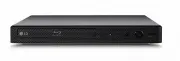 LG BP250
User Manual
LG BP250
User Manual
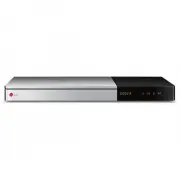 LG BP740
User Manual
LG BP740
User Manual
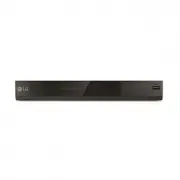 LG DP132
User Manual
LG DP132
User Manual
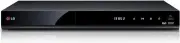 LG RH735T
User Manual
LG RH735T
User Manual
 LG BD300
User Manual
LG BD300
User Manual
 LG BD370
User Manual
LG BD370
User Manual
 LG BD390
User Manual
LG BD390
User Manual
 LG BD530
User Manual
LG BD530
User Manual
 LG BD550
User Manual
LG BD550
User Manual
 LG BD570
User Manual
LG BD570
User Manual
 LG BD590
User Manual
LG BD590
User Manual
 LG BD630
User Manual
LG BD630
User Manual