Page 2 - Safety Precaution; CAUTION
F gear R TCTincdnHinvot F M1P 2 CAUTION: TO REDUCE THE RISK OF ELECTRIC SHOCK. DO NOT REMOVE COVER (OR BACK). NO USER-SERVICEABLE PARTS INSIDE. REFER SERVIC- ING TO QUALIFIED SERVICE PERSONNEL. This lightning flash with arrowhead symbol within an equilateral triangle isintended to alert the user to ...
Page 3 - Important Safety Instructions
FCC WARNING: This equipment may generate or use radio frequency ener- gy. Changes or modifications to this equipment may cause harmful interfer-ence unless the modifications are expressly approved in the instruction manu-al. The user could lose the authority to operate this equipment if an unautho-r...
Page 4 - Rechargeable battery; Logo; Types of Playable Discs; Type; Contents
4 About the Symbol Display “ ” may appear on your TV display during operation and indicates that the function explained in this owner’s manual is not available on that disc. Regional Codes This unit has a regional code printed on the rear of the unit. This unit can playonly DVD discs labeled same as...
Page 5 - Main Unit
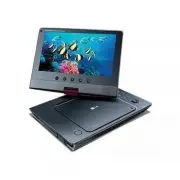
5 s Main Unit a LCD screen b Playback Control Buttons • N (Play): Starts playback. • x (Stop): Stops playback. • X (PAUSE/STEP): Pauses playback temporarily/ press repeatedly for frame-by-frame playback. • . (Skip): Search backward* or returns to the beginning of current chapter or track or go to th...
Page 6 - Remote Control
6 a POWER ( 1 ) : Switches the unit ON or OFF. AUDIO ( ): Selects an audio language or audio channel. SUBTITLE ( ): Selects a subtitle language. ANGLE ( ): Selects a DVD camera angle, if available. SKIP/SEARCH ( . / > ): Search* backward / forward. Go to next or previous chapter/track.* Press and...
Page 7 - Power connections
7 y v- . Power connections Connecting the Power Cable Connect the supplied power cable from the unit to a power socket. AC adapter • This AC adapter operates on 100-240V~ 0.5A 50/60Hz.• Contact an electrical parts distributor for assistance in selecting a suitable AC plug adapter or AC cord set. • M...
Page 8 - Hooking up the unit; Revolving the LCD panel
8 Hooking up the unit Audio and Video Connection for AV IN or AV OUT Connect the AV IN/OUT jack on the unit to the corresponding input or outputjacks on your TV or an external device using the supplied AV cable as shownbelow. Revolving the LCD panel You can revolve the LCD panel of the unit clockwis...
Page 9 - Adjust the settings - more you can do; Adjust the settings; BUTTON
9 - e d s. Adjust the settings - more you can do When you turn on for the first time The menu for a language selection will appear when you turn on the unit for thefirst time. You must select a language to use the unit. Use vV b B to select a language then press ENTER and the confirm menu will appea...
Page 10 - Displaying Disc Information - more you can do; Symbol Used in this Manual; Displaying Disc Information
10 Adjust the lock settings You must set the [Area Code] option to use the lock options. Select [Area Code]option then press B . Enter a 4-digit password then press ENTER . Enter it again then press ENTER to verify. If you make a mistake while entering number, press CLEAR then correct it. If you for...
Page 11 - Playing a Disc - more you can do; Playing a Disc
11 o k e Playing a Disc - more you can do Stops the playback Press STOP ( x ) to stop playback, the unit records the stopped point depending on the disc. “ Xx ” appears on the screen briefly. Press PLAY ( N ) to resume playback (from the scene point). If you press STOP ( x ) again or unload the disc...
Page 13 - Viewing photo files - more you can do; Listening to Music Disc or files; Viewing photo files
13 y Listening to Music Disc or files - more youcan do Creating your own program You can play the contents of a disc in the order you want by arranging the orderof the music on the disc. To add music(s) on the program list, press PROG. to enter the program edit mode ( mark appears on the menu). Sele...
Page 14 - Using a USB Flash Drive; Watching a AV input
14 Notes a USB Flash Drive • You can switch among [DISC], [USB] and [AV IN] mode using MODE button. • Do not extract the USB device in operation.• We recommend that you back up your important files in the USB Flash Drive to protect against accidental loss. • If you use a USB extension cable or USB H...