Page 2 - marks or registered trademarks of; Warning
LCOS PROJECTOR LCOS PROJECTOR This device meets the EMC requirements for home appliances (Class B) and is intended for home usage. This device can be used in all regions. HDMI, HDMI logos and High-Defi nition Multimedia Interface are the trade- marks or registered trademarks of HDMI Licensing LLC. Th...
Page 3 - Contents
Contents 3 Contents Safety Precautions........................................................ 4 Parts and Components Main Unit ...................................................................................9Control Panel .............................................................................
Page 4 - Safety Precautions; Indoor Installation
Safety Precautions 4 Safety Precautions Please take note of the safety instructions to prevent any potential accidents or misuse of the projector. ꔈ Safety Instructions are given in two forms, i.e. 'Warning' and 'Notes' as detailed below. Warning: The violation of this instruction may cause serious ...
Page 5 - When in Use; Power
Safety Precautions 5 When in Use Warning In the event that liquid or a foreign object falls into the projector, please switch it off and unplug it from the power outlet and contact an LG Electronics Service Center. This may create a fire hazard or cause electric shock. Make sure that a child does no...
Page 7 - Outdoor Antenna Grounding; Antenna grounding according to the National Electrical; Disposal of your old appliance
Safety Instructions 7 Outdoor Antenna Grounding If an outdoor antenna is installed, follow the precautions below. An outdoor antenna system should not be located in the vicinity of overhead power lines or other electric light or power circuits, or where it can come in contact with such power lines o...
Page 8 - Disposal of waste batteries/accumulators; For USA; NOTE TO CABLE/TV INSTALLER
Safety Instructions 8 Disposal of waste batteries/accumulators 1. When this crossed-out wheeled bin symbol is attached to batteries/accumulators of Your product it means they are covered by European Directive 2006/66/EC. 2. This symbol may be combined with chemical symbols for mercury(Hg), cadmium(C...
Page 9 - Parts and Components; Main Unit
Parts and Components 9 Parts and Components Main Unit Control Panel MENU Button Selects or closes menus. AUTO button Adjusts the picture position and minimizes image shaking. INPUT button Selects the input mode. LENS SHIFT dial Move the screen image up or down. ∧/∨/</> button Adjusts functions of me...
Page 10 - Back
Parts and Components 10 Back HDMI IN 1 HDMI IN 2 RGB IN ANTENNA IN RS-232C LAN USB (SVC ONLY) COMPONENT IN VIDEO OPTICAL OUT Y P B P R USB (SVC ONLY) port HEADPHONE OUT port COMPONENT IN port AC IN port VIDEO IN port HDMI IN 1,2 port RGB port RS232C port LAN port ANTENNA IN port OPTICAL DIGITAL AUDI...
Page 12 - Projector Status Indicators
12 Parts and Components Projector Status Indicators * Lamp indicator, operation indicator and temperature indicator at the top of the projector show the user the operating status of the projector. Display Blue Standby. Green (Blinking) On Green The projector is in use. Cyan (Blinking) Power off (It ...
Page 13 - Accessories
13 Parts and Components Ceiling mount for projector Accessories Optional Extras To purchase optional accessories, visit an electronics store or online shopping site or contact the retail store where you purchased the product. Without prior notice, optional accessories are subject to change to improv...
Page 14 - Installation and Configuration; Place the projector in a well-ventilated environment.; Caution on Installation
Installation and Configuration 14 Installation and Configuration Place the projector in a well-ventilated environment. Do not place the projector in a hot or humid environment. ꔈ Only install the projector in a place of moderate temperature and low humidity. (See page 57 regarding operating temperat...
Page 15 - Projection Distance per Screen Size
Installation and Configuration 15 1. Place the projector on a sturdy, level surface, together with the PC or audio/video source. 2. The distance between the projector and the screen determines the actual size of the image. 3. Position the projector so that the lens is set at a right angle to the scr...
Page 16 - Turning on the Projector; Connect the power cord correctly to turn the projector on.; POWER button. The power indicator blinks green.; INPUT button to select an input signal.; Turning off the Projector; Press the; POWER; button a second time. Do not disconnect the power cord if the
Installation and Configuration 16 Turning on the Projector 1. Connect the power cord correctly to turn the projector on. 2. Press the POWER button. The power indicator blinks green. ꔈ Power on time is long due to the characteristics of the 3D projector. ꔈ Press the INPUT button to select an input si...
Page 17 - Selecting Input Signal; INPUT; Focus and Position of the Screen Image; Input List
Installation and Configuration 17 Selecting Input Signal 1. Press the INPUT button . 2. Select an input signal using the remote control's INPUT button to connect the projector to the desired input. You can toggle between inputs using the <, > buttons . ꔈ You can also select an input signal directly ...
Page 18 - Connecting Device; Connecting to a PC; Connect the projector's; RGB IN; port to the computer's; Connecting an Antenna; ANTENNA IN
Connecting Device 18 Connecting Device Connecting to a PC * You can connect the projector to a computer with an VGA, SVGA, XGA or SXGA output. * See page 51 for a list of supported monitors. UV565F <How to Connect> Connect the projector's RGB IN port to the computer's RGB output port using a c...
Page 19 - Connecting to a Video Player; Connecting to a DTV Set-Top Box
Connecting Device 19 Connecting to a Video Player <How to Connect> Connect the projector's VIDEO port to the audio/video device's output jack using a video cable. <Video Player> Video Cable Connecting to a DVD Player <Connecting to the COMPONENT Port> Connect the projector's COMPON...
Page 20 - D Function; Caution When Watching 3D Video; • Watch 3D images within the optimum viewing angle and distance.; • Some menus and functions may not be available in 3D mode.
10 10 3D Function 20 3D Function * 3D technology uses different video frames for each eye to add depth to the video. * 3D images can be viewed only on a silver screen. Caution When Watching 3D Video Requirements for Watching 3D Images • Watch 3D images within the optimum viewing angle and distance. ...
Page 21 - Watching 3D Images; Please refer to the table below for supported 3D video formats.
3D Function 21 Watching 3D Images 1. Please refer to the table below for supported 3D video formats. Signal Resolution Horizontal Frequency (kHz) Vertical Frequency (Hz) Supported 3D Formats HDMI 720P 1280 x 720 45.00 60 Top & Bottom, Side by Side HDMI 3D Top & Bottom 37.50 50 90.00 60 HDMI ...
Page 23 - Function; Channel Functions; Manual Tuning
23 Function Function * The On-Screen Display (OSD) in this manual is an example to help you understand how to operate the product, and may be slightly different on your projector. * Most of the examples shown are with RGB (PC) input. Auto Tuning 1. Press the MENU button, then go to Channel with the ...
Page 24 - Editing Channels; Setting Favorite Channels
24 Function Editing Channels 1. Press the MENU button, then go to Channel with the ∧, ∨, <, > buttons and press OK . 2. Press the ∧, ∨ buttons to go to Channel Edit and press OK . 3. Press the ∧, ∨, <, > buttons to select a channel to edit . 4. The following buttons are used to edit channels. B...
Page 25 - Displaying Program Information; Info; BACK
25 Function Displaying Program Information If you press the Info button or OK button on the remote control, the program information is displayed on the screen. Banner information Program title Day, Month, Year Program audio, video information Program start/finish time, progress bar Present t...
Page 26 - Video Function; PICTURE; Color Temperature; Adjusting Color Temperature
Function 26 Video Function 1. Press the PICTURE button on the remote control . 2. Press the ∧, ∨ buttons to select a picture Mode . Picture Mode * The best picture quality is maintained according to the selected picture option. ꔈ You can also use the MENU or Q.MENU button . ꔈ Press the BACK button t...
Page 27 - Adjusting Picture Settings; Advanced Options
Function 27 1. Press the MENU button, then go to Picture with the ∧, ∨, <, > buttons and press OK . 2. Press the ∧, ∨ buttons to go to a desired picture option and press OK . 3. Press the <, > buttons to adjust the picture settings and press OK . ꔈ For each option and Picture Mode, you can set ...
Page 29 - Screen Function; Using the Pause Function; RGB; TruMotion Demo Function
Function 29 Screen Function 1. Press the STILL button on the remote control. * You can temporarily stop a video being played. 2. To clear the pause function, press the STILL button once again. * The pause function is automatically cleared after 10 minutes. Using the Pause Function <Playback Scree...
Page 30 - Using the AUTO Function
Function 30 1. Press the KEY.S button on the remote control. 2. Press the ∧, ∨ buttons to select a desired option and press the > button. 3. Press the ∧, ∨, <, > buttons to adjust the screen and press OK . ꔈ The Keystone is adjusted -100 to 0 or 0 to 100 depending on position. ꔈ To reset to the f...
Page 31 - Adjusting PC Input; SCREEN; Audio Function; Adjusting Volume; MENU; Stereo/SAP Broadcast Setup
Function 31 Adjusting PC Input SCREEN Auto Config. Position Resolution ꔃ Size Phase Reset ꔐ 1024 x 768 1280 x 768 1360 x 768 ꔂ Move ꕉ Prev. 1. Press the MENU button, then go to Screen with the ∧, ∨, <, > buttons and press OK . 2. Press the ∧, ∨ buttons to go to RGB Config. and press OK . 3. Press ...
Page 32 - Time Function; Setting Current Time; Scheduling On and Off
TIME Clock ꔉ Off Time: Off On Time: Off Sleep Timer: Off Auto Off : 10 min. ꔂ Move ꔉ OK TIME Clock ꔉ Off Time : Off On Time : Off Sleep Timer: Off Auto Off : 10 min. ꔂ Move ꔉ OK Function 32 Time Function TIME Clock ꔉ Off Time : Off On Time : Off Sleep Timer: Off Auto Off : 10 min. ꔂ Move ꔉ OK Settin...
Page 33 - Option Functions; Selecting a Language
Function 33 * The projector can be turned off at a preset time. 1. Press the SLEEP button on the remote control . 2. Press the ∧, ∨ buttons to select a desired preset time . ꔈ You can also use the MENU or Q.MENU button. ꔈ Press the BACK button to exit the menu screen. ꔈ You can select this function ...
Page 34 - Setting Caption
OPTION Menu Language : English Audio Language : Korean Caption ꔉ Blank Image : Black Camera Calibration Lamp Mode : Normal High Altitude : Off Network Setting ꔂ Move ꔉ OK 34 Function OPTION Menu Language : English Audio Language : English ꔉ Caption : Text 1 Blank Image : Black Camera Calibration Lam...
Page 35 - Using the Blank Image Function; D video; Selecting the Blank Image Color; OPTION
35 Function 1. Press the BLANK button on the remote control. ꔈ The screen is covered by a background color. ꔈ For more information about selecting background color, see the Selecting the Blank Image Color section below. 2. Press any button to clear the Blank Image function. ꔈ To cover the screen tem...
Page 36 - To adjust the brightness of the screen
Function 36 Network Settings < Notes > • Use a standard LAN cable with this projector. (Cat5, Cat5E, or Cat6 with an RJ45 connector) • If you experience any connection problems, restart your modem. • A 10 Base-T or 100 Base-TX LAN port is required to connect to this projector. If your ISP (Int...
Page 37 - IP Auto Setting
Function 37 OPTION Menu Language : Korean Audio Language Caption : Text 1 Blank Image : Blue Camera Calibration Lamp Mode : Normal High Altitude Network Setting Set ID : On ꔂ Move ꔉ OK <How to Use> 1. Press the MENU button, then go to OPTION with the ∧, ∨, <, > buttons and press OK . 2. Press...
Page 38 - Setting the Name of a Connected Device; Setting SET ID
Function 38 1. Press the MENU button, then go to Options with the ∧, ∨, <, > buttons and press OK . 2. Press the ∧, ∨ buttons to go to Input Label and press OK . 3. Press the ∧, ∨ buttons to select an input. 4. Press the <, > buttons to select a device. 5. Press the ∧, ∨ buttons to select Close and ...
Page 39 - PARENTAL CONTROL/RATINGS; V-Chip rating and categories
Function 39 PARENTAL CONTROL/RATINGS * Parental Control can be used to block specific channels, ratings and other viewing sources. The Parental Control Function (V-Chip) is used to block program viewing based on the ratings sent by the broad-casting station. The default setting is to allow all progr...
Page 40 - LOCK; Locking System
Function 40 ꔂ Move ꔉ OK LOCK Lock System: Off Set Password Block Channel Movie Rating TV Rating-Children TV Rating-General Downloadable Rating Input Block ꔂ Move ꔉ OK LOCK Lock System: Off Set Password Block Channel Movie Rating TV Rating-Children TV Rating-General Downloadable Rating Input Block ꔂ ...
Page 42 - Information Function; Checking Projector Information; Enabling Input Block
Function 42 INFORMATION Lamp Time (L) : 0 Lamp Time (R) : 0 Input : HDMI1 Resolution : 1080p Fh/Fv : 67 Khz/60 Hz IP Address : 223.212.145.0 Information Function 1. Press the MENU button, then go to INFORMATION with the ∧, ∨, <, > buttons and press OK . 2. You can check the current information of t...
Page 43 - Establishing Serial Communication; Communication Parameter Setup; Communication Protocol; Serial Communication Function
Function 43 Establishing Serial Communication * Connect the RS-232C (serial connector) of the PC to the RS-232C connector at the back of the projector.* You need to purchase a cable to connect the RS-232C connectors as it is not provided as an accessory. 2 3 4 5 6 7 8 PC RXD TXD DTR GND DSR RTS CTS ...
Page 44 - Error Acknowledgement; Command Reference List
Function 44 [Command2] [ ] [Set ID] [ ] [OK] [Data] [x] * If a set receives the data successfully, it returns ACK in the above format. Here, the data will be the information from the projector indicating the current status of the projector if it is in data read mode. The projector itself will return...
Page 46 - R e m o t e C o n t r o l L o c k / K e y L o c k
Function 46 Transmission [k] [i] [ ] [Set ID] [ ] [Data] [Cr] Data Min : 0 - Max : 64 (* Transmitted in hexadecimal code) Ack [i] [ ] [Set ID] [ ] [OK] [Data] [x] Data Min : 0 - Max : 64 * Refer to the actual data structure 1. ⇒ Adjusts screen color. 08. Color (Command : ki) Transmission [k] [k] [ ]...
Page 49 - Specifying communication port in User Configuration; Setting Hyper Terminal; Communication using Hyper Terminal
Function 49 1. Specifying communication port in User Configuration 2. Set to 9600 3. Set to Test registration information 4. Set to ASCII 1. Setting Hyper Terminal Communication using Hyper Terminal You can control multiple projectors from a single computer using the protocol.
Page 51 - Supported Monitor Display; Invalid Format; Cable Type; Miscellaneous
Miscellaneous 51 Supported Monitor Display * The following table lists the display formats supported by the projector. * If the projector does not support the input signal, the " Invalid Format " message appears on the screen. * The projector supports the DDC1/2B type as a Plug & Play fu...
Page 52 - Cleaning the projector lens; Maintenance
Miscellaneous 52 Cleaning the projector lens If there is any dust or staining on the lens surface, you must clean the lens. Use an air spray or a cleaning cloth to clean the lens. To remove dust or stains, use an air spray or apply a small amount of cleaning agent onto a swab or soft cloth to clean ...
Page 53 - Cleaning the projector filter; Open the filter cover by pushing the filter cover
Miscellaneous 53 Cleaning the projector filter It is recommended to clean the filter once a month to maintain the performance of the projector. When prompted to clean the filter, take the following steps. <Cleaning the Top Filter> 1. Turn off the projector and unplug the power cord. Place the ...
Page 54 - INFORMATION; Do not turn off the projector; Projector lamp control
Miscellaneous 54 Replacing the Lamp Be careful when replacing the lamp The lifetime of the lamp depends on the environment in which the projector is used. You can check how long the lamp has been used in the Lamp Time of the INFORMATION menu. You must replace the lamp when: ꔈ The projected image get...
Page 55 - Replacing the lamp; Pull out the lamp knob from the hitch.
Miscellaneous 55 Replacing the lamp 1. Turn off the projector and unplug the power cord. Place the projector on a table or flat surface. (Allow the lamp to cool down for 1 hour before removing the used lamp from the projector because it is very hot.) 2. Unscrew the screws from the lamp cover using a...
Page 56 - Troubleshooting; Symptom
Miscellaneous 56 Troubleshooting Please check the following when there is a problem with the projector before contacting LG Electronics Service Center. Symptom Checkpoint and Solution Q. I cannot see video on the screen. A. Check if the power light is turned on or the lens cap is closed. In addition...
Page 58 - Open Source software Information; uClibc
Miscellaneous 58 Open Source software Information The following GPL/LGPL/MPL execution files and libraries in this projector comply with the GPL 2.0/LGPL 2.1/MPL 1.1 license agreement. GPL execution files: Linux kernel 2.6, busybox, lzo, u-boot LGPL library: uClibc MPL library: nanox You can ask LG ...
Page 59 - MEMO
Page 60 - CANADA
The model and serial number of the projector is located on the back or one side of the projector. Record it below should you ever need service. MODEL SERIAL LG Customer Information Center 1-800-243-00001-888-865-30261-888-542-2623 USA, Consumer User USA, Commercial User CANADA
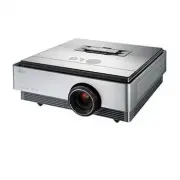


 LG HU715QW
User Manual
LG HU715QW
User Manual
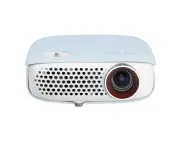 LG PW800G
User Manual
LG PW800G
User Manual
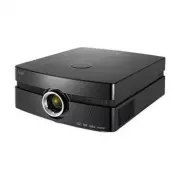 LG AF115
User Manual
LG AF115
User Manual
 LG AN215
User Manual
LG AN215
User Manual
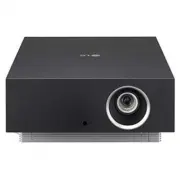 LG AU810PB
User Manual
LG AU810PB
User Manual
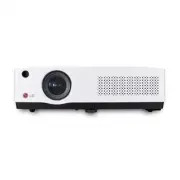 LG BD430
User Manual
LG BD430
User Manual
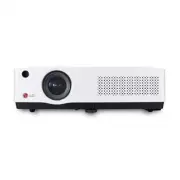 LG BD450
User Manual
LG BD450
User Manual
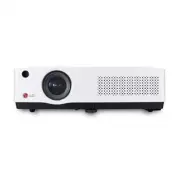 LG BD460
User Manual
LG BD460
User Manual
 LG BF40QS
User Manual
LG BF40QS
User Manual
 LG BF50NST
User Manual
LG BF50NST
User Manual
 LG BF50RG
User Manual
LG BF50RG
User Manual
 LG BF60PST
User Manual
LG BF60PST
User Manual
 LG BG630
User Manual
LG BG630
User Manual
 LG BG650
User Manual
LG BG650
User Manual
 LG BU50NST
User Manual
LG BU50NST
User Manual
 LG BU50RG
User Manual
LG BU50RG
User Manual
 LG BU53PST
User Manual
LG BU53PST
User Manual
 LG BU53RG
User Manual
LG BU53RG
User Manual