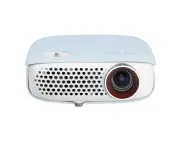
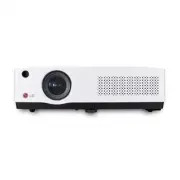
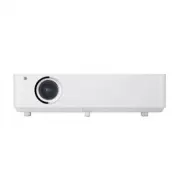
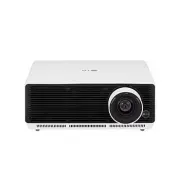
Page 2 - Warning; more of the following measures:
DLP PROJECTOR DLP PROJECTOR Warning - Class B (b) For a Class B Digital device or peripheral, the instructions furnished the user shall include the fol- lowing or similar statement, placed in a prominent location in the text of the manual: NOTE: This equipment has been tested and found to comply wit...
Page 3 - Contents; Names of parts; Video Menu Options; Brilliant color; Special Menu Options; Information
Contents 3 Contents Disposal of your old appliance 1. When this crossed-out wheeled bin symbol is attached to a product it means the product is covered by the European Directive 2002/96/EC. 2. All electrical and electronic products should be disposed of separately from the municipal waste stream via...
Page 4 - Safety Instructions; WARNING; WARNING; WARNING; Indoor Installation; NOTES
Safety Instructions 4 Safety Instructions Please take note of the safety instructions to prevent any potential accident or misuse of the projector. ꔈ Safety Instructions are given in two forms as detailed below. WARNING : The violation of this instruction may cause serious injuries and even death. N...
Page 5 - Using; CAUTION concerning the Power Cord
Safety Instructions 5 Using WARNING If water is spilt into the projector unplug it from the power supply immediately and consult your Service Agent. This may cause an electric shock hazard or damage to the unit! Dispose of used batteries carefully and safely. In the case of a battery being swallowed...
Page 7 - Main Body
Names of parts 7 Names of parts Main Body Front remote control sensor Foot adjusting button Control panel • The projector is manufactured using high-precision technology. You may, however, see on the Projector screen tiny black points and/or bright points (red, blue, or green). This can be a normal ...
Page 9 - CAUTION; RISK OF EXPLOSION IF BATTERY IS REPLACED WITH AN INCORRECT TYPE.; OK ◉
Names of parts 9 Installing Batteries • Open the battery compartment cover on the back of the remote control.• Insert the specified type of batteries with correct polarity, match “+” with “+”, and match “-” with “-”. • Install two 1.5V AAA batteries. Don’t mix used batteries with new batteries. CAUT...
Page 10 - Projector Status Indicators
Names of parts 10 * Lamp indicator, operation indicator and temperature indicator at the top of the projector show the user the operating status of the projector. Lamp Indicator Temperature Indicator Operation Indicator Projector Status Indicators Operation Indicator Lamp Indicator Temperature Indic...
Page 12 - Installing and Composition; Provide proper ventilation for this projector.; Installation Instructions; When the remote control does not work during operation.
Installing and Composition 12 Installing and Composition Provide proper ventilation for this projector. • The projector is equipped with ventilation holes(intake) on the bottom and ventilation holes(exhaust) on the front. Do not block or place anything near these holes, or internal heat build-up may...
Page 13 - determines the actual size of the image.; projection distance based on the picture format; Basic Operation of the Projector
Installing and Composition 13 1. Place the projector on a sturdy and horizontal surface with the PC or AV source.2. Place the projector with the desired distance from the screen. The distance between the projector and the screen determines the actual size of the image. 3. Position the projector so t...
Page 14 - Using Kensington Security System
Installing and Composition 14 • The projector has a ‘Kensington’ Security System Connector on the side panel. Connect the ‘Kensington’ Security System cable as below. • For the detailed installation and use of the Kensington Security System, refer to the user’s guide attached to the Kensington Secur...
Page 15 - Turning on the Projector; button on the top cover or remote control.; POWER
Installing and Composition 15 Do not disconnect the power cord while the fan is in operation. If the power cord is disconnected while the fan is in operation, it may takes longer to activate the lamp after turning on the power and the lifespan of the lamp may be shortened. Turning on the Projector T...
Page 16 - INPUT; button on the remote control or the control panel.; pushing foot adjusting button as below.
Installing and Composition 16 1. While pressing the foot adjusting button, raise or lower the projector to place the screen image in the proper position. 2. Release the button to lock the foot in its new position.3. Turn the foot at the back left or right to make a fine tune of the length of the pro...
Page 17 - Connection; Connecting to a Desktop PC; Connecting to a Video Source
Connection 17 Connection Connecting to a Desktop PC * You can connect the projector to a computer with VGA, SVGA, XGA and SXGA output. * Refer to page 39 for the resolutions supported by the projector. * Either RGB1 or RGB2 can be used with the RGB OUT connection. You can select between the two in t...
Page 18 - Connecting to a DVD
Connection 18 HDMI Cable Connecting to a D-TV Set-Top Box < How to connect a HDMI source > 1. Connect the HDMI IN terminal of the projector to the HDMI output terminal of the D-TV Set-Top Box via HDMI cable. 2. Use a DTV receiver with DTV 480p(576p)/720p/1080i/1080p (24,30Hz) mode. • No suppor...
Page 19 - Function; Adjusting Video; MODE; Picture mode
Function 19 Function Video Menu Options * In this manual, the OSD(On Screen Display) may be different from your Projector’s because it is just an example to help with the Projector operation. * This operating guide explains operation of RGB(PC) mode mainly. 1. Press the MENU button and then use <,> ...
Page 20 - Color Temperature Control; Gamma Function; Gamma curve shift Function
Function 20 1. Press the MENU button and then use <,> button to select the menu. 2. Press the ∧,∨ button to select Color temp. item. 3. Press the <,> button to make desired adjustments. Color Temperature Control • Each press of the <,> button changes the screen as shown below. • This function can be...
Page 22 - Expert color Function; Reset
Function 22 1. Press the MENU button and then use < , > button to select the menu. 2. Press the ∧,∨ button to select Expert Color item. 3. Press the ◉ OK button. Expert color Function • To return to the factory default settings, select [ Reset ] with ∧,∨ buttons and press ◉ OK button. Reset * This f...
Page 23 - Selecting Language; RATIO; Using ARC Function
Function 23 Special Menu Options 1. Press the MENU button and then use <,> button to select the menu. 2. Press the ∧,∨ button to select Language item. 3. Press the <,> button to select the language you want to use. • On-Screen-Display (OSD) is displayed in the selected language.• Press the MENU butt...
Page 24 - Flip horizontal Function; Flip vertical Function; Sleep time Function
Function 24 Flip horizontal Function * This function reverses the projected image horizontally. Use this function when rear projecting an image. 1. Press the MENU button and then use < , > button to select the menu. 2. Press the ∧,∨ button to select Flip horizontal item. 3. Press the ◉ OK button to ...
Page 25 - Auto sleep Function; Auto Power; Move
Function 25 1. Press the MENU button and then use < , > button to select the menu. 2. Press the ∧,∨ button to select Auto sleep item. 3. Press the < , > button to select the desired preset time. • Press the MENU button twice or the EXIT button to exit the menu screen. Auto sleep Function Presentatio...
Page 26 - Using the Digital Zoom Function; To make the project turn on when power is applied
Function 26 Using the Digital Zoom Function Adjusting the Zoom Adjusting the Position * This function is available only in RGB input mode. The Zoom -/+ and Position values return to their default when you change the SOURCE or input signal, or turn the power off. 1. Press the ZOOM button on the remot...
Page 27 - Using the keystone function; • If there ’s no input signal,it is possible to adjust keystone by; • Press the; button to exit the menu screen.; ‘Selecting blank image’; Using the Blank Function; H 0; V 0; OK
Function 27 To select a background image To initialize keystone Using the keystone function 1. Press the KEYSTONE button on the remote control. 2. Press the <,> button to select a item. 1. Press the KEYSTONE button on the remote control. 2. Please select a Background by ∧,∨ button. 3. Please select ...
Page 28 - Selecting a Blank image; Lamp mode Function; Network Setting
Function 28 1. Press the MENU button and then use < , > button to select the menu. 2. Press the ∧,∨ button to select Blank image item. 3. Press the <,> button to select the color you want to use. • Background image will be altered to the selected Blank image function.• You can choose blue, black, gr...
Page 29 - High Altitude Mode; Yes
Function 29 1. Press the MENU button and then use < , > button to select the menu. 2. Press the ∧,∨ button to select Communication setting. 3. Press the <,> button to select Serial or Lan. • Set communication to Lan to activate Network Setup.• Press the MENU button twice or the EXIT button to exit t...
Page 30 - Auto configure Function; Screen Menu Options; Checking lamp time; button of remote control.; STILL; Using Still Function; button and then use
Function 30 Auto configure Function Screen Menu Options * Auto configure is the function that finds optimal video condition by automatically adjusting width and calibration of internal signal of the projector and various graphic signal of PC in RGB mode. * Auto configure operates only for RGB input....
Page 31 - Using the Vertical Function; Clock; Using the Clock Function
Function 31 1. Press the MENU button and then use <,> button to select the menu. 2. Press the ∧,∨ button to select Horizontal item. 3. Press the <,> button to make desired adjustments. • Horizontal adjustment range is -50 ~ 50.• The variable range can be different depends on input resolutions. • Pre...
Page 32 - SET ID; Set ID; Communication Parameter Setup; Serial communication function; To connect with serial communication
Function 32 SET ID * Connect the RS-232C input jack to an external control device (such as a computer) and control the Projector’s functions externally. 1. Press the MENU button and then use <,> button to select the menu. 2. Press the ◉ OK button and then use ∧,∨ button to select Set ID item. 3. Pre...
Page 33 - Command Reference List; Command 1
Function 33 Command Reference List * Refer to the detailed information for data with [*] mark. Communication Protocol * Real data mapping 1 01. Power k a 0 ~ 1 02. Aspect Ratio k c 1 ~ 2, 5 03. Screen Mute k d 0 ~ 1 04. Contrast k g 0 ~ 64 05. Brightness k h 0 ~ 64 06. Color k i 0 ~ 64 07. Tint k j ...
Page 37 - IP setting is succeeded.; Network setting function; Using the network setting
Function 37 < Method > 1. Press the MENU button and then use <,> button to select the menu. 2. Press the ∧,∨ button to select Communication. 3. Press the <,> button to select LAN 4. Press the ∧,∨ button to select Network Setting. 5. Press the ∧,∨ button to select Auto . < Connection Method&...
Page 39 - Supported Monitor Display
Information 39 Component-*1 HDMI(DTV)-*2 Signal <DVD/DTV Input> * Cable type 1- RCA to D-Sub Adapter 2- HDMI to HDMI Cable 59.94 / 60Hz 480i 480p 720p 1080i 50Hz 24/30Hz 576i 576p 720p 1080i 1080p OOOOOOOOO X OOO X OOOO * The following table lists the display formats supported by the projector...
Page 40 - Lamp Replacement; To obtain a replacement Lamp unit; Replacing the Lamp
Information 40 Lamp Replacement Be careful when replacing lamp The usable lifetime of the lamp depends on the environment it is used in. You can see the amount of time the lamp has been used in the CHECKING LAMP TIME section of the Menu (page.30). You must replace the lamp when: • The projected imag...
Page 44 - MODEL
The model and serial number of the projector is located on the back or one side of the projector. Record it below should you ever need service. MODEL SERIAL