Page 3 - CAUTION; Cautions and Warnings
3 Safety Information Saf et y Inf ormation 1 CAUTION RISK OF ELECTRIC SHOCK DO NOT OPEN CAUTION: TO REDUCE THE RISK OF ELECTRIC SHOCK DO NOT REMOVE COVER (OR BACK) NO USER- SERVICEABLE PARTS INSIDE REFER SERVICING TO QUALIFIED SERVICE PERSONNEL. This lightning fl ash with arrowhead symbol within an ...
Page 6 - Contents; Safety Information
6 Contents 1 Safety Information 3 Cautions and Warnings 2 Preparation 8 Introduction 8 About the “ ” Symbol Display 8 Symbols Used in this Manual 8 Supplied Accesorries 9 Playable Discs 10 File compatibility 11 Regional Code 11 AVCHD (Advanced Video Codec High Defi nition) 11 Certain System Requireme...
Page 8 - Preparation; Introduction; About the “ ” Symbol Display; NOTE; Supplied Accesorries
8 Preparation Preparation 2 2Preparation Introduction About the “ ” Symbol Display “ ” may appear on your T V display during operation and indicates that the function explained in this owner’s manual is not available on that specifi c media. Symbols Used in this Manual NOTE Indicates special notes a...
Page 9 - Playable Discs
9 Preparation Preparation 2 Playable Discs Blu-ray Disc - Discs such as movies that can be purchased or rented. - BD-R/RE discs that contain Movie, Music or Photo fi les. DVD-VIDEO (8 cm / 12 cm disc)Discs such as movies that can be purchased or rented. DVD±R (8 cm / 12 cm disc) - Video mode and fi ...
Page 10 - File compatibility; Overall; Available File extensions:; Video Files; Available resolution size:
10 Preparation Preparation 2 File compatibility Overall Available File extensions: “.jpg”, “.jpeg”, “.png”, “.avi”, “.divx”, “.mpg”, “.mpeg”, “.mkv”, “.mp4”, “.mp3”, “.wma”, “.wav” • Available fi le extensions diff er depending on the DLNA servers. • Some wav fi les are not supported on this player....
Page 11 - Regional Code
11 Preparation Preparation 2 Regional Code This unit has a regional code printed on the rear of the unit. This unit can play only BD-ROM or DVD discs labeled same as the rear of the unit or “ALL”. AVCHD (Advanced Video Codec High Defi nition) • This player can playback AVCHD format discs. These discs...
Page 12 - Remote control
12 Preparation Preparation 2 Remote control • • • • • • a • • • • • • 1 (POWER): Switches the player ON or OFF. Z (OPEN/CLOSE): Opens and closes the disc tray. 0-9 numerical buttons: Selects numbered options in a menu or inputs letters in the keypad menu. CLEAR: Removes a mark on the search menu or ...
Page 13 - Front panel
13 Preparation Preparation 2 a 1 (POWER) b Disc Tray c Remote Sensor d Display Window e N (PLAY) f X (PAUSE) g x (STOP) h . / > (SKIP) i Z (OPEN/CLOSE) j USB Port Front panel Rear panel a DIGITAL AUDIO OUT (COAXIAL) b VIDEO OUT c 2CH AUDIO OUT (Left/Right) d AC power jack e LAN port f HDMI OUT (T...
Page 14 - Connecting to Your TV
14 Installation Installation 3 Connecting to Your TV Make one of the following connections, depending on the capabilities of your existing equipment. • HDMI connection (page 14-15) • Component Video connection (page 16) • Video connection (page 16) NOTE • Depending on your T V and other equipment yo...
Page 16 - Component Video Connection
16 Installation Installation 3 Component Video Connection Connect the COMPONENT VIDEO OUT jacks on the player to the corresponding input jacks on the T V using component video cable. Connect the left and right AUDIO OUT jacks of the player to the audio left and right IN jacks on the T V using the au...
Page 17 - Resolution Setting
17 Installation Installation 3 Resolution Setting The player provides several output resolutions for HDMI OUT and COMPONENT VIDEO OUT jacks. You can change the resolution using [Setup] menu. 1. Press HOME ( ). 2. Use I / i to select the [Setup] and press ENTER ( ). The [Setup] menu appears. 3. Use U...
Page 18 - About Digital Multi-channel sound
18 Installation Installation 3 Connecting to an Amplifi er Make one of the following connections, depending on the capabilities of your existing equipment. • HDMI Audio connection (page 18) • Digital Audio connection (page 19) • 2CH Analog Audio connection (page 19) Since many factors aff ect the typ...
Page 19 - OR
19 Installation Installation 3 Connecting to an Amplifi er via Digital Audio Output Connect the player’s DIGITAL AUDIO OUT jack to the corresponding in jack (OPTICAL or COAXIAL) on your amplifi er. Use an optional digital audio cable. You will need to activate the player’s digital output. (See “[AUDI...
Page 20 - Wired network connection
20 Installation Installation 3 Connecting to your Home Network This player can be connected to a local area network (LAN) via the LAN port on the rear panel or the internal wireless module. By connecting the unit to a broadband home network, you have access to services such as software updates, Home...
Page 21 - Wired Network Setup
21 Installation Installation 3 Wired Network Setup If there is a DHCP server on the local area network (LAN) via wired connection, this player will automatically be allocated an IP address. After making the physical connection, a small number of home networks may require the player’s network setting...
Page 22 - Wireless; Wireless Network Setup
22 Installation Installation 3 Wireless Network Connection Another connection option is to use an Access Point or a wireless router. In the example confi guration for wireless connection below, this player would be able to access content from either of the PCs. The network confi guration and connect...
Page 24 - Notes on Network Connection:
24 Installation Installation 3 7. The player will ask you to test the network connection. Select [OK] and press ENTER ( ) to complete the network connection. 8. If you select [ Test] and press ENTER ( ) at step 7 above, the network connection status is displayed on the screen. You can also test it o...
Page 27 - Settings; Adjust the Setup Settings; TV Aspect Ratio
27 Installation Installation 3 Settings Adjust the Setup Settings You can change the settings of the player in the [Setup] menu. 1. Press HOME ( ). 2. Use I / i to select the [Setup] and press ENTER ( ). The [Setup] menu appears. 3. Use U / u to select the fi rst setup option, and press i to move to...
Page 28 - HDMI Color Setting
28 Installation Installation 3 NOTE You cannot select [4:3 Letter Box] and [4:3 Pan Scan] option when the resolution is set to higher than 720p. Resolution Sets the output resolution of the Component and HDMI video signal. Refer to page 17 and 104 for details about the resolution setting. [Auto] If ...
Page 29 - Display Menu
29 Installation Installation 3 [LANGUAGE] Menu Display Menu Select a language for the [Setup] menu and on-screen display. Disc Menu/Disc Audio/Disc Subtitle Select the language you prefer for the audio track (disc audio), subtitles, and the disc menu. [Original] Refers to the original language in wh...
Page 32 - Netfl ix
32 Installation Installation 3 BD-LIVE connection You can restrict Internet access when BD-LIVE functions are used. [Permitted] Internet access is permitted for all BD-LIVE contents. [Partially permitted] Internet access is permitted only for BD-LIVE contents which have content owner certifi cates. ...
Page 34 - General Playback; Playing Discs
34 Operation Operation 4 General Playback Playing Discs 1. Press Z (OPEN/CLOSE), and place a disc on the disc tray. Insert a disc 2. Press Z (OPEN/CLOSE) to close the disc tray. For the most Audio CD, BD-ROM and DVD-ROM discs, playback starts automatically. 3. Press HOME ( ). 4. Select [Movie], [Pho...
Page 35 - Using the disc menu
35 Operation Operation 4 To stop playback Press x (STOP) while playback. To pause playback Press X (PAUSE) while playback. Press B (PLAY ) to resume playback. To play frame-by-frame Press X (PAUSE) while movie playback. Press X (PAUSE) repeatedly to play Frame-by- Frame playback. To scan forward or ...
Page 37 - Advanced Playback; Repeat Playback; Audio CDs/Audio fi les; Repeating a specifi c portion; Enlarge the playback image
37 Operation Operation 4 Advanced Playback Repeat Playback BD DVD AVCHD ACD MUSIC MUSIC-N During playback, press REPEAT repeatedly to select a desired repeat mode. BDs/DVDs A- – Selected portion will be repeated continually. Chapter – The current chapter will be played back repeatedly. Title – The c...
Page 38 - Marker Search
38 Operation Operation 4 Marker Search BD DVD AVCHD MOVIE MOVIE-N You can start playback from up to nine memorized points. To enter a marker 1. While playback, press MARKER at the desired point. The Marker icon appears on the T V screen briefl y. 2. Repeat step 1 to add up to nine markers. To recall...
Page 39 - Changing content list view; Method 1; Viewing content information; Last Scene Memory
39 Operation Operation 4 Changing content list view MOVIE MOVIE-N MUSIC MUSIC-N PHOTO On the [Movie], [Music], [Photo] or [Home Link] menu, you can change the content list view. Method 1 Press red (R) colored button repeatedly. Method 2 1. On the content list, press INFO/DISPLAY ( ) to display the o...
Page 41 - Playing from selected time; Hearing a different audio; Selecting a subtitle language
41 Operation Operation 4 Playing from selected time BD DVD AVCHD MOVIE MOVIE-N 1. Press INFO/DISPLAY ( ) during playback. The time search box shows the elapsed playing time. 2. Select the [ Time] option and then input the required start time in hours, minutes, and seconds from left to right. For exa...
Page 42 - Changing the TV Aspect Ratio; Changing the Picture Mode
42 Operation Operation 4 Watching from a different angle BD DVD If the disc contains scenes recorded at diff erent camera angles, you can change to a diff erent camera angle during playback. 1. During playback, press INFO/DISPLAY ( ) to display the On-Screen display. 2. Use U / u to select the [Angl...
Page 43 - Copying
43 Operation Operation 4 Copying Copying fi le(s)/folder(s) to the internal hard disk drive You can copy music, photo, video fi le(s)/folder(s) from disc/USB storage device to the internal hard disk drive. 1. Press HOME ( ). 2. Select [Movie], [Photo], [Music] or [Home Link] using I / i , and press E...
Page 49 - Selecting a subtitle fi le; Changing subtitle code page; MOVIE
49 Operation Operation 4 Selecting a subtitle fi le MOVIE If a video fi le name and the subtitle fi le name are the same, subtitle fi le is played automatically when playing the video fi le. If the subtitle fi le name is diff erent with the video fi le name, you need to select the subtitle fi le on t...
Page 50 - Viewing a photo; To play a slide show
50 Operation Operation 4 Viewing a photo You can view photo fi les using this player. 1. Press HOME ( ). 2. Select [Photo] using I / i , and press ENTER ( ). 3. Select the [Disc], [USB] or [HDD] option using I / i , and press ENTER ( ). This step is needed only when a disc or a USB device is connect...
Page 51 - Options while viewing a photo
51 Operation Operation 4 Options while viewing a photo You can use various options during viewing a photo in full screen. 1. While viewing a photo in full screen, press INFO/DISPLAY ( ) to display the option menu. 2. Select an option using U / u . a g f e d c b h a Current photo/Total number of phot...
Page 52 - Listening to music
52 Operation Operation 4 7. Use U / u to select a device, and press ENTER ( ). Device that you can select are diff er depending on the location of the photo fi le you are displaying in full screen. Photo location Available Device Disc Disc, USB, HDD USB Disc, USB, HDD Internal HDD Disc, USB, HDD Sha...
Page 53 - Audio CD Archiving
53 Operation Operation 4 Audio CD Archiving You can record one desired track or all of the tracks in Audio CD to the internal hard disk drive or a USB storage device. 1. Press OPEN/CLOSE( Z ), and place an Audio CD on the disc tray. Press OPEN/CLOSE( Z ) to close the disc tray. The playback starts a...
Page 54 - Audio CD
54 Operation Operation 4 The making of unauthorized copies of copy- protected material, including computer programs, fi les, broadcasts and sound recordings, may be an infringement of copyrights and constitute a criminal off ense. This equipment should not be used for such purposes. Be responsible R...
Page 55 - Using the Music Library; Songs
55 Operation Operation 4 Using the Music Library The player off ers Music Library menu for the music contents stored in the internal hard disk drive. The player accesses the Gracenote Media Database and loads the music information for all of the music contents in the internal hard disk drive. You ca...
Page 56 - Adding an audio fi le to your playlist
56 Operation Operation 4 Adding an audio fi le to your playlist 1. Use U / u / I / i to select a directory that fi les you want to add to the playlist are located. 2. Press INFO/DISPLAY ( ) to display the option menu. 3. Use U / u to select [Add to playlist] option, and press ENTER ( ) to display the...
Page 57 - About DLNA
57 Operation Operation 4 Playing content via your home network The player can browse and play content on your PC and DLNA certifi ed media servers connected on your home network. About DLNA This Player is a DLNA Certifi ed digital media player that can display and play movie, photo and music content...
Page 59 - Sharing fi les and folders
59 Operation Operation 4 • Windows® Internet Explorer® 6.0 or higher • DirectX® 9.0c revision 30 (August 2006) or higher • Network environment: 100 Mb Ethernet, WLAN (IEEE 802.11b/g/n) Start up your computer, and insert the Nero MediaHome 4 Essentials CD-ROM into your computer’s CD-ROM drive. An ins...
Page 62 - Using Netfl ix; Activating your player
62 Operation Operation 4 Using the NetCast™ Entertainment Access You can use various content services via Internet with the NetCast Entertainment Access feature. 1. Check the network connection and settings (pages 20-25). 2. Press HOME ( ). 3. Select the [NetCast] using I / i , and press ENTER ( ). ...
Page 63 - For questions regarding the Netfl ix
63 Operation Operation 4 3. Follow the on-screen instruction until you see an activation code. The activation code appears on the screen. Note the activation code. 4. On your computer, visit: www.netfl ix.com/activate You need to log into your account. 5. Enter the activation code, and click [Activa...
Page 64 - Button
64 Operation Operation 4 5. Repeat step 4 to add more movies & T V episodes to your instant Queue. Filling your instant Queue from your player You can add and manage the movies & T V episodes in your instant Queue from the player. 1. On the player, select the [Netfl ix] option in the [NetCas...
Page 65 - Playing VUDU videos; Vudu Home menu; Most Watched
65 Operation Operation 4 Playing VUDU videos You can browse, search and watch movies & T V episodes from VUDU streamed over the internet to your T V via your LG Blu-ray disc player. Activating your player You must activate your player before using the player to watch movies streamed over the int...
Page 66 - Parental Controls; Overscan Settings
66 Operation Operation 4 My Vudu - Displays the movies and T V shows you have bought or rented from categorized options. You can also browse the movies and T V shows that you have added to the [MY WISH LIST ]. Parental Controls Vudu has a fl exible parental control feature which controls the MPAA ra...
Page 68 - Downloading your owned movie
68 Operation Operation 4 Downloading your owned movie You can download your purchased movies to the internal hard disk drive on the player, so that you can watch downloaded movies without disturbance caused by network congestion. 1. Use I / i to select the [My Vudu] in the Vudu Home, and press ENTER...
Page 69 - Playing CinemaNow videos; For questions regarding the
69 Operation Operation 4 Playing CinemaNow videos You can browse, search and watch movies & T V episodes from CinemaNow streamed over the internet to your T V via your LG Blu-ray disc player. Activating your player You must activate your player before using the player to watch movies streamed ov...
Page 70 - About the CinemaNow menu
70 Operation Operation 4 About the CinemaNow menu After activating your player, you’re ready to use the CinemaNow service. Movies – The movie list appears on the screen. Browse movies you want to buy/rent from the categorized options or search by selecting the [Search by Title] option. TV Shows – Th...
Page 71 - Renting and Purchasing videos
71 Operation Operation 4 Renting and Purchasing videos After activating your player, you are ready to buy or rent movies & T V episodes. You can then use your player’s remote to browse, search and watch directly on your T V. 1. Select a video you want to buy or rent from [Movies] or [ T V Shows]...
Page 73 - For questions regarding the MLB.TV®; Watching MLB® games
73 Operation Operation 4 4. On your computer, visit: http://www.mlb.com/LG You need to log into your account. 5. Enter the activation code, and click [Activate] icon. After you activate your player, you’re ready to watch MLB® games instantly. For questions regarding the MLB.TV® service please contac...
Page 74 - Game score; Playing YouTubeTM videos; Watch YouTubeTM videos on your TV
74 Operation Operation 4 NOTE The playback of MLB.T V® may be paused, stopped or buff ering occurring often depending on your broadband speed. We recommend a minimum connection speed of 3 Mbps. Sometimes your broadband speed varies based on your ISP’s network conditions. Contact your ISP if you have...
Page 75 - About the YouTubeTM menu; Using the virtual keyboard
75 Operation Operation 4 About the YouTube™ menu There are various options on the YouTube™ menu. Use U / u / I / i to select an option and press ENTER ( ) to select the options as described below. Featured – The featured videos list will be displayed. Recent Videos – The most recently updated videos...
Page 77 - Sign in with your YouTubeTM account; DivX TVTM; TERMS OF SERVICE
77 Operation Operation 4 Sign in with your YouTube™ account To watch videos from your [Favorites] video list on the YouTube™ server with your account, you need to sign in with your YouTube™ account. 1. Use I / i to select [Sign In] option from the menu and press ENTER ( ) to display the virtual keyb...
Page 78 - LAUNCH SCREEN
78 Operation Operation 4 LAUNCH SCREEN 1 2 3 The launch screen has several menu selections. a A user can select the available services off ered by DivX T V™, including Browse Videos, Manage Settings and Exit to Netcast. b The Featured Content menu where new content will be available for the user to ...
Page 79 - Browse VIDEOS: Search; Top Level of Search; Manage Settings
79 Operation Operation 4 Browse VIDEOS: Search Within the Search feature, a user can perform cross site searches into specifi c groupings of high-interest content through a keyboard, without browsing through the general navigator. The Search feature will also help the user to save searches in order ...
Page 80 - System; Activating Pandora radio
80 Operation Operation 4 Parental Control – Change Parental Control settings including Enable/Disable and Create/Change PIN. Enable/Disable – This menu is used for enabling a user to access Parental Control. Create/Change PIN – A 4-digit PIN number allows you to access Parental Controls. Input 4-dig...
Page 81 - For questions regarding the Pandora
81 Operation Operation 4 4. On your computer, visit web site address you have noted at step 3. 5. Complete the Pandora registration process with the activation code you have noted at step 3. 6. On your player, press ENTER ( ) to complete the activation. For questions regarding the Pandora service pl...
Page 82 - Using the station screen
82 Operation Operation 4 4. Use U / u to select a station in the [Search Result], and press ENTER ( ) to start the music playback. Button Operation X or x Pause a music while it is playing. To resume playing a paused music, press B (PLAY ). > Skips to the next song.( This is limited to at most 6 ...
Page 83 - Enjoying Napster; Signing in
83 Operation Operation 4 Enjoying Napster You can enjoy the ultimate digital music service off ering unlimited on-demand streaming. Signing in You must sign in before enjoying the service. 1. Use U / u to select the option from the menu and press ENTER ( ). To sign in, you must be a member. If you a...
Page 84 - About the menu
84 Operation Operation 4 About the menu There are various options on the menu. Use U / u / I / i to select an option and press ENTER ( ) to select the options as described below. My Playlists - My Playlists menu is the fi rst screen of Napster service and shows the playlists created by user. Display...
Page 85 - Viewing PicasaTM Web Albums
85 Operation Operation 4 Viewing Picasa™ Web Albums Enjoy photo albums from friends and family on the Picasa™ on-line service. View Picasa™ Web Albums on your TV 1. On the player, select the [Picasa™ Web Albums] option in the [NetCast] menu using I / i , and press ENTER ( ). Featured photos are appe...
Page 86 - About the PicasaTM menu; Home
86 Operation Operation 4 About the Picasa™ menu There are various options on the Picasa™ menu. Use U / u / I / i to select an menu option and press ENTER ( ) to select the options as described below. Home – The featured photo list will be displayed. NetCast Friends – List of your friends will be dis...
Page 87 - Searching photos
87 Operation Operation 4 Searching photos You can enter a search word to fi nd related photos. 1. Select the [Search] on the Picasa™ menu using U / u / I / i , and press ENTER ( ). 2. Enter a search word using the virtual keyboard. Refer to “Using the virtual keyboard” on page 75-76 for using virtua...
Page 88 - Using the AccuWeather; Viewing weather information
88 Operation Operation 4 Using the AccuWeather See on-line local and global weather forcasts from AccuWeather.com. Viewing weather information 1. On the player, select the [AccuWeather] option in the [NetCast] menu using I / i , and press ENTER ( ). The city selection menu appears on the screen. 2. ...
Page 89 - Adding more cities
89 Operation Operation 4 Adding more cities 1. Use I / i to select [Favorite City List] on the AccuWeather menu, and press ENTER ( ). 2. Press ENTER ( ) while [Add City to Favorite City List] is selected. 3. Select a region, country and city using U / u / I / i and ENTER ( ). 4. Repeats step 2-3 to ...
Page 90 - Notes on Discs
90 Maintenance Maint enance 5 Notes on Discs Handling Discs Do not touch the playback side of the disc. Hold the disc by the edges so that fi ngerprints do not get on the surface. Never stick paper or tape on the disc. Storing Discs After playing, store the disc in its case. Do not expose the disc t...
Page 91 - About the internal hard disk drive
91 Maintenance Maint enance 5 About the internal hard disk drive The internal hard disk drive (HDD) is a fragile piece of equipment. Please use the player following the guidelines below to protect against possible HDD failure. • Do not move the player while it is on. • Install and use a player on a ...
Page 92 - General; Symptom
92 Troubleshooting T roubleshoo ting 6 6Troubleshooting General Symptom Cause & Solution The Power does not turned on. • Plug the power cord into the wall outlet securely. The unit does not start playback. • Insert a playable disc. (Check the disc type, color system, and regional code.) • Place ...
Page 93 - Picture; Sound
93 Troubleshooting T roubleshoo ting 6 Picture Symptom Cause & Solution There is no picture. • Select the appropriate video input mode on the T V so the picture from the unit appears on the T V screen. • Connect the video connection securely. • Check the [HDMI Color Setting] in the [Setup] menu ...
Page 94 - Network
94 Troubleshooting T roubleshoo ting 6 Network Symptom Cause & Solution BD-LIVE feature does notwork. • The connected USB storage may not have enough space. Connect the USB storage with at least 1GB free space. • Ensure that the unit is correctly connected to the local area network and can acces...
Page 95 - By pressing
95 Appendix Appendix 7 Controlling a TV with the Supplied Remote Control You can control your T V using the buttons below. By pressing You can 1 ( T V POWER) Turn the T V on or off . AV/INPUT Switch the T V’s input source between the T V and other input sources. PR/CH U / u Scan up or down through m...
Page 96 - Network update notifi cation; Software Update
96 Appendix Appendix 7 Network Software Update Network update notifi cation From time to time, performance improvements and/or additional features or services may be made available to units that are connected to a broadband home network. If there is new software available and the unit is connected to...
Page 98 - Area Code List; Area Code Area Code Area Code Area Code
98 Appendix Appendix 7 Area Code List Choose an area code from this list. Area Code Area Code Area Code Area Code Afghanistan AF Argentina AR Australia AU Austria AT Belgium BE Bhutan BT Bolivia BO Brazil BR Cambodia KH Canada CA Chile CL China CN Colombia CO Congo CG Costa Rica CR Croatia HR Czech ...
Page 99 - Language code List; Language Code Language Code Language Code Language Code
99 Appendix Appendix 7 Language code List Use this list to input your desired language for the following initial settings: [Disc Audio], [Disc Subtitle] and [Disc Menu]. Language Code Language Code Language Code Language Code Afar 6565 Afrikaans 6570 Albanian 8381 Ameharic 6577 Arabic 6582 Armenian ...
Page 104 - HDMI OUT connection; VIDEO OUT connection; When the non-copy protected media is playing back
104 Appendix Appendix 7 Video Output Resolution HDMI OUT connection • If you select a resolution manually and then connect the HDMI jack to T V and your T V does not accept it, the resolution setting is set to [Auto]. • If you select a resolution that your T V does not accept, the warning message wi...
Page 105 - Specifi cations; Operating temperature:; Outputs; COMPONENT VIDEO OUT:; Harmonic distortion:
105 Appendix Appendix 7 Specifi cations General Power requirements: AC 120 V ~, 60 Hz Power consumption: 29 W Dimensions (W x H x D): Approx. 430 x 49 x 295 mm (16.9 x 1.9 x 11.6 inches) without foot Net Weight (Approx.): 3.2 kg (7.0 lbs) Operating temperature: 5 °C to 35 °C (41 °F to 95 °F) Operatin...
Page 111 - Warranty
111 Warranty Warrant y 8 LG Electronics, Inc. Limited Warranty - USA This LG Electronics product, will be repaired or replaced, at LG’s option, if it proves to be defective in material or workmanship, under normal use, during the warranty period (“Warranty Period”) listed below, eff ective from the ...
Page 112 - Printed in Indonesia; LG Customer Information Center
Printed in Indonesia LG Customer Information Center 1-800-243-0000 USA, Consumer 1-888-865-3026 USA, Commercial Register your product Online! www.lg.com BD592-N-BUSALLK-ENG.indd 112 BD592-N-BUSALLK-ENG.indd 112 10. 10. 20 10:30 10. 10. 20 10:30 Downloaded from www.Manualslib.com manuals search engin...


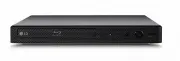 LG BP250
User Manual
LG BP250
User Manual
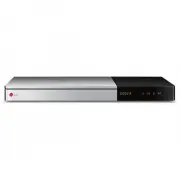 LG BP740
User Manual
LG BP740
User Manual
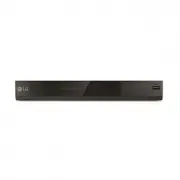 LG DP132
User Manual
LG DP132
User Manual
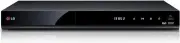 LG RH735T
User Manual
LG RH735T
User Manual
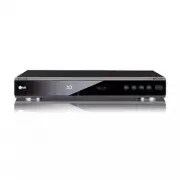 LG BD300
User Manual
LG BD300
User Manual
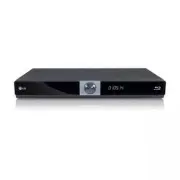 LG BD370
User Manual
LG BD370
User Manual
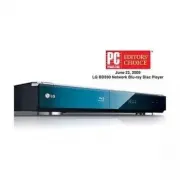 LG BD390
User Manual
LG BD390
User Manual
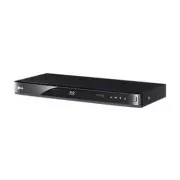 LG BD530
User Manual
LG BD530
User Manual
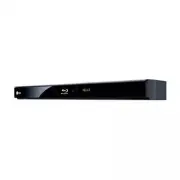 LG BD550
User Manual
LG BD550
User Manual
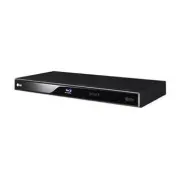 LG BD570
User Manual
LG BD570
User Manual
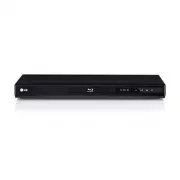 LG BD630
User Manual
LG BD630
User Manual
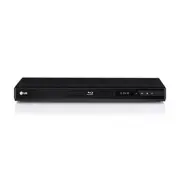 LG BD640
User Manual
LG BD640
User Manual