Page 2 - REGULATORY INFORMATION: FCC Part 15; CAUTION
2 CAUTION: TO REDUCE THE RISK OF ELECTRICSHOCK DO NOT REMOVE COVER (OR BACK)NO USER-SERVICEABLE PARTS INSIDE REFERSERVICING TO QUALIFIED SERVICE PERSON-NEL. This lightning flash with arrowhead symbolwithin an equilateral triangle is intended toalert the user to the presence of uninsulateddangerous v...
Page 4 - IMPORTANT SAFETY INSTRUCTIONS
1. Read these instructions. 2. Keep these instructions. 3. Heed all warnings. 4. Follow all instructions. 5. Do not use this apparatus near water. 6. Clean only with dry cloth. 7. Do not block any ventilation openings.Install in accordance with the manufacturer's instructions. 8. Do not install near...
Page 5 - Contents
Contents Introduction . . . . . . . . . . . . . . . . . . . . . . . . . . . . . . . . . . . . . .6-9 Remote control . . . . . . . . . . . . . . . . . . . . . . . . . . . . . . . . . . .10 Front panel . . . . . . . . . . . . . . . . . . . . . . . . . . . . . . . . . . . . . .11 Rear panel . . . . . ....
Page 6 - Introduction; About the; Keeping the exterior surfaces clean; Notes on Discs; AVCHD
6 Introduction To ensure proper use of this product, please read this owner’s manualcarefully and retain for future reference.This manual provides information on the operation and maintenance ofyour player. Should the unit require service, contact an authorized servicelocation. About the Symbol Disp...
Page 7 - Playable Discs
7 Playable Discs Blu-ray Disc- Discs such as movies that can be purchased or rented.- BD-R/RE discs that contain audio titles, Movie, Music or Photo files. DVD-VIDEO (8 cm / 12 cm disc)Discs such as movies that can be purchased or rented. DVD-R (8 cm / 12 cm disc)- Video mode and finalized only- Sup...
Page 10 - Remote control; Direction buttons: Selects an option in the menu.; Remote Control Operation; Remote Control Battery Installation
10 Remote control a OPEN/CLOSE ( Z ): Opens and closes the disc tray. TV POWER: Switches the TV ON or OFF. POWER: Switches the player ON or OFF. AUDIO ( ): Selects an audio language or audio channel. SUBTITLE ON/OFF: Switches the subtitle ON or OFF. SUBTITLE ( ): Selects a subtitle language. TITLE/P...
Page 11 - Front panel
11 a 1 1 (POWER) Button Switches the unit ON or OFF. b Disc TrayInsert a disc here. c Display Window Shows the current status of the player. d Remote SensorPoint the remote control here. e OPEN/CLOSE ( Z ) Opens or closes the disc tray. f N / X (PLAY / PAUSE) Starts playback.Pause playback temporari...
Page 12 - COMPONENT VIDEO OUT (Y P; Rear panel
12 a AC IN connectorConnect the supplied power cord. b COMPONENT VIDEO OUT (Y P B P R ) Connect to a TV with Y Pb Pr inputs. c DIGITAL AUDIO OUT (COAXIAL)Connect to digital (coaxial) audio equipment. d HDMI OUT (Type A)Connect to TV with HDMI inputs. (Interface for digital audio and video) e LAN por...
Page 13 - Connections to Your TV; HDMI Connection; BD player
13 Connections to Your TV Make one of the following connections, depending on the capabilities ofyour existing equipment. Tips: • Depending on your TV and other equipment you wish to connect, there are various ways you could connect the player. Use only one of the connections described below. • Plea...
Page 14 - Component Video Connection
14 Additional Information for HDMI • When you connect a HDMI or DVI compatible device make sure of the following:- Try switching off the HDMI/DVI device and this player. Next, switch on the HDMI/DVI device and leave it for around 30 seconds, then switchon this player. - The connected device’s video ...
Page 15 - Connecting to an Amplifier; Connecting to an Amplifier via 2 Channel Audio Output
15 Connecting to an Amplifier Make one of the following connections, depending on the capabilities ofyour existing equipment. Note: Since many factors affect the type of audio output, see “The unit’s AudioOutput Specifications” on page 17 for details. Connecting to an Amplifier via 2 Channel Audio O...
Page 16 - Connecting to an Amplifier via HDMI Output
16 Connecting to an Amplifier via HDMI Output Connect the player’s HDMI OUT jack to the corresponding in jack on youramplifier using a HDMI cable (H1). You will need to activate the player’sdigital output. (See “[AUDIO] Menu” on pages 29-30.) Digital Multi-channel soundA digital multi-channel connec...
Page 17 - The unit’s Audio Output Specifications
17 Notes: *1 The secondary and interactive audio may not be included in the output bitstream if [SPDIF] or [HDMI] option is set to [Primary Pass-Thru].(Except LPCM Codec : the output always include interactive and secondary audio.) *2 This player automatically selects the HDMI audio according to the...
Page 18 - Resolution Setting; How to change the resolution using the [Setup] menu; • When the non-copy protected media is playing back
18 Resolution Setting The player provides several output resolutions for HDMI OUT and COMPONENT VIDEO OUT jacks.You can change the resolution using [Setup] menu or pressing the RESOLUTION button in stop mode. Note: Since several factors affect the resolution of video output, see “Availableresolution...
Page 19 - HDMI OUT connection; COMPONENT VIDEO OUT connection; VIDEO OUT connection
19 HDMI OUT connection • For the 480i resolution setting, real output resolution of HDMI OUT will change to 480p. • If you select a resolution manually and then connect the HDMI jack to TV and your TV does not accept it, the resolution setting is set to [Auto]. • If you select a resolution that your...
Page 20 - Connecting to your Home Network; Wired network; Broadband
Connecting to your Home Network This player can be connected to a local area network (LAN) via the LANport on the rear panel or the internal wireless module.By connecting the unit to a broadband home network, you have access toservices such as software updates, My Media, BD-Live interactivity andstr...
Page 21 - Wireless network; BD Player; BD Player
Note: If there is no DHCP server on the network and you want to set the IP address manually, select [Static] then set the [IP Address],[Subnet Mask], [Gateway] and [DNS Server] using v V b B and numerical buttons. If you make a mistake while entering a number,press CLEAR to clear the highlighted par...
Page 23 - Notes on Network Connection
Notes on Network Connection • Many network connection problems during set up can often be fixed by re-setting the router or modem. After connecting the player to the homenetwork, quickly power off and/or disconnect the power cable of thehome network router or cable modem. Then power on and/or connec...
Page 24 - Network Software Update; Network update notification; Step 1: Check the Network Connection and settings
24 Network Software Update Network update notification From time to time, performance improvements and/or additional features orservices may be made available to units that are connected to a broadband home network. If there is new software available and the unit isconnected to a broadband home netw...
Page 26 - Insert/Remove a USB device; Using a USB device; ON REMOTE
26 Tip: If you select the [Movie], [Photo] or [Music] option when a USB device isconnected and a disc is inserted simultaneously, the menu for selecting amedia will appear. Select a media then press ENTER. Insert/Remove a USB device Inserting a USB device – Insert straight-in until it fits into plac...
Page 27 - Using the Home Menu; Adjust the Setup settings
27 [Movie] – Start video media’s playback or displays the [MOVIE] menu. [Photo/Music] – Display the [PHOTO] or [MUSIC] menu. (page 42-44) [My Media] – Display and play the shared contents from the selected server. (pages 45-50) [Netflix] – Instantly watch some movies & TV episodes streamed fromN...
Page 28 - HDMI Color Setting
28 [DISPLAY] Menu TV Aspect Ratio [4:3 Letter Box] – Select when a standard 4:3 TV is connected.Displays theatrical images with masking bars above and below the picture. [4:3 Pan Scan] – Select when a standard 4:3 TV is connected.Displays pictures cropped to fill your TV screen. Both sides of the pi...
Page 29 - Display Menu
29 [LANGUAGE] Menu Display Menu Select a language for the [Setup] menu and on-screen display. Disc Menu / Disc Audio / Disc Subtitle Select the language you prefer for the audio track (disc audio), subtitles,and the disc menu. [Original] – Refers to the original language in which the disc wasrecorde...
Page 30 - Speaker Setup
30 Sampling Freq. (Digital Audio Output) [192KHz] – Select this if your A/V Receiver or Amplifier is capable ofhandling 192 KHz signals. [96KHz] – Select this if your A/V Receiver or Amplifier is NOT capableof handling 192 KHz signals. When this choice is made, this unit automatically converts any 1...
Page 31 - Password; DVD Rating; BD
31 [LOCK] Menu (Parental Control) The [LOCK] settings affect only Netflix movie, CinemaNow movie, BD andDVD playback. To access the any features in [LOCK] settings, you must enter the 4-digitsecurity code you have created.If you have not entered a password yet, you are prompted to do so. Enter a4-di...
Page 34 - If a disc menu screen is displayed; Resume playback; Fast forward or fast reverse; Play a disc; Open the disc tray:
34 Notes: • When you turn on the player or replace a disc, the player returns to theinitial default setting. Depending on the disc, a specific type of audiothat the disc has is output. • Depending on the pre-recorded contents of the BD-ROM, some functions may not be available or may be operated diff...
Page 35 - OR
35 Pause a playback During playback, press PAUSE ( X ) to pause playback. Press PLAY ( N ) to continue playback. Tip: During Audio CD or MP3/WMA playback, press X once again to resume playback. Frame-by-Frame playback Press PAUSE ( X ) repeatedly to play Frame-by-Frame playback. Slow down the playin...
Page 36 - Selecting a subtitle file; Hearing a different audio; Using the search menu; Marker Search; To enter a Marker
36 Selecting a subtitle file If names of the movie file and subtitle file are same, subtitle file is playedautomatically when playing the movie file. If the name of the subtitle file isdifferent from movie file name, you need to select the subtitle file on the[Movie] menu before playing the movie.Us...
Page 37 - Enlarge the playback image; Viewing the Title menu or Popup menu
37 • If the total length of the title is less than 10 seconds, this function is not available. • This function may not work on some [My media] content depending on the file type and ability of the DLNA server. Enlarge the playback image During playback or pause mode, press ZOOM to display the [Zoom]...
Page 38 - Adjusting the Picture Mode; MOVIE
38 Adjusting the Picture Mode Select the video quality mode during playback. You can adjust variousoptions such as [Contrast], [Brightness], [Sharpness], etc. 1. Press PIC MODE while playing a BD, DVD, movie file, CinemaNow,Vudu, Netflix or Youtube video. The [Picture Mode] menu appears onthe screen...
Page 39 - Displaying disc information
39 a Title – Current title number/total number of titles. b Chapter – Current chapter number/total number of chapters. c Time – Elapsed playing time. d Audio – Selected audio language or channel. e Subtitle – Selected subtitle. f Angle – Selected angle/total number of angles. Notes: • If no button i...
Page 40 - Selects the [BD Storage Select] option; Check the network connection and settings:; Selects a BD-LIVETM features on the
40 This unit allows you to enjoy functions such as picture-in-picture, secondary audio and Virtual packages, etc., with BD-Video supportingBONUSVIEW (BD-ROM version 2 Profile 1 version 1.1/ Final StandardProfile). Secondary video and audio can be played from a disc compatiblewith the picture-in-pict...
Page 41 - Notice for displaying the DivX subtitle; Playing a movie
Notes: • When the USB device is connected and a disc is inserted simultaneously, the menu for selecting a media will appear.Select a media then press ENTER. • You can use various playback functions. Refer to pages 34-38.• On the [MOVIE] menu, use red or blue button to move to the first or the last f...
Page 42 - (total number of files and; Listening to music; Inserts an Audio CD or a disc/USB Flash; Plays the selected music:
42 Example) MP3 files Notes: • When the USB device is connected and a disc is inserted simultaneously, the menu for selecting a media will appear. Select amedia then press ENTER. • You can use various playback functions. Refer to pages 34-38. • The file name displayed in the [My Media] menu may diff...
Page 43 - Options during viewing a photo file in full screen; Viewing a photo; Inserts a disc/USB device containing
43 Notes: • When the USB device is connected and a disc is inserted simultaneously, the menu for selecting a media will appear. Select amedia then press ENTER. • You can start the slide show by pressing PLAY ( N ) while photo file is selected in the [PHOTO] or [My Media] menu. • On the [PHOTO] menu,...
Page 45 - Accessing DLNA servers; Before accessing DLNA server:
45 Note: On the server list, a DLNA-compatible digital media servers will beappeared with the DLNA indicator as shown below: About DLNA This Player is a DLNA Certified digital media player that can display andplay movie, photo and music content from your DLNA-compatible digitalmedia server (PC and C...
Page 47 - Playing shared files from DLNA media server; Notes on DLNA features
47 Playing shared files from DLNA media server On this player, you can display and play movie, photo and music files stored on DLNA-compatible digital media servers. 1. Start the DLNA-compatible media server that connected on your localarea network. 2. Press HOME. The [Home Menu] appears on the scre...
Page 48 - Recommended photo size:; Movie files
48 File requirements (My Media) Overall File extensions: “.jpg”, “.jpeg”, “.png”, “.avi”, “.divx”, “.mpg”, “.mpeg”,“.mkv”, “.mp4”, “.mp3”, “.wma”, “.pcm” (LPCM) • Available file extensions differ depending on the DLNA servers.• The LPCM music are only available for files on DLNA servers.Maximum File...
Page 49 - Entering a network user ID and the password; Accessing your PC; Before accessing your PC:
Note: If your PC is protected by password, shared folder on your PC may not dis-played on the screen. Entering a network user ID and the password Depending on your PC’s environment, you may need to enter a networkuser ID and the password for accessing a shared folder.The keyboardmenu appears automat...
Page 50 - Playing shared files from your PC; Notes on PC features
Playing shared files from your PC On this player, you can display and play movie, photo and music filesstored on your PC. 1. Start your PC that connected on your local area network. 2. On your PC, share folders which contains movie, music and/or photofiles you want to play on this player. Note: Shar...
Page 51 - Activating your player; Playing Netflix videos; Check the network connection and settings:; HOME
51 You can instantly watch movies (very few new releases) & TV episodesfrom Netflix streamed over the internet to your TV via your LG BD player.To become a Netflix member, visit: www.netflix.com/LG Activating your player You must activate your player before you can use it to watch moviesstreamed...
Page 52 - Using your player for Netflix; Filling your instant Queue; Selecting a movie to watch on your TV
52 Using your player for Netflix After you activate your player, you’re ready to add movies & TV episodes toyour instant Queue. You can then use your player’s remote to browse yourinstant Queue and to select and watch titles on your TV. You will beamazed at how quick and easy it is. Filling your...
Page 53 - Operations
53 [choose a different episode] (TV series only) Enables you to select a specific show of a TV series. Press b / B to highlight the show you want to view, and then press ENTER to choose it. [rate] Enables you to rate a movie or show. The more stars, the higher the rating. Press ENTER to access the r...
Page 54 - Playing CinemaNow videos
54 You can browse, search and watch movies & TV episodes fromCinemaNow streamed over the internet to your TV via your LG BD player.To become a CinemaNow member, visit: www.cinemanow.com Activating your player You must activate your player before you can use it to watch moviesstreamed over the IN...
Page 56 - Searching for videos
56 Tips: • If you select [Add to Wish List] from [Title Details] menu, the video will be stored in the [Wish List]. You can buy, rent or remove thisvideo from the [Wish List] menu. • For [Title Details] menu of [TV Shows], Use v V b B to select an episode, and then select [Buy] to purchase each epis...
Page 57 - Playing a video
57 Playing a video While watching a movie or TV episode from CinemaNow via your player,you have control over your viewing experience. You can use the buttons on the remote to pause and resume viewing and to scan forward and backward, just like when you watch a DVD. While playing a movie, the buttons...
Page 58 - About the YouTube menu; Playing YouTube videos
58 About the YouTube menu There are various options on the YouTube menu. Use v V b B to select an option and press ENTER to select the options as described below. a b c d e f g h i a Featured – The featured videos list will be displayed. b Recent Videos – The most recently updated videos list will b...
Page 59 - About YouTube playback screen; while playing; while stopped
59 About YouTube playback screen When you press PLAY ( N ) or ENTER at the video you want to watch, the playback screen and content detail will appear on the screen. while playing And when the playback ends or stops, the stopped playback screen andrelated videos list appear on the screen. Use v V b ...
Page 61 - Playing Vudu videos
61 You can browse, search and watch movies & TV shows from Vudu to yourTV via your LG BD player. While navigating Vudu menu, press blue coloredbutton to go to the Vudu Home screen and press RETURN to go to theprevious screen. Activating your player You must activate your player before you can us...
Page 62 - Vudu Home menu; New on Vudu menu
62 Vudu Home menu After activating your player, you’re ready to use the Vudu service. a b c d e a Most Watched – Displays the top 100 movies rented or purchasedthe previous week on the service. b New on Vudu – Displays newly available movies to buy or upcoming movies. c Explore Catalog – You can bro...
Page 63 - Searching titles; MY VUDU menu
63 Searching titles You can search for titles by entering actor, director or title name. Use b B to select [Search by Actor or Director] or [Search by Title] option from the[EXPLORE CATALOG] menu, and then press ENTER to display the key-board menu. Use v v V V b b B B to select a character then pres...
Page 64 - Movie Details menu; Renting and Purchasing movies
64 Movie Details menu The [MOVIE DETAILS] screen presents important information about eachmovie when available. Select a movie you wish to watch by navigatingVudu menu, and press ENTER to display the [MOVIE DETAILS] menu. a Buy – Rent or purchase movies. b Add to Wish List/ Remove from Wish List – A...
Page 65 - Parental Controls; System Info
65 Notes: • Rental videos are available for up to 30 days. Once you start to playthe movie, your viewing period is initiated. Viewing periods differ bymovie, but are typically either 24 or 48 hours. You may watch the movieas many times as you like within that time period. • Movies and TV shows are a...
Page 67 - Reference; Controlling a TV with the Supplied Remote Control; By pressing; Setting up the remote to control your TV; Manufacturer; Resetting the unit
67 Reference Controlling a TV with the Supplied Remote Control You can control the volume, input source, and power state of your TV withthe supplied Remote Control. You can control your TV using the buttons below. By pressing You can TV POWER Turn the TV on or off. AV/INPUT Switch the TV’s input sou...
Page 69 - Troubleshooting; Possible Cause
69 Troubleshooting Possible Cause • The power cord is disconnected. • No disc is inserted. • The TV is not set to receive video signal output. • The video cable is not connected securely. • The selected resolution is not capable with your TV. • The equipment connected with the audio cable is not set...
Page 71 - Specifications; General; Operating temperature:; Outputs
71 Specifications General Power requirements: AC 120 V~, 60 Hz Power consumption: 21W Dimensions (W x H x D): Approx. 16.9 x 2.3 x 10.9 inches (430 x 58 x 277 mm) without foot Net Weight (Approx.): 6.6 lbs (3 kg) Operating temperature: 41 °F to 95 °F (5 °C to 35 °C) Operating humidity: 5 % to 90 % O...
Page 73 - Open source software notice
Open source software notice The following GPL executables and LGPL libraries used in this product aresubject to the GPL2.0/LGPL2.1 License Agreements: GPL EXECUTABLES: Linux kernel 2.6, bash, busybox, dhcpcd, mkdosfs,mtd-utils, net-tools, procps, sysutils, tinylogin, Samba-3.0.25b LGPL LIBRARIES: uC...


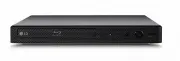 LG BP250
User Manual
LG BP250
User Manual
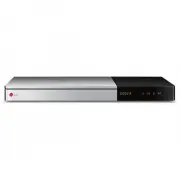 LG BP740
User Manual
LG BP740
User Manual
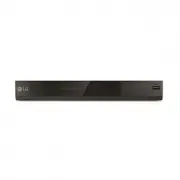 LG DP132
User Manual
LG DP132
User Manual
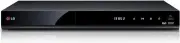 LG RH735T
User Manual
LG RH735T
User Manual
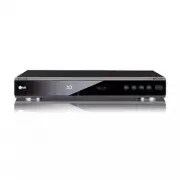 LG BD300
User Manual
LG BD300
User Manual
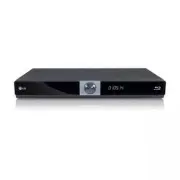 LG BD370
User Manual
LG BD370
User Manual
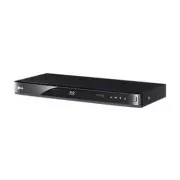 LG BD530
User Manual
LG BD530
User Manual
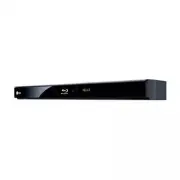 LG BD550
User Manual
LG BD550
User Manual
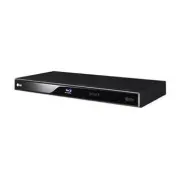 LG BD570
User Manual
LG BD570
User Manual
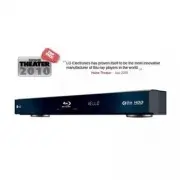 LG BD590
User Manual
LG BD590
User Manual
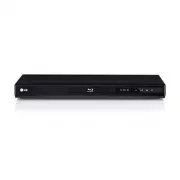 LG BD630
User Manual
LG BD630
User Manual
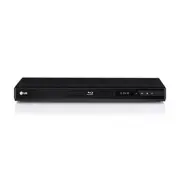 LG BD640
User Manual
LG BD640
User Manual