Page 2 - REGULATORY INFORMATION: FCC Part 15; CAUTION
2 CAUTION: TO REDUCE THE RISK OF ELECTRIC SHOCK DO NOT REMOVE COVER (OR BACK)NO USER-SERVICEABLE PARTS INSIDE REFERSERVICING TO QUALIFIED SERVICE PERSON-NEL. This lightning flash with arrowhead symbolwithin an equilateral triangle is intended toalert the user to the presence of uninsulateddangerous ...
Page 4 - IMPORTANT SAFETY INSTRUCTIONS
1. Read these instructions. 2. Keep these instructions. 3. Heed all warnings. 4. Follow all instructions. 5. Do not use this apparatus near water. 6. Clean only with dry cloth. 7. Do not block any ventilation openings. Install in accordancewith the manufacturer's instructions. 8. Do not install near...
Page 5 - Contents
5 Contents Introduction . . . . . . . . . . . . . . . . . . . . . . . . . . . . . . . . . . . . . .6-9 Remote control . . . . . . . . . . . . . . . . . . . . . . . . . . . . . . . . . . .10 Front panel . . . . . . . . . . . . . . . . . . . . . . . . . . . . . . . . . . . . . .11 Rear panel . . . . ....
Page 6 - Introduction; About the; WMA
6 Introduction To ensure proper use of this product, please read this owner’s manualcarefully and retain for future reference.This manual provides information on the operation and maintenance ofyour player. Should the unit require service, contact an authorized servicelocation. About the Symbol Disp...
Page 7 - Playable Discs
7 Playable Discs Blu-ray Disc - Discs such as movies that can be purchased or rented- BD-R/RE discs that contain audio titles, MP3, WMA, or Photo files. DVD-VIDEO (8 cm / 12 cm disc) Discs such as movies that can be purchased or rented DVD-R (8 cm / 12 cm disc) - Video mode and finalized only- Suppo...
Page 10 - Remote control; Remote Control Operation; Remote Control Battery Installation
10 Remote control a OPEN/CLOSE ( Z ): Opens and closes the disc tray. TV POWER: Switches the TV ON or OFF. POWER: Switches the player ON or OFF. AUDIO ( ): Selects an audio language or audio channel. SUBTITLE ON/OFF: Switches the subtitle on or off. SUBTITLE ( ): Selects a subtitle language. TITLE/P...
Page 11 - Disc Tray; Display Window; Remote Sensor; USB Port; Front panel
11 a Disc Tray Insert a disc here. b OPEN/CLOSE ( Z ) Opens or closes the disc tray. c 1 1 (POWER) Button Switches the unit ON or OFF. d N / X (PLAY / PAUSE) Starts playback.Pause playback temporarily, press again to exit pause mode. e Display Window Shows the current status of the player. f Remote ...
Page 12 - AC IN connector; COMPONENT VIDEO OUT (Y P; LAN port; Rear panel
12 a AC IN connector Connect the supplied power cord. b COMPONENT VIDEO OUT (Y P B P R ) Connect to a TV with Y Pb Pr inputs. c DIGITAL AUDIO OUT (COAXIAL) Connect to digital (coaxial) audio equipment. d HDMI OUT (Type A) Connect to TV with HDMI inputs. (Interface for digital audio and video) e LAN ...
Page 13 - Connections to Your TV; HDMI Connection; BD player
13 Connections to Your TV Make one of the following connections, depending on the capabilities ofyour existing equipment. Tips: • Depending on your TV and other equipment you wish to connect, there are various ways you could connect the player. Use only one of the con-nections described below. • Ple...
Page 14 - Component Video Connection
14 Additional Information for HDMI • When you connect a HDMI or DVI compatible device make sure of the following:- Try switching off the HDMI/DVI device and this player. Next, switch on the HDMI/DVI device and leave it for around 30 seconds, then switchon this player. - The connected device’s video ...
Page 15 - Connecting to an Amplifier; Connecting to an Amplifier via 2 Channel Audio Output; Digital Multi-channel sound
15 Connecting to an Amplifier Make one of the following connections, depending on the capabilities ofyour existing equipment. Note: Since many factors affect the type of audio output, see “The unit’s AudioOutput Specifications” on page 16 for details. Connecting to an Amplifier via 2 Channel Audio O...
Page 16 - The unit’s Audio Output Specifications
16 Notes: • You must select a digital audio output and a maximum sampling frequency that your Amplifier (or AV receiver) accepts using [SPDIF],[HDMI] and [Sampling Freq.] options on the [Setup] menu (see page 25-26). • With digital audio connection (SPDIF or HDMI), Disc Menu button sounds of BD-ROM ...
Page 17 - Resolution Setting; How to change the resolution using the [Setup] menu
17 *3 The [PCM Multi-CH]/[Primary Pass-Thru] setting of the [HDMI] option and [DTS re-encode] setting of the [SPDIF] option cannot be settogether. If you set the [HDMI] option to [PCM Multi-CH] or [Primary Pass-Thru], the [SPDIF] option is set to [PCM Stereo] auto-matically. Also, if you set the [SP...
Page 18 - Available resolution according to the resolution setting; HDMI OUT connection; COMPONENT VIDEO OUT connection; VIDEO OUT connection; • When the non-copy protected media is playing back
18 Available resolution according to the resolution setting Notes: • Depending on your display, some of the resolution settings may result in the picture disappearing or an abnormal picture appearing. In this case,press HOME then RESOLUTION repeatedly until the picture re-appear. • This player suppo...
Page 19 - Internet connection; • Ethernet cable connection; Broadband; Router
19 Internet connection This player can be connected to a local area network (LAN) via the LANport on the rear panel. By connecting the unit to a broadband home network, you have access toservices such as software updates, BD-Live interactivity, and streamingservices such YouTube, etc. • Ethernet cab...
Page 20 - Network Software Update; Network update notification
20 • Our company is not responsible for any trouble in your internet connec- tion. • The features of BD-ROM discs made available through the Internet Connection feature are not created or provided by our company, and ourcompany is not responsible for their functionality or continued availabili-ty. S...
Page 22 - Insert/Remove a USB Flash Drive; Using a USB Flash Drive; ON REMOTE
22 Tip: If you select the [Photo] or [Music] option when a USB Flash Drive is connected and a disc is inserted simultaneously, the menu for selecting amedia will appear. Select a media then press ENTER. Insert/Remove a USB Flash Drive Inserting a USB Flash Drive – Insert straight-in until it fits in...
Page 23 - Using the Home Menu; Adjust the Setup settings
23 [Movie] – Start video media’s playback or displays the [MOVIE] menu. [Photo] – Displays [PHOTO] menu. (page 36-37) [Music] – Displays [MUSIC] menu. (page 35) [Netflix] – Instantly watch some movies & TV episodes streamed fromNetflix to your TV. (pages 41-43) [CinemaNow] – Instantly watch some...
Page 25 - Display Menu
25 [LANGUAGE] Menu Display Menu Select a language for the [Setup] menu and on-screen display. Disc Menu / Disc Audio / Disc Subtitle Select the language you prefer for the audio track (disc audio), subtitles,and the disc menu. [Original] – Refers to the original language in which the disc was record...
Page 26 - Password
26 Notes: • When [HDMI] option is set to [PCM Multi-Ch], the audio may output as PCM Stereo if the PCM Multi-Ch information is not detected from HDMIdevice with EDID. • If the [HDMI] or [SPDIF] option is set to [DTS re-encode], the DTS Re- encode audio is outputted for BD-ROM discs with secondary au...
Page 28 - BD
28 How to check the network configuration Select [IP Mode] option and check the Network status indicator shownabove the menu. (The Network status indicator changes according toNetwork configuration.) IP Setting This option is available only if [IP Mode] option is set to [Static IP].Use the v / V / b...
Page 29 - Pause a playback; AVCHD; Play a disc; Open the disc tray:
29 Notes: • When you turn on the player or replace a disc, the player returns to theinitial default setting. Depending on the disc, a specific type of audiothat the disc has is output. • Depending on the pre-recorded contents of the BD-ROM, some func-tions may not be available or may be operated dif...
Page 31 - Selecting a subtitle language; OR; Last Scene Memory
31 Selecting a subtitle language During playback, press SUBTITLE ON/OFF to switch the subtitle on or offand press SUBTITLE repeatedly to select a desired subtitle language. OR During playback, press DISPLAY to display the playback menu. Use v V to select the [Subtitle] option then use b B to select ...
Page 32 - Displaying disc information
32 a Title/Track – Current title/track number/total number of titles/tracks. b Chapter – Current chapter number/total number of chapters. c Time – Elapsed playing time. d Audio – Selected audio language or channel. e Subtitle – Selected subtitle. f Angle – Selected angle/total number of angles. Note...
Page 33 - Enjoying BD-Live discs with Internet; Check the network connection and settings:; Inserts an USB Flash Drive to the USB port:; Select a BD-LIVETM features on the
33 This unit allows you to enjoy functions such as picture-in-picture, secondary audio and Virtual packages, etc., with BD-Video supportingBONUSVIEW (BD-ROM version 2 Profile 1 version 1.1/ Final StandardProfile). In addition to the BONUSVIEW function, BD-Video supporting BD-Live (BD-ROM version 2 P...
Page 34 - AACS Online; Playing a DVD VR Format Disc; Plays the selected movie:
34 AACS Online When discs supporting BD-Live are played back, the player or disc IDsmay be sent to the content provider via the Internet.Services and functions to be provided differ depending on the disc.– You can be introduced to other similar movies if you record your view-ing history on the serve...
Page 35 - MP3/WMA audio file requirement; Notes on MP3/WMA file; Listening to music; Insert an Audio CD or a disc/USB Flash; Plays the selected music:
35 Example) MP3 files Notes: • When the USB Flash Drive is connected and a disc is inserted simultaneously, the menu for selecting a media will appear. Select amedia then press ENTER. • You can use various playback functions. Refer to pages 29-31. Tips: • To go directly to any track or file and play...
Page 36 - Options during viewing a photo file in full screen; Viewing a photo; Insert a disc/USB Flash Drive containing
36 Note: When the USB Flash Drive is connected and a disc is inserted simultaneously, the menu for selecting a media will appear. Select a mediathen press ENTER. Options during viewing a photo file in full screen You can use various options during viewing a picture in full screen.Use v V b B to sele...
Page 37 - Photo file requirement; Notes on Photo file
37 Tips: • To go directly to a specific file, enter the file number using the numbered buttons (0-9). • You can advance to the previous or next file by pressing . or > during viewing a photo file in full screen. • You can start the slide show by pressing PLAY ( N ) while the [PHOTO] menu appears....
Page 38 - About the YouTube menu; Playing YouTube videos
38 About the YouTube menu There are various options on the YouTube menu. Use v V b B to select an option and press ENTER to select the options as described below. a b c d e f g h i a Featured – The featured videos list will be displayed. b Recent Videos – The most recently updated videos list will b...
Page 39 - About YouTube playback screen; while playing; while stopped; Playing a video; Operations
39 About YouTube playback screen When you press PLAY ( N ) or ENTER at the video you want to watch, the playback screen and content detail will appear on the screen. while playing And when the playback ends or stops, the stopped playback screen andrelated videos list appear on the screen. Use v V b ...
Page 41 - Activating your player; Playing Netflix videos; Check the network connection and settings:
41 You can instantly watch movies (very few new releases) & TV episodesfrom Netflix streamed over the internet to your TV via your LG BD player.To become a Netflix member, visit: www.netflix.com/LG Activating your player You must activate your player before you can use it to watch moviesstreamed...
Page 42 - Using your player for Netflix; Filling your instant Queue
42 Using your player for Netflix After you activate your player, you’re ready to add movies & TV episodesto your instant Queue. You can then use your player’s remote to browseyour instant Queue and to select and watch titles on your TV. You will beamazed at how quick and easy it is. Filling your...
Page 44 - Playing CinemaNow videos; Check the network configurations:
44 You can browse, search and watch movies & TV episodes fromCinemaNow streamed over the internet to your TV via your LG BD player.To become a CinemaNow member, visit: www.cinemanow.com Activating your player You must activate your player before you can use it to watch moviesstreamed over the IN...
Page 46 - Searching for videos
46 Tips: • If you select [Add to Wish List] from [Title Details] menu, the video will be stored in the [Wish List]. You can buy, rent or remove thisvideo from the [Wish List] menu. • For [Title Details] menu of [TV Shows], Use v V b B to select an episode, and then select [Buy] to purchase each epis...
Page 48 - Reference; Controlling a TV with the Supplied Remote Control; By pressing; Setting up the remote to control your TV; Manufacturer
48 Reference Controlling a TV with the Supplied Remote Control You can control the volume, input source, and power state of your TV withthe supplied Remote Control. You can control your TV using the buttons below. By pressing You can TV POWER Turn the TV on or off. AV/INPUT Switch the TV’s input sou...
Page 50 - Troubleshooting; Possible Cause
50 Troubleshooting Possible Cause • The power cord is disconnected. • No disc is inserted. • The TV is not set to receive video signal output. • The video cable is not connected securely. • The selected resolution is not capable with your TV. • The equipment connected with the audio cable is not set...
Page 51 - Resetting the unit; If you observe any of the following symptoms.; Customer Support
51 Resetting the unit If you observe any of the following symptoms. • The unit is plugged in, but the power will not turn on or off. • The front panel display is not working. • The unit is not operating normally. You can reset the unit as follows. • Press and hold the POWER button for at least five ...
Page 52 - Specifications; General; Operating temperature:; Outputs; COMPONENT VIDEO OUT:; System; Accessories
52 Specifications General Power requirements: AC 120 V~, 60 Hz Power consumption: 26W Dimensions (W x H x D): Approx. 16.9 x 2.1 x 9.6 inches (430 x 54 x 245 mm) without foot Net Weight (Approx.): 6 lbs (2.7 kg) Operating temperature: 41 °F to 95 °F (5 °C to 35 °C) Operating humidity: 5 % to 90 % Ou...
Page 54 - Open source software notice
Open source software notice The following GPL executables and LGPL libraries used in this product aresubject to the GPL2.0/LGPL2.1 License Agreements: GPL EXECUTABLES: Linux kernel 2.6, bash, busybox, dhcpcd, mtd-utils, net-tools, procps, sysutils, tinylogin LGPL LIBRARIES: uClibc, DirectFB, iconv, ...


 LG BP250
User Manual
LG BP250
User Manual
 LG BP740
User Manual
LG BP740
User Manual
 LG DP132
User Manual
LG DP132
User Manual
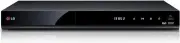 LG RH735T
User Manual
LG RH735T
User Manual
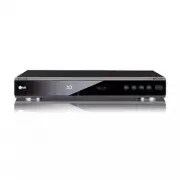 LG BD300
User Manual
LG BD300
User Manual
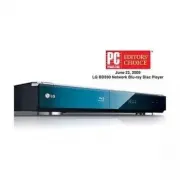 LG BD390
User Manual
LG BD390
User Manual
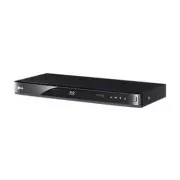 LG BD530
User Manual
LG BD530
User Manual
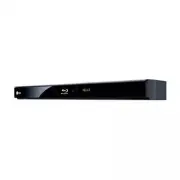 LG BD550
User Manual
LG BD550
User Manual
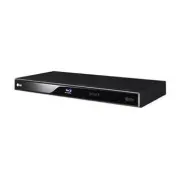 LG BD570
User Manual
LG BD570
User Manual
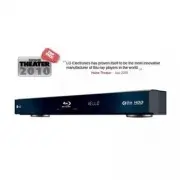 LG BD590
User Manual
LG BD590
User Manual
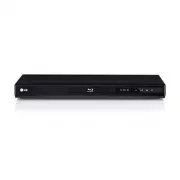 LG BD630
User Manual
LG BD630
User Manual
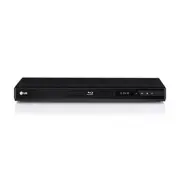 LG BD640
User Manual
LG BD640
User Manual