Page 2 - IMPORTANT FOR LASER PRODUCTS; Warnings, Cautions and Others; CAUTION
IMPORTANT for the U.K. DO NOT cut off the mains plug from this equipment. If the plugfitted is not suitable for the power points in your home or thecable is too short to reach a power point, then obtain an appro-priate safety approved extension lead or consult your dealer. BE SURE to replace the fus...
Page 4 - Introduction; About This Manual; Installation; We would like to thank you for purchasing one of our JVC products.; Power sources; Moisture condensation; Others
– 1 – Introduction About This Manual This manual is organized as follows: • The manual mainly explains operations using the buttons and controls on the unit. You can also use thebuttons on the remote control if they have the same orsimilar names (or marks) as those on the unit.If operation using the...
Page 5 - Contents; Receiving FM Stations with RDS; Switching to a Program Type of Your Choice
– 2 – Contents Location of the Buttons and Controls ....................... 3 Front Panel ................................................................. 3Remote Control .......................................................... 5 Getting Started ......................................................
Page 6 - Location of the Buttons and Controls; Become familiar with the buttons and controls on your unit.; Front Panel; Top view of
– 3 – Location of the Buttons and Controls Become familiar with the buttons and controls on your unit. Front Panel Front Panel Top view of p Indication-lamp panel COMPACT DIGITAL AUDIO VO LUM E PRESET SO UND MODE EN01-09.CA-HXZ1R_HXZ1[B_A]f.pm6 3/21/02, 2:52 PM 3
Page 7 - Pressing this button also turns on the unit.; Display Window
– 4 – Continued Display Window See pages in the parentheses for details. Front Panel 1 Disc trays 2 (standby/on) button and lamp (10, 26, 27) 3 ECO (Ecology) button (10) 4 Remote sensor 5 Display window 6 FM/AM button (11, 13)Pressing this button also turns on the unit. 7 TAPE 2 3 button (11, 21, 22...
Page 8 - Remote Control
– 5 – 1 Number buttons (13, 17, 18) 2 4 ( 1 ) (reverse skip/reverse search) button (13, 17, 19, 21) 7 (stop) button (17 – 19, 21 – 24, 27) ¢ ( ¡ ) (forward skip/forward search) button (13, 17, 19, 21) 3 Disc number (CD1, CD2, and CD3) buttons (17, 18) 4 CD play mode buttons (18 – 20)• REPEAT, RANDOM...
Page 10 - Getting Started; Supplied Accessories; If anything is missing, consult your dealer immediately.; Putting the Batteries into the Remote Control; FM antenna; About the supplied FM antenna; To connect an outdoor FM antenna; Before connecting it, disconnect the supplied FM antenna.
– 7 – Getting Started Supplied Accessories Make sure that you have all the following items.The number in the parentheses indicates the quantity of thepieces supplied. • AM loop antenna (1)• FM antenna (1)• Remote control (1)• Batteries (2) If anything is missing, consult your dealer immediately. Put...
Page 11 - To connect an outdoor AM antenna; For better reception of both FM and AM; AM antenna; Connecting Speakers; Close the speaker terminals.
– 8 – 1 If cords are covered with insulation, twist thecore of the cord at the end of each cord, thenremove the insulation. 2 Connect the AM loop antenna to the AM LOOPterminals as illustrated. 3 Turn the AM loop antenna until you have thebest reception. To connect an outdoor AM antenna When recepti...
Page 12 - Connecting Other Equipment; You can connect both analog and digital equipment.; To connect an analog component; You can record CD sound onto the connected digital equipment.; Canceling the Demonstration; When you press other buttons; To start the demonstration manually
– 9 – CD OPTICAL DIGITAL OUTPUT Connecting Other Equipment You can connect both analog and digital equipment. • DO NOT connect any equipment while the power is on. • DO NOT plug in any equipment until all connections are complete. To connect an analog component Be sure that the plugs of the audio co...
Page 13 - Common Operations; Turning On or Off the Power; To turn on the unit, press; When you turn off the unit with Ecology Mode activated; Setting the Clock; Turn
– 10 – Common Operations Turning On or Off the Power To turn on the unit, press (or STANDBY/ON on the remote control) so that the lamp on the button goes off. To turn off the unit (on standby), press (or STANDBY/ON on the remote control) again so that the lamp on the button lights up.• A little powe...
Page 14 - Selecting the Sources; To play back tapes, press TAPE; and the unit starts playing the source if it is ready.; Adjusting the Volume; For private listening; To turn down the volume level temporarily; On the remote control ONLY:; To restore the sound, press the button again.; Reinforcing the Bass Sound; Selecting the Sound Modes; The sound modes change as follows:
– 11 – Selecting the Sources To listen to the FM/AM broadcasts, press FM/AM.(See page 13.)To play back CDs, press CD 3¥8 . (See pages 16 – 20.) To play back tapes, press TAPE 2 3 . (See page 21.) To select the external equipment as the source, press AUX. When you press the play button for a particul...
Page 15 - STADIUM: Adds clarity and spreads the sound, like in an; Creating Your Own Sound Mode—User Mode; Select one of the preset sound modes.; Turning On or Off the Key-touch Tone
– 12 – Surround modes*DANCE: Increases resonance and bass. HALL: Adds depth and brilliance to the sound. STADIUM: Adds clarity and spreads the sound, like in an outdoor stadium. SEA (Sound Effect Amplifier) modesROCK: Boosts low and high frequency. Good for acousticmusic. POP: Good for vocal music. ...
Page 16 - Listening to FM and AM Broadcasts; Tuning in to a Station; ) on the remote control) briefly and repeatedly; To change the FM reception mode; Presetting Stations; When you unplug the AC power cord or if a power; Tuning in to a Preset Station; On the remote control:
– 13 – Listening to FM and AM Broadcasts Tuning in to a Station 1 Press FM/AM. The unit automatically turns on and tunesin to the previously tuned station (eitherFM or AM).• Each time you press the button, the band alternates between FM and AM. 2 Start searching for stations. On the unit: Press and ...
Page 17 - Enhanced Other Networks:; More about RDS; Changing the RDS Information; • If no PS, PTY, or RT signals are sent by a station; Press PTY SEARCH once again.
– 14 – RDS (Radio Data System) allows FM stations to send anadditional signal along with their regular program signals.For example, the stations send their station names, as well asinformation about what type of program they broadcast, suchas sports or music, etc.When tuning in to an FM station whic...
Page 18 - is canceled before you finish, start from step; • Each time you press the button, the data types change as; More about the Enhanced Other Networks function
– 15 – Switching to a Program Type of Your ChoiceTemporarily The Enhanced Other Networks function allows the unit toswitch temporarily to a broadcast program of your choice(TA, NEWS, or INFO) from a different station.• The Enhanced Other Networks function only works when you are listening to a prese...
Page 19 - Loading CDs; When loading more than one CD continuously; About the CD ready lamps; • When and why they light up?
– 16 – Playing Back CDs (CD/CD-R/CD-RW) This unit has been designed to playback the following CDs:• CD (Audio CD)• CD-R (CD-Recordable)• CD-RW (CD-ReWritable) Continued use of irregular shape CDs(heart-shape, octagonal, etc.) can damagethe unit. When playing a CD-R or CD-RW User-edited CD-Rs (CD-Rec...
Page 20 - Playing Back the Entire Discs—Continuous Play; To stop playing, press; CD playback sequence; Basic CD Operations; To exchange CDs during playback of another; To resume playing, press CD; To go to another track
– 17 – Playing Back the Entire Discs—Continuous Play You can play CDs continuously. 1 Load CDs. 2 Press one of the disc number(CD1, CD2, and CD3) buttonsfor the disc you want to play. The unit starts searching for the CDand CD play starts from the first trackof the selected disc. • Pressing CD 3 / 8...
Page 21 - • If you try to program a 33rd track; • If your entry is ignored
– 18 – Programming the Playing Order of the Tracks—Program Play You can arrange the playing order of the tracks before youstart playing. You can program up to 32 tracks.• To use Repeat Play (see page 20) for Program Play, press REPEAT after starting Program Play. Only REPEAT 1 andREPEAT ALL can be s...
Page 22 - Playing at Random—Random Play; Activating the Random Play mode.; Press CD; To skip the currently playing track, turn; If you turn; To check the program contents; To modify the program
– 19 – Playing at Random—Random Play The tracks of all loaded CDs will be played at random.• To use Repeat Play (see page 20) for Random Play, press REPEAT after starting Random Play. Only REPEAT 1 andREPEAT ALL can be selected for Random Play. 1 Load CDs. • If the current playing source is not the ...
Page 23 - Repeating Tracks or CDs—Repeat Play; Prohibiting Disc Ejection—Tray Lock; To prohibit disc ejection, press; If you try to eject CDs while Tray Lock is in used
– 20 – Repeating Tracks or CDs—Repeat Play You can have all the CDs, the program or the individual trackcurrently playing to repeat as many times as you like. To repeat playing, press REPEAT during orbefore play.• Each time you press the button, Repeat Play mode changes as follows: The Repeat Play m...
Page 24 - Playing Back a Tape; Press; Playing Back Tapes; To play both sides repeatedly—Reverse Mode; Locating the Beginning of a Song—Music Scan; To find the beginning of the current song
– 21 – You can play back type I tapes without changing any settings. Playing Back a Tape 1 Press 0 EJECT for the cassette deck. 2 Insert a cassette in with the exposed part ofthe tape down. 3 Close the cassette holder gently. 4 Press TAPE 2 3 . The tape play starts and the tape directionindicator ( ...
Page 25 - Recording; Recording on a Tape; To stop recording immediately, press REC START/STOP or; To record on both sides—Reverse Mode
– 22 – Recording Recording on a Tape 1 Press 0 EJECT to insert a recordable cassette with the exposed part of the tape down. 2 Close the cassette holder gently. • If you want to record on both sides of a tape, see “To record on both sides—Reverse Mode.” 3 Check the tape direction of the cassette dec...
Page 26 - To stop recording, press
– 23 – CD Synchronized Recording By using CD Synchronized Recording methods, you can startand stop a CD play and tape recording at the same time.CD Synchronized Recording consists of the followings: 7 CD Direct Recording 7 Auto Edit Recording 7 CD Direct Recording Everything on the CD goes onto the ...
Page 27 - Auto Edit Recording
– 24 – Tracks to be recorded on thereverse side (SIDE-B) appear. SET / DISPLAY REVERSE MODE CD REC START 7 Auto Edit Recording By using Auto Edit Recording, you can record the CD tracksto fit the tape. Auto Edit Recording makes a program byselecting the CD tracks in numerical order. However, topreve...
Page 28 - Using the Timers; Using Daily Timer; How Daily Timer actually works
– 25 – Using the Timers There are three timers available—DAILY (Daily Timer), REC(Recording Timer), and SLEEP (Sleep Timer). Before using the timers, you need to set the clock built in theunit. (See page 10.) Using Daily Timer With Daily Timer, you can be awaken with your favoritemusic or radio prog...
Page 29 - • If the unit is turned on when the on-time comes; • Even if you unplug the AC power cord or if a power failure; To turn on or off Daily Timer after its setting is done; Or
– 26 – 4 Set the off-time you want the unit to turn off(on standby) at. 1) Turn 4 / ¢ to set the hour, then press SET/DISPLAY. 2) Turn 4 / ¢ to set the minute, then press SET/DISPLAY.“SET” appears for 1 second, then the unit enterssource selecting mode. 5 Turn 4 / ¢ to select the source to play, the...
Page 30 - • If you want to listen to another source while recording; Using Recording Timer; How Recording Timer actually works
– 27 – 4 Set the on-time you want theunit to turn on at. 1) Turn 4 / ¢ to set the hour, then press SET/DISPLAY. 2) Turn 4 / ¢ to set the minute, then press SET/DISPLAY.“SET” appears for 1 second, thenthe unit enters off-time setting mode. 5 Set the off-time you want the unit to turn off(on standby) ...
Page 31 - ” appears on the display for 2 seconds.; Using Sleep Timer; How Sleep Timer actually works; The SLEEP indicator stops flashing and remains lit.; Timer Priority; operating, Daily Timer will not come on at all.
– 28 – SLEEP 10 SLEEP 60 SLEEP 30 SLEEP 20 Canceled SLEEP 120 SLEEP 90 To turn on or off Recording Timer after its settingis done 1 Press CLOCK/TIMER repeatedly until“REC” appears on the display. (Timer) indicator lights up and the REC (Recording Timer) indicator starts flashing on the display. 2 To...
Page 32 - Description of the PTY codes:; DOCUMENT: Program concerning factual matters,; Additional Information
– 29 – Classification of the PTY codes for some FM stationsmay be different from the above list. Description of the PTY codes: NEWS: News. AFFAIRS: Topical program expanding or enlargingupon the news—debate, or analysis. INFO: Program the purpose of which is to impartadvice in the widest sense. SPOR...
Page 33 - Maintenance; Handling cassette tapes; • Stains on the unit; General Notes
– 30 – Maintenance To get the best performance of the unit, keep your discs, tapes, and mechanism clean. Handling cassette tapes • If the tape is loose in its cassette, take up the slack by inserting a pencil in oneof the reels and rotating. • If the tape is loose, it may get stretched, cut, or caug...
Page 34 - Troubleshooting; GENERAL
– 31 – If you are having a problem with your unit, check this list for a possible solution before calling for service.If you cannot solve the problem from the hints given here, or the unit has been physically damaged, call a qualified person,such as your dealer, for service. Troubleshooting GENERAL ...
Page 35 - Specifications; Design and specifications are subject to change without notice.
– 32 – Specifications CA-HXZ1R Amplifier section Output Power (IEC 268-3/DIN)SUBWOOFERS: 86 W per channel, min. RMS, both channelsdriven into 6 Ω at 63 Hz with no more than 0.9% total harmonic distortion. MAIN SPEAKERS: 21 W per channel, min. RMS, both channelsdriven into 6 Ω at 1 kHz with no more t...
Page 37 - INSTRUCTIONS; COMPACT COMPONENT SYSTEM
GVT0077-012A [UW] INSTRUCTIONS MANUAL DE INSTRUCCIONESINSTRUÇÕES CA-HXZ1 For Customer Use: Enter below the Model No. and Serial No.which are located either on the rear, bot-tom or side of the cabinet. Retain thisinformation for future reference. Model No. Serial No. COMPACT DIGITAL AUDIO VO LUM E PR...
Page 41 - English
IMPORTANT FOR LASER PRODUCTS IMPORTANTE PARA PRODUCTOS LÁSER IMPOTANTE PARA PRODUTOS LASER REPRODUCTION OF LABELS / REPRODUCCIÓN DE ETIQUETAS / REPRODUÇÃO DE ETIQUETAS 1 1 1 1 1 CLASSIFICATION LABEL, PLACED ON EXTERIORSURFACE 1 1 1 1 1 ETIQUETA DE CLASIFICACIÓN, PROVISTASOBRE LA SUPERFICIE EXTERIOR ...
Page 47 - Connecting Antennas
– 6 – English Getting Started Supplied Accessories Make sure that you have all the following items.The number in the parentheses indicates the quantity of thepieces supplied. • AM loop antenna (1)• FM antenna (1)• Remote control (1)• Batteries (2)• AC plug adaptor (1) If anything is missing, consult...
Page 49 - Adjusting the Voltage Selector; • If the wall outlet does not match the AC plug, use the
– 8 – English CD OPTICAL DIGITAL OUTPUT Connecting Other Equipment You can connect both analog and digital equipment. • DO NOT connect any equipment while the power is on. • DO NOT plug in any equipment until all connections are complete. To connect an analog component Be sure that the plugs of the ...
Page 52 - To use your own sound mode; Setting the AM Tuner Interval Spacing
– 11 – English Surround modes*DANCE: Increases resonance and bass. HALL: Adds depth and brilliance to the sound. STADIUM: Adds clarity and spreads the sound, like in an outdoor stadium. SEA (Sound Effect Amplifier) modesROCK: Boosts low and high frequency. Good for acousticmusic. POP: Good for vocal...
Page 57 - Activate the Random Play mode.
– 16 – English Playing at Random—Random Play The tracks of all loaded CDs will be played at random.• To use Repeat Play (see page 17) for Random Play, press REPEAT after starting Random Play. Only REPEAT 1 andREPEAT ALL can be selected for Random Play. 1 Load CDs. • If the current playing source is ...
Page 58 - If you try to eject CDs while Tray Lock is in use
– 17 – English Repeating Tracks or CDs—Repeat Play You can have all the CDs, the program or the individual trackcurrently playing repeat as many times as you like. To repeat playing, press REPEAT during orbefore play.• Each time you press the button, Repeat Play mode changes as follows: The Repeat P...
Page 60 - material without the consent of the copyright owner.; To protect your recording
– 19 – English Recording Recording on a Tape 1 Press 0 EJECT to insert a recordable cassette with the exposed part of the tape down. 2 Close the cassette holder gently. • If you want to record on both sides of a tape, see “To record on both sides—Reverse Mode.” 3 Check the tape direction of the cass...
Page 61 - CD Synchronized Recording
– 20 – English CD Synchronized Recording By using CD Synchronized Recording methods, you can startand stop a CD play and tape recording at the same time.CD Synchronized Recording consists of the following: 7 CD Direct Recording 7 Auto Edit Recording 7 CD Direct Recording Everything on the CD goes on...
Page 63 - Using the Microphones; disconnecting the microphone.; Singing along—Karaoke; Vocal Masking; Microphone Mixing
– 22 – English Using the Microphones You can enjoy singing along (Karaoke) and microphonemixing by using two microphones.• MIC LEVEL adjustment is valid for both microphones connected to MIC 1 and MIC 2 jacks. IMPORTANT: • Always set MIC LEVEL to MIN when connecting or disconnecting the microphone. ...
Page 65 - TUNER FM
– 24 – English 4 Set the off-time you want the unit to turn off(on standby) at. 1) Turn 4 / ¢ to set the hour, then press SET/DISPLAY. 2) Turn 4 / ¢ to set the minute, then press SET/DISPLAY.“SET” appears for 1 second, then the unit enterssource selecting mode. 5 Turn 4 / ¢ to select the source to p...
Page 68 - Handling discs
– 27 – English Maintenance To get the best performance of the unit, keep your discs, tapes, and mechanism clean. Handling cassette tapes • If the tape is loose in its cassette, take up the slack by inserting a pencil in oneof the reels and rotating. • If the tape is loose, it may get stretched, cut,...
Page 69 - Cause; Symptom
– 28 – English If you are having a problem with your unit, check this list for a possible solution before calling for service.If you cannot solve the problem from the hints given here, or the unit has been physically damaged, call a qualified person,such as your dealer, for service. Troubleshooting ...
Page 70 - SPEAKER SYSTEM; MANUAL DE INSTRUCCIONES: SISTEMA DE ALTAVOCES; — SAFETY INSTRUCTIONS —; UUL« ÂUEM ∫ULOKF« qOœ
1 SPEAKER SYSTEM SP-HXZ1 MANUAL DE INSTRUCCIONES: SISTEMA DE ALTAVOCES INSTRUÇÒES: SISTEMA DE ALTIFALANTES 說明書︰揚聲器系統 Thank you for purchasing JVC speakers.Before you begin using them, please read the instructions carefullyto be sure you get the best possible performance. If you have anyquestions, co...
Page 71 - SPECIFICATIONS; qOu«; uÝ√
2 Connection Conexión Ligaçao 接線 CONNECTION • DON’T use other amplifier to operate this speaker system except for CA-HXZ1. • Turn off power to the whole system before connecting the speak- ers to the amplifier. • The maximum power handling capacity of the SP-HXZ1 main speaker is 55 W/Subwoofer is 13...
Page 72 - ESPECIFICACIONES
3 CONEXIÓN • NO utilice ningún otro amplificador para operar este sistema de altavoces excepto CA-HXZ1. • Desactive la alimentación de todo el sistema antes de conectar los altavoces al amplificador. • La capacidad máxima de potencia del altavoz principal del SP- HXZ1 es de 55 W y la del altavoz de ...


 JVC CA-DXJ20
Manual
JVC CA-DXJ20
Manual
 JVC CA-DXJ30
Manual
JVC CA-DXJ30
Manual
 JVC EX-D1
Manual
JVC EX-D1
Manual
 JVC EX-D11
Manual
JVC EX-D11
Manual
 JVC FS-X5
Manual
JVC FS-X5
Manual
 JVC HX-GD7
Manual
JVC HX-GD7
Manual
 JVC MX-K10R
User Manual
JVC MX-K10R
User Manual
 JVC MX-K15R
User Manual
JVC MX-K15R
User Manual
 JVC MX-K30R
User Manual
JVC MX-K30R
User Manual
 JVC NX-F3
Manual
JVC NX-F3
Manual
 JVC NX-F7
Manual
JVC NX-F7
Manual
 JVC NX-PB10
Manual
JVC NX-PB10
Manual
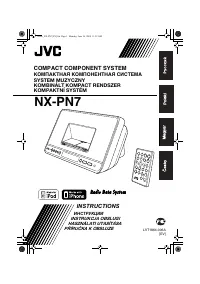 JVC NX-PN7
Manual
JVC NX-PN7
Manual
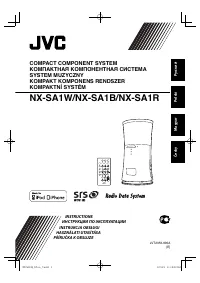 JVC NX-SA1B (R) (W)
User Manual
JVC NX-SA1B (R) (W)
User Manual
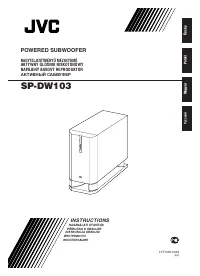 JVC SP-DW103
User Manual
JVC SP-DW103
User Manual
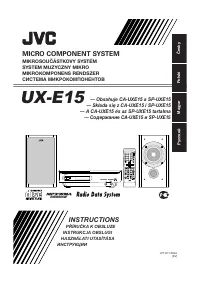 JVC UX-E15
Manual
JVC UX-E15
Manual
 JVC UX-G100
Manual
JVC UX-G100
Manual
 JVC UX-G200
User Manual
JVC UX-G200
User Manual