Page 2 - Jabra MOTION OFFICE; GET STARTED
JABRA.COM/MOTIONOFFICE Jabra MOTION OFFICE 81 -0 388 2 B GET STARTED
Page 5 - OVERVIEW
2 Volume touch panel Call button LED indicators Busy light indicator Voice and Mute microphone button OVERVIEW Jabra Link 360 Touchscreen Kensington lock Speaker Headset dock (Cannot be rotated) AUX port Handset port USB port Telephone port Power adapter port Busylight port
Page 6 - BASIC SETUP
3 1 BASIC SETUP 1 2 3 4 Important! Download and install the latest Jabra software from jabra.com/pcsuite for full headset functionality. ENGLISH Speaker
Page 7 - CONNECT TO PHONE OR PC
4 JABRA MOTION OFFICE CONNECTION The first time the base is connected to power, the setup wizard will automatically start. The setup wizard can also be accessed at any time via the touchscreen menu. 1. Tap the Settings menu on the touchscreen.2. Tap Phone settings > Setup wizard.3. Tap confirm to...
Page 8 - WEARING THE HEADSET
5 HEIGHT ADJUSTMENT Get the perfect fit for your ear by adjusting the height of the speaker up or down. LEFT OR RIGHT EAR WEARING STYLE The headset can be worn on the left or right ear. To switch ear:1. Pull the speaker all the way down.2. Rotate the speaker 180°.3. Twist the eargel around to fit yo...
Page 9 - HOW TO USE
6 4 HOW TO USE Volume touch panel Call button Voice and Mute microphone button Flip boom-arm Settings menu Connected devices (primary device at front) Answer call Initiate call Reject call Mute call End call IDLE INCOMING CALL ON A CALL Call options menu
Page 11 - APERÇU
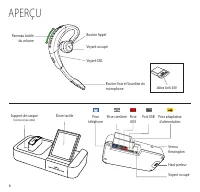
8 Panneau tactile du volume Bouton Appel Voyant DEL Voyant occupé Bouton Voix et Sourdine du microphone APERÇU Jabra Link 360 Écran tactile Verrou Kensington Haut-parleur Support de casque (rotation impossible) Prise AUX Prise combiné Port USB Prise téléphone Prise adaptateur d'alimentation Voyant o...
Page 12 - CONFIGURATION DE BASE
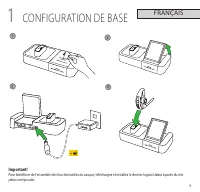
9 FRANÇAIS 1 CONFIGURATION DE BASE 1 2 3 4 Important! Pour bénéficier de l'ensemble des fonctionnalités du casque, téléchargez et installez le dernier logiciel Jabra à partir du site jabra.com/pcsuite.
Page 13 - CONNEXION AU TÉLÉPHONE/ORDINATEUR
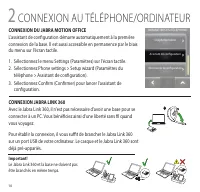
10 CONNEXION DU JABRA MOTION OFFICE L'assistant de configuration démarre automatiquement à la première connexion de la base. Il est aussi accessible en permanence par le biais du menu sur l'écran tactile. 1. Sélectionnez le menu Settings (Paramètres) sur l'écran tactile.2. Sélectionnez Phone setting...
Page 14 - PORT DU CASQUE
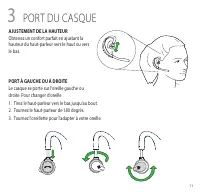
11 AJUSTEMENT DE LA HAUTEUR Obtenez un confort parfait en ajustant la hauteur du haut-parleur vers le haut ou vers le bas. PORT À GAUCHE OU À DROITE Le casque se porte sur l'oreille gauche ou droite. Pour changer d'oreille :1. Tirez le haut-parleur vers le bas jusqu'au bout.2. Tournez le haut-parleu...
Page 15 - COMMENT
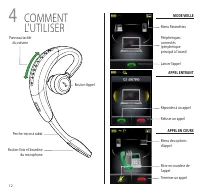
12 4 COMMENT L'UTILISER Panneau tactile du volume Bouton Appel Bouton Voix et Sourdine du microphone Perche-micro à rabat Menu Paramètres Périphériques connectés (périphérique principal à l'avant) Répondre à un appel Lancer l'appel Refuser un appel Mise en sourdine de l'appelTerminer un appel MODE V...
Page 17 - INFORMACIÓN GENERAL
14 Panel táctil de volumen Botón para llamar Indicadores LED Indicador de ocupado Botón de voz y silencio del micrófono INFORMACIÓN GENERAL Jabra Link 360 Pantalla táctil Llave Kensington Altavoz Base de acople del auricular (no se puede girar) Puerto auxiliar Puerto para el auricular Puerto USB Pue...
Page 18 - CONFIGURACIÓN BÁSICA
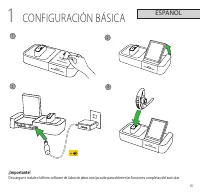
15 ESPAÑOL 1 CONFIGURACIÓN BÁSICA 1 2 3 4 ¡Importante! Descargue e instale el último software de Jabra de jabra.com/pcsuite para obtener las funciones completas del auricular.
Page 19 - CONEXIÓN AL TELÉFONO O LA PC
16 CONEXIÓN DE JABRA MOTION OFFICE La primera vez que conecte la base a la alimentación eléctrica, el asistente de configuración se iniciará automáticamente. También se puede acceder al asistente de configuración en cualquier momento a través del menú de la pantalla táctil. 1. Pulse Settings Menu (M...
Page 20 - ESTILOS DE SUJECIÓN
17 AJUSTE DE ALTURA Obtenga el ajuste perfecto para sus orejas ajustando la altura del altavoz hacia arriba o abajo. ESTILO DE SUJECIÓN EN EL OÍDO IZQUIERDO O DERECHO Puede usar el auricular en la oreja izquierda o derecha. Para cambiar de oreja:1. Jale el altavoz totalmente hacia abajo.2. Gire el a...
Page 21 - CÓMO UTILIZARLO
18 4 CÓMO UTILIZARLO Panel táctil de volumen Botón para llamar Botón de voz y silencio del micrófono Brazo articulado del micrófono Menú de configuraciónDispositivos conectados (dispositivo principal en la parte delantera) Responder una llamada Iniciar una llamada Rechazar una llamada Silenciar una ...
Page 23 - VISÃO GERAL
20 Painel de toque de volume Botão Chamada Indicadores LED Luz indicadora de ocupado Botão microfone Com voz e Mudo VISÃO GERAL Jabra Link 360 Tela Touchscreen Trava de segurança Alto-falante Suporte do fone de ouvido (Não pode ser girado) Porta AUX Porta do telefone Porta USB Porta do telefone Port...
Page 24 - CONFIGURAÇÃO BÁSICA
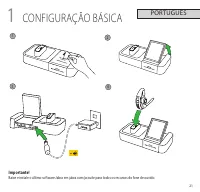
21 PORTUGUÊS 1 CONFIGURAÇÃO BÁSICA 1 2 3 4 Importante! Baixe e instale o último software Jabra em jabra.com/pcsuite para todos os recursos do fone de ouvido.
Page 25 - CONECTE AO TELEFONE OU PC
22 CONEXÃO DO JABRA MOTION OFFICE A primeira vez que a base é conectada à eletricidade, o assistente de configuração iniciará automaticamente. O assistente de configuração também pode ser acessado a qualquer momento através do menu na tela touchscreen. 1. Toque no menu Settings (Configurações) na te...
Page 26 - COLOCANDO O FONE DE OUVIDO
23 AJUSTE DA ALTURA Ajuste-o perfeitamente à sua orelha regulando a altura do alto-falante para cima ou para baixo. ESTILO DE USO NA ORELHA ESQUERDA OU DIREITA O fone de ouvido pode ser usado na orelha esquerda ou direita. Para trocar de orelha:1. Puxe o alto-falante todo para baixo.2. Gire o alto-f...
Page 27 - COMO USAR
24 4 COMO USAR Volume Painel de toque Botão Chamada Botão microfone Com voz e Mudo Interruptor articulado Menu configuração Dispositivos conectados (dispositivo primário na frente) Atender uma chamada Iniciar uma chamada Recusar uma chamada Tirar o som da chamadaEncerrar uma chamada OCIOSO CHAMADA R...
Page 29 - 概要
26 音量タッチ 感知式パネル 通話ボタン LED インジケータ 通話中ライト インジケータ 音声およびマイクの ミュートボタン 概要 Jabra Link 360 タッチ スクリーン ケンジントン ロック スピーカー ヘッドセットドック ( 回転不可 ) 補助 ポート 受話器 ポート USB ポート 電話 ポート 電源アダプ ターポート ビジーライ トポート
Page 30 - 基本的な設定
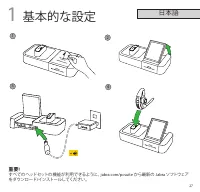
27 日本語 1 基本的な設定 1 2 3 4 重要 ! すべてのヘッドセットの機能が利用できるように、 jabra.com/pcsuite から最新の Jabra ソフトウェア をダウンロード / インストールしてください。
Page 31 - 電話または
28 JABRA MOTION OFFICE の接続 まずはじめにベースを電源に接続すると、セットアップ ウィザードが自動的に開始されます。 セットアップウィザ ードには、タッチスクリーンメニュー経由で随時アクセス できます。 1. タッチスクリーンで [ 設定 ] メニューを軽く押します。 2. [ 電話設定 ] > [ セットアップウィザード ] を軽く押します。 3. [ 確認 ] を軽く押して、セットアップウィザードを開始し ます。 JABRA LINK 360 の接続 Jabra Link 360 があればベースなしで PC に接続できる ため、旅行中にワイヤレスの自由をもたら...
Page 32 - ヘッドセットの装着
29 高さの調整 スピーカーの高さを上下に調整す ることで、耳にぴったり合った装着が できます。 左耳または右耳の装着スタイル ヘッドセットは左右どちらの耳でも 使用できます。 左右を切り替えるには、次の手順に従います。 1. スピーカーを下に引っ張ります。 2. スピーカーを 180 °回転させます。 3. フィットするように、 eargel をねじります。 3 ヘッドセットの装着
Page 33 - 使用方法
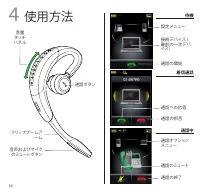
30 4 使用方法 音量 タッチ パネル 通話ボタン 音声およびマイク のミュートボタン フリップブームア ーム 設定メニュー 接続デバイス ( 最前の一次デバ イス) 通話への応答 通話の開始 通話の拒否 通話のミュート 通話の終了 待機 着信通話 通話中 通話オプション メニュー