Page 2 - english; optionAl AcceSSorieS
2 english 1. welcoMe .......................................... 42. prodUct oVerView ........................ 6 2.1 toUcHScreen BASe2.2 HeAdSet2.3 BlUetootH AdApter (JABrA linK 360 tM ) 2.4 optionAl AcceSSorieS 3. How to weAr ................................. 11 3.1 HeigHt AdJUStMent3.2 left or rigH...
Page 3 - fAq
3 english 6. How to USe .................................. 24 6.1 USing tHe toUcHScreen6.2 USing tHe HeAdSet6.3 MUltiple cAll HAndling6.4 BUSyligHt 7. Motion SenSor controlS ..........31 7.1 cAll ASSiSt7.2 power nAp7.3 intelligent VolUMe control 8. SoftwAre ...................................... 34 ...
Page 4 - headset features
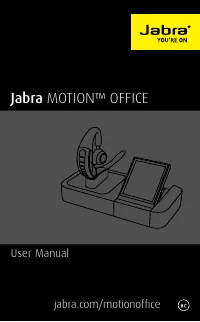
4 english 1. welcoMe Thank you for using the Jabra Motion TM Office. We hope you enjoy it! headset features Motion sensor technology Power Nap for extended battery performance Intelligent volume control NFC technology Volume touch controls Voice controls HD Voice and A2DP music streami...
Page 5 - touchscreen base features
5 english touchscreen base features 2.4 inch color touchscreen Desk phone, PC and Mac, and Bluetooth® mobile device connectivity Touchscreen-guided setup for desk phone, PC and Mac, and mobile device connections Touchscreen call control for all connected phones On-screen caller ID (mobile ...
Page 7 - TOUCHSCREEN BASE
7 english 2.1 TOUCHSCREEN BASE Touchscreen Headset dock (Cannot be rotated) Kensington lock Speaker AUX port Handset port USB port Telephone port Power adapter port Busylight port
Page 9 - BLUETOOTH ADAPTER; The Bluetooth adapter ( Jabra Link 360) is; The Bluetooth adapter and the Jabra Motion
9 english 2.3 BLUETOOTH ADAPTER ( JABRA LINK 360 TM ) The Bluetooth adapter ( Jabra Link 360) is a plug-and-play Bluetooth adapter that connects the headset to your PC, without using the base. ! IMPortant! The Bluetooth adapter and the Jabra Motion Office base should NOT be plugged in to a PC at the...
Page 10 - OPTIONAL ACCESSORIES; All accessories are available at jabra.com.
10 english 2.4 OPTIONAL ACCESSORIES All accessories are available at jabra.com. EHS cable ( Jabra Link) USB car charger Jabra Link 360 Eargels (3 sizes) Micro-USB cable Base power supply Soft pouch Telephone cable USB power supply Jabra Motion headset GN1000 handset lifter Travel & Charge kit
Page 11 - HEIGHT ADJUSTMENT
11 english 3. How to weAr 3.1 HEIGHT ADJUSTMENT Get the perfect fit for your ear by adjusting the height of the speaker up or down.
Page 12 - EARGEL POSITIONING
12 english 3.2 LEFT OR RIGHT WEARING-STyLE The headset can be worn on the left or right ear. To switch ear:1. Pull the speaker all the way down.2. Rotate the speaker 180°.3. Twist the eargel around to fit. 3.3 EARGEL POSITIONING For optimal audio quality rotate the eargel for best fit. It is recomme...
Page 13 - CHARGE USING THE BASE; on the touchscreen; CHARGE USING THE USB CABLE
13 english 4. How to cHArge 4.1 CHARGE USING THE BASE When the headset is docked in the base, and the base is connected to power, the headset will be charged. The battery indicator on the touchscreen indicates that the headset is charging. 4.2 CHARGE USING THE USB CABLE Plug the headset into any ava...
Page 14 - BATTERy STATUS ON THE HEADSET; It takes up to 2 hours to fully charge the headset.
14 english 4.3 BATTERy STATUS ON THE HEADSET In use When chargIng 50% - 100% 100% 10% - 50% 50% - 100% 0% - 10% 0% - 50% note: It takes up to 2 hours to fully charge the headset.
Page 15 - CONNECT USING THE SETUP WIzARD; Plug the Jabra Motion Office base into a power; The setup wizard can be accessed at any time
15 english 5. How to connect 5.1 CONNECT USING THE SETUP WIzARD (RECOMMENDED) 1. Plug the Jabra Motion Office base into a power supply. 2. The setup wizard automatically starts the first time the base is turned on. note : The setup wizard can be accessed at any time via the touchscreen menu (tap on ...
Page 16 - CONNECT TO A DESK PHONE; desK Phone WIth a headset Port
16 english 5.2 CONNECT TO A DESK PHONE desK Phone WIth a headset Port This type of desk phone has a dedicated headset port (usually at the back of the phone). 1. Plug the supplied telephone cable into the port marked on the Jabra Motion Office base. 2. Connect the telephone cable to the headset port...
Page 17 - desK Phone WIthout a headset Port
17 english desK Phone WIthout a headset Port This type desk phone does not have a dedicated headset port. 1. On the desk phone, unplug the handset cable from the phone body 2. Connect the handset cable to the port marked on the base 3. Plug the supplied telephone cable into the port marked on the ba...
Page 18 - CONNECT TO A PC OR MAC
18 english 5.3 CONNECT TO A PC OR MAC Connecting to a PC or Mac allows connectivity with a softphone (e.g. Skype). Supported softphones have full functionality with the headset, such as answering and ending calls with the headset multi-function button. 1. Plug the supplied USB cable into the port ma...
Page 19 - CONNECT WITH A BLUETOOTH DEVICE; connect usIng the headset
19 english 5.4 CONNECT WITH A BLUETOOTH DEVICE connect usIng the headset 1. While pressing the call button, open the flip boom-arm. Release the call button when the Bluetooth light flashes blue. 2. Wear on the ear and follow the voice-guided connection instructions. connect usIng the touchscreen 1. ...
Page 20 - CONNECT WITH AN NFC DEVICE; Ensure that NFC is enabled on your mobile; note; NFC devices have NFC implemented in different
20 english 5.5 CONNECT WITH AN NFC DEVICE 1. Ensure that NFC is enabled on your mobile device. 2. Open the flip boom-arm on the headset.3. Locate and gently tap the NFC zone on the headset against the NFC zone on your mobile device. The mobile device will announce that the headset is now paired when...
Page 21 - TRANSFER AUDIO BETWEEN NFC
21 english 5.6 TRANSFER AUDIO BETWEEN NFC DEVICE AND HEADSET To transfer a call to/from the headset to your connected NFC device, gently tap the NFC zones of the headset and device. note : NFC devices have NFC implemented in different ways. Depending on the NFC device, this feature might not be avai...
Page 22 - CONNECT USING THE BLUETOOTH; any available USB port on your PC.
22 english 5.7 CONNECT USING THE BLUETOOTH ADAPTER ( JABRA LINK 360) The Bluetooth adapter ( Jabra Link 360) is a plug-and-play Bluetooth adapter that connects the headset to your PC, without need for the base. The Bluetooth adapter and the headset are already pre-paired. 1. Plug the Bluetooth adapt...
Page 23 - RECONNECT WITH THE BLUETOOTH; While pressing the
23 english 5.8 RECONNECT WITH THE BLUETOOTH ADAPTER 1. Remove the Bluetooth adapter ( Jabra Link 360) from the PC. 2. While pressing the call button, open the flip boom-arm on the headset. Release the call button when the Bluetooth indicator flashes blue. 3. Wear the headset and follow the voice-gui...
Page 24 - USING THE TOUCHSCREEN
24 english 6. How to USe 6.1 USING THE TOUCHSCREEN The Jabra Motion Office touchscreen enables you to connect and configure the Jabra Motion Office, manage call handling, and manage the base, headset and phone settings. Tap the screen with your finger to activate icons, scroll up/down a menu, select...
Page 27 - USING THE HEADSET
27 english 6.2 USING THE HEADSET Volume touch-sensitive panel Call button LED indicators Voice and Mute microphone button Busylight indicator
Page 29 - MULTIPLE CALL HANDLING; headset
29 english 6.3 MULTIPLE CALL HANDLING The headset or base can accept and handle multiple calls simultaneously. headset End current call and answer incoming call Tap the call button Switch between held call and active call Press and hold (2 secs) the call button Put current call on hold and answer in...
Page 30 - Incoming call; can also be; The Busylight indicator in the headset is default
30 english 6.4 BUSyLIGHT The Busylight indicator on the headset has 2 features. Incoming call on a call (fast flash) (slow flash) An external Jabra Busylight TM can also be connected to the base via the busylight port. note : The Busylight indicator in the headset is default enabled, and can be disa...
Page 31 - controlS; Call Assist is default enabled, and can be disabled
31 english 7. Motion SenSor controlS 7.1 CALL ASSIST If the flip boom-arm is open, simply pick up the headset from the desk to your ear to automatically answer an incoming call. note : Call Assist is default enabled, and can be disabled using Jabra PC Suite or the Jabra Connect app.
Page 32 - : If the headset is in Power Nap mode for 24 hours,
32 english 7.2 POWER NAP To extend battery life always close the flip boom-arm when the headset is not in use. If the flip boom-arm is left open the headset will enter Power Nap mode when it has not been moved for 60 minutes (when Bluetooth connected), or 15 minutes (when Bluetooth not connected). T...
Page 33 - INTELLIGENT VOLUME CONTROL; Intelligent Volume Control is default enabled, and
33 english 7.3 INTELLIGENT VOLUME CONTROL The headset uses Intelligent Volume Control to adjust the headset speaker volume depending on the motion of the wearer, and the sounds of the surrounding environment (e.g. automatically increasing the speaker volume on an active call when walking or entering...
Page 34 - UPDATE HEADSET FIRMWARE
34 english 8. SoftwAre 8.1 JABRA CONNECT TM Jabra Connect is a smartphone app designed to be used when when connected to the headset via the Bluetooth adapter (without the base). The app enables call control and configuration of Jabra Motion Office headset. android download - google Play ios downloa...
Page 35 - CUSTOMIzE HEADSET SETTINGS; Jabra Pc suIte & touchscreen onLy settIngs
35 english 8.4 CUSTOMIzE HEADSET SETTINGS Jabra Motion Office settings can be customized using Jabra PC Suite, Jabra Connect mobile app or the Touchscreen settings menu. Jabra connect, Jabra Pc suIte & touchscreen settIngs Busylight indicator Power Nap mode Intelligent Volume Control Voi...
Page 36 - AdVAnced feAtUreS; change headset WIreLess range
36 english 9. AdVAnced feAtUreS 9.1 WIRELESS RANGE The wireless range of the headset, the base or Bluetooth adapter ( Jabra Link 360) can be changed using the touchscreen, or using Jabra PC Suite on your PC. By default, the wireless range is set to Normal. If many units are in close vicinity it is r...
Page 37 - WIreLess range InforMatIon
37 english WIreLess range InforMatIon The Jabra Motion Office and the Jabra Link 360 support a maximum wireless range of up to 100m (300ft). Maximum range between the headset and a mobile device e.g. a smartphone or tablet is up to 10m (33ft). Physical obstructions and electromagnetic interference m...
Page 38 - Press and hold the; Voice commands can be disabled in Jabra PC
38 english 9.2 VOICE COMMANDS Voice commands are on by default. To turn voice commands on/off: 1. Press and hold the Voice and Mute microphone button while opening the flip boom-arm. 2. Release the the Voice and Mute microphone button when the flip boom-arm is open. note : Voice commands can be disa...
Page 39 - change VoIce Language
39 english change VoIce Language The default language for voice commands and voice guidance can be changed using Jabra PC Suite. LIst of VoIce coMMands What can I say? Hear a list of all voice commands Answer Answer incoming call Ignore Reject incoming call Pair new device Enter pairing mode Redial ...
Page 43 - FAq
43 english 10. SUpport 10.1 FAq View the full FAq at jabra.com/motionoffice. 10.2 SAFETONE COMPLIANCE MODE For compliance with EU Directive 2003/10/EC (Noise at work) and Australian G616 guidelines set the headset into the desired compliance/guideline mode. 1. Install and open Jabra PC Suite Control...
Page 44 - HOW TO CARE FOR yOUR HEADSET; Do not expose the headset to rain/liquids
44 english 10.3 HOW TO CARE FOR yOUR HEADSET Always store the headset with the power off and safely protected Avoid storage at extreme temperatures (above 35°C/95°F or below -20°C/-4°F). This can shorten battery life and may affect headset operation Do not expose the headset to rain/liquids
Page 45 - SpecificAtionS
45 english 11. tecHnicAl SpecificAtionS headset descrIPtIon Weight: 17.5g Dimensions: L 53.5mm x W 16mm x H 24mm Microphones: 2 Omni-directional microphones with Jabra Noise Blackout technology Speaker: Micro dynamic, 14.8mm Operating range: Up to 100m (300 feet), Class 1 Bluetooth version: 4.0 Pair...
Page 48 - re