HP 1015 - Manuals
HP 1015 Printer – Manual in PDF format online.
Manuals:
Manual HP 1015
Summary
hp LaserJet 1010hp LaserJet 1012hp LaserJet 1015series printer user guide
ENWW Contents iii Contents 1 Printer basics Quick access to more information . . . . . . . . . . . . . . . . . . . . . . . . . . . . . . . . . . . . . . . . . . . . . . 2 WWW links for drivers, software, and support . . . . . . . . . . . . . . . . . . . . . . . . . . . . . . . . . . 2User guide link...
iv Contents ENWW Printing on letterhead and preprinted forms . . . . . . . . . . . . . . . . . . . . . . . . . . . . . . . . . . . . . 26 To print letterhead or preprinted forms. . . . . . . . . . . . . . . . . . . . . . . . . . . . . . . . . . . . . . . 26 Printing on custom-sized media and cardsto...
ENWW Contents v 6 Problemsolving Finding the solution . . . . . . . . . . . . . . . . . . . . . . . . . . . . . . . . . . . . . . . . . . . . . . . . . . . . . . . . 58Status light patterns . . . . . . . . . . . . . . . . . . . . . . . . . . . . . . . . . . . . . . . . . . . . . . . . . . . . . . . ...
vi Contents ENWW Appendix C Warranty and licensing Hewlett-Packard software license agreement . . . . . . . . . . . . . . . . . . . . . . . . . . . . . . . . . . . 100Hewlett-Packard limited warranty statement . . . . . . . . . . . . . . . . . . . . . . . . . . . . . . . . . . . . 101Limited warrant...
ENWW Printer basics 1 1 Printer basics This chapter provides information on the following topics: ● Quick access to more information ● Printer configurations ● Printer features ● Walk around ● Printer control panel ● Media paths ● Print cartridge access ● Printer software ● Printer connections
2 Chapter 1 ENWW Quick access to more information WWW links for drivers, software, and support If you need to contact HP for service or support, use one of the following links: ● In the United States, see http://www.hp.com/support/lj1010 ● In other countries/regions, see http://www.hp.com User guide...
ENWW Printer configurations 3 Printer configurations Below are the sta ndard configurations of the HP LaserJet 1010 series printer. hp LaserJet 1010 ● 12 pages per minute (ppm) for A4 ● 8 seconds to first page out ● 600 x 600 dpi with HP Resolution Enhancement technology (REt) ● 150 sheet paper capa...
4 Chapter 1 ENWW Printer features Congratulations on the purchase of your new product. The HP LaserJet 1010 series provides the following benefits. Print with excellent quality ● Print 600 to 1200 dots per inch. ● PCL 5e already installed on the printer (HP LaserJet 1015 only). ● The printer automat...
ENWW Walk around 5 Walk around hp LaserJet 1010 series printer 1 Attention light 2 Ready light 3 Go light 4 Go Button 5 Cancel job button 6 Print cartridge door 7 Priority feed slot 8 Main input tray 9 Tray cover (only with HP LaserJet 1012 printer and HP LaserJet 1015 printer in some countries/regi...
ENWW Printer control panel 7 Printer control panel The printer control panel has three lights and two buttons. These lights produce patterns that identify your printer’s status. 1 Attention light: Indicates printer media input tray is empty, print cartridge door is open, print cartridge is missing, ...
8 Chapter 1 ENWW Media paths Main input tray The enclosed main input tray, located in front of the printer, holds up to 150 sheets of 20 lb paper, multiple envelopes, or other media. Priority input tray You should use the priority input tray when feeding up to 10 sheets of 20 lb paper or when printi...
ENWW Media paths 9 Output bin The output bin is located on the top of the printer. Fold open the tray extension to support the media as it exits the printer.
10 Chapter 1 ENWW Print cartridge access Print cartridge door The print cartridge door is located on the top of the printer. You must open the print cartridge door to access the print cartridge, clear jams, and clean the printer. To open the print cartridge door, insert your finger in the indentatio...
ENWW Printer software 11 Printer software Supported operating systems For easy printer setup and access to the full range of printer features, HP strongly recommends that you install the software provided. Not all software is available in all languages. Install the software before setting up the pri...
12 Chapter 1 ENWW To install the print driver for Windows NT 4.0 To install the printer software for Windows NT 4.0, you must use the Add Printer Wizard. 1 Click Start, and then point to Settings. 2 Click Printers. 3 Double-click Add Printer, and click Next as necessary. 4 Select My Computer, and cl...
ENWW Printer software 13 Printer properties (driver) Printer properties control the printer. You can change the default settings, such as media size and type, printing multiple pages on a single sheet of media (N-up printing), resolution, and watermarks. You can access the printer proper ties in the...
14 Chapter 1 ENWW Print setting priorities There are three ways to change print settings for this printer: in the software application, in the printer driver, and in the HP toolbox. Changes made to print settings are prioritized according to where the changes are made, as follows: ● Changes made in ...
ENWW Software for Macintosh computers 15 Software for Macintosh computers Accessing the print driver (Mac OS 9.x) 1 From the Apple menu, select the Chooser. 2 Click the hp LaserJet vx.x icon in the top left side of the Chooser dialog box. 3 Do one of the following, depending on how the computer and ...
16 Chapter 1 ENWW Printer connections Note Install the software before setting up the printer. USB connections All HP LaserJet 1010 series printers support USB connections. The USB port is on the back of the printer. Connecting the USB cable Plug the USB cable into the printer. Plug the USB cable in...
ENWW Media 17 2 Media This chapter provides information on the following topics: ● Choosing paper and other media ● Loading media ● Printing on transparencies or labels ● Printing on envelopes ● Printing on letterhead and preprinted forms ● Printing on custom-sized media and cardstock
18 Chapter 2 ENWW Choosing paper and other media HP LaserJet printers produce excellent print quality documents. You can print on a variety of media, such as paper (including up to 100% recycled fiber content paper), envelopes, labels, transparencies, and custom-sized media. The following are the su...
ENWW Choosing paper and other media 19 Media to avoid The HP LaserJet 1010 series printer can handle many types of media. Use of media outside the printer’s specifications will cause a loss of print quality and increase the chance of paper jams occurring. ● Do not use paper that is too rough. ● Do n...
20 Chapter 2 ENWW Optimizing print quality for media types Media type settings control the temperature of your printer’s fuser. You can change the settings for the media that you are using to optimize the print quality. You can access the optimizing feature from the Paper tab in your printer driver ...
ENWW Loading media 21 Loading media Main input tray The main input tray holds up to 150 pages of 20 lb paper or fewer pages of heavier media (25 mm or less stack). Load media with the top forward and the side to be printed facing up. To prevent jams and skewing, always adjust the media guides. Prior...
22 Chapter 2 ENWW Printing on transparencies or labels Only use transparencies and labels that are recommended for use in laser printers, such as HP transparency film and HP LaserJet labels. See Printer media specifications for more information. CAUTION Inspect the media to make sure that it is not ...
ENWW Printing on envelopes 23 Printing on envelopes Printing one envelope Only use envelopes that are recommended for laser printers. See Printer media specifications for more information. Note Use the priority input tray for printing one envelope. Use the main input tray for printing multiple envel...
24 Chapter 2 ENWW Printing multiple envelopes Only use envelopes that are recommended for laser printers. See Printer media specifications for more information. Note Use the priority input tray for printing one envelope. Use the main input tray for printing multiple envelopes. 1 Open the input tray ...
26 Chapter 2 ENWW Printing on letterhead and preprinted forms To print letterhead or preprinted forms 1 Load the paper with the top forward and the side to be printed facing up. Adjust the media guides to fit the width of the paper. 2 Print the document. Note To print a single-page cover letter on l...
ENWW Printing on custom-sized media and cardstock 27 Printing on custom-sized media and cardstock The HP LaserJet 1010 series printer can print on custom-sized media or cardstock between 76 by 127 mm (3 by 5 in.) and 216 by 356 mm (8.5 by 14 in.). Depending on the media, you can print up to 10 sheet...
ENWW Printing tasks 29 3 Printing tasks This chapter provides information on the following topics: ● Printing watermarks ● Printing multiple pages on a single sheet of paper (N-up printing) ● Printing on both sides of the paper (manual duplexing) ● Printing booklets ● Canceling a print job ● Underst...
30 Chapter 3 ENWW Printing watermarks You can use the watermark option to print text ”underneath” (in the background) of an existing document. For example, you might want to have large gray letters reading Draft or Confidential printed diagonally across the first page or all of the pages of a docume...
ENWW Printing multiple pages on a single sheet of paper (N-up printing) 31 Printing multiple pages on a single sheet of paper (N-up printing) You can select the number of pages that you want to print on a single sheet of paper. If you choose to print more than one page per sheet, the pages appear sm...
32 Chapter 3 ENWW Printing on both sides of the paper (manual duplexing) To print on both sides of the paper (manual duplexing), you must run the paper through the printer twice. Note Manual duplexing is only supported in Windows. Note Manual duplexing can cause the printer to become dirty, reducing...
34 Chapter 3 ENWW Printing booklets You can print booklets on letter, legal, executive, or A4 paper. 1 Load the paper in the main input tray. 2 Access the printer properties (or printing preferences in Windows 2000 and XP). See Printer properties (driver) for instructions. 3 On the Finishing tab (th...
36 Chapter 3 ENWW Canceling a print job To cancel the print job, press and release the Cancel Job button on the printer control panel. If the status lights on the control panel continue to blink after you cancel a print job, the computer is still sending the job to the printer. Either delete the job...
ENWW Understanding print quality settings 37 Understanding print quality settings Print quality settings affect how light or dark the print is on the page and the style that the graphics are printed. You can also use the print quality settings to optimize the print quality for a specific media type....
ENWW Maintenance 39 4 Maintenance This chapter provides information on the following topics: ● Using HP print cartridges ● Storing print cartridges ● Print cartridge life expectancy ● Saving toner ● Changing the print cartridge ● Cleaning the printer
40 Chapter 4 ENWW Using HP print cartridges HP policy on non-HP print cartridges Hewlett-Packard Company cannot recommend the use of non-HP print cartridges, either new, refilled, or remanufactured. Since they are not HP products, Hewlett-Packard cannot influence their design or control their qualit...
ENWW Storing print cartridges 41 Storing print cartridges Do not remove the print cartridge from its package until you are ready to use it. The shelf life of a print cartridge in an unopened package is approximately 2.5 years. The shelf life of a print cartridge in an opened package is approximately...
42 Chapter 4 ENWW Print cartridge life expectancy The life of the print cartridge depends on the amount of toner that your print jobs require. When printing text on letter/A4-size paper at 5 percent coverage, the print cartridge lasts an average of 2,000 pages. This assumes that you set the print de...
ENWW Saving toner 43 Saving toner While in EconoMode, the printer uses less toner on each page. Selecting this option will extend the life of the print cartridge and reduce your cost per page, but it will reduce print quality. See Using EconoMode (Saves toner) for more information.
44 Chapter 4 ENWW Changing the print cartridge 1 Open the print cartridge door, and remove the old print cartridge. See the recycling information inside the print cartridge box. CAUTION To prevent damage, do not expose the print cartridge to light. Cover it with a piece of paper. 2 Remove the new pr...
46 Chapter 4 ENWW Cleaning the printer Clean the outside of the printer with a clean, damp cloth when necessary. CAUTION Do not use ammonia-based cleaners on or around the printer. During the printing process, media, toner, and dust particles can accumulate inside the printer. Over time, this buildu...
48 Chapter 4 ENWW Cleaning the printer media path If you are experiencing toner specks or dots on the printouts, you can use the HP LaserJet cleaning utility to remove excess media and toner particles that can accumulate on the fuser assembly and rollers. Cleaning the media path might extend the lif...
ENWW Managing the printer 49 5 Managing the printer This chapter provides information on the following topics: ● Printer information pages ● Using the hp toolbox
50 Chapter 5 ENWW Printer information pages Special pages reside within the memory of the printer. These pages help you to diagnose and solve problems with the printer. Demo page To print the Demo page, press G O when the printer is ready (Ready light on) and not printing. Configuration report The C...
ENWW Using the hp toolbox 51 Using the hp toolbox The HP toolbox is a Web application that you can use for the following tasks: ● Check the printer status. ● Configure the printer settings. ● View troubleshooting information. ● View online documentation. You must have performed a complete software i...
52 Chapter 5 ENWW hp toolbox sections The HP toolbox software contains these sections: ● Status tab ● Troubleshooting tab ● Alerts tab ● Documentation tab ● Advanced printer settings window Other links Each page in the HP toolbox contains links to the HP website for product registration, product sup...
ENWW Using the hp toolbox 53 Status tab The Status tab has links to these main pages: ● Device Status. View printer status information. This page will indicate printer conditions such as a paper jam or an empty tray. After you correct a problem with the printer, click the Refresh button to update th...
54 Chapter 5 ENWW Alerts tab The Alerts tab allows you to configure the printer to automatically notify you of printer alerts. Set up status alerts On the Set up status alerts page you can choose to turn alerts on or off, specify when the printer should send an alert, and choose from two different t...
ENWW Using the hp toolbox 55 Advanced printer settings window When you click the Advanced Printer Settings link, a new window opens. The Advanced Printer Settings window has two tabs: ● Information tab ● Settings tab Information tab The Information tab provides quick links to the following informati...
ENWW Problemsolving 57 6 Problemsolving This chapter provides information on the following topics: ● Finding the solution ● Status light patterns ● Media handling problems ● Printed page is different than what appeared on screen ● Printer software problems ● Improving print quality ● Clearing jams ●...
58 Chapter 6 ENWW Finding the solution You can use this section to find the solution to common printer problems. Step 1: Is the printer set up correctly? ● Is the printer plugged into a power outlet that is known to work? ● Is the on/off switch in the on position? ● Is the print cartridge properly i...
ENWW Finding the solution 59 Step 4: Is the print quality acceptable? Yes: If the print quality is acceptable, go to Step 5: Is the printer communicating with the computer? No: If the print quality is poor, see Improving print quality . Verify that the print settings are correct for the media you ar...
60 Chapter 6 ENWW Status light patterns 1 symbol for light off 2 symbol for light on 3 symbol for light blinking Status light patterns Status lights Condition of the printer Action Ready The printer is ready to print. No action is necessary. Processing The printer is receiving or processing data. Wa...
ENWW Printed page is different than what appeared on screen 63 Printed page is different than what appeared on screen Choose the item that best describes the problem: ● Garbled, incorrect, or incomplete text ● Missing graphics or text, or blank pages ● Page format is different than on another printe...
ENWW Improving print quality 65 Improving print quality This section provides information about identifying and correcting print defects. Light print or faded Toner specks Dropouts Note If these steps do not correct the problem, contact an HP-authorized dealer or service representative. ● The toner ...
66 Chapter 6 ENWW Vertical lines Gray background Toner smear Loose toner ● Make sure that the priority input tray is in place. ● The photosensitive drum inside the print cartridge has probably been scratched. Install a new HP print cartridge. See Changing the print cartridge for instructions. ● Make...
ENWW Improving print quality 67 Vertical repetitive defects Misformed characters Page skew Curl or wave ● The print cartridge might be damaged. If a repetitive mark occurs at the same spot on the page, install a new HP print cartridge. See Changing the print cartridge for instructions. ● The interna...
68 Chapter 6 ENWW Wrinkles or creases Toner scatter outline Return to Finding the solution . ● Make sure that media is loaded properly. See Loading media for more information. ● Check the media type and quality. See Printer media specifications for more information. ● Turn over the stack of media in...
ENWW Clearing jams 69 Clearing jams Occasionally, media becomes jammed during a print job. Some of the causes include the following: ● The input trays are loaded improperly or too full. See Loading media for more information. ● The media does not meet HP specifications. See Printer media specificati...
70 Chapter 6 ENWW Removing a jammed page CAUTION Media jams might result in loose toner on the page. If you get any toner on your clothes, wash them in cold water. Hot water will permanently set the toner into the fabric. Note When clearing jams, including jams in the output bin, always open the pri...
72 Chapter 6 ENWW Cleaning the pickup roller If you want to clean the pickup roller rather than replace it, follow the instructions below: Remove the pickup roller as described in steps 1 through 5 of Changing the pickup roller . 1 Dab a lint-free cloth in isopropyl alcohol, and scrub the roller. WA...
ENWW Changing the pickup roller 73 Changing the pickup roller If the printer regularly mispicks (no media feeds through or more than one sheet feeds through), you might need to change or clean the pickup roller. See Ordering supplies to order a new pickup roller. CAUTION Failure to complete this pro...
76 Chapter 6 ENWW Changing the printer separation pad Note Before you change the separation pad, clean the pickup roller. See Cleaning the pickup roller for instructions. If your input tray feeds more than one page at a time, you might need to change the printer separation pad. Recurring feed proble...
ENWW Printer specifications 79 A Printer specifications This appendix provides information on the following topics: ● Specifications ● FCC compliance ● Environmental product stewardship program ● Material safety data sheet ● Regulatory statements
80 Appendix A ENWW Specifications Printer specifications Environmental specifications Operating environment Install in a well-ventilated, dust-free area.Printer plugged into an AC outlet: ● Temperature: 10° C to 32.5° C (50° F to 90.5° F) ● Humidity: 20%–80% (no condensation) Storage environment Pri...
ENWW FCC compliance 83 FCC compliance This equipment has been tested and found to comply with the limits for a Class B digital device, pursuant to Par t 15 of the FCC rules. These limits are designed to provide reasonable protection against harmful interference in a residential installation. This eq...
84 Appendix A ENWW Environmental product stewardship program Protecting the environment Hewlett-Packard Company is committed to providing quality products in an environmentally sound manner. This product has been designed with several attributes to minimize the impact on our environment. Ozone produ...
ENWW Environmental product stewardship program 85 HP printing supplies returns and recycling program information Since 1990, the HP printing supplies returns and recycling program has collected millions of used print cartridges that otherwise might have been discarded in the world’s landfills. The H...
86 Appendix A ENWW Material safety data sheet Material safety data sheets (MSDS) can be obtained by contacting the HP LaserJet supplies website at http://www.hp.com/go/msds .
ENWW Regulatory statements 87 Regulatory statements Declaration of Conformity according to ISO/IEC Guide 22 and EN45014 Manufacturer's Name: Hewlett-Packard Company Manufacturer's Address: 11311 Chinden Boulevard Boise, Idaho 83714-1021, USA declares that the productProduct Name: HP LaserJet 1010 Se...
88 Appendix A ENWW Laser safety statement The Center for Devices and Radiological Health (CDRH) of the U.S. Food and Drug Administration has implemented regulations for laser products manufactured since August 1, 1976. Compliance is mandatory for products marketed in the United States. The printer i...
ENWW Regulatory statements 89 Laser statement for Finland LASERTURVALLISUUS LUOKAN 1 LASERLAITE KLASS 1 LASER APPARAT HP LaserJet 1010 -laserkirjoitin on käyttäjän kannalta turvallinen luokan 1 laserlaite. Normaalissa käytössä kirjoittimen suojakotelointi estää lasersäteen pääsyn laitteen ulkopuolel...
ENWW Media specifications 91 B Media specifications This appendix provides information on the following topics: ● Printer media specifications ● Supported media sizes ● Guidelines for using media
ENWW Supported media sizes 93 Supported media sizes The following are the suppor ted media sizes: ● Minimum: 76 x 127 mm (3 x 5 in.) ● Maximum: 216 x 356 mm (8.5 x 14 in.)
94 Appendix B ENWW Guidelines for using media Paper For best results, use conventional 20 lb (75 g/m 2 ) paper. Make sure that the paper is of good quality and free of cuts, nicks, tears, spots, loose particles, dust, wrinkles, voids, and curled or bent edges. If you are unsure about what type of pa...
ENWW Guidelines for using media 95 Labels Label construction When selecting labels, consider the quality of the following components: ● Adhesives: The adhesive material should be stable at 200° C (392° F), the printer’s maximum temperature. ● Arrangement: Only use labels with no exposed backing betw...
96 Appendix B ENWW Envelopes Envelope construction Envelope construction is critical. Envelope fold lines can vary considerably, not only between manufacturers, but also within a box from the same manufacturer. Successful printing on envelopes depends upon the quality of the envelopes. When selectin...
ENWW Guidelines for using media 97 Card stock and heavy media You can print many types of card stock from the paper input tray, including index cards and postcards. Some card stock performs better than others because its construction is better suited for feeding through a laser printer. For optimum ...
ENWW Warranty and licensing 99 C Warranty and licensing This appendix provides information on the following topics: ● Hewlett-Packard software license agreement ● Hewlett-Packard limited warranty statement ● Limited warranty for print cartridge life ● Hardware service ● Extended warranty ● Guideline...
100 Appendix C ENWW Hewlett-Packard software license agreement ATTENTION: USE OF THE SOFTWARE IS SUBJECT TO THE HP SOFTWARE LICENSE TERMS SET FORTH BELOW. USING THE SOFTWARE INDICATES YOUR ACCEPTANCE OF THESE LICENSE TERMS. HP SOFTWARE LICENSE TERMS The following License Terms govern your use of the...
102 Appendix C ENWW Limited warranty for print cartridge life Note The following warranty applies to the print cartridge that came with this printer. HP print cartridges are warranted to be free from defects in materials and workmanship until the HP toner is depleted. The warranty covers any defects...
ENWW Hardware service 103 Hardware service The warranty for the HP LaserJet 1010 series printer varies depending on the date and country/region of purchase. For products that require service under the warranty, customers should call the customer support center in their country/region. See How to con...
104 Appendix C ENWW Extended warranty HP SupportPack provides coverage for the HP product and all HP-supplied internal components. The HP Suppor tPack can provide Express Exchange or onsite service. Specific support pack options will vary by country/region. The customer must purchase HP SupportPack ...
ENWW Guidelines for repacking the printer 105 Guidelines for repacking the printer Use the following guidelines when repacking the printer: ● If possible, include print samples and 5 to 10 sheets of paper or other media that did not print correctly. ● Remove and keep any cables, trays, and optional ...
ENWW Index 109 Index A access, print cartridge 10Alerts tab (HP toolbox) 54Attention light 5 B blank pages 63booklets, printing 34button Cancel job 5Go 5 C cable parallel 16USB 16 Cancel job button 5canceling a print job 36cardstock guidelines for using 97printing 27 changing pickup roller 73separat...
HP Printers Manuals
-
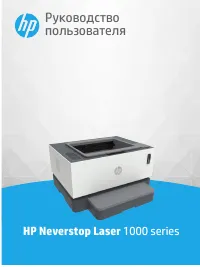
HP 1000
Manual
-
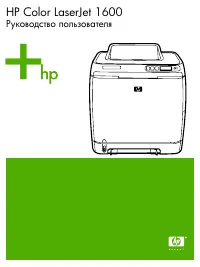
HP Color LaserJet 1600
User Manual
-
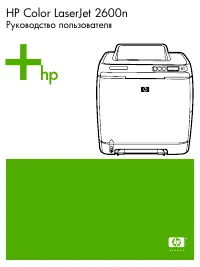
HP Color LaserJet 2600n
User Manual
-
HP Color LaserJet 2605(dn)(dtn)
User Manual
-
HP Color LaserJet 2700(n)
User Manual
-
HP Color LaserJet 3000 (dn) (dtn) (n)
User Manual
-
HP Color LaserJet 3500 (n)
User Manual
-
HP Color LaserJet 3550
User Manual
-
HP Color LaserJet 3600 (dn) (n)
User Manual
-
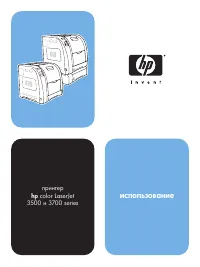
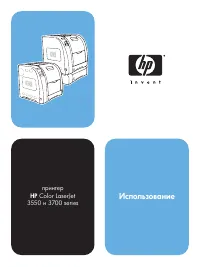
HP Color LaserJet 3700
User Manual
-
HP Color LaserJet 3700 (d) (dn) (dtn) (n)
User Manual
-
HP Color LaserJet 3800 (dn) (dtn) (n)
User Manual
-
HP Color LaserJet 4650(dn)(dtn)(n)(hdn)
User Manual
-
HP Color LaserJet 4700(dn)(dtn)(n)(ph+)
User Manual
-
HP Color LaserJet 5500(dn)(dtn)(n)(hdn)
User Manual
-
HP Color LaserJet 5550(dn)(dtn)(n)(hdn)
User Manual
-
HP Color LaserJet CP1210
User Manual
-
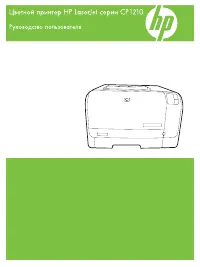
HP Color LaserJet CP1215
User Manual
-
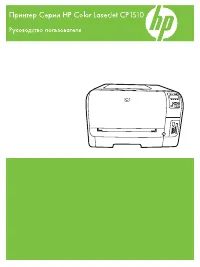
HP Color LaserJet CP1510
User Manual
-
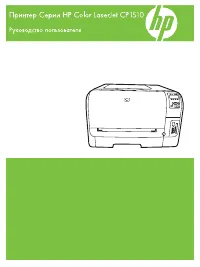
HP Color LaserJet CP1518ni
User Manual