Page 2 - Roku TV; User Guide
Roku TV ™ User Guide Version 9.2 F o r U . S . a n d C a n a d a English Illustrations in this guide are provided for reference only and may differ from actual product appearance.
Page 4 - Contents
iii Contents Welcome ...................................................................................................................................................1 The new standard in Smart TVs .......................................................................................................
Page 9 - Welcome; Your TV receives automatic updates from time to time, enabling new; The new standard in Smart TVs; Get the most out of your new TV
1 Welcome Congratulations on the purchase of your new Roku TV! Discover the joy of endless entertainment. After it’s set up, you’ll be able to access a world of streaming content channels that may include paid subscription channels and thousands of free channels. Important : Your TV receives automat...
Page 10 - Only in the United States; Only in the United States
2 • Pick your favorite streaming channels • Find the entertainment you love. From the latest blockbuster movies to your favorite TV shows, with tons of live sports, a broad selection of music streaming channels, popular programming in a dozen international languages, 24x7 live news and so much more,...
Page 11 - Live TV Pause is available on digital TV shows received on the
3 • Pause live TV • Pause, resume, fast forward, and rewind TV shows. Simply connect your own USB drive with 16GB or bigger capacity to the TV and pause live TV for up to 90 minutes. Note : Live TV Pause is available on digital TV shows received on the Antenna TV input, and only when the TV is linke...
Page 12 - only in the United States
4 • Only in the United States , use Google Home, Google Pixel phone, or the Google Home mobile app to control your Roku TV. You can search for movies and TV shows, launch most channels, control playback, adjust the volume, switch inputs, turn the TV on and off, and more. Control multiple Roku device...
Page 14 - Connections and setup; Connecting an antenna, cable, or satellite box
6 Connections and setup Refer to your TV’s Quick Start Guide or other provided documentation to for model-specific information about attaching the base or a wall mount and making connections to AC power and to your other audio/video devices. The following information applies to all Roku TV models. C...
Page 16 - Connecting headphones or analog sound bar; Loud noise can damage your hearing. When using headphones, use the
8 Connecting headphones or analog sound bar You can connect headphones or an analog sound bar (not provided) to the TV’s headphone jack. Tip : Inserting a plug in the headphone jack disables the sound from the TV’s built-in speakers. Warning : Loud noise can damage your hearing. When using headphone...
Page 17 - Connecting an AV receiver or digital sound bar; Preparing for Internet connectivity; the use of a USB network adapter.
9 Connecting an AV receiver or digital sound bar You can enjoy Dolby Audio™ multichannel sound from your TV if you connect a digital amplifier or sound bar (not provided) in either of two ways: Digital optical audio out (S/PDIF) – Connect a TOSLINK optical cable (not provided) from the TV to the Opt...
Page 18 - AC power; Roku remote batteries; have all buttons or features listed.
10 AC power Plug your TV into a power outlet. You can tell that the TV has power because the status indicator lights up when the TV is off. The topic Status indicator explains how the status indicator shows what is happening with the TV. Roku remote batteries Open the back of your Roku remote and in...
Page 23 - Panel buttons; Single button
15 Panel buttons Your TV has a set of panel buttons that perform simple control functions. The TV panel buttons are not a substitute for the remote, as they do not give you access to all TV functions. Depending on model, your TV model has one of several different panel button designs. Choose the one...
Page 26 - Seven buttons
18 Seven buttons If your TV has this style of panel buttons, you can perform the following functions. Note that the order of the buttons might vary from model to model. Examine the panel button labels to determine your TV model’s layout. • Input : Selects among TV inputs. Each press moves down one i...
Page 27 - Guided Setup; Starting Guided Setup; Factory reset everything
19 Guided Setup With the preliminaries out of the way, it’s time to turn on your TV. As the TV starts for the first time, it leads you through Guided Setup, which configures the TV before you start to use it. During Guided Setup, you’ll: • Answer a few questions • Provide network connection informat...
Page 28 - Completing Guided Setup; Only on models that have a Roku voice remote
20 Completing Guided Setup Follow these steps to complete Guided Setup. At this point, you should be seeing the Language screen. 1. Only on models that have a Roku voice remote : A few moments after the Let’s get started screen appears, Guided Setup starts the pairing process for the voice remote. (...
Page 29 - Some models have a country selection screen; If you enabled Audio Guide, choosing any country other than United; Some
21 3. Some models have a country selection screen : If you don’t see this screen, skip ahead to the next step. If you see this screen, select your country. Note : If you enabled Audio Guide, choosing any country other than United States disables it. 4. Press OK or the RIGHT arrow on the remote to go...
Page 30 - Set up for store use; Network connection
22 5. Press OK to select Set up for home use . This is the right choice for enjoying your TV at home. It provides energy saving options as well as access to all features of the TV. Note : Set up for store use configures the TV for retail display and is not recommended for any other use. In store mod...
Page 31 - If you decide not to connect, Guided Setup skips ahead to setting up
23 6. Only models that display the Connect to the Internet screen: Make a selection: • Wireless connection – Highlight Set up new wireless connection and press OK . The TV prompts you through wireless setup. Skip ahead to the next step for help with the process. • Wired connection – Highlight Connec...
Page 32 - Other options
24 Press the UP or DOWN arrows to highlight the name of your wireless network, and then press OK to select it. Note : Some networks, such as those often found in dorm rooms, hotels, and other public places, require you to read and agree to terms, enter a code, or provide identifying information befo...
Page 33 - Wireless networks that are password-protected display a “padlock”
25 Note : Highlighting either of these options displays an informational panel with the unique media access control (MAC) address of your Roku TV. You will need the MAC address if your wireless router is configured to use MAC address filtering. • Private network – If your wireless network name is hi...
Page 34 - information about the program you are currently watching.; after
26 9. Only if your TV cannot get the correct time zone and current time from your network service provider : Use the UP and DOWN arrows to highlight your time zone, and then press OK . Tip : Your TV needs to know the local time zone so that it can correctly display information about the program you ...
Page 35 - Activation; Why do I need a Roku account?
27 Activation After the TV restarts, it displays the Activate your TV screen: 10. Using a compatible computer, tablet, or smartphone with an Internet connection, go to the web address displayed on the screen and enter the code that appears on your screen. Why do I need a Roku account? You need a Rok...
Page 36 - Connect your devices
28 After you log in or create your Roku account, the link page suggests that you select some streaming channels. After you confirm your selections, the TV gets an acknowledgement, and then adds your preexisting and newly-selected streaming channels to your Roku TV. This process is automatic and take...
Page 39 - The Home screen
31 The Home screen The following illustrations show typical Home screens, which vary depending on location, connected mode, selected theme, number of TV inputs enabled, and streaming channels and apps added. Note : A paid subscription or other payments may be required for some channel content. Chann...
Page 40 - Only in connected mode; Only in connected mode
32 Typical non-connected Home screen 1. Home screen menu—shows options available to you when you are on the Home screen. 2. Highlighted option—press OK on the remote to select. 3. TV input tiles—select an input to watch the connected device. 4. Direct access tiles – shortcuts to often used features....
Page 42 - Connecting brings out your TV’s full potential!; Make any night a movie night; Get in the groove
34 Benefits of connecting Connecting brings out your TV’s full potential! Make any night a movie night Thousands of movies to choose from, across all major streaming movie channels 1 . You’ll never run out of something new to watch. Get in the groove Stream endless hours of music from free and subsc...
Page 45 - What if I didn’t connect my TV?
37 • International programming in 22 languages • 24x7 news and in-depth news commentary Many streaming channels are free. Some streaming channels let you purchase or rent the latest movie releases or popular TV series. Some channels charge a monthly subscription fee and others are available at no ad...
Page 47 - Setting up Antenna TV; Why do I have to set up the TV tuner?
39 Setting up Antenna TV In addition to the other entertainment possibilities of your Roku TV, you may also want to watch broadcast channels from an antenna or cable TV service connected to the ANT input. On your Roku TV, you watch broadcast TV in much the same way you watch other entertainment choi...
Page 48 - How do I set up the TV tuner?
40 How do I set up the TV tuner? 1. Make sure your antenna (not provided) or TV cable is connected to the TV’s ANT/CABLE input. 2. On the Home screen, select the Antenna TV tile. 3. Read the simple on-screen instructions, and then select Start finding channels . 4. If prompted, select your time zone...
Page 49 - Why does the TV need my time zone?
41 Why does the TV need my time zone? The TV needs to know your time zone so that it can correctly display time information about the program you are currently watching. 5. When prompted, select whether to add analog channels 3 and 4. These channels enable you to connect older set top boxes, VCRs, o...
Page 50 - cable connected directly to the TV’s
42 … and then cable TV channels. Scanning for channels can take several minutes. Tip : If you use a set-top box to receive cable TV channels (and don’t have your cable connected directly to the TV’s ANT input), you can save time by skipping the cable TV portion of the channel scan. 7. When the chann...
Page 52 - Using your TV; Status indicator
44 Using your TV This section provides information on using the day-to-day features of your TV. Status indicator Your TV has a single status indicator. It goes on and off and blinks in different ways depending on the status of the TV, as shown in the following table: TV CONDITION STATUS INDICATOR ME...
Page 53 - Standby mode energy savings; Getting help
45 Standby mode energy savings When you turn off your TV, it remains in a higher power mode for a few minutes, after which it goes into a very low power standby mode. If you turn on the TV again before it has entered the very low power mode, it turns on immediately. After the TV goes into the lower ...
Page 54 - Only in connected mode in the United States; Disable Smart TV experience
46 Opting in to Smart TV experience (U.S. only) Only in connected mode in the United States , the first time you select Antenna TV, an HDMI input, or AV input, your TV offers to enable the Smart TV experience. If you decide to enable it at this time, you’re all set to enjoy its recommendations and f...
Page 55 - Disable Auto Notifications; Watching Antenna TV channels; Changing channels
47 Disable Auto Notifications If you want to keep the Smart TV experience enabled, but you do not want to see notifications while you are watching shows, you can disable notifications. To do so, follow these steps: 1. From the Home screen, go to Settings > Privacy > Smart TV experience . 2. Na...
Page 56 - Favorite Channels in non-connected mode; Smart Guide; Mark your favorite channels
48 • Only if Live TV Pause is not enabled , press to jump to the previous channel. Press again to return to the channel you were watching before you pressed . Note: If the button is not available on your remote, you can use this feature in the Roku mobile app. For more information, see Roku mobile a...
Page 58 - Remove a channel from your favorites
50 Remove a channel from your favorites In non-connected mode, you can remove a channel from your favorites whenever you’re watching the Antenna TV input. 1. Press the LEFT arrow to display either channel list— All channels or Favorites . 2. Scroll up or down to highlight a favorite channel that you...
Page 59 - Navigating the Smart Guide
51 To view the Smart Guide, press the LEFT arrow. The Smart Guide opens showing the name of the current program highlighted, and a lot more information. 1. Program information for the highlighted show. See Viewing program information for details. 2. More Ways to Watch indicator. See More Ways to Wat...
Page 62 - Adjusting settings while watching a show; Requirements; After warning you and giving you a chance to cancel Live TV Pause; Some TV models have more than one USB port. You can connect
54 Adjusting settings while watching a show Press to display the Options menu (except when you are viewing the program information banner). Press the UP and DOWN arrows to highlight an option, and then press the LEFT and RIGHT arrows to change the setting. The topic Adjusting TV settings explains ...
Page 63 - Enabling Live TV Pause; Use of a USB hub is not supported.; Using Live TV Pause; Roku mobile app
55 Enabling Live TV Pause You can start setting up Live TV Pause in any of the following ways: • After completing a channel scan, select Set up Live TV Pause from the available options. • Press Play/Pause on the Roku remote while watching a digital Antenna TV channel. • Highlight the Antenna TV tile...
Page 64 - Notes about Live TV Pause
56 Whenever you use any of the Live TV Pause features, the TV momentarily displays a progress bar: 1. Time at current playback position. 2. Current playback position 3. Extent of pause time, representing the amount of time this channel has been buffered, up to 90 minutes. 4. 90-minute mark, represen...
Page 65 - Using More Ways to Watch; After this banner disappears, you can restore the
57 More Ways to Watch (U.S. only) Only in connected mode in the United States , More Ways to Watch gives you recommendations about the shows you’re watching on the Antenna TV, HDMI, or AV input. You will automatically get these recommendations in the Smart Guide and in the program information banner...
Page 68 - Getting the most from More Ways to Watch; Switching TV inputs; Customizing your TV; Auto-detecting devices; to; Adjusting audio/video settings
60 Getting the most from More Ways to Watch • Streaming channels you’ve already installed appear first in the list of suggestions. • When you select a streaming channel, you leave the program you are currently watching. • If you’ve used the Live TV Pause feature to pause the program, your paused pro...
Page 69 - Setting preferred audio language for streaming channels; you are watching a program. The; Playing content from USB storage devices
61 Setting preferred audio language for streaming channels You can choose the preferred language for the audio played by streaming channels. If the selected language is available in the streaming content, the TV plays that language. To set the preferred audio language: 1. From the Home screen menu, ...
Page 70 - Auto player launch; Playing content from local network media servers
62 Auto player launch Only in connected mode , you can set your TV to automatically open the Roku Media Player when you connect a USB drive with a recognizable file system (such as FAT16/32, NTFS, HFS+ or EXT2/3). To configure this setting, from the Home screen, navigate to Settings > System >...
Page 71 - Setting up a payment method; If you have already set up a payment method on my.roku.com, that; Using your TV in a hotel or dorm room; restricted public networks
63 Setting up a payment method For Movie Store, TV Store, and other channels that allow you to pay through your linked Roku account, you can enter a payment method directly on your TV. Entering a payment method on your TV means that you don’t need to go to a computer or mobile device to set up a pay...
Page 72 - About using your TV on a restricted public network; Getting your Roku TV on line on a restricted public network; Your TV can connect to a restricted network only if; is not present if the TV is in non-connected mode.
64 About using your TV on a restricted public network Here are some points to keep in mind when using your TV on a restricted public network: • Using your Roku TV on a hotel or dorm room network requires wireless availability and a network-connected smartphone, tablet, or computer to authenticate ac...
Page 73 - which you are connecting the TV.; The previous step connects your smartphone, tablet, or computer
65 2. After selecting the correct network, highlight I am at a hotel or college dorm , and then press OK . The TV prompts you to use your smartphone, tablet, or laptop to complete the connection. 3. Use a phone, tablet, or wireless-enabled computer to detect wireless networks. In most cases, you can...
Page 74 - Only on TVs with the Roku voice remotes; Re-pairing your Roku voice remote
66 7. After you enter the requested information, the TV automatically proceeds to complete its connection and resumes normal operation. 8. If the TV prompts you to link to your Roku account, use your smartphone, tablet, or computer to complete the pairing operation and activate your Roku TV. Roku vo...
Page 75 - Checking the Roku voice remote battery level; corner of the screen for a few seconds.; Finding your Roku Enhanced Voice Remote; Only on TVs with the Roku Enhanced Voice Remote
67 Checking the Roku voice remote battery level You can check the condition of the batteries in your Roku voice remote at any time by navigating to Settings > Remotes & devices , and then pressing OK to select your remote below My paired devices . With your remote selected, navigate right to ...
Page 76 - Activate Find Remote
68 Activate Find Remote • If your TV has a joystick-style control, press to the Left or Right to open the Inputs menu, and then press Right to scroll down to Find Remote . • If your TV has a column of labeled panel buttons, press the INPUT button to open the Inputs menu, and then press the INPUT but...
Page 77 - Adjusting TV settings; Settings menu; This setting is identical to the
69 Adjusting TV settings You can adjust most picture and sound settings while you are watching a program by pressing to open the Options menu. There are some additional picture and sound settings in the Settings menu. In most cases, the changes you make apply only to the input you are using. Anten...
Page 78 - Options menu
70 Note : This setting does not affect the HDR or Dolby Vision notification that always appears in the program information banner. Press OK while watching a show to open the program information banner. • Settings per input – Lists each TV input. Select an input, and then press to display the Optio...
Page 79 - Options menu settings
71 Tip : When you highlight a setting, the header text explains the effect of its current value. When you begin to adjust a setting, the other options are hidden so you can see more of the screen. Even though the other settings are hidden, you can move the highlight up or down to adjust the other se...
Page 80 - Options
72 • Closed captioning – Controls when you see captions. This setting is only offered for Antenna TV, the AV input, and streaming/media player videos. Any set value remains in effect across only these inputs. o Antenna TV – Set captions to off, always on, on only when the TV sound is muted, or on on...
Page 81 - Accessibility menu settings; Shortcut
73 Accessibility (U.S. only) Only in the United States , the settings on the Accessibility menu enable you to change the TV’s accessibility settings without leaving the program you are watching. These settings are also available on the Home screen under Settings > Accessibility . Note: Some strea...
Page 84 - Picture settings; Some streaming channels assign the; Picture settings menu options
76 Picture settings The Picture settings menu for each TV input provides settings for fine tuning the appearance of the picture. All of the settings in this menu apply only to the currently-selected input. To use the Picture settings menu, first press to display the Options menu. Then select Pictu...
Page 88 - Sound settings menu - Volume mode; Sound settings – Dolby
80 Sound settings menu - Volume mode • Off – Volume mode are inactive and content volume is unmodified. • Leveling – Provides a consistent volume level across different types of content, so that you need not change the volume every time you switch channels or when a commercial comes on. • Night – So...
Page 89 - Sound settings – DTS
81 Sound settings menu– Dolby ® Audio Processing • Sound mode – Select from among various preset sound modes to improve speech, make music sound its best, boost bass or treble, or simulate a theater. Use Reset audio settings , described below, to return the input’s current settings to their original...
Page 90 - Sound settings menu– DTS
82 Tip: Some streaming channels assign the button to a different function, meaning it will not open the Options menu. In these cases, use a different channel, such as The Roku Channel, to configure DTS ® Studio Sound. The selected settings remain active for all streaming channels. Sound settings m...
Page 91 - Sound settings – Sonic Emotion; Sound settings menu– Sonic Emotion
83 Sound settings – Sonic Emotion ™ Premium (select models only) Sonic Emotion™ Premium is an audio technology that enables your TV to produce a more immersive sound experience. Each TV input has separate settings for fine tuning sound quality. All of the settings in this menu apply only to the curr...
Page 92 - Sonic EmotionTM settings; Expert Picture Settings (4K models only)
84 Sonic Emotion™ settings When you select Sonic Emotion Premium from the Sound settings menu, these additional settings become available: Sonic Emotion settings menu for models with Sonic Emotion™ Premium • Dialog Enhancement – Enhances your ability to hear and understand dialog in the program. • B...
Page 93 - Changing privacy settings; Advertising; Only in connected mode,; Reset the advertising identifier; restored until you repeat these steps.
85 Changing privacy settings Note : Privacy settings are not present on TVs operating in non-connected mode. Advertising Only in connected mode, by default your TV uses an advertising identifier to track your TV usage. You can change the privacy settings on your TV in two ways: resetting the adverti...
Page 94 - Microphone; do not affect your Roku TV’s Voice Search feature.; Channel microphone access
86 Microphone Your Roku TV does not have a built-in microphone. However streaming channel providers can use the microphone on the Roku voice remotes (only on select models) or on your mobile device when the Roku mobile app is running. You can control whether streaming channels have permission to use...
Page 95 - Channel permissions; Only in the United States,
87 Channel permissions After granting or denying microphone access on a per-channel basis, you can reset channel permissions to enable them to follow the system-wide setting you specify under Channel microphone access . To reset channel permissions: 1. From the Home screen menu, navigate to Settings...
Page 96 - Featured Free; Only in connected mode in the United States,
88 Featured Free Only in connected mode in the United States, use Featured Free to discover content that is free to watch. As you browse through the shows, the featured channel’s icon appears in the upper left corner of the screen. Use the arrow buttons on the remote control to highlight a program, ...
Page 97 - My Feed; Movies Coming Soon; Check
89 My Feed Only in connected mode in the United States, use My Feed to find out when you can watch movies coming soon, and to get updates on movies, TV shows, and actors that you are following. Movies Coming Soon My Feed gives you updates on your list of movies that are coming soon to theaters. With...
Page 99 - using English language
91 Searching for something to watch Searching for movies and shows across both Antenna TV ( only in the United States ) and streaming channels is one of the unique features of your Roku TV. Within a single search operation, you can search by: • Movie name • TV show name • Actor or director name • St...
Page 100 - Keyboard search using the remote; searches and select; Voice Search from a Roku voice remote
92 Keyboard search using the remote 1. Select Search on the Home screen menu. The Search screen has a keyboard grid and initially displays instructions—a set of icons representing search categories and a list of participating provider tiles. Tip : If you don’t see the instructions, navigate to the e...
Page 101 - Searching with Google Assistant; Searching with Amazon Alexa; Fast TV Start
93 Searching with Google Assistant Only in the United States , use your Google Home, Google Pixel phone, or the Google Home mobile app to search for programs: 1. Link your Roku account to your Google account using the Google Home mobile app on your iOS or Android device. 2. Start your command with “...
Page 102 - Searching from the Roku mobile app; Searching for free content
94 Direct-to-playback search results (U.S. only) With direct-to-playback, voice search results jump directly to and start playing the program whenever your search command can be uniquely identified and the requested content is available at no additional cost to you. 1 Searching from the Roku mobile ...
Page 103 - Some channels may require a paid subscription.
95 I found a show, now what? Now that you’ve highlighted the show, movie, actor, game, or streaming channel you were looking for, press the RIGHT arrow. If your search result was an actor, director, or other item that does not represent a single item of content, you’ll see another list to narrow dow...
Page 104 - Recent Searches
96 Follow on Roku (U.S. only) Only in the United States , rather than watch the show you found in Search, you can add it to My Feed and wait until it’s available on a particular streaming channel or available at a better price. From the search results screen, select Follow on Roku . Then go to My Fe...
Page 106 - be sure to check back frequently for new options.; use a PIN to make purchases on your Roku account, see
98 Tip : New streaming channels are added continuously to the Roku Channel Store, so be sure to check back frequently for new options. Note : If you don’t remember your PIN, or if you want to change whether you need to use a PIN to make purchases on your Roku account, see Roku account PIN .
Page 107 - Add TV inputs; Add streaming channels
99 Customizing your TV There are several things you can do to personalize your TV. Add TV inputs As you use your TV, you might find that you need to add a TV input tile that you did not add during Guided Setup. To add a TV input: 1. From the Home screen menu, navigate to Settings > TV inputs . No...
Page 108 - Rename inputs; Renaming an input also changes the icon associated with it.
100 Rename inputs Rather than trying to remember that your Blu-ray™ player is connected to HDMI 1 and your game console is connected to HDMI 3 , you can rename the TV inputs to match the connected device. Note : Renaming an input also changes the icon associated with it. To rename an input, you can ...
Page 109 - Remove unwanted tiles; You also can remove the
101 Remove unwanted tiles It’s easy to remove unused TV inputs and unwanted channel or app tiles. For example, if you never use the HDMI 3 input, or if you don’t like the weather app you added from the Roku Channel Store, you can remove them from your Home screen. Note : You also can remove the Ante...
Page 110 - A paid subscription or other payments may be required for some
102 Rearrange tiles When you add a TV input tile, it’s added at the top of your Home screen. When you add a new streaming channel, it’s added at the bottom of your Home screen. You can easily rearrange the order of the tiles on the Home screen to suit your viewing preferences. For example, you might...
Page 111 - Change themes; Change screensaver
103 Change themes Only in connected mode , another way to customize your TV is to change its theme. The theme establishes the look and feel of the TV through colors, designs, and fonts. Some themes require payment. To change the theme, from the Home screen menu navigate to Settings > Theme > C...
Page 112 - Edit Antenna TV channel lineup; Repeating the tuner channel scan unhides all hidden channels.
104 To disable your screensaver, or to change the inactive time before it starts, from the Home screen menu, navigate to Settings > Screensaver > Change wait time . Select the desired option, and then press OK . Edit Antenna TV channel lineup When you set up the TV tuner as described in Settin...
Page 113 - Change menu volume; Configure power settings; Power on settings
105 Change menu volume Menu sounds are the noises the TV makes to let you know it received your command. You can change the volume of these menu sounds or turn them off. To adjust the menu volume, in the Home screen menu, navigate to Settings > Audio > Menu volume . Navigate to the right and t...
Page 114 - only in the
106 Auto power savings To help you save energy, your TV can automatically turn itself off after a period of inactivity or a period during which no signal has been detected. It is factory-configured to do both of these things, but you can change these settings if needed. To configure automatic power ...
Page 115 - Captions mode; You can change the captions mode while watching a program. Press
107 Configure accessibility (U.S. only) Accessibility settings enable users with vision or hearing impairment to use the TV more effectively. Accessibility settings are located under Settings > Accessibility . Captions mode The Captions mode settings specify when closed captions appear. Access ca...
Page 117 - Audio Guide settings
109 • Background opacity - Choose from a list of opacity settings for the background of the caption. This setting determines how much the area behind the caption background shows through the background. A value of 100% blocks all of the content behind the background. As you move the highlight to eac...
Page 118 - Captions preferred language
110 Change caption settings (Canada only) On models sold in the United States, you can find caption settings under Settings > Accessibility > Captions mode and Captions style . On models sold in Canada, you can find captions settings under Settings > Captions . Captions mode • Off – No capt...
Page 119 - Other caption settings
111 Other caption settings • Text style – Choose from a list of fonts. As you move the highlight to each font, you can see a sample of the result in an adjacent panel. • Text edge effect – Choose from a list of edge effect styles, such as raised, depressed, and various shadows. As you move the highl...
Page 121 - Configure parental controls; Creating a parental control PIN; make them the same if you want—this is entirely your choice.; If you forget your parental control PIN,; Blocking Broadcast TV shows; Rating standards differ by country.
113 Configure parental controls Parental controls enable you to control whether the members of your household can view certain kinds of broadcast TV programs. When a program or feature is blocked, you can unblock it by entering a parental control PIN that only you know. Note : Parental controls bloc...
Page 123 - Blocking based on US movie ratings
115 Similarly, within the main group, content types can be individually blocked. For example, you can block just coarse language in shows with a TV-PG rating. If you do, then the TV also blocks shows with coarse language in the higher ratings (TV-14 and TV-MA). Subsequently unblocking coarse languag...
Page 124 - Blocking based on Other ratings; its settings to understand how to use it.
116 Unlike US TV ratings, there are no individual content types within the ratings. But like TV ratings, blocking movies with a particular rating also blocks movies with a higher rating, and unblocking movies with a particular rating also unblocks movies with a lower rating. Tip : Blocking movies wi...
Page 125 - Blocking based on Canadian English ratings; Blocking based on Canadian French ratings
117 Blocking based on Canadian English ratings Canadian-English language and third-language programs that are broadcast in Canada are rated by the Action Group on Violence on Television, or AGVOT. TV broadcast signals carry rating data that enables parental controls to block shows that parents don’t...
Page 126 - Blocking unrated programs; Rating NA
118 Blocking content with a particular rating also blocks content with a higher rating, and unblocking content with a particular rating also unblocks movies with a lower rating. To block programs based on Canadian-French ratings: 1. From the Home screen menu, navigate to Settings > Parental contr...
Page 127 - What happens when a TV show is blocked?
119 What happens when a TV show is blocked? After you’ve set up parental controls, TV shows and movies can be blocked: • When you change channels and the new channel is playing a program whose rating exceeds your settings. • When a new show comes on the channel you are watching and its rating exceed...
Page 128 - Changing the parental control PIN
120 To watch the blocked program, you need to know the PIN code defined when you enabled parental controls, as explained in Creating a parental control PIN . 1. Press OK to select Unblock and display a PIN pad. 2. Use the arrow keys to enter your parental control PIN code, and then press OK to selec...
Page 129 - Resetting parental controls
121 Resetting parental controls So now your kids have grown up and gone away to college, and you no longer want to deal with blocked programs. To erase all parental control settings: 1. From the Home screen menu, navigate to Settings > Parental controls , and then enter your parental control PIN....
Page 130 - More settings; Guest Mode
122 More settings This section describes the features and settings of the TV that were not covered in the other parts of this guide. Guest Mode Only in connected mode , when you enable Guest Mode, your guests can sign in to subscription channels using their own account credentials instead of using y...
Page 131 - Network settings
123 For more information about the experience your guests will have when Guest Mode is enabled, see: https://support.roku.com/article/360015612834--how-do-i-set-up-auto-sign-out-mode-for-my-guests- To disable Guest Mode: 1. Press the Home button to return to the Home screen menu. 2. Navigate to Sett...
Page 132 - ZIP Code
124 • Check connection – Select your existing network connection type, and then press OK to start checking the network connection. The TV uses your current network information to reconfirm the wireless or wired network connection to the local network and the Internet connection. • Set up connection ...
Page 133 - Time settings; Sleep timer; Scan again for Antenna TV channels
125 Time settings You can change time settings to suit your preferences. You can find the following settings by navigating from the Home screen menu to Settings > System > Time : • Sleep timer – Set a time delay after which the TV will automatically shut off. This setting reflects the setting ...
Page 135 - Roku TV Wireless Speakers; navigating from the Home screen to
127 3. Choose one of the following settings: • Default – Devices can connect only through a private network address, and accept commands only from other private network addresses on your home network. This setting is suitable for most cases, including use of the Roku mobile app on your smartphone. •...
Page 136 - Home theater configuration; Turning off the TV speakers for home theater use; by system audio control, as described in; Setting up a digital audio connection
128 Home theater configuration Your TV has several features that make it an ideal TV for a home theater. But you might not notice them because they remain in the background until you decide to use them. Turning off the TV speakers for home theater use When you use your TV with a sound bar or an exte...
Page 137 - Turning off the TV screen while listening to music
129 • SPDIF optical – The SPDIF optical connector outputs a digital audio signal. To use the optical output, connect a TOSLINK optical cable from the amplifier to the Optical or SPDIF connector on the TV. Note : Dolby Audio™ supporting Dolby Digital Plus™ format is not available through the SPDIF op...
Page 138 - Enabling
130 Discover connected CEC devices To discover CEC devices: 1. Make sure that your CEC-compatible devices are connected to the TV with a suitable High Speed HDMI ® Cable that supports HDMI ® ARC and CEC control. 2. Turn on each device and make sure all devices are CEC enabled. Tip : Some manufacture...
Page 139 - Enable system audio control
131 Enable system audio control System audio control enables the TV remote to change the volume and mute state of an amplifier or sound bar connected through HDMI ® , and to display the external device’s volume and mute status in the TV’s on-screen display. The TV automatically turns off its interna...
Page 140 - Enable system standby; Restart the TV; Reset the TV; Reset audio/video settings
132 Enable system standby The system standby feature causes other devices to power off when you power off your TV. Depending on the CEC System Standby implementation, it also might enable connected devices to power off your TV when you power off the device. System standby is disabled by default. To ...
Page 141 - What if I can’t access the Factory Reset option?; Models with a RESET button
133 Factory reset everything A full factory reset returns the TV’s settings to their original state and removes all personally identifiable information from the TV. When finished, you must repeat Guided Setup, reconnecting to the Internet, re-linking your Roku account, and reloading any streaming ch...
Page 142 - Models without a RESET button; Network connection reset; Roku account PIN
134 Models without a RESET button 1. On the TV panel (not the remote) press and hold down the MUTE and POWER buttons. 2. Unplug the TV power, and then plug it in while continuing to hold down the MUTE and POWER buttons. 3. When you see the startup screen appear on the TV, release the buttons. 4. Tur...
Page 144 - Update the TV; Checking for updates on a connected TV
136 Update the TV If your TV is operating in connected mode, it will automatically get updates from time to time. You don’t need to do anything. But if you are aware that an update is available and you don’t want to wait until the TV updates itself, you can manually check for updates. If your TV is ...
Page 145 - Getting updates on a non-connected TV
137 Getting updates on a non-connected TV If your TV is not connected to the Internet, you can still get system updates by using a USB flash drive and a computer with an Internet connection. To get a system update, navigate to Settings > System > System update : The System update screen on a n...
Page 146 - USB flash drive
138 USB flash drive Any normal USB flash drive will work, provided it has a FAT-16 or FAT-32 file system format. (This is the default for most flash drives.) The size of the download is small—usually less than 100 MB—and so will fit on most any size flash drive you might have. 4. When the download f...
Page 147 - Other devices; Mirror your phone or tablet
139 Other devices Mirror your phone or tablet Only in connected mode , your TV has a feature called screen mirroring that lets you mirror your compatible smartphone or tablet on your TV. Share videos, photos, web pages, and more from compatible devices. By default, your TV’s screen mirroring mode is...
Page 148 - Private Listening on the Roku mobile app; Only on compatible Apple and Android devices; Universal remotes
140 For information on which devices may work with screen mirroring and instructions on how to use it, go to the following link on the Roku web site: go.roku.com/screenmirroring Roku mobile app Roku makes the Roku mobile app free for compatible iOS ® and Android™ mobile devices. The Roku mobile app ...
Page 149 - FAQ
141 FAQ For the latest answers to Frequently Asked Questions, visit the Roku support website: go.roku.com/support


 Hisense PX3 PRO
Installation Manual
Hisense PX3 PRO
Installation Manual
 Hisense AEH W41H1
User Manual
Hisense AEH W41H1
User Manual
 Hisense HRCD640TBW
User Manual
Hisense HRCD640TBW
User Manual
 Hisense HRCD640TS
User Manual
Hisense HRCD640TS
User Manual
 Hisense HT007E
User Manual
Hisense HT007E
User Manual
 Hisense HS205G
User Manual
Hisense HS205G
User Manual
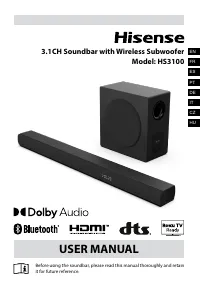 Hisense HS3100
User Manual
Hisense HS3100
User Manual
 Hisense HS5100
User Manual
Hisense HS5100
User Manual
 Hisense HRSBS540BW
User Manual
Hisense HRSBS540BW
User Manual
 Hisense 55A6N
User Manual
Hisense 55A6N
User Manual
 Hisense 75A6N
User Manual
Hisense 75A6N
User Manual
 Hisense HSAA16FS
Manual
Hisense HSAA16FS
Manual
 Hisense HSAP16FB
Manual
Hisense HSAP16FB
Manual
 Hisense 50U6HF
User Manual
Hisense 50U6HF
User Manual