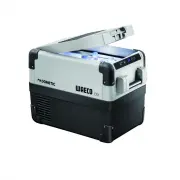
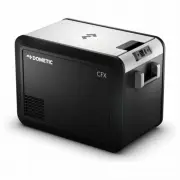
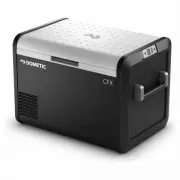
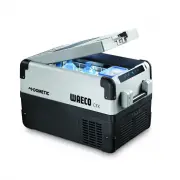
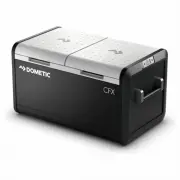
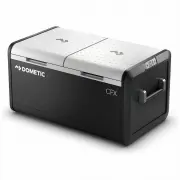
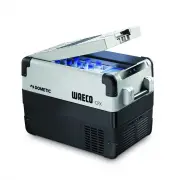
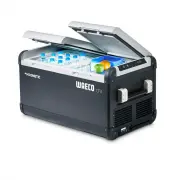
Page 3 - Contents
EN CFX 28 – CFX 65DZ 3 Please read this operating manual carefully before starting the device. Keep it in a safe place for future reference. If the device is passed on to another person, this operating manual must be handed over to the user along with it. The manufacturer cannot be held liable for d...
Page 4 - Explanation of symbols; Failure to observe this instruction will cause fatal or
EN Explanation of symbols CFX 28 – CFX 65DZ 4 8 Cleaning and maintenance . . . . . . . . . . . . . . . . . . . . . . . . . . . . . . . . . . . 26 9 Troubleshooting . . . . . . . . . . . . . . . . . . . . . . . . . . . . . . . . . . . . . . . . . . . . 26 10 Guarantee . . . . . . . . . . . . . . . . ...
Page 5 - Safety instructions; General safety
EN CFX 28 – CFX 65DZ Safety instructions 5 2 Safety instructions 2.1 General safety ! WARNING! • Do not operate the cooling device if it is visibly damaged. • If this cooling device's power cable is damaged, it must be replaced by the manufacturer, customer service or a similarly qualified person in...
Page 6 - Operating the cooling device safely; Danger of overheating!; Ensure that the ventilation openings are not covered.
EN Safety instructions CFX 28 – CFX 65DZ 6 • Never pull the plug out of the socket by the cable. • If the cooling device is connected to the DC outlet: Disconnect the cooling device and other power consuming devices from the battery before connecting a quick charging device. • If the cooling device ...
Page 7 - Scope of delivery; Item
EN CFX 28 – CFX 65DZ Scope of delivery 7 3 Scope of delivery Item Quantity Description 1 1 Cooler 2 1 Connection cable for DC connection 3 1 Connection cable for AC connection – 1 Operating manual SET + – ° 1 3 2 1 CFX-28-CFX-65--O-EN-AUSv2.book Seite 7 Dienstag, 3. April 2018 8:42 08
Page 8 - Accessories; all except; the app may not be available in your country.
EN Accessories CFX 28 – CFX 65DZ 8 4 Accessories Available as accessory (not included in scope of delivery): Visit the Dometic website (see back page) for information about a WiFi app with control-, display- and alarm functions ( all except CFX 28 and CFX 65DZ). Note that the app may not be availabl...
Page 10 - Scope of functions; Operating and display elements; Latch for lid
EN Function description CFX 28 – CFX 65DZ 10 6.1 Scope of functions • Power supply with priority circuit for connecting to the AC mains • Three-level battery monitor to protect the vehicle battery • Display with temperature gauge in °C and °Fswitches off automatically at low battery voltage • Temper...
Page 11 - Function description; Operating panel; Item Description
EN CFX 28 – CFX 65DZ Function description 11 Operating panel Item Description Explanation 1 ONOFF Switches the cooler on or off when the button is pressed for between one and two seconds 2 POWER “ P ” Status indication LED lights up green: Compressor is on LED lights up orange: Compressor is off LED...
Page 12 - Connection sockets
EN Function description CFX 28 – CFX 65DZ 12 Connection sockets Emergency switch (when fitted) and USB port Item Description 1 Connection socket AC voltage supply 2 Fuse holder 3 Connection socket DC voltage supply Item Description 1 Emergency switch (when fitted) 2 USB port for power supply 100-240...
Page 13 - Operation; Before initial use; Open the lid and remove it (; NOTE
EN CFX 28 – CFX 65DZ Operation 13 7 Operation 7.1 Before initial use I Reversing the lid opening direction (CFX 50W, CFX 65W, CFX 65 DZ) The lid hinges can be moved to the opposite side if you want to open the lid from the opposite direction. To do this, proceed as follows: ➤ Open the lid and remove...
Page 14 - Selecting the temperature units; Energy saving tips; Connecting to a battery (Vehicle or boat)
EN Operation CFX 28 – CFX 65DZ 14 Selecting the temperature units Temperature display units can be switched between Celsius and Fahrenheit as follows: ➤ Switch on the cooler. ➤ Press the “SET” button (fig. 3 4, page 11) twice. ➤ Use the “UP +” (fig. 3 7, page 11) or “DOWN –” (fig. 3 6, page 11) butt...
Page 16 - Using the battery monitor; The battery monitor mode can be selected as follows:
EN Operation CFX 28 – CFX 65DZ 16 7.4 Using the battery monitor The device is equipped with a multi-level battery monitor that protects your vehicle battery against excessive discharging when the device is connected to the on-board DC supply. If the cooler is operated when the vehicle ignition is sw...
Page 17 - Using the cooler; Connect the cooler, see chapter “Connecting the cooler” on page 14.; different orientation it can be damaged.; NOTICE! Danger from excessively low temperature!
EN CFX 28 – CFX 65DZ Operation 17 7.5 Using the cooler A ➤ Place the cooler on a firm foundation. Make sure that the ventilation slots are not covered and that the heated air can dissipate. I ➤ Connect the cooler, see chapter “Connecting the cooler” on page 14. A ➤ Press the “ON/OFF” button (fig. 3 ...
Page 19 - Latching the cooler lid; Setting the temperature; to select the cooling temperature.
EN CFX 28 – CFX 65DZ Operation 19 I ✓ The cooler starts cooling the interior. I Latching the cooler lid ➤ Close the lid. ➤ Press the latch (fig. 2 1, page 10) down, until it latches in place audibly. I 7.6 Setting the temperature ➤ Press the “SET” button (fig. 3 4, page 11) once. ➤ Use the “UP +” (f...
Page 20 - Switching the WiFi signal on or off; switch the WiFi signal on or off.
EN Operation CFX 28 – CFX 65DZ 20 7.7 Enabling WiFi signal for optional app(all except CFX 28 and CFX 65DZ) The cooler can be controlled via WiFi using an app that you can install on a compatible device. The app has control, display and alarm functions. For further information go to the Dometic webs...
Page 21 - Resetting the WiFi to factory settings; The WiFi settings have been reset to factory settings.; Set brightness of display; Switch on the cooler.; The factory setting of brightness of the display is d0 (default).
EN CFX 28 – CFX 65DZ Operation 21 Resetting the WiFi to factory settings In case you have personalized the WiFi settings of your cooling device using the WiFi app and forgotten your password, you can reset to the factory settings as follows: ➤ Press the “SET” button (fig. 3 4, page 11) five times. ➤...
Page 22 - Using the emergency switch (where fitted); , page 12) is located below the control panel on all
EN Operation CFX 28 – CFX 65DZ 22 7.9 Using the emergency switch (where fitted) The emergency switch (fig. 5 1, page 12) is located below the control panel on all models except CFX 28 where it is located above the power inlet sockets. For normal operation the switch is in the “NORMAL USE” position. ...
Page 24 - NOTE - Internal DC fuse
EN Operation CFX 28 – CFX 65DZ 24 7.13 Replacing the AC fuse D ➤ Disconnect the power supply to the device. ➤ Pull off the connection cable. ➤ Pry out the fuse insert (fig. 4 2, page 12) with a screwdriver. ➤ Replace the defective glass fuse with a new one that has the same type and rating (4 A, 250...
Page 25 - Replacing the light PCB
EN CFX 28 – CFX 65DZ Operation 25 7.15 Replacing the light PCB ➤ Disconnect the power supply to the device. ➤ Pry out the transparent cover with a screwdriver ( 1 ). ➤ Unscrew the PCB mounting screws ( 2 ). ➤ Pull out the plug from the PCB ( 3 ). ➤ Replace the defective light PCB with a new one. ➤ F...
Page 26 - Cleaning and maintenance; NOTICE! Risk of damage; Never clean the cooler under running water or in dish water.
EN Cleaning and maintenance CFX 28 – CFX 65DZ 26 8 Cleaning and maintenance ! A ➤ Occasionally clean the device interior and exterior with a damp cloth. ➤ Make sure that the air inlet and outlet vents on the device are free of any dust and dirt, so that heat can be released and the device is not dam...
Page 27 - Troubleshooting; Fault
EN CFX 28 – CFX 65DZ Troubleshooting 27 When operating from the DC outlet: The ignition is on and the device is not working and the LED is not lit. The DC outlet is dirty. This results in a poor electrical contact. If the plug of your cooler becomes very warm in the DC outlet, either the DC outlet m...
Page 28 - Guarantee; A copy of the receipt with purchasing date; Disposal
EN Guarantee CFX 28 – CFX 65DZ 28 10 Guarantee The statutory warranty period applies. If the product is defective, please contact the manufacturer's branch in your country (see the back of the instruction manual for the addresses) or your retailer. For repair and guarantee processing, please include...
Page 29 - Technical data
EN CFX 28 – CFX 65DZ Technical data 29 12 Technical data CFX 28 CFX 35W CFX 40W Ref. no.: 9105306503 9105306495 9105306496 Connection voltage: 12/24 V g and 100 – 240 V w Rated current: 12 V g : 6.5 A 24 V g : 3.2 A 100 V w : 0.75 A 240 V w : 0.32 A 12 V g : 7.0 A 24 V g : 3.2 A 100 V w : 0.86 A 240...