Sony KDL50W800C - User Manual
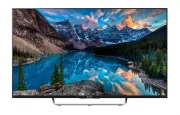
Sony KDL50W800C TV – User Manual, read for free online in PDF format. We hope this helps you resolve any issues you may have. If you have further questions, please contact us through the contact form.


Table of Contents:
- Page 2 – Table of Contents; Installation
- Page 3 – NOTE ON AC ADAPTER; Warning
- Page 4 – About LCD Monitor Temperature; To Sony Dealers and Contractors:
- Page 6 – Disposal of the TV set; Notice for customer in UAE; TRA
- Page 7 – Parts and Controls; Remote Control sensor*; • Cyan; Display and select the input source.; Controls and Indicators
- Page 8 – HOME; Inputs and Outputs; Ȫ ȫ
- Page 9 – Using Remote Control; SYNC MENU; Display the BRAVIA Sync Menu.; EXIT; Display two pictures simultaneously.; Colour buttons; Execute correspondent function at that time.; Remote Control Parts Description
- Page 11 – Connecting the TV; To connect with an HDMI cable
- Page 12 – Picture Quality
- Page 13 – Installing the TV to the Wall; To detach the Table-Top Stand from the TV; To Customers
- Page 14 – Installing the Brackets on the wall; Prepare necessary items.
- Page 15 – Model Name
- Page 16 – Preparing for the installation of the TV
- Page 17 – Installing the TV on the wall; Install the TV on the wall. Then, confirm the Stand Protector; Dimensions of the hole positions on the wall; Be sure to use the supplied Paper Template
- Page 18 – Using an optional Wall-Mount Bracket
- Page 19 – Attach Wall-Mount Attachment
- Page 21 – Connect necessary cables to the TV.; Hook location
- Page 22 – Troubleshooting; and; Troubles and Solutions
- Page 23 – Specifications; System
- Page 24 – Others
- Page 25 – without Table-Top Stand; Notes on Digital TV function
KDL-55W800C / 50W800C / 43W800C
Television
Reference Guide
"Loading the manual" means you need to wait until the file loads and becomes available for online reading. Some manuals are very large, and the time they take to appear depends on your internet speed.
Was this manual helpful?
Helpful for 3 of 3 readers
About this manual
- Brand
- Sony
- Model
- KDL50W800C
- Document type
- User Manual
- Category
- TV
- Language(s)
- English
- Pages
- 28
- File size
- 778 KB
- Format
Other Manuals for Sony KDL50W800C
Summary
2 GB Table of Contents Safety Information . . . . . . . . . . . . . . . . . . . . . 2Precautions . . . . . . . . . . . . . . . . . . . . . . . . . . . 5 Parts and Controls . . . . . . . . . . . . . . . . . . . 7 Controls and Indicators . . . . . . . . . . . . . . . . . 7Inputs and Outputs . . . . . ...
3 GB GB • Only qualified service personnel should carry out wall installations. • For safety reasons, it is strongly recommended that you use Sony accessories, including: Wall-Mount Bracket (Supplied) (except Australia and New Zealand) Wall-Mount Bracket SU-WL450 • Be sure to use the screws supp...
4 GB • Connect the AC adapter to an easily accessible AC power outlet (mains socket). • Do not coil the AC power cord (mains lead) around the AC adapter. The core wire may be cut and/or it may cause a malfunction of the TV. • Do not touch the AC adapter with wet hands.• If you notice an abnormality ...
Ask a question
Related manuals
Popular Sony TVs


More Sony TVs models
 Sony KDL-55NX720 Manual
 Sony KDL-60EX700 Manual
 Sony KDL-60NX720 Manual
 Sony KDL32W600D User Manual
 Sony KDL32W700B User Manual
 Sony KDL43W660F User Manual
 Sony KDL60W600B User Manual
 Sony KDL65W850C User Manual
 Sony XR-55A80J User Manual
 Sony XR42A90K User Manual
 Sony XR48A90K User Manual
 Sony XR50X90J User Manual