Page 4 - Before operating this system; Note on DualDiscs
4 GB Before operating this system Music discs encoded with copyright protection technologies This product is designed to playback discs that conform to the Compact Disc (CD) standard. Recently, various music discs encoded with copyright protection technologies are marketed by some record companies.P...
Page 5 - Table of Contents; Getting started
5 GB Table of Contents Before operating this system ................................................................ 4 Features of this system .......................................................................... 8 Enjoying music from various sources ...............................................
Page 6 - Network connections; Listening to audio content using DLNA; Additional information
6 GB Network connections How to connect your network.............................................................. 33 Setting up for a wireless network ........................................................ 34 Option 1: Method for using an application for smartphones or Tablets (Android device/iPh...
Page 10 - Remote
10 GB Remote This manual mainly explains operations using the remote, but the same operations can also be performed using the buttons on the unit having the same or similar names. / (power) button Use to turn the power on or off. STANDBY indicator Lights when the power is turned off. The ind...
Page 12 - Connections; Connecting the antennas, speakers and power cord
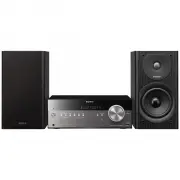
12 GB Connections Connecting the antennas, speakers and power cord Power input (AC IN) After all equipments are connected, connect the power cord to the wall outlet. Speakers (left/right) connectors Firmly connect the right speaker cord to R, and the left speaker cord to L. AUDIO IN (ext...
Page 13 - To prepare the AM loop antenna; Connecting the iPod/iPhone/iPad or USB device
13 GB Gett ing s ta rte d To receive radio broadcasts, connect antennas.Find a location and an orientation that provide good reception, and then fix the antennas to a stable surface (window, wall, etc.).Keep the antennas away from the unit, power cord and other AV components to avoid picking noise.S...
Page 15 - Attaching speaker pads
15 GB Gett ing s ta rte d Attaching speaker pads Attach the supplied speaker pads to the bottom of the speakers to prevent slipping.
Page 16 - Inserting the batteries
16 GB Inserting the batteries Insert two supplied R6 (size AA) batteries, side first, matching the polarities shown below. Notes • With normal use, the batteries should last for about 6 months. • Do not mix an old battery with a new one or mix different types of batteries. • If you do not use the ...
Page 17 - Setting the clock
17 GB Gett ing s ta rte d Setting the clock Set the clock using the buttons on the remote. 1 Press / (power) to turn on the system. 2 Press TIMER MENU to select the clock set mode. If “PLAY SET” flashes, press / repeatedly to select “CLOCK,” and then press (enter) . 3 Press / r...
Page 18 - Operations; When “NO DISC” appears in the display
18 GB Operations Playing a CD-DA/MP3 disc 1 Press CD FUNCTION . Press FUNCTION on the unit repeatedly until “CD” appears in the display . 2 Press the (open/close) button to open the disc tray . 3 Load a disc with the label side facing up. 4 Press the (open/close) button to close the ...
Page 19 - To change the play mode
19 GB Oper a tions Other operations To change the play mode Press PLAY MODE repeatedly while the player is stopped. You can select Normal Play mode (no indication or “FLDR”* appears), Shuffle Play mode (“SHUF” or “FLDR SHUF”* appears), or Program Play mode (“PGM” appears). * When “FLDR” or “FLDR S...
Page 21 - Press; To cancel Program Play; To delete the program
21 GB Oper a tions 7 Press . Your program of tracks or files starts playback. • The programmed files or tracks remain available until you remove the disc from the disc tray or unplug the power cord. • To play the same program again, press . To cancel Program Play Press PLAY MODE repeatedly...
Page 22 - Press USB FUNCTION
22 GB Playing an iPod/iPhone/iPad You can play an iPod/iPhone/iPad by connecting it to the system. You can operate your iPod/iPhone/iPad using the buttons on this system. Compatible iPod/iPhone/iPad models The iPod/iPhone/iPad models that can be used with this system are as follows: as of April, 201...
Page 23 - to start; Turn the power of the system on.
23 GB Oper a tions 3 Connect the USB cable supplied with the iPod/iPhone/iPad to the iPod/iPhone/iPad. The function indicator in the display changes from “USB” to “iPod.” 4 When “iPod” appears in the display , press to start playback. Other operations You can perform the following operations...
Page 24 - Playing a file on a USB device
24 GB Playing a file on a USB device You can play audio files stored on a USB device on this system by connecting a USB memory or USB device to the system.The audio format that can be played back on this system is MP3/WMA*/AAC*. Check the websites below for the information about compatible USB devic...
Page 25 - Note on the play mode; Charging a USB device
25 GB Oper a tions To change the play mode Press PLAY MODE repeatedly while the player is stopped. You can select Normal Play mode (no indication or “FLDR” appears* 1 ), or Shuffle Play mode (“SHUF” or “FLDR SHUF” appears* 2 ). *1 When no indication is selected, the system plays all files on the U...
Page 27 - Preparing for a BLUETOOTH connection; About the BLUETOOTH indicator; Enabling reception of AAC codec
27 GB Oper a tions Preparing for a BLUETOOTH connection You can listen to music from your iPod/iPhone/iPad or BLUETOOTH device over a wireless connection.Before using the BLUETOOTH function, perform pairing to register your BLUETOOTH device. The system supports registration and connection of the BLU...
Page 28 - Connection example; Press BLUETOOTH FUNCTION; Press and hold BLUETOOTH
28 GB ON: to receive in AAC codec format OFF: to receive in SBC codec format Notes • If you initiate setup during BLUETOOTH connection, the connection is cut. • When using an Apple product, update it to the latest software version. For details on updating, refer to the operation manual supplied with...
Page 30 - About the “NFC Easy Connect” application; To disconnect by one-touch action
30 GB installed, you can download “NFC Easy Connect” from Google Play. • In some countries and regions, NFC-compliant application may not be downloaded. • For some smartphones, this function may be available without downloading “NFC Easy Connect”. In this case, the operation and specifications of th...
Page 32 - Other operations
32 GB Other operations You can perform the following operations using the buttons on the remote or unit of the system. * Depending on the BLUETOOTH device, you may have to press twice. Note The operations described in this manual may not be available for certain BLUETOOTH devices. In addition, t...
Page 33 - How to connect your network; Setting up for a wireless network
33 GB Net w ork co n n ections Network connections How to connect your network Set up the network after checking your network environment. Refer to the following descriptions. Setting up for a wireless network Select the suitable method and start to make the network settings. Do not connect any netw...
Page 34 - Android
34 GB Setting up for a wireless network Note When setting up a wireless network, SSID (Wireless Network Name) and Security Key (WEP or WPA key) may be required. Security key (or network key) is an encryption key used to limit the devices with which communication can occur. It is used to provide high...
Page 38 - Setting up wired networks; Option 4: DHCP method
38 GB Setting up wired networks Option 4: DHCP method Usually, the DHCP setting is set to ON when you connect your computer to the network.Try the following method if you are using a wired network.Set the DHCP setting of your computer to ON in advance. 1 Check whether your computer and router are tu...
Page 40 - Select the
40 GB Note The items displayed on the computer may be different from the ones shown in this section, depending on the version of the operating system or the computer environment. For details, refer to the help of your computer. Setting up a computer with Windows 8 1 Move the mouse pointer to the top...
Page 41 - Using Windows Media Player
41 GB Net w ork co n n ections 2 Select the desired audio content and play it back. 3 Move the mouse pointer to the top-right (or bottom-right) corner on the Start screen to display the charms, and select [Devices]. With a touch panel, display the charms by swiping from the right end of the start sc...
Page 45 - When
45 GB Net w ork co n n ections The device list appears. 4 Select [SONY:CMT-SBT300W(B) XXXXXX]. The system enters the network function mode and the selected audio content is played back. Listening to audio content on a computer with Windows Vista/Windows XP You need to set up Windows Media Player 11 ...
Page 48 - To confirm/edit the device name; Tips
48 GB Enjoying Internet music streaming Tip The screens used in the following section are of the iPad. The screens of Android devices or iPhone/iPod touch differ. 1 Tap or click on the icon on the screen of the Android device or iPhone/iPod touch/iPad. 2 Select [SONY:CMT-SBT300W(B)] from the list. 3...
Page 49 - Using AirPlay
49 GB Net w ork co n n ections Using AirPlay You can play music stored in a Mac or computer or those in iTunes, iPhone, iPod touch, iPad on this system by using AirPlay.You can play music wirelessly without connecting the system to another device. Compatible iPhone/iPod touch/iPad models iPod touch ...
Page 52 - Listening to the radio; Tuning in a radio station; Press TUNER FUNCTION
52 GB Additional information Listening to the radio Tuning in a radio station 1 Press TUNER FUNCTION to select a radio band. Press FUNCTION on the unit repeatedly until “TUNER FM” or “TUNER AM” appears (CMT-SBT300W), or “DAB” or “TUNER FM” appears (CMT-SBT300WB) in the display . 2 Press TUNING...
Page 53 - Presetting radio stations
A d d it ional i n fo rm at io n 53 GB To change the AM tuning interval (except for European models) The default setting for AM tuning interval is 9 kHz (or 10 kHz for some areas). Use the buttons on the unit to perform this operation. 1 Press FUNCTION on the unit repeatedly to select the AM stati...
Page 54 - Using optional audio components
54 GB Using optional audio components 1 Press VOLUME on the remote to turn down the volume. Turn the VOLUME dial on the unit counterclockwise to turn down the volume. 2 Connect additional audio component to the AUDIO IN jack (page 12). Connect optional external equipment with an audio connec...
Page 55 - Setting the Automatic Standby function
55 GB A d d it ional i n fo rm at io n Setting the Automatic Standby function This system is equipped with an Automatic Standby function. With this function, the system enters Standby mode automatically in about 15 minutes when there is no operation or audio signal output.“AUTO STBY” appears in the ...
Page 57 - Updating the software
57 GB A d d it ional i n fo rm at io n Updating the software You can update the software of this system by downloading the latest version via a network.If the system detects a new update when it is connected to the Internet, “UPDATE” appears in the display . You can update the software using the o...
Page 58 - Adjusting the sound; Setting the bass boost; Adjusting the bass and treble
58 GB Adjusting the sound You can set the bass boost or adjust the tone to your preferences. Setting the bass boost Press BASS BOOST repeatedly to select “ON” or “OFF.” Adjusting the bass and treble Press BASS +/– to adjust bass or TREBLE +/– to adjust treble. • On the unit, press EQ repeate...
Page 59 - Changing the display; MP3 disc
59 GB A d d it ional i n fo rm at io n Changing the display *1 You can view the information described below during playback of a CD-DA/MP3 disc. *2 The information does not appear in BLUETOOTH/Network Standby mode. CD-DA disc – remaining playing time of a track during playback – total remaining play...
Page 60 - Using the timers; Setting the Sleep Timer; Press SLEEP; Setting the Play Timer; Prepare the sound source.
60 GB Using the timers The system offers Sleep Timer and Play Timer.The Sleep Timer has priority over the Play Timer.You can set the timer using the buttons on the remote. Setting the Sleep Timer The system is turned off automatically after the time set for the Sleep Timer is elapsed. The Sleep Time...
Page 61 - If “TIME NG” flashes in the display; To check the setting; To cancel the timer
A d d it ional i n fo rm at io n 61 GB Scanning, Manual Tuning or Preset Tuning (page 52). *1 FM or AM for CMT-SBT300W, or FM or DAB for CMT-SBT300WB. 2 Press TIMER MENU . 3 Press / repeatedly to select “PLAY SET,” then press . The start time flashes in the display . 4 Set the time to st...
Page 62 - Troubleshooting; If the STANDBY indicator; General
62 GB Troubleshooting Troubleshooting If a problem occurs while operating the system, follow the steps described below before consulting your nearest Sony dealer. If an error message appears, be sure to make a note of the contents for reference. 1 Check to see if the problem is listed in this “Troub...
Page 64 - USB device; Tuner
64 GB If you connect an unsupported USB device, the following problems may occur. Check the information on the websites about compatible USB devices with URLs listed under “Playing a file on a USB device” (page 24).• The USB device is not recognized.• File or folder names are not displayed on this...
Page 65 - Network connection
65 GB T roub leshoot in g Find a location and an orientation that provide good reception, and then set up the antenna again. Bundle the antenna cables using commercially available cord clips, for example, and adjust the cable lengths. Check all antenna connections, then perform the DAB Automat...
Page 67 - Messages
67 GB T roub leshoot in g Messages The following messages may appear or flash during operation. CANNOT DOWNLOAD The system failed downloading the update data while performing the software update. Enter the setting menu and update the software again. CANNOT PLAY The system cannot play audio files due...
Page 69 - Precautions/Specifications; Precautions; Discs that this system CAN play
69 GB Precaut ions / S p ecifi c at ions Precautions/Specifications Precautions Discs that this system CAN play • Audio CD-DA discs • CD-R/CD-RW (audio data of CD-DA tracks and MP3 files) Discs that this system CANNOT play • CD-ROM • CD-R/CD-RW other than those recorded in music CD format or format ...
Page 71 - BLUETOOTH wireless technology; Supported BLUETOOTH version and profiles; Effective communication range
71 GB Precaut ions / S p ecifi c at ions BLUETOOTH wireless technology BLUETOOTH wireless technology is a short-range wireless technology linking digital devices, such as personal computers and digital still cameras. Using the BLUETOOTH wireless technology, you can operate the units involved within ...
Page 73 - Specifications; Amplifier section; Tuner section
73 GB Precaut ions / S p ecifi c at ions Specifications Amplifier section Power output (rated): 25 watts + 25 watts (at 6 ohms, 1 kHz, 1% THD) RMS power output (reference): 50 watts + 50 watts (per channel at 6 ohms, 1 kHz) Inputs/Outputs AUDIO IN: AUDIO IN (external input) jack:Stereo mini jack, se...
Page 74 - Speaker section; Network section
74 GB DAB/DAB+ frequency table (Band-III): * Frequencies are displayed to two decimal places on this system. Speaker section Speaker system: 2-way speaker system, Bass ReflexWoofer: 120 mm, cone typeTweeter: 25 mm, soft dome type Rated impedance: 6 ohms Dimensions (W/H/D): Approx. 150 mm x 270 mm x ...