Page 2 - Table of contents; Specifications
2 Table of contents Before using the product Safety precautions 4 Safety symbols 4 Storage 5 Electricity and safety 5 Installation 5 Operation 6 Precautions for use 8 Preparations Checking the components 9 Parts 10 Ports 11 Before installing the product (Installation guide) 13 Installing ...
Page 3 - Before using the product; Safety precautions; Safety symbols
3 Chapter 01 Before using the product Safety precautions The following safety instructions are to ensure your personal safety and prevent property damage. Please read the following to ensure the proper use of the product. Safety symbols Symbol Name Meaning Warning A serious or fatal injury may resul...
Page 4 - Installation
4 Storage Due to the characteristics of high-glossy products, using a UV humidifier nearby may create white-colored stains on the product. " Contact Customer Service Centre if the inside of the product needs cleaning (service fee will be charged). Electricity and safety Warning Do not use a dama...
Page 5 - Operation
5 Do not install the product within the reach of young children. • The product may fall and injure children.• As the front is heavy, install the product on a flat and stable surface. Edible oil, such as soybean oil, can damage or deform the product. Do not install the product in a kitchen or near a ...
Page 7 - Precautions for use; Cleaning the exterior and display
7 Precautions for use Be careful that if you use the supplied pen with a load exceeding 2.5 kg, scratches may occur on the protective glass.If you use a ballpoint pen other than the supplied pen, be careful that the screen may be stained with ink or damaged.Do not use a dirty brush to avoid screen d...
Page 8 - Preparations; Checking the components
8 Chapter 02 Preparations Checking the components Quick Setup Guide Warranty card (Not available in some locations) Regulatory guide Waste Electical & Electronic Equipment Power cord USB cable Touch pen x 2 HDMI cable Remote Control (batteries x 2 included) WiFi dongle $ Contact the vendor where...
Page 9 - Parts
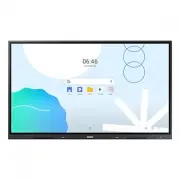
9 Parts WA65D / WA75D / WA86D Speaker Power button & indicator IR receive Light sensor " The color and shape of parts may differ from what is shown. Specifications are subject to change without notice to improve quality. Parts Description Speaker Speaker outputThe pen is magnetic. Keep it by...
Page 10 - Ports; Front
10 Ports WA65D / WA75D / WA86D Front " The color and shape of parts may differ from what is shown. Specifications are subject to change without notice to improve quality. Ports Description You can connect a device using a USB-C cable.• USB-C connection allows video output and touch-based control...
Page 11 - Rear
11 WA65D / WA75D / WA86D Rear RS232C SERVICE TOUCH LAN 1 1 " The color and shape of parts may differ from what is shown. Specifications are subject to change without notice to improve quality. Ports Description RS232C Serial Interface for debug only. LAN Connects to a network using a LAN cable. ...
Page 12 - Ventilation
12 Before installing the product (Installation guide) This product can be wall-mounted. The wall mount are available for optional purchase. WA65D / WA75D / WA86D Ventilation " Contact Samsung Customer Service Center for further details. Installation on a perpendicular wall A Minimum 30 mm B Ambi...
Page 13 - Installing the wall mount; Using the wall mount kit
13 Installing the Wi-Fi dongle (Model: SI07B) Warning : Disconnect the product’s power cord before the installation. 1 Remove the Wi-Fi slot’s cover. 2 Fully insert the Wi-Fi dongle into the slot. • The Wi-Fi dongle only works when it is properly inserted into the designated slot in the product. Ins...
Page 15 - Connecting to a network; Connecting to a wired network
15 Connecting to a network " Connecting parts may differ in different products. Network settings (Wired) Connecting to a wired network There are three ways to attach your product to your LAN using cable.• You can attach your product to your LAN by connecting the LAN port on the back of your prod...
Page 17 - Connecting to a wireless network
17 Network settings (Wireless) Connecting to a wireless network Wireless IP sharer (router having DHCP server) The LAN port on the wall LAN cable Samsung recommends using IEEE 802.11n. When you play video over a network connection, the video may not play smoothly. " Select a channel for the wire...
Page 18 - How to set up using the WPS button
18 1 Right click the Network icon on the bottom right of the screen. 2 In the pop-up menu that appears, click Status . 3 On the dialog that appears, click the Support tab. 4 On the Support tab, click the Details button. The Network connection values are displayed. How to set up manually 1 Set Networ...
Page 19 - General Features; Launcher; Launcher menu
19 Chapter 03 General Features Launcher After finishing the setup wizard, you will be presented with the brand new Samsung OS EDLA launcher . The new launcher contains the following elements by default: • Status bar on top, containing time, app notification icons and basic status icons such as Wi-Fi...
Page 20 - Editing the launcher
20 Editing the launcher Customize the launcher to your needs by relocating the widgets and icons.• Create a new page by long pressing and dragging a widget or an icon to another page.• Remove an app icon or widget from the launcher by long pressing and dragging it to the Remove button.
Page 21 - App drawer
21 App drawer Swipe up from anywhere on the home screen to bring up the App drawer . • You can view and open any app installed on this device from here.• Navigate through all apps by scrolling the navigation bar on the right edge of the drawer.
Page 24 - Notification center
24 Notification center All app notifications will be displayed in the notification center. • Click on a notification to enter the app interface. • You can also click the arrow in a notification to expand or collapse it. • Click the Manage button to enter notification settings. • If there are too man...
Page 25 - System navigation
25 System navigation WAD provides two types of system navigation methods.• 3-button navigation : always shows the navigation bar at the bottom of the screen with the Back / Home / Recent buttons inside it. • Gesture navigation : same as Android mobile phones, swipe from one of the screen edges to tr...
Page 26 - Writing; Note; Opening Note
26 Chapter 04 Writing Note Opening Note Tap Note on the home screen to open Note . " In Note , you can change pen/brush types, thickness and colors.
Page 28 - Note Menu
28 Note Menu Item Description 1 New Create a note. 2 Open Open an existing note. 3 Save Save the current note. 4 Save as Save the current note in the desired format. 5 Import Import a note in the IMG, PDF, SVG, or IWB format. 6 Export Export a note in the IMG, PDF, SVG, or IWB format. 7 Cloud Storag...
Page 29 - Settings
29 Settings Item Description 1 Eraser mode Set Eraser mode to Eraser or Erase selection . 2 Multi-finger writing Swiping with multiple fingers allows you to write by using multiple fingers when this option is toggled on or drag the canvas when this option is toggled off. 3 Automatic brightness When ...
Page 30 - Note Functions; QR code-based sharing; Note canvas list
30 Note Functions QR code-based sharing Tap the QR code to enlarge it. Note canvas list
Page 31 - Brush settings; Ruler
31 Brush settings Adjust the eraser size. Ruler Select the ruler type to use. Selected ruler is activated for use. You can insert a 3D shape and preset its color.
Page 32 - Form; Mind map
32 Form A form is inserted as shown. The cells in the form automatically adapt to the handwriting size. Mind map The system automatically recognizes handwriting and generates potential text. After potential text is selected, the handwriting is automatically converted to a standard font. Write outsid...
Page 34 - Pages; Exit
34 Pages Tap Page to view, select, or delete all pages that are added to the note. Exit Tap Exit . You are prompted whether to save the note. You can save the note and exit or exit without saving.
Page 35 - Palette; Entering Palette
35 Palette Entering Palette Tap Palette in the list of all apps to open Palette. Exit Palette's home screen shows Toolbox and ColorBox options by default for quick selection.
Page 36 - UI Elements
36 UI Elements The palette allows you to explore and use more artistic functions in your creation. 1 2 3 4 5 6 7 8 9 Item Description 1 Menu The menu allows you to perform operations such as saving, importing, sharing, and exiting. 2 Clear Tap to clear a canvas. 3 Undo Undo the current operation. 4 ...
Page 37 - Entering Settings
37 Chapter 05 Settings Settings Entering Settings You can access Settings from the Control Center or App drawer .
Page 38 - System Settings
38 System Settings From system settings, various settings can be managed. Item Description 1 Network & Internet Manage network settings 2 Connected devices Connect to devices and change settings of connected devices 3 Apps Check apps on this device and adjust app settings 4 Notifications Manage ...
Page 44 - Apps
44 Apps Manage app settings in Apps . Select an app to view and change settings for that app. Change general settings for apps under General .
Page 45 - Notifications
45 Notifications You can manage app notifications and system notifications in Notifications . Manage notifications for each app in App settings . Manage Privacy settings to protect your personal privacy. Manage general system notification settings in General .
Page 47 - Sound
47 Sound Adjust volume and change other audio settings in Sound . You can enable Live Caption by Google, which helps generate captions when speech is detected. You can change other sound preference settings in the list.
Page 48 - Display
48 Display You can change display settings in Display . Choose what to show on the lock screen in Lock screen . Decide when to turn off the device screen while inactive in Screen timeout .
Page 51 - Accessibility
51 Accessibility Manage all auxiliary functions for disabled users in Accessibility . Accessibility features from installed apps will be shown first.
Page 52 - Security
52 Security Manage all security settings in Security . Set system screen lock in Screen Lock . You can set different types of screen lock: swipe/pattern/PIN/password You can also change screen lock timing and power button behavior by clicking the gear icon beside this setting item.
Page 57 - Digital Wellbeing & parental controls
57 Digital Wellbeing & parental controls Check device & app usage in Digital Wellbeing & parental controls . You can set the timing for automatic behaviors on this device, such as pausing apps and activating Bedtime mode / Focus mode . Set up device behavior to reduce interruptions by ma...
Page 59 - Advanced
59 Advanced All original Samsung settings are integrated into Advanced . Set general information about this device, including basic system settings, in System general . Android Status Bar can be enabled or disabled by toggling the switch. Manage audio output channel and external source settings in I...
Page 61 - Administrator; Wake on LAN; HDMI CEC
61 Administrator The administrator settings are used by device administrators to provide device control functions at a higher level.To modify these settings, you need to specify an administrator password. Otherwise, all administrator settings become unavailable. Specifying an administrator password ...
Page 62 - USB clone; Default startup item
62 USB clone The USB clone function allows you to quickly export the system and on-screen display (OSD) settings from one Interactive Display to another. Default startup item If the default startup item is specified, the corresponding app/web page/document is automatically launched after startup.The...
Page 63 - Auto Remove Files
63 Auto Remove Files Set Auto Remove Files to prevent the Interactive Display from occupying a large amount of storage space.The storage period can be set to one of the following: None, 1 day, 7 days, or 30 daysThe following file types can be removed: • Video • Audio• Image• Document• Other
Page 64 - System
64 System You can change general system settings in System . You can configure system language, input method and speech settings. Item Description Languages English, French, German, Italian, Polish, Portuguese, Russian, Spanish, Swedish, Greek, Cheskry, Slovak, Hungarian, Finnish, Turkish, South Ara...
Page 65 - Gestures
65 Gestures Change system navigation and modify what happens when you long press a button. Selectable navigation mode: gesture/3-button/traditional Long press and hold the power button: set what happens when you long press and hold the power button.• Default: the IFP is powered off.• Available optio...
Page 66 - System update
66 Backup After logging in to your Google account, you can manage backup services provided by Google. Click Backup to manage backup items and settings. System update Click System update to check Google system and security patch updates. If any update is available, it can be downloaded and installed ...
Page 67 - Multiple users; Reset options
67 Multiple users You can add local users and guests in Multiple users . The system will create an individual space for each user.Switching to a newly added user will require going through the setup wizard. Reset options Reset system settings or erase all data by selecting different system reset opt...
Page 68 - About; OSD menu
68 About view basic system information. Item Description Legal Information • Third-party licenses• Open source licenses 2• System Webview licenses Model Number Displays the model number of the device. Android Version Displays the Android version. Kernel Version Displays the system kernel version. Se...
Page 69 - Troubleshooting guide; Problems and solutions
69 Chapter 06 Troubleshooting guide Problems and solutions Source window (HDMI) issue Blank spaces are found on all four sides of the screen when an HDMI cable is connected to the product and PC. The blank spaces are not caused by the product. Blank spaces on the screen are caused by the PC or graph...
Page 75 - General
75 Chapter 07 Specifications General Model Name WA65D WA75D WA86D Panel Size 65 CLASS (64.5 inches / 163.9 cm) 75 CLASS (74.5 inches / 189.3cm) 86 CLASS (85.6 inches /217.4cm) Display area 1428.48 mm (H) x 803.52 mm (V) 1649.664 mm (H) x 927.936 mm (V) 1895.04 mm (H) x 1065.96 mm (V) Synchronization...
Page 77 - Preset timing modes
77 Preset timing modes The screen will automatically be adjusted if a signal that belongs to the following standard signal modes is transmitted from your PC. If the signals transmitted from the PC differ from the standard mode, the screen may not be displayed. In such a case, change the settings as ...
Page 78 - Appendix; Not a product defect; A product damage caused by customer’s fault
78 Chapter 08 Appendix Responsibility for the pay service (Cost to customers) " When the service is requested, in spite of in warranty, we may charge you for a visit from a service technician in the following cases. Not a product defect Cleaning of the product, Adjustment, Explanation, Re-instal...
Page 79 - Prevention of afterimage burn-in; Recommended prevention practices; HDMI License notice
79 Prevention of afterimage burn-in What is afterimage burn-in? Afterimage burn-in should not occur when the panel is operating normally. Normal operation refers to a continuously changing video pattern. If the panel displays a fixed pattern for an extended period of time a slight voltage difference...
Page 80 - Low Blue Light; Tips for eye health; ENERGY STAR
80 Low Blue Light Low Blue Light (software solution) filters out blue light to protect your eyes by adjusting how much blue light is shown: 1 To open blue light settings: on the device home screen, swipe up from the bottom 2 The low blue light function is in the middle of General Settings and is cal...


 Samsung WA65F User Manual
 Samsung WA75D User Manual
 Samsung WA75F User Manual
 Samsung WA80U3 Manual
 Samsung WA80V3 Manual
 Samsung WA400PJHDWR Manual
 Samsung WA484DSHAWR Manual
 Samsung WA5471ABW/XAA-01 User Manual
 Samsung WAM250 User Manual
 Samsung Washing Maching Manual
 Samsung WB30F Manual