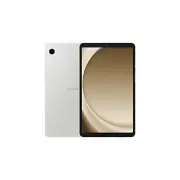
Page 2 - Table of Contents; Usage Notices; Quality Test
2 Table of Contents Usage Notices 4 Precautions for Repair5 ESD (Electrostatic Discharge) Precautions6 Instructional Icons Software Update 7 Updating Software through FOTA 7 Software Update Failure 7 Updating Software through Smart Switch 8 Recovering from a Software Update Failure8 Recovering on An...
Page 3 - Exploded View and Parts List
3 Table of Contents 43 Under-display Camera Calibration (Fold Models Only)45 Digital Hall Sensor Calibration (Fold and Flip Models Only) Exploded View and Parts List 48 Exploded View49 Parts List Disassembly and Assembly 50 Tools for Disassembly and Assembly53 Fasteners (Adhesives and Materials) for...
Page 4 - Precautions for Repair
Usage Notices 4 Usage Notices All functionality, features, specifications, and other device information provided in this document, including but not limited to, benefits, design, pricing, components, performance, availability, and capabilities of the device are subject to change without notice. Sams...
Page 5 - ESD (Electrostatic Discharge) Precautions
Usage Notices 5 • Make sure to wear the appropriate safety equipment before carrying out repairs. Samsung is not responsible for injuries that may occur because of not wearing the proper safety equipment. Refer to Tools for Disassembly and Assembly for a list of tools that you will need for assembli...
Page 6 - Instructional Icons
Usage Notices 6 Instructional Icons Warning : situations that could cause injury to yourself or others Caution : situations that could cause damage to your device or other equipment Notice : notes, usage tips, or additional information
Page 7 - Software Update
Software Update 7 Software Update Updating Software through FOTA Update your device’s software through the firmware over-the-air (FOTA) service. You can also schedule software updates.Launch the Settings app and tap Software update → Download and install . • Install now : Install updates. • Schedule...
Page 9 - Performing a Factory Data Reset
Software Update 9 3 On the devices list, click the device that failed to update the software and check the recovery code. 4 On another computer, launch Smart Switch . 5 Click → Emergency Software Recovery and Reset → Emergency code recovery . 6 Enter the recovery code and click OK . 7 Follow the on-...
Page 11 - Quality Test Using the Samsung Members App
Quality Test 11 Quality Test Quality Test Using the Samsung Members App It is recommended to evaluate your device through the Samsung Members app after it has been repaired to guarantee its performance. If the test results show any abnormalities or that another malfunction has occurred because of th...
Page 12 - Test Items
Quality Test 12 3 Tap Test all . The device performs a test on all items.When the test is finished, you can check the test results. • Tick mark: Working normally • Exclamation mark: Needs further inspection • The test proceeds automatically, but you may need to follow the on-screen instructions depe...
Page 25 - Calibrations
Calibrations 25 Calibrations Calibrations In order to guarantee the stable and correct performance of components or sensors, it is required to conduct calibrations through the Self Repair Assistant app after repair. If the calibration results show any malfunctions, visit a Samsung Service Center for...
Page 26 - Using the Self Repair Assistant App
Calibrations 26 • Depending on the model, the screen module may include batteries. So when the screen module is replaced, the battery also has to be selected and a battery cycle reset must be performed. • In the Fold models, touch screen panel calibration is performed for both the main and cover scr...
Page 31 - Optical Fingerprint Sensor Calibration
Calibrations 31 Optical Fingerprint Sensor Calibration Whenever the screen is replaced, the optical fingerprint sensor must be calibrated to guarantee optimized fingerprint sensor performance for devices that have it.Optical fingerprint sensor calibration is available through the Self Repair Assista...
Page 34 - Resetting the Battery Cycle Count
Calibrations 34 8 Check the result of the calibration. Completed appears only when the calibration is successfully completed. If Completed does not appear, try calibrating again. Resetting the Battery Cycle Count The battery cycle count should be reset whenever your device’s battery is replaced. 1 L...
Page 37 - Range Sensor Calibration
Calibrations 37 Range Sensor Calibration When replacing screens, batteries, back glasses, or charging ports, range sensor calibration is required to ensure the range sensors of devices equipped with them are optimized.Range sensor calibration is available through the Self Repair Assistant app. Some ...
Page 39 - Touch Screen Panel Calibration
Calibrations 39 Touch Screen Panel Calibration When replacing screens, touch screen panel calibration is required to ensure accurate touch input.Touch screen panel calibration is available through the Self Repair Assistant app. In the Fold models, touch screen panel calibration is performed for both...
Page 41 - Speaker Calibration
Calibrations 41 Speaker Calibration When replacing speakers, the speaker must be calibrated to guarantee optimized speaker performance for devices that have it.Speaker calibration is available through the Self Repair Assistant app. 1 Launch the Self Repair Assistant app. 2 Select the part that you h...
Page 45 - Digital Hall Sensor Calibration (Fold and Flip Models Only)
Calibrations 45 Digital Hall Sensor Calibration (Fold and Flip Models Only) Whenever the screen is replaced, the digital hall sensor must be calibrated to guarantee optimized digital hall sensor performance for devices that have it.Digital hall sensor calibration is available through the Self Repair...
Page 48 - Exploded View
Exploded View and Parts List 48 Exploded View and Parts List The product’s composition may vary depending on the country, region, or carrier. Exploded View
Page 49 - Parts List
Exploded View and Parts List 49 Parts List Number Name QBC01 Back cover module QCA01 Front Camera QCA02 Rear Camera QCR01 Screw 20679A QCR02 Screw 24269A QFR01 Screen QIF01 Charging Port QMO01 Vibrator Motor QSM01 SIM Card Tray QSP01 Speaker(Top) QSP02 Speaker(Bottom) QCB01 Antenna Flex Cable(Black)...
Page 50 - Disassembly and Assembly
Disassembly and Assembly 50 Disassembly and Assembly Tools for Disassembly and Assembly When repairing devices, you absolutely must wear protective equipment for your safety. Tool & Part Code Image Description Safety Goggles Prevents accidents during repair (protective equipment) Safety Gloves (...
Page 53 - Fasteners (Adhesives and Materials) for Assembly
Disassembly and Assembly 53 Fasteners (Adhesives and Materials) for Assembly The fasteners composition may vary depending on the repair parts, country, region, or carrier. Item Quantity Image Description Screen Top Adhesive Tape GH81-24339A 1 Double sided adhesive tape attached to the top edge of br...
Page 55 - Disassembly for Replacement; Before disassembling:
Disassembly and Assembly 55 Disassembly for Replacement Before disassembling: • Unplug and turn off device before disassembling. • Remove the SIM card tray from the device. • Wear an anti-static wrist strap and connect it to the grounded ESD safe mat. • The product’s composition may vary depending o...
Page 56 - SIM Card Tray Remove
Disassembly and Assembly 56 SIM Card Tray Remove 1 Prepare the device to repair by yourself.
Page 58 - Screen Remove
Disassembly and Assembly 58 Screen Remove When removing the screen, ensure that the device is fixed on a flat surface. 1 Heat the microwaveable heating bag and apply it on the right edge of the screen for 3 minutes. • It is possible for the device or battery to be damaged by heat. • Do not heat the ...
Page 74 - Charging Port Remove
Disassembly and Assembly 74 Charging Port Remove 1 Using the opening pick, separate the battery connector from the main board. • Make sure to first disconnect the battery connector for your own safety. • Be careful not to damage the battery.
Page 82 - Camera Remove
Disassembly and Assembly 82 Camera Remove 1 Using the opening pick, separate the connector of the rear camera.
Page 86 - Main Board Remove
Disassembly and Assembly 86 Main Board Remove The PBA can only be replaced at an authorized repair shop. If the PBA is faulty, contact Samsung for further instruction. 1 Check and remove the screw on the main board. Check the number of screws that have been removed, and store them carefully to make ...
Page 94 - Button Remove
Disassembly and Assembly 94 Button Remove The buttons are already included in the back cover module. Replace them only if they need to be repaired. 1 The Volume button and Side button are assembled together as one module. Using the tweezers, press each end of the button module lightly from the outsi...
Page 96 - Vibrator Motor Remove
Disassembly and Assembly 96 Vibrator Motor Remove 1 Using the tweezers, lift up on the separator groove of vibrator motor and remove it carefully from the back cover module. Be careful not to damage the vibrator motor.
Page 98 - Back Cover Module
Disassembly and Assembly 98 Back Cover Module The back cover module consists of the back cover, metal bracket, and battery. As they are bonded to each other, they cannot be separated.
Page 99 - Reassembly for Replacement
Disassembly and Assembly 99 Reassembly for Replacement Before reassembling: • Remove the adhesive tape residues perfectly. • Prepare all existing screws of this device and adhesive tapes. • Wear an anti-static wrist strap and connect it to the grounded ESD safe mat. • Leaving screws inside the devic...
Page 100 - Vibrator Motor Assembly
Disassembly and Assembly 100 Vibrator Motor Assembly Leaving screws inside the device may damage internal components, such as the battery. During assembly, be extra careful not to leave any unassembled screws inside the device. 1 Remove the clear film from new vibrator motor adhesive tape and apply ...
Page 103 - Button Assembly
Disassembly and Assembly 103 Button Assembly The buttons are already included in the back cover module. Replace them only if they need to be repaired. 1 Using the tweezers, grab the button module and insert each end of the button module into the button slot carefully. Be careful not to damage the bu...
Page 105 - Main Board Assembly
Disassembly and Assembly 105 Main Board Assembly Leaving screws inside the device may damage internal components, such as the battery. When assembling, be extra careful not to leave any unassembled screws inside the device. 1 For the 5G or LTE devices, connect the 2 coaxial cables (White/Black) to t...
Page 113 - Camera Assembly
Disassembly and Assembly 113 Camera Assembly Leaving screws inside the device may damage internal components, such as the battery. When assembling, be extra careful not to leave any unassembled screws inside the device. 1 Using the tweezers, place the front camera in the camera hole so that the lens...
Page 117 - Charging Port Assembly
Disassembly and Assembly 117 Charging Port Assembly Leaving screws inside the device may damage internal components, such as the battery. When assembling, be extra careful not to leave any unassembled screws inside the device. 1 Using the tweezers, place the charging port to the exact position of th...
Page 126 - Screen Assembly
Disassembly and Assembly 126 Screen Assembly Leaving screws inside the device may damage internal components, such as the battery. When assembling, be extra careful not to leave any unassembled screws inside the device.Before attaching the screen, make absolutely sure that there are no screws, misce...
Page 136 - SIM Card Tray Assembly
Disassembly and Assembly 136 SIM Card Tray Assembly 1 Insert the SIM card tray back into the slot and push it in its position.