Page 2 - Table of Contents; Getting started
2 Table of Contents Getting started 6 Device layout and functions10 Charging the battery13 Nano-SIM card (Mobile network enabled models) 14 microSD card17 Turning the device on and off18 Initial setup Apps and features 19 Introduction20 Samsung account21 Understanding the screen29 Notification panel...
Page 3 - Settings
Table of Contents 3 98 Security and privacy 99 Face recognition101 Secure Folder104 Secure Wi-Fi 105 Location105 Safety and emergency106 Accounts and backup 107 Users109 Samsung Cloud 110 Google110 Advanced features 111 Motions and gestures112 Dual Messenger 113 Digital Wellbeing and parental contro...
Page 4 - Usage notices; Appendix
Table of Contents 4 Usage notices 121 Precautions for using the device123 Notes on package contents and accessories 124 Device overheating situations and solutions Appendix 129 Troubleshooting134 Removing the battery
Page 6 - Device layout and functions
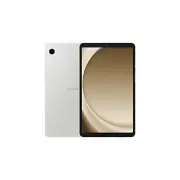
Getting started 6 Device layout and functions ▶ SM-X110 , SM-X115 , SM-X115 UD , SM-X117 : Speaker (SM-X115, SM-X115 UD) Front camera Headphone jack Speaker Light sensor Side button Volume button Microphone Touch screen Microphone Multipurpose jack (USB Type-C) SM-X115, SM-X115 UD, SM-X117: SIM card...
Page 9 - Hard buttons; Setting the Side button; Soft buttons
Getting started 9 Hard buttons Button Function Side button • Press and hold to turn the device on or off. • Press to turn on or lock the screen. • Press twice to open the app or feature you set. Side button + Volume Down button • Press simultaneously to capture a screenshot. • Press and hold simulta...
Page 10 - Charging the battery; Wired charging
Getting started 10 Charging the battery Charge the battery before using it for the first time or when it has been unused for extended periods. Wired charging Connect the USB cable to the USB power adapter and plug the cable into the device’s multipurpose jack to charge the battery. After fully charg...
Page 11 - Charging other devices
Getting started 11 Charging other devices Use the USB cable to charge another mobile device with your tablet’s battery.Connect your tablet and the other device using your tablet’s USB cable. A USB connector may be needed depending on the other device.When charging starts, the battery charging icon w...
Page 12 - Battery charging tips and precautions
Getting started 12 Battery charging tips and precautions Use only Samsung-approved battery, charger, and cable specifically designed for your device. Incompatible battery, charger, and cable can cause serious injuries or damage to your device. • Connecting the charger improperly may cause serious da...
Page 13 - Inserting the SIM or USIM card
Getting started 13 Nano-SIM card (Mobile network enabled models) Insert the SIM or USIM card provided by your carrier. Some services that require a network connection may not be available depending on the carrier. Inserting the SIM or USIM card ▶ SM-X115 , SM-X115 UD , SM-X117 : 1 2 4 3 ▶ SM-X216B ,...
Page 14 - microSD card; Inserting an SD card
Getting started 14 4 Insert the tray back into the tray slot. • Use only a nano-SIM card. • Use caution not to lose or let others use the SIM or USIM card. Samsung is not responsible for any damages or inconveniences caused by lost or stolen cards. • Ensure that the ejection pin is perpendicular to ...
Page 16 - Removing the SD card
Getting started 16 • The device supports the FAT and the exFAT file systems for SD cards. When inserting a card formatted in a different file system, the device will ask to reformat the card or will not recognise the card. To use the SD card, you must format it. If your device cannot format or recog...
Page 17 - Formatting the SD card; Turning the device on and off; Turning the device on
Getting started 17 Formatting the SD card An SD card formatted on a computer may not be compatible with the device. Format the SD card on the device. 1 Open Settings and tap Device care → Storage . 2 Swipe to the left to access the SD card page. 3 Tap → Format . Before formatting the SD card, rememb...
Page 18 - Forcing restart; Initial setup
Getting started 18 Forcing restart If your device is frozen and unresponsive, press and hold the Side button and the Volume Down button simultaneously for more than 7 seconds to restart it. Emergency call (Mobile network enabled models) You can make an emergency call or check the medical information...
Page 19 - Apps and features; Introduction
19 19 Apps and features Introduction Use apps and various features of the device. This chapter is a common manual for apps and features provided by Samsung devices.Depending on the model, some content may differ, or descriptions of apps or features not available on your device may be included.
Page 20 - Samsung account; Finding your ID and resetting your password
Apps and features 20 Samsung account Using the Samsung account, you can use a variety of Samsung services that are provided through mobile devices, TVs, and the Samsung website.To check the list of services that can be used with your Samsung account, visit account.samsung.com . 1 Open Settings and t...
Page 21 - Understanding the screen; Controlling the touch screen
Apps and features 21 Understanding the screen Controlling the touch screen Tapping Tap the screen. Touching and holding Touch and hold the screen for approximately 2 seconds. Dragging Touch and hold an item and drag it to the target position. Double tapping Double tap the screen. Swiping Swipe upwar...
Page 22 - Hiding the navigation bar
Apps and features 22 Navigation bar (soft buttons) When you turn on the screen, the soft buttons will appear on the navigation bar at the bottom of the screen. The soft buttons are set to the Recents button, Home button, and Back button by default. The functions of the buttons can change according t...
Page 23 - Home screen and Apps screen; Switching between Home and Apps screens
Apps and features 23 Home screen and Apps screen The Home screen is the starting point for accessing all of the device’s features. It displays widgets, shortcuts to apps, and more.The Apps screen displays icons for all apps, including newly installed apps. Switching between Home and Apps screens On ...
Page 24 - Editing the Home screen
Apps and features 24 Editing the Home screen On the Home screen, touch and hold an empty area, or pinch your fingers together to access the editing options. You can set the wallpaper, add widgets, and more. You can also add, delete, or rearrange Home screen panels. • Adding panels: Swipe to the left...
Page 25 - Moving items; Creating folders
Apps and features 25 Moving items Drag an item to a new location. To move the item to another panel, drag it to the side of the screen.To add a shortcut to an app on the Home screen, touch and hold an item on the Apps screen, and then tap Add to Home . A shortcut to the app will be added on the Home...
Page 26 - Taskbar; Edge panel
Apps and features 26 Taskbar The taskbar appears at the bottom of screen while using an app. The favourite apps from the bottom of the Home screen, recently used apps, and the all apps button will be displayed on the taskbar. You can switch apps by selecting the app you want from the taskbar.You can...
Page 27 - Lock screen; Changing the screen lock method; Indicator icons
Apps and features 27 Lock screen Pressing the Side button turns off the screen and locks it. Also, the screen turns off and automatically locks if the device is not used for a specified period.To unlock the screen, swipe in any direction when the screen turns on.If the screen is off, press the Side ...
Page 29 - Notification panel; Using the quick settings panel
Apps and features 29 Notification panel When you receive new notifications, indicator icons appear on the status bar. To check out more information about the icons, open the notification panel and check the details.To open the notification panel, drag the status bar downwards. To close the notificat...
Page 30 - Controlling media playback; Controlling nearby devices
Apps and features 30 Tap each button to turn the specific feature on or off. To access more detailed settings, tap the button’s text or touch and hold a button.To edit buttons, tap → Edit . Controlling media playback Control media on your tablet and connected nearby devices on the notification panel...
Page 31 - Entering text; Keyboard layout; Changing the input language
Apps and features 31 Entering text Keyboard layout A keyboard appears automatically when you enter text. Break to the next line. Delete a preceding character. Enter symbols. Enter uppercase. For all caps, tap it twice. Additional keyboard functions Move the cursor. Enter a space. Access more keyboar...
Page 32 - Copying and pasting
Apps and features 32 Copying and pasting 1 Touch and hold over text. 2 Drag or to select the desired text, or tap Select all to select all text. 3 Tap Copy or Cut . The selected text is copied to the clipboard. 4 Touch and hold where the text is to be inserted and tap Paste . To paste text that you ...
Page 33 - Installing or uninstalling apps; Galaxy Store; Uninstalling or disabling apps
Apps and features 33 Installing or uninstalling apps Galaxy Store Purchase and download apps. You can download apps that are specialised for Samsung Galaxy devices.Open the Galaxy Store app. Browse apps by category or tap to search for a keyword. • This app may not be available depending on the carr...
Page 34 - Setting app permissions; Phone
Apps and features 34 Setting app permissions For some apps to operate properly, they may need permission to access or use information on your device.To access your app permission settings, open Settings and tap Apps . Select an app and tap Permissions . You can check the app’s permissions list and c...
Page 35 - Making calls; Making calls from call logs or contacts list
Apps and features 35 Making calls 1 Open the Phone app and tap Keypad . 2 Enter a phone number. 3 Tap to make a voice call, or tap or to make a video call. Preview the phone number. More options Search for a contact. Add the number to the contacts list. Making calls from call logs or contacts list O...
Page 36 - Making an international call; Receiving calls; Answering a call; Blocking phone numbers
Apps and features 36 Making an international call 1 Open the Phone app and tap Keypad . 2 Touch and hold 0 until the + sign appears. 3 Enter the country code, area code, and phone number, and then tap . Receiving calls Answering a call When a call comes in, drag outside the large circle. Rejecting a...
Page 37 - Contacts; Creating a new contact; Searching for contacts
Apps and features 37 Contacts Introduction Create new contacts or manage contacts on the device. Adding contacts Creating a new contact 1 Open the Contacts app and tap . 2 Select a storage location. 3 Enter contact information and tap Save . Importing contacts Add contacts by importing them from oth...
Page 38 - Deleting contacts
Apps and features 38 Deleting contacts 1 Open the Contacts app and tap → Edit . 2 Select contacts and tap Delete . To delete contacts one by one, tap a contact from the contacts list and tap More → Delete . Sharing contacts You can share contacts with others by using various sharing options. 1 Open ...
Page 39 - Sending messages
Apps and features 39 Messages Introduction Send and check messages by conversation.You may incur additional charges for sending or receiving messages when you are roaming. You can use calling and messaging features on your tablet with your phone number using the Call & text on other devices feat...
Page 40 - Checking messages; Sorting messages; Changing message settings
Apps and features 40 Checking messages 1 Open the Messages app and tap Conversations . 2 On the messages list, select a contact or a phone number. • To reply to the message, tap the message input field, enter a message, and then tap . • To adjust the font size, spread two fingers apart or pinch on t...
Page 41 - Multi window; Opening apps from the taskbar
Apps and features 41 Multi window (Using multiple apps at once) Introduction Run up to three apps at the same time in the split screen view. You can also run multiple apps at the same time in the pop-up view. Split screen view Pop-up view Some apps may not support this feature. Opening apps from the...
Page 42 - Launching Multi window by swiping the screen; Opening apps using the Recents button
Apps and features 42 Launching Multi window by swiping the screen You can launch Multi window by swiping the screen.Swipe with two fingers from the side or bottom of the screen towards the middle of the screen. The screen will change to the split screen view.To change to the pop-up view, swipe from ...
Page 43 - Using additional features; Using the multi window menus; Adjusting the window size; Moving pop-up windows
Apps and features 43 Using additional features Using the multi window menus When you tap the multi window handle, the available menus will appear. Split screen view Pop-up view Multi window handle Adjusting the window size Drag the circles between the app windows to adjust the size of the windows.Wh...
Page 44 - Samsung Internet; Using Secret mode
Apps and features 44 Samsung Internet Browse the internet to search for information and bookmark your favourite webpages to access them conveniently. 1 Open the Samsung Internet app. 2 Enter the web address or a keyword, and then tap Go . If the toolbar does not appear, swipe downwards slightly on t...
Page 45 - Samsung Kids; Using parental controls features
Apps and features 45 Samsung Kids You can restrict children’s access to certain apps, set their usage times, and configure settings to provide a fun and safe environment for children when they use the device.Open the notification panel, swipe downwards, and then tap ( Kids ). If you cannot find ( Ki...
Page 46 - Samsung Health
Apps and features 46 Samsung Health Introduction Samsung Health helps you manage your wellness and fitness. Set fitness goals, check your progress, and keep track of your overall wellness and fitness. You can also compare your step count records with other Samsung Health users and check out health t...
Page 47 - Creating notes; Deleting notes
Apps and features 47 Samsung Notes Create notes by entering text from the keyboard or by handwriting or drawing on the screen. You can also insert images or voice recordings into your notes. Creating notes 1 Open the Samsung Notes app, tap , and then create a note. Enter a title. Reading mode Manage...
Page 48 - Samsung Global Goals; Galaxy Shop
Apps and features 48 Samsung Members Samsung Members offers support services to customers, such as device problem diagnosis, and lets users submit questions and error reports. You can also share information with others in the Galaxy users’ community or check the latest news and tips. Samsung Members...
Page 49 - Calendar; Creating events
Apps and features 49 Calendar Manage your schedule by entering upcoming events in your planner. Creating events 1 Open the Calendar app and tap or double tap a date. If the date already has saved events or tasks in it, tap the date and tap . 2 Enter event details and tap Save . Syncing events with y...
Page 50 - Reminder; Starting Reminder
Apps and features 50 Reminder (Receiving notifications for to-do items) Register to-do items as reminders and receive notifications according to the condition you set. • To receive more accurate notifications, connect to a Wi-Fi or mobile network. • To use location reminders, the GPS feature must be...
Page 51 - Clock; Calculator
Apps and features 51 My Files (Checking and managing the files) Access and manage various files stored in the device.Open the My Files app. To check for unnecessary data and free up the device’s storage, tap Manage storage . To search for files or folders, tap . Clock Set alarms, check the current t...
Page 52 - Gaming Hub; Removing a game from Gaming Hub; Smart View
Apps and features 52 Gaming Hub Gaming Hub gathers your games downloaded from Play Store and Galaxy Store into one place.Open the Gaming Hub app and select the game you want. Games downloaded from Play Store and Galaxy Store will be automatically shown on the Gaming Hub screen. If your games are not...
Page 53 - Samsung Flow; Connecting to a phone
Apps and features 53 Samsung Flow Connect your tablet to a phone or a computer and use them together doing things like checking notifications and sharing content.Samsung Flow must be installed on both devices that you want to connect. If Samsung Flow is not installed, download it from Galaxy Store o...
Page 54 - Daily Board; Starting Daily Board
Apps and features 54 Daily Board Introduction Use your tablet as a picture frame or bulletin board when it is charging with a USB cable or charging dock. You can enjoy a slide show with your favourite images and check information, such as the time, weather, or your calendar. You can also create a no...
Page 55 - Using Daily Board; Playing the slide show
Apps and features 55 Using Daily Board Playing the slide show You can use your device as a picture frame. Enjoy slide shows of your favourite images on Daily Board.On the Daily Board main screen, swipe to the right to play a slide show. To add your favourite images to display to a slide show, open S...
Page 56 - Configuring settings for Daily Board
Apps and features 56 Configuring settings for Daily Board Configure various settings for Daily Board and make Daily board more personalised.Open Settings and tap Advanced features → Daily Board . • Time, weather, and calendar : Change the setting for Daily Board main screen. • Memo : Turn the memo f...
Page 57 - Link to Windows; (Using the device through a computer connection); Connecting to a computer; Accessing data and notifications from your mobile device on the
Apps and features 57 Link to Windows (Using the device through a computer connection) Access and use the mobile device’s data, such as apps or pictures, on a Windows computer. • It is recommended to use the latest version of Windows and the Phone Link app to fully use this feature. • A Microsoft acc...
Page 58 - Samsung DeX; Closing Samsung DeX
Apps and features 58 Samsung DeX (SM-X210, SM-X216B, SM-X216B UD, SM-X218B) Use your mobile device’s features in an interface environment similar to a computer.Swipe downwards on the notification panel and tap ( DeX ). Alternatively, open Settings , tap Connected devices → Samsung DeX → Start DeX . ...
Page 59 - Google apps
Apps and features 59 Google apps Google provides entertainment, social network, and business apps. You may require a Google Account to access some apps.To check out more app information, access each app’s help menu. • Chrome : Search for information and browse webpages. • Gmail : Send or receive ema...
Page 60 - Taking pictures
Apps and features 60 Camera Introduction Take pictures and record videos using various modes and settings. Camera etiquette • Do not take pictures or record videos of other people without their permission. • Do not take pictures or record videos where legally prohibited. • Do not take pictures or re...
Page 62 - Using zoom features
Apps and features 62 Using zoom features Select 1x / 2x or drag it to the upwards or downwards to zoom in or out. Alternatively, spread two fingers apart on the screen to zoom in, and pinch to zoom out. • 1x : Take basic pictures or record normal videos. • 2x : Take pictures or record videos by enla...
Page 63 - Options for current shooting mode
Apps and features 63 Options for current shooting mode On the preview screen, use the following options. • : Turn the flash on or off. • : Select the length of the delay before the camera automatically takes a picture. • 3:4 / 4:3 : Select an aspect ratio for pictures. • 4x : Select a frame rate for...
Page 64 - Photo mode; Taking selfies; Video mode
Apps and features 64 Photo mode The camera adjusts the shooting options automatically depending on the surroundings.On the shooting modes list, tap PHOTO and tap to take a picture. Taking selfies You can take self-portraits with the front camera. 1 On the preview screen, swipe upwards or downwards, ...
Page 65 - Portrait mode; Food mode
Apps and features 65 Portrait mode Take pictures that focus on the face by blurring the background. 1 On the shooting modes list, tap PORTRAIT . 2 Drag the background blur adjustment bar to adjust the blur level. 3 When Ready appears on the preview screen, tap to take a picture. Background blur adju...
Page 66 - Panorama mode; Available options
Apps and features 66 Panorama mode Using panorama mode, take a series of pictures and then stitch them together to create a wide scene. 1 On the shooting modes list, tap MORE → PANORAMA . 2 Tap and move the device slowly in one direction.Keep the image within the frame on the camera’s viewfinder. If...
Page 67 - Separating the focus area and the exposure area; Night mode
Apps and features 67 Separating the focus area and the exposure area You can separate the focus area and the exposure area.Touch and hold the preview screen. The AF/AE frame will appear on the screen. Drag the frame to the area where you want to separate the focus area and the exposure area. Night m...
Page 68 - Customising camera settings
Apps and features 68 Customising camera settings On the preview screen, tap . Some options may not be available depending on the shooting mode. Intelligent features • Scene optimiser : Set the device to adjust the colour settings and apply the optimised effect automatically depending on the subject ...
Page 70 - Using Gallery
Apps and features 70 Gallery Introduction Access images and videos stored in your device. You can also manage images and videos by album or create stories. Using Gallery Open the Gallery app. Search for images and videos. Sync images and videos. More options
Page 71 - Viewing images; Cropping enlarged images
Apps and features 71 Viewing images Open the Gallery app and select an image. To view other files, swipe to the left or right on the screen. Share the image with others. Modify the image. Check details and additional features. Add the image to favourites. More options Delete the image. Image and vid...
Page 72 - Viewing videos
Apps and features 72 Viewing videos Open the Gallery app and select a video to play. To view other files, swipe to the left or right on the screen.To use more options during playback, tap → Open in Video player . Video list Configure the caption settings. More options View the content on a large scre...
Page 73 - Albums; Using the recycle bin feature
Apps and features 73 Albums Create albums and sort your images and videos. 1 Open the Gallery app and tap → Albums → → Album to create an album. 2 Select the images or videos you want to copy or move them to an album. Stories When you capture or save images and videos, the device will read their dat...
Page 74 - Voice Recorder; Quick Share; Sharing content with nearby devices
Apps and features 74 Voice Recorder Record or play voice recordings. 1 Open the Voice Recorder app. 2 Tap to start recording. Speak into the microphone. • Tap to pause recording. • While making a voice recording, tap BOOKMARK to insert a bookmark. 3 Tap to finish recording. 4 Enter a file name and t...
Page 75 - Sharing with contacts
Apps and features 75 3 Tap → Quick Share and select a device to transfer the image to. To share the link with a QR code, tap and scan the QR code. 4 Accept the file transfer request on the other device. This feature does not support sharing videos with TVs or SmartThings supported devices. To watch ...
Page 76 - Screen capture and screen record; Screen capture; How to capture a screenshot
Apps and features 76 Screen capture and screen record Screen capture Capture a screenshot while using the device and write on, draw on, crop, or share the captured screen. You can capture the current screen and scrollable area. How to capture a screenshot Use the following methods to capture a scree...
Page 77 - Screen record
Apps and features 77 Screen record Record the screen while using your device. 1 Open the notification panel, swipe downwards, and then tap ( Screen recorder ). 2 Select a sound setting and tap Start recording . After a countdown, recording will start.To write or draw on the screen, tap . 3 When you ...
Page 78 - Transferring data from your previous device; Transferring data using a USB cable
Apps and features 78 Transferring data from your previous device (Smart Switch) You can use Smart Switch to transfer data from your previous device to your new tablet.Open Settings and tap Accounts and backup → Bring data from old device . • This feature may not be supported on some devices or compu...
Page 79 - Transferring data wirelessly
Apps and features 79 Transferring data wirelessly Transfer data from your previous device to your new tablet wirelessly through Wi-Fi Direct. 1 On the previous device, open Smart Switch . If you do not have the app, download it from Galaxy Store or Play Store . 2 On your new tablet, open Settings an...
Page 80 - Transferring backup data from a computer
Apps and features 80 Transferring backup data from a computer Back up data from your previous device to a computer and import the data to your new tablet. 1 On the computer, visit www.samsung.com/smartswitch to download Smart Switch. 2 On the computer, open Smart Switch. If your previous device is n...
Page 82 - Options
Settings 82 Samsung account Sign in to your Samsung account and manage it.On the Settings screen, tap Samsung account . Connections Options Change settings for various connections, such as the Wi-Fi feature and Bluetooth.On the Settings screen, tap Connections . • Wi-Fi : Turn on the Wi-Fi feature t...
Page 83 - Connecting to a Wi-Fi network
Settings 83 • Data usage : Keep track of your data usage amount and customise the settings for the limitation. Set the device to automatically disable the mobile data connection when the amount of mobile data you have used reaches your specified limit.You can turn on the data saver feature to preven...
Page 84 - Checking out the Wi-Fi network quality information; Sharing Wi-Fi network passwords
Settings 84 Checking out the Wi-Fi network quality information Check out the Wi-Fi network quality information, such as the speed and stability.On the Settings screen, tap Connections → Wi-Fi and tap the switch to turn it on. The network quality information will appear under the Wi-Fi networks. If i...
Page 85 - Precautions for using Bluetooth; Pairing with other Bluetooth devices
Settings 85 Bluetooth Use Bluetooth to exchange data or media files with other Bluetooth-enabled devices. Precautions for using Bluetooth • Samsung is not responsible for the loss, interception, or misuse of data sent or received through Bluetooth. • Always ensure that you share and receive data wit...
Page 86 - Sending and receiving data; Data saver (Mobile network enabled models)
Settings 86 Sending and receiving data Many apps support data transfer through Bluetooth. You can share data, such as contacts or media files, with other Bluetooth devices. The following actions are an example of sending an image to another device. 1 Open the Gallery app and select an image. 2 Tap →...
Page 87 - Allowed networks for apps (Mobile network enabled models)
Settings 87 Allowed networks for apps (Mobile network enabled models) Set apps to use only a Wi-Fi or mobile data, or both.For example, you can set the device to use only mobile data for apps that you want to keep secure or streaming apps that can be disconnected. Even if you do not turn off the Wi-...
Page 88 - More connection settings; Printing; Adding printer plug-ins
Settings 88 More connection settings Customise settings to control other connection features.On the Settings screen, tap Connections → More connection settings . • Nearby device scanning : Set the tablet to scan for nearby devices to connect to. • Printing : Configure settings for printer plug-ins i...
Page 89 - Printing content; Connected devices
Settings 89 Printing content While accessing content, such as images or documents, access the options list, tap Print → → All printers... , and then select a printer. Printing methods may vary depending on the content type. Connected devices Change settings for device connections.On the Settings scr...
Page 90 - Modes and Routines; Adding modes
Settings 90 • SmartThings : Control and manage smart appliances and Internet of Things (IoT) products. When using this feature for the first time, the SmartThings app installation screen will appear. To access more information, open the SmartThings app and tap Menu → How to use . • Android Auto : Co...
Page 91 - Using routines; Adding routines; Sound / Sounds and vibration
Settings 91 Using routines Adding routines 1 On the Settings screen, tap Modes and Routines → Routines . 2 Tap and select a routine you want or tap to add your own routines.If you want to set the routine’s running condition to manual, tap Start manually . This option will appear only when there are ...
Page 92 - Sound quality and effects
Settings 92 • System sound : Change the sound to use for certain actions, such as charging the device. • Volume : Adjust the device’s volume level. • Call vibration : Change the call vibration settings. • Notification vibration : Change the notification vibration settings. • System vibration : Set t...
Page 93 - Separate app sound
Settings 93 Separate app sound Set the device to play media sound from a specific app on the connected Bluetooth speaker or headset.For example, you can listen to the Navigation app through your device’s speaker while listening to playback from the Music app through the vehicle’s Bluetooth speaker. ...
Page 94 - Display
Settings 94 Display Options Change the display and the Home screen settings.On the Settings screen, tap Display . • Light / Dark : Turn Dark mode on or off. • Dark mode settings : Reduce eye strain by applying the dark theme when using the device at night or in a dark place. You can set a schedule f...
Page 96 - Wallpaper and style
Settings 96 Battery Check the remaining battery power and time to use the device. For devices with low battery levels, conserve battery power by turning on power saving features.On the Settings screen, tap Battery . • Power saving : Turn on power saving mode to extend the battery’s usage time. • Bac...
Page 97 - Extend Unlock
Settings 97 Lock screen Options Change the settings for the locked screen.On the Settings screen, tap Lock screen . • Screen lock type : Change the screen lock method. • Extend Unlock : Set the device to unlock itself when trusted locations or devices are detected. Refer to Extend Unlock for more in...
Page 98 - Security and privacy
Settings 98 Security and privacy Options Check the device’s security and privacy status and change the settings.On the Settings screen, tap Security and privacy . • Lock screen : Change the settings for the locked screen. • Account security : Change the settings for your accounts. • Lost device prot...
Page 99 - Precautions for using face recognition
Settings 99 Face recognition You can set the device to unlock the screen by recognising your face. • If you use your face as a screen lock method, your face cannot be used to unlock the screen for the first time after turning on the device. To use the device, you must unlock the screen using the pat...
Page 100 - Registering your face
Settings 100 Registering your face For better face registration, register your face indoors and out of direct sunlight. 1 On the Settings screen, tap Security and privacy → Biometrics → Face recognition . 2 Read the on-screen instructions and tap Continue . 3 Set a screen lock method. 4 Position you...
Page 101 - Secure Folder; Setting up Secure Folder
Settings 101 Secure Folder Secure Folder protects your private content and apps, such as pictures and contacts, from being accessed by others. You can keep your private content and apps secure even when the device is unlocked. Secure Folder is a separate, secured storage area. The data in Secure Fol...
Page 102 - Moving content to Secure Folder; Removing apps from Secure Folder
Settings 102 Moving content to Secure Folder Move content, such as pictures and videos, to Secure Folder. The following actions are an example of moving an image from the default storage to Secure Folder. 1 Open the Secure Folder app and tap → Add files . 2 Tap Images , tick images to move, and then...
Page 103 - Adding accounts
Settings 103 Adding accounts Add your Samsung and Google accounts, or other accounts, to sync with the apps in Secure Folder. 1 Open the Secure Folder app and tap → Settings → Manage accounts → Add account . 2 Select an account service. 3 Follow the on-screen instructions to complete the account set...
Page 104 - Selecting apps to protect using Secure Wi-Fi
Settings 104 Secure Wi-Fi Secure Wi-Fi is a service that secures your Wi-Fi network connection. It encrypts data using Wi-Fi networks and disables tracking apps and websites so that you can use Wi-Fi networks safely. For example, when using an unsecure Wi-Fi network in public places, such as cafes o...
Page 105 - Location
Settings 105 Location Change settings for location information permissions.On the Settings screen, tap Location . • App permissions : Check the list of apps that have permission to access the device’s location and edit the permission settings. • Location services : Set the device to use the Wi-Fi or...
Page 106 - Accounts and backup
Settings 106 Accounts and backup Options Sync, back up, or restore your device’s data using Samsung Cloud. You can also sign in to accounts, such as your Samsung account or Google Account, or transfer data to or from other devices through Smart Switch.On the Settings screen, tap Accounts and backup ...
Page 107 - Adding users
Settings 107 Users Set up additional user accounts for other users to use the device with personalised settings, such as email accounts, wallpaper preferences, and more. Following types of user accounts are available: • Administrator : The administrator account is created only when setting up the de...
Page 108 - Switching users; Managing users
Settings 108 Switching users Tap the user account icon at the top of the locked screen and select an account to switch to. Locked screen Managing users When using the administrator account, you can delete accounts or change account settings.On the Settings screen, tap Accounts and backup → Users . T...
Page 109 - Samsung Cloud; Backing up data
Settings 109 Samsung Cloud Back up your device’s data to Samsung Cloud and restore it later. Backing up data You can back up your device’s data to Samsung Cloud. 1 On the Settings screen, tap Accounts and backup and tap Back up data under Samsung Cloud . 2 Tap the switches next to the items you want...
Page 110 - Google
Settings 110 Google Configure settings for some features provided by Google.On the Settings screen, tap Google . Advanced features Options Turn on advanced features and change the settings that control them.On the Settings screen, tap Advanced features . • Labs : Use new features of the device. • Si...
Page 111 - Motions and gestures
Settings 111 • Daily Board : Set the device to show a slideshow with selected features while charging. Refer to Daily Board for more information. • Accessories : Change the accessory settings. • Dual Messenger : Install the second app and use two separate accounts for the same messenger app. Refer t...
Page 112 - Dual Messenger; Uninstalling a second app
Settings 112 Dual Messenger Install the second app and use two separate accounts for the same messenger app. 1 On the Settings screen, tap Advanced features → Dual Messenger . Supported apps will appear. 2 Tap the switch of an app to install the second app.The second app will be installed. The secon...
Page 113 - Digital Wellbeing and parental controls
Settings 113 Digital Wellbeing and parental controls Check the history of your device usage and use features to prevent your device from interfering with your life. You can also set up parental controls for your children and manage their digital use.On the Settings screen, tap Digital Wellbeing and ...
Page 114 - Storage
Settings 114 Battery Check the remaining battery power and time to use the device. For devices with low battery levels, conserve battery power by turning on power saving features.On the Settings screen, tap Device care → Battery . Refer to Battery for more information. Storage Check the status of th...
Page 115 - Performance
Settings 115 Performance On the Settings screen, tap Device care . • Auto optimisation : Perform auto optimisation by closing background apps or cleaning up memory, to keep the device running in its best condition.Tap Auto restart to set the device to restart automatically when performance issues ar...
Page 116 - General management
Settings 116 General management Customise your device’s system settings or reset the device.On the Settings screen, tap General management . • Language : Select device languages. Refer to Adding device languages for more information. • App languages : Select the language you want to use for each app...
Page 117 - Accessibility
Settings 117 Adding device languages You can add languages to use on your device. 1 On the Settings screen, tap General management → Language → Add language . To check out all the languages that can be added, tap → All languages . 2 Select a language to add. 3 To set the selected language as the def...
Page 118 - Security updates information; Remote support
Settings 118 Software update Update your device’s software through the firmware over-the-air (FOTA) service. You can also schedule software updates.On the Settings screen, tap Software update . • Download and install : Check for and install updates manually. • Auto download over Wi-Fi : Set the devi...
Page 119 - About tablet
Settings 119 About tablet Access your device’s information.On the Settings screen, tap About tablet . To change your device’s name, tap Edit . • Status information : Check out various device information, such as the Wi-Fi MAC address and serial number. • Legal information : Access legal information ...
Page 121 - Precautions for using the device
Usage notices 121 Precautions for using the device Please read this manual when using the device to ensure safe and proper use. • Descriptions are based on the device’s default settings. • Some content may differ from your device depending on the region, service provider, model specifications, or de...
Page 123 - Instructional icons; Notes on package contents and accessories
Usage notices 123 Instructional icons Warning : situations that could cause injury to yourself or others Caution : situations that could cause damage to your device or other equipment Notice : notes, usage tips, or additional information Notes on package contents and accessories Refer to the quick s...
Page 124 - Device overheating situations and solutions; When the device heats up while charging the battery; Do the following when the device heats up:; When the device heats up during use
Usage notices 124 Device overheating situations and solutions When the device heats up while charging the battery While charging, the device and the charger may become hot. During wireless charging or fast charging, the device may feel hotter to the touch. This does not affect the device’s lifespan ...
Page 126 - Precautions for device overheating
Usage notices 126 Precautions for device overheating If you begin to feel uncomfortable because of the device overheating, stop using the device.When the device heats up, the features and performance may be limited or the device may turn off to cool down. The feature is only available on supported m...
Page 127 - Precautions for operating environment
Usage notices 127 Precautions for operating environment Your device may heat up because of the environment in the following conditions. Use caution to avoid shortening the battery’s lifespan, damaging the device, or causing a fire. • Do not store your device in very cold or very hot temperatures. • ...
Page 129 - Troubleshooting; When you turn on your device or while you are using the device, it; Your device displays network or service error messages
Appendix 129 Troubleshooting Before contacting a Samsung Service Centre or an authorised service centre, please attempt the following solutions. Some situations may not apply to your device.You can also use Samsung Members to solve any problems you might encounter while using your device. When you t...
Page 130 - The touch screen responds slowly or improperly; Restarting the device
Appendix 130 The touch screen responds slowly or improperly • If you attach a screen protector or optional accessories to the touch screen, the touch screen may not function properly. • If you are wearing gloves, if your hands are not clean while touching the touch screen, or if you tap the screen w...
Page 132 - The battery depletes faster than when first purchased; Error messages appear when opening the camera; Error messages appear when opening multimedia files
Appendix 132 The battery depletes faster than when first purchased • When you expose the device or the battery to very cold or very hot temperatures, the useful charge may be reduced. • Battery consumption will increase when you use certain features or apps, such as GPS, games, or the internet. • Th...
Page 133 - Bluetooth is not working well
Appendix 133 • Your device supports pictures and videos captured with the device. Pictures and videos captured by other devices may not work properly. • Your device supports multimedia files that are authorised by your carrier or providers of additional services. Some content circulated on the inter...
Page 134 - Data stored in the device has been lost; A small gap appears around the outside of the device case; The Home button does not appear; Removing the battery
Appendix 134 Data stored in the device has been lost Always make backup copies of all important data stored in the device. Otherwise, you cannot restore data if it is damaged or lost. Samsung is not responsible for the loss of data stored in the device. A small gap appears around the outside of the ...
Page 135 - Copyright; Trademarks
Copyright Copyright © 2024 Samsung Electronics Co., Ltd.This manual is protected under international copyright laws.No part of this manual may be reproduced, distributed, translated, or transmitted in any form or by any means, electronic or mechanical, including photocopying, recording, or storing i...


 Samsung SM-W620 User Manual
 Samsung SM-W700 User Manual
 Samsung SM-W720 User Manual
 Samsung SM-X205 User Manual
 Samsung SM-X210 User Manual
 Samsung SM-X700 User Manual
 Samsung SM-X706B User Manual
 Samsung SM-X716B User Manual
 Samsung SM-X800 User Manual