Page 2 - Table of contents
2 Table of contents Before Using the Product Copyright 4 Securing the Installation Space 5 Precautions for storage 5 Safety Precautions 5 Symbols 5Cleaning 6Electricity and Safety 6 Installation 7Operation 9 Correct posture to use the product 12 Preparations Checking the Components 13 Components 13 ...
Page 4 - Copyright; Before Using the Product
4 Copyright The contents of this manual are subject to change without notice to improve quality. ⓒ 2015 Samsung Electronics Samsung Electronics owns the copyright for this manual. Use or reproduction of this manual in parts or entirety without the authorization of Samsung Electronics is prohibited. ...
Page 5 - Securing the Installation Space; Precautions for storage; Safety Precautions; Caution; RISK OF ELECTRIC SHOCK DO NOT OPEN; Symbols; Warning
5 Securing the Installation Space Ensure some space around the product for ventilation. An internal temperature rise may cause fire and damage the product. Be sure to allow the amount of space as shown below or greater when installing the product. ― The exterior may differ depending on the product. ...
Page 6 - Cleaning; Electricity and Safety
6 Cleaning ― Exercise care when cleaning as the panel and exterior of advanced LCDs are easily scratched. ― Take the following steps when cleaning. ― The following images are for reference only. Real-life situations may differ from what is shown in the images. 1 Power off the product and computer. 2...
Page 7 - Installation
7 Do not bend or pull the power cord with force. Be careful not to leave the power cord under a heavy object. • Damage to the cord may result in a fire or electric shock. Do not place the power cord or product near heat sources. • A fire or electric shock may result. ! Clean any dust around the pins...
Page 9 - Operation
9 Operation Warning There is a high voltage inside the product. Never disassemble, repair or modify the product yourself. • A fire or electric shock may result. • Contact Samsung Customer Service Centre for repairs. ! To move the product, first disconnect all the cables from it, including the power ...
Page 12 - Correct posture to use the product
12 Correct posture to use the product Use the product in the correct posture as follows: • Straighten your back. • Allow a distance of 45 to 50cm between your eye and the screen, and look slightly downward at the screen. Keep your eyes directly in front of the screen. • Adjust the angle so light doe...
Page 13 - Preparations; Checking the Components; Components
13 Preparations Chapter 02 Checking the Components - Contact the vendor where you purchased the product if any components are missing. - The appearance of the components may differ from the images shown. - The optimal resolution may not be available when using a non-high speed HDMI or HDMI-DVI cable...
Page 14 - Parts; Control Panel; Icons
14 Parts Control Panel ― The colour and shape of parts may differ from what is shown. Specifications are subject to change without notice to improve quality. 2 LEFT Return JOG Button Function Key Guide RIGHT DOWN PRESS(ENTER) UP Icons Description JOG Button Multi directional button that helps naviga...
Page 15 - Direct Key guide
15 Direct Key guide Brightness Volume Features Eye Saver Mode Off ― The shortcut button screen (OSD menu) shown below is displayed only when the monitor screen is turned on, the computer resolution changes, or the input source changes. • UP/DOWN: Adjust Brightness , Contrast , Sharpness . • LEFT/RIG...
Page 18 - Reverse Side; Port
18 Reverse Side ― The colour and shape of parts may differ from what is shown. Specifications are subject to change without notice to improve quality. 2 Port Description Connects to a PC using a DP cable. Connects to a source device using an HDMI cable or HDMI-DVI cable. Connect to an audio output d...
Page 19 - Attaching the Stand
19 Installation Attaching the Stand ― Before assembling the product, place the product down on a flat and stable surface so that the screen is facing downwards. : The product is curved. Placing pressure on the product when on a flat surface may damage the product. When the product is on the ground f...
Page 20 - Removing the Stand
20 Removing the Stand ― Before assembling the product, place the product down on a flat and stable surface so that the screen is facing downwards. : The product is curved. Placing pressure on the product when on a flat surface may damage the product. When the product is on the ground facing up or do...
Page 21 - Adjusting the Product Tilt
21 Adjusting the Product Tilt ― The colour and shape of parts may differ from what is shown. Specifications are subject to change without notice to improve quality. 0˚ (±2˚) ~ 15˚ (±2˚) • You can adjust the product tilt. • Hold the lower part of the product and adjust the tilt carefully.
Page 23 - Installing the Wall Mount; Installing the Wall Mount Kit
23 Installing the Wall Mount Installing the Wall Mount Kit The wall mount kit allows you to mount the product on the wall. Purchase a compatible wall-mount kit to use with the product. For detailed information on installing the wall mount, see the instructions provided with the wall mount. We recomm...
Page 24 - Model name
24 Wall Mount Kit Specifications (VESA) ― Install your wall mount on a solid wall perpendicular to the floor. Before attaching the wall mount to surfaces other than plaster board, please contact your nearest dealer for additional information. If you install the product on a slanted wall, it may fall...
Page 25 - Connecting and Using a Source Device; Before Connecting; Pre-connection Checkpoints; Connecting and Using a PC; Connection Using the HDMI Cable
25 Connecting and Using a Source Device Chapter 03 Before Connecting Check the following before you connect this product with other devices. Pre-connection Checkpoints ― Before connecting a source device, read the user manual provided with it. The number and locations of ports on source devices may ...
Page 26 - Connection Using an HDMI-DVI Cable; Connection Using the DP Cable
26 Connection Using an HDMI-DVI Cable ― Do not connect the power cable before connecting all other cables. Ensure you connect a source device first before connecting the power cable. HDMI IN 1, HDMI IN 2 2 1 Connect the HDMI-DVI cable to the HDMI IN 1 or HDMI IN 2 port on the back of the product and...
Page 27 - Connecting to Headphones or Speakers; Connecting the Power; Power connection using detachable DC power adapter
27 Connecting to Headphones or Speakers ― Do not connect the power cable before connecting all other cables. Ensure you connect a source device first before connecting the power cable. 2 1 Connect an audio output device such as headphones to port on the product. ― Provided ports may vary depending o...
Page 28 - Driver Installation; Setting Optimum Resolution
28 Driver Installation ― You can set the optimum resolution and frequency for this product by installing the corresponding drivers. ― To install the latest version of the product driver, download it from the Samsung Electronics website at http://www.samsung.com. 1 Click on the "Windows Driver�...
Page 29 - Screen Setup; SAMSUNG MAGIC Bright; Configuring SAMSUNG MAGIC Bright
29 Screen Setup Configure the screen settings such as brightness.A detailed description of each function is provided. Refer to your product for details. Chapter 04 SAMSUNG MAGIC Bright This menu provides an optimum picture quality suitable for the environment where the product will be used.You can c...
Page 31 - Configuring Brightness
31 Brightness You can adjust the general brightness of the picture. (Range: 0~100)A higher value will make the picture appear brighter. ― This menu is not available when SAMSUNG M A G I C Bright is set to Dynamic Contrast mode. ― This menu is not available when Eco Saving Plus is set . ― This menu i...
Page 32 - Contrast; Configuring Contrast
32 Contrast Adjust the contrast between the objects and background. (Range: 0~100)A higher value will increase the contrast to make the object appear clearer. ― This option is not available when SAMSUNG M A G I C Bright is in Cinema or Dynamic Contrast mode. ― This menu is not available when Game Mo...
Page 33 - Sharpness; Configuring Sharpness
33 Sharpness Make the outline of objects more clear or blurry. (Range: 0~100)A higher value will make the outline of objects clearer. ― This option is not available when SAMSUNG M A G I C Bright is in Cinema or Dynamic Contrast mode. ― This menu is not available when Game Mode is enabled. SAMSUNG M ...
Page 34 - Configuring Color
34 Color A detailed description of each function is provided. Refer to your product for details. ― Adjust the tint of the screen. This menu is not available when SAMSUNG M A G I C Bright is set to Cinema or Dynamic Contrast mode. ― This menu is not available when Game Mode is enabled. ― This menu is...
Page 35 - HDMI Black Level; Configuring the HDMI Black Level Settings
35 HDMI Black Level If a DVD player or set-top box is connected to the product via HDMI, image quality degradation (contrast/colour degradation, black level, etc.) may occur, depending on the connected source device. In such case, HDMI Black Level can be used to adjust the image quality. If this is ...
Page 36 - Configuring Eye Saver Mode
36 Eye Saver Mode Set to an optimum picture quality suitable for eye relaxation.TÜV Rheinland “Low Blue Light Content” is a certification for products which meet requirements for lower blue light levels. When Eye Saver Mode is ' On ', the blue light that wavelength is around 400nm will become lower ...
Page 37 - Game Mode; Configuring Game Mode
37 Game Mode Configure the product screen settings for game mode.Use this feature when playing games on a PC or when a game console such as PlayStation™ or Xbox™ is connected. ― This menu is not available when Eye Saver Mode is enabled. Picture Game Mode Response Time Picture Size Screen Adjustment ...
Page 38 - Response Time; Configuring the Response Time
38 Response Time Accelerate the panel response rate to make video appear more vivid and natural. ― It is best to set Response Time to Standard or Faster when you are not viewing a movie. Picture Game ModeResponse TimePicture Size Screen Adjustment Accelerate the panel response rate to make video app...
Page 39 - Picture Size; Changing the Picture Size
39 Picture Size Change the picture size. In PC mode Game Mode Response Time Picture Size Screen Adjustment Picture Off Choose the size and aspect ratio of the picture displayed on screen. Auto Wide Return - The displayed image may differ depending on the model. Changing the Picture Size 1 When the F...
Page 42 - Coordinating OSD; Transparency; Changing Transparency
42 Coordinating OSD A detailed description of each function is provided. Refer to your product for details. Chapter 05 Transparency Set the transparency for the menu windows. 한국어 OnScreen Display Transparency Language Display Time Configure the transparency of the menu windows. Off On Return - The d...
Page 43 - Language; Configuring Language
43 Language Set the menu language. ― A change to the language setting will only be applied to the onscreen menu display. ― It will not be applied to other functions on your PC. 20 초 DeutschEnglishEspañolFrançaisItaliano OnScreen Display Transparency Language Display Time Set the menu language. Retur...
Page 44 - Configuring Display Time
44 Display Time Set the on-screen display (OSD) menu to automatically disappear if the menu is not used for a specified period of time. Display Time can be used to specify the time after which you want the OSD menu to disappear. OnScreen Display Transparency Language Display Time Set how long the me...
Page 45 - Setup and Reset; Configuring Volume
45 Setup and Reset A detailed description of each function is provided. Refer to your product for details. Chapter 06 Sound Sound Eco Saving Plus Off Timer PC/AV Mode DisplayPort Ver. Source Detection Key Repeat Time System Off 1.2 Auto Acceleration Return Volume Sound Mode Select Sound Sound 50 Sta...
Page 46 - Configuring Sound Mode
46 Configuring Sound Mode ― Applicable when speakers are connected. Volume Sound Mode Select Sound Sound StandardMusicMovieClear Voice Return - The displayed image may differ depending on the model. 1 When the Function Key Guide appears, select by moving the JOG button UP. Next, press the JOG button...
Page 47 - Configuring Select Sound
47 Configuring Select Sound VolumeSound ModeSelect Sound Sound StereoLeft ChannelRight Channel 50 Return - The displayed image may differ depending on the model. 1 When the Function Key Guide appears, select by moving the JOG button UP. Next, press the JOG button. 2 Move to System controlling the JO...
Page 48 - Eco Saving Plus; Configuring Eco Saving Plus
48 Eco Saving Plus The Eco Saving Plus function reduces power consumption by controlling the electric current used by the monitor panel. ― This option is not available when SAMSUNG M A G I C Bright is in Dynamic Contrast mode. ― This menu is not available when Game Mode is enabled. ― This menu is no...
Page 49 - Configuring Off Timer
49 Off Timer You can set the product to automatically turn off. Sound Eco Saving Plus Off Timer PC/AV Mode DisplayPort Ver. Source Detection Key Repeat Time System Enable or disable the Off Timer. Off 1.2 Acceleration Auto Return 해제 동작 Off TimerTurn Off After Off Timer Enable or disable the Off Time...
Page 50 - Configuring Turn Off After
50 Off TimerTurn Off After Off Timer Set the monitor to automatically turn off after a certain time period. Off 4h Return - The displayed image may differ depending on the model. Configuring Turn Off After ― This option is only available when Off Timer is set to On . 1 When the Function Key Guide ap...
Page 51 - Configuring PC/AV Mode
51 PC/AV Mode Set PC/AV Mode to AV . The picture size will be enlarged. This option is useful when you view a movie. Sound Eco Saving Plus Off Timer PC/AV Mode DisplayPort Ver. Source Detection Key Repeat Time System Set to AV to enlarge the picture. Off 1.2 Acceleration Auto Return PC/AV Mode Displ...
Page 52 - Configuring DisplayPort Ver.
52 DisplayPort Ver. Select your Displayport. Displayport 1.1 supports High Bit Rate 1, while 1.2 supports High Bit Rate 2. 자동 가속반복 Sound Eco Saving Plus Off Timer PC/AV Mode DisplayPort Ver. Source Detection Key Repeat Time Off System Select your Displayport. Displayport 1.1 supports HBR 1, while 1....
Page 53 - Configuring Source Detection
53 Source Detection You can activate Source Detection . 자동 가속반복 Sound Eco Saving Plus Off Timer PC/AV Mode DisplayPort Ver. Source Detection Key Repeat Time Off System Decide how input sources will be detected. Auto Manual Return - The displayed image may differ depending on the model. Configuring S...
Page 54 - Key Repeat Time; Configuring Key Repeat Time
54 Key Repeat Time Control the response rate of a button when the button is pressed. 자동 가속반복 Sound Eco Saving Plus Off Timer PC/AV Mode DisplayPort Ver. Source Detection Key Repeat Time System Configure the response rate of a button when the button is pressed. Acceleration1 sec2 sec No Repeat Off Re...
Page 55 - Configuring Power LED On
55 Power LED On Configure the settings to enable or disable the power LED located at the lower part of the product. Power LED On Reset All System Set the status of the power LED. Working Stand-by Return - The displayed image may differ depending on the model. Configuring Power LED On 1 When the Func...
Page 56 - Reset All
56 Reset All Return all the settings for the product to the default factory settings. Power LED On Reset All System Return all the settings for the product to the default factory settings. Stand-by Return All the menu settings will be reset to default. Are you sure you want to reset? Yes No - The di...
Page 57 - Information Menu and Others; Displaying Information
57 Information Menu and Others A detailed description of each function is provided. Refer to your product for details. Chapter 07 Information View the current input source, frequency and resolution. Picture OnScreen Display System Information DisplayPort **** x **** **kHz **Hz PP Information Exit - ...
Page 60 - Installing the Software; System Requirements; OS; Removing the Software
60 Installing the Software Chapter 08 Easy Setting Box Easy Setting Box Easy Setting Box enables users to use the monitor by partitioning multiple sections. Installing the Software 1 To install the latest version of Easy Setting Box , download it from the Samsung Electronics website at http://www.sa...
Page 61 - Troubleshooting Guide; Testing the Product; Checking the Resolution and Frequency
61 Troubleshooting Guide Chapter 09 Requirements Before Contacting Samsung Customer Service Centre Before calling Samsung Customer Service Centre, test your product as follows. If the problem persists, contact Samsung Customer Service Centre. Testing the Product Check if your product is operating no...
Page 62 - Screen issue; Issues
62 Check the following. Installation issue (PC mode) Issues Solutions The screen keeps switching on and off. Check the cable connection between the product and PC, and ensure the connectors are locked. Blank spaces are found on all four sides of the screen when an HDMI or HDMI-DVI cable is connected...
Page 64 - Sound issue; Source device issue
64 Sound issue Issues Solutions There is no sound. Check the connection of the audio cable or adjust the volume. Check the volume. The volume is too low. Adjust the volume. If the volume is still low after turning it up to the maximum level, adjust the volume on your PC sound card or software progra...
Page 67 - Specifications; General; Model Name
67 Specifications Chapter 10 - Size - Display area H V - Dimensions ( W x H x D) W D H General Model Name S32E590C Panel Size 32 Class (31.5 Inches / 80 cm) Display area 698.40 mm (H) x 392.85 mm ( V )27.5 Inches (H) x 15.5 Inches ( V ) Pixel Pitch 0.36375mm (H) x 0.36375mm ( V )0.014321 Inches (H) ...
Page 69 - PowerSaver
69 PowerSaver The power-saving function of this product reduces power consumption by switching off the screen and changing the colour of the power LED if the product is not used for a specified period of time. The power is not turned off in power-saving mode. To switch the screen back on, press any ...
Page 72 - Appendix; Responsibility for the Pay Service; Not a product defect; Others
72 Appendix Chapter 11 Responsibility for the Pay Service (Cost to Customers) ― When the service is requested, in spite of in warranty, we may charge you for a visit from a service technician in the following cases. Not a product defect Cleaning of the product, Adjustment, Explanation, Re-installati...
Page 73 - Correct Disposal
73 Correct Disposal Correct Disposal of This Product (Waste Electrical & Electronic Equipment) (Applicable in countries with separate collection systems)This marking on the product, accessories or literature indicates that the product and its electronic accessories (e.g. charger, headset, USB ca...
Page 74 - Terminology
74 Terminology OSD (On Screen Display) ____ On screen display (OSD) allows you to customize on-screen settings to optimize the picture quality as required. You can change the screen brightness, tint, size and many other settings using menus displayed on the screen. Gamma ____ The Gamma menu adjusts ...
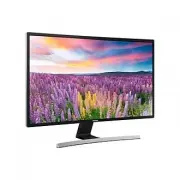


 Samsung S27R750QEU User Manual
 Samsung S29E790C User Manual
 Samsung S32AM500NR User Manual
 Samsung S32AM501NU User Manual
 Samsung S32AM700UR User Manual
 Samsung S32D850T User Manual
 Samsung S32F351FUU User Manual
 Samsung S32R750UEU User Manual
 Samsung S32R754UEU User Manual
 Samsung S34E790C User Manual
 Samsung S34J550WQR User Manual
 Samsung S34J550WQU User Manual