Page 2 - Digital TV notice; Still image warning
Figures and illustrations in this User Manual are provided for reference only and may differ from actual product appearances. Product design and specifications may be changed without notice. Digital TV notice 1. Functionalities related to Digital TV (DVB) are only available in countries/areas where ...
Page 3 - Contents
Check the Symbol! Note Indicates additional information. English - 3 Contents Getting Started Safety Precautions ........................................................... 4 Providing Proper Ventilation for Your Product ......... 12 Accessories and Cables ..............................................
Page 4 - Getting Started; Safety Precautions; WARNING; Power Related; Warning
English - 4 Getting Started Safety Precautions Icons used for safety precautions WARNING Failing to follow the precautions marked with this sign may result in a serious injury or even a fatality. CAUTION Failing to follow the precautions marked with this sign may result in a personal injury or prope...
Page 5 - Caution; Installation Related
Getting Started English - 5 Keep the power cord and the product away from a heater. ● Otherwise, it may result in electric shock or fire. If the pins of the power plug or the wall outlet are covered in dust, clean it using a dry cloth. ● Otherwise, it may result in fire. Caution Avoid unplugging the...
Page 7 - Cleaning Related
Getting Started English - 7 If the product is installed in a location where the operating conditions vary considerably, a serious quality problem may occur due to the surrounding environment. In this case, install the product only after consulting one of our service engineers about the matter. ● Pla...
Page 8 - Usage Related
Getting Started English - 8 If you can't get the product clean with just the cloth, use a soft, damp cloth with a "monitor- exclusive cleansing agent" and wipe the product with it. ● If no monitor-exclusive cleansing agent is available, dilute a cleansing agent with water at a ratio of 1:10 ...
Page 12 - Providing Proper Ventilation for Your Product; Other Warnings
Providing Proper Ventilation for Your Product When you install your product, maintain a distance of at least 10 cm between the product and other objects (walls, cabinet sides, etc.) to ensure proper ventilation. Failing to maintain proper ventilation may result in a fire or a problem with the produc...
Page 13 - Accessories and Cables
Accessories and Cables Make sure that the following items are included with your TV. If there are any items missing, contact your local dealer. [ [CAUTION] INSERT SECURELY LEST SHOULD BE DETACHED IN SET Remote Control & Batteries (AAA x 2)Warranty Card / Safety Guide / Quick Setup Guide (Dependi...
Page 15 - Installing the Stand
Page 16 - Using the Control Panel; Standby mode
Using the Control Panel " The product colour and shape may vary depending on the model. " The product’s Controller, like button on the rear right side of the TV, lets you control the TV without the remote control. Remote control sensor TV controller Control Menu Press: Move Press & Hold:...
Page 17 - The Standard Remote Control Buttons
The Standard Remote Control Buttons " This remote control has Braille points on the Power, Channel, and Volume buttons and can be used by visually impaired persons. " Learn where the function buttons are on your remote, such as: SOURCE , < P > , MENU , TOOLS , E , INFO , CH LIST , RETU...
Page 19 - How to Navigate Menus
How to Navigate Menus Your product’s Main and Tools menus contains functions that let you control the product’s features. For example, in the Main menu you can change the size and configuration of the picture, its brightness, its contrast and so on. There are also functions that let you control the ...
Page 20 - Connecting the Power
Connecting the Power Cord and the Aerial or Cable Connection or Aerial Cable VHF/UHF Aerial Cable " Plug the power cord into a wall outlet only after you have made all other connections. " If you are connecting your product to a cable or satellite box using HDMI, Component, or Composite conn...
Page 21 - Connections
Connecting to AV Devices (Blu-ray Players, DVD Players, etc.) Using an HDMI Cable for an HD connection (up to 1080p, HD digital signals) For the best quality HD picture, we recommend using an HDMI connection.Use with DVD players, Blu-ray players, HD cable boxes, and HD Set-Top-Box satellite receiver...
Page 22 - Sharing Mobile Device Screens On the Displayer
Sharing Mobile Device Screens On the Displayer This displayer is capable of displaying mobile device screens. You can use the following features to enjoy video, photo, and music files from mobile devices directly on your displayer.Use an MHL cable to display a mobile device's screen on the displayer...
Page 24 - Connecting to Audio Devices; Using a Headphone Cable Connection
Connecting to Audio Devices Using a Headphone Cable Connection Headphone Cable " Headphones H : You can connect your headphones to the headphone output jack on your product. While the headphones are connected, the sound from the built-in speakers will be disabled. — The sound function may be res...
Page 25 - Connecting to a PC
Connecting to a PC Using an HDMI Cable or an HDMI to DVI Cable or a D-sub Cable Connection " Your PC may not support an HDMI connection. " Use your PC speakers for audio. HDMI Cable D-sub Cable HDMI to DVI Cable Stereo Cable Stereo Cable " NOTE — For an HDMI to DVI cable connection, you ...
Page 26 - Using the “CI or CI+ CARD”
Connecting to a COMMON INTERFACE slot (Your product viewing Card Slot) Using the “CI or CI+ CARD” To watch paid channels, the “CI or CI+ CARD” must be inserted. ● If you don’t insert the “CI or CI+ CARD”, some channels will display the message “Scrambled Signal”. ● The pairing information containing...
Page 28 - Changing the Input Source; Source; How to Use Edit Name; Information
Changing the Input Source Source When you are watching product and you want to watch a movie on your DVD player or Blu-ray player or switch to your cable box or STB satellite receiver, you need to change the Source. TV / PC / HDMI1/DVI / HDMI2 / AV / Component 1. Press the SOURCE s button on your re...
Page 29 - Correct posture to use the product; Basic Features
Correct posture to use the product Use the product in the correct posture as follows. ● Straighten your back. ● Adjust the angle so light does not reflect on the screen. ● Keep your forearms perpendicular to your upper arms and level with the back of your hands. ● Keep your elbows at about a right a...
Page 30 - Changing the Preset Picture Mode; Picture Mode
Changing the Preset Picture Mode Picture Mode MENU → Picture → Picture Mode Picture modes apply preset adjustments to the picture. ● Dynamic Suitable for a bright room. ● Standard Suitable for a normal environment. ● Movie Suitable for watching movies in a dark room. ● Entertain Sharpens the picture...
Page 31 - Adjusting Picture Settings; Backlight; Sharpness; Colour; To adjust picture quality, follow these steps:
Adjusting Picture Settings Backlight MENU → Picture → Backlight Adjusts the brightness of the screen by adjusting the brightness of the individual pixels. Contrast MENU → Picture → Contrast Increases or decreases the contrast between dark and light areas of the picture. Brightness MENU → Picture → B...
Page 32 - Changing the Picture Size; Picture Size
Changing the Picture Size Picture Size MENU → Picture → Picture Size Using this function, you can make change to various picture size and aspect ratio options. Picture Size If you have a cable box or satellite receiver, it may have its own set of screen sizes as well. However, we highly recommend yo...
Page 33 - Picture Sizes available by Input Source:
To use the Position function after selecting Wide Zoom , Zoom or Screen Fit , follow these steps: 1. Select the Position . 2. On the Position screen, select Position , and then move the picture to position you want using your remote. 3. When done, select Position again, and then select Close . 4. To...
Page 34 - Calibrating the Screen Display; Auto Adjustment; PC Screen Adjustment; Using Your Product as a Computer (PC) Display
Calibrating the Screen Display Auto Adjustment MENU → Picture → Auto Adjustment Automatically adjusts the picture's frequency, position, and fine tune settings in the PC mode. " Available only when you connect your PC to the product with a D-Sub cable. PC Screen Adjustment MENU → Picture → PC Sc...
Page 35 - PIP
Picture In Picture (PIP) PIP MENU → Picture → PIP View two sources on the TV at the same time. ● PIP Activate or deactivate the PIP function. ● Source Changes the source. ● Aerial Choose between Terrestrial or Cable . ● Channel Select the channel for the sub-picture screen. ● Size ( õ / ä / ã ) The ...
Page 36 - Changing the Picture Options; Advanced Settings
Changing the Picture Options Advanced Settings MENU → Picture → Advanced Settings Using this function, you can configure advanced picture settings to create your preferred picture. " Available when the Picture Mode is set to Standard or Movie . " When connecting a PC, you can make changes to...
Page 37 - Picture Options
Picture Options MENU → Picture → Picture Options Using this function, you can configure additional picture settings to suit your preference. " When connecting a PC, you can only make changes to Colour Tone . Picture Options Colour Tone Standard Digital Clean View Auto MPEG Noise Filter Auto HDMI...
Page 38 - Picture Off; Reset Picture; Changing the Preset Sound Mode; Sound Mode
Picture Off MENU → Picture → Picture Off Turns off the screen and plays audio only. To turn the screen back on, press any button (except Power and Volume buttons) on your remote. Reset Picture MENU → Picture → Reset Picture Resets your current picture mode to its default settings. Changing the Prese...
Page 39 - Adjusting Sound Settings; Sound Effect
Adjusting Sound Settings Sound Effect MENU → Sound → Sound Effect " Available only when the Sound Mode is set to Standard . ● Equaliser The Equaliser displays a series of sliders. Use the arrow buttons to select a slider, and change the slider’s value. To Reset the Equaliser , select the Reset ....
Page 40 - Speaker Settings; Additional Settings; Selecting the Sound Mode
Speaker Settings MENU → Sound → Speaker Settings ● Auto Volume Because each station has its own broadcasting conditions, the volume may fluctuate each time you change the channel. This feature automatically adjusts the volume of a channel by lowering the sound output when the modulation signal is hi...
Page 41 - Memorising Channels; Aerial; Auto Tuning
Memorising Channels Aerial MENU → Broadcasting → Aerial Before your product can memorised the available channels, you must select your Product signal source, Terrestrial (using an aerial) or Cable . Select Terrestrial or Cable . After you have selected the signal source, go on to the Auto Tuning fun...
Page 42 - Manual Tuning
Manual Tuning MENU → Broadcasting → Channel Settings → Manual Tuning Scans for a channel manually and stores in the TV. " If a channel is locked using the Channel Lock function, the PIN input window appears. " This function is only available in specific geographical areas. ● Digital Channel ...
Page 43 - Using the Channel Menu; Channel List; Change Channels
Using the INFO button (Now & Next guide) The display identifies the current channel and the status of certain audio-video settings.The Now & Next guide shows daily TV programme information for each channel according to the broadcasting time. ● Scroll l , r to view information for a desired p...
Page 44 - Using Channel View
Change the Broadcast Signal Press r button on the remote and select a broadcasting signal. This will change the signal source immediately. Change the Channel List Press r button on the remote and switch to the Favourites list. However, the Favourites list can only be selected if it contains at least...
Page 45 - Schedule Manager; Using the Schedule Viewing
Schedule Manager MENU → Broadcasting → Schedule Manager Configure the TV to show a specific channel or programme at a specific time and date. Before scheduling TV watching, make sure that the date and time is set properly under the System → Time → Clock menu. The icon appears next to programmes that...
Page 46 - Digital Channel Schedule Viewing; Analogue Channel Schedule Viewing
Digital Channel Schedule Viewing Schedule Viewing for programmes on digital channels can be set up through the following two options: ● Guide From Guide , select a programme you wish to view. ● Programme InfoPress INFO ` button and select a programme you wish to view. Analogue Channel Schedule Viewi...
Page 47 - Edit Channel; Remove channels
Edit Channel MENU → Broadcasting → Edit Channel You can add, Ÿ ( Go To ) edit or delete channels. ● a ( Change Number ): Edit the number by pressing the number buttons desired. " This function may not support depending on the region. ● b ( Delete ): You can delete a channel to display the channe...
Page 48 - Rearrange the Favourites Channels List
Add Channels Add a channel to a favourites channels list. 1. Press a button to bring up the channel list containing the channels you wish to add and then select the channels. 2. Press b button to bring up a favourites channels list and then } button to add the selected channels. Remove Channels Remo...
Page 49 - Other Features; Fine Tune; Transfer Channel List; Delete CAM Operator Profile; Subtitle
Other Features Fine Tune MENU → Broadcasting → Channel Settings → Fine Tune (Analogue channels only)If the reception is clear, you do not have to fine tune the channel, as this is done automatically during the search and store operation. If the signal is weak or distorted, fine tune the channel manu...
Page 50 - Audio Options; Teletext Language
Audio Options MENU → Broadcasting → Audio Options ● Audio Language (Digital channels only)Change the default value for audio languages. " The available language may differ depending on the broadcast. — Primary Audio : Set the primary audio language. — Secondary Audio : Set the secondary audio la...
Page 51 - Common Interface
Common Interface MENU → Broadcasting → Common Interface ● CI Menu : This enables the user to select from the CAM-provided menu. Select the CI Menu based on the menu CI Card. ● CAM video transcoding : You can configure the setting to transcode the video codec from the CAM automatically. Turn it Off i...
Page 52 - Setting the Time; Time; Preference Features
Setting the Time Time MENU → System → Time " The time you set will appear when you press the INFO ` button. ● Clock Set the clock to use the various timer features of the product. " If you disconnect the power cord, you have to set the clock again. Clock Mode : Set the current time manually ...
Page 54 - Economical Solutions; Eco Solution; Auto Protection Time
Economical Solutions Eco Solution MENU → System → Eco Solution ● Energy Saving Lets you adjusts the brightness of the product in order to reduce power consumption. ● No Signal Power Off To avoid unnecessary energy consumption, you can set how long you want the product to remain on if it’s not receiv...
Page 55 - Blocking Programmes; Programme Rating Lock; How to watch a restricted programme or movie; Change PIN; Channel Lock
Blocking Programmes Programme Rating Lock MENU → Broadcasting → Programme Rating Lock (Depending on the country)When turned on, the Programme Rating Lock feature can automatically block programmes that you deem inappropriate for your children. You must enter a PIN (personal identification number) be...
Page 56 - Menu Language; General
Other Features Menu Language MENU → System → Menu Language Set the menu language. General MENU → System → General ● Max. Power Saving When the product is attached to a PC, conserves power by turning the product off when the PC is not used for period of time you specify. " Available only when the...
Page 57 - DivX® Video On Demand
Anynet+ (HDMI-CEC) MENU → System → Anynet+ (HDMI-CEC) Allows you to control all connected Samsung devices that support anynet+ with your Samsung product’s remote. For details on set up options, refer to the “Anynet+ (HDMI-CEC)” instructions. (page 69) DivX® Video On Demand MENU → System → DivX® Vide...
Page 58 - Support Menu; Self Diagnosis
Support Menu Self Diagnosis MENU → Support → Self Diagnosis ● Picture Test Use to check for picture problems. Picture Test displays a high definition picture that you can examine for flaws or faults. Yes : Select Yes if the test picture does not appear or there is noise or distortion in the test pic...
Page 59 - Software Update; Upgrading to the Latest Version; Use Mode; Contact Samsung
Software Update MENU → Support → Software Update The Software Update menu lets you upgrade your product’s software to the latest version. Current Version : This is the software version already installed in the product. Upgrading to the Latest Version Check your TV's software version and upgrade it i...
Page 60 - Application; Application Menu; Source List; Connecting a USB Device; Advanced Features
Application Application Menu MENU → Applications Source List MENU → Applications → Source List " When you press the SOURCE s button, Source screen will be displayed at once. " You can only choose external devices that are connected to the TV. In Source , connected inputs are highlighted. �...
Page 61 - Disconnecting a USB Device; Media Play; Playing the selected files
● A USB device that requires high power (more than 500mA or 5V) may not be supported. ● If the TV has been no input during time set in Auto Protection Time , the screen saver will run. ● If a USB extension cable is used, the USB device may not be recognised or the files on the device may not be read...
Page 62 - Video Playback; Playlist Creation
Video Playback MEDIA.P → Videos You can play video files saved on USB device and/or your PC. " For more information about the subtitle formats and codec formats, refer to "Supported Subtitle and Media Play file formats" in the Other Information section. Video Playback Select the video fi...
Page 64 - Photo Playback; Slide Show; Slideshow Settings
Photo Playback MEDIA.P → Photos Select a photo from the list to display it on the screen. Press E or TOOLS T to bring up the on-screen buttons and RETURN R to hide them. To stop playing the file, press ∫ or RETURN R . Slide Show ● From the Options list located at the top of the screen, select Slide ...
Page 65 - Mini Player; Additional Photo Playback Settings
Mini Player When viewing photos with background music, you can control the music. Select Background Music from among the on-screen control buttons and select Mini Player . You can pause playback or skip to the previous or next song. Additional Photo Playback Settings ● Zoom : Select the Zoom on-scre...
Page 66 - Music playback; Sports Mode
Music playback MEDIA.P → Music Select the music file from the list or press ∂ to play music. Use the remote control or the on-screen buttons to control the video playback. To stop playing the file, press ∫ or RETURN R . Playlist Creation From the Options list located at the top of the screen, select...
Page 67 - FreeSync; If the FreeSync function is enabled, the following may occur:
FreeSync " This function is not available on certain models. MENU → Applications → FreeSync FreeSync technology is solution that eliminates screen tearing without all the usual lag and latency.This feature will eliminate screen tearing and lag during game play. Improve your gaming experience. &#...
Page 68 - The models in the Graphic Cards list supports FreeSync; How do you enable FreeSync?
The models in the Graphic Cards list supports FreeSync FreeSync can only be used with specific AMD graphics card models. Refer to the following list for supported graphics cards:Make sure to install the latest official graphics drivers from AMD that support FreeSync . " For additional AMD graphi...
Page 71 - Switching between Anynet+ Devices
Switching between Anynet+ Devices 1. Open the Tools menu using your remote, and then select Anynet+ (HDMI-CEC) . 2. Select a device, and then wait until the switch to the selected device is completed. " The menu appears only when you set Anynet+ (HDMI-CEC) to On in the System menu. " Switchi...
Page 72 - Troubleshooting; Other Information
Troubleshooting If the product seems to have a problem, first review this list of possible problems and solution. If none of the troubleshooting tips apply, visit www.samsung.com Issues Solutions and Explanations Flickering and Dimming If your Samsung Television is flickering or dimming sporadically...
Page 79 - Supported Subtitle and Media Play file formats; External; Supported image resolutions
Supported Subtitle and Media Play file formats Subtitle External ● MPEG-4 timed text (.ttxt) ● SAMI (.smi) ● SubRip (.srt) ● SubViewer (.sub) ● Micro DVD (.sub or .txt) ● SubStation Alpha (.ssa) ● Advanced SubStation Alpha (.ass) ● Powerdivx (.psb) Internal ● Xsub Container: AVI ● SubStation Alpha C...
Page 80 - Supported music file formats; Video Codec
Supported music file formats File Extension Type Codec Comments *.mp3 MPEG MPEG1 Audio Layer 3 *.m4a*.mpa *.aac MPEG4 AAC *.flac FLAC FLAC Supports up to 2 channel *.ogg OGG Vorbis Supports up to 2 channel *.wma WMA WMA WMA 10 Pro supports up to 5.1 channel and M2 profile.(WMA lossless audio is not ...
Page 81 - Other Restriction; Video Decoders
Other Restriction " Video content will not play, or not play correctly, if there is an error in the content or the container. " Sound or video may not work if the contents have a standard bit rate/frame rate above the compatible Frame/sec listed in the table above. " If the Index Table i...
Page 82 - Analogue Channel Teletext Feature; Typical Teletext page
Analogue Channel Teletext Feature The index page of the Teletext service gives you information on how to use the service. For Teletext information to be displayed correctly, channel reception must be stable. Otherwise, information may be missing or some pages may not be displayed. " You can chan...
Page 83 - Attaching a Wall Mount/Desktop Stand; Preparing before installing Wall-Mount / Desktop Stand; Attaching a Wall Mount / Desktop Stand
Attaching a Wall Mount/Desktop Stand Preparing before installing Wall-Mount / Desktop Stand 1. Turn the product off and unplug the power cord from the wall outlet. 2. Place a soft cloth or cushion on a flat surface to protect the panel and place the product face down. 3. Hold the main body of the pr...
Page 84 - Important
[ Caution Important For the installation of Wall-mount, please don’t use screws longer than 10 mm (L10) of longitude. 1. Align wall mount/desktop stand to the product and firmly fix the wall mount/desktop stand by fastening the screw. 2. Align the groove of the part of the product that is to be conn...
Page 85 - Installing the Wall Mount; Installing the Wall Mount Kit
Installing the Wall Mount Installing the Wall Mount Kit The wall mount kit (sold separately) allows you to mount the TV on the wall.For detailed information on installing the wall mount, see the instructions provided with the wall mount. Contact a technician for assistance when installing the wall m...
Page 86 - Anti-theft Kensington Lock
Anti-theft Kensington Lock A Kensington Lock is a device you can use to physically fix your product in place when using it in a public place.You wrap the Kensington Lock’s cable around a large, immobile object and then attach the lock to the Kensington slot on the back of the product. The appearance...
Page 87 - Storage and Maintenance
Storage and Maintenance If a sticker was attached to the product screen, some debris can remain after you remove the sticker. Please clean the debris off before watching product.The exterior and screen of the product can get scratched during cleaning. Be sure to wipe the exterior and screen carefull...
Page 88 - Licence
Licence Manufactured under License from Dolby Laboratories.Dolby and the double-D symbol are trademarks of Dolby Laboratories. For DTS patents, see http://patents.dts.com. Manufactured under license from DTS, Inc. DTS, the Symbol, DTS in combination with the Symbol, DTS Premium Sound, DTS Digital Su...
Page 89 - Specifications
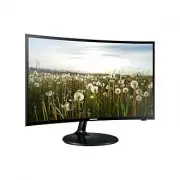
Specifications Environmental considerations Operating Temperature: 10°C~ 40°C Humidity: 10 % ~ 80 %, non-condensing Storage Temperature: -20°C ~ 45°C Humidity: 5 % ~ 95 %, non-condensing Tilt VF390: -1.0° (±1.0°) ~22.0° (±2.0°) Model Name V27F390FE* Screen Size (Diagonal) 27.0 inches (68.6 cm) Displ...
Page 90 - Index
Index A Advanced Settings 36 Aerial 41 Anti-theft Kensington Lock 86Anynet+ (HDMI-CEC) 69 Audio Format 50 Auto Power Off 54 Auto Tuning 41 Auto Volume 40 B Backlight 31 Black Tone 36 Brightness 31 C Change PIN 55 Channel List 43 Colour 31 Colour Space 36 Colour Tone 37 Contact Samsung 59 Contrast 31...
Page 91 - Warranty Card; WARRANTY CONDITIONS
Warranty Card United Kingdom Republic of Ireland (EIRE) This Samsung product is warranted for a period of twelve (12) months from the original date of purchase, against defective materials and workmanship. In the event that warranty service is required, you should return the product to the retailer ...
Page 92 - Wiring the Mains Power Supply Plug (UK Only); IMPORTANT NOTICE
Wiring the Mains Power Supply Plug (UK Only) IMPORTANT NOTICE The mains lead on this equipment is supplied with a moulded plug incorporating a fuse. The value of the fuse is indicated on the pin face of the plug and, if it requires replacing, a fuse approved to BSI1362 of the same rating must be use...
Page 93 - Adaptor information
Adaptor information Use following adapter to avoid hazard Manufacturer : SAMSUNG Adaptor model : A4514N_DSM ; A4514_DSM ; A3514_ESM Manufacturer : SOLUM Adaptor model : A4514N_DSM ; A4514_DSM ; A3514_ESM Manufacturer : Powernet Adaptor model : A3514_FPN ; A4514_FPN To reduce the risk of fire or elec...


 Samsung U32R592CWR User Manual
 Samsung U32R592CWU User Manual
 Samsung U32R594CWR User Manual
 Samsung V24F39SFEX User Manual
 Samsung 943SN User Manual
 Samsung 2043NWX Manual
 Samsung 2043SN User Manual
 Samsung B2230HD User Manual
 Samsung B2230N Manual
 Samsung B2430L Manual