Page 2 - Table of Contents
2 Table of Contents Read me first Getting started 7 Package contents 8 Device layout 10 Using the SIM or USIM card and battery 15 Using a memory card17 Turning the device on and off18 Locking and unlocking the screen Basics 19 Using the touch screen22 Home screen layout26 Notifications panel28 Openi...
Page 4 - Read me first
Table of Contents 4 118 Changing the font size118 Magnifying the screen118 Reversing the display colours119 Setting flash notification119 Turning off all sounds119 Caption settings119 Adjusting the sound balance120 Mono audio120 Setting tap and hold delay options120 Interaction control121 Answering ...
Page 5 - Instructional icons
5 Read me first Please read this manual before using the device to ensure safe and proper use. • Descriptions are based on the device’s default settings. • Some content may differ from your device depending on the region, service provider, or device’s software. • Content (high quality content) that ...
Page 6 - Getting started
Read me first 6 Instructional icons Warning : situations that could cause injury to yourself or others Caution : situations that could cause damage to your device or other equipment Note : notes, usage tips, or additional information
Page 7 - Device layout
7 Getting started Package contents Check the product box for the following items: • Device • Battery • Quick start guide • The items supplied with the device and any available accessories may vary depending on the region or service provider. • The supplied items are designed only for this device and...
Page 8 - Buttons
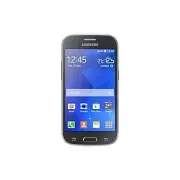
Getting started 8 Device layout Back button Microphone Recent apps button Touch screen Front camera Multipurpose jack Home button Power button Headset jack Earpiece Back cover Flash GPS antenna Main antenna Volume button Speaker Rear camera NFC antenna (on the battery)
Page 9 - Using the SIM or USIM card and battery; Installing the SIM or USIM card and battery
Getting started 9 • Do not cover the antenna area with your hands or other objects. This may cause connectivity problems or drain the battery. • Using a Samsung-approved screen protector is recommended. Unapproved screen protectors may cause the sensors to malfunction. • Do not allow water to contac...
Page 11 - Removing the SIM or USIM card and battery
Getting started 11 2 Insert the SIM or USIM card with the gold-coloured contacts facing downwards. • Do not insert a memory card into the SIM card slot. If a memory card happens to be lodged in the SIM card slot, take the device to a Samsung Service Centre to remove the memory card. • Use caution no...
Page 12 - Using dual SIM or USIM cards (dual SIM models); Activating SIM or USIM cards; Changing the display name and icon of SIM or USIM cards
Getting started 12 4 Replace the back cover. • Ensure that the back cover is closed tightly. • Use only Samsung-approved back covers and accessories with the device. Removing the SIM or USIM card and battery 1 Remove the back cover. 2 Pull out the battery. 3 Pull out the SIM or USIM card.
Page 13 - Switching between cards; Charging the battery
Getting started 13 Charging the battery Use the charger to charge the battery before using it for the first time. A computer can be also used to charge the battery by connecting them via the USB cable. Use only Samsung-approved chargers, batteries, and cables. Unapproved chargers or cables can cause...
Page 14 - Reducing the battery consumption
Getting started 14 • The device can be used while it is charging, but it may take longer to fully charge the battery. • If the device receives an unstable power supply while charging, the touch screen may not function. If this happens, unplug the charger from the device. • While charging, the device...
Page 15 - Using a memory card; Installing a memory card
Getting started 15 Using a memory card Installing a memory card Your device accepts memory cards with maximum capacities of 64 GB. Depending on the memory card manufacturer and type, some memory cards may not be compatible with your device. • Some memory cards may not be fully compatible with the de...
Page 16 - Removing the memory card; Formatting the memory card; Turning the device on and off
Getting started 16 Removing the memory card Before removing the memory card, first unmount it for safe removal. On the Home screen, tap → Settings → Storage → Unmount SD card . 1 Remove the back cover. 2 Pull out the memory card. 3 Replace the back cover. Do not remove the memory card while the devi...
Page 17 - Locking and unlocking the screen
Getting started 17 Turning the device on and off Press and hold the Power button for a few seconds to turn on the device.When you turn on your device for the first time or after performing a data reset, follow the on-screen instructions to set up your device.To turn off the device, press and hold th...
Page 18 - Basics; Using the touch screen; Tapping
Getting started 18 Locking and unlocking the screen Pressing the Power button turns off the screen and locks it. Also, the screen turns off and automatically locks if the device is not used for a specified period.To unlock the screen, press the Power button or the Home button and flick your finger i...
Page 19 - Tapping and holding
19 Basics Using the touch screen • Do not allow the touch screen to come into contact with other electrical devices. Electrostatic discharges can cause the touch screen to malfunction. • To avoid damaging the touch screen, do not tap it with anything sharp or apply excessive pressure to it with your...
Page 20 - Flicking
Basics 20 Tapping and holding Tap and hold an item or the screen for more than 2 seconds to access available options. Dragging To move an item, tap and hold it and drag it to the target position. Double-tapping Double-tap on a webpage or image to zoom in. Double-tap again to return.
Page 21 - Home screen layout; Home screen
Basics 21 Flicking Flick left or right on the Home screen or the Apps screen to see another panel. Flick up or down to scroll through a webpage or a list of items, such as contacts. Spreading and pinching Spread two fingers apart on a webpage, map, or image to zoom in a part. Pinch to zoom out.
Page 22 - Home screen options
Basics 22 Home screen layout Home screen The Home screen is the starting point for accessing all of the device’s features. It displays widgets, shortcuts to apps, and more. Widgets are small apps that launch specific app functions to provide information and convenient access on your Home screen.To v...
Page 23 - Apps screen
Basics 23 Home screen options On the Home screen, tap and hold an empty area, or pinch your fingers together to access the available options.
Page 24 - Indicator icons
Basics 24 Apps screen The Apps screen displays icons for all apps, including newly installed apps.On the Home screen, tap to open the Apps screen. To view other panels, scroll left or right, or select a screen indicator at the bottom of the screen. To customise the Apps screen, refer to Managing the...
Page 25 - Notifications panel; Using the notifications panel
Basics 25 Indicator icons Indicator icons appear on the status bar at the top of the screen. The icons listed in the table below are most common. The status bar may not appear at the top of the screen in some apps. To display the status bar, drag down from the top of the screen. Icon Meaning No sign...
Page 26 - Using the quick setting buttons; Opening apps; Closing an app
Basics 26 Icon Meaning Flight mode activatedError occurred or caution requiredBattery power level Notifications panel Using the notifications panel When you receive new notifications, such as messages or missed calls, indicator icons appear on the status bar. To see more information about the icons,...
Page 27 - Installing or uninstalling apps; Galaxy Apps; Installing apps
Basics 27 You can use the following functions on the notifications panel. Launch Settings . Tap a notification and perform various actions. Clear all notifications. Adjust the brightness. Activate or deactivate options. Tap and hold a button to view more detailed settings. Using the quick setting bu...
Page 28 - Managing apps; Uninstalling or disabling apps; Entering text; Keyboard layout
Basics 28 • Bluetooth : Refer to Bluetooth for more information. • Mobile data : Refer to Data usage or Mobile networks for more information. • U. power saving : Refer to Ultra power saving mode for more information. • Mobile hotspot : Refer to Tethering and Mobile hotspot for more information. • NF...
Page 29 - Changing the input language; Using additional keyboard functions; Copying and pasting
Basics 29 Installing apps Browse apps by category or tap to search for a keyword.Select an app to view information about it. To download free apps, tap Free . To purchase and download apps where charges apply, tap the button that shows the app’s price. To change the auto update settings, tap → Setti...
Page 30 - Screen capture
Basics 30 Enabling apps On the Apps screen, tap → Show disabled apps , select apps, and then tap Done . Alternatively, on the Apps screen, tap Settings → Application manager , scroll to DISABLED , select an app, and then tap Enable . • Hiding apps: Hide apps in the Apps screen only. You can continue...
Page 31 - Power saving feature; Ultra power saving mode
Basics 31 Changing the input language Tap → Select input languages , and then select the languages to use. If you select two or more languages, you can switch between the input languages by sliding the space key left or right. Changing the keyboard layout Tap , select a language under INPUT LANGUAGE...
Page 32 - Network connectivity; Mobile data
Basics 32 Copying and pasting 1 Tap and hold over text. 2 Drag or to select the desired text, or tap Select all to select all text. 3 Tap Copy or Cut . The selected text is copied to the clipboard. 4 Tap and hold at the point where the text is to be inserted and tap Paste . Screen capture Capture a ...
Page 33 - Tethering and Mobile hotspot; About tethering and Mobile hotspots
Basics 33 My Files About My Files Use this app to access various files stored in the device or in other locations, such as cloud storage services.Tap My Files on the Apps screen. Access additional options. View storage information. Search for files or folders. View files by categories. View the down...
Page 34 - Using USB tethering
Basics 34 Viewing files Tap My Files on the Apps screen. Select a folder to open it. To go up a level in the directory, tap . To return to the My Files main screen, tap .Select a folder, tap , and then use the following options: • Select : Select files or folders to apply options. • Delete : Delete ...
Page 35 - Personalising; Managing the Home and Apps screens; Adding items; Moving and removing an item; Creating a folder
Basics 35 Power saving feature Ultra power saving mode Use this mode to extend the device’s battery power. In ultra power saving mode, the device performs the following: • Displays colours on the screen as grey tones. • Restricts the available apps to essential and selected apps only. • Deactivates ...
Page 36 - Managing panels; Changing the sorting method
Basics 36 To add an app to the Home screen, tap and select an app.To remove an app from the Home screen, tap → Remove , select an app with , and then tap OK . To change the settings for ultra power saving mode, such as network connectivity or sound, tap → Settings . To deactivate ultra power saving ...
Page 37 - Setting wallpaper and ringtones; Setting wallpaper
37 Network connectivity Mobile data Connect the device to a mobile network to use the Internet or share media files with other devices. Refer to Data usage for additional options. On the Apps screen, tap Settings → Data usage , and then tick Mobile data . Wi-Fi Connect the device to a Wi-Fi network ...
Page 38 - Changing the screen lock method; Pattern; Setting up accounts; Adding accounts; Removing accounts
Network connectivity 38 Tethering and Mobile hotspot About tethering and mobile hotspots Use this feature to share the device’s mobile data connection with computers and other devices if an Internet connection is unavailable. Connections can be made via Wi-Fi, USB, or Bluetooth. You may incur additi...
Page 39 - Making calls
Network connectivity 39 Using USB tethering Share the device’s mobile data connection with other devices via a USB cable. 1 On the Apps screen, tap Settings → Tethering and Mobile hotspot . 2 Connect your device to the computer via the USB cable. 3 Tick USB tethering . appears on the status bar when...
Page 40 - Making calls from call logs or contacts list
Network connectivity 40 Internet Browsing webpages 1 Tap Internet on the Apps screen. 2 Tap the address field. To change the search engine, tap the search engine icon next to the web address field. 3 Enter the web address or a keyword, and then tap Go . To search the web by voice, tap . To view the ...
Page 41 - Receiving calls; Answering a call; Options during calls; During a voice call
Network connectivity 41 Setting the homepage Tap Internet on the Apps screen. Tap → Settings → General → Set homepage , and then select one of the following: • Current page : Set the current webpage as your homepage. • Blank page : Set a blank webpage as your homepage. • Default page : Set the devic...
Page 42 - Contacts; Adding contacts; Moving contacts from other devices; Creating contacts manually; Importing and exporting contacts
42 Personalising Managing the Home and Apps screens Managing the Home screen Adding items Tap and hold an app from the Apps screen, and then drag it to the Home screen.To add widgets, open the Home screen, tap and hold an empty area, tap Widgets , tap and hold a widget, and then drag it to the Home ...
Page 43 - Searching for contacts; Adding shortcuts for contacts to the Home screen
Personalising 43 Managing folders To rename a folder, select a folder, and then tap the existing folder name. Enter a new name for the folder and tap Done . To change the colour of a folder, select a folder, tap , and then select a colour.To move more apps to a folder, tap and hold an app, and then ...
Page 44 - Sending messages
Personalising 44 Moving items On the Apps screen, tap → Edit . Tap and hold an item and drag it to a new location. To move the item to another panel, drag it to the side of the screen.To move an item to a new panel, drag it to Create page that appears at the top of the screen. Setting wallpaper and ...
Page 45 - Viewing incoming messages; Email; Setting up email accounts
Personalising 45 Changing the screen lock method You can change the way that you lock the screen to prevent others from accessing your personal information.On the Apps screen, tap Settings → Lock screen → Screen lock , and then select a screen lock method. The device requires an unlock code whenever...
Page 46 - Sending emails
Personalising 46 Transferring data from your previous device Using backup accounts You can transfer backup data from your previous device to your new device using your Google account. Refer to Backing up and restoring data for more information. Using Samsung Smart Switch You can transfer data of the...
Page 47 - Reading emails
Personalising 47 Using Samsung Kies Import a backup of your data from your computer via Samsung Kies to restore data on your device. You can also back up data to the computer via Samsung Kies. Refer to Connecting with Samsung Kies for more information. Setting up accounts Adding accounts Some apps u...
Page 48 - Basic shooting; Taking photos or recording videos
48 Phone Making calls Tap Phone on the Apps screen. Tap Keypad , enter a phone number, and then tap to make a voice call, or tap to make a video call. You can also make calls to phone numbers listed in Logs , Favourites , and Contacts . Access additional options. Add the number to the contacts list....
Page 49 - Launching Camera on the locked screen; Shooting modes; Auto
Phone 49 Making calls from the favourites list You can easily call contacts that you communicate with frequently by adding them to the favourite contacts list.To add contacts to the favourites list, tap Contacts , select a contact, and then tap . To make a call to a favourite contact, tap Favourites...
Page 50 - Panorama; Camera settings
Phone 50 Receiving calls Answering a call When a call comes in, drag outside the large circle.If the call waiting service is activated, another call can be answered. When the second call is answered, the first call is put on hold. Rejecting a call When a call comes in, drag outside the large circle....
Page 52 - Viewing content on the device
Phone 52 During a video call The following actions are available: • → Hide me : Hide your image from the other party. • → Outgoing image : Select an image to show it to the other party. • → Capture image : Capture the other party’s image. • → Record video : Record a video of the other party’s images...
Page 53 - Useful apps and features; Creating events or tasks
53 Contacts Adding contacts Moving contacts from other devices You can move contacts from other devices to your device. Refer to Transferring data from your previous device for more information. Creating contacts manually 1 On the Apps screen, tap Contacts → Contacts . 2 Tap and enter contact inform...
Page 54 - Syncing events and tasks with your accounts; Internet
Contacts 54 Managing contacts Editing a contact 1 On the Apps screen, tap Contacts → Contacts . 2 Select a contact to edit and tap . 3 Edit the contact information or tap Add another field to add more contact information. 4 Tap Save . Deleting a contact Select a contact to delete and tap → Delete . ...
Page 55 - Playing videos
Contacts 55 Importing and exporting contacts Import contacts from storage services to your device or export contacts from the device to storage services.On the Apps screen, tap Contacts → Contacts . Tap → Settings → Contacts → Import/export , and then select an import or export option. Searching for...
Page 56 - Clock; Alarm; Setting alarms; World clock; Creating clocks
56 Messages & email Messages Sending messages Send text messages (SMS) or multimedia messages (MMS). You may incur additional charges for sending or receiving messages when you are roaming. 1 Tap Messages on the Apps screen. 2 Tap . 3 Add recipients and enter a message. Access additional options...
Page 57 - Stopwatch; Calculator; Composing memos
Messages & email 57 While composing a message, tap to use one of the following options: • Insert smiley : Enter emoticons. • Add subject : Enter a subject. • Add slide : Add message slides. • Schedule message : Set a specified time and date for a message to be sent. • Discard : Cancel composing ...
Page 58 - Searching for memos; Recording voice memos; Playing voice memos
Messages & email 58 • Add slide : Add message slides. • Schedule message : Set a specified time and date from a message to be sent. • Add to spam numbers / Remove from spam numbers : Identify a phone number as spam or remove a phone number from the spam list. • Discard : Cancel composing the mes...
Page 59 - Listening to the FM radio; Scanning radio stations
Messages & email 59 Sending emails Tap Email on the Apps screen. Tap at the bottom of the screen to compose a message. Add recipients. Add a CC or BCC. Add recipients from the contacts list. Enter a message. Enter a subject. Send the message. Access additional options. Attach images, videos and ...
Page 60 - Google apps; Chrome; Gmail; Maps
Messages & email 60 Reading emails Tap Email on the Apps screen. Tap , select an email account to use, and new messages are retrieved. To manually retrieve new messages, tap . Tap a message to read. Reply to the message. Add this email address to the contacts list or view other options. Reply to...
Page 62 - Connecting with other devices; Bluetooth; About Bluetooth
Camera 62 • The camera automatically shuts off when unused. • Make sure that the lens is clean. Otherwise, the device may not work properly in some modes that require high resolutions. • The front camera lens is suitable for taking wide-angle photos. Minor distortion may occur in wide-angle photos a...
Page 63 - Pairing with other Bluetooth devices; Sending an image
Camera 63 Shooting modes Auto Use this mode to allow the camera to evaluate the surroundings and determine the ideal mode for the photo.On the Apps screen, tap Camera → → Auto . Beauty face Use this mode to take a photo with lightened faces for gentler images.On the Apps screen, tap Camera → → Beaut...
Page 64 - Receiving an image; Unpairing Bluetooth devices
Camera 64 Panorama Use this mode to take a photo composed of many photos strung together. The device identifies the photo with in Gallery . On the Apps screen, tap Camera → → Panorama . To get the best shot, follow these tips: • Move the camera slowly in one direction. • Keep the image within the fr...
Page 65 - Sending and receiving data; Ending the device connection
Camera 65 • Metering modes : Select a metering method. This determines how light values are calculated. Centre-weighted measures background light in the centre of the scene. Spot measures the light value at a specific location. Matrix averages the entire scene. • ISO : Select an ISO value. This cont...
Page 66 - Mobile printing; Adding printer plug-ins
66 Gallery Viewing photos or videos Viewing content on the device On the Apps screen, tap Gallery and select an image or a video. Video files show the icon on the preview thumbnail.To hide or show the menu bar and the preview thumbnails, tap the screen. Access additional options. Delete the image. M...
Page 67 - Device & data manager; Transferring data from your previous device; Transferring data from a mobile device; Transferring data from a computer
Gallery 67 Changing the sorting method On the Apps screen, tap Gallery → , and then select a sorting method. Accessing additional options On the Apps screen, tap Gallery and select an image or a video. Tap and use the following options. • Slideshow : Start a slideshow with the images in the current ...
Page 68 - Using the device as a removable disk for data
Gallery 68 Editing photos Edit images by applying various effects.Tap Gallery on the Apps screen. To use this feature, you need to download and install the required app. While viewing an image, tap and use the following functions: • Rotate : Rotate the image. • Crop : Crop the image. • Colour : Adju...
Page 69 - Updating the device; Updating over the air; Updating with Smart Switch
69 Multimedia Video Playing videos Tap Video on the Apps screen. Select a video to play. Move forwards or backwards by dragging the bar. Change screen ratio. Skip to the previous video. Tap and hold to move backwards quickly. Skip to the next video. Tap and hold to move forwards quickly. Access addi...
Page 70 - Using a Google account; Performing a data reset
70 Useful apps and features S Planner Starting S Planner Use this app to manage events and tasks.Tap S Planner on the Apps screen. Access additional options. Create events or tasks. Change the view mode. Go to today's date. Tap and use the following: • Go to : Move to a specific date. • Delete : Del...
Page 71 - About Settings
Useful apps and features 71 Creating events or tasks 1 Tap S Planner on the Apps screen. 2 Tap . Alternatively, select a date with no events or tasks in it and tap the date again.If the date already has saved events or tasks in it, tap the date and tap . 3 Select either event or task and enter detai...
Page 72 - Setting Wi-Fi sleep policy
Useful apps and features 72 Syncing events and tasks with your accounts Tap S Planner on the Apps screen. To sync events and tasks with your accounts, tap → Sync . To add accounts to sync with, tap → Calendars → Add account . Then, select an account to sync with and sign in. When an account is added...
Page 73 - Flight mode
Useful apps and features 73 Clock Alarm On the Apps screen, tap Clock → Alarm . Setting alarms Tap in the alarms list, set an alarm time, select the days on which the alarm will repeat, set other various alarm options, and then tap Save . To activate or deactivate alarms, tap next to the alarm in th...
Page 74 - Location; Default messaging app
Useful apps and features 74 World clock On the Apps screen, tap Clock → World clock . Creating clocks Tap and enter a city name or select a city from the cities list. Deleting clocks Tap → Delete , select clocks, and then tap Done . Stopwatch On the Apps screen, tap Clock → Stopwatch . Tap Start to ...
Page 75 - DEVICE; Sound
Useful apps and features 75 Memo Use this app to create memos and organise them by category.Tap Memo on the Apps screen. Composing memos Tap on the memos list and enter a memo. While composing a memo, use the following options: • : Create or set a category. • : Insert images. • : Make a voice record...
Page 76 - Lock screen
Useful apps and features 76 Accessing additional options You can access additional options on the memos list and while viewing memos.On the memos list, tap and use the following options: • Select : Select memos to apply options. • Delete : Delete memos. While viewing a memo, tap and use the followin...
Page 77 - Call
Useful apps and features 77 Tap to turn on the FM radio. Select the radio station you want from the stations list and tap to return to the FM radio screen. View the list of favourite stations. Access additional options. Turn the FM radio on or off. Adjust the volume. Add the current radio station to...
Page 78 - Application manager; PERSONAL; Accounts
Useful apps and features 78 Voice Recorder Recording voice memos Tap Voice Recorder on the Apps screen. Tap to start recording. Speak into the microphone. Tap to pause recording. To cancel recording, tap . Tap to finish recording. Display the list of voice memos. Access additional options. Start rec...
Page 79 - Accessibility
Useful apps and features 79 Managing voice memos On the Apps screen, tap Voice Recorder → . Tap and select one of the following: • Select : Select voice memos to apply options. • Delete : Select voice memos to delete. • Settings : Change the voice recorder settings. Renaming voice memos Tap and hold...
Page 80 - SYSTEM; Language and input; Language
Useful apps and features 80 Google Mail Send or receive emails via the Google Mail service. Google Search quickly for items on the Internet or your device. Google Settings Configure settings for some features provided by Google. Google+ Share your news and follow updates that your family, friends, a...
Page 81 - Google voice typing
Useful apps and features 81 Play Games Download games from Play Store and play them with others. Play Movies & TV Watch videos stored on your device and download various content to watch from Play Store . Play Music Discover, listen to, and share music on your device. Play Newsstand Read news an...
Page 82 - Pointer speed; Date and time
82 Connecting with other devices Bluetooth About Bluetooth Bluetooth creates a direct wireless connection between two devices over short distances. Use Bluetooth to exchange data or media files with other devices. • Samsung is not responsible for the loss, interception, or misuse of data sent or rec...
Page 83 - Battery; Storage
Connecting with other devices 83 Pairing with other Bluetooth devices 1 On the Apps screen, tap Settings → Bluetooth , tap the Bluetooth switch to activate it, and then tap Scan . The detected devices are listed.To set the device as visible to other devices, tap the device name. 2 Select a device to...
Page 84 - Security
Connecting with other devices 84 Receiving an image When another device sends you an image, accept the Bluetooth authorisation request. The received image is saved in the Gallery → Download folder. Unpairing Bluetooth devices 1 On the Apps screen, tap Settings → Bluetooth . The device displays the p...
Page 85 - About device
Connecting with other devices 85 Sending and receiving data You can share data, such as contacts or media files, with other devices. The following actions are an example of sending an image to another device. Sending an image 1 On the Apps screen, tap Gallery . 2 Select an image. 3 Tap → Wi-Fi Direc...
Page 86 - Troubleshooting; When you turn on your device or while you are using the device, it
Connecting with other devices 86 NFC About NFC Your device allows you to read near field communication (NFC) tags that contain information about products. You can also use this feature to make payments and buy tickets for transportation or events after downloading the required apps. The battery cont...
Page 87 - The touch screen responds slowly or improperly; Your device freezes or has fatal errors; Calls are not connected; Others cannot hear you speaking on a call
Connecting with other devices 87 Making a purchase with the NFC feature Before you can use the NFC feature to make payments, you must register for the mobile payment service. To register or get more information about the service, contact your service provider.On the Apps screen, tap Settings → NFC ,...
Page 89 - Your device is hot to the touch
89 Device & data manager Upgrading the device The device can be upgraded to the latest software. Upgrading over the air The device can be directly upgraded to the latest software by the firmware over-the-air (FOTA) service.On the Apps screen, tap Settings → About device → Software update → Updat...
Page 90 - Another Bluetooth device is not located
Device & data manager 90 Transferring files between the device and a computer Move audio, video, image, or other types of files from the device to the computer, or vice versa. Do not disconnect the USB cable from the device when you are transferring files. Doing so may cause data loss or device ...
Page 91 - Data stored in the device has been lost
Device & data manager 91 Connecting with Samsung Kies Samsung Kies is a computer app that manages media contents and personal information with Samsung devices. Download the latest Samsung Kies from the Samsung website. 1 Connect the device to the computer using the USB cable.Samsung Kies launche...


 Samsung Galaxy A54 5G User Manual
 Samsung Galaxy A70 User Manual
 Samsung Galaxy A71 User Manual
 Samsung Galaxy A72 User Manual
 Samsung Galaxy A80 User Manual
 Samsung Galaxy A90 5G User Manual
 Samsung Galaxy Alpha User Manual
 Samsung Galaxy Core Prime User Manual
 Samsung Galaxy Fold 5G User Manual
 Samsung Galaxy J1 User Manual
 Samsung Galaxy J3 (2016) User Manual
 Samsung Galaxy J3 (2017) User Manual