Page 2 - Table of Contents
- 2 - Engl is h Getting Started ........................................................................................ 3 Radio .......................................................................................................... 7 CD/USB/iPhone®/AUX ..............................................
Page 3 - Getting Started; Basic operation
- 3 - - 3 - Eng lis h DEH-S5200BT DEH-S4220BT/S4200BT Getting Started Basic operation SRC (source)/OFF Detach button Display window M.C. (multi-control) dial BAND/ DISP (display) (navigation)/LIST USB port AUX input jack (3.5 mm stereo jack) (eject) Disc loading slot BASS Detach button Display windo...
Page 4 - Optional remote control
- 4 - Eng lis h Optional remote control The remote control CD-R510 is sold separately. Frequently used operations The available buttons vary depending on the unit. * When this unit’s blue/white lead is connected to the vehicle’s auto-antenna relay control terminal, the vehicle’s antenna extends when...
Page 5 - Detaching the front panel; Detach; RESET
- 5 - - 5 - Eng lis h Detach the front panel to prevent theft. Remove any cables and devices attached to the front panel and turn off the unit before detaching it. Important • Avoid subjecting the front panel to excessive shock. • Keep the front panel out of direct sunlight and high temperatures. • ...
Page 6 - Canceling the demonstration display (DEMO OFF)
- 6 - Eng lis h 1 Turn the M.C. dial to select the options, then press to confirm. To proceed to the next menu option, you need to confirm your selection. 2 [QUIT :YES] appears. To return to the first item of the setup menu, turn the M.C. dial to select [QUIT :NO], then press to confirm. 3 Press the...
Page 7 - Radio; Receiving preset stations
- 7 - - 7 - Eng lis h The tuner frequencies on this unit are allocated for use in North America. Use in other areas may result in poor reception. 1 Press SRC / OFF to select [RADIO]. 2 Press BAND / to select the band from [FM1], [FM2], [FM3] or [AM]. 3 Press a number button ( 1 / to 6 / ). TIP The /...
Page 8 - To seek a station manually; To store stations manually; Playing back
- 8 - Eng lis h The six strongest stations are stored on the number buttons ( 1 / to 6 / ). 1 After selecting the band, press the M.C. dial to display the main menu. 2 Turn the M.C. dial to select [FUNCTION], then press to confirm. 3 Turn the M.C. dial to select [BSM], then press to confirm. To seek...
Page 9 - CAUTION; AUX; Operations
- 9 - - 9 - Eng lis h NOTE To automatically switch to USB source when a USB device/iPhone is connected to the unit, set [USB AUTO] to [ON] in the SYSTEM settings (page 27). CAUTION Use a USB cable (sold separately) to connect the USB device as any device connected directly to the unit will protrude ...
Page 11 - Bluetooth; Bluetooth connection
- 11 - - 11 - Eng lis h Important If ten or more Bluetooth devices (e.g. a phone and separate audio player) are connected, they may not work properly. TIP The next connection to the unit is performed automatically if the Bluetooth device has been connected previously in the following steps. 1 Turn o...
Page 12 - To make a phone call; Basic operations
- 12 - Eng lis h To make a phone call 1 Press to display the phone menu. When two phones are connected, a phone name appears first then a phone menu will display. To switch to another phone, press again. 2 Turn the M.C. dial to select [RECENTS] or [PHONE BOOK], then press to confirm. If you select [...
Page 13 - Voice recognition; Phone menu
- 13 - - 13 - Eng lis h To make a call using a preset number, press one of the number buttons ( 1 / to 6 / ), then press the M.C. dial, while the phone menu is displayed. Voice recognition This function is only available when an iPhone/Android device equipped with voice recognition is connected to t...
Page 14 - Bluetooth audio
- 14 - Eng lis h * If two phones are connected, this function does not work on incoming calls that are received while one of the phones is being used for a call. Important • Depending on the Bluetooth audio player connected to this unit, the available operations will be limited to the following two ...
Page 15 - Pandora®; Listening to Pandora
- 15 - - 15 - Eng lis h * Depending on the connected device, these operations may not be available. (Not available when [USB MTP] is set to [ON] in the SYSTEM settings (page 27).)Pandora music is a music service not affiliated with Pioneer. More information is available at http://www.pandora.com.The...
Page 16 - Spotify®
- 16 - Eng lis h Basic operations You can make various adjustments in the FUNCTION settings (page 22). NOTE Some functions of Pandora may not be operated from the unit. (Not available when [USB MTP] is set to [ON] in the SYSTEM settings (page 27).)Spotify is a music streaming distribution service no...
Page 17 - Listening to Spotify
- 17 - - 17 - Eng lis h To enjoy Spotify as you drive, first download the Spotify app to your iPhone or Android device. You can download it on the iTunes® App Store® or Google Play™. Choose a free account or a paid Premium account, either in the app or at spotify.com. A Premium account gives you mor...
Page 18 - WARNING; Using Pioneer Smart Sync/APP
- 18 - Eng lis h NOTE Some functions of Spotify may not be operated from the unit. Pioneer Smart Sync is the application that intelligently brings your maps, messages, and music together in the vehicle.You can operate the unit from Pioneer Smart Sync installed on an iPhone/Android device. In some ca...
Page 19 - What kind of function does the application have?; Promoting the use of the unit
- 19 - - 19 - Eng lis h You can download Pioneer Smart Sync on iTunes App Store. For Android device users For Bluetooth connections, this function is compatible with devices that have Android OS 5.0 or later installed.For USB connections, this function is compatible with a phone that runs Android 5....
Page 20 - Extending the functions of the unit by using the application; Making a connection with Pioneer Smart Sync
- 20 - Eng lis h – Listening to the music on your iPhone/Android device– Controlling the sound field intuitively– Setting the illumination color (Only for DEH-S5200BT)– Controlling your connected Bluetooth device Extending the functions of the unit by using the application The following functions, w...
Page 21 - Listening to music on your device; Audio Adjustments
- 21 - - 21 - Eng lis h 4 Turn the M.C. dial to select one of the below. • Select [WIRED] for the USB connection. • Select [BLUETOOTH] for the Bluetooth connection. 5 Turn the M.C. dial to select [AUTO APP CONN], then press to confirm. 6 Turn the M.C. dial to select [ON], then press to confirm. 7 Co...
Page 22 - Settings; FUNCTION settings
- 22 - Eng lis h NOTE [SUBWOOFER] can only be selected when [ON] is selected in [SUBWOOFER] (page 24). 1 Press the M.C. dial to display the main menu. 2 Turn the M.C. dial to select [AUDIO], then press to confirm. 3 Turn the M.C. dial to select [CROSSOVER], then press to confirm. 4 Turn the M.C. dia...
Page 23 - AUDIO settings
- 23 - - 23 - Eng lis h NOTE [CHK APP SETTG.] may be displayed when the setting is performed from Pioneer Smart Sync. Menu Item Description BSM Store the six strongest stations on the number buttons ( 1 / to 6 / ) automatically. LOCAL FM: [OFF], [LV1], [LV2], [LV3], [LV4] AM: [OFF], [LV1], [LV2] Res...
Page 26 - SYSTEM settings
- 26 - Eng lis h *1 Not available when [SW] is selected in [REAR-SP] in the INITIAL settings (page 7).*2 Not available when [SUB.W/SUB.W] is selected in [SP-P/O MODE] in the INITIAL settings (page 7).*3 Not available when [REAR/REAR] is selected in [SP-P/O MODE] in the INITIAL settings (page 7). You...
Page 27 - Information on the connections for each device
- 27 - - 27 - Eng lis h Information on the connections for each device The available sources differ depending on the setting value.Please set [APP CONTROL] according to the table for the source you want to use.For details on Pioneer Smart Sync connection, see page 18. PANDORA [ON], [OFF] Set to [ON]...
Page 28 - When Pioneer Smart Sync connection is NOT performed; ILLUMINATION settings
- 28 - Eng lis h When Pioneer Smart Sync connection is NOT performed When Pioneer Smart Sync connection is performed Setting Value Device Available source(s) [WIRED] iPhone iPhone, PANDORA, SPOTIFY Android USB (AOA) [BLUETOOTH] iPhone iPhone, PANDORA, SPOTIFY Android PANDORA, SPOTIFY Setting Value D...
Page 29 - MIXTRAX settings
- 29 - - 29 - Eng lis h BRIGHTNESS (Only for DEH-S5200BT) [KEY], [DISP] Select the brightness for the keys/display of the unit from [1] to [10].The available setting ranges differ depending on [DIM SETTING]. BRIGHTNESS (Only for DEH-S4220BT/S4200BT) [1] to [10] Change the display brightness.The avai...
Page 31 - Common; CD player; Additional Information; Troubleshooting
- 31 - Eng lis h The display automatically returns to the normal display. → No operations have been made for about 30 seconds.– Perform an operation. The repeat play range changes unexpectedly. → Depending on the repeat play range, the selected range may change when another folder or track is being ...
Page 33 - Bluetooth device
- 33 - Eng lis h → iPhone failure.– Disconnect the cable from the iPhone. Once the iPhone’s main menu is displayed, reconnect the iPhone and reset it. STOP → There are no songs in the current list.– Select a list that contains songs. NO BT DEVICE GO TO BT MENU TO REGISTER → No Bluetooth device found...
Page 34 - APP
- 34 - Eng lis h LOG IN ERROR → Your Pandora account is not logged in.– Disconnect the cable from the device, and log in to your Pandora account. Then reconnect the device. ERROR → Device error message displayed in the Pandora application.– Check the connected device. → Pandora system is undergoing ...
Page 35 - Discs and player; Handling guidelines
- 35 - Eng lis h – Press BAND / to make a connection again. CHECK APP PRESS BAND KEY TO RETRY → Connection to the Spotify application failed.– Press BAND / to make a connection again. DISCONNECTED PRESS BAND KEY TO RETRY → Bluetooth connection lost.– Press BAND / to make a connection again. CHECK AP...
Page 36 - WMA files
- 36 - Eng lis h • Firmly secure the iPhone when driving. Do not let the iPhone fall onto the floor, where it may become jammed under the brake or accelerator pedal. • Incompatible text saved on the iPhone will not be displayed by the unit. • Only the first 32 characters can be displayed as a file n...
Page 37 - Disc; iPhone compatibility; Sequence of audio files
- 37 - Eng lis h Disc • Regardless of the length of the blank section between the songs from the original recording, compressed audio discs play with a short pause between songs. USB device • There may be a slight delay when starting playback of audio files on a USB storage device with numerous fold...
Page 38 - Example of a hierarchy; Copyright and trademark
- 38 - Eng lis h Example of a hierarchy Bluetooth The Bluetooth® word mark and logos are registered trademarks owned by Bluetooth SIG, Inc. and any use of such marks by PIONEER CORPORATION is under license. Other trademarks and trade names are those of their respective owners. iTunes Apple and iTune...
Page 39 - General; Specifications
- 39 - Eng lis h Apple performance standards. Apple is not responsible for the operation of this device or its compliance with safety and regulatory standards.Please note that the use of this accessory with an Apple product may affect wireless performance.iPhone and Lightning are trademarks of Apple...
Page 42 - À propos de ce manuel :; Table des matières
- 2 - Fr a n ça is Pour commencer ..................................................................................... 3 Radio .......................................................................................................... 8 CD/USB/iPhone®/AUX ...............................................
Page 43 - Pour commencer; Fonctionnement de base
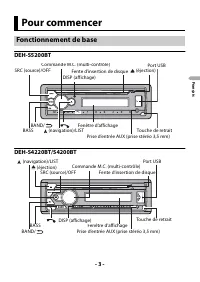
- 3 - - 3 - Fr a n ça is DEH-S5200BT DEH-S4220BT/S4200BT Pour commencer Fonctionnement de base SRC (source)/OFF Touche de retrait Fenêtre d’affichage Commande M.C. (multi-contrôle) BAND/ DISP (affichage) (navigation)/LIST Port USB Prise d’entrée AUX (prise stéréo 3,5 mm) (éjection) Fente d’insertion...
Page 44 - Télécommande en option
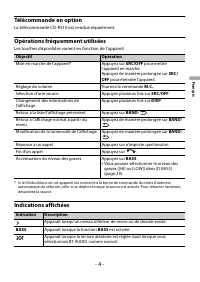
- 4 - Fr a n ça is Télécommande en option La télécommande CD-R510 est vendue séparément. Opérations fréquemment utilisées Les touches disponibles varient en fonction de l’appareil. * Si le fil bleu/blanc de cet appareil est connecté à la borne de commande du relais d’antenne automatique du véhicule,...
Page 45 - Retrait de la face avant; Retirer
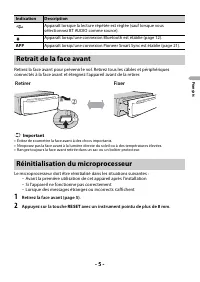
- 5 - - 5 - Fr a n ça is Retirez la face avant pour prévenir le vol. Retirez tous les câbles et périphériques connectés à la face avant et éteignez l’appareil avant de la retirer. Important • Évitez de soumettre la face avant à des chocs importants. • N’exposez pas la face avant à la lumière directe...
Page 46 - Menu de configuration
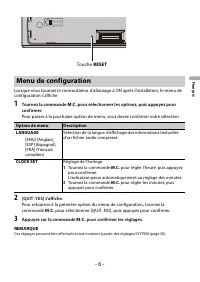
- 6 - Fr a n ça is Lorsque vous tournez le commutateur d’allumage à ON après l’installation, le menu de configuration s’affiche. 1 Tournez la commande M.C. pour sélectionner les options, puis appuyez pour confirmer. Pour passer à la prochaine option de menu, vous devez confirmer votre sélection. 2 [...
Page 47 - Réglages INITIAL
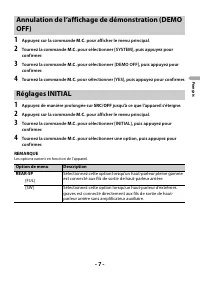
- 7 - - 7 - Fr a n ça is 1 Appuyez sur la commande M.C. pour afficher le menu principal. 2 Tournez la commande M.C. pour sélectionner [SYSTEM], puis appuyez pour confirmer. 3 Tournez la commande M.C. pour sélectionner [DEMO OFF], puis appuyez pour confirmer. 4 Tournez la commande M.C. pour sélection...
Page 48 - Réception des stations présélectionnées
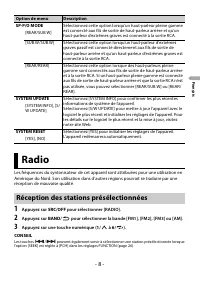
- 8 - Fr a n ça is Les fréquences du syntonisateur de cet appareil sont attribuées pour une utilisation en Amérique du Nord. Son utilisation dans d’autres régions pourrait se traduire par une réception de mauvaise qualité. 1 Appuyez sur SRC / OFF pour sélectionner [RADIO]. 2 Appuyez sur BAND / pour ...
Page 49 - Pour rechercher une station manuellement; Pour enregistrer des stations manuellement; Lecture
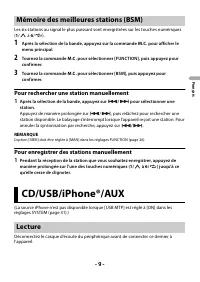
- 9 - - 9 - Fr a n ça is Les six stations au signal le plus puissant sont enregistrées sur les touches numériques ( 1 / à 6 / ). 1 Après la sélection de la bande, appuyez sur la commande M.C. pour afficher le menu principal. 2 Tournez la commande M.C. pour sélectionner [FUNCTION], puis appuyez pour ...
Page 50 - CD; PRÉCAUTION
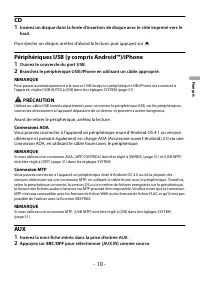
- 10 - Fr a n ça is CD 1 Insérez un disque dans la fente d’insertion de disque avec le côté imprimé vers le haut. Pour éjecter un disque, arrêtez d’abord la lecture, puis appuyez sur . Périphériques USB (y compris Android™)/iPhone 1 Ouvrez le couvercle du port USB. 2 Branchez le périphérique USB/iPh...
Page 51 - Opérations
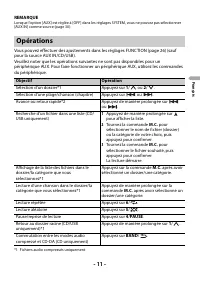
- 11 - - 11 - Fr a n ça is REMARQUE Lorsque l’option [AUX] est réglée à [OFF] dans les réglages SYSTEM, vous ne pouvez pas sélectionner [AUX IN] comme source (page 30). Vous pouvez effectuer des ajustements dans les réglages FUNCTION (page 26) (sauf pour la source AUX IN/CD/USB).Veuillez noter que l...
Page 52 - Connexion Bluetooth
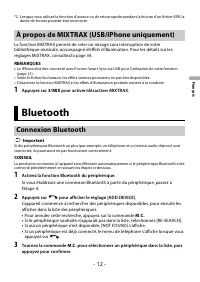
- 12 - Fr a n ça is *2 Lorsque vous utilisez la fonction d’avance ou de retour rapide pendant la lecture d’un fichier VBR, la durée de lecture pourrait être incorrecte. La fonction MIXTRAX permet de créer un mixage sans interruption de votre bibliothèque musicale, accompagné d’effets d’illumination....
Page 53 - Pour effectuer un appel téléphonique; Pour répondre à un appel entrant; Téléphone Bluetooth
- 13 - - 13 - Fr a n ça is Appuyez de manière prolongée sur la commande M.C. pour commuter les informations de périphérique affichées entre l’adresse de périphérique Bluetooth et le nom de périphérique.Si vous établissez une connexion Bluetooth à partir de l’appareil, passez à l’étape 5. 4 Sélection...
Page 54 - Opérations de base; Reconnaissance vocale
- 14 - Fr a n ça is CONSEIL Lorsque deux téléphones sont connectés à l’appareil via Bluetooth et qu’un appel entrant est reçu pendant l’utilisation d’un téléphone pour un appel, un message s’affiche. Pour répondre à cet appel entrant, vous devez mettre fin à l’appel en cours. Opérations de base Pour...
Page 55 - Menu de téléphone
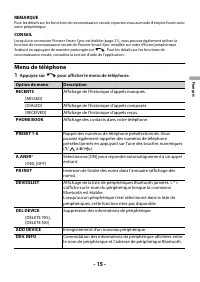
- 15 - - 15 - Fr a n ça is REMARQUE Pour les détails sur les fonctions de reconnaissance vocale, reportez-vous au mode d’emploi fourni avec votre périphérique. CONSEIL Lorsqu’une connexion Pioneer Smart Sync est établie (page 21), vous pouvez également utiliser la fonction de reconnaissance vocale d...
Page 56 - Audio Bluetooth
- 16 - Fr a n ça is * Si deux téléphones sont connectés, cette fonction n’est pas disponible pour les appels entrants reçus pendant l’utilisation d’un des téléphones pour un appel. Important • Selon le lecteur audio Bluetooth connecté à cet appareil, les opérations disponibles sont limitées aux deux...
Page 57 - Écoute de Pandora
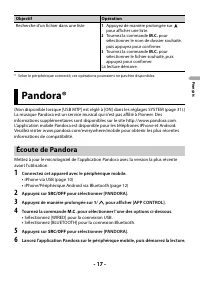
- 17 - - 17 - Fr a n ça is * Selon le périphérique connecté, ces opérations pourraient ne pas être disponibles. (Non disponible lorsque [USB MTP] est réglé à [ON] dans les réglages SYSTEM (page 31).)La musique Pandora est un service musical qui n’est pas affilié à Pioneer. Des informations supplémen...
Page 59 - Écoute de Spotify
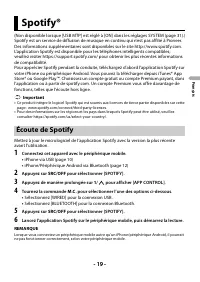
- 19 - - 19 - Fr a n ça is (Non disponible lorsque [USB MTP] est réglé à [ON] dans les réglages SYSTEM (page 31).)Spotify est un service de diffusion de musique en continu qui n’est pas affilié à Pioneer. Des informations supplémentaires sont disponibles sur le site http://www.spotify.com.L’applicat...
Page 61 - ATTENTION
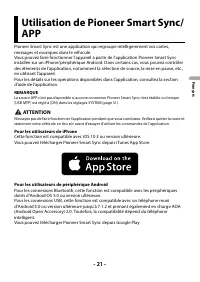
- 21 - - 21 - Fr a n ça is Pioneer Smart Sync est une application qui regroupe intelligemment vos cartes, messages et musiques dans le véhicule.Vous pouvez faire fonctionner l’appareil à partir de l’application Pioneer Smart Sync installée sur un iPhone/périphérique Android. Dans certains cas, vous ...
Page 62 - Favoriser l’utilisation de l’appareil
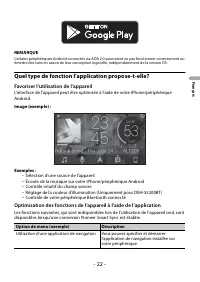
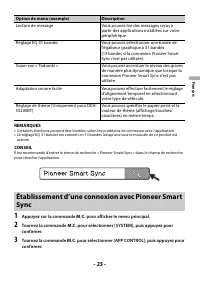
- 22 - Fr a n ça is REMARQUE Certains périphériques Android connectés via AOA 2.0 pourraient ne pas fonctionner correctement ou émettre des sons en raison de leur conception logicielle, indépendamment de la version OS. Quel type de fonction l’application propose-t-elle? Favoriser l’utilisation de l’...
Page 64 - Écoute de la musique sur votre périphérique; Réglages audio
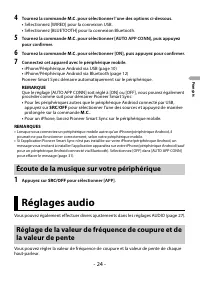
- 24 - Fr a n ça is 4 Tournez la commande M.C. pour sélectionner l’une des options ci-dessous. • Sélectionnez [WIRED] pour la connexion USB. • Sélectionnez [BLUETOOTH] pour la connexion Bluetooth. 5 Tournez la commande M.C. pour sélectionner [AUTO APP CONN], puis appuyez pour confirmer. 6 Tournez la...
Page 65 - Réglages
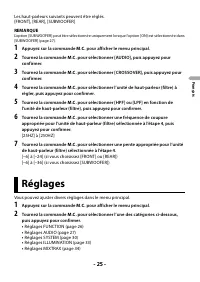
- 25 - - 25 - Fr a n ça is Les haut-parleurs suivants peuvent être réglés.[FRONT], [REAR], [SUBWOOFER] REMARQUE L’option [SUBWOOFER] peut être sélectionnée uniquement lorsque l’option [ON] est sélectionnée dans [SUBWOOFER] (page 27). 1 Appuyez sur la commande M.C. pour afficher le menu principal. 2 ...
Page 66 - Réglages FUNCTION
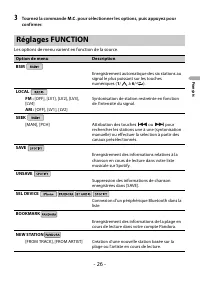
- 26 - Fr a n ça is 3 Tournez la commande M.C. pour sélectionner les options, puis appuyez pour confirmer. Les options de menu varient en fonction de la source. Réglages FUNCTION Option de menu Description BSM Enregistrement automatique des six stations au signal le plus puissant sur les touches num...
Page 67 - Réglages AUDIO
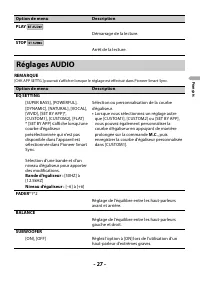
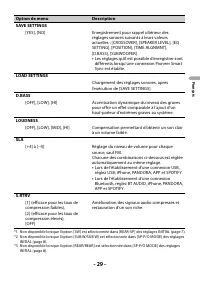
- 27 - - 27 - Fr a n ça is REMARQUE [CHK APP SETTG.] pourrait s’afficher lorsque le réglage est effectué dans Pioneer Smart Sync. PLAY Démarrage de la lecture. STOP Arrêt de la lecture. Réglages AUDIO Option de menu Description EQ SETTING [SUPER BASS], [POWERFUL], [DYNAMIC], [NATURAL], [VOCAL], [VIV...
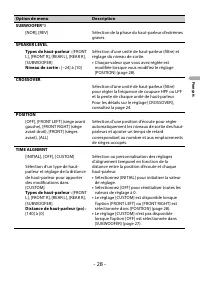
Page 70 - Réglages SYSTEM
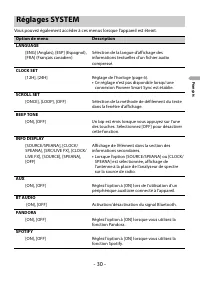
- 30 - Fr a n ça is Vous pouvez également accéder à ces menus lorsque l’appareil est éteint. Réglages SYSTEM Option de menu Description LANGUAGE [ENG] (Anglais), [ESP] (Espagnol), [FRA] (Français canadien) Sélection de la langue d’affichage des informations textuelles d’un fichier audio compressé. C...
Page 71 - Informations sur les connexions de chaque périphérique
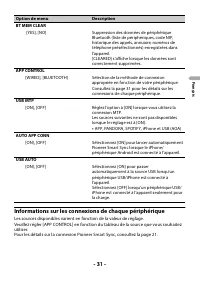
- 31 - - 31 - Fr a n ça is Informations sur les connexions de chaque périphérique Les sources disponibles varient en fonction de la valeur de réglage.Veuillez régler [APP CONTROL] en fonction du tableau de la source que vous souhaitez utiliser.Pour les détails sur la connexion Pioneer Smart Sync, co...
Page 72 - Lorsque vous n’effectuez PAS la connexion Pioneer Smart Sync
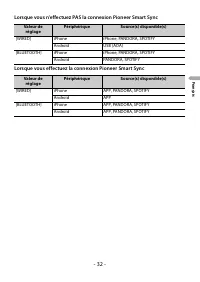
- 32 - Fr a n ça is Lorsque vous n’effectuez PAS la connexion Pioneer Smart Sync Lorsque vous effectuez la connexion Pioneer Smart Sync Valeur de réglage Périphérique Source(s) disponible(s) [WIRED] iPhone iPhone, PANDORA, SPOTIFY Android USB (AOA) [BLUETOOTH] iPhone iPhone, PANDORA, SPOTIFY Android...
Page 73 - Réglages ILLUMINATION
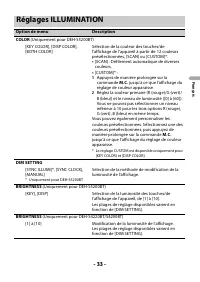
- 33 - - 33 - Fr a n ça is Réglages ILLUMINATION Option de menu Description COLOR (Uniquement pour DEH-S5200BT) [KEY COLOR], [DISP COLOR], [BOTH COLOR] Sélection de la couleur des touches/de l’affichage de l’appareil à partir de 12 couleurs présélectionnées, [SCAN] ou [CUSTOM]*. • [SCAN] : Défilemen...
Page 74 - Réglages MIXTRAX
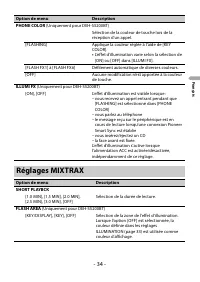
- 34 - Fr a n ça is PHONE COLOR (Uniquement pour DEH-S5200BT) Sélection de la couleur de touche lors de la réception d’un appel. [FLASHING] Applique la couleur réglée à l’aide de [KEY COLOR]. • L’effet d’illumination varie selon la sélection de [ON] ou [OFF] dans [ILLUMI FX]. [FLASH FX1] à [FLASH FX...
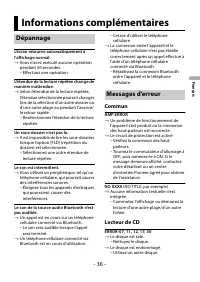
Page 76 - Commun; Lecteur de CD; Informations complémentaires; Dépannage
- 36 - Fr a n ça is L’écran retourne automatiquement à l’affichage normal. → Vous n’avez exécuté aucune opération pendant 30 secondes.– Effectuez une opération. L’étendue de la lecture répétée change de manière inattendue. → Selon l’étendue de la lecture répétée, l’étendue sélectionnée pourrait chan...
Page 77 - Périphérique USB/iPhone
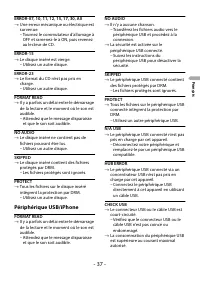
- 37 - Fr a n ça is ERROR-07, 10, 11, 12, 15, 17, 30, A0 → Une erreur mécanique ou électrique est survenue.– Tournez le commutateur d’allumage à OFF et ramenez-le à ON, puis revenez au lecteur de CD. ERROR-15 → Le disque inséré est vierge.– Utilisez un autre disque. ERROR-23 → Le format du CD n’est ...
Page 78 - Périphérique Bluetooth
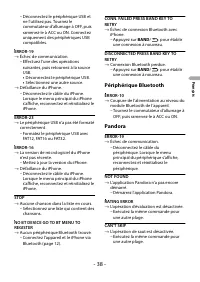
- 38 - Fr a n ça is – Déconnectez le périphérique USB et ne l’utilisez pas. Tournez le commutateur d’allumage à OFF, puis ramenez-le à ACC ou ON. Connectez uniquement des périphériques USB compatibles. ERROR-19 → Échec de communication.– Effectuez l’une des opérations suivantes, puis retournez à la ...
Page 80 - Disques et lecteur
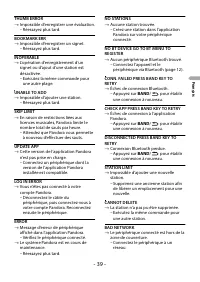
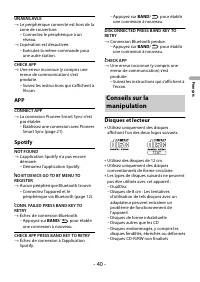
- 40 - Fr a n ça is UNAVAILAVLE → Le périphérique connecté est hors de la zone de couverture.– Connectez le périphérique à un réseau. → L’opération est désactivée.– Exécutez la même commande pour une autre station. CHECK APP → Une erreur inconnue (y compris une erreur de communication) s’est produit...
Page 81 - Périphérique de stockage USB
- 41 - Fr a n ça is • N’écrivez pas sur les disques et n’appliquez aucun produit chimique sur leur surface. • Pour nettoyer un CD, essuyez le disque avec un chiffon doux en partant du centre vers l’extérieur. • La condensation peut perturber temporairement le fonctionnement du lecteur. Laissez celui...
Page 83 - Périphérique USB; Exemple de hiérarchie; Compatibilité iPhone
- 43 - Fr a n ça is Périphérique USB • Il pourrait se produire un léger retard au début de la lecture de fichiers audio sur un périphérique de stockage USB avec de nombreuses hiérarchies de dossiers. Cet appareil prend en charge uniquement les modèles de iPhone suivants. Les versions antérieures pou...
Page 85 - Généralités
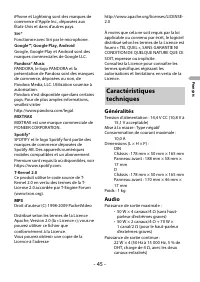
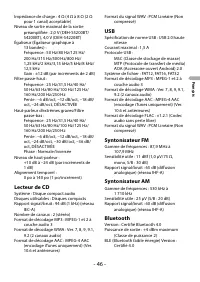
- 45 - Fr a n ça is iPhone et Lightning sont des marques de commerce d’Apple Inc., déposées aux États-Unis et dans d’autres pays. Siri® Fonctionne avec Siri par le microphone. Google™, Google Play, Android Google, Google Play et Android sont des marques commerciales de Google LLC. Pandora® Music PAN...
Page 88 - Acerca de este manual:; Índice
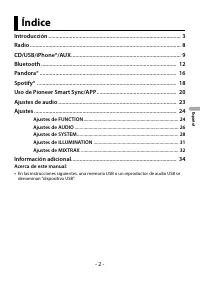
- 2 - Españ o l Introducción ............................................................................................. 3 Radio .......................................................................................................... 8 CD/USB/iPhone®/AUX ............................................
Page 89 - Introducción; Funcionamiento básico
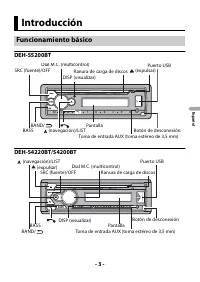
- 3 - - 3 - Españ o l DEH-S5200BT DEH-S4220BT/S4200BT Introducción Funcionamiento básico SRC (fuente)/OFF Botón de desconexión Pantalla Dial M.C. (multicontrol) BAND/ DISP (visualizar) (navegación)/LIST Puerto USB Toma de entrada AUX (toma estéreo de 3,5 mm) (expulsar) Ranura de carga de discos BASS...
Page 91 - Extracción del panel frontal; Extracción
- 5 - - 5 - Españ o l Extraiga el panel frontal para evitar robos. Quite los cables y dispositivos conectados al panel frontal y apague la unidad antes de extraerlo. Importante • Evite que el panel frontal sufra golpes excesivos. • Mantenga el panel frontal alejado de la luz solar directa y las alta...
Page 92 - Menú de configuración
- 6 - Españ o l Después de la instalación, gire la llave de encendido hasta la posición ON y aparecerá el menú de configuración en la pantalla. 1 Gire el dial M.C. para seleccionar las opciones y presione para confirmar. Para avanzar a la siguiente opción de menú, debe confirmar la selección. 2 Apar...
Page 93 - Ajustes de INITIAL
- 7 - - 7 - Españ o l 1 Presione el dial M.C. para mostrar el menú principal. 2 Gire el dial M.C. para seleccionar [SYSTEM] y presione para confirmar. 3 Gire el dial M.C. para seleccionar [DEMO OFF] y presione para confirmar. 4 Gire el dial M.C. para seleccionar [YES] y presione para confirmar. 1 Ma...
Page 94 - Recepción de estaciones predefinidas
- 8 - Españ o l Las frecuencias de sintonización en esta unidad están asignadas para su uso en América del Norte. El uso en otras áreas puede acarrear problemas de recepción. 1 Presione SRC / OFF para seleccionar [RADIO]. 2 Presione BAND / para seleccionar la banda entre [FM1], [FM2], [FM3] o [AM]. ...
Page 95 - Para buscar una estación manualmente; Para almacenar estaciones manualmente; Reproducción
- 9 - - 9 - Españ o l Para buscar una estación manualmente 1 Después de seleccionar la banda, presione / para seleccionar una estación. Mantenga presionado / y suéltelo para buscar una estación disponible. La exploración se detiene cuando la unidad recibe una estación. Para cancelar la sintonización...
Page 96 - PRECAUCIÓN; Operaciones
- 10 - Españ o l PRECAUCIÓN Use un cable USB (se vende por separado) para conectar el dispositivo USB, ya que si conecta un dispositivo directamente a la unidad, este quedará sobresaliendo, lo que podría ser peligroso. Antes de quitar el dispositivo, detenga la reproducción. Conexión AOA Un disposit...
Page 98 - Conexión Bluetooth
- 12 - Españ o l Importante Si hay conectados diez dispositivos Bluetooth o más (por ejemplo, un teléfono y un reproductor de audio independiente), es posible que no funcionen correctamente. SUGERENCIA En los pasos a continuación, la siguiente conexión a la unidad se realizará automáticamente si el ...
Page 100 - Para predefinir números telefónicos; Reconocimiento de voz; Menú del teléfono
- 14 - Españ o l Para predefinir números telefónicos 1 Seleccione un número telefónico de una libreta telefónica o del historial de llamadas. 2 Mantenga presionado uno de los botones de número (de 1 / a 6 / ). El contacto se almacena en el número predefinido seleccionado. Para realizar una llamada m...
Page 103 - Escuchar Pandora
- 17 - - 17 - Españ o l Actualice el firmware de la aplicación Pandora a la versión más reciente antes de usarla. 1 Conecte la unidad al dispositivo móvil. • iPhone mediante USB (página 9) • Dispositivo iPhone/Android mediante Bluetooth (página 12) 2 Presione SRC/OFF para seleccionar [PANDORA]. 3 Ma...
Page 104 - Escuchar Spotify
- 18 - Españ o l NOTA Es posible que no pueda operar algunas funciones de Pandora en esta unidad. (No está disponible cuando [USB MTP] está establecido en [ON] en los ajustes de SYSTEM (página 30)).Spotify es un servicio de distribución de música no afiliado a Pioneer. Puede obtener más información ...
Page 106 - ADVERTENCIA; Uso de Pioneer Smart Sync/APP
- 20 - Españ o l NOTA Es posible que no pueda operar algunas funciones de Spotify en esta unidad. Pioneer Smart Sync es la aplicación que le ofrece de manera inteligente mapas, mensajes y música, todo en el vehículo.Puede operar la unidad desde la Pioneer Smart Sync instalada en un dispositivo iPhon...
Page 107 - ¿Qué tipo de función tiene la aplicación?; Promover el uso de la unidad
- 21 - - 21 - Españ o l Para conexiones USB, esta función es compatible con un teléfono que funcione con Android 5.0 o posterior hasta 7.1.2, y también admite AOA (Android Open Accessory) 2.0. Sin embargo, la compatibilidad depende del teléfono.Puede descargar la Pioneer Smart Sync en Google Play. N...
Page 108 - Realizar una conexión con Pioneer Smart Sync
- 22 - Españ o l NOTAS • Algunas funciones pueden estar restringidas según las condiciones de conexión con la aplicación. • La configuración de 31 bandas de EQ se convierte a 13 bandas cuando se usa una fuente de música de este producto. SUGERENCIA Se recomienda ingresar el término de búsqueda “Pion...
Page 109 - Escuchar música en el dispositivo; Ajustes de audio
- 23 - - 23 - Españ o l 5 Gire el dial M.C. para seleccionar [AUTO APP CONN] y luego presione para confirmar. 6 Gire el dial M.C. para seleccionar [ON] y presione para confirmar. 7 Conecte la unidad al dispositivo móvil. • Dispositivo iPhone/Android mediante USB (página 9) • Dispositivo iPhone/Andro...
Page 110 - Ajustes; Ajustes de FUNCTION
- 24 - Españ o l 1 Presione el dial M.C. para mostrar el menú principal. 2 Gire el dial M.C. para seleccionar [AUDIO] y presione para confirmar. 3 Gire el dial M.C. para seleccionar [CROSSOVER] y presione para confirmar. 4 Gire el dial M.C. para seleccionar la unidad de altavoz (filtro) que va a aju...
Page 112 - Ajustes de AUDIO
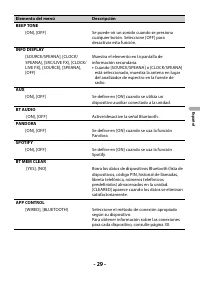
- 26 - Españ o l NOTA [CHK APP SETTG.] puede aparecer cuando el ajuste se establece desde Pioneer Smart Sync. Ajustes de AUDIO Elemento del menú Descripción EQ SETTING [SUPER BASS], [POWERFUL], [DYNAMIC], [NATURAL], [VOCAL], [VIVID], [SET BY APP]*, [CUSTOM1], [CUSTOM2], [FLAT]* [SET BY APP] se visua...
Page 114 - Ajustes de SYSTEM
- 28 - Españ o l *1 No está disponible cuando [SW] está seleccionado en [REAR-SP] en los ajustes de INITIAL (página 7).*2 No está disponible cuando [SUB.W/SUB.W] está seleccionado en [SP-P/O MODE] en los ajustes de INITIAL (página 7). *3 No está disponible cuando [REAR/REAR] está seleccionado en [SP...
Page 116 - Información sobre las conexiones para cada dispositivo; Cuando NO se realiza la conexión Pioneer Smart Sync
- 30 - Españ o l Información sobre las conexiones para cada dispositivo Los orígenes disponibles difieren según el valor de los ajustes.Ajuste [APP CONTROL] de acuerdo con la tabla para el origen que desee usar.Para obtener información sobre la conexión Pioneer Smart Sync, consulte página 20. Cuando...
Page 117 - Ajustes de ILLUMINATION
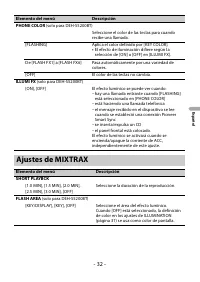
- 31 - - 31 - Españ o l Ajustes de ILLUMINATION Elemento del menú Descripción COLOR (solo para DEH-S5200BT) [KEY COLOR], [DISP COLOR], [BOTH COLOR] Seleccione el color para las teclas o la pantalla de la unidad a partir de los 12 colores predefinidos, [SCAN] o [CUSTOM]*. • [SCAN]: Pasa automáticamen...
Page 118 - Ajustes de MIXTRAX
- 32 - Españ o l PHONE COLOR (solo para DEH-S5200BT) Seleccione el color de las teclas para cuando recibe una llamada. [FLASHING] Aplica el color definido por [KEY COLOR]. • El efecto de iluminación difiere según la selección de [ON] o [OFF] en [ILLUMI FX]. De [FLASH FX1] a [FLASH FX6] Pasa automáti...
Page 120 - Comunes; Reproductor de CD; Información adicional; Solución de problemas
- 34 - Españ o l La pantalla vuelve automáticamente a la pantalla normal. → No se ha efectuado ninguna operación en 30 segundos aproximadamente.– Realice una operación. El rango de repetición de reproducción cambia inesperadamente. → Según el rango de repetición de reproducción, el rango seleccionad...
Page 121 - Dispositivo USB/iPhone
- 35 - Españ o l – Gire la llave de encendido a la posición OFF y nuevamente a ON, y vuelva al reproductor de CD. ERROR-15 → El disco que introdujo está vacío.– Sustituya el disco. ERROR-23 → El formato del CD no es compatible.– Sustituya el disco. FORMAT READ → En ocasiones, hay una demora entre el...
Page 122 - Dispositivo Bluetooth
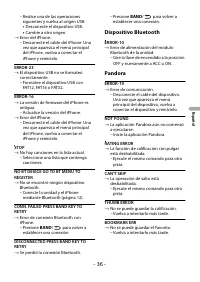
- 36 - Españ o l – Realice una de las operaciones siguientes y vuelva al origen USB. • Desconecte el dispositivo USB. • Cambie a otro origen. → Error del iPhone.– Desconecte el cable del iPhone. Una vez que aparezca el menú principal del iPhone, vuelva a conectar el iPhone y reinícielo. ERROR-23 → E...
Page 124 - Spotify; Discos y reproductor; Pautas de manipulación
- 38 - Españ o l CHECK APP → Se produjo un error desconocido (incluido un error de comunicación).– Siga las instrucciones que aparecen en pantalla. APP CONNECT APP → No se establece la conexión de Pioneer Smart Sync.– Realizar una conexión con Pioneer Smart Sync (página 20). Spotify NOT FOUND → La a...
Page 125 - Archivos WMA
- 39 - Españ o l discos, es posible que no sea posible su introducción y expulsión. El uso de estos discos puede dañar el equipo. • No pegue en los discos etiquetas disponibles en el mercado ni otros materiales.– Los discos se pueden deformar, por lo que sería imposible su reproducción. – Las etique...
Page 127 - Ejemplo de una jerarquía
- 41 - Españ o l Esta unidad es compatible con los modelos de iPhone siguientes. Es posible que las versiones anteriores no sean compatibles.Fabricado para – iPhone XR– iPhone XS Max– iPhone XS– iPhone X– iPhone 8– iPhone 8 Plus– iPhone 7– iPhone 7 Plus– iPhone SE– iPhone 6s– iPhone 6s Plus– iPhone ...
Page 129 - Generalidades; Especificaciones
- 43 - Españ o l comerciales o registradas de Pandora Media, LLC. y se usan con su permiso.Pandora solo está disponible en algunos países. Ingrese ahttp://www.pandora.com/legalpara obtener más información. MIXTRAX MIXTRAX es una marca comercial de PIONEER CORPORATION. Spotify® SPOTIFY y el logotipo ...
Page 131 - Especificaciones de CTA2006
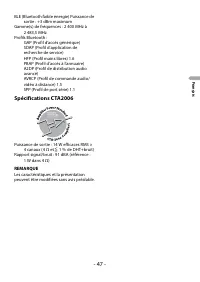
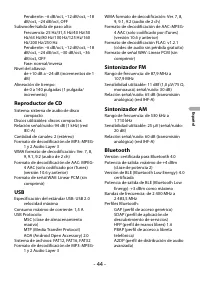
- 45 - Españ o l AVRCP (perfil de control remoto de audio/video) 1.5SPP (perfil de puerto serial) 1.1 Especificaciones de CTA2006 Salida de potencia: 14 W RMS × 4 canales (4 Ω y 1 % THD+N) Relación señal/ruido: 91 dBA (referencia: 1 W a 4 Ω) NOTA Las especificaciones y el diseño están sujetos a modi...













 Pioneer DEH-X2600UI Manual
 Pioneer DEH-X6600BT Manual
 Pioneer DEH-X8500BT Manual
 Pioneer DEH-X8700BT Manual
 Pioneer DEH S1200UB User Manual
 Pioneer DEH S5200BT User Manual
 Pioneer DEH S6200BS User Manual
 Pioneer DEH S7200BHS User Manual
 Pioneer DEQ-P7650 Manual
 Pioneer DEX-P9 Manual
 Pioneer DIAMANTE ULTRA User Manual