Pioneer DMH Z5150BT - Manual

A user manual for Pioneer’s DMH-Z5150BT in-dash AV receiver covers essential topics like firmware updates, ensuring compatibility with USB storage devices and vehicle conditions (e.g., parking brake engaged). The guide emphasizes safety–such as avoiding disconnections during updates–and highlights procedures for verifying current firmware versions, downloading updates from Pioneer’s site, and navigating the update process through the device’s menu system. Key areas include preparation requirements, step-by-step navigation, and confirmation steps to confirm successful installation.


Table of Contents:
- Page 1 – Firmware Update Prerequisites and Safety Precautions
- Page 2 – Checking Current Firmware Version
- Page 3 – Downloading and Preparing Firmware Files
- Page 4 – Initiating the Firmware Update Process
- Page 5 – Executing the AV Receiver Firmware Update
- Page 6 – Verifying Successful Firmware Update
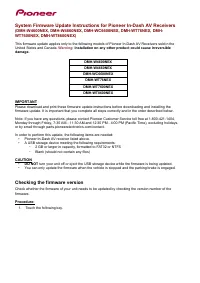
System Firmware Update Instructions for Pioneer In-Dash AV Receivers
(DMH-Z5150BT)
This firmware update (version 8.02) applies only to the following models of Pioneer In-Dash AV Receivers
sold in Australia & New Zealand.
DMH-Z5150BT
IMPORTANT
Please download and print these firmware update instructions before downloading and installing the
firmware update. It is important that you complete all steps correctly and in the order described below.
Note: If you have any questions, please contact Pioneer Customer Service at 1800 988 268, Monday
through Friday, 9:00 AM - 5:00 PM, excluding holidays.
In order to perform this update, the following items are needed:
• Pioneer In-Dash AV receiver listed above.
• A USB storage device meeting the following requirements:
-
2 GB or larger in capacity, formatted to FAT32
-
Blank (should not contain any files)
CAUTION
•
DO NOT
turn your unit off or eject the USB storage device while the firmware is being updated.
• You can only update the firmware when the vehicle is stopped and the parking brake is engaged.
"Loading the manual" means you need to wait until the file loads and becomes available for online reading. Some manuals are very large, and the time they take to appear depends on your internet speed.
Was this manual helpful?
About this manual
- Brand
- Pioneer
- Model
- DMH Z5150BT
- Document type
- Manual
- Language(s)
- English
- Pages
- 6
- File size
- 341.2 KB
- Format
Summary
Requirements for updating system firmware, including using a compatible USB storage device. Safety precautions mandate that the unit must remain powered on with the parking brake engaged during the update.
Procedure to verify the current firmware version by navigating through the device menu to access and display the system firmware information.
Instructions for downloading update files from the website, extracting them, and precautions to prevent unit damage during file preparation, such as avoiding touchscreen contact or USB removal.
Ask a question
Related manuals
Popular Pioneer Other


More Pioneer Other models
 Pioneer DMH W4600NEX Manual
- Pioneer DMH WC6600NEX Manual
- Pioneer DMH WT76NEX Manual
 Pioneer DMH WT6000NEX User Manual
 Pioneer DMH WT7600NEX Manual
 Pioneer DMH WT8600NEX Manual
 Pioneer DRM-6NX Manual
 Pioneer DRM-1804X Manual
 Pioneer DV-45A Manual
 Pioneer DV-251 Manual
 Pioneer DV-333 Manual
 Pioneer DV-343 Manual