Philips SPH8408_10 - Quick Guide

This user manual is for the Philips PhotoAlbum digital photo frame models SPH8408 and SPH8428. It provides comprehensive instructions covering the device's button functions, media transfer from storage devices, startup procedures including initial battery charging, and the creation and viewing of event reminders. The manual includes step-by-step guides, icon descriptions, and battery level indicators to help users operate the device effectively.
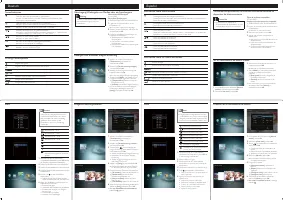
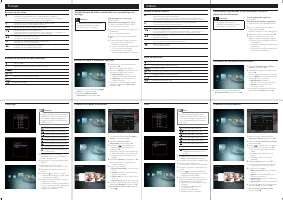

Table of Contents:
- Page 1 – Overview of Controls, Initial Setup, and Media Management
- Page 2 – Manual in German and Spanish
- Page 3 – Manual in French and Italian
- Page 4 – Manual in Dutch and Russian
Register your product and get support at
www.philips.com/welcome
PhotoAlbum
SPH8408
SPH8428
Know these buttons
- Press to turn on the PhotoAlbum
- Press and hold to turn off the PhotoAlbum
- Press to switch modes (between slideshow and clock/calendar; or
between wave view and album view)
- Hold to go to the home screen
- Tap to go back to the upper-level menu
MENU
- Tap to access or to exit the option menu
Tap to zoom in/out
- Tap to switch modes (wave mode <-> album mode <-> slideshow
mode<-> zoom in twice <-> zoom in 4 times)
▲▼
- Tap to scroll up
- Tap to scroll down
OK
- Tap to play/pause slideshow
- Tap to confirm a selection
◄►
- Tap to skip left
- Tap to skip right
Transfer/Play media via a storage device
Media type supported:
Photo (JPEG)
Storage device supported:
SD/SDHC/MMC/MMC Plus/xD/MS/MS Pro
1 Insert a storage device into the PhotoAlbum.
→ An option menu is displayed.
2 Select an option, and then tap OK.
3 Follow the on screen instructions to:
- Play media on the storage device
- Browse media on the storage device
- Copy media on the storage device to
PhotoAlbum
View a created event reminder
1 In the home screen, select [Event Reminder]
and then tap OK.
2 Select [View Event Reminder], and then tap OK.
3 Select an event reminder, and then tap OK.
→ An event reminder is displayed.
Tap MENU, and then select one of the following options to continue:
- [Re-schedule]: Reschedule the event reminder
- [Delete]: Delete the event reminder
To go back to view other event reminders, select [Done] and then tap OK.
Know these keypad icons
Input in English
Input in supported European languages
Русский
Input in Russian
$# / ABC
Switch to select symbols, punctuations, alphabet or numbers
aA
Switch between upper and lower case
Enter a blank space
Enter a line break
Startup
Note
Charge the built-in battery for about 2
hours before using the PhotoAlbum for the
first time.The fully charged built-in battery
lets you operate the PhotoAlbum for up
to 1 hour:
Battery level 0% - 5%
Battery level 5% - 20%
Battery level 20% - 40%
Battery level 40% - 60%
Battery level 60% - 80%
Battery level 80% - 100%
PhotoAlbum in charging
PhotoAlbum in dock, AC-powered,
not charging
1 Connect the DC plug of the supplied power
cord to the DC jack of the supplied charging
dock.
2 Feed the cord through the cord channel.
3 Connect the AC plug of the power cord to
a power supply socket.
4 Connect the PhotoAlbum to the charging
dock.
5 Press Ø to turn on the PhotoAlbum.
Select a language or set time and date if
applicable.
6 Follow the on screen instructions to:
Play media
Select or set clock/calendar
Create or view event reminders
Browse media
Adjust settings
Create an event reminder
1 In the home screen, select [Event Reminder]
and then tap OK.
2 Select [Create Event Reminder], and then
tap OK.
3 Tap ◄► to select a template of event
reminder, and then tap OK.
- Change image of event reminder.
- Edit the text of event reminder.
- Set the real time and date if applicable.
4 Select [Done], and then tap OK.
→ The screen prompts you to schedule the
event reminder.
5 Schedule the message:
[Event Name]: Enter the name.
[Repeat]: Select a repeat frequency
[Set Date]: Set the date or day
[Set Time]: Set the time
6 After you complete the event reminder,
select [Done] and then tap OK.
To go back to the home screen, hold .
"Loading the manual" means you need to wait until the file loads and becomes available for online reading. Some manuals are very large, and the time they take to appear depends on your internet speed.
Was this manual helpful?
About this manual
- Brand
- Philips
- Model
- SPH8408_10
- Document type
- Quick Guide
- Category
- Digital Photo Frame
- Language(s)
- German, English, Spanish, French, Italian, Dutch, Russian
- Pages
- 4
- File size
- 319.7 KB
- Format
Summary
Description of button functions, startup steps including charging, media transfer from memory cards, and event reminder creation. Also covers on-screen icons for text entry.
Similar instructions as page 1, presented in German and Spanish. Includes button functions, media handling, and battery charging details.
French and Italian versions covering button controls, media operations, and setup. Includes charging guidelines and step-by-step usage.
Tips
- Charge the built-in battery for approximately 2 hours before first use for up to 1 hour of operation.
- The device supports JPEG photos and storage media such as SD, SDHC, MMC, xD, and MS cards.
- To create an event reminder, select a template, set the date and time, and choose the repeat frequency.
- Use the MENU button to access options and the OK button to confirm selections.
Ask a question
Related manuals
More Philips Digital Photo Frames models

Other Philips appliances
 Philips 1 Manual
 Philips 2 Manual
 Philips 2 Series Manual
 Philips 2.44E+03 Manual
 Philips 3 Manual
- Philips 4 Manual
 Philips 4CM6088 Manual
 Philips 5.1 Manual
- Philips 6 Manual
 Philips 7FF1CWO Manual
- Philips 7FF1M4 Manual
 Philips 8P6054C Manual
 Philips 9P5031C1, 9P5531C1, 9P6031C1, 9P5034C1, 9P5534C1, 9P6034C1 Manual
 Philips 10 Manual
- Philips 13 Manual
 Philips 13MT1532, 13MT1533 Manual
 Philips 13PR12W99 Manual
- Philips 14 Manual
 Philips 14GR1221 Manual