Page 3 - Contents
Contents 2 Register your product 3 What’s in the box 4 Overview of the controls and connections 6 Connect and charge 8 Install software 9 Turn GoGear Vibe on 10 Navigate and play 12 Transfer and organize 13 Audiobooks 15 Update GoGear Vibe 16 Need help? 16 Disposal of your old product and the integr...
Page 4 - Register your product
2 Register your product Since it is possible for you to upgrade your product, we recommend that you register your product on www.philips.com/welcome so we can inform you as soon as new free upgrades become available.
Page 5 - What’s in the box
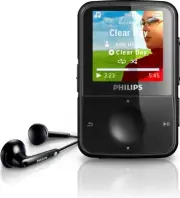
3 en What’s in the box Earphones USB cable CD-ROm Philips GoGear audio player Quick start guide Quick start guide What else you’ll need: Computer You need a computer with the following minimum requirements: Windows XP (SP2 or above) / Vista • Pentium III 800mHz processor or higher • 512 mB RAm • 500...
Page 8 - Connect and charge
6 Connect and charge Connect the USB plug of the supplied 1 USB cable to a spare USB port on your computer. Connect the small USB plug of the 2 USB cable to the small USB jack on GoGear Vibe. Turn on your computer. 3 GoGear Vibe charges. > note For first-time use, allow GoGear Vibe to charge for ...
Page 10 - Install software
8 Install software GoGear Vibe comes with the following software: Philips Device Manager (helps you get firmware updates for • GoGear Vibe) media Converter for Philips (helps you convert and transfer • video files for GoGear Vibe) Windows media Player (helps you convert and transfer music • files fo...
Page 11 - Turn GoGear Vibe on
9 en Turn GoGear Vibe on To toggle between modes on and off, slide and hold 1 z for approximately 2 seconds. GoGear Vibe has a lock switch to prevent accidental operation: To lock the buttons when you play, move the slider to position 1 . All buttons except the volume keys are locked and the display...
Page 12 - Navigate and play
10 Navigate and play From the main menu, select 1 / / . Press 2 3 / 4 to select music / videos / pictures. mode • / : Press 2; to toggle between pause and play music / video. mode • : Press 2; to start slideshow. Press 3 OPTIONS to view available options. Tip You can find more detailed information o...
Page 14 - Transfer and organize
12 Transfer and organize You can install the Windows Media Player to organize and facilitate locating your files. With GoGear Vibe connected to the USB port of the computer, 1 open Windows® explorer . Create folders in the mass storage of GoGear Vibe. 2 Use drag and drop actions to sort your music i...
Page 15 - Audiobooks
13 en Audiobooks GoGear Vibe supports books in audio format. The use of this feature requires that you download the AudibleManager from audible.com. With the AudibleManager you can manage the digital contents of your audiobooks. Visit audible.com and register. The onscreen instructions guide you thr...
Page 16 - Listen to radio
14 Listen to radio From the main menu, select 1 . To search for the next stronger signal, press and hold 2 3 / 4 . To fine tune the frequency, briefly press 3 3 / 4 . Tip You can find more information on presets and auto- tuning in the user manual. Settings This is how you navigate and customize the...
Page 17 - Update GoGear Vibe
15 en Update GoGear Vibe Ensure that your computer is connected to the Internet. 1 Connect GoGear Vibe to the computer (see section 2 Connect and charge for instructions). On your computer, click 3 Start > Programs > Philips Digital Audio Player > Vibe Device Manager to launch Philips Devic...
Page 18 - Disposal of your old product and
16 Need help? User Manual See the user manual stored on this player. On line Go to www.philips.com/welcome Disposal of your old product and the integrated battery All our products are designed and manufactured with high quality materials and components, which can be recycled and reused. The crossed-...