Page 2 - Table of Contents; Safety precautions and
Table of Contents 1. Important ...................................... 1 1.1 Safety precautions and maintenance ................................. 1 1.2 Notational Descriptions ............ 21.3 Disposal of product and packing material .......................................... 3 2. Setting up the Dis...
Page 3 - Warnings
1 1. Important 1. Important This electronic user’s guide is intended for anyone who uses the Philips Display. Take time to read this user manual before you use your Display. It contains important information and notes regarding operating your Display. The Philips guarantee applies provided the produ...
Page 4 - Notational Descriptions; Notes, Cautions and Warnings
2 1. Important • If foreign substance or water gets in your Display, please turn the power off immediately and disconnect the power cord. Then, remove the foreign substance or water, and send it to the maintenance center. • Do not store or use the Display in locations exposed to heat, direct sunligh...
Page 5 - Warning; Disposal of product and
3 1. Important Warning This icon indicates the potential for bodily harm and tells you how to avoid the problem.Some warnings may appear in alternate formats and may not be accompanied by an icon. In such cases, the specific presentation of the warning is mandated by the relevant regulatory authorit...
Page 6 - Setting up the monitor; Setting up the Display; Package contents; Install the base
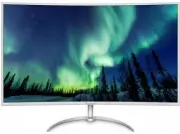
4 2. Setting up the monitor 2. Setting up the Display 2.1 Installation Package contents * VGA * HDMI * CD * Audio cable * DP cable * USB cable BDM4037 Register your product and get support at www.philips.com/welcome © 2 0 16 K o n in kli jk e P h ilip s N .V. All rig hts re ser ved . U nau thori zed...
Page 7 - Connecting to your PC; Connect to PC
5 2. Setting up the monitor Connecting to your PC 1 2 3 4 5 5 6 7 8 9 10 11 MHL-HDMI 2.0 AUDIO IN D-SUB MHL-HDMI 1 Kensington anti-theft lock 2 Earphone jack 3 Audio input 4 VGA input 5 Display port input 6 MHL-HDMI 2.0 input 7 MHL-HDMI 1.4 input 8 AC Power input 9 USB upstream 10 USB fast charger 1...
Page 8 - Operating the Display; Description of the control buttons
6 2. Setting up the monitor 2.2 Operating the Display 1 Description of the control buttons 1 Press more than 3 seconds to switch display power OFF. Press to switch display power ON. 2 Access the OSD menu. Confirm the OSD adjustment. 3 User preference key. Customize your own preference function from ...
Page 9 - Independent audio playback,
7 2. Setting up the monitor For example, if you selected [Audio Source] as the function, toggle down , the [Audio Source] menu appears. U 3 Independent audio playback, regardless of video input Your Philips Display can play th...
Page 10 - The OSD Menu
8 2. Setting up the monitor Basic and simple instruction on the control keys To access the OSD menu on this Philips Display simply use the single toggle button on the backside of the Display bezel. The single button operates like a joystick. To move the cursor, simply toggle the button in four direc...
Page 11 - Resolution notification
9 2. Setting up the monitor 5 Resolution notification This Display is designed for optimal performance at its native resolution, 3840 x 2160 @ 60 Hz. When the Display is powered on at a different resolution, an alert is displayed on screen: Use 3840 x 2160 @ 60 Hz for best results. Display of the na...
Page 12 - Why do I need it?
10 2. Setting up the monitor 2.3 MultiView What is it? Multiview enables active variety connect and view so that you can work with multiple devices like PC and Notebook side-by-side simultaneously, making complex multi-tasking work a breeze. Why do I need it? With the ultra high resolution Philips M...
Page 13 - Toggle to the up or down to select; PIP Position
11 2. Setting up the monitor 3. Toggle to the up or down to select [PIP / PBP Mode] , then toggle to the right. 4. Toggle to the up or down to select [Off] , [PIP] , [PBP 2Win] , or [PBP 4Win] , then toggle to the right. 5. Now you can move backward to set the [Off] , [PIP] , [PBP 2Win] , or [PBP 4W...
Page 14 - Swap A and B source in; Remove the Base Assembly; Place the Display face down on a
12 2. Setting up the monitor Swap A and B source in [PIP] mode: B A (main) ↔ B (main) A • Off : Stop MultiView function. Note When you do the SWAP function, the video and its audio source will swap at the same time. (Refer to page <7> “Independent audio playback, regardless of video input” for...
Page 15 - tion Link) introduction; How do I use the MHL function?; Note
13 2. Setting up the monitor 2.5 MHL (Mobile High-Defini- tion Link) introduction What is it? Mobile High Definition Link (MHL) is a mobile audio/video interface for directly connecting mobile phones and other portable devices to high-definition displays. An optional MHL cable allows you to simply c...
Page 16 - Image Optimization; How to enable SmartImage?
14 3. Image Optimization 3. Image Optimization 3.1 SmartImage What is it? SmartImage provides presets that optimize display for different types of content, dynamically adjusting brightness, contrast, color and sharpness in real time. Whether you're working with text applications, displaying images o...
Page 17 - Ramped up luminance,
15 3. Image Optimization photos and other images with outstanding clarity in vibrant colors - all without artifacts and faded colors. • Movie: Ramped up luminance, deepened color saturation, dynamic contrast and razor sharpness displays every details in darker areas of your videos without color wash...
Page 18 - Technical Specifications; Connectivity
16 4. Technical Specifications 4. Technical Specifications Picture/Display Display Panel Type VA LCD Backlight W-LED system Panel Size 40" (101.6 cm) Aspect Ratio 16:9 SmartContrast (typ.) 20,000,000:1 SmartResponse (typ.) 4 ms (GtG) Optimum Resolution VGA: 1920 x 1080 @ 60HzHDMI 1.4: 3840 x 216...
Page 19 - Dimensions
17 4. Technical Specifications Consumption AC Input Voltage at 100VAC , 50Hz AC Input Voltage at 115VAC , 60Hz AC Input Voltage at 230VAC, 50Hz Normal Operation 61.57 W (typ.) 61.67 W (typ.) 61.77 W (typ.) Sleep (Standby) 0.5 W (typ.) 0.5 W (typ.) 0.5 W (typ.) Off 0.3 W (typ.) 0.3 W (typ.) 0.3 W (ty...
Page 20 - Compliance and standards
18 4. Technical Specifications ROHS YES Packaging 100% recyclable Specific Substances 100% PVC BFR free housing Compliance and standards Regulatory Approvals CE Mark, FCC Class B,CCC, CECP, PSE, MEPS, EPA Cabinet Color White Finish Glossy Note 1. This data is subject to change without notice. Go to ...
Page 21 - Maximum Resolution
19 4. Technical Specifications 4.1 Resolution & Preset Modes Maximum Resolution 1920 x 1080 @ 60 Hz (analog input) 3840 x 2160 @ 60 Hz (digital input) Recommended Resolution 3840 x 2160 @ 60 Hz (digital input) H. freq (kHz) Resolution V. freq (Hz) 31.47 720 x 400 70.09 31.47 640 x 480 59.94 35.0...
Page 23 - Customer care and warranty; Customer care and; Philips’ Flat Panel Displays; subpixel; Pixels and Sub pixels
21 6. Customer care and warranty 6. Customer care and warranty 6.1 Philips’ Flat Panel Displays Pixel Defect Policy Philips strives to deliver the highest quality products. We use some of the industry's most advanced manufacturing processes and practice stringent quality control. However, pixel or s...
Page 25 - BRIGHT DOT DEFECTS
23 6. Customer care and warranty BRIGHT DOT DEFECTS ACCEPTABLE LEVEL 1 lit subpixel 3 2 adjacent lit subpixels 1 3 adjacent lit subpixels (one white pixel) 0 Distance between two bright dot defects* >15mm Total bright dot defects of all types 3 BLACK DOT DEFECTS ACCEPTABLE LEVEL 1 dark subpixel 5...
Page 26 - Contact Information for WESTERN EUROPE region:
24 6. Customer care and warranty 6.2 Customer Care & Warranty For warranty coverage information and additional support requirements valid for your region, please visit www.philips.com/support website for details or contact your local Philips Customer Care Center.For extended warranty, if you wou...
Page 27 - Contact Information for LATIN AMERICA region:
25 6. Customer care and warranty Germany RTS +49 01803 386 853 € 0.09 Mon to Fri : 9am - 6pm Greece Alman +30 00800 3122 1223 Free of charge Mon to Fri : 9am - 6pm Ireland Celestica +353 01 601 1161 Local call tariff Mon to Fri : 8am - 5pm Italy Anovo Italy +39 840 320 041 € 0.08 Mon to Fri : 9am - ...
Page 28 - Contact Information for CENTRAL AND EASTERN EUROPE region:
26 6. Customer care and warranty Contact Information for CENTRAL AND EASTERN EUROPE region: Country Call center CSP Consumer care number Belarus N/A IBA +375 17 217 3386 +375 17 217 3389 Bulgaria N/A LAN Service +359 2 960 2360 Croatia N/A MR Service Ltd +385 (01) 640 1111 Czech Rep. N/A Asupport 42...
Page 29 - Contact Information for NORTH AMERICA:
27 6. Customer care and warranty Contact Information for NORTH AMERICA: Country Call center Consumer care number U.S.A. EPI-e-center (877) 835-1838 Canada EPI-e-center (800)479-6696 Contact Information for APMEA region: Country ASP Consumer care number Opening hours Armenia Azerbaijan Georgia Kyrgyz...
Page 30 - Japan; フィリップスモニター
28 6. Customer care and warranty Singapore Philips Singapore Pte Ltd (Philips Consumer Care Center) (65) 6882 3966 Mon. ~ Fri. 9:00am-6:00pm Sat. 9:00am-1:00pm South Africa Computer Repair Technologies 011 262 3586 Mon. ~ Fri. 08:00am-05:00pm Taiwan FETEC.CO 0800-231-099 Mon. ~ Fri. 09:00 - 18:00 Th...
Page 31 - FAQs; Common Problems
29 7. Troubleshooting & FAQs 7. Troubleshooting & FAQs 7.1 Troubleshooting This page deals with problems that can be corrected by a user. If the problem still persists after you have tried these solutions, contact Philips customer service representative. Common Problems No Picture (Power LED...