Philips 65OLED974/F7 - Quick Guide
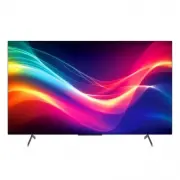
Philips 65OLED974/F7 – Quick Guide, read for free online in PDF format. We hope this helps you resolve any issues you may have. If you have further questions, please contact us through the contact form.

974 series
Category
Problem
Tip
Power
No power
Ensure that the AC outlet supplies the proper voltage.
Plug another electrical appliance into the AC outlet to
ensure that the AC outlet operates normally.
Remote
Remote buttons are not
functional.
Re-insert or replace the AAA batteries with their
polarities (+/–) as indicated on the remote battery area.
Network
Cannot connect the
network.
Check if your router and/or modem is properly
connected.
Check if the Ethernet cable connection between the TV
and your router or modem is properly secured.
Power cycle the router and/or modem.
Check your network settings.
Slow Data Connection or
bu
ff
ering.
Check the settings between your router and ISP modem
or gateway (if applicable).
Connect to a stable wireless connection from home
wireless or wired network.
The use of mobile hot spots or public wireless
connections is not recommended.
Picture on HDMI
Input
Television has sound
with no picture or
abnormal picture.
HDMI EDID Version setting is set to a di
ff
erent mode
than your source device.
Change the resolution output of your source device.
Sound on
HDMI with
AV Cable
AV cable doesn’t work
external devices
Television has no sound.
Please check to be sure the device is connected to the
HDMI 1 (eARC/ARC) input on the TV.
7
Parental Controls
8
Troubleshooting
Parental controls enable you to control whether the members of your household can view certain kinds of
broadcast TV programs. When a program or feature is blocked, you can unblock it by entering a parental
control PIN that only you know.
Note:
Parental controls block content from the TV tuner and from streaming options, if any, on the Home screen
menu. Parental controls do not block content on other TV inputs or content from streaming channels you add
to your TV.
Creating a parental control PIN
To create a new parental control PIN, from the Home screen menu navigate to
Settings > Parental controls
.
The screen displays a numeric keypad. Use the purple directional pad to enter a four-digit code, and then
press
OK
. Then repeat the process to enter the same PIN again, just to make sure you correctly entered the
PIN you want to use.
Important:
If you forget your parental control PIN, the only way to recover is to perform a factory reset operation.
Blocking broadcast TV programs
Enabling parental control of TV programs
The
�
rst step in blocking TV programs is to enable parental control of TV programs.
To enable parental control of TV programs:
1.
In the Home screen menu, navigate to
Settings > Parental controls
, and then enter your parental control PIN.
2.
In the
Parental controls
screen, navigate to
TV tuner > Parental control of TV shows
.
3.
Make sure the check box next to
Enable parental controls
is checked. If not, highlight it and press
OK
.
Blocking based on US TV ratings
To block TV programs based on US television ratings:
Copyright
All other registered and unregistered trademarks are the property of their respective owners.
1.
From the Home screen menu, navigate to
Settings > Parental controls
, and then enter your parental control
2.
In the
Parental controls
screen, navigate to
TV tuner > TV ratings
. Choose among the following settings:
Entire ratings
– Highlight the rating you want to block, and then navigate to the right and select the
�rst
option that blocks the entire rating level (and all higher rating levels).
Individual content types
– Highlight the rating that contains the content type you want to block, and
then select the content types you want to block from among those listed. Remember that blocking a
Portions of this software are copyright © The FreeType Project
(www.freetype.org).
The American Academy of Pediatrics discourages television
viewing for children younger than two years of age.
Some features may require an always-on broadband internet
If a power failure occurs, unplug the AC power cord for 1
5
Download the Roku mobile app (optional)
The free Roku mobile app allows you to use your mobile device as a fully functioning remote with voice search
and keyboard.
Download the Roku mobile app on your smartphone or tablet through Google Play or Apple App Store.
Simply search for “Roku app” and choose the “Roku” app provided by Roku Inc.
Follow the on-screen prompts and you are on your way.
2
Prepare to activate your smart TV
What you need (not included)
Wireless router
(needed to connect your TV to the
Internet)
(needed for streaming)
Computer, tablet, or smartphone
(needed for setup)
Roku account
(needed to access entertainment across
thousands of streaming channels)
For additional support, please see online owner’s manual at
www.philips.com/support
Key things to know: A paid subscription or other payments may be required for some streaming channel content.
Channel availability is subject to change and varies by country.
Your Roku account
During guided setup, you will be prompted to create your Roku account online. See more information below.
Roku accounts are free, and while a valid credit card number is not required to create your account, providing
your credit card information makes renting and purchasing entertainment from the Roku Channel Store fast
and convenient.
If you choose to save a payment method, you will be able to seamlessly rent content, download channels
and subscribe to services without having to enter your credit card information each time.
A unique PIN can be added to the account to prevent unauthorized purchases.
Tip:
3
Plug in and turn on TV
Connect the AC power cord to the AC outlet. Press the power button on the TV’s remote.
4
Follow the on-screen instructions
Language
English
Deutsch
Español
Français
Let's get started
Set up environment
Set up for home use
Set up for store use
1.
Once your Roku TV powers on, follow the on-screen instructions. Your Roku TV will walk you through initial
setup and help connect to your preferred wireless network.
2.
Your TV will automatically detect wireless networks in your area. Have your network name and password handy
and follow the easy on-screen instructions.
If you are not ready to connect your TV to a wireless network, you can still use it as a regular TV by
selecting “Connect to the Internet later”.
3.
Once connected your TV will automatically update with the latest software. This can take a few minutes to update.
Once you complete guided setup, your TV will automatically update with the latest software. Your new
Philips Roku TV automatically receives regular software updates in the background when it’s connected to the
Internet. This allows it to give you a better experience over time.
Internet connection
444mm
148mm
210mm
210mm
www.philips.com/support
Register your product:
User Manual:
www.philips.com/my-tv
•Early access to exclusive
offer
s and more!
•Keep track of your product warranty coverage
•Get easy access to product support
For a detailed manual, please
our
support page and enter your model
number to download.
Call us:
Chat with us:
To obtain assistance, contact Philips customer care
center, In the U.S.A., Canada, Puerto Rico, or the
U.S. Virgin Islands.
1-833-978-3323
Scan to register
Scan to call
Quick Start Guide
974
series
Scan to download
chat
Printed in China
N080103-001178-002
6
Connect antenna or cable (optional)
With the tuner built-in you can connect your TV to antenna or cable (free cable only, does not work with cable
TV using a set-top box) and enjoy over-the-air entertainment.
Home
My Feed
News
Search
Streaming Channels
Settings
Game Console
Live TV tile
1.
When the setup wizard is complete, select the Live
TV tile from the home screen.
2.
Follow the on-screen instructions.
3.
Whenever you want to watch local broadcast TV, select
this tile.
User interface may vary.
Tip:
While in the antenna TV input, you can use your remote to access additional features.
D-Pad left: Pressing this key brings up the smart guide, a list of antenna TV channels.
Play/Pause: Pause live TV for up to 90 minutes when a 16 GB USB drive is connected.
RWD scan and FWD scan: Allows you to fast forward and rewind while using the Live TV Pause feature.
D-Pad left and right: Allows you to scroll through the paused Live TV and select scenes.
The Philips trademark and the Philips shield
emblem are registered trademarks of Koninklijke
Philips N.V. used under license.
Live TV
Cable box
Roku, Roku TV, the Roku logo, and the purple
d-pad design are trademarks of Roku, Inc. All
other trademarks and logos herein are the
property of their respective owners.
1
Using the remote
How to install the batteries in the remote
Open the battery c
over by �rmly sliding down. Insert 2 AAA (1.5 V) batteries matching the polarity
indicated inside battery compartment of the remote.
13
1
Power
T
urn TV on and off
2
Back
Return to previous screen
3
OK
Select an option from a menu
4
Instant replay
Replay the last few seconds of streaming video
5
RWD scan
Rewind streaming video, scroll left one page at a time
6
Home
Return to Roku Home screen
7
Directional keypad
Move up or down; The left arrow will bring up the antenna TV
channel list or Smart Guide.
The left and right arrow are used for Live TV Pause to select scenes.
8
Voice Command
9
Options
Access to picture settings, move streaming channel icons and more
10
FWD scan
Fast forward streaming video, scroll right one page at a time. This
button is also used to fast forward paused live TV using Live TV
Pause.
11
Play / Pause
Start or pause playback. This button is also used to activate and
use the Live TV Pause feature when a 16 GB USB drive is attached
to the TV.
12
Featured channel shortcut
Lets you directly access featured channels
13
Volume / Mute
Increase / Decrease volume and mutes the TV sound
The
gives you easy access to picture settings, display options and more. Try it on every screen.
[Remote control sensor]
[Remote control sensor]
Start to use the voice function.
Dolby, Dolby Vision, Dolby Atmos and the double-D symbol are
registered trademarks of Dolby Laboratories Licensing
Corporation. Dolby Vision IQ is a trademark of Dolby
Laboratories Licensing Corporation. Manufactured under license
from Dolby Laboratories.
Con�dential unpublished works. Copyright © 2012-2024 Dolby
Laboratories. All rights reserved.
1
2
3
6
7
4
9*
8
5
10
11
12
TV
AAA (1.5 V) x 2
1
2
3
55” 65”
TV
77”
Roku does not charge for activation support –
beware of scams
.
For more information, see
https://support.roku.com
Some TV models have an AV input that looks like a
headphone jack. Use a 3.5mm breakout cable (not
included) to adapt this input to the three RCA-type plugs
on your composite cables. The 3.5 mm connector used on
this television is the OMTP standard. If you have a
breakout cable that is not working, it is likely that the
cable is CTIA standard and you will need to purchase a
convertor for it. Inexpensive OMTP to CTIA convertor tips
are readily available. The correct type of cable adaptor is
also available. It will usually come with an adapter tip to
work with OMTP or CTIA inputs.
.
.
.
.
.
.
.
.
!"#$%&$
Skywor
th
USA
Cor por ation,
Inc .
disclaims
any
and
all
war r anties
and
representations
with
respect
to
such
software
and
related
source
code
including
quality,
reliability,
usability,
and
accur acy,
and
fur
ther
disclaim
all
express,
implied,
statutor y
or
otherwise ,
including
without
limitation,
any
implied
war r anties
of
title ,
non-infr ingement,
merchantability,
or
fitness
for
a
par
ticular
pur pose .
Skywor
th
USA
Cor por ation,
Inc .
shall
not
be
liable
to
make
any
cor rections
to
the
open
source
software
or
source
code
or
to
provide
any
suppor
t
or
assistance
with
respect
to
it.
Skywor
th
USA
Cor por ation,
Inc .
disclaims
any
and
all
liability
ar ising
out
of
or
in
connection
with
the
use
of
this
software
or
source
code .
Internet
services
vary
by
location.
Skywor th USA Corporation Inc. does not warrant access to the por tal or to any
of the ser vices, content, software and adver tising. Skywor th USA Corporation Inc.
may, in its sole discretion, add or remove access to any specific ser vices, content,
software and adver tising at any time.
Although Skywor th USA Corporation Inc. will strive to provide a good selection
of ser vices, content or software, Skywor th USA Corporation Inc. does not warrant
continued access to any specific ser vices, content or software
Skywor
th
USA
Cor por ation
OSS
Request
2950
Toy
Road
Grovepor
t,
OH
43125,
USA
Skywor
th
USA
Cor por ation,
Inc .
hereby
offer s
to
deliver,
upon
request,
a
copy
of
the
complete
cor responding
source
code
for
the
copyr ighted
open
source
code
packages,
on
an
“AS
IS”
basis,
used
in
this
product
for
which
such
offer
is
requested
by
the
respective
licenses.
This
offer
is
valid
up
to
three
year s
after
the
product
purchase
to
anyone
in
receipt
of
this
infor mation.
To
obtain
source
code ,
please
contact
Skywor
th
USA
Cor por ation,
Inc .
You
should
wr ite
to:
"Loading the manual" means you need to wait until the file loads and becomes available for online reading. Some manuals are very large, and the time they take to appear depends on your internet speed.
Was this manual helpful?
About this manual
- Brand
- Philips
- Model
- 65OLED974/F7
- Document type
- Quick Guide
- Language(s)
- English
- Pages
- 1
- File size
- 6.7 MB
- Format
Other Manuals for Philips 65OLED974/F7
Ask a question
Related manuals
Popular Philips Other


More Philips Other models
 Philips 65OLED909/12 Quick Guide
 Philips 65OLED934/12 Quick Guide
 Philips 65OLED935/12 Quick Guide
 Philips 65OLED936/12 Quick Guide
 Philips 65OLED937/12 Quick Guide
 Philips 65OLED959/12 Quick Guide
 Philips 65PFL4864/F7 Quick Guide
 Philips 65PFL5504/F7 Quick Guide
 Philips 65PFL5602/F7 Quick Guide
 Philips 65PFL5604/F7 Quick Guide
 Philips 65PFL9708S/12 Quick Guide
 Philips 65PFS6659/12 Quick Guide