Philips 43PFL5766/F7 - Quick Guide
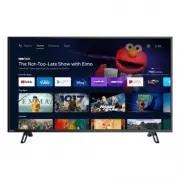
This Quick Start Guide covers the essential setup and basic operation of the Philips 5766 series Android TV, focusing on remote control functions, network connectivity, and core features. The guide highlights key topics like remote button functionality–including power, navigation, and Google Assistant integration–and explains how to configure a Google account, establish wired/wireless connections, and pair devices such as smartphones or external cameras. It also addresses live TV setup with antennas, channel management, and parental controls for content restrictions. Additionally, it provides troubleshooting insights for common issues like remote malfunctions, network connectivity problems, and compatibility with services like Google Duo. The document emphasizes practical setup and navigation rather than detailed technical specifications or feature lists.


Table of Contents:
- Page 1 – Quick Start Guide and Support Information
- Page 2 – Remote Control Operation and Sensor Location
- Page 3 – Initial Setup and Network Configuration
- Page 4 – Android TV Home Screen Navigation
- Page 5 – Live TV Setup and Google Assistant Integration
- Page 6 – Google Duo Video Calling Setup
- Page 7 – External Device Connectivity
- Page 8 – Parental Controls and Content Restrictions
- Page 9 – General Troubleshooting Guide
- Page 10 – Google Duo and Picture Troubleshooting
- Page 11 – Accessibility and Audio Troubleshooting
- Page 12 – Copyright, Trademark, and Legal Notices
Quick start guide
5766 series
Product design is for illustrative purposes only.
Actual product may vary.
1-866-309-5962
http://tinyurl.com/y2e29xsq
Call us:
Chat with us:
Scan to call us:
Scan to chat with us:
For further assistance, please call the customer support in your
country or check the Philips website for chat support.
To obtain assistance, contact Philips customer care center;
In the U.S.A., Canada, Puerto Rico, or the U.S. Virgin Islands
"Loading the manual" means you need to wait until the file loads and becomes available for online reading. Some manuals are very large, and the time they take to appear depends on your internet speed.
Was this manual helpful?
About this manual
- Brand
- Philips
- Model
- 43PFL5766/F7
- Document type
- Quick Guide
- Language(s)
- English
- Pages
- 12
- File size
- 2 MB
- Format
Other Manuals for Philips 43PFL5766/F7
Summary
Product image, series name, contact information for customer support via phone or chat, and QR codes.
Instructions for installing batteries and details on the functions of remote control buttons, including power, TV guide, Google Assistant, navigation, and input source controls, along with infrared sensor location.
Steps for setting up a Google account, selecting network connection options, and instructions for pairing the TV with Android smartphones or tablets.
Ask a question
Related manuals
Popular Philips Other


More Philips Other models
 Philips 43HFL5214U/12 Quick Guide
 Philips 43HFL6214U/12 Quick Guide
 Philips 43PFL4609 Manual
 Philips 43PFL4902/F7 User Manual
 Philips 43PFL5604/F7 Quick Guide
 Philips 43PFL5703/F7 User Manual
 Philips 43PFS4112/12 Quick Guide
 Philips 43PFS4131/12 Quick Guide
 Philips 43PFS4132/12 Quick Guide
 Philips 43PFS5301/12 Quick Guide
 Philips 43PFS5302/12 Quick Guide
 Philips 43PFS5503/12 Quick Guide