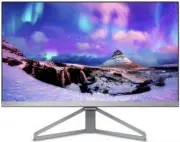
Page 2 - Table of Contents; Safety precautions and
Table of Contents 1. Important ....................................... 1 1.1 Safety precautions and maintenance .................................. 1 1.2 Notational Descriptions ............. 31.3 Disposal of product and packing material ........................................... 3 2. Setting up the...
Page 3 - Warnings
1 1. Important 1. Important This electronic user’s guide is intended for anyone who uses the Philips monitor. Take time to read this user's manual before you use your monitor. It contains important information and notes regarding the operation of your monitor. The Philips guarantee applies provided ...
Page 5 - Notational Descriptions; Notes, Cautions and Warnings; Disposal of product and
3 1. Important 1.2 Notational Descriptions The following subsections describe notational conventions used in this document. Notes, Cautions and Warnings Throughout this guide, blocks of text may be accompanied by an icon and printed in bold or italic type. These blocks contain notes, cautions or war...
Page 6 - Setting up the monitor
4 2. Setting up the monitor Philips establishes technically and economically viable objectives to optimize the environmental performance of the organization's product, service and activities. From the planning, design and production stages, Philips emphasizes the important of making products that ca...
Page 7 - Setting up the monitor; Package contents; Note
5 2. Setting up the monitor 2. Setting up the monitor 2.1 Installation Package contents 245C7 275C7 325C7 © 20 16 K on ink lijk e P hilip s N .V. A ll rig hts rese rved . Un autho rized d uplicatio n is a violation of applicable laws. M ade a nd p rint ed in C hin a. V ers ion Philips and the Philip...
Page 8 - Operating the monitor; Front view product description
6 2. Setting up the monitor 2.2 Operating the monitor Front view product description Press more than 3 seconds to switch display power OFF. Press to switch display power ON Access the OSD menu. Confirm the OSD adjustment. Adjust the speaker volume. Adjust the OSD menu. Change the signal input source...
Page 9 - The OSD Menu; Resolution notification
7 2. Setting up the monitor The OSD Menu Below is an overall view of the structure of the On-Screen Display. You can use this as a reference when you want to work your way around the different adjustments later on. Main menu Sub menu Picture OSD Settings Setup Language Color Audio Input Picture Form...
Page 10 - Toggle to the left to launch the; Image Optimization; How to enable SmartImage?
8 3. Image Optimization 1. Toggle to the left to launch the SamrtImage on screen display. 2. Toggle to the up or down to select among Text, Office, Photo, Movie, Game, Economy, LowBlue Mode and Off. 3. The SmartImage on screen display will remain on screen for 5 seconds or you can also toggle to the...
Page 11 - Ramped up luminance,
9 3. Image Optimization outstanding clarity in vibrant colors - all without artifacts and faded colors. • Movie: Ramped up luminance, deepened color saturation, dynamic contrast and razor sharpness displays every details in darker areas of your videos without color washout in brighter areas maintain...
Page 12 - Technical Specifications; Connectivity
10 4. Technical Specifications 4. Technical Specifications Picture/Display Monitor Panel Type IPS Technology Backlight W-LED system Panel Size 245C7: 23.8" W (60.5 cm)275C7: 27" W (68.6 cm)325C7: 31.5" W (80.1 cm) Aspect Ratio 16:9 Pixel Pitch 245C7: 0.274 x 0.274 mm275C7: 0.311 x 0.311 ...
Page 17 - Customer care and warranty; Customer care and; Philips’ Flat Panel Monitors; subpixel; Pixels and Sub pixels
15 6. Customer care and warranty 6. Customer care and warranty 6.1 Philips’ Flat Panel Monitors Pixel Defect Policy Philips strives to deliver the highest quality products. We use some of the industry's most advanced manufacturing processes and practice stringent quality control. However, pixel or s...
Page 20 - Philips Customer Care Center number listed below.
18 6. Customer care and warranty 6.2 Customer Care & Warranty For warranty coverage information and additional support requirements valid for your region, please visit www.philips.com/support website for details or contact your local Philips Customer Care Center.For extended warranty, if you wou...
Page 21 - Contact Information for LATIN AMERICA region:
19 6. Customer care and warranty Netherlands Ecare +31 0900 0400 063 € 0.10 Mon to Fri : 9am - 6pm Norway Infocare +47 2270 8250 Local call tariff Mon to Fri : 9am - 6pm Poland MSI +48 0223491505 Local call tariff Mon to Fri : 9am - 6pm Portugal Mainteq 800 780 902 Free of charge Mon to Fri : 8am - ...
Page 22 - Contact Information for NORTH AMERICA:
20 6. Customer care and warranty Moldova N/A Comel +37322224035 Romania N/A Skin +40 21 2101969 Russia N/A CPS +7 (495) 645 6746 Serbia&Montenegro N/A Kim Tec d.o.o. +381 11 20 70 684 Slovakia N/A Datalan Service +421 2 49207155 Slovenia N/A PC H.and +386 1 530 08 24 the republic of Belarus N/A ...
Page 23 - Japan; フィリップスモニター
21 6. Customer care and warranty Korea Alphascan Displays, Inc 1661-5003 Mon. ~ Fri. 9:00am- 5:30pm Sat. 9:00am-1:00pm Malaysia R-Logic Sdn Bhd +603 5102 3336 Mon. ~ Fri. 8:15am- 5:00pm Sat. 8:30am-12:30am New Zealand Visual Group Ltd. 0800 657447 Mon. ~ Fri. 8:30am- 5:30pm Pakistan TVONICS Pakistan...
Page 24 - FAQs; Common Problems
22 7. Troubleshooting & FAQs 7. Troubleshooting & FAQs 7.1 Troubleshooting This page deals with problems that can be corrected by a user. If the problem still persists after you have tried these solutions, contact Philips customer service representative. Common Problems No Picture (Power LED...