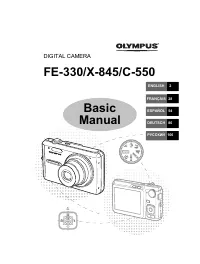
Page 2 - DIGITAL CAMERA; REFERENCE MANUAL
DIGITAL CAMERA REFERENCE MANUAL ● Thank you for purchasing an Olympus digital camera. Before you startto use your new camera, please read these instructions carefully toenjoy optimum performance and a longer service life. Keep this manualin a safe place for future reference. ● We recommend that you ...
Page 3 - For customers in USA; Trade Name; For customers in Canada
2 For customers in North and South America For customers in Europe “CE” mark indicates that this product complies with the Europeanrequirements for safety, health, environment and customer protection.“CE” mark cameras are intended for sales in Europe. Trademarks • IBM is a registered trademark of In...
Page 5 - Contents; Getting started; Selecting a language; Using the menus; Taking still pictures; PHOTO
Contents 4 Contents ....................................................................................................4 1 Getting started 7 Names of parts ..........................................................................................7 Monitor indications ..................................
Page 6 - Advanced shooting; WB; Playback
5 Contents Recording movies ..............................................................................46 Zoom (Digital zoom) ................................................................................48 Using the flash ...........................................................................
Page 7 - Useful functions; INFO; Print settings
6 Contents 6 Useful functions 84 MODE RESET - Restoring the factory default settings ............................84 ALL RESET - Saving the settings ............................................................84 CARD SETUP - Formatting cards ......................................................85 Di...
Page 8 - Names of parts; Shutter button
7 1 Getting star ted Names of parts 1 Getting started Shutter button ~ P. 40 Flash ~ P. 49 Connector cover ~ P. 73 DC-IN jack ~ P. 16 Self-timer lamp ~ P. 53 Lens barrier Turns the camera on andoff in the shooting mode. Lens VIDEO OUT jack ~ P. 73
Page 9 - Getting star; ÑñÉí; Arrow pad
8 Names of parts 1 Getting star ted Arrow pad ( ÑñÉí ) ~ P. 12 Zoom in ~ P. 48 Close-up playback ~ P. 69 Zoom out ~ P. 48 Index display ~ P. 70 Flash ~ P. 49 Monitor ~ P. 41 Battery compartment cover ~ P. 14 OK/Menu button( ) ~ P. 29 Monitor button (QUICK VIEW ) ~ P. 68 Playback button ( ) ~ P. 67 S...
Page 10 - Monitor indications; Shooting mode
9 1 Getting star ted Monitor indications ● Shooting mode Items Indications Ref. page 1 Battery check , P. 11 2 Shooting mode P , , , , , P. 37 3 Exposure –2.0 – +2.0 P. 63 compensation 4 Spot metering mode P. 54 5 White balance , , , P. 65 6 AF target mark [ ] P. 41 7 Macro P. 52 8 Flash mode , , P....
Page 11 - Playback mode; Note; Items
10 1 Getting star ted Monitor indications ● Playback mode INFO setting allows you to select how much information to display on themonitor. Screens when the information display is set to ON are shownbelow. ~ “Displaying shooting information” (P. 87) • The indications that appear on a movie picture th...
Page 12 - Battery check
11 1 Getting star ted Monitor indications ● Battery check If the remaining battery power is low, the battery check indication on themonitor changes as follows when the camera is turned on or while thecamera is in use. Lights (Green) (The indicator turnsoff after severalseconds.) Blinks (Red) Picture...
Page 13 - PANORAMA - Panorama shooting; How to use this manual; and; Indications used in this manual; Reference pages describing details or associated information.
12 1 Getting star ted 4 Adv anced shooting PANORAMA - Panorama shooting You can take advantage of panorama shooting with the Olympus xD-PictureCard. Panorama shooting lets you connect pictures with overlapping edgesinto a single panoramic picture, using the CAMEDIA Master softwarecontained on the CD...
Page 14 - Attaching the strap
13 1 Getting star ted Attaching the strap 1 Thread the short end of the strap throughthe strap eyelet. • The strap can only enter from the lens side. 2 Thread the long end of the strap throughthe loop that has already gone throughthe eyelet. 3 Pull the strap tight, making sure that it issecurely fas...
Page 15 - Loading batteries; Do not peel the label on a CR-V3 lithium battery pack.; Important
14 1 Getting star ted Loading batteries Use one CR-V3 lithium battery pack, or two AA (R6) NiMH batteries oralkaline batteries. • CR-V3 lithium battery packs cannot be re-charged. • Do not peel the label on a CR-V3 lithium battery pack. • Manganese (zinc-carbon) batteries cannot be used. Important 1...
Page 16 - cover in the direction of
15 1 Getting star ted Loading batteries • Some camera settings will return to the factory default settings ifthe camera is left for about one hour with the battery removed. Note 4 Close the battery compartment cover sothat it pushes batteries down inside.While pressing the mark, slide the cover in t...
Page 17 - Selecting batteries or the optional AC adapter; AC adapter
16 1 Getting star ted Loading batteries Selecting batteries or the optional AC adapter In addition to the batteries provided, this camera can also use the followingtypes of batteries or AC adapter. Choose the power source best suited tothe situation. ● CR-V3 lithium battery packs (Not rechargeable) ...
Page 18 - Turning on the monitor.
17 1 Getting star ted Loading batteries • Manganese (zinc-carbon) batteries cannot be used. • If the battery power runs out while the camera is connected to aPC, the image data may be lost or damaged. You arerecommended to use the AC adapter when transferring images to aPC. Do not connect or disconn...
Page 19 - Inserting/Removing a card; Card basics; Index area; You can write down the card’s contents.; Contact area; Compatible cards
18 1 Getting star ted Inserting/Removing a card “Card” in this manual refers to the xD-Picture Card. The camera uses thecard to record pictures. Card basics The card corresponds to normal camera film for recording the pictures youhave taken. Pictures recorded and stored on the card can easily be era...
Page 20 - Inserting a card; Close the card cover.
● Inserting a card 1 Make sure that: 2 Open the card cover. 3 Face the card the correct way and insert it into the card slot asshown. • Insert the card while keeping it straight. • When the card is inserted fully, you will feel it lock into place. • Inserting the card the wrong way or at an angle co...
Page 21 - Removing the card; Hold the card straight and pull it out.; Do not push in the card with hard or pointed objects, such as a pen.
20 1 Getting star ted Inserting/Removing a card ● Removing the card 1 Make sure that: 2 Open the card cover. 3 Push the card all the way in to unlock it,then let it return slowly. • The card is ejected a short way and then stops. 4 Hold the card straight and pull it out. 5 Close the card cover. R e ...
Page 22 - When shooting pictures; The camera turns off.; TIPS; Power on
21 1 Getting star ted Power on/off ● When shooting pictures Power on: Open the lens barrier. The camera turns on in the shootingmode. Power off: Close the lens barrier. The camera turns off. TIPS • To save battery power, the camera automatically enters the sleepmode (stops being active) after about ...
Page 23 - When playing back pictures
22 1 Getting star ted Power on/off ● When playing back pictures Power on: Press with the lens barrier closed. The camera turns on in the playbackmode. The monitor turns on and thelast picture taken is displayed. Power off: Press . The monitor and the camera turnoff. TIPS • When the camera turns on, ...
Page 24 - All data stored on the card is erased when the card is formatted.; Monitor indication; to select POWER OFF, then press; Ññ; to select; NO CARD
23 1 Getting star ted Power on/off If the card is not recognized (card check) When the power is turned on, the camera checks the card automatically. Ifthere is no card in the camera or a card that is not supported by this camerais inserted, the following screen is displayed. • All data stored on the...
Page 25 - MODE RESET
24 1 Getting star ted Selecting a language You can select a language for on-screen display. This reference manualshows the English on-screen display in the illustrations and explanations.Available languages vary depending on the area where you purchased thiscamera. 1 Open the lens barrier fully. 2 P...
Page 26 - Press; to select a language, then; The language can also be set from the playback mode.
25 1 Getting star ted Selecting a language 6 Press Ññ to select a language, then press . 7 Press again to exit the menu. 8 Close the lens barrier to turn the cameraoff. TIPS • The language can also be set from the playback mode. SELECT GO ENGLISH FRANCAIS FRANCAIS DEUTSCH DEUTSCH ESPAÑOL OL
Page 27 - Setting the date and time
26 1 Getting star ted Setting the date and time 1 Open the lens barrier fully. 2 Press . • The top menu is displayed. 3 Press í on the arrow pad to select MODE MENU. 4 Press Ññ to select the SETUP tab, then press í . 5 Press Ññ to select , then press í . • The green frame moves to the selected item....
Page 28 - to select one of the following; to set the year, then press; The date and time can also be set from the playback mode.
27 1 Getting star ted Setting the date and time 6 Press Ññ to select one of the following date formats: Y-M-D (Year/Month/Day), M-D-Y (Month/Day/Year), D-M-Y (Day/ Month/Year). Then press í . • Move to the year setting. • The following steps show the procedure usedwhen the date and time settings are...
Page 29 - Holding the camera; Taking pictures using the monitor
28 1 Getting star ted Holding the camera When taking pictures, hold the camera firmly with both hands while keepingyour elbows at your sides to prevent the camera from moving. When using avertical grip, hold the camera so that the flash is higher than the lens. Taking pictures using the monitor Taki...
Page 30 - Menu items; When you turn on the camera and press; Shortcut Menus; SCENE SELECT
29 2 Using the men us Menu items 2 Using the menus When you turn on the camera and press , the top menu is displayed on the monitor. The functions of this camera are set from the menus. Thischapter explains the types of menu items that this camera has and howthey work, using shooting mode screens. P...
Page 31 - How to use the mode menu; to select a tab, then
30 2 Using the men us How to use the mode menu 1 Press to display the top menu. Press í . 2 Press Ññ to select a tab, then press í . Top menu CAMERA tab SETUP tab CARD tab Press É to return to the tabselection screen. É í Ñ ñ Arrow pad ( ÑñÉí ) PICTURE tab MODE RESET MODE MENU å SET CAMERA CARD PIC ...
Page 33 - Shortcut menus; Records movies. This icon appears when the menu is; MODE MENU
32 2 Using the men us Shortcut menus ● Shooting mode Shortcut menus are frequently-used menus that can be accessed from thetop menu. Records movies. This icon appears when the menu is P. 46 displayed in the still picture shooting mode. Sets the image quality and resolution. P. 59 Still picture : SHQ...
Page 34 - MOVIE PLAY; Runs through all saved pictures one after another as a; ERASE; Erases the selected still picture or movie.
33 2 Using the men us Shortcut menus ● Playback mode MOVIE PLAY INFO Runs through all saved pictures one after another as a P. 71 slide show. This icon appears when the menu is displayed while a still picture is played back. Plays back movies. This icon appears when the menu is P. 74 displayed while...
Page 35 - Mode menus
34 2 Using the men us Mode menus CAMERA tab The MODE MENU is divided into tabs. Press Ññ to select a tab and display the associated menu items. ● Shooting mode CAMERA tab SCENE SELECT Selects the shooting mode from P. 38 (program auto), (portrait), (landscape), (night scene) or (self portrait). Allo...
Page 38 - Shooting modes; Shooting basics; even if you do not select a shooting mode.; Lets you record movies. You cannot record movies with sound.
37 3 Shooting basics Shooting modes 3 Shooting basics This camera shoots still pictures and movies. In the still picture shootingmode, select a shooting mode from PHOTO ( ), depending on shooting conditions and the effect you want. The factorydefault setting is P (PROGRAM AUTO). You are able to shoo...
Page 39 - Self Portrait shooting; Selecting shooting modes; Open the lens barrier fully.; In the top menu, press
38 3 Shooting basics Shooting modes Self Portrait shooting Enables you to take a picture of yourselfwhile holding the camera. Point the lenstowards yourself and the focus will belocked on you. The camera automaticallysets the optimal shooting conditions. Selecting shooting modes 1 Open the lens barr...
Page 42 - Depending on the subject, the focus may not be locked.; Taking still pictures using the monitor
41 3 Shooting basics Taking still pictures TIPS It is difficult to focus on the subject. T ~ “If correct focus cannot be obtained” (P. 44) The green lamp blinks. T You are too close to the subject. Take the picture at least 50 cm/1.6ft. away from the subject. When the distance from the camera to the...
Page 43 - The green lamp blinks.; The monitor turns off automatically.
42 3 Shooting basics Taking still pictures • Press the shutter button gently using the ball of your finger. If it ispressed hard, the camera will move. • Recorded pictures will be saved on the card regardless of whetherthe camera is turned off or the battery is changed or removed. • Never open the c...
Page 44 - Comparison of the viewfinder & monitor
43 3 Shooting basics Taking still pictures Comparison of the viewfinder & monitor • The camera records a wider area than the image in theviewfinder. • As you get closer to the subject, the actual image recordedbecomes lower than the one in the viewfinder (see left). Viewfinder Camera movement do...
Page 45 - If correct focus cannot be obtained; How to lock the focus
44 3 Shooting basics If correct focus cannot be obtained If the subject is difficult to focus on, lock the focus before shooting asexplained below. This is called focus lock. How to lock the focus 1 Open the lens barrier fully. 2 Position the AF target mark on thesubject you want to focus on. • When...
Page 46 - Subjects that are difficult to focus on
45 3 Shooting basics If correct focus cannot be obtained Subjects that are difficult to focus on Under certain types of conditions, the auto focus may not work properly. If thishappens, focus on an object with high contrast at the same distance as theintended subject (focus lock), recompose your sho...
Page 47 - Recording movies
46 3 Shooting basics Recording movies You can record movies with this camera. Recorded movies can be playedback or stored as the other still pictures using the index function. 1 Open the lens barrier fully. 2 Press . • The top menu is displayed. 3 Press Ñ to select . • Movie recording is set and the...
Page 48 - Digital zoom does not work in the
47 Recording movies 3 Shooting basics • Digital zoom does not work in the (movie) mode. • The camera enters the still picture shooting mode when the lensbarrier is closed. ~ “ALL RESET - Saving the settings” (P. 84) • During movie recording, the flash is disabled. • It takes longer to store movies t...
Page 49 - while looking at the image on the monitor.
You can enlarge your subject when shooting by 1.3, 1.6, 2.0 or 2.5 times. 1 Open the lens barrier fully. 2 Press Ñ . • The monitor turns on and the zoom bar appears.The subject is magnified by 1.3 times. 3 Press Ññ while looking at the image on the monitor. • Each time you press Ñ , the zoom magnifi...
Page 50 - Using the flash; The flash is charging. Wait until the lamp goes off.; AUTO
49 3 Shooting basics Using the flash • The flash does not fire in the movie record mode or duringPanorama shooting. Note Select the flash mode best suited to the light conditions and the effect youwant to achieve. 1 Open the lens barrier fully. 2 Press í ( ). • The monitor turns on. • The current fl...
Page 53 - Macro mode shooting
52 4 Adv anced shooting Macro mode shooting 4 Advanced shooting The macro mode allows you to shoot at a distance of 20 cm to 50 cm (0.7ft. to 1.6 ft.) from your subject.You can also shoot subjects which are at a distance of over 50 cm (1.6 ft.).However, compared to shots between 20 cm and 50 cm, the...
Page 55 - Selecting the metering area (Spot metering)
54 4 Adv anced shooting Selecting the metering area (Spot metering) In a backlight situation, your subject may appear dark if the picture is takenwith the normal metering value (center-weighted average light metering). Inthis case, by changing the metering area to the center of the viewfinder (spotm...
Page 57 - During panorama shooting, the flash is not available.
56 4 Adv anced shooting PANORAMA - Panorama shooting 3 Make sure that the edges of the pictures overlap, then take yourpictures. • Focus, exposure and white balance are set by the first picture. Do not select anextremely bright subject (such as the sun) for the first picture. • Panorama shooting is ...
Page 58 - Take the second shot.
57 4 Adv anced shooting 2 IN 1 - Taking two-in-one pictures This function allows you to combine two picturestaken in succession and store them as a singlepicture. You can combine two different subjectsin one picture. 1 In the shooting mode top menu, selectMODE MENU T CAMERA T 2 IN 1, and press í . ~...
Page 59 - When the battery power is exhausted (
58 4 Adv anced shooting 2 IN 1 - Taking two-in-one pictures • When the battery power is exhausted ( blinks), the flash automatically turns off. • The two-in-one picture mode is canceled when is pressed or the lens barrier is closed. Press to cancel the two-in-one picture mode after the first shot ha...
Page 60 - Changing the record mode
59 4 Adv anced shooting Changing the record mode You can select a record mode in which to take pictures or shoot movies.Choose the best record mode for your purposes (printing, editing on a PC,website editing, etc.). For details of the different record modes, resolutionsand number of pictures storab...
Page 61 - Still picture record modes; The card memory capacity listed in the table is approximate.
60 4 Adv anced shooting Changing the record mode Still picture record modes Movie record modes • The card memory capacity listed in the table is approximate. • The number of remaining pictures may change according to thesubject or factors like whether print reservations have been madeor not. In cert...
Page 62 - In the shooting mode top menu, press; to select the desired record
61 4 Adv anced shooting Changing the record mode 1 In the shooting mode top menu, press É to select (P. 29). 2 Press Ññ to select the desired record mode. • For still pictures, you can choose from SHQ, HQ,SQ1 and SQ2. • For movies, you can choose HQ or SQ. 3 Press . • Press again to exit the menu. M...
Page 63 - Resolution; when the monitor setting is 1024
62 4 Adv anced shooting Changing the record mode TIPS • Resolution The number of pixels (horizontal x vertical) used when saving animage. If the image will be printed, higher resolutions (largernumbers) are recommended so that the image will be clearer.However, higher resolutions make the file size ...
Page 64 - Varying the image brightness (Exposure compensation); to select the exposure
63 4 Adv anced shooting Varying the image brightness (Exposure compensation) 1 In the shooting mode top menu, selectMODE MENU T CAMERA T , then press í . ~ “How to use the mode menu” (P. 30) 2 Press Ññ to select the exposure compensation value. • Select a [ + ] value to brighten the image or a [ – ]...
Page 66 - Adjusting the White balance; PICTURE; : The white balance is adjusted automatically so
65 4 Adv anced shooting 2 Press . • Press again to exit the menu. 3 Take the picture. Adjusting the White balance Color reproduction differs depending on the light conditions. For instance,when daylight, the setting sun or tungsten lighting are reflected on whitepaper, the shade of white produced wi...
Page 68 - Viewing still pictures
67 5 Pla ybac k Viewing still pictures 5 Playback 1 Press with the lens barrier closed. • The monitor turns on and displays the last picturetaken. (Single-frame playback) 2 Use the arrow pad to play back other pictures. 3 Press to cancel playback. • The monitor and camera turn off. Close-up playback...
Page 69 - QUICK VIEW
68 5 Pla ybac k Viewing still pictures QUICK VIEW This function lets you play back pictures while the camera is in the shootingmode. This is useful when you want to check shooting results and resumeshooting quickly. Every function also can be used like normal playback. 1 Press twice quickly (double-...
Page 70 - Pictures cannot be stored in an enlarged state.; Éí
69 5 Pla ybac k Viewing still pictures • Pictures cannot be stored in an enlarged state. Note 4.0X 4.0X Arrow pad ( ÑñÉí ) Close-up playback Pictures displayed on the monitor can be enlarged in steps up to 4 timesthe original size. 1 Use the arrow pad ( Éí ) to display the still picture you want to ...
Page 71 - Index display; Selecting the number of pictures; to choose the number of; VIDEO OUT
70 5 Pla ybac k Viewing still pictures Index display This function lets you show several pictures at the same time on themonitor. The number of pictures shown can be 4, 9 or 16. 1 In the single-frame playback mode, press ñ . • Use the arrow pad to select the picture. É : Moves to the previous frame....
Page 72 - Slideshow
71 5 Pla ybac k Viewing still pictures Slideshow This function displays still pictures stored on the card one after another.Only the first frame of movies is played back. 1 Display a still picture, then press to display the top menu. 2 Press Ñ ( ) to start the slideshow. 3 Press to stop the slidesho...
Page 73 - Picture Rotation; PLAY; The following pictures cannot be rotated.
72 5 Pla ybac k Viewing still pictures Picture Rotation Pictures taken with the camera held vertically are displayed horizontally.This function lets you turn such pictures 90 degrees clockwise orcounterclockwise so that they are displayed vertically. 1 In the playback mode top menu, selectMODE MENU ...
Page 74 - Turn the TV on and switch to the video input mode.; Playback on a TV; “VIDEO OUT - Video output
73 5 Pla ybac k Use the Video cable provided with the camera to play back recordedimages on your TV. 1 Make sure that the camera and the TV are turned off.Connect the Video cable to the VIDEO OUT jack on the camera andthe video input terminal on the TV. 2 Turn the TV on and switch to the video input...
Page 75 - MOVIE PLAY - Viewing movies
74 5 Pla ybac k MOVIE PLAY - Viewing movies 1 Press with the lens barrier closed. • The monitor turns on. 2 Use the arrow pad to display the picturewith . ~ “Viewing still pictures” (P. 67) 3 Press . • The top menu is displayed. 4 Press Ñ to select MOVIE PLAY. O" / 15" O" / 15" ERASE...
Page 76 - to select PLAYBACK, then; When FRAME BY FRAME is selected
75 5 Pla ybac k MOVIE PLAY - Viewing movies 5 Press Ññ to select PLAYBACK, then press . • The movie is played back. • After playback, the menu is displayed. PLAYBACK : Plays back the entire movie again. FRAME BY FRAME : Plays back the movie manually one frame at a time. EXIT : Leaves the movie playb...
Page 77 - Protecting pictures
76 5 Pla ybac k Protecting pictures You are recommended to protect important pictures to avoid accidentallyerasing them. Protected pictures cannot be erased by the single-frame/all-frame erase function. 1 Press with the lens barrier closed. • The monitor turns on. 2 Use the arrow pad to display the ...
Page 78 - Erasing pictures; This function erases the picture that is displayed on the monitor.; to select YES, then press
77 5 Pla ybac k Erasing pictures Single-frame erase This function erases the picture that is displayed on the monitor. 1 Press . • The monitor turns on. 2 Use the arrow pad to display the pictureyou want to erase. ~ “Viewing still pictures” (P. 67) 3 Press . • The top menu is displayed. 4 Press ñ to...
Page 79 - This function erases all the pictures on the card.; ALL ERASE
78 5 Pla ybac k Erasing pictures All-frame erase This function erases all the pictures on the card. 1 In the playback mode top menu, selectMODE MENU T CARD T CARD SETUP, and press í . ~ “How to use the mode menu” (P. 30) 2 Press Ññ to select ALL ERASE, then press . 3 Press Ññ to select YES, then pre...
Page 80 - Editing still pictures; : Converts pictures into black and white pictures and; Creating black and white pictures; WHITE
79 5 Pla ybac k Editing still pictures This function lets you edit still pictures and store them as new pictures.The following editing operations are possible. BLACK&WHITE : Converts pictures into black and white pictures and stores them as new pictures. SEPIA : Converts pictures into sepia-tone...
Page 81 - You cannot create black and white movies.; Creating sepia-toned pictures; Resizing pictures; SEPIA
80 5 Pla ybac k Editing still pictures • You cannot create black and white movies. • You cannot create a black and white picture if there is insufficientmemory space on the card. Note Creating sepia-toned pictures 5 Select SEPIA, then press í . 6 Press Ññ to select SEPIA, then press . • The BUSY bar...
Page 82 - Resizing is not possible in the following cases.
81 5 Pla ybac k Editing still pictures • Resizing is not possible in the following cases. Movies, pictures edited on a PC, or when there is insufficientmemory space on the card. • If the size of a picture is 640 x 480 or smaller, you cannot select640 x 480. • If the size of a picture is 320 x 240, y...
Page 83 - INDEX - Creating an index; INDEX
82 5 Pla ybac k INDEX - Creating an index 9 frames extracted from the recorded movie are displayed as an index toshow the movie at one glance. Indexes can be stored on the card as stillpictures. 1 Use the arrow pad to select a picture with . 2 In the top menu, select MODE MENU T EDIT T INDEX, then p...
Page 84 - to select OK, then press; OK
83 5 Pla ybac k INDEX - Creating an index TIPS • The index is stored as a still picture in a different record mode fromthe original movie. • The interval between the frames that are automatically picked outvaries depending on the length of the movie. • An index consists of 9 frames. • You cannot cre...
Page 85 - Useful functions; MODE RESET - Restoring the factory default settings; setting is SQ1 when; ALL RESET - Saving the settings
84 6 Useful functions MODE RESET - Restoring the factory default settings 6 Useful functions This function lets you restore functions (exposure compensation, whitebalance, etc.) to the factory default settings. When MODE RESET is set inthe (movie) mode, the camera returns to the PHOTO (still picture...
Page 86 - In the top menu, select MODE MENU; CARD SETUP - Formatting cards
85 ALL RESET - Saving the settings 6 Useful functions Function Factory default setting Ref. page Monitor OFF P. 41 Shooting mode PHOTO (still picture shooting mode) P. 37 SCENE SELECT P (Program auto) P. 37 Digital zoom 1X P. 48 FLASH AUTO P. 49 0.0 P. 63 WB AUTO P. 65 HQ P. 59 OFF P. 52 OFF P. 54 ●...
Page 87 - YES
86 CARD SETUP - Formatting cards 6 Useful functions 2 If the FORMAT screen is displayed, press Ññ to select YES. If the CARD SETUP screen is displayed, press Ññ to select FORMAT, then press . When the FORMAT screen appears, press Ññ to select YES. 3 Press . • The BUSY bar is displayed and the card i...
Page 88 - Displaying shooting information; Pressing
87 6 Useful functions Displaying shooting information This function lets you display detailed shooting information on the monitorfor 3 seconds in the playback mode. For details of the informationdisplayed, see “Monitor indications” (P. 9). 1 Pressing É in the playback mode top menu displays the full...
Page 89 - REC VIEW - Viewing a picture immediately after shooting
88 6 Useful functions You can choose whether or not to display the picture you have just taken onthe monitor. ON : The picture being recorded to the card is displayed. This is useful for making a brief check of the picture you have just taken. You can resume shooting anytime during REC VIEW. OFF : T...
Page 90 - Turning the beep sound off; FILE NAME
89 6 Useful functions Turning the beep sound off This function lets you turn on/off the beep sound used for warnings, etc.The beep sound can be adjusted in either the shooting mode or theplayback mode. ON : There is a beep for warnings. OFF : There is no beep for warnings. 1 In the top menu, select ...
Page 92 - PIXEL MAPPING
91 6 Useful functions PIXEL MAPPING The Pixel Mapping feature allows the camera to check and adjust the CCDand image processing functions. It is not necessary to operate this functionfrequently. Approximately once a year is recommended. Wait a few minutesafter the monitor is used or continuous shots...
Page 93 - VIDEO OUT - Video output selection; TV video signal types & main regions
92 6 Useful functions VIDEO OUT - Video output selection You can select NTSC or PAL according to your TV’s video signal type. Setthe video output before connecting the video cable to the camera. If youuse the wrong video signal type, you will not be able to play back therecorded pictures properly on...
Page 94 - Print settings; How to print pictures
93 7 Print settings How to print pictures 7 Print settings Several different printing options are available when you want to print outpictures. Printing at a photo lab that supports DPOF or printing on a DPOF-compatible printer Store the print reservation data on the card. Print reservation allows y...
Page 95 - Picture size and printing; “Changing the
94 7 Print settings How to print pictures TIPS • JPEG (Joint Photographic Experts Group) A compression format for color still images. Photographs (images)shot using this camera are recorded onto the card in JPEG formatwhen the record mode is set to SHQ, HQ or SQ. By downloadingthese images to a pers...
Page 96 - All-frame reservation; PRINT ORDER
95 7 Print settings All-frame reservation Use this feature to print all the pictures stored on the card. You can set thenumber of prints and whether or not to include the shooting date and time. 1 Play back a still picture. • You cannot print pictures with . 2 In the top menu, select MODE MENU T PLA...
Page 97 - Single-frame reservation; END
96 7 Print settings Single-frame reservation Use this feature to print only selected pictures. This function can also alterdetails (number of prints, date, etc.) of previously made reservations.Display the picture to be printed and select the desired number of prints. 1 Play back a still picture. • ...
Page 98 - DATE
97 7 Print settings Single-frame reservation 6 Press Ññ to select x (number of prints) or (date/time) then press í . • x : See below. • : See below. Set x (number of prints) Press Ññ to set the number of prints, then press . Ñ : Increases the number. ñ : Decreases the number. Set (date/time printing...
Page 99 - Resetting print reservation data; PRINT ORDER SETTING
98 7 Print settings Resetting print reservation data This function allows you to reset the print reservation data for picturesstored on the card. There are two ways to reset print reservation: you canreset all print reservation data or you can reset the print reservation data foronly the frames you ...
Page 100 - Error codes; Miscellaneous
99 8 Miscellaneous Error codes 8 Miscellaneous Possible cause The card is not inserted,or it cannot berecognized. There is a problem withthe card, so the camerawill not function. Writing to the card isprohibited. The card is full. Nomore pictures can betaken or no moreinformation such asprint reserv...
Page 101 - Troubleshooting
100 8 Miscellaneous Troubleshooting The power is off. The batteries areloaded incorrectly. The battery isexhausted. The battery istemporarily unable tofunction because ofthe cold. The camera is in thesleep mode. There iscondensation *inside the camera The camera isconnected to a PC. Open the lens ba...
Page 106 - Menu list; Shooting mode menus (
105 8 Miscellaneous Menu list Shooting mode menus ( : P / / / / ) Top menu Tab Function Setting Ref. page MODE CAMERA SCENE SELECT , , , P. 37 MENU , OFF, ON P. 52 OFF, ON P. 54 –2.0 to +2.0 P. 63 (in 1/2 EV steps) PANORAMA P. 55 2 IN 1 P. 57 PICTURE WB AUTO, , , P. 65 , CARD CARD SETUP FORMAT, CANC...
Page 108 - Playback mode menus (
107 8 Miscellaneous Menu list Top menu Tab Function Setting Ref. page MODE PLAY OFF, ON P. 76 MENU 0°, +90°, -90° P. 72 , P. 93 EDIT BLACK&WHITE BLACK&WHITE, P. 79 CANCEL SEPIA SEPIA, CANCEL P. 80 640 x 480, 320 x 240, P. 80 CANCEL CARD CARD SETUP ALL ERASE, FORMAT P. 78, 85 SETUP ALL RESET ...
Page 109 - Factory default settings
108 8 Miscellaneous Factory default settings Shooting mode AUTO OFF Shooting mode PHOTO (still picture shooting mode) SCENE SELECT P (Program auto) Digital zoom 1X Monitor OFF (turns off) HQ OFF 0.0 PANORAMA OFF 2 IN 1 OFF WB AUTO REC VIEW ON FILE NAME RESET OFF Playback mode OFF OFF INFO OFF OFF 0°...
Page 110 - List of functions by shooting mode
109 8 Miscellaneous List of functions by shooting mode Shooting mode Function Digital zoom PANORAMA 2 IN 1 WB CARD SETUP ALL RESET REC VIEW FILE NAME P – – : Available, – : Not available – – – –
Page 111 - Camera maintenance; Close the lens barrier to turn the camera off.; Monitor and viewfinder:; Wipe gently with a soft cloth.
110 8 Miscellaneous Camera maintenance 1 Close the lens barrier to turn the camera off. Make sure that the monitor is turned off. 2 Remove the battery. (If you are using an AC adapter, unplug the ACadapter from the camera first before removing the plug from thewall outlet.) 3 Exterior: T Wipe gently...
Page 112 - Specifications
111 8 Miscellaneous Specifications Product type : Digital camera (for shooting and displaying) Recording system Still picture : Digital recording, JPEG (in accordance with Design rule for Camera File system (DCF)), Exif 2.2, Digital Print Order Format (DPOF) PRINT Image Matching II Movie : QuickTime...
Page 114 - Index; Information display; Landscape shooting
113 8 Miscellaneous Index A AC adapter ..................................16Adjusting the monitor brightness ..........................88 AF target mark ..........................8, 9ALL RESET ................................84All-frame erase ....................78 All-frame reservation ............9...
Page 115 - Night scene shooting; PROGRAM AUTO; White balance
114 8 Miscellaneous Index N Night scene shooting ............37 No. of pictures in an index display..............................70 No. of storable still pictures ....9, 60NTSC ..........................................92 O (OK/Menu) button ......8, 29 Orange lamp ..........................8, 40Over...
Page 116 - European Technical Customer Support:
© 2003 OLYMPUS OPTICAL CO., LTD. VT451601 http://www.olympus.com/ OLYMPUS OPTICAL CO., LTD. Customer support (Japanese language only): Tel. 0426-42-7499 Tokyo OLYMPUS AMERICA INC. Two Corporate Center Drive, Melville, NY 11747-3157, U.S.A. Tel. 1-631-844-5000 Technical Support (USA) 24/7 online auto...
Page 117 - DIGITAL; DIGITAL CAMERA — PC CONNECTION; OPERATION MANUAL
How to use your PC to get the most from images taken with your digital camera. Thank you for purchasing an Olympus digital camera.This manual provides instructions on how to install the USB driver. To ensure correct installation, refer only to these installation procedures. DIGITAL CAMERA PERSONAL C...
Page 118 - Introduction; About this manual
2 Introduction This manual explains in detail how to connect your Olympus digital camera to a computer. Read it carefully and keep it in a safe place for future reference. About this manual The information contained in this manual may be subject to change without notice. For the latest information o...
Page 119 - Downloading image files using other OS
3 Macint osh Windows INDEX Flowchart . . . . . . . . . . . . . . . . . . . . . . . . 4 Identifying the OS . . . . . . . . . . . . . . . . . 6 Windows (98/Me/2000/XP) . . . . . . . . . . . 8 Macintosh (OS 9/X). . . . . . . . . . . . . . . . 23 Downloading image files using other OS (For other OS user...
Page 120 - Flowchart
4 Flowchart By connecting the camera to a computer with the provided USB cable, images on a card can be transferred to the computer. Some OS’s (operating systems) may need a special setup before connecting to the camera for the first time. Follow the chart below. * Even if your computer has a USB co...
Page 122 - Identifying the OS; Windows; Double-click the “My Computer”
6 Identifying the OS Identify the OS on your computer before connecting the camera. How to identify the OS depends on the computer. Windows 1 Double-click the “My Computer” icon on your desktop. When the “My computer” icon is not on your desktop, click “Control Panel” from the “Start” menu. 2 Double...
Page 123 - Users running other OS
Identifying the OS 7 4 A System Properties window will appear. Note and record the “System:” information. Confirm that your system is Windows 98, 98 SE, Me, 2000 Professional or Windows XP, then press “OK” to close the window. If your OS is Windows 98/98 SE, proceed to “Installing the USB driver for...
Page 125 - Installing the USB driver for Windows 98
9 W indow s Installing the USB driver for Windows 98 (When using Windows 98/98 SE) If your OS is Windows 98/98 SE, you must install the USB driver. Follow the instructions below to install the USB driver in your computer. Once it is fully installed, you do not need to repeat the procedure again. If ...
Page 127 - Connecting the camera to the computer; Camera with a USB connector
11 W indow s Connecting the camera to the computer Users running Windows 98/98SE need to install the USB drive before connecting the camera to your computer for the first time. ( p.9) 1 Insert the marked end of the provided USB cable into the USB port on your computer as shown below. 2 After making ...
Page 128 - Camera with a lens barrier; Camera with a
Connecting the camera to the computer 12 W ind ows 3 Turn the camera on. Camera with a lens barrier The power turns on automatically, with the exception of some models which require you to press the (monitor) button.When the camera is turned on, the lamp on the right of the viewfinder lights up. Cam...
Page 129 - The computer recognizes the camera as a new device.
Connecting the camera to the computer 13 W indow s 4 The computer recognizes the camera as a new device. When you connect the camera to the computer for the first time, the computer automatically recognizes the camera. Click “OK” when the message saying that the installation is completed appears. Th...
Page 130 - Confirming the computer recognizes the camera
14 W ind ows Confirming the computer recognizes the camera 1 Double-click the “My Computer” icon on the desktop. For users running Windows XP, click “My Computer” from the “Start” menu. 2 Make sure the “Removable Disk” icon appears in the window. There may already be other “Removable Disk” icons for...
Page 131 - Confirming the USB driver is installed
15 W indow s Confirming the USB driver is installed If the computer does not recognize the camera as a Removable Disk, follow the procedure below to check whether the USB driver has been fully installed. 1 Open “My Computer” and double-click the “Control Panel” icon. For users running Windows XP, op...
Page 133 - Downloading images to your computer
17 W indow s Downloading images to your computer 1 Double-click the “My Computer” icon on the desktop. For users running Windows XP, click “Control Panel” from the “Start” menu. 2 Double-click the “Removable Disk” icon. A new “Removable Disk” icon appears when the camera is connected to the computer...
Page 134 - Folder name
Downloading images to your computer 18 W ind ows 4 Double-click the “100olymp” folder. Image files (JPEG files) with files names such as “P1010001.jpg” are displayed. 5 Double-click the “My Documents” icon on the desktop. If you cannot find the icon on the desktop, select “Explorer” on the Start men...
Page 136 - Disconnecting the camera from your computer; Click “Eject” on the menu.
20 W ind ows Disconnecting the camera from your computer If your OS is Windows Me/2000, proceed to “Windows Me/2000/XP” ( p.21). Windows 98 1 Make sure that the lamp on the right of the viewfinder or the card access lamp is not blinking. Some camera models have either a lamp on the right of the view...
Page 137 - Remove the USB cable from your computer.
Disconnecting the camera from your computer 21 W indow s 4 Make sure that the lamp on the right of the viewfinder or the card access lamp is not blinking. 5 Remove the USB cable from the camera. 6 Remove the USB cable from your computer. Windows Me/2000/XP 1 Make sure that the lamp on the right of t...
Page 138 - Click the
Disconnecting the camera from your computer 22 W ind ows 2 Click the “Unplug or Eject Hardware” icon on the task bar. The message saying that the drive has been stopped appears. 3 Click on the message. The “Unplug or Eject Hardware” window appears. 4 When a message appears, click “OK”. 5 Remove the ...
Page 139 - Macintosh
23 Maci ntosh Macintosh Using Mac OS (9/X) Your computer is turned on and Mac OS is running.If you are running any applications, quit them all.You are recommended to power the camera using the optional AC adapter. If the battery power runs out while the computer is accessing the card in the camera, ...
Page 142 - Mac OS 9
26 M aci ntosh Downloading images to your computer Mac OS 9 You can download images from the camera and save them in your computer (in this case, in the Hard Disk). 1 Double-click the “Untitled” icon displayed on the desktop when the camera is connected to the computer. 2 Double-click the “Dcim” fol...
Page 145 - Mac OS X
Downloading images to your computer 29 Maci ntosh Mac OS X Malfunctions such as the following may occur due to the OS.• If the camera is not connected correctly, a malfunction occurs in the computer. • Date and time information of image files is not accurately displayed.• If the card cover of the ca...
Page 147 - Windows 95 Windows NT Mac OS before OS 9
31 Downloading image files using other OS (For other OS users) Users running other OS cannot connect the camera directly to a computer. Windows 95 Windows NT Mac OS before OS 9 You can download images directly to your computer using an optional floppy disk adapter or PC card adapter. Does your compu...