Page 2 - COPYRIGHT & TRADEMARK; Specifications are subject to change without notice.
COPYRIGHT & TRADEMARK Specifications are subject to change without notice. is a registered trademark of MERCUSYS TECHNOLOGIES CO., LTD. Other brands and product names are trademarks or registered trademarks of their respective holders.No part of the specifications may be reproduced in any form o...
Page 3 - in which case the user may be required to take adequate measures.
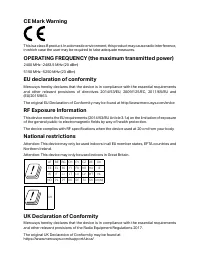
CE Mark Warning This is a class B product. In a domestic environment, this product may cause radio interference, in which case the user may be required to take adequate measures. OPERATING FREQUENCY (the maximum transmitted power) 2400 MHz -2483.5 MHz (20 dBm)5150 MHz -5250 MHz (23 dBm) EU declarati...
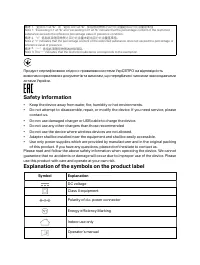
Page 5 - Safety Information; use this product with care and operate at your own risk.; Explanation of the symbols on the product label; Symbol; Energy efficiency Marking
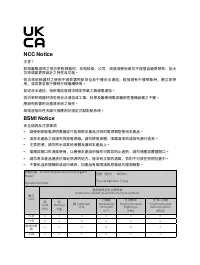
備考 1. 〝超出 0.1 wt % 〞及〝超出 0.01 wt % 〞係指限用物質之百分比含量超出百分比含量基準值 Note 1: “Exceeding 0.1 wt %” and “exceeding 0.01 wt %” indicate that the percentage content of the restricted substance exceeds the reference percentage value of presence condition. 備考 2. 〝 ○ 〞係指該項限用物質之百分比含量未超出百分比含量基準值。 Note 2: “○” indicates...
Page 6 - RECYCLING
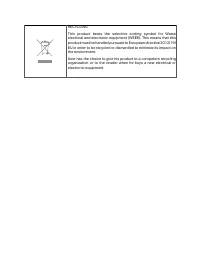
RECYCLING This product bears the selective sorting symbol for Waste electrical and electronic equipment (WEEE). This means that this product must be handled pursuant to European directive 2012/19/ EU in order to be recycled or dismantled to minimize its impact on the environment.User has the choice ...
Page 7 - CONTENTS; Chapter 1 Introduction; Product Overview; Chapter 2 Connect to the Internet
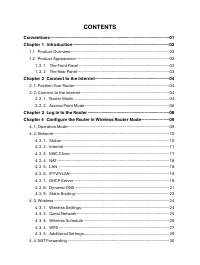
CONTENTS Conventions ...............................................................................................................01 Chapter 1 Introduction ..........................................................................................02 1.1 Product Overview ...............................
Page 8 - Chapter 5. Configure the Router in Access Point Mode
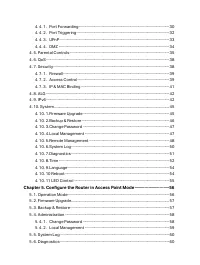
4. 4. 1. Port Forwarding ..................................................................................................... 30 4. 4. 2. Port Triggering ....................................................................................................... 324. 4. 3. UPnP ............................
Page 9 - Appendix B: Configuring the PC
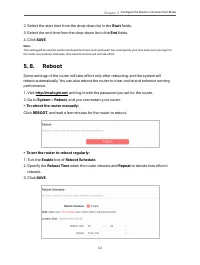
5. 7. Time ........................................................................................................................................ 62 5. 8. Reboot ................................................................................................................................... 635....
Page 10 - AC1200 Wireless Dual Band Gigabit Router; Conventions; More Info
01 AC1200 Wireless Dual Band Gigabit Router MR30G Conventions The Router, or MR30G, mentioned in this User Guide stands for AC1200 Wireless Dual Band Gigabit Router without any explanations.Parameters provided in the pictures are just references for setting up the product, which may differ from the ...
Page 11 - Chapter 1 Introduction; Chapter 1; The Front Panel; The router’s status LED is located on the top.; Name
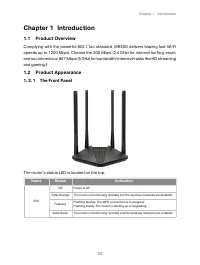
02 Chapter 1 Introduction Chapter 1 Introduction 1.1 Product Overview Complying with the powerful 802.11ac standard, MR30G delivers blazing fast Wi-Fi speeds up to 1200 Mbps. Choose the 300 Mbps (2.4 GHz) for internet surfing, email, and social media or 867 Mbps (5 GHz) for bandwidth-intensive tas...
Page 12 - The Rear Panel; Item
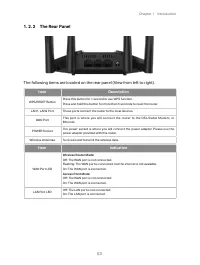
03 Chapter 1 Introduction 1. 2. 2 The Rear Panel The following items are located on the rear panel (View from left to right). Item Description WPS/RESET Button Press this button for 1 second to use WPS function.Press and hold this button for more than 5 seconds to reset the router. LAN1, LAN2 Port...
Page 13 - Chapter 2 Connect to the Internet; Chapter 2; The router can be placed on a shelf or desktop.; The Router provides two working modes:
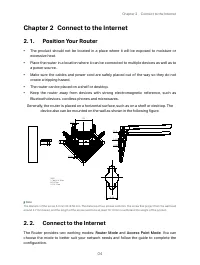
04 Chapter 2 Connect to the Internet Chapter 2 Connect to the Internet 2. 1. Position Your Router • The product should not be located in a place where it will be exposed to moisture or excessive heat. • Place the router in a location where it can be connected to multiple devices as well as to a po...
Page 14 - minutes
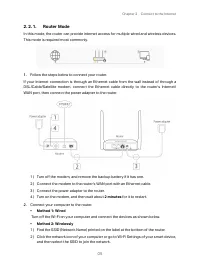
05 Chapter 2 Connect to the Internet 2. 2. 1. Router Mode In this mode, the router can provide internet access for multiple wired and wireless devices. This mode is required most commonly. 1. Follow the steps below to connect your router. If your Internet connection is through an Ethernet cable fro...
Page 15 - Enter; Follow the; Quick Setup; to set up the internet connection.
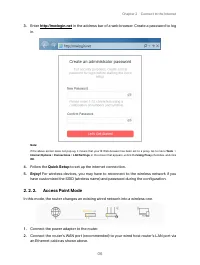
06 Chapter 2 Connect to the Internet 3. Enter http://mwlogin.net in the address bar of a web browser. Create a password to log in. Note: If the above screen does not pop-up, it means that your IE Web-browser has been set to a proxy. Go to menu Tools > Internet Options > Connections > LAN S...
Page 16 - Change Mode; in the top right corner and select; Access Point Mode
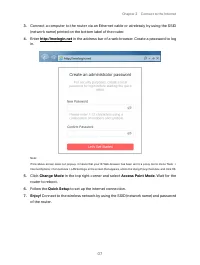
07 Chapter 2 Connect to the Internet 3. Connect a computer to the router via an Ethernet cable or wirelessly by using the SSID (network name) printed on the bottom label of the router. 4. Enter http://mwlogin.net in the address bar of a web browser. Create a password to log in. Note: If the above s...
Page 17 - Chapter 3; Chapter 3 Log In to the Router; , and log in with the password you set for the router.
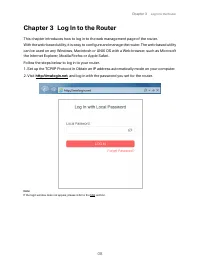
Chapter 3 Log In to the Router 08 Chapter 3 Log In to the Router This chapter introduces how to log in to the web management page of the router. With the web-based utility, it is easy to configure and manage the router. The web-based utility can be used on any Windows, Macintosh or UNIX OS with a W...
Page 18 - Chapter 4 Configure the Router in Wireless Router Mode; Configure the Router in; System; Select the working mode as needed and click; SAVE
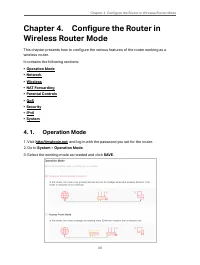
09 Chapter 4 Configure the Router in Wireless Router Mode Chapter 4. Configure the Router in Wireless Router Mode This chapter presents how to configure the various features of the router working as a wireless router.It contains the following sections: • Operation Mode• Network• Wireless• NAT Forwar...
Page 19 - , and log in with password you set for the router.
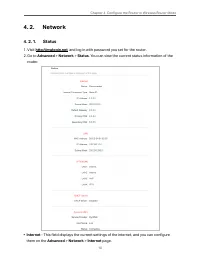
10 Chapter 4 Configure the Router in Wireless Router Mode 4. 2. Network 4. 2. 1. Status 1. Visit http://mwlogin.net , and log in with password you set for the router. 2. Go to Advanced > Network > Status . You can view the current status information of the router. • Internet - This field displ...
Page 20 - or; LAN; Dynamic IP; Click
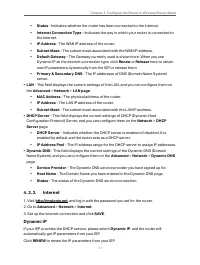
11 Chapter 4 Configure the Router in Wireless Router Mode • Status - Indicates whether the router has been connected to the internet. • Internet Connection Type - Indicates the way in which your router is connected to the internet. • IP Address - The WAN IP address of the router. • Subnet Mask - The...
Page 21 - RELEASE; Static IP; setting, please select
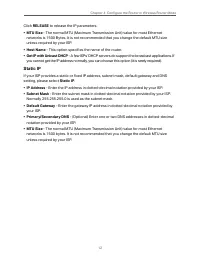
12 Chapter 4 Configure the Router in Wireless Router Mode Click RELEASE to release the IP parameters. • MTU Size - The normal MTU (Maximum Transmission Unit) value for most Ethernet networks is 1500 Bytes. It is not recommended that you change the default MTU size unless required by your ISP. • Host...
Page 22 - If your ISP provides PPPoE connection, select; PPPoE; - Enter the user name and password provided by your ISP. These; • Secondary Connection; - It’s available only for PPPoE connection. If your ISP provides; to activate the secondary
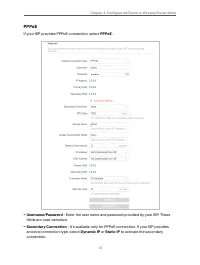
13 Chapter 4 Configure the Router in Wireless Router Mode PPPoE If your ISP provides PPPoE connection, select PPPoE . • Username/Password - Enter the user name and password provided by your ISP. These fields are case-sensitive. • Secondary Connection - It’s available only for PPPoE connection. If yo...
Page 23 - function
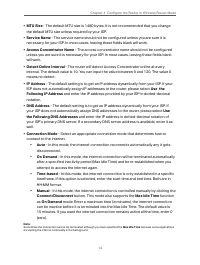
14 Chapter 4 Configure the Router in Wireless Router Mode • MTU Size - The default MTU size is 1480 bytes. It is not recommended that you change the default MTU size unless required by your ISP. • Service Name - The service name should not be configured unless you are sure it is necessary for your I...
Page 24 - If your ISP provides L2TP connection, please select; • VPN Server IP/ Domain Name; - Enter the VPN server’s IP address or domain name; • MTU Size; - The default MTU size is “1460” bytes, which is usually fine. It is not; • Connection Mode
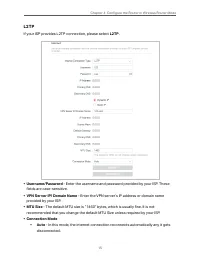
15 Chapter 4 Configure the Router in Wireless Router Mode L2TP If your ISP provides L2TP connection, please select L2TP . • Username/Password - Enter the username and password provided by your ISP. These fields are case-sensitive. • VPN Server IP/ Domain Name - Enter the VPN server’s IP address or d...
Page 25 - • On Demand; button. This mode also supports the; On Demand; If your ISP provides PPTP connection, please select; PPTP
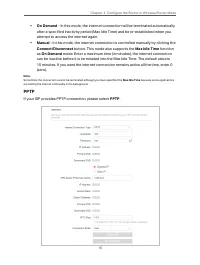
16 Chapter 4 Configure the Router in Wireless Router Mode • On Demand - In this mode, the internet connection will be terminated automatically after a specified inactivity period (Max Idle Time) and be re-established when you attempt to access the internet again. • Manual - In this mode, the interne...
Page 26 - MAC Clone; and click
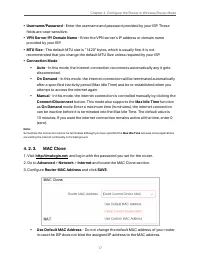
17 Chapter 4 Configure the Router in Wireless Router Mode • Username/Password - Enter the username and password provided by your ISP. These fields are case-sensitive. • VPN Server IP/ Domain Name - Enter the VPN server’s IP address or domain name provided by your ISP. • MTU Size - The default MTU si...
Page 28 - - An address code that determines the size of the network. Normally
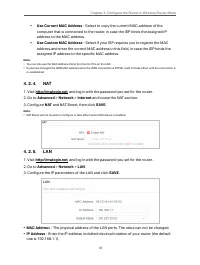
19 Chapter 4 Configure the Router in Wireless Router Mode • Subnet Mask - An address code that determines the size of the network. Normally 255.255.255.0 is used as the subnet mask. Note: • If you have changed the IP address, you must use the new IP address to log in. • If the new IP address you set...
Page 30 - DHCP Client List
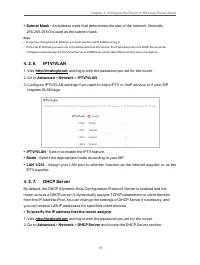
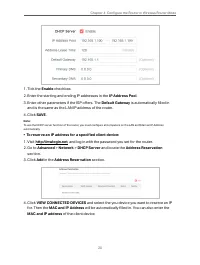
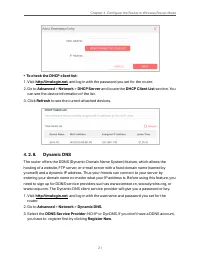
21 Chapter 4 Configure the Router in Wireless Router Mode • To check the DHCP client list: 1. Visit http://mwlogin.net , and log in with the password you set for the router. 2. Go to Advanced > Network > DHCP Server and locate the DHCP Client List section. You can see the device information of...
Page 31 - Username
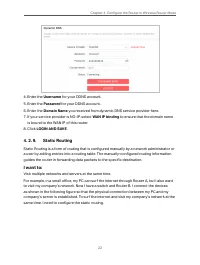
22 Chapter 4 Configure the Router in Wireless Router Mode 4. Enter the Username for your DDNS account. 5. Enter the Password for your DDNS account. 6. Enter the Domain Name you received from dynamic DNS service provider here. 7. If your service provider is NO-IP, select WAN IP binding to ensure that...
Page 32 - Disable Router B’s DHCP function.
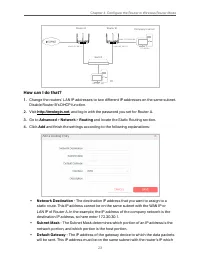
23 Chapter 4 Configure the Router in Wireless Router Mode Company’s server PC Router B Router A Switch LAN: 192.168.1.1 192.168.1.100 LAN: 192.168.1.2 WAN: 172.30.30.100 172.30.30.1 LAN WAN POWER RESET/WPS LAN WAN POWER RESET/WPS How can I do that? 1. Change the routers’ LAN IP addresses to two diff...
Page 33 - Wireless; Wireless Settings
24 Chapter 4 Configure the Router in Wireless Router Mode sends out data. In the example, the data packets will be sent to the LAN port of Router B and then to the Server, so the default gateway should be 192.168.1.2. • Interface - Determined by the port (WAN/LAN) that sends out data packets. In the...
Page 34 - Low; Guest Network
25 Chapter 4 Configure the Router in Wireless Router Mode • WPA-PSK/WPA2-Personal - It’s the WPA/WPA2 authentication type based on pre- shared passphrase. It’s also the recommended security type. • WPA2/WPA3-Personal - If you are having WPA3-supported clients, select this option to enjoy stronger pr...
Page 35 - Wireless Schedule
26 Chapter 4 Configure the Router in Wireless Router Mode • Customize Guest Network Options 1. Visit http://mwlogin.net , and log in with the password you set for the router. 2. Go to Advanced > Wireless > Guest Network . Locate the Guest Permissions section. 3. Customize guest network options...
Page 36 - automatically, and click; WPS; Method 1: Using a PIN; Keep the WPS Status as
27 Chapter 4 Configure the Router in Wireless Router Mode 4. Click Add to specify a wireless off period during which you need the wireless off automatically, and click SAVE . Note: • The effective wireless schedule is based on the time of the router. You can go to Advanced > System > Time to m...
Page 37 - Enter the PIN of your device and click; CONNECT; . Then your device will get connected to; • Connects via the Router’s PIN; Enabled; and select; Router’s PIN; Method 2: Using the WPS Button on the Web Screen; Start; message should appear on the screen,
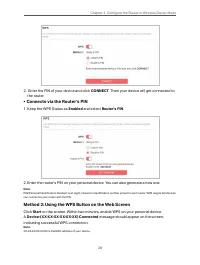
28 Chapter 4 Configure the Router in Wireless Router Mode 2. Enter the PIN of your device and click CONNECT . Then your device will get connected to the router. • Connects via the Router’s PIN 1. Keep the WPS Status as Enabled and select Router’s PIN . 2. Enter the router’s PIN on your personal devi...
Page 38 - Method 3: Using the WPS Button on the Router
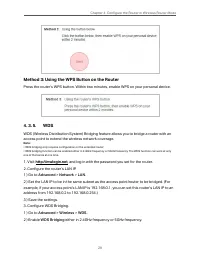
29 Chapter 4 Configure the Router in Wireless Router Mode Method 3: Using the WPS Button on the Router Press the router’s WPS button. Within two minutes, enable WPS on your personal device. 4. 3. 5. WDS WDS (Wireless Distribution System) Bridging feature allows you to bridge a router with an access ...
Page 39 - y to and choose the network to be bridged. The SSID (network name) and; Additional Settings
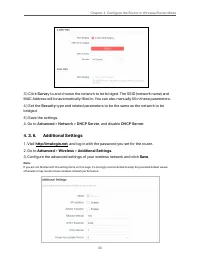
30 Chapter 4 Configure the Router in Wireless Router Mode 3 ) Click Surve y to and choose the network to be bridged. The SSID (network name) and MAC Address will be automatically filled in. You can also manually fill in these parameters.4 ) Set the Security type and related parameters to be the same...
Page 40 - transmitted preferentially.
31 Chapter 4 Configure the Router in Wireless Router Mode • WMM - WMM function can guarantee the packets with high-priority messages being transmitted preferentially. • AP Isolation - This function isolates all connected wireless stations so that wireless stations cannot access each other through WL...
Page 41 - Visit; Add
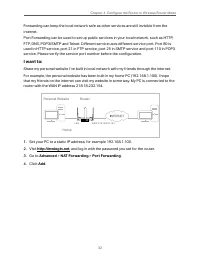
32 Chapter 4 Configure the Router in Wireless Router Mode Forwarding can keep the local network safe as other services are still invisible from the internet. Port Forwarding can be used to set up public services in your local network, such as HTTP, FTP, DNS, POP3/SMTP and Telnet. Different service u...
Page 42 - Users on the internet can enter
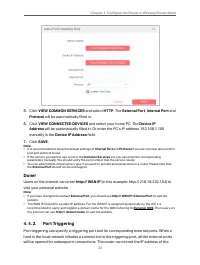
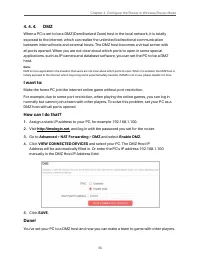
33 Chapter 4 Configure the Router in Wireless Router Mode 5. Click VIEW COMMON SERVICES and select HTTP . The External Port , Internal Port and Protocol will be automatically filled in. 6. Click VIEW CONNECTED DEVICES and select your home PC. The Device IP Address will be automatically filled in. Or...
Page 43 - UPnP
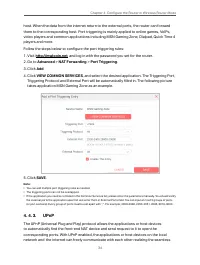
34 Chapter 4 Configure the Router in Wireless Router Mode host. When the data from the internet return to the external ports, the router can forward them to the corresponding host. Port triggering is mainly applied to online games, VoIPs, video players and common applications including MSN Gaming Zo...
Page 44 - If necessary, you can follow the steps to change the status of UPnP.; and toggle on or off according to your needs.
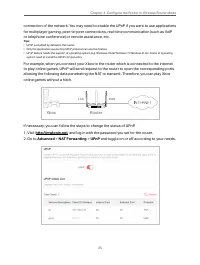
35 Chapter 4 Configure the Router in Wireless Router Mode connection of the network. You may need to enable the UPnP if you want to use applications for multiplayer gaming, peer-to-peer connections, real-time communication (such as VoIP or telephone conference) or remote assistance, etc. Tips: • UPn...
Page 46 - to create a profile for a family member.; ADD
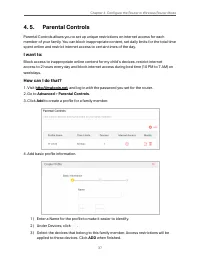
37 Chapter 4 Configure the Router in Wireless Router Mode 4. 5. Parental Controls Parental Controls allows you to set up unique restrictions on internet access for each member of your family. You can block inappropriate content, set daily limits for the total time spent online and restrict internet ...
Page 47 - Block content for this profile.; NEXT; Set time restrictions on internet access.
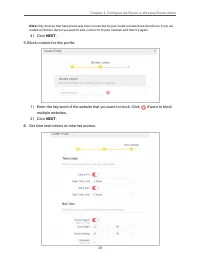
38 Chapter 4 Configure the Router in Wireless Router Mode Note: Only devices that have previously been connected to your router’s network are listed here. If you are unable to find the device you want to add, connect it to your network and then try again. 4 ) Click NEXT . 5. Block content for this p...
Page 48 - Time Limits; How can I do that; section and toggle on
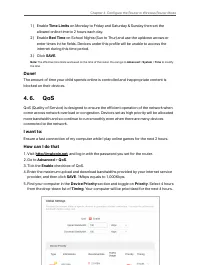
39 Chapter 4 Configure the Router in Wireless Router Mode 1 ) Enable Time Limits on Monday to Friday and Saturday & Sunday then set the allowed online time to 2 hours each day. 2 ) Enable Bed Time on School Nights (Sun to Thur) and use the up/down arrows or enter times in the fields. Devices und...
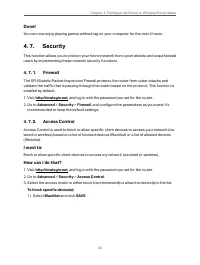
Page 50 - been added to the blacklist.; Whitelist; Add devices to the whitelist.; • Add connected devices; Select From Device List; and select the devices you want to be allowed.
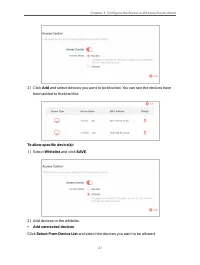
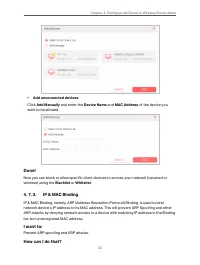
41 Chapter 4 Configure the Router in Wireless Router Mode 2 ) Click Add and select devices you want to be blocked. You can see the devices have been added to the blacklist. To allow specific device(s): 1 ) Select Whitelist and click SAVE . 2 ) Add devices to the whitelist. • Add connected devices Cl...
Page 52 - ARP List
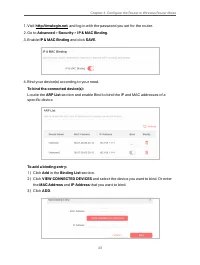
43 Chapter 4 Configure the Router in Wireless Router Mode 1. Visit http://mwlogin.net , and log in with the password you set for the router. 2. Go to Advanced > Security > IP & MAC Binding . 3. Enable IP & MAC Binding and click SAVE . 4. Bind your device(s) according to your need. To b...
Page 53 - ALG
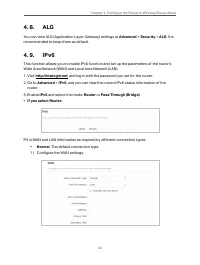
44 Chapter 4 Configure the Router in Wireless Router Mode 4. 8. ALG You can view ALG (Application Layer Gateway) settings at Advanced > Security > ALG . It is recommended to keep them as default. 4. 9. IPv6 This function allows you to enable IPv6 function and set up the parameters of the route...
Page 54 - Configure the LAN settings. Fill in; Address Prefix; provided by your ISP.; Configure the WAN settings.
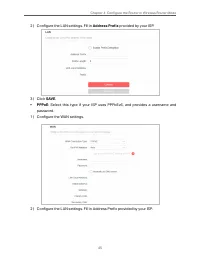
45 Chapter 4 Configure the Router in Wireless Router Mode 2 ) Configure the LAN settings. Fill in Address Prefix provided by your ISP. 3 ) Click SAVE . • PPPoE : Select this type if your ISP uses PPPoEv6, and provides a username and password. 1 ) Configure the WAN settings. 2 ) Configure the LAN set...
Page 55 - • Tunnel 6to4; : Select this type if your ISP uses 6 to 4 deployment fort assigning
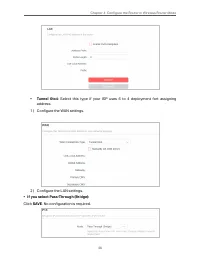
46 Chapter 4 Configure the Router in Wireless Router Mode • Tunnel 6to4 : Select this type if your ISP uses 6 to 4 deployment fort assigning address. 1 ) Configure the WAN settings. 2 ) Configure the LAN settings. • If you select Pass-Through (Bridge): Click SAVE . No configuration is required.
Page 57 - Wait a few minutes for the restoring and rebooting.; Change Password
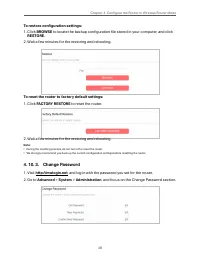
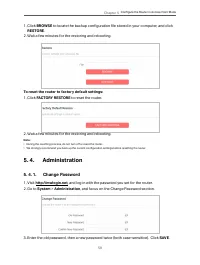
48 Chapter 4 Configure the Router in Wireless Router Mode To restore configuration settings: 1. Click BROWSE to locate the backup configuration file stored in your computer, and click RESTORE . 2. Wait a few minutes for the restoring and rebooting. To reset the router to factory default settings: 1....
Page 58 - Use the new password for future logins.; Local Management; Allow all LAN connected devices to manage the router:; Select
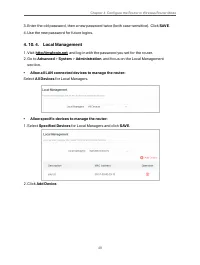
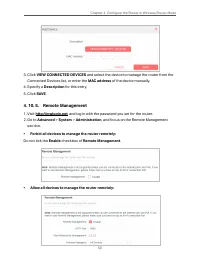
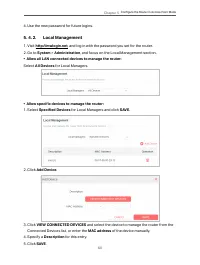
49 Chapter 4 Configure the Router in Wireless Router Mode 3. Enter the old password, then a new password twice (both case-sensitive). Click SAVE . 4. Use the new password for future logins. 4. 10. 4. Local Management 1. Visit http://mwlogin.net , and log in with the password you set for the router. ...
Page 60 - System Log
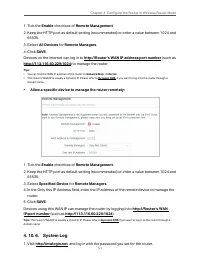
51 Chapter 4 Configure the Router in Wireless Router Mode 1. Tick the Enable checkbox of Remote Management . 2. Keep the HTTP port as default setting (recommended) or enter a value between 1024 and 65535. 3. Select All Devices for Remote Managers . 4. Click SAVE . Devices on the internet can log in ...
Page 62 - Traceroute Max TTL
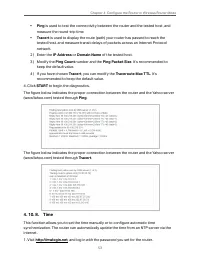
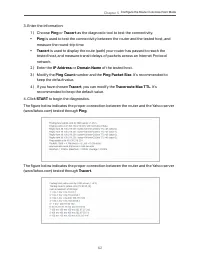
53 Chapter 4 Configure the Router in Wireless Router Mode • Ping is used to test the connectivity between the router and the tested host, and measure the round-trip time. • Tracert is used to display the route (path) your router has passed to reach the tested host, and measure transit delays of pack...
Page 64 - Language
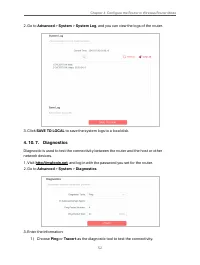
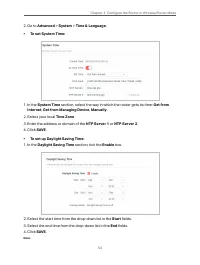
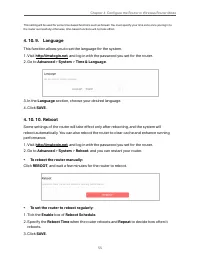
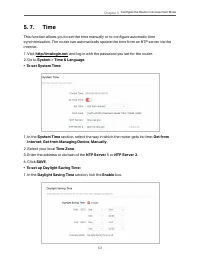
55 Chapter 4 Configure the Router in Wireless Router Mode This setting will be used for some time-based functions such as firewall. You must specify your time zone once you log in to the router successfully; otherwise, time-based functions will not take effect. 4. 10. 9. Language This function allow...
Page 65 - LED Control; Night Mode; feature to specify a time period during which the LED is off.
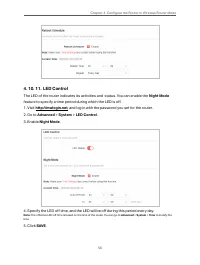
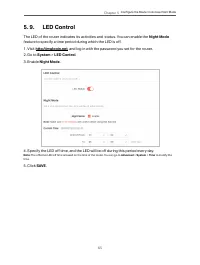
56 Chapter 4 Configure the Router in Wireless Router Mode 4. 10. 11. LED Control The LED of the router indicates its activities and status. You can enable the Night Mode feature to specify a time period during which the LED is off. 1. Visit http://mwlogin.net , and log in with the password you set f...
Page 66 - Chapter 5; It contains the following sections:
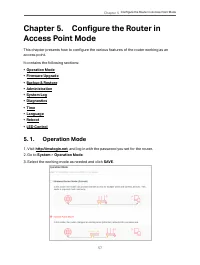
57 Chapter 5 Configure the Router in Access Point Mode Chapter 5. Configure the Router in Access Point Mode This chapter presents how to configure the various features of the router working as an access point. It contains the following sections: • Operation Mode• Firmware Upgrade• Backup & Resto...
Page 70 - , and you can view the logs of the router.; SAVE TO LOCAL; to save the system logs to a local disk.
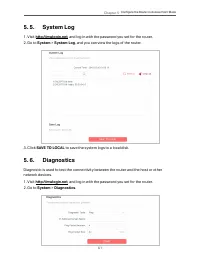
61 Chapter 5 Configure the Router in Access Point Mode 5. 5. System Log 1. Visit http://mwlogin.net , and log in with the password you set for the router. 2. Go to System > System Log , and you can view the logs of the router. 3. Click SAVE TO LOCAL to save the system logs to a local disk. 5. 6. ...
Page 75 - Reset; Q4. What can I do if I forgot my web management password?
66 AC1200 Wireless Dual Band Gigabit Router MR30G Appendix A: FAQ (Frequently Asked Questions) Q1. What can I do if the login window does not appear?Ǵ Reboot your main router and try again. Ǵ If the computer is set to a static IP address, change its settings to obtain an IP address automatically. Ǵ ...
Page 76 - tab is
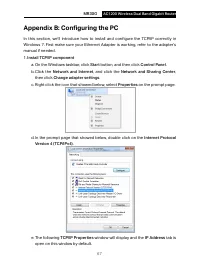
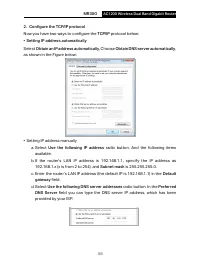
67 AC1200 Wireless Dual Band Gigabit Router MR30G Appendix B: Configuring the PC In this section, we’ll introduce how to install and configure the TCP/IP correctly in Windows 7. First make sure your Ethernet Adapter is working, refer to the adapter’s manual if needed.1. Install TCP/IP component a. O...