LG NB3532A - User Manual
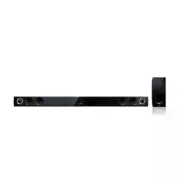
LG NB3532A Sound Bar – User Manual, read for free online in PDF format. We hope this helps you resolve any issues you may have. If you have further questions, please contact us through the contact form.


Table of Contents:
- Page 2 – Safety Information; CAUTION
- Page 3 – IMPORTANT SAFETY
- Page 5 – Table of Contents; Getting Started
- Page 6 – Unique features; Auto power down; Introduction; Symbols used in this manual; Note; Tip; Caution; Accessories
- Page 7 – Remote control; Battery installation
- Page 8 – Front panel
- Page 9 – Mounting the main
- Page 11 – Setting up; Pairing wireless subwoofer; LED indicator of wireless subwoofer; Setting up the wireless subwoofer
- Page 12 – Optional equipment; connection; Listening to music from your; OPTICAL In connection
- Page 13 – USB connection; MP3/WMA file requirement; Compatible USB devices
- Page 14 – Basic operations; USB operation; Other operations; AV Sync
- Page 15 – Dimmer
- Page 16 – LG Sound Sync; With wired connection
- Page 17 – With wireless connection; Using Bluetooth®; About Bluetooth®; Bluetooth® profiles
- Page 18 – Listening to music stored on; Pairing this unit and Bluetooth
- Page 19 – Sound adjustment; Setting the surround mode; Adjust the woofer level
- Page 20 – Controlling a TV with; Setting up the remote to
- Page 21 – Troubleshooting
- Page 22 – Trademarks and; Handling the unit; When shipping the unit
- Page 23 – Specifications
OWNER’S MANUAL
300 W STYLISH & SLIM
SOUND BAR
Please read this manual carefully before operating your set and retain it
for future reference.
NB3530A (NB3530A, S33A1-D)
NB3532A (NB3532A, S33A1-D)
www.lg.com
ENGLISH
NB3530A-NB_DUSALLK_ENG_1478.indd 1
2013-02-08 12:31:05
"Loading the manual" means you need to wait until the file loads and becomes available for online reading. Some manuals are very large, and the time they take to appear depends on your internet speed.
Was this manual helpful?
About this manual
- Brand
- LG
- Model
- NB3532A
- Document type
- User Manual
- Category
- Sound Bar
- Language(s)
- English
- Pages
- 24
- File size
- 2.3 MB
- Format
Summary
1 Getting Started Getting Started 2 Getting S tar ted 1 Safety Information CAUTION RISK OF ELECTRIC SHOCK DO NOT OPEN CAUTION: TO REDUCE THE RISK OF ELECTRIC SHOCK DO NOT REMOVE COVER (OR BACK) NO USER-SERVICEABLE PARTS INSIDE REFER SERVICING TO QUALIFIED SERVICE PERSONNEL. This lightning flash with...
Getting Started 3 Getting S tar ted 1 This device is equipped with a portable battery or accumulator. Safety way to remove the battery or the battery from the equipment: Remove the old battery or battery pack, follow the steps in reverse order than the assembly. To prevent contamination of the envir...
Table of Contents 5 1 2 3 4 5 Table of Contents 1 Getting Started 2 Safety Information 6 Unique features 6 – Auto power down 6 – Portable In 6 – Speaker ez (easy) setup 6 – LG Sound Sync 6 Introduction6 – Symbols used in this manual 6 Accessories7 Remote control 8 Front panel 8 Rear panel 9 Mounting...
Ask a question
Related manuals
Popular LG Sound Bars


More LG Sound Bars models
 LG NB2430A User Manual
 LG NB2520A User Manual
 LG NB2530A User Manual
 LG NB2540 User Manual
 LG NB3520A User Manual
 LG NB3530A User Manual
 LG NB3730A User Manual
 LG NB3740 User Manual
 LG NB5540 User Manual
 LG QP5 User Manual
 LG QP5W User Manual
 LG S40Q User Manual
 LG S65Q User Manual
 LG S75Q User Manual
 LG S75QR User Manual