LG CP40NG10 - User Manual
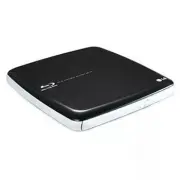
A user manual for an LG Slim Portable Blu-ray Multi Drive covers its setup, operation, and key specifications. The guide highlights system requirements–such as compatible computers and software–and explains how to install the drive’s firmware via a CD or USB connection. It also addresses physical dimensions, power needs, and safety precautions like electrostatic handling and proper cable management. The document further details front/rear control placements, Windows-specific removal procedures for USB cables, and compliance certifications (e.g., FCC/CE) alongside laser exposure warnings. While it includes technical specs like supported disc formats and USB 2.0 compatibility notes, the focus remains on broad operational and safety considerations rather than step-by-step instructions.


Table of Contents:
- Page 1 – Hardware Installation and Software Setup Safety
- Page 2 – Drive Control Access and Cable Removal Procedure
- Page 3 – LG Slim Portable Blu-ray Multi Drive Setup Guide
- Page 4 – Laser Safety and Compliance Information
• Please pay attention to handling Electrostatic
Sensitive Devices, you may use anti-static
products such as wrist straps, heel straps, mats
to protect your body from electrostatic.
• Make sure you have a personal computer with
one or two open USB ports before connecting
the drive to your computer.
• Power for all other devices should be turn off
before attaching the cables.
Connect the drive to the computer as shown in
figure.
1
Connect the USB 2.0 (Y type) cable to
the drive.
2
Connect the other end of the USB 2.0
cable to your computer.
3
The drive may get its power from the PC
USB power. All systems may not meet
USB power requirements and full
performance may not be achieved.
In this case, connect to the USB power
cable.
When the computer is ready, confirm that the
drive is detected. And then, insert the supplied
software CD into the drive and install the
software.
• Please do not connect the USB cables by any means other than specified above.
Using the wrong type of cable with this drive can cause it to malfunction.
• The appliance is not intended for use by young children or infirm persons without supervision.
Young Children should be supervised to ensure that they do not play with appliance.
• If the appliance is supplied from a cord extension set or an electrical portable outlet device, the cord
extension set on electrical portable outlet device must be positioned so that it is not subject to splashing
or ingress of moisture.
Installation
NOTES
Connecting to computer
Hardware Installation
NOTES
USB Power cable
1
2
3
"Loading the manual" means you need to wait until the file loads and becomes available for online reading. Some manuals are very large, and the time they take to appear depends on your internet speed.
Was this manual helpful?
About this manual
- Brand
- LG
- Model
- CP40NG10
- Document type
- User Manual
- Category
- Drive
- Language(s)
- English
- Pages
- 4
- File size
- 144.8 KB
- Format
Summary
Instructions for installing and connecting a hardware device, safety precautions for electrostatic-sensitive devices, requirements for compatible computers, USB cable connection steps, software installation from CD, and power cord placement guidelines.
Location and function of drive controls on the front and rear, and instructions for safely removing the USB converter cable on Windows systems.
Quick setup guide detailing features, system environment requirements, supported discs, physical specifications, power conditions, software installation, package contents, and USB 2.0 compatibility cautions for the LG Slim Portable Blu-ray Multi Drive (CP40).
Ask a question
Related manuals
Popular LG Drives


More LG Drives models
 LG BP40NB30 User Manual
 LG BP40NS20 User Manual
 LG BP50NB40 User Manual
 LG BT30N User Manual
 LG CH08LS10 User Manual
 LG CH10LS20 User Manual
 LG GE24NU40 User Manual
 LG GH20NS10 User Manual
 LG GH20NS15 User Manual
 LG GH22LP20 User Manual
 LG GH22LS50 User Manual
- LG GH22NP20 User Manual
 LG GH22NS30 User Manual
 LG GH22NS40 User Manual
- LG GH22NS50 User Manual
 LG GH24NS50 User Manual
 LG GH24NS90 User Manual