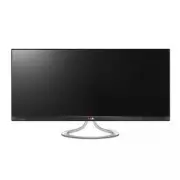
Page 2 - ENG; ENGLISH
2 ENG ENGLISH Contents 3 LICENSE 4 ASSEMBLING AND PREPARING 4 Product Components 5 Component and Button Description 7 Moving and Lifting the Monitor 7 Installing the Monitor 7 - Assembling the stand base 9 - Detaching the stand base 11 - Installing onto a table 12 - Adjusting the stand height 13 - A...
Page 3 - LICENSE
3 ENG ENGLISH LICENSE LICENSE Each model has different licenses. Visit www.lg.com for more information on the license. The terms HDMI and HDMI High-Definition Multimedia Interface, and the HDMI logo are trademarks or registered trademarks of HDMI Licensing LLC in the United States and other countrie...
Page 4 - ASSEMBLING AND PREPARING; Product Components; CAUTION
4 ENG ENGLISH ASSEMBLING AND PREPARING ASSEMBLING AND PREPARING Product Components Please check whether all the components are included in the box before using the product. If there are missing components, contact the retail store where you purchased the product. Note that the product and components...
Page 5 - Component and Button Description; Power Indicator
5 ENG ENGLISH ASSEMBLING AND PREPARING Component and Button Description DVI-D IN DP IN HDMI 1 HDMI 2/MHL USB IN 1 USB IN 2 USB IN 3 H/P AUDIO IN(PC) USB UP 5 V 0.9 A 5 V 0.9 A DC-IN (19.5 V ) Power Indicator On: power is on Off: power is off Touch buttons on the bottom of the monitor Ports (Power Bu...
Page 7 - Installing the Monitor; Assembling the stand base; stand base; Moving and Lifting the Monitor
7 ENG ENGLISH ASSEMBLING AND PREPARING Installing the Monitor Assembling the stand base To protect the screen from scratches, cover the surface with a soft cloth. CAUTION 3 Fix two screws into the back of the stand base and close the screw cover. 2 Check the orientation (front and rear) of the stand...
Page 9 - Detaching the stand base; stand hinge; Stand Hinge
9 ENG ENGLISH ASSEMBLING AND PREPARING Detaching the stand base 2 Open the screw cover on the back of the stand base and use a screwdriver to remove the two screws. Detach the stand base from the stand hinge as shown in the figure. To protect the screen from scratches, cover the surface with a soft ...
Page 10 - Stand Base
10 ENG ENGLISH ASSEMBLING AND PREPARING Stand Base Stand Body Stand Body To protect the screen from scratches, cover the surface with a soft cloth. CAUTION 1 Place the screen face down. 29EB93 The components in the illustrations may dif-fer from the actual product. Do not carry the monitor upside do...
Page 11 - Installing onto a table
11 ENG ENGLISH ASSEMBLING AND PREPARING Installing onto a table 1 Lift the monitor and place it on the table in an upright position.Place at least 10 cm away from the wall to ensure sufficient ventilation. 2 Connect the adapter to the monitor, then plug the power cord into the power outlet. 3 Press ...
Page 12 - Adjusting the stand height
12 ENG ENGLISH ASSEMBLING AND PREPARING Once the pin is removed, it is not necessary to re-insert it to adjust the height. Adjusting the stand height 2 Remove the tape attached at the bottom rear of the stand body, then pull out the locking pin . 4 The height can be adjusted up to 110.0 mm . Do not ...
Page 13 - Adjusting the angle; WARNING; Front Side
13 ENG ENGLISH ASSEMBLING AND PREPARING Adjusting the angle 1 Place the monitor in an upright position, mount- ed on the stand base. 2 Adjust the angle of the screen. The angle of the screen can be adjusted forwards or back-wards from -5° to 20° for a comfortable viewing experience. To avoid injury ...
Page 14 - Tidying cables
14 ENG ENGLISH ASSEMBLING AND PREPARING Tidying cables Gather and bind the cables with the supplied cable tie. 29EA93 29EB93
Page 15 - Installing the wall mount plate; Wall Mount Plate; Using the Kensington lock; NOTE
15 ENG ENGLISH ASSEMBLING AND PREPARING Installing the wall mount plate This monitor supports the specification of the stan-dard wall mount plate or compatible device. 1 Place the screen face down. To protect the screen from scratches, cover the surface with a soft cloth. 2 Place the wall mount plat...
Page 16 - Stand Screw; Installing to a wall
16 ENG ENGLISH ASSEMBLING AND PREPARING Unplug the power cord before moving or in-stalling the monitor to avoid electric shocks. Installing the monitor on the ceiling or on a slanted wall may result in the monitor falling off, which could lead to injury. Please use the genuine LG wall mounting brack...
Page 17 - USING THE MONITOR; Connecting to a PC; DVI connection
17 ENG ENGLISH USING THE MONITOR USING THE MONITOR Connecting to a PC This monitor supports the *Plug and Play feature.*Plug and Play: A feature that allows you to add a device to your computer without having to reconfigure anything or install any manual drivers. DVI connection Transmits digital vid...
Page 18 - Display port connection
18 ENG ENGLISH USING THE MONITOR Sound may not be available depending on the DP version of your PC. Display port connection Transmits the digital video and audio signals from your PC to the monitor. Connect your PC to the monitor using the display port cable as illustrated below.Press the menu ( ) b...
Page 19 - HDMI connection
19 ENG ENGLISH USING THE MONITOR H/P USB UP 5 V 0.9 A AUDIO IN(PC) DP IN HDMI 1 HDMI 1 HDMI 2 / MHL HDMI 2 / MHL 5 V 0.9 A 5 V 0.9 A H/P HDMI 2 / MHL 5 V 0.9 A DVI-D IN AUDIO IN(PC) DP IN HDMI PC may cause device compatibility issues. Using a DVI to HDMI cable may cause com-patibility issues. HDMI c...
Page 20 - Connecting to AV Devices
20 ENG ENGLISH USING THE MONITOR H/P USB UP 5 V 0.9 A AUDIO IN(PC) DP IN HDMI 1 HDMI 1 HDMI 2 / MHL HDMI 2 / MHL 5 V 0.9 A 5 V 0.9 A H/P HDMI 2 / MHL 5 V 0.9 A DVI-D IN AUDIO IN(PC) DP IN Connecting to AV Devices HDMI connection Transmits the digital video and audio signals from your PC and A/V devi...
Page 21 - Connecting to External Devices; MHL signal cable
21 ENG ENGLISH USING THE MONITOR This function only works for smartphones that support MHL.- There may be compatibility issues with other mobile phones. NOTE Connecting to External Devices Smartphone (MHL) connection Mobile High-definition Link (MHL) is an inter- face that allows you to play video a...
Page 22 - USB cable-PC connection
22 ENG ENGLISH USING THE MONITOR USB cable-PC connection The USB 3.0 function acts as a USB hub on the product. To use USB 3.0, connect the A-B type USB 3.0 cable included with the product to the PC.Peripheral devices connected to the USB IN port can be controlled from the PC. Please install the lat...
Page 23 - Headphone port connection
23 ENG ENGLISH USING THE MONITOR Headphone port connection Use the headphone port to connect a peripheral device to the monitor. Connect as illustrated. Depending on the audio settings of the PC and external device, headphone and speaker functions may be limited. NOTE For an angle plug earphone, it ...
Page 24 - INSTALLING LG MONITOR SOFTWARE
24 ENG ENGLISH INSTALLING LG Monitor Software INSTALLING LG MONITOR SOFTWARE 1 Set the default Web browser to Internet Explorer. Insert the the owner's manual CD included in the product package into your PC's CD driver and install the LG Monitor Software. 2 Click the "LG Monitor Software" on...
Page 27 - CUSTOMIZING SETTINGS; Activating the Main Menu; Menu; Monitor buttons
27 ENG ENGLISH CUSTOMIZING SETTINGS CUSTOMIZING SETTINGS Activating the Main Menu 1 Press the Menu ( ) button. 2 Use the < , > buttons to adjust the options. To return to the upper menu or set other menu items, use the Menu ( ) button. 3 Press and hold the Menu ( ) button to exit the OSD menu....
Page 28 - Customizing settings; Menu Settings
28 ENG ENGLISH CUSTOMIZING SETTINGS Each option is described below. Brightness Contrast Volume Input Ratio Func. PIP Menu Description Brightness Adjusts the brightness and contrast of the screen. Contrast Volume Adjusts the volume. NOTE Selecting the OK button in the Volume menu will enable/disable ...
Page 29 - Ratio Settings; Sub Menu
29 ENG ENGLISH CUSTOMIZING SETTINGS Each option is described below. Menu > Ratio Description Wide Displays the video in wide-screen, regardless of the video signal input. Cinema1 Enlarges the screen with an aspect ratio of 21:9. (at 1080p) Cinema2 Enlarges the screen with an aspect ratio of 21:9 ...
Page 31 - PIP settings
31 ENG ENGLISH CUSTOMIZING SETTINGS Sub Menu PIP Size Position Balanced Off Bottom R Back Exit Each option is described below. PIP settings 1 To view the Menu OSD, press the Menu ( ) button at the bottom of the monitor. 2 Press < or > to go to PIP . 3 Press OK to select PIP . 4 Use the < or...
Page 32 - Picture
32 ENG ENGLISH CUSTOMIZING SETTINGS Picture 1 To view the Menu OSD, press the Menu ( ) button at the bottom of the monitor. 2 Press < or > to go to Picture . 3 Press OK to select Picture . 4 Use the < or > buttons to set the options. 5 Select to exit the OSD menu. To return to the upper ...
Page 34 - Settings
34 ENG ENGLISH CUSTOMIZING SETTINGS Settings 1 To view the Menu OSD, press the Menu ( ) button at the bottom of the monitor. 2 Press < or > to go to Settings . 3 Press OK to select Settings . 4 Use the < or > buttons to set the options. 5 Select to exit the OSD menu. To return to the upp...
Page 35 - TROUBLESHOOTING; Horizontal Frequency:
35 ENG ENGLISH TROUBLESHOOTING TROUBLESHOOTING Nothing is displayed on the screen. Is the monitor's power cord plugged in? Check if the power cord is correctly plugged in to the power outlet. Is the power indicator on? Check the power cable connection and press the power button. Is the power indicat...
Page 37 - SPECIFICATIONS
37 ENG ENGLISH SPECIFICATIONS SPECIFICATIONS 29EA93 29EB93 LCD Screen Type 73.025 cm TFT (Thin Film Transistor) LCD (Liquid Crystal Display) ScreenDiagonal length of the screen: 73.025 cm Pixel Pitch 0.0876 mm x 0.2628 mm Resolution Maximum Resolution 2560 x 1080 @ 60 Hz Recommended Resolution 2560 ...
Page 39 - PROPER POSTURE; Proper Posture for Using the Monitor
39 ENG ENGLISH PROPER POSTURE PROPER POSTURE Proper Posture for Using the Monitor Adjust the screen so that you can comfortably view at a slight downward angle from your natural eye level. Take a break for approximately ten minutes every hour to reduce any fatigue caused by long-time us-age. The sta...