Kodak M820 - Manual

Kodak M820 Digital Photo Frame – Manual, read for free online in PDF format. We hope this helps you resolve any issues you may have. If you have further questions, please contact us through the contact form.


Table of Contents:
- Page 3 – Getting started; Setting up your picture frame; Changing the frame orientation; Change the stand position:
- Page 4 – Attaching the power cable; Turning on your frame
- Page 5 – Setting your language; Enjoying your pictures immediately!; To view your pictures or play a slide show
- Page 6 – Inserting a memory card
- Page 7 – Using your frame’s touch border
- Page 8 – Mounting your frame on the wall; Changing the frame orientation setting
- Page 9 – Doing more with your frame; Accessing your pictures; Picture source icons
- Page 10 – Viewing your pictures; Playing a slide show
- Page 11 – Viewing thumbnails; To view a single
- Page 12 – Viewing pictures by date or filename; Saving your favorite slide show for easy access
- Page 13 – Playing music only
- Page 14 – Playing a video
- Page 15 – Copying pictures
- Page 16 – Deleting pictures
- Page 17 – Selecting multiple pictures; Selecting/Unselecting all; Select all; Unselect all
- Page 18 – Printing pictures
- Page 19 – Copying from your computer; Installing the software; Using the Kodak EasyShare digital display software; Copy
- Page 20 – Organize; Customizing your frame; Gently
- Page 21 – Learning more about your frame
- Page 22 – Solving frame problems
- Page 23 – Appendix
www.kodak.com/go/digitalframesupport
1
ENG
LISH
See the extended user guide
– for more information about using your frame, visit
www.kodak.com/go/digitalframesupport
. See the frame package for package contents.
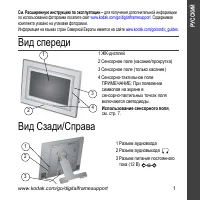
Front View
Back/Right View
1 LCD screen
2 Touch border (Tap/Slide)
3 Touch border (Tap only)
4 Touch-sensitive raised guide
3
1
2
To use the touch border
,
see page 7.
NOTE: When screen icons appear,
LED lights turn on at touch-sensitive
points along the raised guide.
4
1 Audio In
2 Audio Out
3 DC-In (12V)
1
2
3
"Loading the manual" means you need to wait until the file loads and becomes available for online reading. Some manuals are very large, and the time they take to appear depends on your internet speed.
Was this manual helpful?
About this manual
- Brand
- Kodak
- Model
- M820
- Document type
- Manual
- Category
- Digital Photo Frame
- Language(s)
- English
- Pages
- 28
- File size
- 1.3 MB
- Format
Summary
www.kodak.com/go/digitalframesupport 3 1 Getting started Setting up your picture frame Changing the frame orientation Your frame is set up to display pictures in landscape orientation . You can turn the stand to change it to portrait but you must also change the setting (see page 8 ). Change the sta...
Getting started 4 www.kodak.com/go/easysharecenter Attaching the power cable CAUTION: Do not use this power cable with other devices, including digital cameras. Turning on your frame Your power cable may look different from the one pictured. Use the plug that accommodates your type of power outlet. ...
Getting started www.kodak.com/go/digitalframesupport 5 Setting your language The language screen appears the first time you turn on your frame. Using the touch border (see page 7 ): ■ Slide to find your language, then tap OK. To change the language at a later time: ■ Tap (Home) → (Settings) → Langua...
Ask a question
Related manuals
More Kodak Digital Photo Frames models
Other Kodak appliances
 Kodak 1 Manual
 Kodak 3 Manual
 Kodak 3.1 Manual
 Kodak 3.2 Manual
 Kodak 7 Manual
 Kodak 10/100 Network Interface Card Manual
 Kodak 35 mm Camera Manual
 Kodak 65MM Manual
 Kodak 125PX Manual
 Kodak 160NC Manual
- Kodak 160VC Manual
 Kodak 200 Manual
 Kodak 250D Manual
 Kodak 300 Manual
 Kodak 305 Manual
 Kodak 350 Manual
- Kodak 400NC Manual