Page 3 - Appendix
29 Calculator 30 Browser 31 Email Appendix 31 Important Information 32 Disclaimer 33 Troubleshooting
Page 4 - Safety Precautions; General Safety Information
1 Safety Precautions General Safety Information • Do not crash, throw, or puncture your phone. Avoid falling, squeezing, and bending of your phone. • Do not use your phone in a moist environment, such as b a t h r o o m . P r e v e n t y o u r p h o n e f r o m b e i n g s o a k e d o r washed in li...
Page 8 - Power Supply & Charging
5 • When your vehicle is equipped with an air bag, do not ob - struct with installed or portable wireless equipment. It may cause the air bag to fail or cause serious injury due to im - proper performance. • If you listen to music, please keep the volume at a reason - able level so that you are awar...
Page 11 - Protecting the Environment
8 • Use your phone when it receives the best signal (e.g.: Max - imum number of signal strength bars). • Use a hands-free kit. During calls, keep the phone away from the abdomen of preg - nant women and the lower abdomen of teenagers. Protecting the Environment • Please observe the local regulations...
Page 14 - Copyright
11 LTE B38:2570MHz-2620MHz Max Power: 23±2.7dBm LTE B40:2300MHz-2400MHz Max Power: 23±2.7dBm WIFI:2412MHz-2472MHz EIRP Power: < 20dBm BlueTooth:2402MHz-2480 MHz EIRP Power < 10dBm GPS: 1575.42±1.023MHz FM: 87.5 MHz-108MHz This product can be used across EU member states. Copyright The equipment is f...
Page 15 - Phone at a Glance; Phone Overview
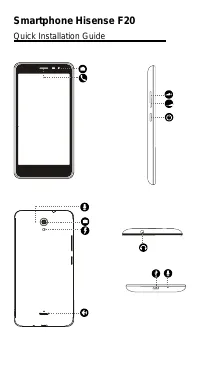
12 Phone at a Glance Phone Overview The device features may vary based on your location, language, carrier and model. This device supplies OTG function, please use stan - dard OTG data cable.
Page 17 - Installing Nano
14 Tap it to go back to the previous screen. Volume up/down button (physical) Press it to adjust the device volume. Installing Nano SIM card / SD card Before you start using your new phone, you need to set it up. Press and hold the power button. Select Power off to turn off your phone. Remove the ca...
Page 18 - Battery; Charging the battery
15 • Only Nano-SIM cards work with the device. Do not attempt to insert other SIM type, otherwise it may cause phone damage. • Do not remove the Nano-SIM/SD card while the card is being used; otherwise, data loss or damage may occur. Hisense shall not be liable to any loss, including data loss, due ...
Page 20 - Turning Your Phone On/Off; Turning on the phone
17 mance and shorten its life. Long-term charging in extreme temperatures will damage the battery. • While charging, the phone and the charger may heat up. This is normal and should not affect the phone’s lifespan or performance. If the battery gets hotter than usual, stop charging it. Place your ph...
Page 21 - Basics; Touchscreen Gestures; Tapping; Tapping and holding
18 Basics Touchscreen Gestures Use a few simple gestures to use your phone and its apps. Tapping To open an app, to choose a menu item, to press an on-screen button, or to enter a character using the keyboard on the screen, tap it with your finger. Tapping and holding Tap and hold an item or the scr...
Page 22 - Swiping; Spreading and pinching
19 Swiping Swipe to the left or right on the Home screen or the Apps screen to view other panels. Swipe upwards or downwoard to scroll through a webpage or a list of items. Spreading and pinching Spread two fingers apart on a webpage, map or image to zoom in a part.
Page 23 - Dragging
20 Pinch to zoom out. Dragging To move an item, tap and hold it and drag it to the target posi - tion.
Page 24 - Notification Center; Open notification center; Close notification center; Locking and Unlocking Screen; Locking the screen; Customizing Screen
21 Notification Center Open notification center 1 Swipe down from the top edge of the screen to open notifi - cation center. 2 Swipe down again from the top edge of the screen to go to the shortcuts tab. Set notification options 1 Go to Settings > Notifications . 2 Enable or disable notification ...
Page 25 - Changing Date and Time
22 1 Press and hold the blank area on the screen to access the home screen editor. 2 Select WALLPAPERS and WIDGETS to customize your screen. Changing Date and Time Go to Settings > Date & time . • Activate Automatic time zone to use network provided time zone. • Activate Use 24-hour format to...
Page 26 - Using Your Phone; Home Screen
23 Using Your Phone Home Screen Home screen is the starting point for accessing all of the phone’s features. It displays widgets, shortcuts to apps and more. Home screen may appear differently depending on the region or service provider.
Page 27 - Phone; Making calls; Making calls from call logs or contacts list; Making an international call
24 Status Bar It displays status icons and notifications. Widget Widgets are small apps that launch specific app functions to provide information and convenient access on your Home screen. Application Icons Tap an icon, such as an app or a folder, to open and use it. Hot dock It provides quick acces...
Page 28 - Receiving calls; Answering a call; Contacts; Adding contacts; Creating contact manually; Adding from received calls
25 1 Tap to open the keypad. 2 Tap and hold 0 until the + sign appears. 3 Enter the country code, area code, and the phone number. Then tap . Receiving calls Answering a call When a call comes in, tap to answer the call. Rejecting a call When a call comes in, tap to reject the call. Contacts Adding ...
Page 29 - Importing contacts; Searching for contacts; Messages; Sending messages
26 3 Add recieved calls to a contact. Importing contacts You can import contacts from storage services to your device. 1 Tap on the Home screen or the Apps screen. 2 Tap IMPORT CONTACTS . 3 Select an import option. Searching for contacts Tap on the Home screen or the Apps screen. Use one of the foll...
Page 30 - Camera
27 3 Add recieved calls to a contact. Importing contacts You can import contacts from storage services to your device. 1 Tap on the Home screen or the Apps screen. 2 Tap IMPORT CONTACTS . 3 Select an import option. Searching for contacts Tap on the Home screen or the Apps screen. Use one of the foll...
Page 31 - Recording videos; Gallery; Viewing images or videos
28 saved to the Gallery . Recording videos 1 Tap to start recording the video. 2 Tap to stop recording. To capture an image from the video while recording, tap . • Spread two fingers apart on the screen to zoom in, and pinch to zoom out. • Tap to switch between front camera and rear camera. Launchin...
Page 32 - Sharing images or videos; Calculator; Music; Adding song to your phone
29 Sharing images or videos Select an image or videos, and tap at the top of the screen. Select a sharing method. Calculator You can do simple or complex calculations by using Calculator app. 1 Tap on the Apps screen. 2 Slide right or left to switch between the standard calculator and the scientific...
Page 33 - Browser
30 3 When a song is playing, tap Home button to exit the music playback screen without stopping the song. To return to the music playback screen, open the notification center and tap the cover of the song. Browser Connect the web page to search for information and bookmark your favorite webpages to ...
Page 34 - Email; Setting up email accounts; Sending emails; Important Information
31 window switching and other functions are supported. Email Setting up email accounts Set up an email account when opening Email for the first time. 1 Tap on the Apps screen. 2 Enter the email address and then tap NEXT . Enter the password and then tap NEXT . To manually register a com - pany email...
Page 35 - Disclaimer
32 net, it is strongly recommended to have a suitable option which includes unlimited Internet and emails and to avoid changing the settings preconfigured by default. If you wish, connect to Wi-Fi for a faster and more stream lined experience. It is particularly recommended to use Wi-Fi for streamin...
Page 36 - Troubleshooting; SIM card has error
33 • Use your phone in accordance with the purposes and functions. Troubleshooting This part lists some problems you might encounter when using your phone. Some problems require you to call your service provider, but most of them are easy to be fixed by yourself. SIM card has error Ensure that the S...
Page 37 - Phone cannot be switched on; Charge has error
34 Phone cannot be switched on • Ensure to press the Power button for at least two seconds. • Charge battery. Check the charging indicator on the screen. Charge has error • Outside temperature is too hot or cold. Charge the battery. • Ensure that phone is charging at a normal temperature. • Check th...
Page 39 - No: CE17ZTE245; Mobile Phone; Complies; EU DECLARATION OF CONFORMITY
No: CE17ZTE245 Version: v1.0 It is hereby declared that following designated product: Product Type: Mobile Phone Product colour image Model No: Hisense F24 Product Description: Mobile Phone Software version: L1468.6.01.01.ZA00 L1468.X.YY.ZZ.CCOO X stands for main version, which is used to represent ...
Page 40 - Name in block letters & position in the company
No: CE17ZTE245 Version: v1.0 Floor 22, Hisense Tower, 17 Donghai Xi Road, Qingdao, 266071, China Authorised person signing for the company: Name in block letters & position in the company Qingdao, 18 November 2017 Place & date Legally valid signature




 Hisense DH10019TP1WG User Manual
 Hisense F10 User Manual
 Hisense F15 User Manual
 Hisense F18 User Manual
 Hisense F20 User Manual
 Hisense F23 User Manual
 Hisense F28 User Manual
 Hisense FRIDGE 2088 User Manual
 Hisense HAW0821CW1W User Manual
 Hisense HCF7S1014 User Manual