Hisense 43R6 - User Manual
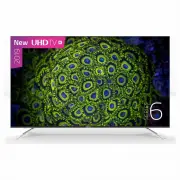
This user manual covers an LED backlight television, focusing on its core functionalities and operational guidelines. The document emphasizes safety with detailed precautions against electrical hazards, improper placement, and environmental risks like moisture or power surges. It also outlines essential controls–such as remote shortcuts for basic operations (power, channel selection) and advanced features (EPG scheduling, PVR recording, T.Shift live pausing)–alongside system menus for picture, sound, network, and accessibility settings. Additionally, it includes troubleshooting advice for common issues like connectivity failures or hardware malfunctions, ensuring users can address minor problems independently.


Table of Contents:
- Page 1 – User Manual Introduction
- Page 2 – Table of Contents Structure
- Page 3 – General Safety Precautions
- Page 4 – Detailed Safety Guidelines
- Page 5 – Operational Safety and Maintenance
- Page 6 – Remote Control Shortcuts
- Page 7 – Channel Management Features
- Page 8 – EPG Shortcut Functions
- Page 9 – PVR/T.Shift Functionality and Storage
- Page 10 – Recording Function Limitations
- Page 11 – TV Menu Options
- Page 12 – Navigation and Picture Settings
- Page 13 – Picture and Sound Configuration
- Page 14 – Sound and Speaker Settings
- Page 15 – Smart TV Network and Channel Management
- Page 16 – CI+ Module and Accessibility Settings
- Page 17 – System and Parental Controls
- Page 18 – Menu Organization
- Page 19 – HDMI, Bluetooth, and Advanced Functions
- Page 20 – Advanced Settings and Self-Diagnosis
- Page 21 – Firmware Updates and Restoration
- Page 22 – Home Screen Navigation and Apps
- Page 23 – Application Management
- Page 24 – Advanced Media Features
- Page 25 – Casting and Service Access
- Page 26 – Common Troubleshooting Guide
- Page 27 – Remote and Network Troubleshooting
ES-A
LED Backlight TV
Read the manual carefully and ensure you have fully understood
its contents before operating this device for the first time.
English
"Loading the manual" means you need to wait until the file loads and becomes available for online reading. Some manuals are very large, and the time they take to appear depends on your internet speed.
Was this manual helpful?
About this manual
- Brand
- Hisense
- Model
- 43R6
- Document type
- User Manual
- Category
- TV
- Language(s)
- English
- Pages
- 27
- File size
- 287.3 KB
- Format
Summary
Instructions for careful reading before operating the device and manual overview.
Outline of the instruction manual sections including safety precautions, shortcuts, menu options, advanced features, and other information.
Safety warnings regarding electrical hazards, proper disposal of electronic equipment, and safe placement guidelines to prevent injury.
Ask a question
Related manuals
Popular Hisense TVs


More Hisense TVs models
 Hisense 40A4KAU User Manual
 Hisense 40R4 User Manual
 Hisense 43A7KAU User Manual
 Hisense 43N6 User Manual
 Hisense 43S8 User Manual
 Hisense 50A7G User Manual
 Hisense 50A7KAU User Manual
 Hisense 50R7 User Manual
 Hisense 55A7G User Manual
 Hisense 55A7KAU User Manual
 Hisense 55PX User Manual
- Hisense 55R6 User Manual