Page 3 - Contents; About Your Monitor
Contents | 3 Contents 1 About Your Monitor . . . . . . . . . . . . . . . . . . . . . . 5 Package Contents . . . . . . . . . . . . . . . . . . . . . . . . 5 Product Features . . . . . . . . . . . . . . . . . . . . . . . . . 6 Identifying Parts and Controls . . . . . . . . . . . . . . . . 7 Monitor Sp...
Page 4 - Appendix; Information
4 | Contents 5 Appendix . . . . . . . . . . . . . . . . . . . . . . . . . . . . . . 49 FCC Notices (U.S. Only) and Other Regulatory Information . . . . . . . . . . . . . . . . . . . . . . . . . . . 49 Contacting Dell . . . . . . . . . . . . . . . . . . . . . . . . . 49 Setting Up Your Monitor . . . ...
Page 5 - Package Contents; Contacting Dell
About Your Monitor | 5 1 About Your Monitor Package Contents Your monitor ships with the components shown below. Ensure that you have received all the components and Contacting Dell if something is missing. NOTE: Some items may be optional and may not ship with your monitor. Some features or media m...
Page 6 - Product Features; The
6 | About Your Monitor Product Features The Dell S2240T flat panel display has an active matrix, Thin-Film Transistor (TFT), Liquid Crystal Display (LCD) and LED backlight. The monitor features include: • S2240T : 54.6 cm (21.5-inch) viewable area display (measured diagonally). 1920 x 1080 resolutio...
Page 7 - Energy Saver feature for Energy Star compliance.; Identifying Parts and Controls; Front View; Side panel controls
About Your Monitor | 7 • Energy Saver feature for Energy Star compliance. • Security lock slot. • Capability to switch from wide aspect to standard aspect ratio while maintaining the image quality. • EPEAT silver Rating. • Arsenic-Free glass and Mercury-Free for the panel only. • High Dynamic Contra...
Page 8 - Back View; Back View with monitor stand
8 | About Your Monitor Back View Side View Back View with monitor stand Label Description Use 1 VESA mounting holes (100 mm x 100 mm - behind attached VESA Plate) Wall mount monitor using VESA-compatible wall mount kit (100 mm x 100 mm). 2 Security lock slot Use a security lock with the slot to help...
Page 9 - Bottom View; Bottom view without monitor stand
About Your Monitor | 9 Bottom View *Headphone usage is not supported for the audio line out connector. Bottom view without monitor stand Label Description Use 1 Security lock slot Secure the monitor with a security cable lock. 2 Audio Line-out Connect your speakers.* 3 USB upstream port Connect the ...
Page 10 - Monitor Specifications; Flat Panel Specifications
10 | About Your Monitor Monitor Specifications Flat Panel Specifications *[S2240T] color gamut (typical) is based on CIE1976 (84%) and CIE1931 (72%) test standards. Resolution Specifications Model S2240T Screen type Active matrix - TFT LCD Panel type VA Viewable image Diagonal Horizontal, Active Are...
Page 11 - Supported Video Modes; Model
About Your Monitor | 11 Supported Video Modes Preset Display Modes S2240T Electrical Specifications Model S2240T Video display capabilities (DVI & HDMI playback) 480p, 576p, 720p, 1080p Display Mode Horizontal Frequency (kHz) Vertical Frequency (Hz) Pixel Clock (MHz) Sync Polarity (Horizontal/ V...
Page 12 - Physical Characteristics; Connector type
12 | About Your Monitor *Qualified Compatible AC/DC adapters. CAUTION: To avoid damage to the monitor, use only the adapter designed for this particular Dell monitor. Physical Characteristics AC/DC adapter* Input voltage/frequency/current 100 VAC to 240 VAC / 50 Hz or 60 Hz + 3 Hz / 1.2 A (typical) ...
Page 13 - Environmental Characteristics; Power Save Mode
About Your Monitor | 13 Environmental Characteristics Power Management Modes If you have VESA's DPM™ compliance display card or software installed in your PC, the monitor can automatically reduce its power consumption when not in use. This is referred to as Power Save Mode *. If the computer detects...
Page 14 - Touch Specifications
14 | About Your Monitor The OSD functions only in the normal operation mode. When any button is pressed in the Active-off mode, one of the following messages will be displayed: Activate the computer and the monitor to gain access to the OSD. * Zero power consumption in OFF mode can only be achieved ...
Page 15 - Pin Assignments; VGA Connector
About Your Monitor | 15 Pin Assignments VGA Connector Input method Bare finger, thin gloves, conductive stylus Touch point 10 touch-points Response time 25 ms Output position resolution 25 PPI (minimum) Touch method Fingers and thin gloves Support OS Windows 8 Certified Pin Number 15-pin Side of the...
Page 17 - HDMI Connector; Plug and Play Capability; Operating the Monitor
About Your Monitor | 17 HDMI Connector Plug and Play Capability You can install the monitor in any Plug and Play-compatible system. The monitor automatically provides the computer system with its Extended Display Identification Data (EDID) using Display Data Channel (DDC) protocols so the system can...
Page 18 - This monitor supports High-Speed Certified USB 2.0 interface.; USB Upstream Connector; LCD Monitor Quality and Pixel Policy; Transfer Speed
18 | About Your Monitor Universal Serial Bus (USB) Interface This section gives you information about the USB ports that are available on the monitor. NOTE: This monitor supports High-Speed Certified USB 2.0 interface. USB Upstream Connector USB Ports • 1 upstream - back NOTE: USB 2.0 functionality ...
Page 19 - Maintenance Guidelines; Cleaning Your Monitor; CAUTION: Read and follow the
About Your Monitor | 19 Maintenance Guidelines Cleaning Your Monitor CAUTION: Read and follow the Safety Instructions before cleaning the monitor. WARNING: Before cleaning the monitor, unplug the monitor power cable from the electrical outlet. For best practices, follow the instructions in the list ...
Page 21 - Setting Up the Monitor; Preparing the Stand; Safety Instructions
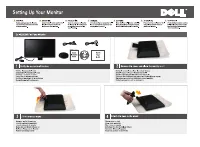
Setting Up the Monitor | 21 2 Setting Up the Monitor Preparing the Stand NOTE: The stand is attached when the monitor is shipped from the factory. a. Place the monitor on a soft cloth or cushion. b. Pull the monitor stand arm upwards clear of the monitor. c. Place the monitor upright. Connecting You...
Page 22 - Connecting the HDMI cable; Use a screwdriver to tighten the VGA cable.
22 | Setting Up the Monitor Connecting the HDMI cable Connecting the white DVI cable Connecting the blue VGA cable Use a screwdriver to tighten the VGA cable. CAUTION: The graphics are used for the purpose of illustration only. Appearance of the computer may vary.
Page 23 - Setting Up the Monitor |; Connecting the USB cable; Organizing Your Cables; Connecting Your
Setting Up the Monitor | 23 Connecting the USB cable After you have completed connecting the DVI/VGA/HDMI cable, follow the procedures below to connect the USB cable to the computer and complete your monitor setup: 1. Connect the upstream USB port (cable supplied) to an appropriate USB port on your ...
Page 24 - | Setting Up the Monitor; Removing the Monitor Stand; that the monitor is placed on a soft, clean surface.
24 | Setting Up the Monitor Removing the Monitor Stand NOTE: To prevent scratches on the LCD screen while removing the stand, ensure that the monitor is placed on a soft, clean surface. NOTE: This is applicable for a monitor with a stand. When any other stand is bought, please refer to the respectiv...
Page 27 - Power On the Monitor; Press the; Using the Side Panel Controls; The following table describes the side panel buttons:; Contrast
Operating the Monitor | 27 3 Operating the Monitor Power On the Monitor Press the button to turn on the monitor. Using the Side Panel Controls Use the control buttons on the side of the monitor to adjust the characteristics of the image being displayed. As you use these buttons to adjust the control...
Page 28 - Side Panel Button; Accessing the Menu System
28 | Operating the Monitor Side Panel Button Use the buttons on the side of the monitor to adjust the image settings. 3 Menu Use the MENU button to launch the On-Screen Display (OSD) and select the OSD Menu. See Accessing the Menu System . 4 Exit Use this button to go back to the main menu or exit t...
Page 32 - Input Source
32 | Operating the Monitor Auto Adjust Even though your computer recognizes your monitor on startup, the Auto Adjustment function optimizes the display settings for use with your particular setup. Auto Adjustment allows the monitor to self-adjust to the incoming video signal. After using Auto Adjust...
Page 33 - Input Color
Operating the Monitor | 33 Color Settings Use Color Settings to adjust the color setting mode. Input Color Format Allows you to set the video input mode to: RGB : Select this option if your monitor is connected to a computer or DVD player using the VGA and DVI cable. YPbPr : Select this option if yo...
Page 37 - Menu Lock; Energy Smart
Operating the Monitor | 37 Menu Transparency Select this option to change the menu transparency by pressing the and buttons (Minimum: 0 ~ Maximum: 100). Menu Timer OSD Hold Time : sets the length of time the OSD will remain active after the last time you pressed a button. Use or to adjust the slider...
Page 38 - Factory Reset; Personalize
38 | Operating the Monitor NOTE: This monitor has a built-in feature to automatically calibrate the brightness to compensate for LED aging. LCD Conditioning Helps reduce minor cases of image retention. Depending on the degree of image retention, the program may take some time to run. You can enable ...
Page 41 - Troubleshooting; Setting the Maximum Resolution; Screen Resolution
Operating the Monitor | 41 or It is recommended that you use the supplied power adapter. If not, you will see the message as shown below. See Troubleshooting for more information. Setting the Maximum Resolution To set the maximum resolution for the monitor: In Windows ® 7, Windows ® 8, and Windows ®...
Page 42 - Using the Tilt and Touch Usage Scenario; The stand is attached when the monitor is shipped from the factory.
42 | Operating the Monitor If you are using a non-Dell computer (portable or desktop): • Go to the support site for your computer and download the latest graphic drivers. • Go to your graphics card website and download the latest graphic drivers. Using the Tilt and Touch Usage Scenario With the buil...
Page 43 - Before you begin any of the procedures in this section, follow the
Troubleshooting | 43 4 Troubleshooting WARNING: Before you begin any of the procedures in this section, follow the Safety Instructions . Self-Test Your monitor provides a self-test feature that allows you to check whether your monitor is functioning properly. If your monitor and computer are properl...
Page 45 - Common Problems
Troubleshooting | 45 3. Press and hold Button 1 and Button 4 on the side panel simultaneously for 2 seconds. A gray screen appears. 4. Carefully inspect the screen for abnormalities. 5. Press Button 4 on the side panel again. The color of the screen changes to red. 6. Inspect the display for any abn...
Page 46 - | Troubleshooting
46 | Troubleshooting Poor Focus Picture is fuzzy, blurry, or ghosting • Perform Auto Adjust via OSD. • Adjust the Phase and Pixel Clock controls via OSD. • Eliminate video extension cables. • Reset the monitor to Factory Settings . • Change the video resolution to the correct aspect ratio (16:9). Sh...
Page 47 - Touch Problem; Power Management Modes
Troubleshooting | 47 Touch Problem Safety Related Issues Visible signs of smoke or sparks • Do not perform any troubleshooting steps. • Contact Dell immediately. Intermittent Problems Monitor malfunctions on & off • Ensure that the video cable connecting the monitor to the computer is connected ...
Page 48 - Product Specific Problems; function will not be available.
48 | Troubleshooting Product Specific Problems NOTE: When choosing DVI-D mode, the Auto Adjust function will not be available. Win 7 and Win 8 Calibration The cursor does not accurately follow your finger when you touch the screen • Enter control panel to choose the Tablet PC settings. • Select Cali...
Page 49 - WARNING: Safety Instructions; Choose A Country/Region; Setting Up Your Monitor; Setting the display resolution
Appendix | 49 5 Appendix WARNING: Safety Instructions WARNING: Use of controls, adjustments, or procedures other than those specified in this documentation may result in exposure to shock, electrical hazards, and/or mechanical hazards. For information on safety instructions, see the Product Informat...