Page 3 - SETUP GUIDE; INSPIRON
SETUP GUIDE Regulatory model: P 04T series Regulatory type: P04T001 INSPIRON ™
Page 5 - Contents
3 Setting Up Your Inspiron Laptop . . . . . . . . . .5 Before Setting Up Your Computer . . . . . . . . . 5Connect the AC Adapter . . . . . . . . . . . . . . . . 6Connect the Network Cable (Optional) . . . . . 7Press the Power Button . . . . . . . . . . . . . . . . . 8Set Up the Operating System . . ...
Page 7 - Setting Up Your Inspiron Laptop
5 This section provides information about setting up your Inspiron ™ laptop. Before Setting Up Your Computer When positioning your computer, ensure that you allow easy access to a power source, adequate ventilation, and a level surface to place your computer.Restricting airflow around your Inspiron ...
Page 8 - Connect the AC Adapter
6 Setting Up Your Inspiron Laptop Connect the AC Adapter Connect the AC adapter to the computer and then plug it into an electrical outlet or surge protector. WARNING: The AC adapter works with electrical outlets worldwide. However, power connectors and power strips vary among countries. Using an in...
Page 10 - Press the Power Button
8 Setting Up Your Inspiron Laptop Press the Power Button
Page 11 - Set Up the Operating System; Microsoft; Ubuntu
9 Setting Up Your Inspiron Laptop Set Up the Operating System Your Dell computer is preconfigured with the operating system you selected at the time of purchase. Microsoft ® Windows ® To set up Windows for the first time, follow the instructions on the screen. These steps are mandatory and may take ...
Page 12 - Create System Recovery Media (Recommended)
10 Setting Up Your Inspiron Laptop Create System Recovery Media (Recommended) NOTE: It is recommended that you create a system recovery media as soon as you set up Microsoft Windows. The system recovery media can be used to restore your computer to the operating state it was in when you purchased th...
Page 18 - Connect to the Internet; Setting Up a Wired Connection
16 Setting Up Your Inspiron Laptop Connect to the Internet (Optional) To connect to the Internet, you need an external modem or network connection and an Internet service provider (ISP). If an external USB modem or WLAN adapter is not a part of your original order, you can purchase one at www.dell.c...
Page 19 - Setting Up Your Internet Connection
17 Setting Up Your Inspiron Laptop Click 3. Start → Connect to → Wireless Network Connections → View Wireless Networks . Follow the instructions on the screen to 4. complete the setup. Windows 7 Ensure that wireless is enabled on your 1. computer (see “Enable or Disable Wireless” on page 14).Save an...
Page 21 - Set Up the TV Tuner
19 Setting Up Your Inspiron Laptop Click the appropriate option under 8. How do you want to connect to the Internet? , and click Next . Use the setup information provided by your 9. ISP to complete the setup. Windows 7 Save and close any open files, and exit any 1. open programs.Click 2. Start → Con...
Page 22 - Using Your Inspiron Laptop; Right View Features
20 Using Your Inspiron Laptop This section provides information about the features available on your Inspiron ™ laptop. Right View Features 3 1 2 4 INSPIRON
Page 24 - Left View Features
22 Using Your Inspiron Laptop Left View Features 4 3 2 1
Page 26 - Back View Features
24 Using Your Inspiron Laptop Back View Features 1 2
Page 28 - Computer Base Features
26 Using Your Inspiron Laptop Computer Base Features 2 3 4 1 5 6
Page 31 - Touch Pad Gestures; Scroll
29 Using Your Inspiron Laptop Touch Pad Gestures Scroll Allows you to scroll through content. The scroll feature includes: Traditional Scroll — Allows you to scroll up or down, and right or left.To scroll up or down: Move a finger up or down in the vertical scroll zone (extreme right of the touch pa...
Page 32 - Display Features
30 Using Your Inspiron Laptop Display Features The display panel holds a camera and accompanying dual digital microphones. 1 2 3 4
Page 34 - Removing and Replacing the Battery
32 Using Your Inspiron Laptop Removing and Replacing the Battery WARNING: Before you begin any of the procedures in this section, follow the safety instructions that shipped with your computer.WARNING: Using an incompatible battery may increase the risk of fire or explosion. This computer should onl...
Page 36 - Software Features; Productivity and Communication
34 Using Your Inspiron Laptop Software Features NOTE: For more information about the features described in this section, see the Dell Technology Guide available on your hard drive or at support.dell.com/manuals . Productivity and Communication You can use your computer to create presentations, broch...
Page 37 - Dell Dock; Add a Category
35 Using Your Inspiron Laptop Dell Dock The Dell Dock is a group of icons that provides easy access to frequently-used applications, files, and folders. You can personalize the Dock by: Adding or removing icons • Grouping related icons into categories • Changing the color and location of the Dock • ...
Page 38 - Dell DataSafe Online Backup
36 Using Your Inspiron Laptop Dell DataSafe Online Backup NOTE: Dell DataSafe Online Backup may not be available in all regions. NOTE: A broadband connection is recommended for fast upload/download speeds. Dell DataSafe Online is an automated backup and recovery service that helps protect your data ...
Page 39 - Solving Problems; Beep Codes
37 Solving Problems This section provides troubleshooting information for your computer. If you cannot solve your problem using the following guidelines, see “Using Support Tools” on page 43 or “Contacting Dell” on page 65. Beep Codes Your computer might emit a series of beeps during start-up if the...
Page 40 - Network Problems; Wireless Connections; Wired Connections
38 Solving Problems Network Problems Wireless Connections If the wireless network connection is lost — The wireless router is offline or wireless has been disabled on the computer. Ensure that wireless is enabled (see “Enable • or Disable Wireless” on page 14).Check your wireless router to ensure it...
Page 41 - Power Problems
39 Solving Problems Power Problems If the power light is off — The computer is either turned off, in hibernate state, or is not receiving power. Press the power button. The computer • resumes normal operation if it is off or in hibernate mode.Reseat the AC adapter cable into the • power connector on...
Page 42 - Memory Problems
40 Solving Problems If you encounter interference that hinders reception on your computer — An unwanted signal is creating interference by interrupting or blocking other signals. Some possible causes of interference are: Power, keyboard, and mouse extension • cables.Too many devices connected to a •...
Page 43 - Lockups and Software
41 Solving Problems Lockups and Software Problems If the computer does not start up — Ensure that the AC adapter is firmly connected to the computer and to the electrical outlet. If a program stops responding — End the program: Press <Ctrl><Shift><Esc> simultaneously. 1. Click 2. A...
Page 45 - Using Support Tools; Dell Support Center
43 Using Support Tools Dell Support Center The Dell Support Center is an easy-to-use application that provides information about your computer, personalized service and support resources.To launch the application, click the icon in the taskbar. The Dell Support Center home page displays your compute...
Page 46 - My Dell Downloads
44 Using Support Tools My Dell Downloads NOTE: My Dell Downloads may not be available in all regions. Some of the software pre-installed on your new computer do not include a backup CD or DVD. This software is available at My Dell Downloads. From this web site you can download available software for...
Page 48 - Dell Diagnostics
46 Using Support Tools Hardware Troubleshooter If a device is either not detected during the operating system setup or is detected but incorrectly configured, you can use the Hardware Troubleshooter to resolve the incompatibility.To start the Hardware Troubleshooter: Click 1. Start → Help and Suppor...
Page 52 - Restoring Your Operating System
50 Restoring Your Operating System You can restore the operating system on your computer using any of the following options: CAUTION: Using Dell Factory Image Restore or the Operating System disc permanently deletes all data files on your computer. If possible, backup your data files before using th...
Page 53 - System Restore; Starting System Restore
51 Restoring Your Operating System System Restore The Windows operating systems provide a System Restore option which allows you to return your computer to an earlier operating state (without affecting data files) if changes to the hardware, software, or other system settings have left the computer ...
Page 54 - Undoing the Last System Restore; Dell DataSafe Local Backup
52 Restoring Your Operating System Undoing the Last System Restore NOTE: Before you undo the last system restore, save and close all open files and exit any open programs. Do not alter, open, or delete any files or programs until the system restoration is complete. Windows XP Click 1. Start → All Pr...
Page 55 - Dell DataSafe Local Backup Basic
53 Restoring Your Operating System NOTE: If Dell DataSafe Local Backup is not available on your computer, use Dell Factory Image Restore (see “Dell Factory Image Restore” on page 56) to restore your operating system. You can use Dell DataSafe Local Backup to restore your hard drive to the operating ...
Page 57 - System Recovery Media
55 Restoring Your Operating System System Recovery Media CAUTION: Although the system recovery media is designed to preserve the data files on your computer, it is recommended that you backup your data files before using the system recovery media.NOTE: Your computer does not have an internal optical...
Page 58 - Dell Factory Image Restore; Performing Dell Factory Image Restore
56 Restoring Your Operating System Dell Factory Image Restore CAUTION: Using Dell Factory Image Restore permanently deletes all data on the hard drive and removes any programs or drivers installed after you received your computer. If possible, back up the data before using this option. Use Dell Fact...
Page 60 - Getting Help
58 Getting Help If you experience a problem with your computer, you can complete the following steps to diagnose and troubleshoot the problem: See “Solving Problems” on page 1. 37 for information and procedures that pertain to the problem your computer is experiencing.See the 2. Dell Technology Guid...
Page 61 - Technical Support and
59 Getting Help Technical Support and Customer Service Dell’s support service is available to answer your questions about Dell hardware. Our support staff use computer-based diagnostics to provide fast, accurate answers.To contact Dell’s support service, see “Before You Call” on page 63 and then see...
Page 62 - Online Services; Dell Support websites
60 Getting Help Online Services You can learn about Dell products and services on the following websites: www.dell.com • www.dell.com/ap • (Asian/Pacific countries only) www.dell.com/jp • (Japan only) www.euro.dell.com • (Europe only) www.dell.com/la • (Latin American and Caribbean countries) www.de...
Page 63 - Automated Order-Status
61 Getting Help Automated Order-Status Service To check on the status of any Dell products that you have ordered, you can go to support.dell.com , or you can call the automated order-status service. A recording prompts you for the information needed to locate and report on your order.If you have a p...
Page 64 - Returning Items for Repair
62 Getting Help Returning Items for Repair Under Warranty or for Credit Prepare all items being returned, whether for repair or credit, as follows: NOTE: Before you return the product to Dell, make sure to back up any data on the hard drive(s) and on any other storage device in the product. Remove a...
Page 65 - Before You Call; Locating Your Service Tag
63 Getting Help Before You Call NOTE: Have your Express Service Code ready when you call. The code helps Dell’s automated- support telephone system direct your call more efficiently. You may also be asked for your Service Tag. Locating Your Service Tag The Service Tag is located on a label at the bo...
Page 67 - Contacting Dell
65 Getting Help See your operating system documentation to determine the contents of the computer’s start-up files. If the computer is connected to a printer, print each file. Otherwise, record the contents of each file before calling Dell. Error message, beep code, or diagnostic • code:Description ...
Page 68 - Finding More Information and Resources
66 Finding More Information and Resources If you need to: See: reinstall your operating system “System Recovery Media” on page 55 run a diagnostic program for your computer “Dell Diagnostics” on page 46 reinstall system software “My Dell Downloads” on page 44 find more about the Microsoft ® Windows ...
Page 70 - Basic Specifications
68 Computer Model Dell ™ Inspiron ™ 1012 Computer Information Processor type Intel ® Atom ™ single core System chipset Intel NM10 Express Memory Memory module connector one user accessible SODIMM connector Memory module capacities 1 GB and 2 GB Memory configurations possible 1 GB and 2 GB Memory typ...
Page 71 - Connectors
69 Basic Specifications Connectors Audio one microphone-in connector, one stereo headphone/speaker connector Mini-Card one full Mini-Card slot and two half Mini-Card slots Network adapter RJ45 connector USB three 4-pin USB 2.0-compliant connectors VGA 15-hole connector Antenna in MCX connector Commu...
Page 72 - Display
70 Basic Specifications Display Type 10.1” WSVGA Truelife 1024 x 600 WLED10.1” HD Truelife 1366 x 768 WLED Dimensions: Height 222.72 mm (8.77 inches) Width 125.28 mm (4.93 inches) Diagonal 255.52 mm (10.10 inches) Battery 3/6-cell “smart” lithium ion Depth 60.62 mm (2.39 inches) Height 22.56 mm (0.8...
Page 73 - AC Adapter
71 Basic Specifications AC Adapter Rated output voltage 19.0 VDC Temperature range: Operating 0° to 40°C (32° to 104°F) Storage –40° to 70°C (–40° to 158°F) Physical Height 25.5 mm to 32.8 mm (0.98 inches to 1.29 inches) Width 268 mm (10.6 inches) Depth 196.6 mm (7.74 inches) Weight (with 3-cell bat...
Page 74 - Computer Environment
72 Basic Specifications Computer Environment Maximum vibration (using a random vibration spectrum that simulates user environment): Operating 0.66 GRMS Non- operating 1.30 GRMS Maximum shock (for operating — measured with Dell Diagnostics running on the hard drive and a 2-ms half-sine pulse; for non...
Page 75 - Appendix; Macrovision Product Notice
73 Appendix Macrovision Product Notice This product incorporates copyright protection technology that is protected by method claims of certain U.S. patents and other intellectual property rights owned by Macrovision Corporation and other rights owners. Use of this copyright protection technology mus...
Page 76 - Information for NOM, or Official Mexican Standard (Only for
74 Appendix Information for NOM, or Official Mexican Standard (Only for Mexico) The following information is provided in the device(s) described in this document in accordance with the requirements of the Official Mexican Standard (NOM): Importer: Dell México S.A. de C.V.Paseo de la Reforma 2620 – F...
Page 77 - Index
75 A airflow, allowing 5 B Basic specifications 68 before you call 63 C calling Dell 63 computer capabilities 34 computer, setting up 5 customer service 59 D damage, avoiding 5 DataSafe Online Backup 36 DellConnect 59 Dell Diagnostics 46 Dell Dock 35 Dell Factory Image Restore 56 Dell Support Center...


 Dell Inspiron 531 User Manual
 Dell Inspiron 531S User Manual
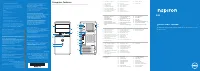 Dell Inspiron 660 User Manual
 Dell Inspiron 710M User Manual
 Dell Inspiron 1000 User Manual
 Dell Inspiron 1011 User Manual
 Dell Inspiron 1200 Troubleshooting Guide
 Dell Inspiron 1410 User Manual
 Dell Inspiron 1420 User Manual
 Dell Inspiron 1464 User Manual
 Dell Inspiron 1470 User Manual