Page 2 - Precautions
Precautions Camera Body Temperature If your camera is used for prolonged periods, the camera body may become warm. Please be aware of this and takecare when operating the camera for an extended period. About the LCD Monitor The LCD monitor is produced with extremely high-precision manufacturing tech...
Page 4 - Table of Contents
2 Table of Contents Changing Resolution/Compression Setting ... 37 Using the Flash ........................................... 39 / Shooting Close-Ups/Infinity Shots ........ 42 Using the Focus Lock ..................................... 43 Using the Self-Timer .................................. 44 S...
Page 6 - Read This First; Please Read; Test Shots
4 Read This First Please Read Test Shots Before you shoot images of subjects of importance to you, we strongly recommend that you shootseveral trial images to confirm that you are operating the camera correctly. Please note that Canon, itssubsidiaries and affiliates, and distributors of its digital ...
Page 7 - WARNINGS; Safety Precautions
5 WARNINGS • Do not aim the camera directly into the sun or at other intense light sources which could damage your eyesight. • Do not trigger the flash in close proximity to human or animal eyes. Exposure to the intense light produced by the flash may damage eyesight. In particular, remain at least ...
Page 10 - CAUTIONS
8 • If using AA-size NiMH batteries, use only Canon AA-size NiMH batteries and charger recommended for use with these batteries. Use of another charger may cause batteries to overheat or deform,posing risk of fire or electric shock. • Disconnect the battery charger or the compact power adapter from ...
Page 11 - Preventing Malfunctions; Avoid Strong Magnetic Fields
9 • If your camera is used for prolonged periods, the camera body may become warm. Please take care when operating the camera for an extended period as your hands may experience a burningsensation. Preventing Malfunctions Avoid Strong Magnetic Fields Never place the camera in close proximity to elec...
Page 12 - Quick Start; Install the batteries (; Install the CF card (; Open the CF card slot cover and insert a CF card.; Turn the mode dial to
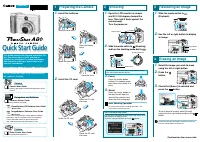
10 Quick Start 3 4 1 Install the batteries ( p. 17). Slide the battery cover lock, then open the cover and insertthe batteries. • For impor tant information about batteries, see page 18. 2 Install the CF card ( p. 20). Open the CF card slot cover and insert a CF card. 3 Press the main switch to turn...
Page 13 - Press the
11 5, 6 5 Set the focus ( p. 34). Aim the camera at the subject, and lightly press and holdthe shutter button halfway down. The camera beeps twicewhen the focus is set. 6 Take the shot ( p. 34). Press the shutter button all the way down. The camerabeeps once to indicate that it has taken the shot. 7...
Page 15 - Preparing the Camera; Guide to Components; Front View
13 Preparing the Camera Guide to Components Front View Shutter Button ( p. 34) Optical Viewfinder Window ( p. 29) AF Auxiliary Light Emitter Red-Eye Reduction Lamp ( p. 41) Self-Timer Lamp ( p. 44) Flash ( p. 39) DIGITAL Terminal* VIDEO OUT Terminal ( p. 86) (PowerShot A20 only) DC IN Terminal ( p. ...
Page 16 - Back View
14 Back View Viewfinder ( p. 29) Strap Eyelet ( p. 23) CF Card Slot Cover ( p. 20) Date Battery Holder ( p. 94) Battery Cover ( p. 17) Battery Cover Lock ( p. 17) Tripod Socket LCD Monitor* ( p. 30) * The LCD monitor is covered with a thin plastic sheet for protection against scratches during shipme...
Page 17 - Operation Panel
15 Operation Panel Indicators ( p. 16) DISPLAY (Display) Button ( p. 30) Zoom Button ( p. 36) Mode Dial ( p. 16) (Exposure) / (White Balance) Button ( pp. 46, 47) Main Switch ( p. 28) MENU (Menu) Button ( p. 78) (Macro) / (Infinity) / (Right) Button ( p. 42) (Continuous) / (Self-Timer) / (Left) Butt...
Page 18 - Mode Dial; • Replay or delete images from the CF card; Indicators; communicate with your computer.
16 Mode Dial You use the mode dial to select thecamera’s operating mode. (Auto) The camera automatically makes most ofthe settings for you ( p. 37). (Manual) You can adjust the exposure, whitebalance, and other settings before shooting( p. 37). (Stitch Assist) Use this mode when taking shots that yo...
Page 19 - Installing the Batteries; Insert the batteries as shown.
17 Installing the Batteries The camera uses four AA sized alkalinebatteries supplied with the camera. You mayuse optional nickel metal hydride (NiMH)batteries. 1 Be sure that the camerapower is off. 2 Slide the battery cover lock,and push the battery coverslightly forward. Then openthe cover. Lower ...
Page 20 - Close the battery cover.; Proper Battery Handling
18 4 Close the battery cover. When the camera’s indicator flashes green,do not turn off the power or open the batterycover. The camera is writing, reading, erasingor transmitting an image to or from the CFcard. • We recommend that you use the optional AC Adapter Kit ACK600 to power thecamera during ...
Page 22 - Battery Status Indications; Installing a CF Card; Battery Performance
20 Battery Status Indications The LCD monitor displays an icon ormessage to let you know when batteriesare low or depleted. Installing a CF Card 1 Be sure that the camera isturned off. Battery Performance * The actual performance may vary from the above data according to the shooting conditions and ...
Page 25 - Attaching the Wrist Strap
23 FC-8M FC-16M FC-32M FC-64M FC-128M 7 15 31 64 128 11 24 49 100 200 24 48 99 200 401 16 32 67 135 271 24 49 102 205 412 46 92 189 379 760 35 70 143 288 577 50 99 206 415 831 87 172 353 707 1417 PowerShot A20 These figures reflect standard shooting conditionsestablished by Canon. Actual totals may ...
Page 26 - Setting the Date and Time
24 Setting the Date and Time If the Set Date/Time menu appears whenyou turn on the camera, this means thatthe date battery has run down and thecamera date/time clock has stoppedrunning. Replace the date battery( p. 94), then reset the date and time as explained below. The Set Date/Time menu also app...
Page 28 - Setting the Language
26 Setting the Language Use this feature to select the language forthe LCD monitor displays. 1 Turn the mode dial to , , or . 2 Press the MENU button. The [Rec. Menu] will display. 3 Press or button to select , and then press the SET button. 4 Press or button to select , and press the SET button.
Page 29 - Select the desired language.; Press the SET button.
27 5 Select the desired language. • Use and button to select a language. The Language menu may appeardifferently on cameras in some regions. The Language menu can also be displayed in replay mode by holding down the SET button andpressing the MENU button. 6 Press the SET button. If you wish to cance...
Page 30 - Turning the Camera On; Basic Functions
28 Turning the Camera On Basic Functions 1 Press the main switch untilthe green indicator beginsflashing. The lens extends, and the LCDmonitor displays current shootingsettings for about 6 seconds. The LCD monitor displays an image. Main Switch Indicator If the Set Date/Time menu appears, set thedat...
Page 31 - Auto Power Down Function; Using the Viewfinder; The camera includes an optical viewfinder.
29 Auto Power Down Function Shooting Mode The power will automatically shut offapproximately 3 minutes after the lastfunction is accessed. Replay Mode The power will automatically shut offapproximately 5 minutes after the lastfunction is accessed. Connected to Card Photo Printer CP-10 The power will...
Page 32 - About the Autofocus Function; Using the LCD Monitor
30 In macro mode, the parallax phenomenonmay cause images composed with theviewfinder to be off-center. Use the LCDmonitor to compose close-ups in macromode. About the Autofocus Function This camera employs AiAF (artificialintelligence autofocus) technology whichuses a broad metering field to calcul...
Page 33 - In
31 In and Modes... You can use the DISPLAY button to switchthe LCD monitor display on and off. The camera stores the LCD monitor on/offsetting in memory, and restores it when youturn the camera on again. If the cameradisplays the “Change the batteries” at time ofpower-on, however, then the LCD monit...
Page 34 - or; Information Displayed on the LCD Monitor
32 Shooting Mode Shooting information appears on the LCDmonitor for approximately 6 seconds whenyou take any of the following actions. Withone exception, this information appearseven if the monitor is turned off. • The power is turned on.• The , , / or / button is pressed. • The camera settings are ...
Page 35 - information
33 Replay Mode (Detailed Display) In detailed mode, the following informationis also shown. Shooting Mode p. 37 Macro/Infinity Mode p. 42 Shooting Method p. 45 Flash p. 39 Exposure Compensation ... ... p. 46 White Balance p. 47 not on the monitor, you can bring it back bypressing , , / or / button. ...
Page 36 - : A JPEG file not supported by; Pressing the Shutter Button
34 The following information may also bedisplayed with some images. : A sound file (WAV file) is attached.: A sound file in a format other than the WAV format is attached or thefile format is not recognized. : A JPEG file not supported by “Design rule for Camera File system”standards. : RAW format f...
Page 39 - Selecting a Shooting Mode; Shooting; Select a shooting mode.
37 Selecting a Shooting Mode Shooting 1 Select a shooting mode. Your camera offers three different shootingmodes. The settings you make in each mode areretained even after you switch into a differentmode. Many of these settings are retainedafter the camera turns off ( p. 52). The camera makes most o...
Page 41 - Using the Flash
39 Using the Flash You can set the flash mode to match theshooting conditions. Approximate File Size for One Image PowerShot A10 (1280 × 960) 693KB 450KB 228KB (1024 × 768) 450KB 294KB 155KB ( 640 × 480) 208KB 141KB 79KB PowerShot A20 (1600 × 1200) 957KB 611KB 302KB (1024 × 768) 450KB 294KB 155KB ( ...
Page 44 - Infinity Shots
42 / Shooting Close-Ups/ Infinity Shots Use this mode to record subjectsin the range of 16 to 76 cm (6.3in. to 2.5 ft.) from the lens tipwhen at maximum wide angleand in the range of 26 to 76 cm(10.2 in. to 2.5 ft.) when at themaximum telephoto setting. Use this mode to recordlandscapes and distant ...
Page 45 - Using the Focus Lock; • Subjects with extremely low contrast to; How to Use the Focus Lock
43 3 Take the shot. • Use the LCD monitor to compose close-ups in macro mode since the parallaxphenomenon may cause images composedwith the optical viewfinder to be off-center. • The exposure may not be optimal when the flash is used in macro mode in the range of16 to 26 cm (6.3 to 10.2 in.). : Avai...
Page 46 - Using the Self-Timer
44 Using the Self-Timer 1 2 1 Turn the mode dial to , , or . 2 Press the / button as necessary so that the appears on the LCD monitor. 3 Take the shot. The self-timer starts when you pressthe shutter down all the way. The self-timer lamp flashes for 10 seconds(flashing more quickly for the final 2se...
Page 47 - Shooting Continuously
45 Shooting Continuously Use this mode to shoot successive frameswhile the shutter button is pressed. 1 2 1 Turn the mode dial to . 2 Press the / button as necessary so that the appears on the LCD monitor. 3 Press the shutter buttondown all the way to startshooting. To stop shooting, release the shu...
Page 48 - Adjusting the Exposure
46 2 Press the / button as necessary to display the[+/– (Exp.)] menu. The exposure compensation barappears on the LCD monitor. 3 Press or button as necessary to adjust thecompensation. • You can set the adjustment from –2 to +2, in 1/3-step increments. If you are shooting against a brightbackground ...
Page 49 - Setting the White Balance; images) to the correct settings for the
47 • If the LCD monitor is on, you can check the results of the compensation byviewing the image on the LCD monitor. • A shot can be taken immediately after. The menu will reappear after the shot,allowing you to adjust the setting. 4 Press the SET button. 5 Take the shot. If you wish to turn compens...
Page 51 - Stitch Assist Mode
49 If using the camera in (Stitch Assist) mode, you cannot change the white balancesetting after taking the first shot. Stitch Assist Mode Use this mode when taking shots that youwant to combine into a panorama. Tocreate the panorama itself, you must stitchthe images together at your computer. To cr...
Page 53 - You can take as many as 26 images.
51 4 Compose the next shot,taking care to overlap theprevious image. • Minor discrepancies in the overlapping por tions can be corrected when theimages are stitched together. • If you are not satisfied with the previous shot, you can use or button to return to that shot and reshoot it. 5 Take additi...
Page 54 - Functions Available in Each Shooting Mode
52 Functions Available in Each Shooting Mode The following chart shows the functions and settings available in each shooting mode. The camera storessettings separately for each mode, and retains these settings even if you switch to a different mode. Function Auto Manual Stitch Assist See page... Lar...
Page 55 - Replaying; Magnifying an Image
53 Replaying Use this feature to view recorded imagesone at a time on the LCD monitor. 1 Turn the mode dial to . The LCD monitor displays the lastrecorded image (single image replay). 2 1 2 Use and button to display different images. • Press button to move to the previous image. • Press button to mo...
Page 56 - Displaying Images in
54 Approximate Locationof the Magnified Area • To slide the magnified image left or right on the monitor, press and button. • To slide the image up or down, hold down the SET button and press or button. • To return to normal-size display, press the button. • You can erase the displayed image by pres...
Page 58 - You can rotate an image by 90; Rotating Images in the Display; Press
56 You can rotate an image by 90 ° or 270 ° clockwise in the LCDmonitor. 1 Turn the mode dial to , and display the image you wantto rotate ( p. 53). 2 Press the MENU button todisplay the menu. Rotating Images in the Display 0 ° (Original) 90 ° 270 ° 3 Press or button to select , and then press the S...
Page 60 - Protecting Images
58 Please note that even protected images areerased when a CF card is reformatted. To cancel protection... Select the image you wish to unprotect, andthen repeat Steps 2 and 3 as necessary. Use the protect feature to protect importantimages from accidental erasure. 1 Turn the mode dial to . 2 Press ...
Page 61 - Erasing Images Singly; Erasing; The LCD monitor asks for confirmation.
59 Erasing Images Singly Erasing • Remember that erased images cannot be recovered. Be careful to avoid accidentalerasures. • This function will not erase protected images ( p. 58). 1 2, 6 3, 4, 5 1 Turn the mode dial to . 2 Press the MENU button todisplay the menu. 3 Press or button to select , and...
Page 62 - Erasing All Images
60 5 Press or button to select [OK], and then pressthe SET button. • If you decide you don’t want to erase the image, select [Cancel] instead of [OK]. • To delete additional images, repeat Steps 4 and 5 as necessary. 6 Press the MENU button toclose the erase function. A faster way to delete an image...
Page 64 - Displaying the Print Order Menu
62 Print Settings (DPOF Settings) Displaying the Print Order Menu 1 Turn the mode dial to . 2 Press the MENU button todisplay the menu. Images on a CF card can be individually selected for printing in a specified number ofcopies. The print type and date or file number printing options can also be se...
Page 65 - Setting the Print Style
63 The [Print Order] menu will display. Make print settings in the followingorder. 1 Set the print style ( p. 63). 2 Select images to be printed( p. 65). If you wish to clear all of the printsettings, select [Reset] ( p. 67). You can set up the print style as follows. Setting the Print Style Print o...
Page 67 - Selecting Images for Printing
65 (File No.) Select [On] or [Off]. 5 When you are finishedmaking settings, press theMENU button. The date and file number options cannot bothbe set to On when (Index) is selected as the print type. If you include the date, the date will beprinted in the format you selected at the SetDate/Time menu ...
Page 68 - Standard or Both
66 The selection method will vary according tothe print type ( ). Standard or Both 3 Press or button to select an image, and thenpress the SET button. The marks appear, indicating thatyou can now set the number of copiesfor that image. You can use the zoom buttons toswitch between single image displ...
Page 69 - Index; Resetting the Print Settings
67 Index 3 Press or button to select an image, and thenpress the SET button. • Pressing the SET button once selects the image for printing. A check mark appearsat the upper left, indicating that the imageis selected. • Pressing the SET button again deselects the image, so that the check markdisappea...
Page 71 - Printing with the Card Photo Printer CP-10; Connecting the Card Photo Printer CP-10
69 The optional Card Photo Printer CP-10* connects directly to your camera, allowing you togenerate beautiful prints quickly and easily. The camera produces both credit-card size andlabel size prints, and can create prints to meet many different needs. You can also makeprints with the DPOF print set...
Page 72 - If the printer is correctly connected, the
70 2 Connect the direct interfacecable to the printer and to thecamera. When disconnecting the cable from thecamera’s Digital terminal, be sure to hold theconnector at its sides and pull it straight out. Digital Terminal • Two direct interface cables are included with the Card Photo Printer CP-10. U...
Page 73 - Printing
71 1 Set the mode dial to . 2 Press or button to select the image you wish toprint, and then press the SETbutton. 3 Press or button to select [OK], and then pressthe SET button to startprinting. When printing is finished, the camerareturns to the replay mode. • You can use the [Style] feature to sel...
Page 74 - Printing stops or restarts accordingly.; Printing with DPOF Print Settings
72 The message onthe left appears ifthe printer runs outof paper duringprinting. The [Resume] option may not appear withcertain types of error. In that case, select[Stop]. The Card Photo Printer CP-10 can printimages marked with DPOF print settings,excluding those with the print type set to[Index]. ...
Page 75 - Stop Printing
73 3 Press or button to select [OK], and then pressthe SET button. Printing begins when you select [OK].When printing completes successfully,the LCD monitor returns to the replaymode. DPOF PrintSetting Current Print Style • Select [Style] if you wish to change the print style ( p. 75). • Select [Can...
Page 76 - Resuming Printing
74 The printer completes printing of thecurrent sheet, and then stops. TheLCD monitor returns to the replaymode. Resuming Printing If you have stopped printing while it was inprogress, you can use the followingprocedure to resume printing of theremaining images. 1 Display the Print Order menu( p. 62...
Page 80 - Camera Settings; Displaying the Rec. Menu
78 Camera Settings You use the Rec. menu to adjust basicshooting and operational settings. Most ofthese menu settings are described below.A few of these menu settings, however, arecovered in other sections of this guide, asfollows. • Resolution ( ), Compression ( ): p. 37 • Date/Time ( ): p. 24 • La...
Page 81 - Changing the Image Review Time
79 Changing the Image Review Time When you take a shot, the camera holdsthe image on the LCD monitor for a specifictime after you release the shutter button.The default holding time (“review time”) isapproximately 2 seconds. If you like,however, you can change the review timeto 10 seconds or switch ...
Page 82 - Resetting the File Number
80 You can use this feature to select whetherthe camera resets the file number eachtime you insert a new CF card. Resetting the File Number • No image will display when the review function is set to Off unless you continue topress the shutter button fully after shooting. • With the 2- or 10-second o...
Page 84 - Setting the Beep On/Off
82 This setting has no effect on beep soundsthat are issued as warnings. The camera willcontinue to emit these warning sounds asnecessary regardless of this setting. A beep sounds for confirmation purposeswhen the shutter button is pressed or acamera setting is changed. The beep canbe turned off. 1 ...
Page 85 - Formatting a CF Card
83 You should format new CF cards beforeusing them. 1 Display the [Rec. Menu]( p. 78). 2 Press or button to select , and then press the SET button. 3 Press or button to select [OK], and press theSET button. Formatting a CF Card Formatting a CF card will permanently eraseall data already on the card,...
Page 87 - Video Signal Format
85 • Auto Power Down does not operate while you are displaying images with thecamera’s auto play feature. • Auto Power Down operates at all times while connecting the camera to a computer. Video Signal Format To use a TV monitor to shoot or replayimages, the video signal format can beswitched to sui...
Page 88 - Connecting the Camera to a TV Set
86 The video output signal can be switched (NTSC or PAL) to accommodate different regionalstandards ( p. 85). The default setting will vary between regions. NTSC: Japan, U.S. A., Canada, Taiwan, etc. PAL: Europe, Asia (excluding Taiwan), Oceania, etc. Connecting the Camera to a TV Set The PowerShot ...
Page 89 - Downloading Images to a Computer; Inserting the CF Card; PC Card Reader; Downloading Directly from a CF Card
87 Downloading Images to a Computer Images can be loaded from a CF card to a computer if you are using a notebook computer,a PC card reader or a CF card reader. PC card adapter (PCMCIA adapter), sold separately,is required to use a PC card reader. Inserting the CF Card PC Card Reader 1 Eject the CF ...
Page 90 - CF Card Reader; Downloading Images
88 CF Card Reader 1 Eject the CF card from thecamera, and insert it into aCF card reader connected tothe computer. • Some computers or CF card readers require the power to be off when the CFcard is inserted. Since this requirementvaries between models, please consultthe manual for your requirement. ...
Page 91 - Image Folder Organization and File Names
89 Image Folder Organization and File Names • Each x above stands for a single numeral.• With the exception of [xxxCANON] folder, all of the folders indicated above store impor tant files used by the camera to manage the image data on the card. Do not open, edit, or delete thesefolders.
Page 92 - • For information about how to install the software, refer to the
90 Connecting the Camera to a Computer with a USB Cable Supported Operating Systems Windows 98 (Including the Second Edition), Windows Millennium Edition (WindowsMe), Windows 2000* Only systems pre-installed with Windows 98/Me/2000 or upgraded to Windows Me from pre-installed Windows 98 systems are ...
Page 93 - Connection Precautions
91 Connection Precautions • With Windows system, the USB ports may not operate correctly on systems that have beenupgraded to Windows 98/Me/2000 fromWindows 3.1/95 or to Windows 2000 from apre-installed Windows 98 system. • With Macintosh computers, the USB interface only works with Power Macintosh ...
Page 94 - Connecting to a USB Port
92 Connecting to a USB Port 1 Connect the supplied USBinterface cable to thecomputer’s USB port and thecamera’s Digital terminal. • You do not need to turn off the computer or camera when making this connection. • Please refer to your computer manual for information regarding the location of theUSB ...
Page 96 - Appendix; Replacing the Date Battery
94 Appendix The camera uses a special Date battery topower its internal clock. If the LCD monitordisplays the Set Date/Time menu whenyou turn on the camera, this means thatthe Date battery has run down and theclock has stopped running. Pleasepurchase a replacement battery (batterytype CR2016) and in...
Page 98 - Using the Optional Battery Kits
96 The indicator flashes while charging, thencomes on solid when charging is finished. Using the Battery and Charger Kit CBK100• This charger can be used only to charge Canon NB-1AH AA-size NiMH batteries.Please do not attempt to charge any othertype of batteries with this charger. • Never mix new b...
Page 101 - Using Optional Lenses and Lens Adapters; Wide Converter WC-DC52
99 Using Optional Lenses and Lens Adapters The camera supports use of the optional Wide Converter WC-DC52 and the optionalClose-up Lens 250D (52 mm). In order to attach either of these options, you also need touse the optional Conversion Lens Adapter LA-DC52. • When attaching the wide converter or c...
Page 102 - Shooting Ranges in Macro Mode
100 Conversion Lens AdapterLA-DC52 (52 mm) This optional adapter isrequired for attaching theoptional wide converterand the optional close-uplens. Close-Up Lens 250D (52 mm) This lens makes it easy to take macroshots. With the camera set to Macro mode,you can use this option to shoot subjectsthat ar...
Page 103 - Attaching a Lens
101 Attaching a Lens 1 Be sure that the camera isturned off. 2 Attach the dust cap to theadapter as shown in theillustration on the opposite page. 3 Push the adapter against the ringaround the lens and turn it in theindicated direction whilepressing on it to remove the ring. 4 Remove the dust cap, a...
Page 105 - Camera Care and Maintenance; When the camera becomes dir ty, clean it as follows.
103 Camera Care and Maintenance When the camera becomes dir ty, clean it as follows. Camera Body: Wipe the camera body with a soft cloth or eyeglass lens wiper. Lens: Clean the lens with a lens blower brush, then wipe lightly with a soft cloth.• Never wipe the camera body or lens with organic solven...
Page 106 - Troubleshooting; Problem
104 Troubleshooting Problem Cause Solution Press the main switch for a few moments. Be sure these covers are closed securely. Reload the batteries in the correctdirection. • Replace with new alkaline or fully recharged batteries (four AA-sizebatteries). • Use a household power source. Use only new A...
Page 111 - List of Messages
109 List of Messages The following table explains each of the messages that may appear on the LCD monitor. Busy... The camera is writing image data to the CF card (after taking a shot), or readingimage from the card (when getting ready to display it). No CF card You attempted to shoot or replay with...
Page 114 - Specifications
112 Specifications PowerShot A10 PowerShot A20 Image Sensor Approx. 1.32 million-pixel (total). 1/2.7 in. CCD Approx. 2.11 million-pixel (total). 1/2.7 in. CCD (effective pixels: approx. 1.25 million) (effective pixels: approx. 2.02 million) Lens 5.4 (W) – 16.2 (T) mm (35 mm film equivalent: 35 – 10...
Page 117 - CompactFlashTM Card
115 Wide Converter WC-DC52 (optional) Magnification Approx. 0.7 × Focusing Range 60 mm (2.4 in.) – ∞ (when mounted on PowerShotA10 or A20, at maximum wideangle) Thread Diameter 52 mm standard filter thread(Conversion Lens AdapterLA-DC52 is required formounting to PowerShot A10 orA20) Dimensions Diam...
Page 120 - Canon Deutschland GmbH; Canon Customer Support
118 Canon Inc. 30-2 Shimomaruko 3-chome, Ohta-ku, Tokyo146-8501, Japan NORTH AMERICA Canon U.S.A., Inc. Canon Customer Care CenterPhone (US): 1-800-828-4040 (Available Mon. -Fri., 9 AM to 8 PM Eastern Time) Canon Canada Inc. Phone (Canada): 1-800-OK-CANON (1-800-652-2666) (24 hours/day, 7 days/week)...
Page 122 - OCEANIA; Canon New Zealand Ltd.; ASIA; Canon Marketing Services
120 OCEANIA Canon Australia Pty. Ltd. Info-Line: (02) 9805 2864 Canon New Zealand Ltd. Info-Line: 0900-522666 ASIA Canon Singapore Pte. Ltd. 79 Anson Road, #09-01 / 06,Singapore 079906Phone: (65) 532 4400 Fax: (65) 221 7577 Canon Hongkong Co., Ltd. 9/F, The Hong Kong Club Building,3A Chater Road, Ce...
Page 123 - FCC Notice
FCC Notice (Digital Camera, Model PC1007 and PC1009) This device complies with Part 15 of the FCC Rules. Operation issubject to the following two conditions;(1) this device may not cause harmful interference, and(2) this device must accept any interference received, includinginterference that may ca...


 Canon PIXMA TS9550 User Manual
 Canon PIXMA TS9551C User Manual
 Canon Powershot Manual
 Canon POWERSHOT 220 HS User Manual
 Canon PowerShot 350 User Manual
 Canon PowerShot A10 Manual
 Canon Powershot A50 User Manual
 Canon Power Shot A70 Manual
 Canon Power Shot A80 Manual
 Canon POWERSHOT A80 User Manual
 Canon PowerShot A85, A75 Manual
 Canon PowerShot A200 Manual